
Typing a long message with your thumbs on a small keyboard is tedious; typing becomes difficult when you have sore hands, poor vision, or simply busy hands. The solution is here, free and integrated into all your devices: **VOICE DICTATION**. You speak, the device writes — messages, emails, notes, searches. It’s fast, practical, and increasingly reliable. You just need to know how to activate it, articulate well, dictate punctuation, and correct errors. Here’s how to write by voice efficiently on iPhone, Android, and computer.
Voice dictation: for whom, for what?
The PRINCIPLE: instead of typing, you SPEAK, and the device transcribes your words into text in real time, in the field where you are writing (a message, an email, a note, a search bar…). It’s a BUILT-IN and FREE function on all modern smartphones and computers; nothing to install. For WHOM? For EVERYONE, in reality, but it is particularly precious for: those who find keyboard typing SLOW or tedious (especially on phone); people with DIFFICULTIES typing (pain, arthritis, tremors, reduced hand mobility); those who can’t see the keyboard well; those with BUSY or dirty hands (while cooking, DIYING); and all those who want to go FASTER (we speak much faster than we type). For WHAT? Writing MESSAGES and EMAILS (the most common use: dictating a text is much faster than typing it), taking NOTES, doing SEARCHES on the internet, filling in text fields, and generally anywhere you write. It’s also a fantastic ACCESSIBILITY tool: for someone who struggles to type, dictation opens or reopens comfortable digital use (our digital accessibility guides). The RELIABILITY: voice recognition has made huge progress; it is now very good for clear speech, in a not too noisy environment; it’s not perfect (it can make mistakes on rare words, proper nouns, in noise), but largely sufficient for daily use, provided you REVIEW and correct. What to remember to get started: voice dictation is a simple, free, built-in tool that allows you to write by speaking — a time saver for everyone, and a real comfort (or even a necessity) for those who find keyboard typing discouraging or difficult. Let’s see how to use it on each device.
How to use it on each device
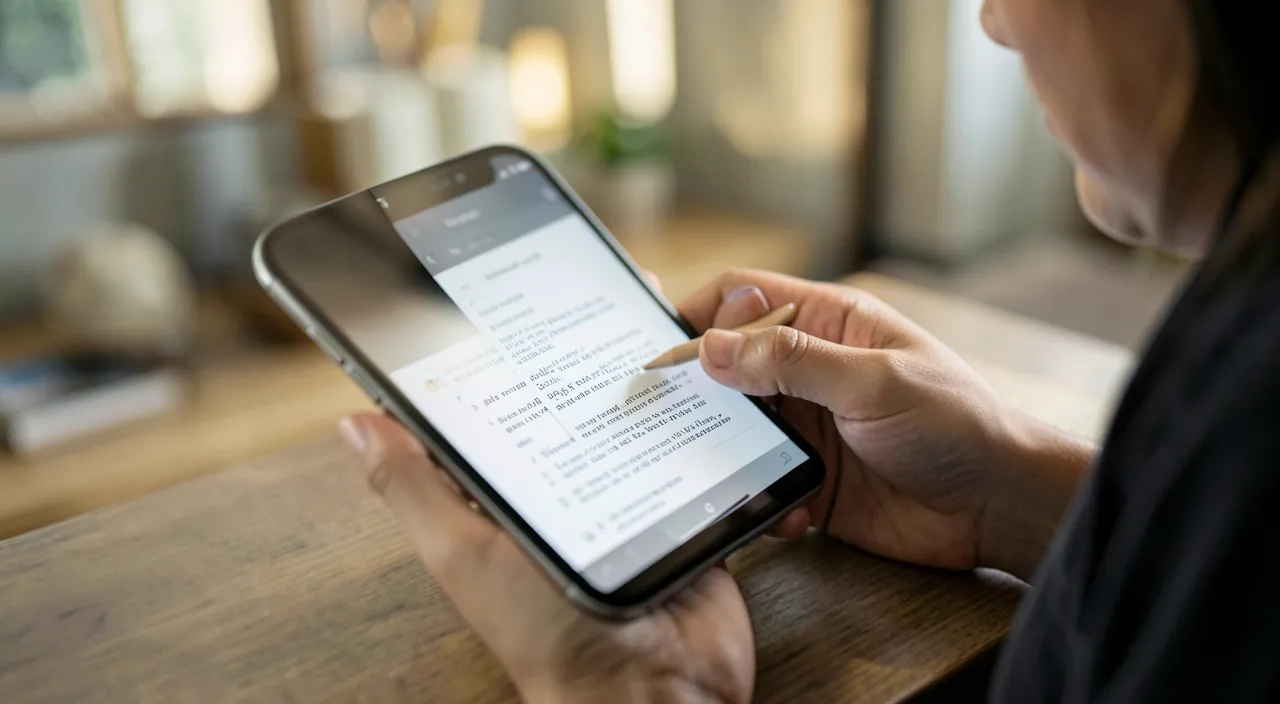
Activating dictation is simple everywhere: it’s where you write. On IPHONE (and iPad): as soon as the KEYBOARD appears (when you are in a text field), tap the MICROPHONE icon (usually at the bottom of the keyboard, to the right of the space bar); speak, and the text is written; tap the microphone (or the keyboard) again to stop. It’s available in almost all apps where you write. On ANDROID: similarly, when the keyboard (often Gboard) is displayed, tap the MICROPHONE icon (at the top or in the keyboard bar); speak; the text appears. On MAC: enable dictation in System Settings (Keyboard section → Dictation), then, in any text field, trigger it with the shortcut provided (often a double press on a key, configurable); speak, the text is written. On WINDOWS: a keyboard shortcut (Windows key + H) launches voice input in the field where the cursor is; speak, the text appears. In all cases: the device’s MICROPHONE must work and be allowed; speak at a normal distance, in a not too noisy environment. The FIRST time, the device may ask you to enable the feature or download linguistic data; follow the instructions. The LANGUAGE: check that the dictation language matches the one you speak (in the keyboard/dictation settings); you can often manage multiple languages. Offline functionality: on recent devices, dictation works more and more WITHOUT an internet connection (processing is done on the device), which is faster and more privacy-friendly; on others or for certain languages, a connection may be required. In short: look for the MICROPHONE icon on your keyboard (phone) or enable dictation in settings then via a shortcut (computer); speak clearly; the text is written on its own. It’s as simple as that — try with a message, you’ll be surprised by the speed.
Voice dictation turns your speech into text. It works best when you speak clearly in a quiet place and say punctuation out loud. Always check what it writes before sending.
Imagine dictating a shopping list: “Milk, comma, bread, comma, eggs, period, and some fruit, question mark.” The device writes: “Milk, bread, eggs. And some fruit?”
Keys to a successful dictation: articulate, dictate punctuation, and review. A few techniques make all the difference between a frustrating and an effective dictation. ONE: SPEAK clearly and at a natural pace — neither too fast nor mumbling; articulate without exaggerating; no need to shout, speak normally but distinctly; place yourself in a not too noisy environment (background noise interferes with recognition). TWO: DICTATE the PUNCTUATION — that’s the reflex that changes everything! Dictation doesn’t guess punctuation: you have to say it out loud. Say « comma, » « period, » « question mark, » « exclamation mark, » « colon, » « semicolon, » « open parenthesis »… at the right places; for a line break, say « new line » or « line break »; for a new paragraph, « new paragraph. » For example: « Hello Marie comma new line I hope you’re well question mark » gives a correctly punctuated text. It seems strange at first, but it quickly becomes automatic, and it’s essential for a clean text. THREE: REVIEW always before sending — dictation is good but not perfect; it can make mistakes on a word, a proper noun, a homophone (a word that sounds like another); quickly review and CORRECT errors (by tapping the wrong word to replace it, on the keyboard or by a new dictation). Never send a dictated message without a glance: a transcription error can change the meaning or cause confusion. Bonus: you can ALTERNATE dictation and keyboard — dictate the bulk of the text, then correct or add on the keyboard; both complement each other. With these three reflexes — speaking clearly in a quiet place, dictating punctuation, reviewing and correcting — voice dictation becomes a truly effective and reliable tool that will save you precious time, especially on phone where typing is laborious.
Dictation, voice assistant, transcription: don’t confuse them
Several voice technologies coexist; let’s clarify to avoid confusion. VOICE DICTATION (the subject of this article): it turns your speech into WRITTEN TEXT in a text field; you write by speaking, but it’s YOU who decides the content, word by word; the result is text that you review and send. VOICE ASSISTANTS (Siri, Google Assistant, Alexa…): they UNDERSTAND a request and ACT (answer a question, set a timer, send a message, give the weather); it’s different: you give them an ORDER, they execute; you can ask them « send a message to… saying… » (which uses dictation internally), but their role is to act, not just transcribe (our guides on using a voice assistant). AUDIO TRANSCRIPTION: turning a recording (a meeting, a voice note, a video) into text; it’s voice recognition applied to an existing audio, not to your live dictation; useful for transcribing memos or meetings. Why this distinction MATTERS: it avoids confusion; when you want to WRITE text by speaking, it’s DICTATION (microphone icon on the keyboard); when you want a device to DO something, it’s the voice assistant; when you want to transcribe a recording, it’s transcription. A point on PRIVACY common to these technologies: voice recognition can be done ON the device (more private, and increasingly common) or send your voice to servers for processing (depending on the device, language, settings); for dictating sensitive texts, prefer devices that process locally, and be aware of what you dictate (our guides on voice assistants and privacy). In short: dictation writes what you say (you keep control of the text), the voice assistant executes orders, transcription converts a recording; three related but distinct uses; to write by speaking, it’s dictation you need, via the microphone icon on your keyboard.
Warning: always review a dictated text, and think about your privacy and surroundings. A few precautions for using voice dictation well. First, REVIEWING is essential: as good as it is, dictation is not perfect; it can mis-transcribe a word, confuse homophones (words that sound the same but are written differently — « ces / ses / c’est, » « a / à »…), struggle with proper nouns or technical terms, or misinterpret in noise. NEVER send a dictated message without reviewing it: a transcription error can change the meaning, create a misunderstanding, or even an awkward or embarrassing situation; a quick glance before sending avoids many troubles. Then, PRIVACY: depending on your device and settings, your voice may be processed locally (more private) or sent to remote servers for recognition; avoid dictating very sensitive information (passwords, confidential data) if you’re not sure the processing stays on the device; prefer, for these cases, recent devices that dictate offline (our guides on protecting personal data). Third point, SURROUNDINGS: dictating means speaking out loud; in a public place, transport, shared office, what you dictate can be HEARD by people around; don’t dictate private messages or confidential information within earshot of others; also out of respect for the calm of the place (a library, a quiet train), use dictation appropriately. Fourth point: in a VERY noisy environment, dictation works poorly; the keyboard is then more reliable; know how to alternate according to the context. Finally, for specific languages or accents, recognition may be less precise: check that the correct language is selected, and be indulgent, the technology is constantly improving. Voice dictation is a fantastic tool for speed and accessibility; used with these precautions — always reviewing, protecting what you dictate, considering your surroundings — it provides great service without surprises.
Frequent questions
How to activate voice dictation on my phone?
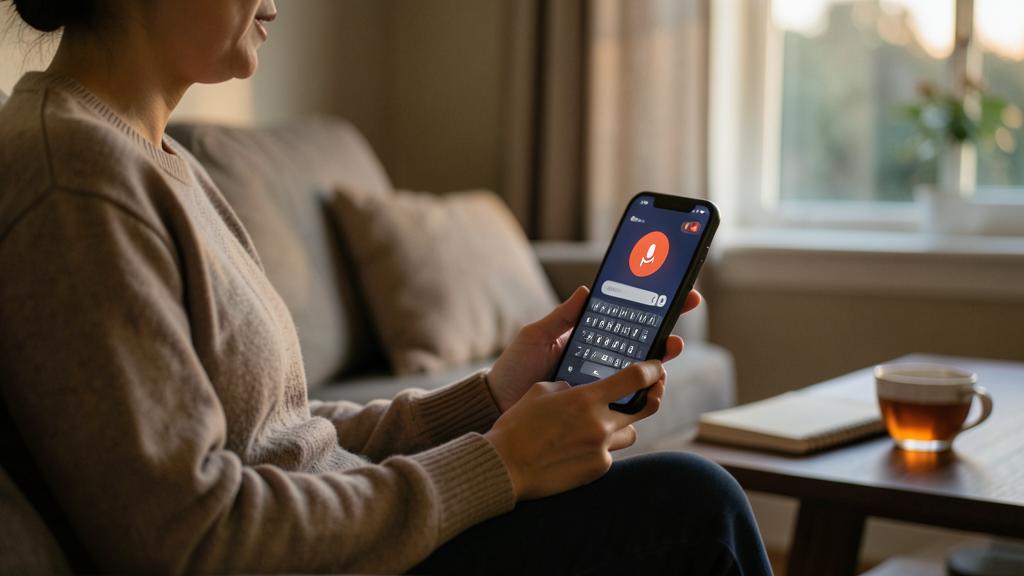
It’s very simple and it’s right on the keyboard. As soon as you are in a field where you write (a message, an email, a note, a search) and the KEYBOARD appears on the screen, look for the MICROPHONE icon. On IPHONE, it is usually at the bottom of the keyboard, to the right of the space bar; tap it, and speak: the text is written as you go; tap the microphone (or the keyboard) again to stop. On ANDROID (with the Gboard keyboard, the most common), the microphone icon is often at the top right of the keyboard or in its toolbar; tap it and speak the same way. The first time, the device may ask you to ALLOW access to the microphone, or to download data for voice recognition: accept and follow the instructions. Also check that the LANGUAGE of dictation matches the one you speak (adjustable in the keyboard settings). If you don’t see the microphone icon: it may be disabled in the keyboard settings (enable « voice input » / « dictation »), or hidden in a submenu. Once found, it’s a simple gesture: tap the microphone, speak, and watch your speech turn into text — particularly practical for long messages that would be tedious to type with your thumbs.
How to dictate punctuation and line breaks?
By saying them out loud: it’s the essential reflex of a good dictation. Voice dictation does NOT guess punctuation; you must PRONOUNCE it explicitly at the right places. Concretely, say: « comma » for a comma, « period » for a period, « question mark » for « ? », « exclamation mark » for « ! », « colon » for « : », « semicolon », « open parenthesis » / « close parenthesis », « quotes », etc. For LINE BREAKS: say « new line » or « line break » for a simple return, and « new paragraph » to skip a line. For example, by saying « Hello comma new line how are you question mark », you get: « Hello, » (line break) « how are you? ». It’s a bit confusing at first — we’re not used to « saying » punctuation — but it quickly becomes natural, and it’s essential to get a correctly punctuated and readable text. Without this, your text would be a long block without commas or periods. Tip: if you forget to dictate punctuation, no panic: you can always add it later on the keyboard during review. But getting into the habit of dictating punctuation as you speak will save you a lot of correction time.
What to do if dictation makes many errors?
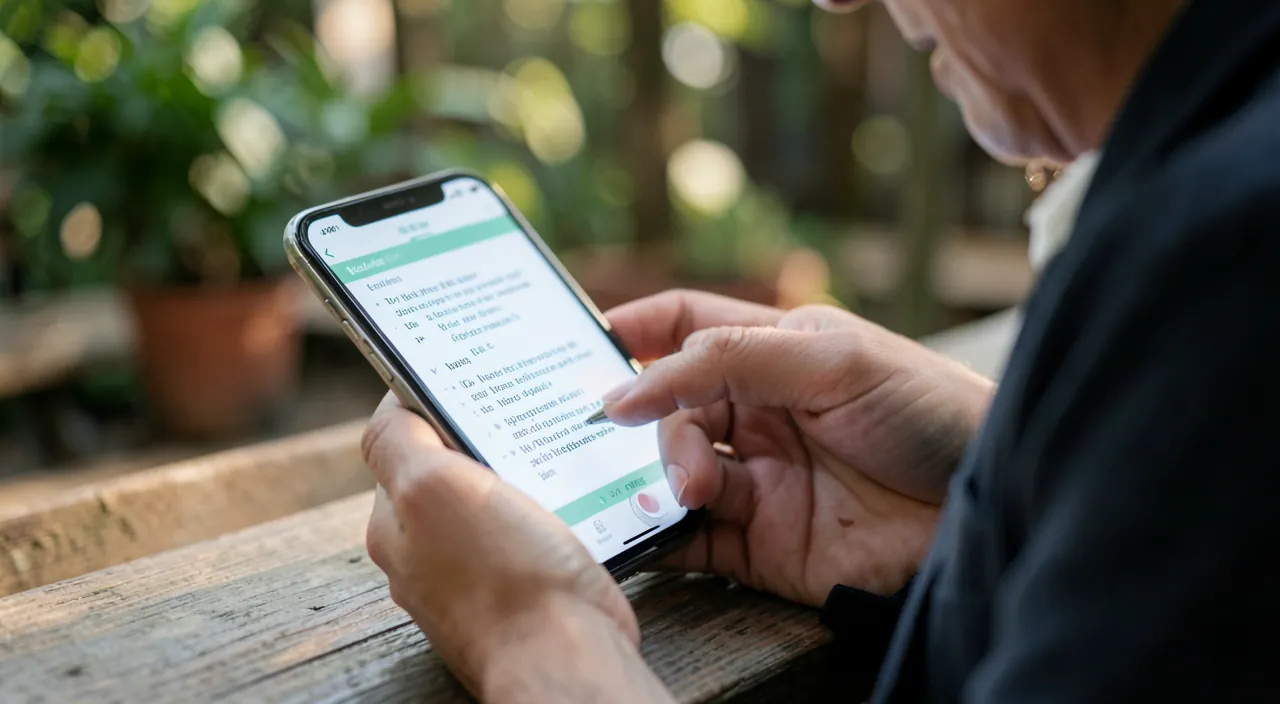
Several tips to improve accuracy. First, the ENVIRONMENT: background noise is the number one enemy of voice recognition; place yourself in a QUIET spot; in a noisy place, errors multiply. Then, ELOCUTION: speak CLEARLY, at a steady pace, articulating without exaggerating; neither too fast nor mumbling; hold the device at a normal distance (not too far). Check the LANGUAGE selected: if dictation is set to a different language or accent than yours, it will make many mistakes; adjust it in the keyboard/dictation settings. Check your CONNECTION if your device dictates online (an unstable connection can degrade recognition; recent devices often dictate offline, which is more reliable). For DIFFICULT words (proper nouns, technical terms, rare words), dictation struggles more often: dictate the bulk of the text by voice, then correct these words on the KEYBOARD; alternating dictation and typing is perfectly possible and often the most effective. Finally, voice recognition IMPROVES with your device’s updates; keep it up to date. If despite everything dictation remains poor for your voice or use, it’s not serious: use it for what it does well (common messages, quick notes) and the keyboard for the rest. But in a quiet place, speaking clearly, and with the right language, most people get excellent results: often, correcting the environment and elocution is enough to turn an error-filled dictation into a reliable transcription.
What to remember
Voice dictation turns your speech into written text: a built-in and free function on all devices, allowing you to write by speaking — messages, emails, notes, searches. It saves time for everyone (we speak faster than we type, especially on phone) and provides a precious service to those who find keyboard typing difficult (pain, vision, busy hands): it’s a real accessibility tool. To USE IT: on smartphone, tap the MICROPHONE icon on the keyboard (iPhone: to the right of the space bar; Android: in the keyboard bar) and speak; on computer, enable dictation in settings then launch it with a shortcut (Windows: Windows key + H; Mac: configured shortcut). The KEYS to successful dictation: 1) speak CLEARLY in a quiet place (noise is the enemy of recognition); 2) DICTATE punctuation out loud (« comma, » « period, » « new line »…) — that’s the reflex that changes everything, because dictation doesn’t guess it; 3) REVIEW always before sending and correct errors (mis-transcribed words, homophones), on the keyboard if needed — you can alternate dictation and typing. Don’t CONFUSE dictation (write by speaking, you keep control of the text), voice assistant (give orders to execute), and transcription (convert a recording). On PRECAUTIONS: always review (an error can change the meaning), think about privacy (avoid dictating sensitive information if processing is not local), and consider your surroundings (dictating means speaking out loud: what you say can be heard). If dictation makes errors: check the environment (quiet), elocution (clear), and selected language — these three adjustments often make it reliable. Once these reflexes are acquired, writing by voice becomes fast, practical, and reliable: a real comfort in daily life, and sometimes much more than comfort — a gateway to the digital world for those who were put off by the keyboard.
Want to gain confidence with your digital tools? Our personalized training adapts to your level.
Leave a Reply
You must be logged in to post a comment.