
You turn on your computer: it hums, the lights come on, you hear the fan… but the SCREEN remains desperately BLACK. No logo, no desktop, nothing. Don’t panic: in most cases, this isn’t a serious failure, and the issue often comes from a simple cause to identify — a display problem, a cable issue, brightness, or sleep mode. Before imagining the worst (and an expensive repair), follow a methodical approach. Here’s how to diagnose and fix a black screen when the device is on.
Black screen: understanding the problem
A black screen on a working device is confusing, but let’s first clarify what’s happening. The typical situation: the computer SEEMS on (lights, fan noise, possibly sounds), but the screen displays NOTHING — either completely black or lit but empty. The good news: in many cases, the device IS WORKING; it’s “just” the display that isn’t responding; the problem is therefore often less serious than it appears. Possible CAUSES, from the most trivial to the most serious: the screen is in SLEEP mode and won’t wake up (the computer went to sleep and the screen stays black); a BRIGHTNESS issue (the screen is on but set to minimum, so black); a CABLE or connection problem (on an external/fixed screen: cable not plugged in, wrong input selected); a DISPLAY issue (the computer is sending the image to another screen, or the wrong port); a SYSTEM FREEZE at startup (the computer is stuck); more rarely, a HARDWARE issue (graphics card, screen panel). The key: DON’T jump to conclusions about a serious failure; most of these causes can be checked and resolved easily. The APPROACH: proceed in STEPS, from simplest to most complex, to identify the cause; that’s the key to successful troubleshooting (our method guides for DIY repairs). You also need to DISTINGUISH the cases: black screen from startup vs. screen turning black after working; laptop vs. desktop with separate screen (on a desktop, the issue could come from the screen, the cable, or the main unit, which helps with diagnosis). What to remember to start: a black screen on a powered-on device is common and often harmless; before panicking or paying a technician, follow a methodical approach; you’ll resolve the issue yourself in most cases. Let’s look at the checks, in order.
Most black screens happen because the computer is working but the display isn’t. The screen might be asleep, too dim, or disconnected. Rarely, it’s a hardware problem. Always check simple things first before worrying.

Your laptop turns on, the keyboard lights up, but the screen stays black. You press a key and the screen wakes up. The problem was just sleep mode. Another time, you connect an external monitor but forget to select the correct HDMI input, resulting in a black screen. These are common, easy-to-fix scenarios.
The checks to perform, in order
Let’s proceed from simplest to most complex; test after each step. STEP 1 — is the device REALLY on and AWAKE? Press a keyboard key, move the mouse, or briefly press the power button: the screen may just be in SLEEP mode and will wake up this way; this is the most common and trivial cause. STEP 2 — the BRIGHTNESS: on a laptop, check that the brightness isn’t at MINIMUM (brightness keys, often with the F keys, or via a shortcut); a screen set to its lowest appears black; increase the brightness to see if an image appears in transparency. STEP 3 — the CABLES (on external/fixed screen): check that the video cable between the screen and the computer is properly CONNECTED on both sides (unplug-replug); that the screen is properly ON (its own button, its light); and that the correct INPUT is selected on the screen (many screens have multiple inputs: HDMI, etc.; the wrong choice gives a black screen). STEP 4 — the DISPLAY to another screen: the computer may be sending the image to a disconnected external screen, or the wrong port; if you had connected a second screen, unplug it; there are shortcuts to switch the display. STEP 5 — the FORCED RESTART: if nothing wakes the screen and the computer seems frozen, force the shutdown (hold the power button for a few seconds until it turns off completely), wait, then turn it back on; the restart resolves many freezes (our guides on why restarting fixes most bugs). STEP 6 — the POWER (laptop): make sure the battery isn’t completely dead; plug in the charger and wait a bit; a dead laptop can give misleading signs. STEP 7 — UNPLUG the peripherals: sometimes a faulty USB device blocks the startup; unplug everything (USB keys, disks, etc.) and restart. STEP 8 — test the SCREEN itself (on desktop): if possible, test with ANOTHER screen or another cable, to know if the problem comes from the screen or the computer; or plug your screen into another device. After these steps, most black screens are resolved or, at minimum, you’ve IDENTIFIED the cause (sleep, brightness, cable, freeze). If the computer restarts and displays again, the issue was software/temporary. If nothing works after a forced restart and basic checks, the problem may be more serious (hardware); see the next section.
The 3 reflexes that resolve most black screens. Before any complicated diagnosis, try these three simple actions, in order; they’re enough in most cases. ONE: WAKE the device. Press a keyboard key (the space bar), move the mouse, or briefly press the power button (a short press, not held). Very often, the screen is simply in SLEEP mode and wakes up immediately; this is the number one, trivial, and immediate cause. TWO: check the BRIGHTNESS and CABLES. On a laptop, increase the brightness (dedicated keys, often among the F keys); a screen set to minimum appears black. On a desktop with a separate screen, check that the screen is on (its light), that its cable is properly plugged in on both sides (unplug-replug firmly), and that the correct INPUT is selected on the screen (with its buttons: HDMI, etc.; the wrong choice = black screen). THREE: FORCE the restart. If the screen stays black despite everything, the computer may be FROZEN: hold the power button down for a few seconds (5 to 10) until it turns off completely; wait about ten seconds; then turn it back on normally. This forced restart unlocks many situations (the computer froze during startup or sleep; our guides on why restarting fixes most bugs). These three reflexes — waking, checking brightness/cables, forcing a restart — resolve most black screens in a few seconds, without skills or tools. Do them CALMLY and in order, testing after each; don’t jump to the conclusion “it’s broken”; nine times out of ten, it’s one of these three actions that gets your screen working again. It’s only if none work, after several attempts, that the problem deserves to be considered more serious.

When the problem persists: more serious causes
If the basic checks and forced restart don’t bring back the display, the problem may be deeper; here’s how to narrow it down and react. Distinguish SOFTWARE and HARDWARE: if the computer emits normal startup sounds, if the lights come on as usual, but the screen stays black, the issue may be a more complex display problem (graphics driver, frozen system); if there are unusual beeps, lights blinking strangely, or no signs of life, this points to a hardware issue. The SAFE MODE / reset: in some cases of software display issues, starting in “SAFE MODE” (a way to start the system in minimal configuration) may allow you to recover a display and fix (for example a faulty graphics driver); it’s a bit technical, but procedures exist depending on your system. Resetting certain low-level hardware settings may also help (key combinations at startup exist depending on the device). Possible HARDWARE causes: the SCREEN PANEL is defective (especially if you see a very faint image by shining a strong light on the screen: the backlight may be the issue); the GRAPHICS CARD; an internal component; on a laptop, sometimes the ribbon connecting the screen. These hardware causes usually require a REPAIR PERSON. Test with an external screen (laptop): on a laptop whose screen stays black, connect an EXTERNAL SCREEN; if the image appears on the external screen, the problem comes from the laptop’s internal screen (or its connection), not the computer itself: valuable information for the repair person. WHEN to consult a professional: if after all software checks (waking, brightness, cables, forced restart, possibly safe mode) the screen stays black, and especially if the signs point to hardware (beeps, no display even on an external screen, very faint image visible by shining light), it’s time to have the device diagnosed by a professional; don’t insist with risky manipulations (our guides on when to call a repair person). Back up if possible: if you manage to temporarily recover the display, use the opportunity to BACK UP your important data, in case the problem worsens (our guides on backing up your data). In summary: if the problem persists after the basics, try to distinguish software and hardware (beeps, external screen), attempt a safe mode startup for software display issues, and if it’s clearly hardware or unsolvable, entrust the device to a repair person rather than insisting. Most black screens are fixed before getting to this point, but knowing how to recognize a real hardware problem saves time.
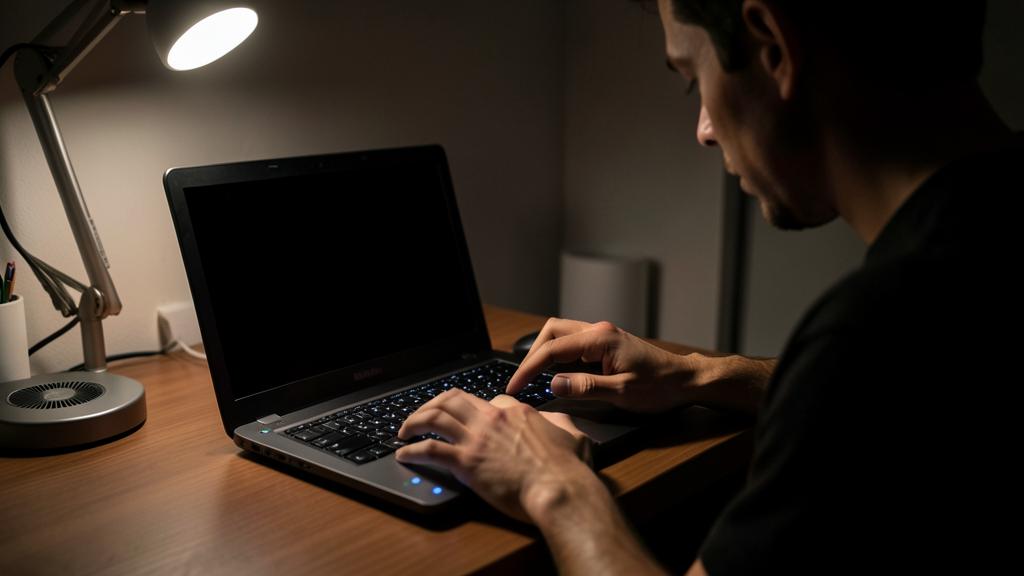
Warning: don’t jump to conclusions about a serious failure, but know how to recognize real warning signs. Two extremes to avoid with a black screen. First, PREMATURE PANIC: most black screens are NOT serious failures; don’t conclude “my computer is dead” or rush to a repair person (or buy a new device!) before doing the basic checks: waking the device, checking brightness and cables, forcing a restart; nine times out of ten, one of these actions resolves the problem in a few seconds; it would be a shame to pay or replace for a screen simply in sleep mode or set to minimum brightness. Conversely, don’t PERSIST with risky manipulations if the problem resists: avoid repeatedly forcing brutal restarts, disassembling the device without knowing, or following “miracle solutions” found randomly that could make things worse; after reasonable checks, if nothing works, a professional diagnosis is better. SIGNALS that point to a real hardware problem (and thus a repair person): unusual BEEPS at startup, lights blinking abnormally, a burning smell or overheating (in this case, TURN OFF immediately and unplug; our guides on overheating computers), a screen that stays black EVEN on an external screen (on a laptop), or a very faint image visible only by shining a strong light on the screen (failing backlight). Another precaution: if you manage to recover the display, even temporarily, BACK UP your important data immediately; a black screen can sometimes precede a wider failure, and it would be a shame to lose your files (our guides on backing up your data). Finally, clearly distinguish your setup: on a DESKTOP with a separate screen, the problem may come from the screen, the cable OR the main unit; test the screen on another device (or another screen on your computer) to know which is at fault before concluding; sometimes an entire computer is unnecessarily replaced when it’s just the screen (or the cable) that’s dead. By keeping calm, following the methodical approach, and recognizing real hardware warning signs, you’ll avoid both unnecessary panic and unproductive persistence.

Frequent questions
My computer turns on but the screen stays black: is it serious?
Most often, no: in the majority of cases, it’s not a serious failure, and the device is working; it’s “just” the display that isn’t responding. The most frequent causes are trivial: the screen is in SLEEP mode and didn’t wake up (press a key or move the mouse); the BRIGHTNESS is at minimum (increase it); on an external screen, a cable not properly plugged in or the wrong input selected; or the computer is FROZEN (a forced restart unfreezes it). So start with these simple checks before worrying: wake the device, check brightness and cables, force a restart (hold the power button for a few seconds); nine times out of ten, one of these actions resolves the problem. It’s only if NOTHING works after these steps — and especially if you notice worrying signs (abnormal beeps at startup, no display even on an external screen, burning smell, very faint image visible only by shining light on the screen) — that the problem may be more serious (hardware: panel, graphics card…) and warrant a repair person. So: don’t panic right away; a black screen is common and generally harmless; follow the basic approach, and you’ll resolve it yourself in most cases. Keep in mind that even if it’s hardware, it’s often repairable (sometimes just the screen or the cable on a desktop), and not necessarily the end of the computer.
How to know if the problem comes from the screen or the computer?
A simple test often decides: plug in ANOTHER screen. On a LAPTOP whose screen stays black: connect an EXTERNAL SCREEN (a monitor, a TV via an appropriate cable); if the image appears on the external screen, this means the computer is working and the problem comes from the LAPTOP’S INTERNAL SCREEN (its panel, backlight, or the ribbon connecting it); if even the external screen stays black, the problem is more on the computer’s side (display, graphics card, or freeze). On a DESKTOP with a separate screen: the opposite reasoning; test your screen on ANOTHER computer (or test your computer with ANOTHER screen); if your screen doesn’t work on any device, it’s the screen (or its cable) that’s at fault; if it works elsewhere, it’s the main unit. Also think about testing with ANOTHER CABLE (a faulty video cable gives a black screen), and check the correct input selected on the screen. Other clues: if the computer emits its usual startup sounds and the lights come on normally, it’s “running” probably (the issue is more the display/screen); unusual beeps point to an internal hardware problem. This distinction is VERY useful: it avoids unnecessarily replacing an entire computer when only the screen (or the cable) is dead, which costs much less; and it gives the repair person valuable information. So do this external/alternate screen test before any conclusion: it clearly guides the diagnosis.

Can a forced restart damage my computer?
Occasionally and done correctly, no: it’s a safe and often necessary maneuver to unfreeze a stuck device. The forced restart (holding the power button for a few seconds until it turns off completely) is precisely INTENDED for situations where the computer no longer responds; it’s the normal way to exit a freeze when a normal shutdown is impossible (since the screen is black and the device doesn’t respond). Done occasionally, it won’t damage the hardware. The ONLY small risk concerns data being written at the time of the cutoff: if a file was being saved, it could be incomplete; but in the case of a black screen where you can’t do anything else, this risk is theoretical and minor (nothing is really “in progress” if the device is frozen). What to avoid: DON’T make a habit of always turning off your computer by the button for daily shutdowns (prefer a normal shutdown when possible); and DON’T MULTIPLY forced restarts in quick succession if the problem persists (if a first forced restart doesn’t solve it, doing ten in a row won’t help and isn’t ideal; move on to other checks). But to unfreeze a black screen on a stuck device, the forced restart is the right action, safe and effective: hold the button for a few seconds until it turns off, wait about ten seconds, then turn it back on normally. It’s one of the reflexes that resolves the most freezes, including black screens; don’t hesitate to use it in this context.
What to remember
A black screen on a device that’s clearly on (lights, fan, sounds) is common and, in most cases, NOT serious: often the device is working, it’s “just” the display that isn’t responding. Before panicking or paying a technician, follow a METHODICAL approach, from simplest to most complex. The 3 reflexes that resolve most cases: 1) WAKE the device (keyboard key, mouse, brief press on the power button — the screen is often just in sleep mode); 2) check the BRIGHTNESS (at minimum = black screen) and CABLES (on external screen: properly plugged in, screen on, correct input selected); 3) FORCE the restart (hold the power button for a few seconds until it turns off, then turn it back on — unfreezes a stuck device). Also check the power (laptop plugged in), unplug USB peripherals, and on a desktop, test with another screen/cable. To KNOW where the problem comes from: plug in an EXTERNAL SCREEN on a laptop (if the image appears on it, it’s the internal screen that’s at fault, not the computer); on a desktop, test the screen on another device. If the problem PERSISTS after the basics: attempt a safe mode startup (software display issues), and distinguish software and hardware (abnormal beeps, lights, external screen). SIGNALS of a real hardware problem (→ repair person): unusual beeps, no display even on an external screen, very faint image visible by shining light (backlight), burning smell (then turn off immediately). Two extremes to avoid: premature panic (don’t conclude a serious failure before basic checks: nine times out of ten it’s harmless) and persistence (don’t multiply risky manipulations; after the basics, if nothing works, consult a professional). If you recover the display, even temporarily, BACK UP your data as a precaution. On a desktop, remember that replacing a dead screen or cable costs much less than replacing the entire computer. By keeping calm and following these steps in order, you’ll resolve most black screens yourself — and know how to recognize the rare cases that really need a repair person.



Persistent failure, temperamental device? Our remote troubleshooting service resolves your problem quickly, without jargon.
Leave a Reply
You must be logged in to post a comment.