
No internet: the quintessential modern outage — remote work suspended, TV silent, smart home orphaned, and that universal question in front of the little lights on the box: « Is it my fault or theirs? » The answer dictates everything — reboot, tinker, or simply wait — and it comes in ten minutes of methodical diagnosis. This guide teaches you how to read your box, isolate the issue (box, Wi-Fi, line, or operator), apply effective fixes — and stay connected while repairs are underway.
Step 1: read the indicators (your box is talking to you)
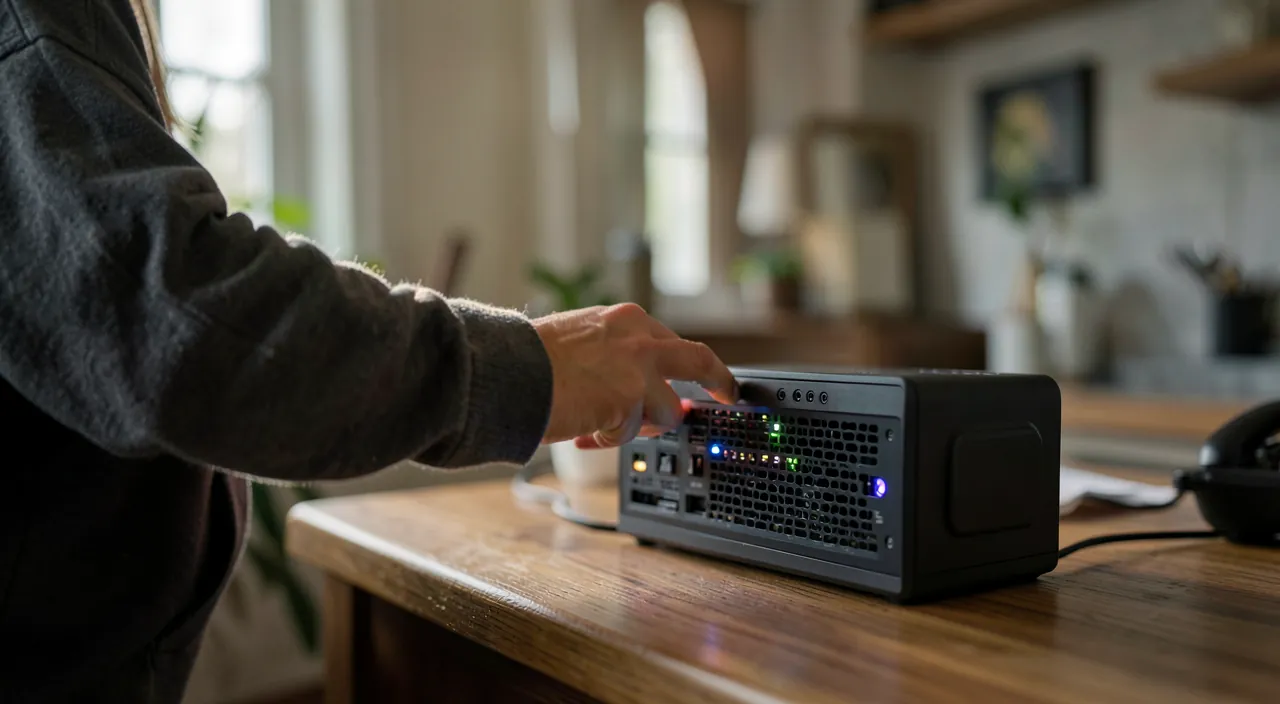
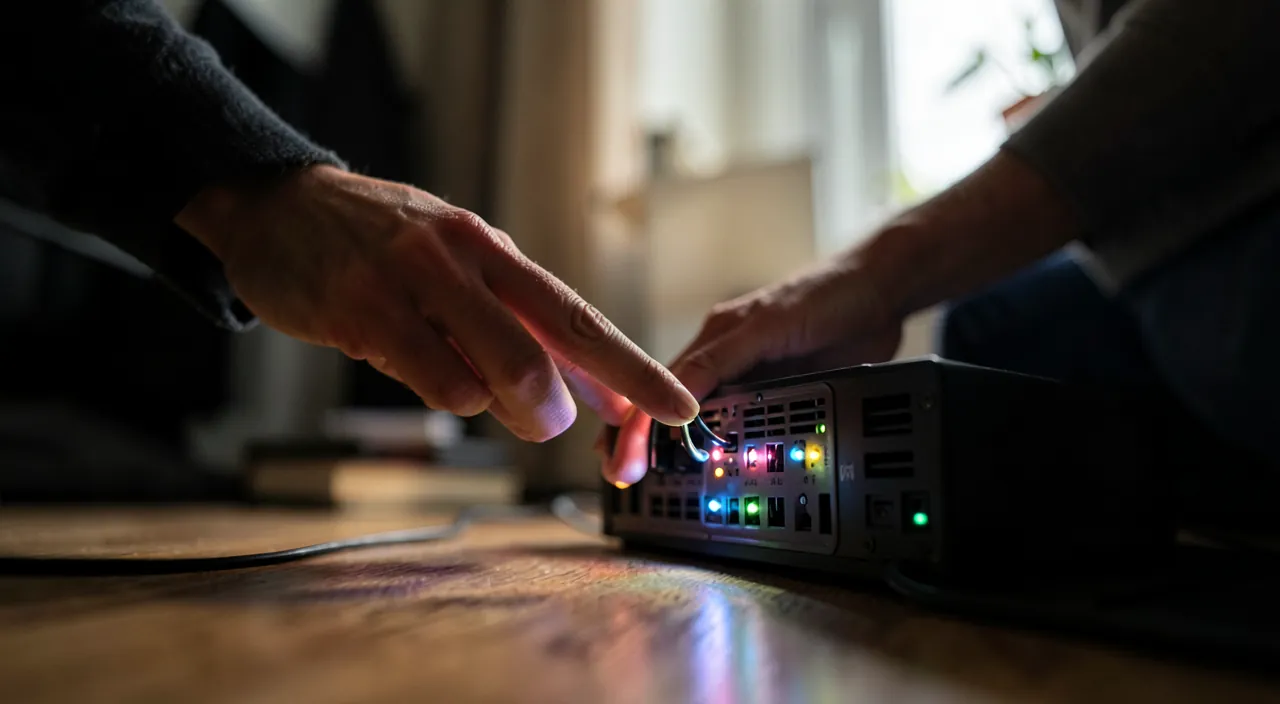
The box’s LEDs are a dashboard — learn their language in two minutes: an internet/line light that’s red or off points to the operator’s connection (the issue is upstream of your home or on your line); normal lights but no internet suggest Wi-Fi or device problems; a completely off box questions the power supply (outlet, power adapter, tripped surge protector — test the outlet with another device); flashing lights in a loop signal a failed synchronization. The exact code varies by operator — the label under the box or the operator’s app describes it — but the logic is universal: first identify WHICH link is failing. That’s half the diagnosis.
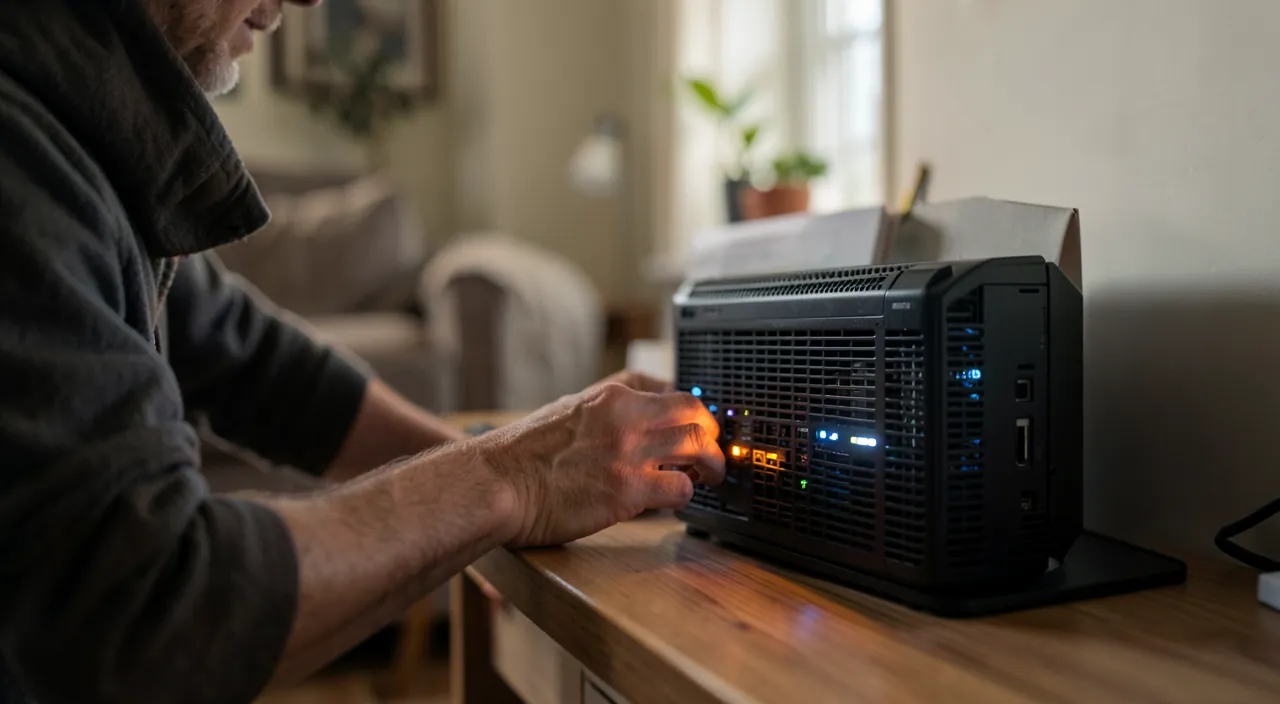
The lights on your internet box tell you where the problem is. Red or off means the issue is with your internet provider. Normal lights but no internet? It’s probably a Wi-Fi or device problem. If the box is completely off, check the power. Flashing lights mean the box can’t connect to the internet.
Your internet light is red. You check your operator’s app and see a widespread outage in your area. You don’t need to do anything—just wait for the provider to fix it. If the light is normal but your Wi-Fi is down, try rebooting the box or checking your router settings.
Step 2: the test that separates Wi-Fi from connection
Second key distinction: is the outage affecting internet or just Wi-Fi? Cross-checking clues: all devices are down, including TV and nearby devices → general connection issue; only some devices or rooms are affected → Wi-Fi problem (range, interference, device); and the decisive test: a computer plugged in via cable directly to the box — connected via cable but not Wi-Fi? Only Wi-Fi is down (reboot the box, check wireless settings, re-pair devices); nothing even via cable? The connection itself is dead — time for drastic measures. Smart tip: your phone on 4G/5G instantly checks if « internet » works elsewhere than via the box — and can serve as a backup (see below).
The right reflex. Before any action, check your operator’s network status: their app or status page (accessed via 4G), outage tracking sites, or asking neighbors — a neighborhood or nationwide outage is spotted in 30 seconds and saves you an hour of pointless tinkering: in this case, there’s nothing to do but document (start time, for potential compensation) and wait. Half of « box outages » have nothing to do with the box.
Step 3: the revival sequence
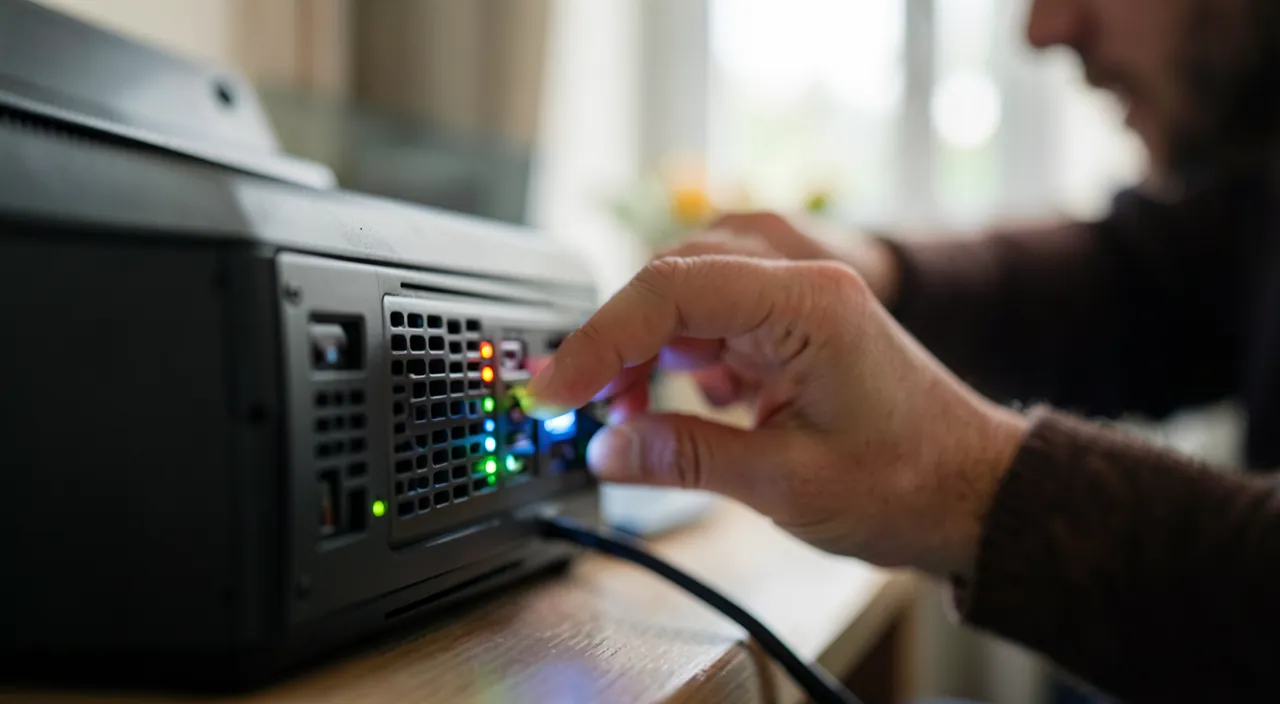
Local outage confirmed? Proceed in order: 1. Full reboot — box unplugged (not just the button) for 30 seconds, then plugged back in, followed by real patience: full synchronization takes several minutes — the classic mistake is unplugging too soon; also reboot downstream devices (repeaters, TV decoder). 2. Physical inspection — the incoming cable (fiber or phone) properly plugged in at both ends, not pinched or sharply bent (fiber is sensitive to tight curves), the wall outlet intact, and no overloaded power strip in the power supply. 3. Operator tools — the app or customer account offers remote line diagnostics and guided reboots: they test the line from the exchange, information you can’t get alone. 4. Contact support — armed with your observations (lights, cable/Wi-Fi tests, history): the pre-digested diagnosis drastically speeds up handling — and quickly points to box replacement or technician appointment if the line is at fault.
Surviving the outage (and preparing for the next one)
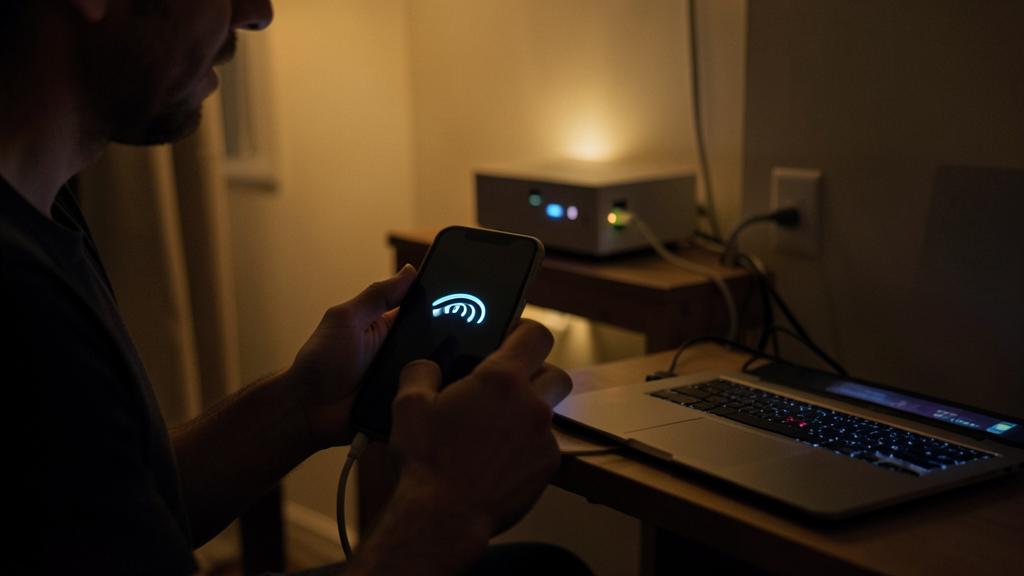
A few hours of outage shouldn’t paralyze you: your phone’s connection sharing turns your mobile plan into a backup box — the computer connects to it like a Wi-Fi network, and remote work continues (monitor data usage: video calls and large transfers consume a lot); critical uses switch to mobile mode — and it’s a good time to check that your essentials (bank, documents, calendars) are accessible from your phone. For the future: note the diagnostic ritual somewhere (lights → operator status → cable test → long reboot), keep the support number accessible offline, and if your activity critically depends on the connection, consider the permanent backup — 4G/5G backup router or box with built-in mobile failover: the safety net that turns an outage into a non-event.
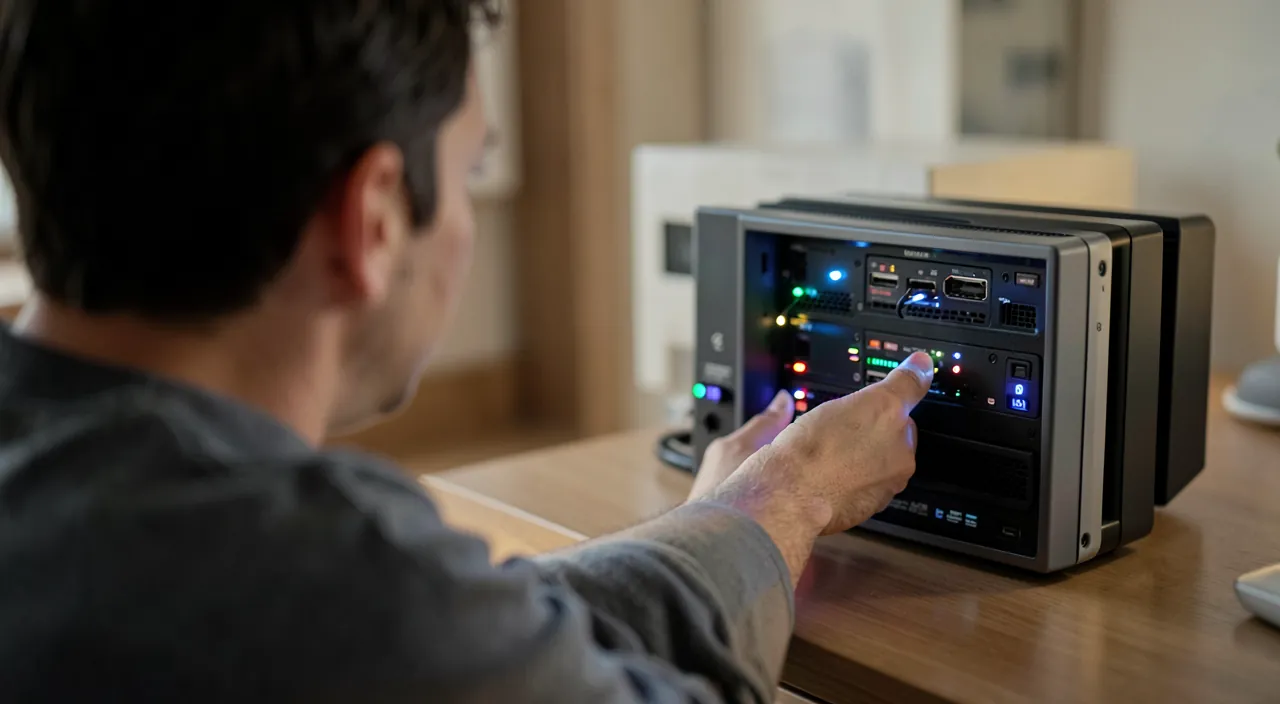
What not to do. The reset button pressed « just to see »: factory reset erases configuration, custom Wi-Fi, settings, and reservations: last resort on support’s advice, never first reflex; exotic connections (dodgy phone extensions, daisy-chained power strips on fiber); and reboot harassment — a box rebooted every two minutes never has time to synchronize: ONE long, clean reboot is worth ten impatient ones. Finally, in case of nearby thunderstorms: proactively unplugging the box and devices is the best insurance — power surges from lightning are a classic cause of permanently silent boxes.
Frequently asked questions
My connection drops for a few minutes several times a day:
Intermittence points to the line (unstable connection to document: note the times) or worn-out equipment. The outage log — the box often keeps it — and the operator’s line diagnosis make the difference; an aging box is usually replaced for free.
Internet works but TV via the box is down:
The TV decoder has its own logic: reboot it completely, check its cable to the box, and the status of the operator’s TV services — « TV only » network outages are frequent and can be checked on the status page.
The outage lasted for days: am I entitled to compensation?
Depending on the operator and duration, commercial gestures or refunds exist — supported by your records (dates, times, support exchanges). Document during, claim after: a polite and dated request often succeeds.
What to remember
Box outages are diagnosed in a funnel: read the lights, check the operator’s network status (half of outages are upstream — nothing to tinker with), separate Wi-Fi from connection via the cable test, then proceed with revival — long, patient electrical reboot, cable inspection, remote operator diagnosis, support armed with your observations. Meanwhile, mobile connection sharing keeps the essentials afloat — and permanent 4G backup protects households that can’t afford to wait. Never factory reset as a first reflex, never rapid-fire reboots: the box loves method and patience. Ten minutes of ordered diagnosis — and « Is it my fault or theirs? » will no longer be an anxious question, just the first line of your checklist.

Persistent outage, finicky computer? Our remote troubleshooting service quickly resolves your issue, without jargon.
Leave a Reply
You must be logged in to post a comment.