
You type, and nothing appears. Or some keys no longer respond. Or the keyboard writes unexpected characters. A keyboard that freezes is a disabling problem, but rest assured: the cause is most often benign and easy to fix. Before thinking about replacing your hardware, a few methodical checks usually suffice to restore functionality. This guide helps you diagnose and resolve a keyboard that no longer responds.
Distinguishing the symptoms
« A frozen keyboard » covers different situations, and each points to a cause. The keyboard no longer responds at all? Likely a connection or system issue. Only certain keys don’t work? Likely a localized physical problem. The keyboard writes incorrect characters? Likely a language setting or an accidentally activated mode. Precisely identifying the symptom speeds up resolution.

Basic checks
Start with the simplest. For an external keyboard, check the connection (or batteries if it’s wireless), and test another port. A restart of the computer resolves many temporary freezes, especially when the entire keyboard suddenly locks up. These basic steps fix many cases: don’t overlook them while searching for a complicated cause.
The right reflex. If your keyboard writes the wrong characters (numbers instead of letters, unexpected symbols, one letter instead of another), check the keyboard language and lock keys. A simple misconfigured language setting or an accidentally activated mode explains most of these cases, with no real hardware failure.

Most keyboard problems are simple: check the connection, restart your computer, or clean the keys. If keys write wrong symbols, it’s often just a setting issue, not a broken keyboard.
The problem of physical keys
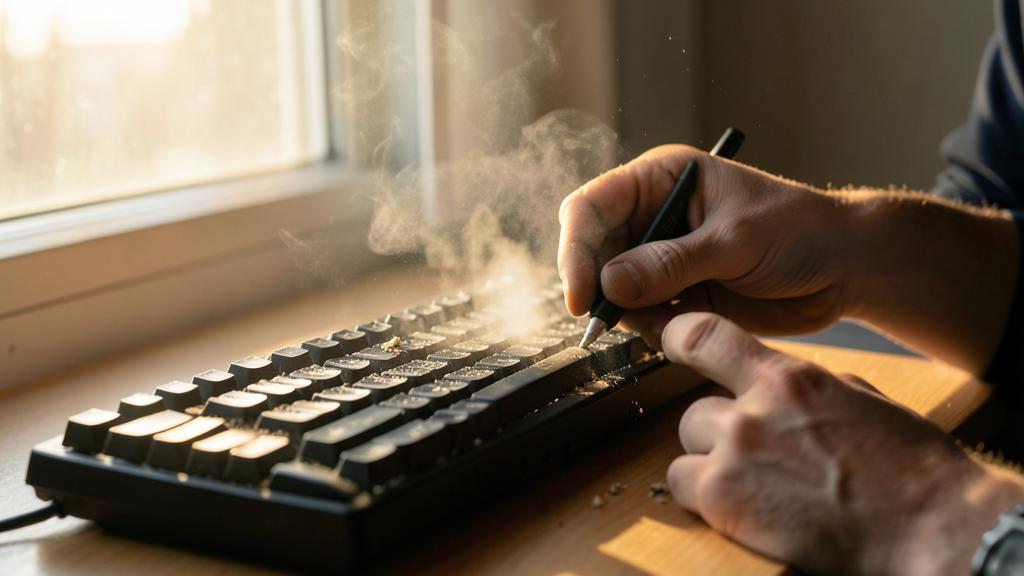
If only certain keys don’t respond, the cause is often physical: dust, crumbs, or dirt stuck under the keys, common over time. Careful cleaning—blowing out dust, gently wiping—sometimes fixes the issue. On a laptop, a key that stays pressed or no longer responds may also indicate mechanical wear requiring repair.
A user notices the “E” key on their laptop keyboard stops working. After flipping the keyboard and tapping it, several crumbs fall out. A quick cleaning with compressed air restores the key’s function.
When the system is at fault
A frozen keyboard can also come from software: a faulty driver, a system crash, or an application hogging resources. Updating the keyboard driver or booting in safe mode to test helps isolate these cases. If the keyboard works at startup but freezes later in the system, the software issue is likely, and a driver update or reinstallation may suffice.

Note. Never spill liquid on a keyboard, and in case of an accident, turn off the device immediately: liquid can permanently damage a keyboard, especially on a laptop where it reaches internal components. Quick action is crucial to limit damage.
Cleaning that revives the keys
For sticky or unresponsive keys, thorough cleaning works wonders. Turn off and unplug first. Flip the keyboard and tap gently: crumbs and debris fall in surprising quantities. Blow with dry air between the keys, at an angle, row by row. Clean the surfaces with a cloth very lightly dampened with isopropyl alcohol—never pour liquid directly. On an external mechanical keyboard, the keys can be gently removed for deep cleaning; on a laptop, stay on the surface—disassembly is for professionals. This 15-minute maintenance fixes most stubborn keys and extends the keyboard’s life for several years.

Frequent questions
My keyboard writes numbers instead of letters—what should I do?
It’s often a mistakenly activated num lock key or a language setting. Check these settings: the issue usually resolves in an instant, with no real hardware failure.
Can an external keyboard replace a faulty laptop keyboard?
Yes, perfectly: connecting an external keyboard is a simple and cost-effective solution if the built-in keyboard of a laptop is damaged.

A key stays pressed or repeats on its own—what should I do?
It’s typically a stuck debris or clogged mechanism: first try targeted cleaning with dry air. If the repetition persists, a key repeat delay setting exists in the keyboard settings—and a mechanically dead key on a laptop can be repaired in a workshop.
What to remember
A frozen keyboard most often has a benign cause. First identify the precise symptom: no response at all, localized keys, or incorrect characters. Check the connection, restart, and verify language and lock settings for wrong characters. Clean if physical keys are problematic, and think about the driver for system freezes. Most cases are fixed without replacing hardware—and an external keyboard easily helps in the meantime. Above all, avoid any contact with liquids, the main cause of irreversible damage.
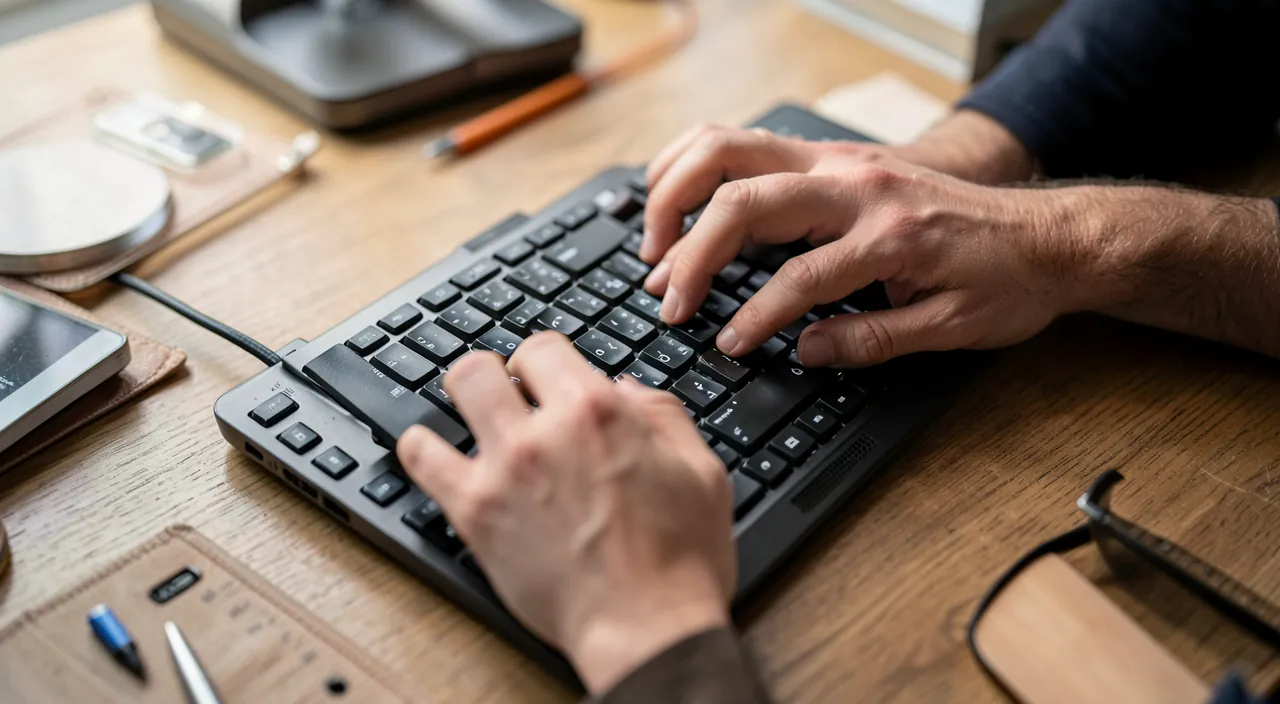

A troublesome keyboard or hardware? We repair it.
Leave a Reply
You must be logged in to post a comment.