
Your iPhone shows 20% battery and you still have a long day ahead? There’s a valuable feature to last longer: the “Low Power Mode.” With one tap, it reduces your iPhone’s power consumption to extend battery life—sometimes by several hours. It’s easy to enable, risk-free, and very useful when an outlet is far away. The iPhone even suggests it automatically when the battery gets low. Good news: by understanding what it does (and doesn’t do), you’ll know when to use it to avoid running out at the wrong time. Let’s see what Low Power Mode is, how to enable it, and how to get the most out of it.
What is Low Power Mode for?
First, let’s understand what this mode does and why it’s useful. EXTEND battery life: it reduces consumption to last longer; that’s the goal. REDUCE background activity: it limits what runs without you seeing it; less consumption; mechanism. Lower certain SETTINGS: brightness, updates, effects; save power; how. A simple GESTURE: it’s activated with one tap; easy; reassuring. Offered AUTOMATICALLY: the iPhone suggests it when the battery is low (often at 20%); practical; to know. TEMPORARY: it turns off by itself once fully charged; no need to think; to know. A few HOURS gained: it can significantly extend battery life; precious; advantage. NO RISK: no danger to the iPhone; you can use it freely; reassuring. The phone REMAINS usable: calls, messages, everything works; just a bit slower/limited; to know. FREE, built-in: nothing to install; included; reassuring. In short, Low Power Mode helps EXTEND your iPhone’s battery life when it’s low (or when you want to conserve it). How? By TEMPORARILY reducing the device’s CONSUMPTION: it limits background activity (what runs without you seeing it: app updates, syncs, automatic checks), and lowers power-hungry SETTINGS (screen brightness, some visual effects, the frequency of certain updates). All this helps GAIN battery time—sometimes several HOURS, which can make all the difference to last until the next charge. It’s a simple GESTURE (one tap), and the iPhone often suggests it AUTOMATICALLY when the battery gets low (typically at 20%, then 10%). It’s TEMPORARY: the mode turns off by itself once the iPhone is fully charged (above a certain level). Important point: it’s completely SAFE for your device, and the phone REMAINS fully usable (calls, messages, apps: everything works, just with minor limitations). It’s free and built-in. In short, it’s a very practical ally against battery drain. Let’s see how to enable it.
Low Power Mode makes your iPhone last longer by reducing power-hungry features. It slows down background tasks and dims the screen, but keeps your phone usable. The more you enable it early, the more battery you save.
On a busy day with 50% battery at 8AM, enabling Low Power Mode and keeping brightness low can extend your iPhone 14 Pro from dying at 4PM to lasting until 8PM – a 4-hour gain.
How to enable Low Power Mode
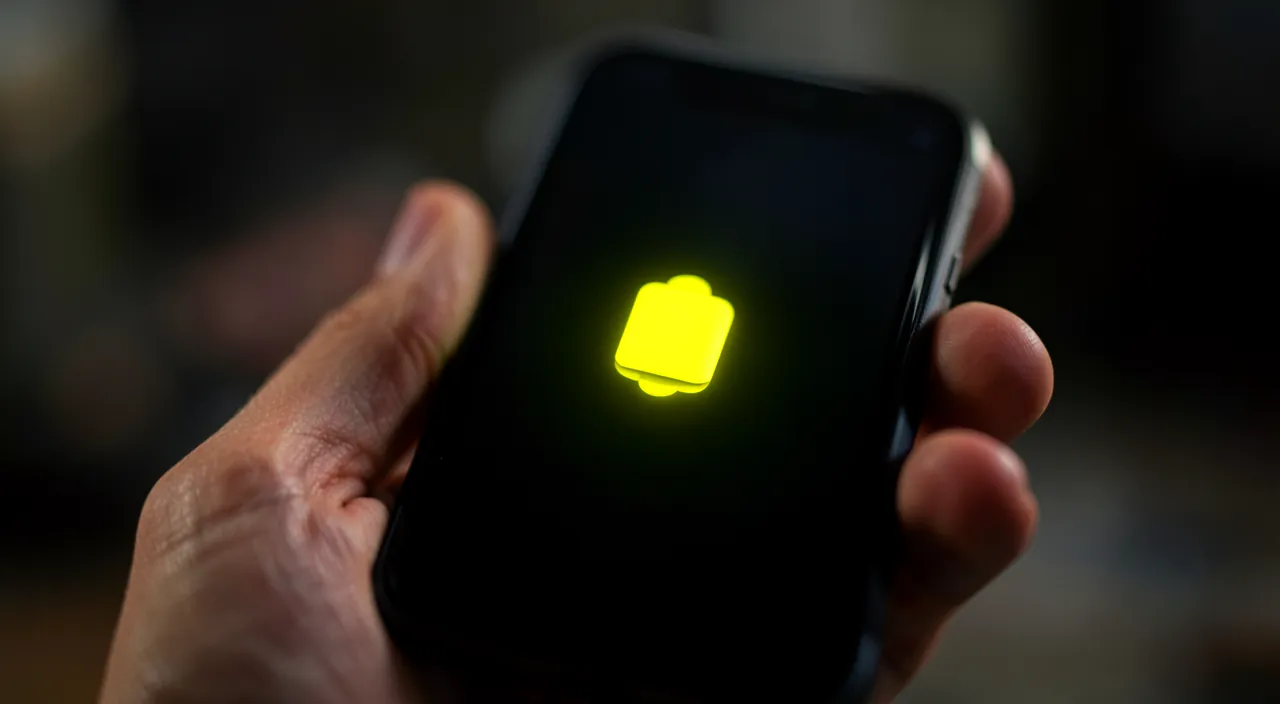
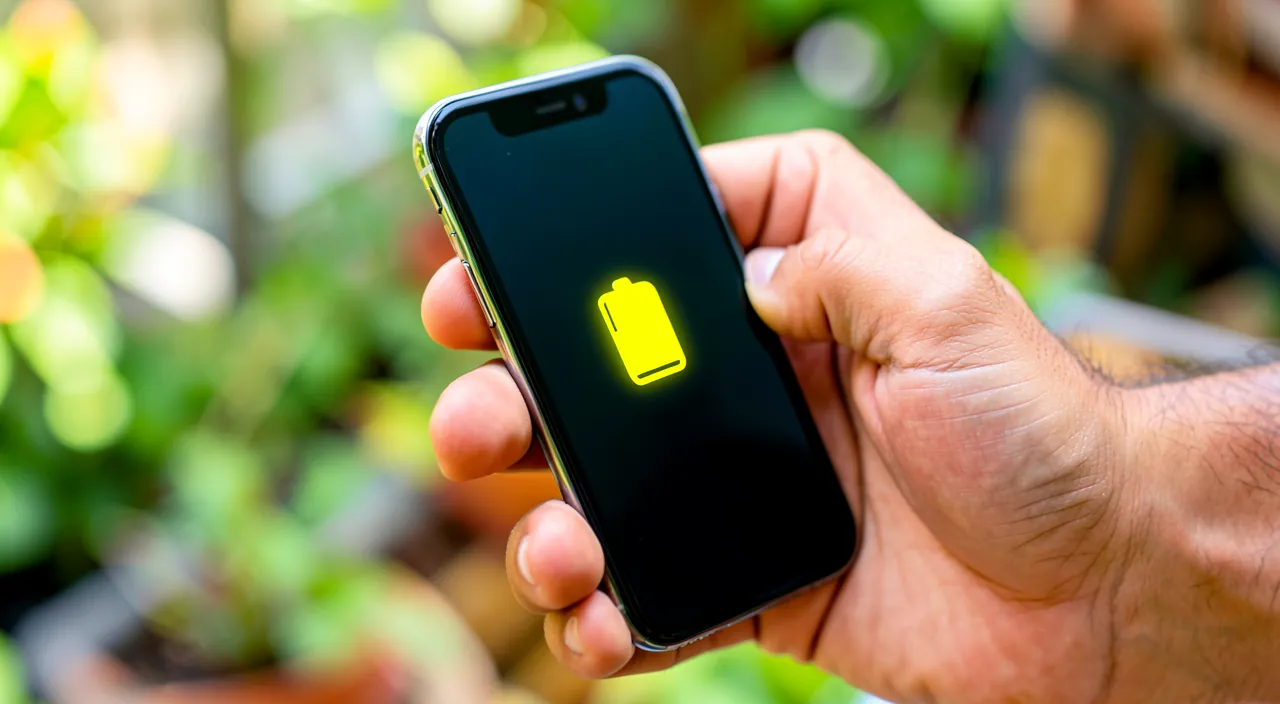
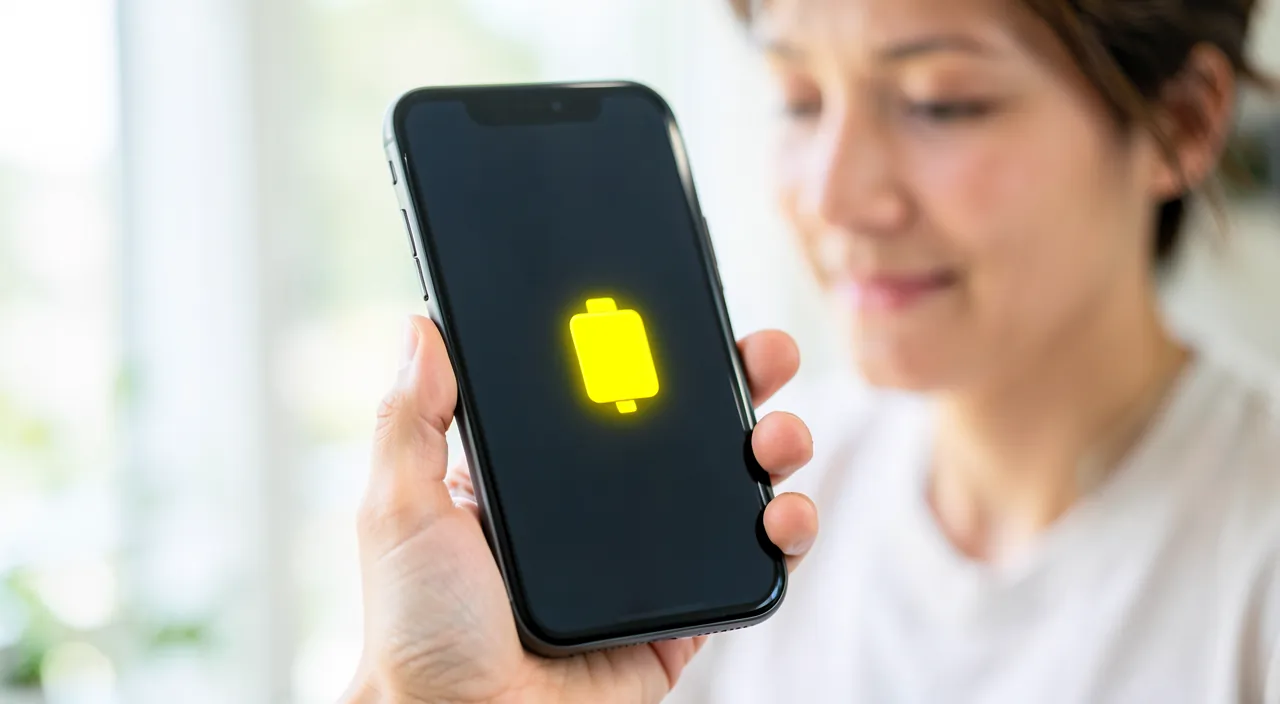
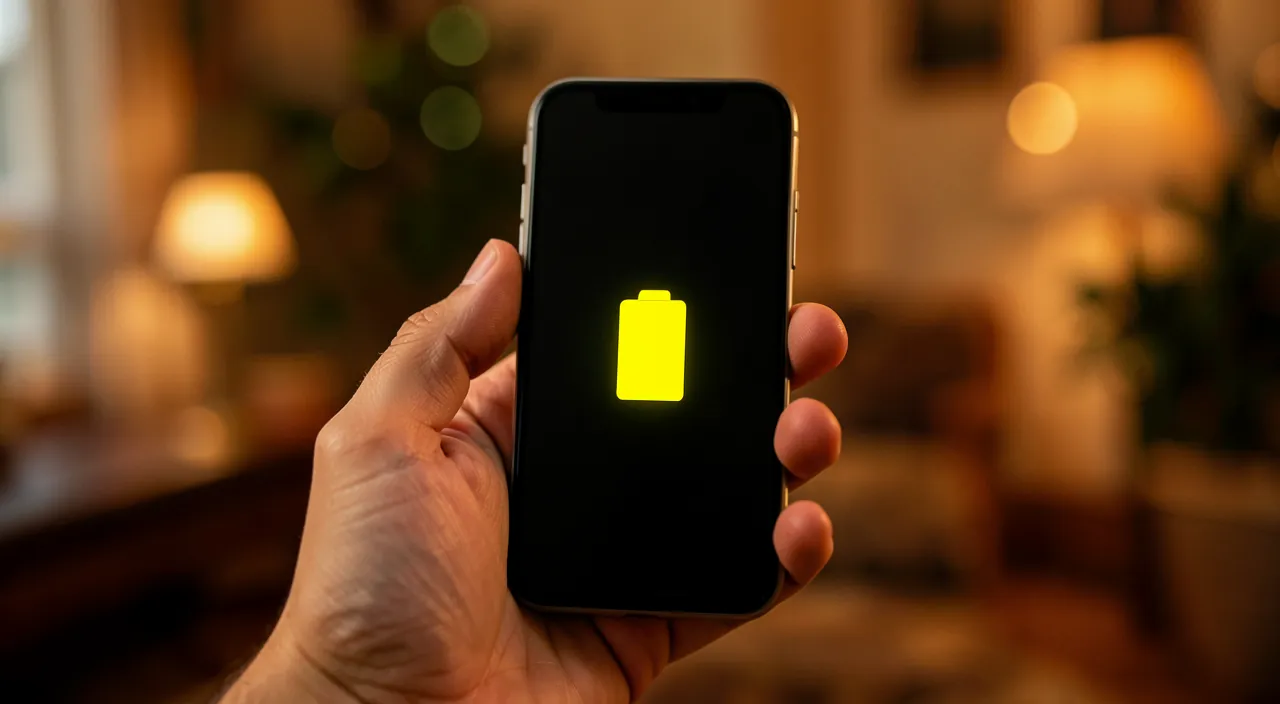
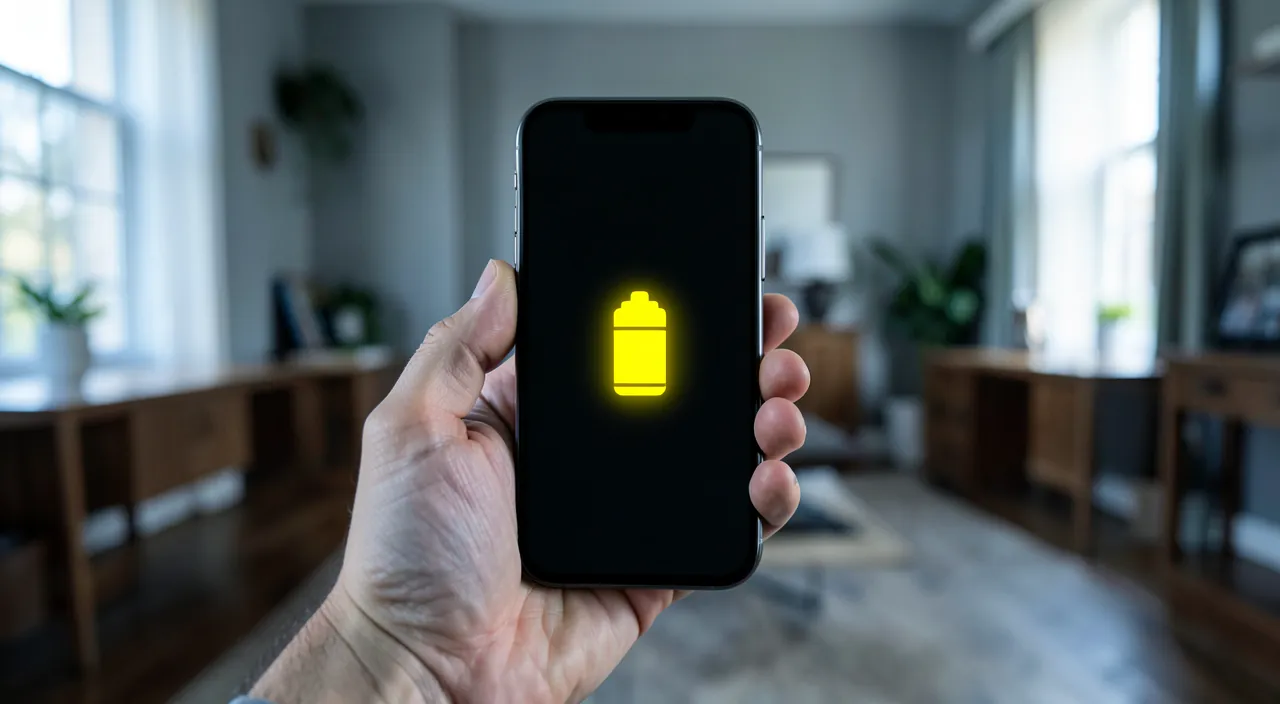
Enabling this mode is very simple, in several ways; let’s see. Via SETTINGS: go to Settings → Battery → turn on “Low Power Mode”; the classic way; simple. Via the CONTROL CENTER: add the battery button to the control center to enable it with one tap; the fastest; practical. When the iPHONE suggests it: with low battery, an alert suggests enabling it; tap “Enable”; easy; to know. By VOICE: ask the voice assistant to enable the mode; hands-free; option. RECOGNIZE that it’s active: the battery indicator turns YELLOW; visual cue; to know. DISABLE it the same way: you turn it off via the same path; reversible; simple. AUTO on recharge: it turns off by itself once fully charged; no need to think; to know. ENABLE it in advance: you can enable it even before the battery is low (busy day); foresight; clever. RE-enable if needed: nothing prevents you from re-enabling it; flexible; to know. EASY to access: put it in the control center to have it at hand; tip; useful. In short, enabling Low Power Mode is very simple, and several paths lead to the goal. The CLASSIC way: go to SETTINGS → BATTERY, and turn on the “Low Power Mode” switch. The FASTEST way: go through the CONTROL CENTER (the quick settings panel)—you can add the “battery” button (in Settings → Control Center) to then enable it with a simple tap, without digging through menus. Most OFTEN, you won’t even need to look for it: when your battery gets LOW (at 20%, then 10%), the iPhone displays an ALERT that offers to enable the mode: just tap “Enable.” You can also ask the VOICE ASSISTANT to enable it (handy when driving or hands are busy). How to KNOW it’s active? The BATTERY INDICATOR (top of the screen) turns YELLOW: that’s the visual sign that the mode is on. To DISABLE it, do the same (in Settings → Battery, or via the control center); and anyway, it turns off by itself once the iPhone is fully charged. Pro tip: you don’t have to wait for 20%—you can ENABLE it in ADVANCE in the morning of a busy day (no easy access to an outlet), to conserve the battery all day. The practical tip: add the battery button to the control center, to always have it at hand. In a few seconds, your iPhone switches to power-saving mode.
- Via Settings → Battery → turn on “Low Power Mode” (classic way)
- Via Control Center (add battery button for one-tap access)
- When iPhone suggests it (at 20% battery, tap “Enable”)
- By voice command (hands-free option)
The simplest: when the iPhone suggests Low Power Mode (at 20% battery), tap “Enable.” Or go to Settings → Battery. The indicator turns yellow: that means it’s active. Low Power Mode is one of the most useful AND easiest features of the iPhone. Here’s everything you need to know to never run out of battery at the wrong time. The easiest way: let the iPhone suggest it. You don’t even need to think about enabling it: when your battery drops to 20% (then 10%), the iPhone automatically displays a small ALERT on the screen that ASKS if you want to enable Low Power Mode. Just tap “ENABLE” (or “Yes”), and that’s it: your iPhone switches to power-saving mode and will last longer. That’s the most natural reflex: when the alert appears, say yes. Enabling it yourself, at any time: if you want to enable it BEFORE reaching 20% (for example, in the morning of a busy day, or when you leave without a charger), it’s just as simple. Two paths: 1) Via SETTINGS: open SETTINGS, go to “BATTERY,” and turn on the “Low Power Mode” switch (it turns green). 2) Even faster, via the CONTROL CENTER: that’s the panel you open by swiping your finger from the top-right corner (or the bottom) of the screen. You can add a “battery” button (a battery icon) once and for all (in Settings → Control Center → add “Low Power Mode”): then, you’ll just need to tap that button to enable or disable the mode in an instant, without digging. That’s the most practical setting to set up. How to know it’s ACTIVE? Look at the BATTERY INDICATOR, at the very top of your screen: when Low Power Mode is on, the little battery turns YELLOW (instead of its usual color). That’s the clear visual signal: yellow battery = power-saving mode on. A quick glance is enough to check. When does it turn off? The mode TURNS OFF by itself once you’ve sufficiently RECHARGED your iPhone (above a certain level): you don’t need to do anything, the battery returns to normal. You can also manually disable it at any time (same gesture as to enable it). The good REFLEX: never hesitate to enable it. Since it’s completely risk-free, get into the habit of saying “yes” to the alert, or enabling it yourself as soon as you feel the battery will be tight (travel, outing, forgetting the charger). A few hours of battery gained, for a simple gesture. In short: the simplest is to tap “Enable” when the iPhone suggests it (at 20%); otherwise, enable it yourself via Settings → Battery, or via the control center (add the battery button for quick access); the battery indicator turns YELLOW when it’s active, and it turns off by itself once fully charged. A simple and risk-free reflex to extend your battery life when you need it.
Using the mode well and gaining even more battery
Beyond Low Power Mode, a few complementary gestures further extend battery life; let’s see. ENABLE it early: enable the mode as soon as you know the day will be long; gain more; foresight; tip. Lower the BRIGHTNESS: a less bright screen consumes less; simple gesture; effective. Close/limit POWER-HUNGRY uses: video, games, GPS consume a lot; moderate if battery is low; useful. Turn off the EXTRAS: Bluetooth, location when unnecessary; small savings; tip. AIRPLANE mode if no network: without network, the phone drains itself looking for signal; airplane mode then saves; tip. RECHARGE as soon as possible: take advantage of an outlet/external battery; don’t go too low; tip. An EXTERNAL BATTERY: on the go, it helps; security; useful. Check what CONSUMES: Settings → Battery shows power-hungry apps; target; useful. KEEP the mode active: leave it on as long as the battery is low; not annoying; tip. COMBINE the gestures: Low Power Mode + low brightness + moderate uses = maximum battery life; cumulative; effective. In short, to get the most out of Low Power Mode and gain EVEN more battery life, combine it with a few simple gestures. First, ENABLE it EARLY: don’t wait for 20% if you already know the day will be long without an outlet—enabled in the morning, it saves all day. Then, lower the SCREEN BRIGHTNESS (the screen is one of the biggest power consumers: one less notch makes a real difference), and MODERATE power-hungry uses when the battery is low (VIDEO, GAMES, GPS/navigation consume a lot—keep them for when you have a buffer). Turn off the EXTRAS (Bluetooth, location) when you’re not using them. Useful tip: if you’re in an area WITHOUT NETWORK (where the phone drains itself looking for signal), AIRPLANE MODE saves a lot (as long as you don’t need to call). Also, RECHARGE as soon as a plug appears (don’t systematically go to zero), and carry an EXTERNAL BATTERY when traveling (a small safety net that helps). To target the gluttons, SETTINGS → BATTERY shows which APPS consume the most (you can moderate the most power-hungry ones). Finally, KEEP Low Power Mode active as long as your battery is low (it’s not annoying in daily life). The secret: COMBINE these gestures—Low Power Mode + low brightness + moderate uses—to maximize battery life when you really need it. With these reflexes, you won’t fear battery drain anymore.
Frequently asked questions
Does Low Power Mode slow down my iPhone?
It may slightly reduce some performance and suspend background activities (to save battery), but everyday use (calls, messages, apps) remains smooth; this slight slowdown is temporary and disappears as soon as you disable the mode—it’s a voluntary trade-off to last longer. Let’s see. A LIGHT slowdown possible: some performance is slightly reduced; that’s the point (saving power); to know. Background SUSPENDED: background activities (updates) are paused; hence the feeling of “less responsive”; normal. Everyday use SMOOTH: calls, messages, apps work well; no blocking; reassuring. A CHOSEN trade-off: you trade a bit of speed for more battery life; deliberate choice; to know. TEMPORARY: everything returns to normal when you disable the mode; reversible; reassuring. Hardly NOTICEABLE: in daily life, most people barely notice anything; discreet; to downplay. On HEAVY uses: it’s mainly on games/heavy tasks that you might feel it; everyday use, no; nuance. WORTH it: the battery gain compensates largely; useful; tip. DISABLE if annoying: if the slowdown bothers you at some point, turn off the mode; flexible; option. No DAMAGE: the slowdown doesn’t harm anything; just an adjustment; reassuring. The TIP: it may slightly reduce some performance and suspend the background, but everyday use remains smooth; it’s temporary and reversible; a small trade-off for gaining battery life. In short, Low Power Mode may LIGHTLY slow down some things, but rest assured: in everyday use, the difference is most often barely noticeable, and it’s a voluntary and consequence-free trade-off. What does it do exactly? To save battery, the mode slightly reduces some PERFORMANCE and especially SUSPENDS background activities (app updates, syncs, automatic checks that run without you seeing them). That’s what can give a feeling of “less responsive” on some points: an email that arrives a bit less quickly, an app that didn’t update by itself. But EVERYDAY USE—making a call, sending a message, checking your apps, browsing—remains SMOOTH: there’s no blocking or annoying slowness for these daily tasks. It’s a CHOSEN trade-off: you trade a tiny bit of speed (especially on heavy tasks, like demanding games) for MUCH more battery life—a very advantageous trade-off when the battery is low. And above all, it’s TEMPORARY and REVERSIBLE: as soon as you DISABLE the mode (or it turns off by itself after charging), your iPhone instantly regains all its reactivity. This slowdown DAMAGES NOTHING: it’s just a momentary adjustment. So if, at a specific moment, you need maximum speed (a heavy task) and the mode bothers you, you can simply turn it off for the time being. But in daily life, the slight potential slowdown is well worth the hours of battery gained. In short: yes, the mode may slightly reduce some performance and puts the background on pause (hence a feeling of less responsiveness on some points), but everyday use remains smooth, it’s barely noticeable, temporary and reversible, and without any damage; it’s a small very profitable trade-off to extend battery life. Don’t deprive yourself of it.
Can I leave Low Power Mode on permanently?
Yes, you can without any risk: leaving it always on conserves the battery continuously (at the cost of less responsive background); but it’s not necessary if you recharge regularly: many prefer to enable it only when the battery is low or the day is long. It’s a matter of comfort. Let’s see. POSSIBLE WITHOUT risk: leaving it on permanently doesn’t harm anything; up to you; reassuring. A LESS responsive background: continuously, emails/updates are always slower; to accept; nuance. Not ESSENTIAL: if you recharge often, unnecessary; as needed is enough; to know. According to your USE: heavy battery user? leaving it on may help; to adapt; tip. Comfort vs. battery life: continuously = more battery life but less reactivity; you choose; to know. Many enable it AS NEEDED: low battery, long day; classic use; common. REVERSIBLE: you enable/disable it at will; flexible; reassuring. TRY both: test permanently then as needed; see what suits you; tip. NO damage: in both cases, no danger; free choice; reassuring. The TIP: yes, without risk; permanently conserves the battery (less responsive background), but it’s not necessary if you recharge often; many enable it as needed; it’s a matter of comfort. In short, YES, you can PERMANENTLY leave Low Power Mode on: this presents NO risk to your iPhone or battery. It’s a perfectly valid choice, and it’s even what some people do to maximize their battery life continuously. The DISADVANTAGE, if you leave it always on, is that the BACKGROUND remains permanently less responsive: your emails will arrive a bit less quickly, your apps won’t update by themselves as often, some effects remain disabled. Nothing serious, but you have to accept it daily. Is it ESSENTIAL? No: if you REGULARLY recharge your iPhone (every night, for example) and your battery holds up fine during the day, there’s no reason to leave it always on—you can enjoy all the reactivity of your iPhone in normal mode, and enable Low Power Mode only when NEEDED. That’s what most people do: they enable it PONCTUALLY, when the battery gets low, or when they anticipate a long day without access to an outlet. On the other hand, if you’re a HEAVY battery user (intensive use) or your battery is a bit worn out, leaving it often (or always) on can be a good compromise to last. It’s therefore, in the end, a matter of PERSONAL comfort: more battery life (continuously) against more reactivity (as needed). The best? TRY both and see what suits you: it’s reversible at any time, without any damage. In short: yes, you can leave Low Power Mode on permanently without risk (it conserves the battery continuously, at the cost of a less responsive background); but it’s not necessary if you recharge regularly, and many enable it only as needed; choose according to your comfort, by testing both. No bad choice here.
How much does Low Power Mode extend battery life?
It varies depending on your use, but the gain can be significant—often several extra hours of battery life; the effect is even greater if you enable it early (before the battery is very low) and combine it with other savings (brightness, moderate uses). Let’s see. A VARIABLE gain: it depends on your use; no fixed number; to know. Often SEVERAL hours: the gain can reach a few hours; significant; encouraging. More effective EARLY: enabled at 50%, it saves longer than enabled at 5%; anticipation pays; important. According to USE: heavy use (video/GPS)? the savings are more visible; variable; nuance. COMBINING amplifies: with low brightness and moderate uses, you gain even more; cumulative; tip. Not a DOUBLING: it extends, without doubling the battery; realistic expectation; to know. Every HOUR counts: even one extra hour can save the day; precious; to value. Depends on the BATTERY: a new battery benefits more than a worn one; factor; to know. ANTICIPATE: enable it as soon as you expect to run low; maximize; tip. The REAL benefit: the important thing is that it really helps to last; effective; reassuring. The TIP: the gain varies (often several hours); it’s even greater if you enable it early and combine it with other savings (brightness, moderate uses); anticipate to get the most out of it. In short, the battery life gain provided by Low Power Mode VARIES depending on your use—there’s no single number—but it can be SIGNIFICANT, often several EXTRA HOURS of battery life. That’s far from negligible: a few extra hours is sometimes what allows you to last until evening, or until the next plug. Two factors determine the extent of the gain. First, the MOMENT you enable it: the mode is much more effective if enabled EARLY. Enabled when 50% battery remains, it saves over most of the day (the benefit accumulates); enabled when only 5% remains, it can’t save much (the damage is done). Hence the importance of ANTICIPATING: enable it as soon as you expect the battery to be tight. Second, your USE: if you do power-hungry things (watching videos, using GPS, gaming), Low Power Mode has more room to reduce consumption, and the gain is more visible; if you use your phone little, the gain will be more modest (but still useful). To MAXIMIZE the effect, COMBINE the mode with other savings: lower the BRIGHTNESS, moderate power-hungry uses, turn off the extras (unnecessary Bluetooth, location); the whole extends battery life even more. Expect a REAL and useful extension, but not a miracle: the mode EXTENDS the battery, it doesn’t double it. The essential is that it really helps to last longer when you need it. Note: a NEW battery will benefit more from these savings than a worn one. In short: the gain varies with use but often reaches several hours; it’s even more important if you enable the mode EARLY (before the battery is very low) and combine it with other savings (low brightness, moderate uses, unnecessary extras turned off); anticipate to get the most out of it. A real lifesaver against battery drain.
What to remember
The iPhone’s “Low Power Mode” is a precious ally against battery drain: it EXTENDS battery life—often by several hours—by temporarily reducing the device’s power consumption (limited background activities, lowered brightness and effects). It’s simple, free, built-in, and completely RISK-FREE. To ENABLE it: the simplest is to tap “Enable” when the iPhone SUGGESTS it automatically (at 20% battery); otherwise, go to SETTINGS → BATTERY, or use the CONTROL CENTER (add the battery button for quick access). When it’s active, the BATTERY INDICATOR turns YELLOW; it turns off by itself once the iPhone is fully charged. Pro tip: enable it EARLY (from the morning of a busy day), as it’s all the more effective the earlier it’s activated before the battery is very low. To gain EVEN more battery life, COMBINE it with other gestures: lower the brightness, moderate power-hungry uses (video, games, GPS), turn off the extras (unnecessary Bluetooth, location), recharge as soon as a plug appears, and carry an external battery when traveling. Good to know: in Low Power Mode, some things are slowed down or suspended (less frequent emails, updates on pause)—that’s NORMAL and TEMPORARY, everyday use (calls, messages, apps) remains smooth, and everything returns to normal once the mode is off. This mode extends battery life but doesn’t FIX a worn-out battery: if your iPhone drains abnormally fast all the time, the battery may need replacing. You can leave it on permanently without risk, but it’s not necessary if you recharge regularly: many enable it only as needed. In short, get into the habit of saying “yes” to Low Power Mode as soon as the battery gets low (or in advance): a simple, risk-free gesture for a few extra hours of peace of mind—enough to never fear running out at the wrong time.
Want to unlock the full potential of your iPhone, iPad, or Mac? Our Apple training courses take you to the next level.
Leave a Reply
You must be logged in to post a comment.