
A hard drive almost never dies without warning — it coughs first: files that open slowly, new noises, strange messages, and repeated crashes. The tragedy is that no one recognizes these warning signs: they are ignored for weeks, then one morning the drive no longer responds — with ten years of photos inside. This guide teaches you how to listen to your storage: warning signals classified by severity, free diagnostic tools, the right actions depending on urgency — and the only real insurance, which is taken OUT BEFORE.
Warning signals, from whispers to screams
In increasing severity — and each deserves a reaction: the new and localized slowness — the folder that takes ten seconds to open, the file copying that drags or freezes, the machine that « freezes » in fits with the disk light frantic: the disk that painfully re-reads worn areas (to be distinguished from general slowness — our guides — but slowness THAT WORSENS over weeks is a classic disk signal); the corrupted files — the photo that opens halfway, the document « unreadable » yesterday, repeated copy errors: failing sectors — a SERIOUS signal; the system messages — disk checks on startup that multiply, « disk problem detected » alerts (Windows displays them when the disk itself declares itself dying — this message is NEVER ignored), external disk disappearances/reappearances; the noises — for mechanical disks: repeated clicks (the famous « click of death »), grinding, motor restart cycles — the red sound alert (SSDs, silent, warn differently: through errors and slowness); and the SMART that speaks — the disk keeps its own internal health log (see diagnostics). The reading rule: ONE isolated signal = monitoring and verified backup; TWO signals or a serious signal (noises, system alerts, corruptions) = the emergency protocol — now, not this weekend.
Your disk gives you hints before it dies. Slow files, weird noises, or error messages are red flags. If you see two of these signs, act fast—your data might be at risk.

Diagnosis in ten minutes: reading the SMART health log
All modern disks self-monitor (the SMART system: temperature, reallocated sectors, errors, flight hours) — you just have to check: on Windows, reputable free utilities display the report in one screen (the « OK/Caution/Bad » status and detailed counters — the reference tool of its kind is free and can be found by searching « disk SMART health »), and your disk manufacturer offers its own diagnostic tool; on Mac, Disk Utility gives the basic SMART status (and S.O.S. checks the structure), third-party tools provide details; for SSDs, the wear indicator is added (the percentage of life consumed — SSDs wear out with writing: an SSD at 90% wear has earned its retirement BEFORE failure); and for external disks, the same tools via USB (when the enclosure allows). The reading that matters, without jargon: the overall status first (Caution or Bad = the disk knows it’s sick), then TWO counters — the reallocated/pending sectors (dead zones replaced: a few = to monitor, dozens THAT INCREASE = the end is near — retest in a week: the TREND is the real verdict) and the temperature (the disk that overheats ages quickly — our ventilation guides). Ten minutes, free — to repeat twice a year even without symptoms: the storage technical inspection.
A 500GB mechanical hard drive starts showing “pending sectors” in its SMART report. After a week, the count jumps from 10 to 50. This is a clear sign the disk is failing—time to back up and replace it.
The right reflex. At the first serious signal, reverse your priorities: NO repair first — the BACKUP first: every hour of operation of a dying disk wears out its last strength — spend it copying the irreplaceable (photos, documents — in order of value, to a healthy external disk or the cloud), NOT on repeated diagnostics or risky repairs (the eight-hour full scan on a dying disk can finish it off — copy first, examine later). A disk at the end of its life supports one last calm read: it’s the backup. It comes before everything else in this guide.

The right actions, depending on the verdict
Three scenarios: confirmed alert on still-living disk (Caution, rising sectors, slowness) — the organized retirement: immediate full backup (verified!), then the PLANNED replacement — the new disk (SSD by default for an internal replacement: faster, more durable daily — our old PC guides: the SSD is THE rejuvenation cure) and cloning or clean reinstallation, in a workshop or by a careful user: the dying disk that leaves BEFORE failure costs a component — after failure, it costs data or a lab; the disk that already refuses (not detected, clicks, massive corruptions) — the protocol from our data recovery guides: we STOP using it (each attempt worsens), we assess the value of the content — existing backup: the disk goes to recycling without drama (serenity has a taste); irreplaceable content not backed up: the professional data recovery lab (expensive, often effective — and DIY like the freezer are legends: they destroy); the false alarm — disk symptoms sometimes imitated by others (the worn SATA cable, the faulty port or USB enclosure for an external — test the disk in another enclosure before burying it —, the clogged system): SMART precisely distinguishes — a healthy SMART under slowness symptoms points to other suspects (our slowness guides). And in ALL cases, the removed disk that contained your data is processed (erasure or destruction — our resale and recycling guides: a disk dead for you can remain readable for a lab).
Prevention: longevity is cultivated (and failure is made painless)
Longevity factors: the temperature (the dust-free and ventilated computer — our guides: the disk that lives at 55°C ages twice as fast), the shocks for mechanics (the external disk that falls WHILE OPERATING is a condemned disk — externals are handled turned off, and external SSDs ignore this risk: the travel argument), the proper ejection of externals (removal during writing corrupts — the « eject » click exists for that), the vital space (the disk full at 95% works poorly and wears out more — our full disk guides: keep 15-20% margin), and the assumed age — mechanical disks statistically live 3 to 7 years, SSDs depending on writing: the disk over 5 years that carries unique data is a management anomaly, not an economic feat. And THE overall truth: monitoring NEVER replaces backup — SMART often warns, not always (sudden deaths exist, especially SSDs): the 3-2-1 rule from our backup guides (three copies, two media, one offsite) is the only device that makes disk failure TOTALLY painless — the disk then becomes what it should be: a consumable that is replaced, not a safe that is mourned. This guide teaches you to read the signs; backup frees you from fear.
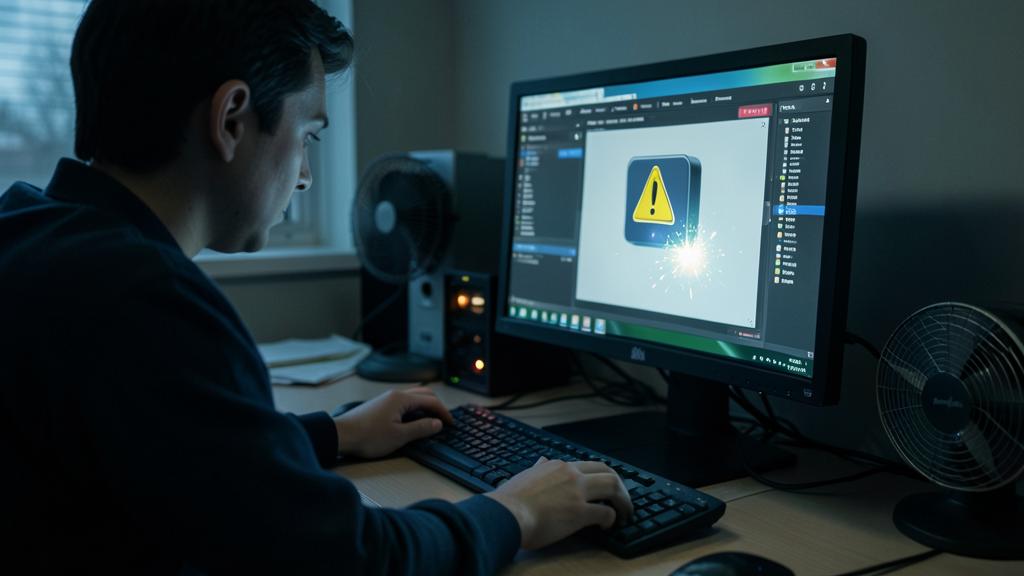

Beware of false repairers and real aggravators. The sick disk attracts bad answers: the « miracle » paid disk repair software (at best wrappers of free tools, at worst scams — the real tools are those of the system and manufacturers, free), the frantic defragmentation (useless on SSD — even harmful —, and on a DYING mechanical disk it’s hours of torture that hasten the end: you don’t defragment a patient), the « clean format » on a disk with failing sectors (dead sectors don’t heal — they multiply: formatting hides the counter, not the disease), and the disk openings out of curiosity (the mechanical disk is opened in a clean room or not at all — amateur opening signs the death of the data). Faced with a suspicious disk, sobriety wins: back up, measure, replace — three actions, no miracles, zero loss.
Frequent questions
SSD or mechanical disk: which warns best before dying?
The mechanical « coughs » more (noises, progressive slowness — often weeks of warning); the SSD more often dies suddenly (the electronics that fail) BUT its wear is PRECISELY READ (the SMART percentage): monitored, it is replaced before term. Same conclusion for both: SMART twice a year, continuous backup — the difference in death style doesn’t change the defense.

My external disk « disappears » sometimes then comes back: disk or cable?
Test the chain by substitution (our guides): another cable, another port, another enclosure if possible — the worn USB cable and the faulty enclosure perfectly mimic the disk’s agony (and cost ten euros to eliminate). The disk that also disappears IN another enclosure, however, is the sick one: backup-replacement protocol.
Do my NAS or TV box disks age the same way?
Yes — and the NAS that runs 24/7/24 wears out its disks continuously: its built-in tools monitor SMART (email alerts are activated — do it), disks are replaced preventively, and redundancy (RAID) TOLERATES a failure but does not REPLACE backup (RAID protects against the failure of ONE disk — not fire, theft, error, or ransomware: the 3-2-1 rule also applies to NAS).

What to remember
The disk warns those who know how to listen: localized slowness that worsens, corrupted files, system alerts, new noises — and its SMART log (free tools, ten minutes, twice a year) makes the verdict readable: the overall status and the TREND of failing sectors. The actions follow the severity: confirmed signal = backup first (the disk’s last strength is spent copying, never scanning), then the planned retirement to a new disk; already silent disk = we stop using it (lab for the irreplaceable, secure recycling otherwise); symptoms without a guilty SMART = look for the cable, the enclosure, the system. Prevention cultivates longevity (temperature, shocks, ejection, space margin) — and the 3-2-1 backup transforms the whole question: a monitored AND backed-up disk is no longer a worry, it’s a consumable. Listen to yours this week — ten minutes: it may have something to say.

Persistent failure, capricious device? Our remote troubleshooting service solves your problem quickly, without jargon.
Leave a Reply
You must be logged in to post a comment.