
You notice on your screen a small point that never changes: a black spot, a colored one, or a point that remains lit no matter what you display. Or perhaps a blurry area, a halo, or a wider stain. These display defects are annoying—once you spot them, your eye keeps returning to them. But before you worry, you need to distinguish the cases: some « dead » or « stuck » pixels are small screen defects, sometimes recoverable; others are actually surface dirt (which can be cleaned!); and some marks indicate a damaged screen. The good news: many of these problems are minor or easy to fix. Let’s see how to address screen stains and defective pixels: recognizing them, attempting to correct them, and knowing when it’s more serious.
Understanding screen stains and defective pixels
Not all « stains » are the same; distinguishing them is the first step. SURFACE DIRT: first and foremost, many « stains » are simply DIRT on the screen (dust, fingerprint, dried splatter); they can be cleaned; the first reflex is to check if it comes off with cleaning; don’t confuse dirt and defects (we’ll come back to this). A DEAD PIXEL: a « dead » pixel is a point on the screen that remains OFF (black) permanently, no matter what you display; it no longer lights up; it’s a pixel defect; often permanent (but small). A STUCK PIXEL: a « stuck » pixel remains lit in a FIXED COLOR (red, green, blue, white) no matter what you display; it’s « stuck »; unlike a dead pixel, it is sometimes RECOVERABLE (we’ll come back to this); distinguish dead and stuck. DEAD vs. STUCK: the distinction is useful; a DEAD PIXEL (black, off) is generally permanent; a STUCK PIXEL (fixed color, lit) can sometimes « unstick »; the test: on a black background, a stuck pixel remains visible (colored), a dead one blends in; on a colored background, a dead one remains black. A WIDER STAIN: a stained (not a point) dark, discolored, or haloed area often signals a DAMAGED screen (pressure, impact, damaged panel); it’s more serious than a pixel; wide stains are a bad sign (we’ll come back to this). LINES or bands: colored lines, vertical/horizontal bands indicate a panel or connection issue; it’s a more serious display defect; different from a simple pixel. AFTERIMAGE (ghost image): sometimes, an image displayed for a long time « marks » the screen temporarily (afterimage); this is not a dead pixel; it usually fades; a distinct and generally temporary phenomenon. ONE or MULTIPLE points: an isolated defective pixel is common and not bothersome; numerous defective pixels, or those appearing in increasing numbers, indicate a more serious panel issue; quantity matters. THE NORMALITY of an isolated pixel: an isolated dead or stuck pixel is relatively common on screens (manufacturers tolerate a certain number); it’s a minor defect, not a failure; don’t overreact to an isolated point. WHAT’S THE POINT of distinguishing: knowing if it’s dirt (can be cleaned), a stuck pixel (sometimes recoverable), a dead pixel (often permanent but minor), or a wide stain (damaged screen, serious) guides the right reaction. The key idea: before alarming yourself about a « stain » on the screen, distinguish the cases. Many are just surface DIRT that can be cleaned: check that first. A point that remains BLACK no matter what is displayed is a DEAD PIXEL (generally permanent but small and minor); a point stuck on a FIXED COLOR is a STUCK PIXEL (sometimes recoverable). An isolated defective pixel is common and not serious. On the other hand, a WIDER STAIN (dark, haloed), colored LINES, or numerous and increasing defective pixels indicate a DAMAGED screen or a failing panel—this is more serious. Properly identifying what you see (dirt, stuck pixel, dead pixel, damage) is essential to react appropriately: clean, attempt to unstick, or get it repaired. Understanding the nature of the defect avoids overreacting to a minor point or, conversely, ignoring real damage.
Most screen “stains” are either dirt (clean it) or pixel problems. Dead pixels stay black, stuck pixels stay colored, and wide stains mean real damage. One dead pixel is normal, but many or spreading stains need repair.
On a 15.6-inch laptop screen, you notice a single red dot that stays visible on all backgrounds. This is a stuck pixel. Try running a pixel fixer tool for 10 minutes to see if it “unsticks.” If it remains, it’s usually harmless.
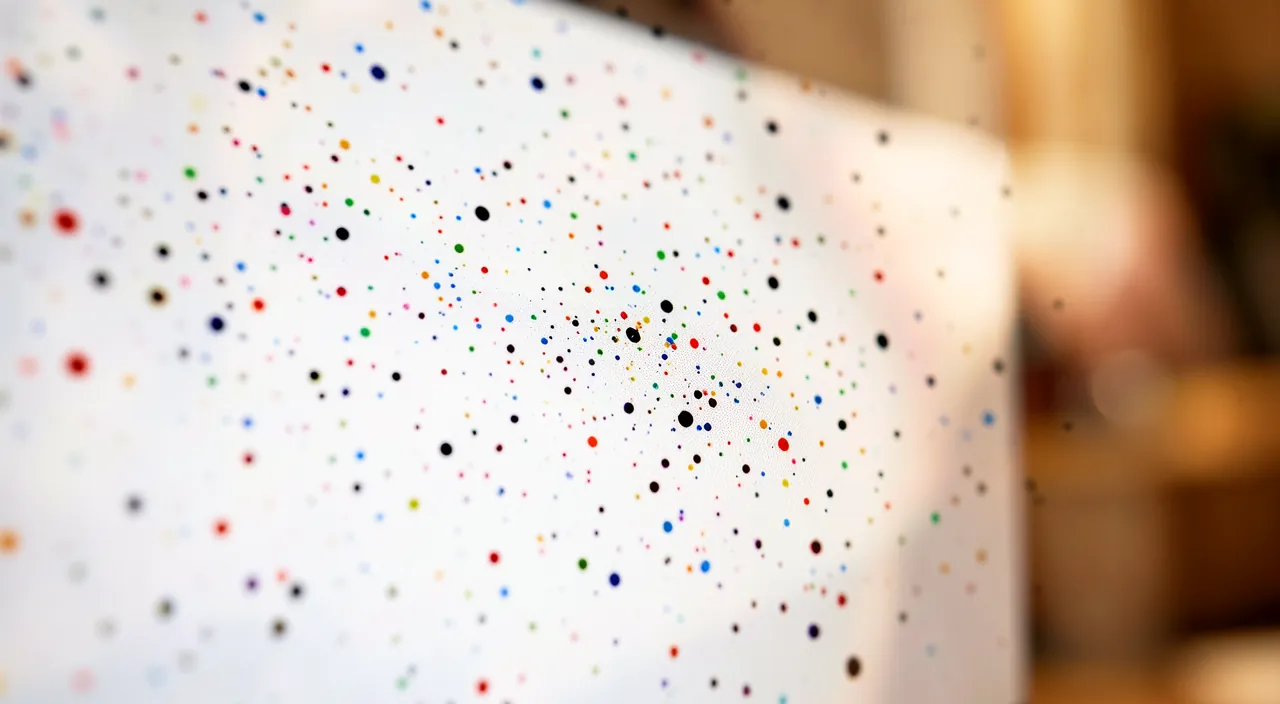
What to do about a stain or defective pixel
Here’s the step-by-step approach, from simplest to most involved. CLEAN the screen first: first, gently clean the screen (soft microfiber cloth, dry or slightly damp, appropriate product); many « stains » are dirt that comes off with cleaning; this simple gesture often resolves the issue; start there (we’ll detail this later). CHECK if it moves: after cleaning, is the stain still there? If it’s gone, it was dirt (resolved); if it persists in the same spot no matter what you display, it’s a screen defect; cleaning makes the difference. IDENTIFY dead or stuck: display solid backgrounds in succession (black, white, red, green, blue); a point that remains BLACK on all = dead pixel; a point that remains a FIXED COLOR = stuck pixel; this test identifies the type (and thus the chances of fixing it). Attempt to UNSTICK a stuck pixel: a stuck pixel (fixed color) is sometimes recoverable; gentle methods exist; displaying colors that change quickly (videos or « pixel fixer » tools that make colors flash on the area) can « wake up » the pixel; let it run for a while; sometimes it works (we’ll come back to this). The method of GENTLE PRESSURE (with caution): some attempt a very light pressure on the stuck pixel (screen on, soft cloth, without forcing) to unstick it; to be done with GREAT caution (too much pressure damages); risky method, to avoid if you’re unsure. Accept an isolated DEAD PIXEL: a dead pixel (black) is generally PERMANENT; unsticking methods rarely work on it; an isolated dead pixel is a minor defect to accept most of the time; don’t insist. RESTART for afterimage: if it’s a « ghost » image (afterimage), it often fades on its own; display something else, turn off the screen for a moment, restart helps; afterimage is temporary; be patient. Check the CABLE (external screen): for an external screen, stains, lines, or strange areas may come from the CABLE (poorly connected, damaged); reconnect, test another cable; sometimes it’s not the panel but the connection; a simple test. TEST on another SOURCE: does the defect appear on everything you display (thus the screen) or on a single image/source (thus the content)? display various content; this distinguishes screen defect and content; observation guides. Document if it’s DAMAGE: for a wide stain, lines, or numerous increasing pixels, note the progression; it’s probably panel damage; prepare for repair or replacement (we’ll come back to this). The CAUTION tip: never force, don’t press hard, don’t over-wet the screen; abrupt gestures worsen; gentleness preserves. In summary, when faced with a stain or defective pixel: CLEAN first (many stains are dirt), check if it’s gone, then IDENTIFY the type via solid backgrounds (dead = black everywhere; stuck = fixed color). For a STUCK PIXEL, attempt to unstick it gently (flashing colors, possibly very light and cautious pressure). Accept an isolated DEAD PIXEL (often permanent but minor). For afterimage, be patient (it fades). For an external screen, check the cable. And for a wide stain, lines, or numerous increasing pixels, consider repair (panel damage). Never force: gentleness preserves. From cleaning to diagnosis, this approach handles most cases; cleaning and type identification are the keys.
The first reflex: clean! Many « stains » are just dirt. Before concluding that you have a dead pixel or a damaged screen—and worrying for nothing—make the simplest and most often effective gesture: CLEAN the screen. It’s amazing to see how many supposed serious « display defects » are actually just surface dirt: a fingerprint, a dried splatter (drool, drink spill), a stuck dust particle, a small grease spot. These marks perfectly mimic a screen defect—especially a small dark spot that looks eerily like a dead pixel. The difference is that dirt COMES OFF with cleaning, while a real pixel defect remains. How to properly clean a screen without damaging it? Use a soft, clean MICROFIBER cloth (the type provided with glasses or screens, never a rough fabric, paper towel, or clothing that could scratch). Gently pass it over the area, DRY first: often, this is enough for a fingerprint or dust. If the stain resists, lightly dampen the cloth—with water, or better, a product specifically designed for screens—never the screen directly, and gently wipe, without pressing hard. Essential precautions: never SPRAY liquid directly onto the screen (it could seep in at the edges); don’t use AGGRESSIVE products (household cleaners, strong alcohol, standard glass cleaners), which can damage the screen’s surface treatment; don’t RUB vigorously and don’t press hard (strong pressure on a panel can, in fact, create a real defect!). Gentleness is key. Once the screen is clean, look again at the area in question: if the « stain » has disappeared, congratulations, there was no defect—just dirt, and the problem is solved at minimal cost. If, on the other hand, the spot or mark persists exactly in the same place, no matter what you display, then it is indeed a screen defect (dead pixel, stuck, or damage), and you can move on to the identification step (display solid backgrounds to determine the type). This simple cleaning test therefore has a double virtue: it RESOLVES a large number of cases (when it’s dirt), and when it doesn’t resolve, it CONFIRMS that you’re indeed dealing with a real defect, which avoids going in circles. That’s why it should always be your very first gesture, before any pessimistic diagnosis. Also, get into the habit of regularly cleaning your screen gently: not only is it more pleasant visually, but it also prevents you from confusing a simple speck of dirt with a defect, and it preserves the surface. Many people live with a « dead pixel » that was just a smudge to wipe off: don’t be one of them, and always start with the microfiber cloth.

When it’s more serious: damaged screen and repair
Some display defects go beyond a single pixel and indicate a damaged screen; here’s how to recognize and react. SIGNS of damage: a WIDE STAIN (dark, colored, haloed, ink-like), LINES or colored bands, discolored areas, a display that’s off—these signs indicate a DAMAGED panel, not just a pixel; it’s more serious. The cause—a PRESSURE or IMPACT: these damages often come from pressure (object placed on top, screen closed on an object, too-tight bag) or an impact/drop; the panel is fragile; an ink-like stain that spreads is typical of a panel cracked internally; the origin is physical. A stain that SPREADS: a dark stain that grows over time indicates a degrading panel (often after pressure); it’s an evolving damage; it doesn’t repair itself; action is needed (replacement). NUMEROUS or increasing pixels: an isolated pixel is benign; NUMEROUS defective pixels, or those appearing more and more, indicate a more serious panel issue; quantity and progression make the difference. What doesn’t REPAIR itself: unlike a stuck pixel (sometimes unstickable), a damaged panel doesn’t repair itself with software tricks; it’s a physical damage; only panel replacement resolves it; don’t hope for a gentle solution. Panel REPAIR: replacing a screen panel is a physical repair (by a professional); its cost varies (sometimes high, especially on a laptop or recent device); weigh repair vs. device replacement based on cost and age. The WARRANTY: if the device is recent and the defect not caused by impact (numerous dead pixels from purchase, manufacturing defect), the WARRANTY may cover it; check; manufacturers have pixel defect thresholds; the warranty may help. The MANUFACTURER’S THRESHOLD: manufacturers tolerate a certain number of defective pixels (a few) without considering the screen defective; beyond a threshold, they replace under warranty; check their policy; an isolated pixel is often not covered, several may be. For an EXTERNAL SCREEN: on an external screen (monitor), first check the cable and another device before concluding a dead panel; if the panel is truly damaged, replacing the screen (monitor) is often simpler than on a laptop; diagnose first. LIVE with or REPLACE: for a minor benign defect (an isolated pixel), you often live with it (the eye gets used to it); for a bothersome damage (wide stain, numerous lines), repair or replacement is necessary; weigh the annoyance, cost, and device age. In summary, when it’s more serious: a WIDE STAIN (haloed, spreading), colored LINES, or numerous and increasing pixels indicate a DAMAGED panel (often from pressure or impact), not just a pixel; this doesn’t repair with software tricks; a physical repair (panel replacement, by a professional) is needed, with cost depending on the device. Check if the WARRANTY covers (manufacturing defect, threshold exceeded), test the cable on an external screen, and weigh repair vs. replacement based on annoyance, cost, and age. An isolated pixel is lived with; real damage is treated; diagnosis and cost/age evaluation guide the decision.
Warning: never press hard on a screen (you’d create a real defect), and beware of a dark stain that spreads—it’s a damaged panel. Two important warnings about screen defects. The first concerns a tempting but RISKY gesture: pressing on the screen. You may read that you can « unstick » a stuck pixel by pressing on it. It’s true that, for a STUCK PIXEL (fixed color), a VERY light and cautious pressure (screen on, through a soft cloth, never forcing) is part of the methods sometimes attempted. But the danger is real and often underestimated: TOO MUCH PRESSURE on a screen panel doesn’t unstick anything at all—instead, it can CREATE a real defect where there wasn’t one, or worsen an existing one. A panel is a fragile component: pressing hard can damage the liquid crystals, cause dark spots, halos, or even crack the panel internally. The remedy then becomes far worse than the problem: for a stuck pixel that barely bothered you, you risk ending up with a wide and permanent stain. The rule: NEVER press hard on a screen, neither to unstick a pixel, nor to clean, nor for anything. If you attempt the pressure method on a stuck pixel, do so with extreme delicacy, or better, prefer contactless methods (tools that make colors flash rapidly on the area, without risk). And in general, protect your screens from any pressure: don’t place anything on them, don’t close a laptop on an object (pen, forgotten earbuds on the keyboard—a classic cause of cracked screens!), don’t squeeze a device too tightly in a bag. Pressure is the enemy of panels. The second warning: know how to recognize the sign of an already DAMAGED panel, to not waste time with false solutions. A DARK STAIN that SPREADS—often black or colored, ink-like, haloed, or puddle-shaped, growing slowly over days or weeks—is NOT a dead pixel that could be revived: it’s the typical symptom of a panel CRACKED or crushed internally, usually following pressure or impact (sometimes discreet: the famous forgotten object on the keyboard, a too-tight bag, a drop). This type of damage is EVOLVING and IRREVERSIBLE: the stain won’t come off with cleaning, won’t unstick with any trick, and even tends to grow over time. Similarly, colored LINES, bands, or a multiplication of defective pixels indicate a serious panel issue. Faced with these signs, no need to insist with gentle methods that won’t work: recognize that it’s a physical damage, and turn to the real solution—have a professional evaluate a repair (panel replacement) or consider replacing the device, based on cost and age. Check along the way if the warranty may apply (for a manufacturing defect not related to impact). In summary: never press hard on a screen (you’d turn a small pixel into a big mess), and don’t expect any « home » repair for a spreading stain or colored lines (it’s a damaged panel that requires a professional). Protecting your screens from pressure and impacts remains, by far, the best prevention: an intact panel has no stains.

Frequent questions
Can a dead pixel be repaired?
A truly DEAD pixel (black, off) is generally permanent and cannot be repaired; on the other hand, a STUCK pixel (fixed color) is sometimes recoverable with gentle methods; start by identifying which it is. Let’s clarify. The KEY distinction: it all depends on whether it’s « dead » or « stuck »; a DEAD PIXEL remains BLACK (off) no matter what you display; a STUCK PIXEL remains a FIXED COLOR (lit); their repair chances differ greatly; identify the type first. The DEAD PIXEL, often PERMANENT: a dead pixel no longer lights up at all (the sub-component is « off »); unsticking methods RARELY work on it; it’s generally permanent; you often have to accept it (or replace the panel if really bothersome). The STUCK PIXEL, sometimes RECOVERABLE: a stuck pixel is « stuck » on a color but still active; it can sometimes « wake up »; gentle methods have a chance; don’t despair over a stuck pixel. The FLASHING COLORS method: for a stuck pixel, displaying colors that change very quickly on the area (videos or dedicated « pixel fixer » tools that rapidly flash red/green/blue) can unstick it; let it run for a while (minutes, sometimes more); it’s risk-free; try this first. The PRESSURE method (caution): a VERY light and cautious pressure on the stuck pixel (through a soft cloth, screen on, without forcing) is sometimes attempted; BUT it’s risky (too much pressure creates a real defect); avoid if you’re unsure; prefer flashing colors. No GUARANTEE: even for a stuck pixel, these methods don’t always work; sometimes they fail; it’s a try, not a sure repair; manage your expectations. The GRAVITY THRESHOLD: an isolated pixel (dead or stuck) is a minor defect; you often live with it (the eye gets used to it); don’t overreact; it’s not a failure; manufacturers themselves tolerate a few. The WARRANTY if numerous: if numerous pixels are defective (beyond the manufacturer’s threshold) and the device is recent, the warranty may cover replacement; check; an isolated pixel is often not covered, several may be. Don’t confuse with DIRT: first, check that it’s not just dirt (clean); many « dead pixels » are smudges that come off; it would be a shame to worry about a speck of dust. The ADVICE: identify if the pixel is dead (black, often permanent) or stuck (fixed color, sometimes recoverable); for a stuck one, try flashing colors (risk-free) before pressure (risky); accept an isolated dead pixel; check the warranty if numerous. In summary, a truly DEAD pixel (that remains black, off) is generally PERMANENT and cannot be repaired with tricks: an isolated dead pixel is a minor benign defect that you usually end up accepting. On the other hand, a STUCK pixel (stuck on a fixed color, but still active) is sometimes RECOVERABLE: the safest method is to display colors that flash very quickly on the area (via a video or « pixel fixer » tool), which can « wake it up » without any risk; the light pressure method exists but is risky (to avoid). These attempts offer no guarantee of success. First, identify the type (via solid backgrounds) and check that it’s not simply dirt. An isolated pixel is usually fine; if numerous pixels are defective on a recent device, the warranty may cover replacement.
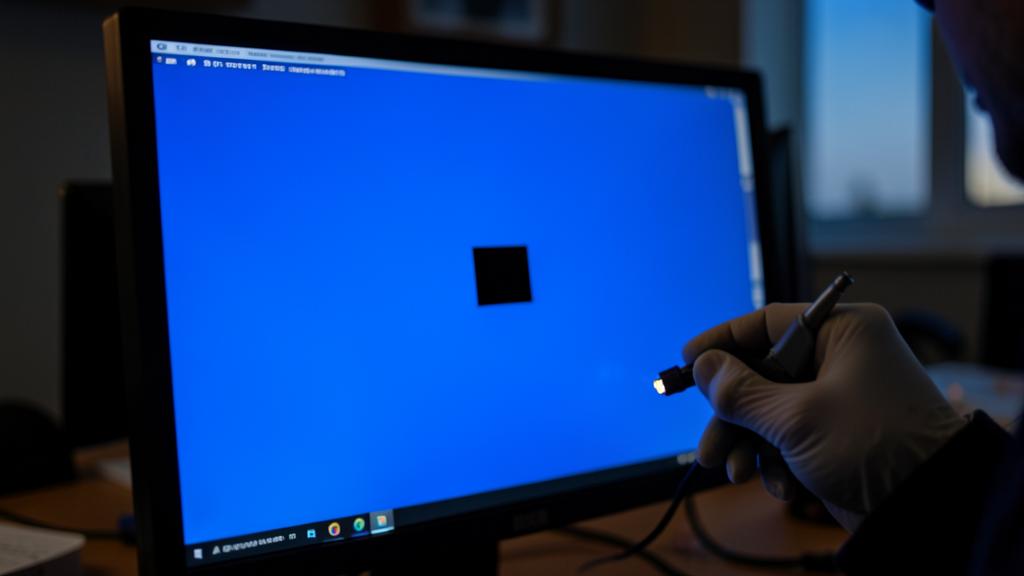
How to clean my screen without damaging it?
With a soft MICROFIBER cloth, dry or slightly damp (never directly on the screen), without aggressive product or strong pressure: gentleness and the right cloth are key. Here are the best practices. The right CLOTH: use a soft, clean MICROFIBER cloth (like for glasses or provided with the screen); NEVER paper towel, rough fabric, or clothing (they scratch); the soft cloth is essential; it doesn’t harm the surface. DRY first: start dry; gently pass the microfiber cloth; often, this is enough for dust and fingerprints; dry cleaning is the safest; only dampen if necessary. If needed, SLIGHTLY damp: if a stain resists, lightly dampen the CLOTH (not the screen) with water or a screen product; gently wipe; the slightly damp cloth cleans without risk of seepage; minimal moisture. NEVER spray on the screen: never spray liquid directly onto the screen; it could seep in at the edges and damage; spray on the cloth if needed, never on the panel; seepage is a danger. NO aggressive products: don’t use household cleaners, strong alcohol, or standard glass cleaners; they damage the screen’s surface treatment; only water or screen-specific product; aggressive products deteriorate. NO strong pressure: don’t press hard while cleaning; strong pressure on the panel can create a defect; wipe gently, without forcing; lightness preserves; don’t rub vigorously. GENTLE gestures: wipe delicately, with gentle movements; don’t scratch a stubborn stain (rather, return with a slightly damp cloth); gentleness avoids scratches and defects; patience rather than force. TURN OFF the screen to see better: cleaning with the screen off (or dark background) helps see the smudges; it’s also safer; you spot dirt better on a black background; a practical trick. REGULARITY: clean regularly and gently rather than rarely and aggressively; frequent gentle maintenance keeps the screen clean without risk; gentle regularity preserves. For a TOUCH SCREEN: same rules (microfiber, gentle, slightly damp); touch screens often have an anti-smudge treatment to preserve; avoid aggressive products that wear it out; gentleness prolongs the coating. The ADVICE: soft microfiber cloth, dry first then slightly damp if needed (never directly on the screen, never aggressive product, never strong pressure), gentle and regular gestures; thus you clean without damaging. In summary, to clean your screen without damaging it: use a soft, clean MICROFIBER cloth (never paper towel or rough fabric that scratch), proceed DRY first (often sufficient), and only if a stain resists, lightly dampen the CLOTH—never directly on the screen—with water or a screen-specific product. The prohibitions: never spray liquid directly onto the panel (risk of seepage), don’t use aggressive products (household cleaners, strong alcohol, glass cleaners, which damage the surface treatment), and never press hard (strong pressure can create a defect). Wipe with gentle movements, without scratching, screen off or on a dark background to better see the smudges. Gentle and regular maintenance is better than occasional aggressive cleaning. The right cloth, minimal moisture, and gentleness are the three rules that keep your screen clean and intact.
Should you worry about a single defective pixel?
No, not really: an isolated defective pixel is common, benign, and manufacturers themselves tolerate a few; you usually live very well with it. It’s their multiplication that should alert. Let’s reassure. THE NORMALITY: an isolated dead or stuck pixel is relatively COMMON on screens; it’s not a failure or a sign of poor quality; screens contain millions of pixels, a single defective one is statistically banal; don’t overreact. The MANUFACTURER’S THRESHOLD: manufacturers OFFICIALLY tolerate a certain number of defective pixels (a few) without considering the screen defective; they have standards; an isolated pixel is below the replacement threshold; it’s considered normal. You GET USED to it: an isolated pixel, once the initial annoyance passes, is noticed less and less; the eye and brain ignore it over time; many live for years with a pixel without thinking about it; habit reduces the annoyance. No need to REPAIR: replacing a panel for a single pixel is generally not worth it (cost, risk); the remedy would be disproportionate; you live with it rather than undertaking heavy repair; keep things in proportion. Attempt to UNSTICK (if stuck): if the isolated pixel is « stuck » (fixed color), you can try flashing colors (risk-free) to unstick it; sometimes it works; otherwise, live with it; a risk-free attempt. WHEN TO WORRY: it’s the MULTIPLICATION that should alert; if defective pixels become numerous, or appear more and more, it signals a more serious panel issue; monitor the progression; one = banal, many and increasing = concern. The WARRANTY if numerous: if numerous pixels are defective on a recent device (beyond the manufacturer’s threshold), the warranty may apply; there, repair/replacement is justified; check; the number changes things. Check that it’s not DIRT: before even wondering if you should worry, clean; the « pixel » may be a speck of dust; don’t worry about a smudge that wipes off; cleaning often reassures. The right MINDSET: accept serenely an isolated pixel (it’s normal and benign), monitor that others don’t appear, and don’t let this small detail ruin your use; serenity is key; it’s not serious. The ADVICE: don’t worry about an isolated defective pixel (common, benign, tolerated by manufacturers); check that it’s not dirt, try gentle unsticking if it’s stuck, otherwise live with it; only worry if pixels multiply. In summary, no, you shouldn’t really worry about a single defective pixel: it’s a COMMON and BENIGN phenomenon. Screens contain millions of pixels, and a single defective one is statistically banal—to the point that manufacturers themselves officially tolerate a few defective pixels without considering the screen defective. After initial annoyance, you get used to it quickly (the eye ends up ignoring it), and replacing an entire panel for a single point is generally not worth it. If this isolated pixel is « stuck » (fixed color), you can try to unstick it without risk with flashing colors; otherwise, live serenely with it. First, think to check that it’s not simply a speck of dust to clean. What should alert you, however, is the MULTIPLICATION of defective pixels or their increasing appearance: this signals a more serious panel issue, for which the warranty may apply on a recent device. An isolated pixel: banal, you live with it; numerous and increasing pixels: there, you take care of it.
What to remember
When faced with a « stain » or suspicious spot on the screen, the first reflex—and most often effective—is to GENTLY CLEAN the screen: a large part of these « defects » are just SURFACE DIRT (fingerprint, dust, dried splatter) that comes off with cleaning. Use a soft microfiber cloth, dry first then slightly damp if needed (never directly on the screen, never aggressive product, never strong pressure). If the mark disappears, there was no defect; if it persists in the same spot no matter what you display, it’s a real screen defect, which you then need to identify. Display solid backgrounds (black, white, red, green, blue): a point that remains BLACK everywhere is a DEAD PIXEL (generally permanent, but an isolated pixel is benign and common—manufacturers themselves tolerate a few, and you get used to it quickly); a point stuck on a FIXED COLOR is a STUCK PIXEL (sometimes recoverable). For a stuck pixel, try to « wake it up » by displaying colors that flash very quickly on the area (risk-free method, via a video or « pixel fixer » tool); the light pressure method exists but is risky. Two essential warnings. First, NEVER press hard on a screen—neither to unstick a pixel, nor to clean: strong pressure on a fragile panel can CREATE a real defect (stain, halo, internal crack) where there wasn’t one. Also, protect your screens from any pressure: don’t place anything on them, don’t close a laptop on a forgotten object (pen, earbuds on the keyboard—a classic cause of cracked panels). Then, know how to recognize real DAMAGE: a dark stain that SPREADS (ink-like or haloed), colored LINES or bands, or numerous and increasing pixels indicate a DAMAGED panel (often from pressure or impact), not just a pixel. These damages don’t repair with any software trick: they require physical repair (panel replacement by a professional), with cost depending on the device—weigh against its age and the annoyance, checking along the way if the warranty may apply (manufacturing defect, threshold exceeded on a recent device). For an external screen, always test the cable and another source before concluding a dead panel. In short, always distinguish the cases before reacting: dirt (you clean, resolved), stuck pixel (you attempt gentle unsticking), isolated dead pixel (you accept it, it’s benign), or panel damage (you have a repair evaluated). Don’t overreact to an isolated point—it’s common and harmless—but don’t neglect a stain that spreads or pixels that multiply. And above all, the best prevention is to handle your screens gently: no pressure, no impact, gentle regular cleaning. A well-treated screen keeps a clear display; it’s pressure and impacts that create real stains.


Persistent failure, capricious device? Our remote troubleshooting service resolves your problem quickly, without jargon.
Leave a Reply
You must be logged in to post a comment.