
Your cursor that jumps around, freezes for a second, jumps from one corner of the screen to another, or refuses to follow your movements: a jittery mouse makes the computer difficult to use, even unusable. Fortunately, this very common problem most often has a simple cause — unsuitable surface, dirty sensor, weak batteries, wireless interference — and can be resolved in a few minutes, without technical skills. Before buying a new mouse or getting frustrated, follow a methodical approach. Here’s how to get a smooth and precise cursor back.
Why does a mouse jitter?
Understanding the possible causes allows you to solve the problem methodically. A mouse that “jitters” (the cursor jumps, freezes at times, trembles, or doesn’t follow your movements faithfully) has several common, almost always benign causes. The UNSUITABLE SURFACE: optical mice (almost all today) need an adequate surface to “read” movement; a surface that’s too smooth (glass, mirror), too shiny, transparent, or conversely too irregular, disrupts the sensor and makes the cursor jump; this is a VERY common and easy-to-fix cause. The DIRTY SENSOR: dust, dirt, or a hair under the mouse (at the optical sensor level) interferes with the reading; a simple cleaning often fixes it. The WEAK BATTERIES (wireless mouse): a wireless mouse with weakening batteries/low battery becomes erratic (jitters, lag, disconnections); replacing/recharging fixes the issue. The WIRELESS INTERFERENCES: for a wireless mouse, interference (other wireless devices, too far from the receiver, obstacles) can cause jitters. The CONNECTION: a poorly plugged-in USB receiver, a faulty port, or a Bluetooth issue (see our guide: Bluetooth refuses to connect). The OVERLOADED COMPUTER: if the computer is SLOW (overloaded processor, too many applications), the cursor may jitter — the problem is then not the mouse but the computer (see our guide: slow computer). The SETTINGS: incorrect sensitivity settings can give the impression of an erratic cursor. More rarely: a driver that needs updating, or a faulty mouse at the end of its life. USEFUL DISTINCTIONS: WIRED or WIRELESS mouse (the causes differ: batteries and interference only concern wireless mice); did the problem appear suddenly or gradually? On every surface or only in certain places? The APPROACH: proceed step by step, from the simplest to the most likely (see our guide: how to troubleshoot yourself). What to remember to start: a jittery mouse almost always has a simple cause (surface, dirty sensor, batteries, interference); before replacing it, a few quick checks solve the problem in most cases. Rarely is it a real mouse failure. Let’s look at the solutions.

The solutions, in order
Try these solutions from the simplest to the most complex. SOLUTION 1 — CHANGE THE SURFACE: this is the first thing to try; place the mouse on a MATTE, opaque, and regular surface (an ideal mouse pad, or a sheet of paper, a book); avoid glass, shiny, transparent, or very dark surfaces; if the cursor becomes smooth again, it was the surface; a simple mouse pad permanently fixes the issue. SOLUTION 2 — CLEAN THE SENSOR: turn the mouse over and check the optical sensor (the small lens/light underneath); remove dust, dirt, or hair that could interfere with it; a dry cloth or a puff of air is enough; also clean the surface you use it on. SOLUTION 3 (wireless) — THE BATTERIES: if your mouse is wireless, replace the batteries (or recharge it); weak batteries are a very common cause of jitters and lag; this is often THE solution for a capricious wireless mouse. SOLUTION 4 (wireless) — THE CONNECTION AND INTERFERENCES: check that the USB receiver is properly plugged in (try another USB port, preferably close to the mouse); move the mouse closer to the receiver; move sources of interference (other wireless devices, USB hubs) away; for a Bluetooth mouse, check the connection, possibly reconnect it. SOLUTION 5 — TEST ON ANOTHER PORT / ANOTHER COMPUTER: plug the mouse into another USB port, or even another computer; this allows you to know if the problem comes from the mouse, the port, or the computer. SOLUTION 6 — RESTART THE COMPUTER: a restart fixes many small bugs, including device issues (see our guide: why restarting fixes most bugs). SOLUTION 7 — IS THE COMPUTER OVERLOADED? If the cursor jitters at the same time as EVERYTHING on the computer is slow (slow applications, system freezing at times), the problem is not the mouse but the overloaded computer; close applications, check what’s consuming resources (see our guide: slow computer); in this case, the mouse is not at fault. SOLUTION 8 — THE MOUSE SETTINGS: in the settings (mouse/pointer), check the speed/sensitivity of the pointer; adjust if the cursor is too nervous or too slow; possibly disable acceleration options if the behavior seems erratic. SOLUTION 9 — THE DRIVER: rarely necessary, but a system or mouse driver update can fix a software issue; system updates usually handle this. After these solutions, the cursor is almost always smooth again: most often, it was the surface, the dirty sensor, or the batteries. If nothing works after all this — and the mouse still jitters even on a good surface, clean, with new batteries, on another computer — the mouse may be at the end of its life; mice are inexpensive to replace. But in the vast majority of cases, one of the simple solutions above resolves the problem.
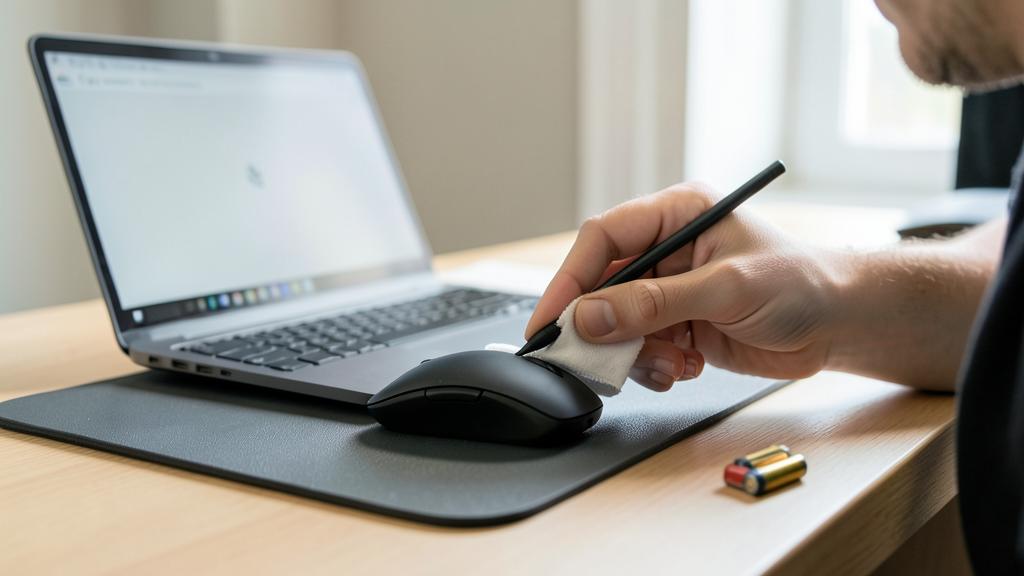
A jittery mouse is almost never broken. The most common causes are bad surfaces (like glass), dirty sensors, or weak batteries. If your cursor jumps around, try these three things first: put the mouse on a mouse pad, clean the bottom of the mouse, and replace the batteries if it’s wireless. These simple fixes solve most problems in seconds.
Imagine you have a Logitech MX Master 3S wireless mouse on a glass desk. The cursor suddenly starts jumping randomly. You try moving it to a mouse pad, and the problem disappears. This shows the glass surface was the issue – a common problem with optical mice. The fix cost nothing and took 10 seconds.
**The 3 most frequent causes: surface, dirt, batteries.** First, check these three points: they explain the vast majority of jittery mice, and can be fixed in a few seconds. **ONE: THE SURFACE.** This is by far the most common cause, and the least known. Optical mice need a MATTE, OPAQUE, AND REGULAR surface to correctly read your movements; on glass, a shiny, transparent, very dark, or reflective surface, the sensor “loses track” and the cursor jumps. Test immediately: place your mouse on a MOUSE PAD, or failing that, on a white sheet of paper, a magazine, a book; if the cursor becomes smooth again, you’ve found the culprit; investing in a mouse pad (a few euros) permanently fixes the problem. Many people struggle with a “capricious” mouse simply because they use it on a glass desk or a shiny surface! **TWO: DIRT ON THE SENSOR.** Turn the mouse over and look at the optical sensor (the small glowing lens underneath): a hair, dust, or dirt covering it interferes with the reading; clean it gently (dry cloth, puff of air), and also clean the usage surface. **THREE: THE BATTERIES (wireless mouse).** A wireless mouse with a weakening battery becomes erratic: jitters, lag, jumps, disconnections; this is a classic. Replace the batteries (or recharge the mouse): very often, everything becomes normal instantly; think of this first for a wireless mouse that starts jittering when it was working fine. These three checks — good surface (a pad!), clean sensor, new batteries — resolve the vast majority of jittery mice, without skills or expenses (except a few euros for batteries or a pad). Do them first: nine times out of ten, the cursor becomes perfectly smooth, and you’ll avoid unnecessarily buying a new mouse that had nothing wrong with it.

Distinguishing a mouse problem from a computer problem
An important point often overlooked: the jittery cursor doesn’t always come from the mouse! The case of the OVERLOADED COMPUTER: if your computer is SLOW (overloaded processor, full memory, too many open applications, a heavy task running), everything becomes slow, including the cursor; it jitters or freezes in fits and starts, not because of the mouse, but because the computer is struggling to keep up; in this case, changing the mouse would do nothing; you need to lighten the computer (close applications, see what’s consuming resources — see our guide: slow computer). How to RECOGNIZE this case? The cursor jitters AT THE SAME TIME as everything else is slow (windows react sluggishly, applications are slow, the system freezes at times); the cursor’s jitters accompany general slowness; this is a sign that the problem is the computer, not the mouse. Conversely, if ONLY the cursor jitters while the computer is otherwise responsive (windows open quickly, everything is fine except the cursor), the problem is indeed the mouse (surface, sensor, batteries, connection). The test with ANOTHER MOUSE: to confirm, try ANOTHER MOUSE; if the problem disappears with another mouse, it was indeed the first one; if it persists with a different mouse, the issue is the computer (overload, settings, driver, port). The test with ANOTHER COMPUTER: conversely, plug your mouse into another computer; if it works well there, your computer is at fault; if it jitters everywhere, it’s the mouse. The case of the TRACKPAD: on a laptop, if it’s the trackpad (touchpad) that jitters, check that it’s clean and dry (humidity, dirt, greasy fingers disrupt it), and that your settings are correct; here too, an overloaded computer can also be the cause. This distinction is ESSENTIAL: it avoids replacing a mouse that’s fine, while the real problem is an overloaded computer (or vice versa). In summary: if the cursor jitters WITH general slowness, it’s the computer (lighten it); if ONLY the cursor jitters, it’s the mouse (surface, sensor, batteries, connection); and the tests with another mouse or another computer confirm the origin. Diagnosing correctly means repairing effectively.
**Warning: don’t buy a new mouse before checking the simple causes — and diagnose the true origin.** The classic mistake with a jittery mouse is to conclude “my mouse is dead” and buy a new one; yet in the vast majority of cases, the mouse is FINE: the problem comes from the surface (a glass or shiny desk!), the dirty sensor (a hair, dust), weak batteries (wireless mouse), or interference; ALWAYS check these simple causes before spending; a mouse pad for a few euros, a cleaning, or new batteries often fix the problem; it would be a shame to buy a new mouse only to discover that the new one jitters too (because the real cause was the surface or the computer!). Just as bad, the second trap: MISDIAGNOSING the origin; the jittery cursor doesn’t necessarily come from the mouse; if your COMPUTER is overloaded and slow, the cursor jitters with everything else, and changing the mouse won’t help; recognize this case (the jitters accompany general slowness) and lighten the computer rather than blaming the mouse (see our guide: slow computer). Do the tests that clarify: try ANOTHER MOUSE (if the problem persists, it’s the computer); plug your mouse into ANOTHER COMPUTER (if it works well there, your computer is at fault). Other precautions: for a wireless mouse, don’t neglect the BATTERIES (top cause of capricious wireless mice) or the distance/interference with the receiver. Don’t fiddle with the sensitivity settings to extremes (a cursor set too sensitive can seem erratic; adjust reasonably). Don’t download a “mouse driver” or “repair” software from a dubious site: it’s unnecessary and risky; official system updates are enough. Finally, on a laptop trackpad that jitters: check that it’s clean and dry (humidity and dirt disrupt it) before concluding a failure. By checking the simple causes (surface, sensor, batteries) and correctly diagnosing the origin (mouse vs. computer) with the tests, you’ll solve the problem without unnecessary spending: the jittery mouse is almost always a false problem, fixed in a few minutes.

Frequent questions
Why does my cursor jump on the screen?
Most often because of the SURFACE or dirt: these are the most common causes. Optical mice (almost all today) read your movement thanks to a sensor that needs a MATTE, OPAQUE, AND REGULAR surface; on glass, a shiny, transparent, very dark, or reflective surface, the sensor “loses track” and the cursor JUMPS; this is extremely common (many glass or varnished desks cause this issue); the solution: use a MOUSE PAD (or a sheet of paper, a book) — the cursor becomes smooth immediately. Second cause: DIRT under the mouse (dust, hair on the optical sensor) that interferes with the reading; turn the mouse over and clean the sensor. For a WIRELESS MOUSE: weak BATTERIES very often cause jumps and lag (replace/recharge), just like interference or too great a distance from the receiver. Another possible cause: if the COMPUTER is slow (overloaded), the cursor jumps with everything else — in this case, the problem is not the mouse but the computer (close applications). To troubleshoot: first change the surface (a pad!), clean the sensor, and replace the batteries if wireless; these three actions resolve the vast majority of cases. If the cursor jumps at the same time as the whole computer is slow, look rather at the computer’s overload. In short, a jumping cursor is almost always a problem of surface, cleanliness, or batteries — rarely a real failure; it’s fixed in a few seconds.
My wireless mouse is capricious: what to do?
For a wireless mouse that jitters, lags, or disconnects, first think of the BATTERIES: this is the number one cause. A weakening battery or batteries make the mouse erratic; REPLACE the batteries (or recharge the mouse): very often, everything becomes normal instantly; this is the first reflex for a wireless mouse that has become capricious. Then, the CONNECTION and interference: check that the USB receiver (the small “dongle”) is properly plugged in; try another USB port, preferably on the front or close to the mouse (to reduce the distance); MOVE the mouse closer to the receiver; move sources of interference (other wireless devices, large metal objects, cluttered USB hubs that can disrupt) away. For a BLUETOOTH mouse: check that Bluetooth is active and the mouse is properly connected; if there’s an issue, disconnect and reconnect it (see our guide: Bluetooth refuses to connect). Don’t forget the causes common to all mice: the SURFACE (use a pad, not glass) and the CLEANLINESS of the sensor (clean it). A COMPUTER RESTART can also fix a connection issue. If, after new batteries, good surface, clean sensor, and verified connection, the mouse is still capricious — and especially if it is also on another computer — it may be at the end of its life; mice are inexpensive to replace. But in the vast majority of cases, replacing the batteries and checking the connection are enough to restore smooth and reliable operation to a wireless mouse.

How to know if the problem comes from the mouse or the computer?
Two clues and two tests allow you to decide. The MAIN CLUE: does the cursor jitter ONLY, or AT THE SAME TIME as the whole computer is slow? If only the cursor jumps while the computer is otherwise responsive (windows open quickly, everything is fine except the cursor), the problem comes from the MOUSE (surface, sensor, batteries, connection). If, on the other hand, the cursor jitters while EVERYTHING is slow (slow windows, struggling applications, system freezing in fits and starts), the problem is the OVERLOADED COMPUTER: the cursor jumps because the computer can’t keep up, not because of the mouse (see our guide: slow computer). The TESTS that confirm: 1) try ANOTHER MOUSE; if the problem disappears, it was indeed your mouse; if it persists with another mouse, the issue is the computer. 2) Plug YOUR MOUSE into another computer; if it works perfectly there, it’s your computer that’s at fault; if it jitters everywhere, it’s the mouse. These simple tests remove all doubt. This distinction is crucial to avoid making the wrong repair: no need to buy a new mouse if the real problem is an overloaded computer (the new mouse will jitter the same way!), and no need to mess with the computer if it’s just the mouse (batteries, surface). First diagnose the origin with these clues and tests, then act in the right place: lighten the computer if it’s the culprit, or fix the mouse (surface, sensor, batteries, connection) if it’s the mouse.
What to remember
A jittery mouse (cursor that jumps, freezes, trembles) is a very common problem, but almost always BENIGN and with a simple cause: rarely a real failure. The 3 most frequent causes, to check first: the UNSUITABLE SURFACE (optical mice need a matte, opaque, and regular surface; on glass or a shiny surface, the cursor jumps → use a MOUSE PAD), the DIRTY SENSOR (dust, hair under the mouse → clean it), and the WEAK BATTERIES for a wireless mouse (→ replace/recharge, number one cause of capricious wireless mice). Other leads: connection and interference (wireless mouse: receiver properly plugged in, move closer, move interference away), test on another port/computer, restart, sensitivity settings. ESSENTIAL POINT: distinguish a mouse problem from a COMPUTER problem; if the cursor jitters AT THE SAME TIME as the whole computer is slow, the issue is the overloaded computer (lighten it), not the mouse; if ONLY the cursor jitters, it’s the mouse. The tests that clarify: try another mouse (if the problem persists, it’s the computer), or plug your mouse into another computer (if it works there, it’s your computer). Don’t BUY a new mouse before checking the simple causes: nine times out of ten, a pad, a cleaning, or new batteries are enough; buying without diagnosing risks reproducing the problem (if the cause was the surface or the computer). On a laptop trackpad, check that it’s clean and dry. Don’t download a “dubious” “repair” tool: official updates are enough. By first checking the surface, cleanliness, and batteries, then correctly diagnosing the origin (mouse or computer) with the tests, you’ll get a smooth cursor in almost all cases, in a few minutes and without unnecessary spending.

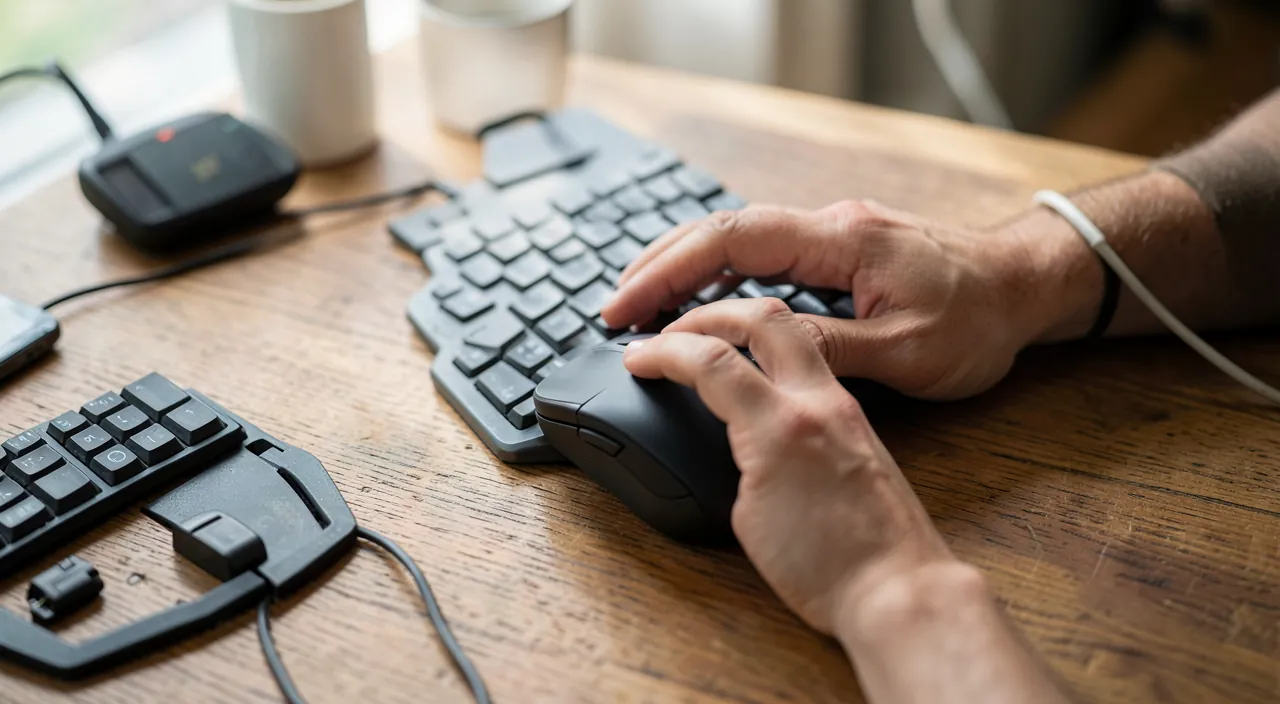

Persistent failure, capricious device? Our remote troubleshooting service quickly resolves your problem, without jargon.
Leave a Reply
You must be logged in to post a comment.