
Spreadsheets like Excel are everywhere — and for many, they remain a chore: obscure formulas, repetitive manipulations, and errors that are hard to track. The arrival of AI changes the game. By combining Excel with an intelligent assistant, you can automate tasks, understand complex formulas, and save a considerable amount of time, even without being an expert. Here’s how to make the most of this duo.
What AI brings to a spreadsheet
AI acts like a colleague who masters Excel perfectly and is always available. You describe what you want to do in natural language, and it provides the formula, the steps, or even the automation code. No more time spent searching for the exact syntax of a function or deciphering a formula inherited from a colleague.
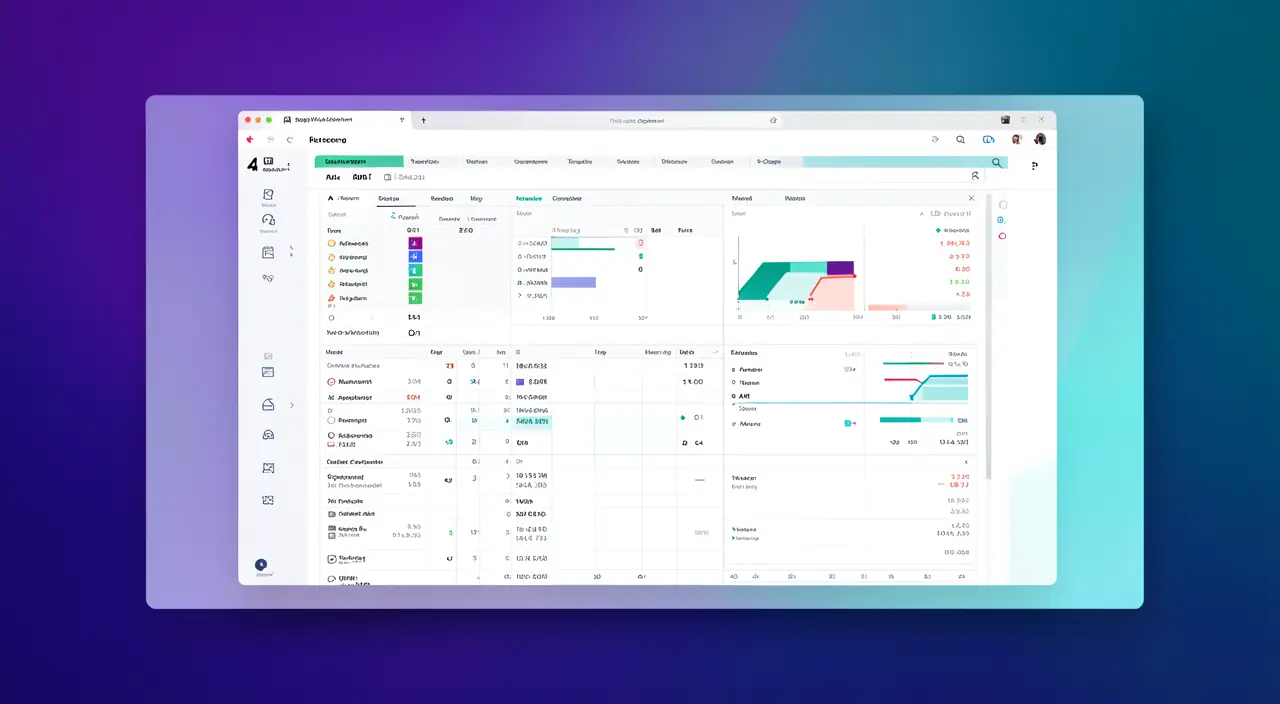
This assistance significantly lowers the barrier to entry: manipulations that seemed reserved for experts become accessible.
Generating formulas from a description
This is the most immediate use. Instead of figuring out how to do it, describe your need: “I have dates in column A and amounts in column B, I want the total of the amounts for the current month.” The AI provides the exact formula and explains how it works. You learn as you solve your problem.

Understanding and correcting existing content
When faced with an incomprehensible formula or an error, paste it and ask: “explain what this formula does” or “why does it return an error?” The AI breaks it down, identifies the problem, and suggests a correction. This is a huge time-saver for complex files that you’ve lost track of.
AI helps you understand and fix Excel formulas by explaining them in simple terms. If a formula isn’t working, the AI can spot the mistake and suggest a fix, saving you hours of frustration.
The right reflex. Always specify the structure of your data to the AI: which columns contain what, starting from which row. Without this information, it guesses; with it, it gives you a directly applicable formula, without back-and-forth.

Automating repetitive tasks
Beyond formulas, AI can help you create more advanced automations: cleaning a file, reformatting data, generating a recurring report. It can even produce macros or scripts, explaining how to set them up, to eliminate time-consuming manual manipulations.
Imagine you manage a monthly sales report. Instead of manually copying and pasting data from different sheets, you can ask the AI to create a macro that automatically compiles all the sales figures into a single report. The AI generates the code, and you just need to run it—saving you 2 hours of work every month.
Analyzing and summarizing your data
You can also ask the AI to interpret your numbers: spot a trend, summarize a table, suggest an appropriate type of chart. It turns raw data into actionable insights, which is invaluable for making informed decisions without being an analyst.


To check. Always verify the formulas and results proposed by the AI on a small sample before applying them to your entire file. A misunderstanding of the context can skew calculations: a quick check on a few lines avoids unpleasant surprises on a large scale.
Frequently asked questions
Do you need a special Excel?
No. You can use any AI assistant alongside your usual spreadsheet; some suites now integrate AI directly, but it’s not essential.

Are my data secure?
Avoid pasting confidential data into a public tool. For learning formulas, work on anonymized examples.
Key takeaways
Combining Excel and AI means having a spreadsheet expert available at all times. Formula generation, explanation of existing content, automation, analysis: the time savings are real and accessible to everyone, without prior expertise. The golden rule remains verification: let the AI do the heavy lifting, but keep control over the results. Your spreadsheets have never been so easy to tame.

Do you want to automate your tables and processes?
Leave a Reply
You must be logged in to post a comment.