
You press the power button… and nothing. Or almost: a black screen, a beep, a fan spinning in vain. A computer that refuses to start is one of the most distressing failures, as you fear the worst for your data and hardware. Yet, in most cases, the problem is identifiable and fixable. This guide accompanies you step by step to diagnose the issue, attempt the right manipulations, and know when to call a professional.
Observe the symptoms carefully before acting
Before any manipulation, take the time to precisely observe what is happening. A computer that “doesn’t start” can cover very different situations, and each symptom points to a cause. Ask the right questions: is there light, noise, a display?

- No reaction: no light, no fan, complete silence. Likely cause: power supply.
- It turns on but the screen stays black: fans and indicators active, but no display. Likely cause: screen, graphics card, or memory.
- It starts then shuts down: brief startup followed by a shutdown. Likely cause: overheating or faulty power supply.
- An error message appears: the computer turns on but gets stuck on a screen. Likely cause: system or hard drive.
Noting these precise details will save you valuable time, whether you repair it yourself or entrust the machine to a technician.
Basic checks to do yourself
Many startup failures have surprisingly simple causes. Before imagining the worst, proceed methodically with these risk-free checks.
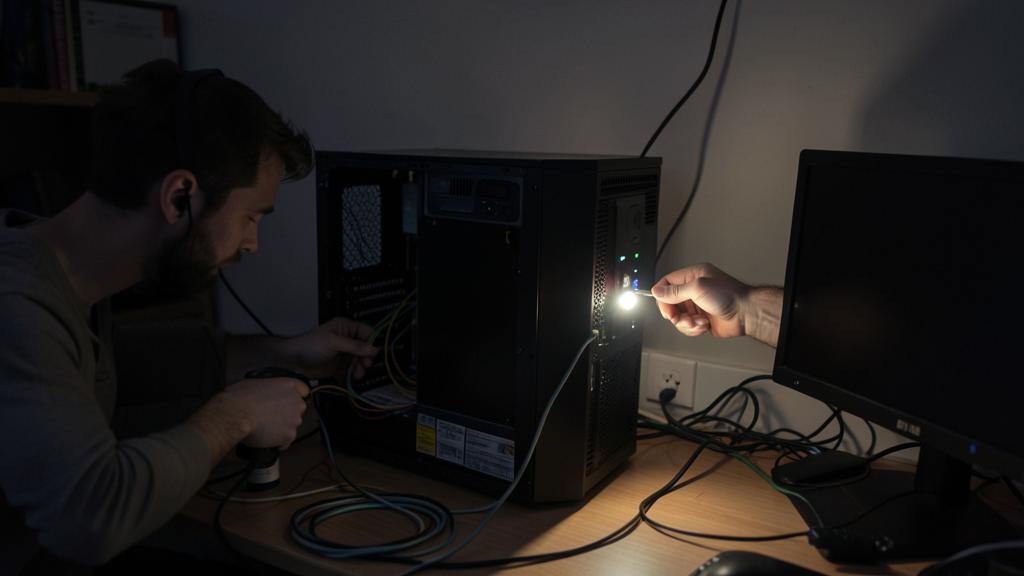

The power supply
Check that the power cable is properly plugged in at both ends and test another outlet. On a laptop, make sure the charger works: a charging indicator should light up. A faulty charger or completely dead battery is a common and easy-to-eliminate cause.
Peripherals
Unplug everything that is not essential: USB keys, external drives, printers. A faulty peripheral can prevent startup. Then try turning on the machine “naked,” with only the bare minimum connected.

The screen
If the computer seems to turn on but the screen stays black, the issue may be with the display. On a desktop, check the cable between the screen and the tower, and test another screen if possible. On a laptop, a flashlight held up to the screen may reveal a very faint image, indicating a backlight issue.
The right reflex. Try a “power reset”: turn everything off, unplug the power (and remove the battery if it’s removable), then hold down the power button for about 30 seconds. This clears residual electricity and resolves a surprising number of freezes.

If your computer doesn’t start, it’s often because of a simple issue like a loose cable or a faulty peripheral. Before panicking, check the basics: power supply, connected devices, and screen. If it’s a software problem, your data is usually safe.
Imagine your desktop PC turns on but the screen stays black. You check the power cable, remove all USB devices, and try another monitor. The second screen works, revealing the issue was a faulty HDMI cable. Problem solved in minutes!
When the system is at fault
If the machine turns on, displays something, but freezes before reaching the desktop, the issue is often software-related rather than hardware-related—a good thing, as your data is usually intact. An error message, a restart loop, or a frozen screen points to the operating system or the disk.
In this case, Safe Mode often allows you to start with the bare minimum and repair. Modern systems also offer automatic repair tools that activate after multiple startup failures. These options sometimes allow you to recover the situation without data loss.

Signs that should alert you
Some symptoms indicate a more serious issue: repeated beeps on startup (an error code emitted by the motherboard), unusual noises from the hard drive (clicking, scraping), a burnt smell, or a machine that overheats a lot. These signals justify stopping the manipulations and having the computer examined, or risk worsening the damage.
Absolutely avoid. If you hear clicking from the hard drive, do not insist on restarting the machine in a loop: each attempt can worsen the damage and permanently compromise your data. In this case, it’s better to shut down and quickly consult a data recovery professional.

Preserve your data above all
Hardware failure always raises concerns about files. Rest assured: in many cases, the hard drive is intact and your data recoverable, even if the computer no longer starts. A technician can extract the disk and retrieve its contents. This is also a good reminder of the importance of regular backups: they turn a dramatic failure into a minor inconvenience.
Frequently asked questions
My computer doesn’t turn on at all, is it dead?
Not necessarily. A faulty power supply or component can often be replaced, and your data usually remains recoverable. A precise diagnosis is required before concluding.

Can I repair it myself?
Basic checks (cables, peripherals, power reset) are within your reach. Beyond that—opening the machine, replacing components—it’s better to seek a professional’s advice to avoid worsening the issue.
What to remember
A computer that doesn’t start is not necessarily doomed, far from it. Observe the symptoms precisely, perform the basic risk-free checks (power supply, peripherals, power reset), and spot the hardware warning signs. In many cases, the issue is simple and your data intact. But faced with suspicious noises or a persistent failure, don’t take risks with your hardware and files.
Your computer won’t start? We diagnose it with you, remotely.
Leave a Reply
You must be logged in to post a comment.