
You’re on the train with a loved one, and you’d like to watch a movie TOGETHER on the same iPhone, each with your own headphones, without disturbing the neighbors? Or share the same music during a walk? The iPhone actually allows you to STREAM the same sound to TWO pairs of wireless headphones at the same time: it’s the « audio sharing » feature. Each person keeps their own headphones (AirPods or compatible) and their own volume control, and you listen to the same thing, together. It’s simple, practical, and perfect for travel, moments for two, or for sharing content discreetly. Good news: no complicated setup, everything is done in a few taps. Let’s see what audio sharing is, how to set it up, and in which cases it’s very useful.
What is audio sharing?
TWO headphones, one device: streaming the same sound to two pairs of wireless headphones from a single iPhone/iPad; the idea; to know. EACH with THEIR OWN HEADPHONES: each person has their own pair (no need to share the same ones); hygienic and comfortable; advantage. THE SAME sound together: you listen to the same thing at the same time; movie, music, for two; the use. INDEPENDENT VOLUME: each person adjusts their own volume; comfort for everyone; practical. WITHOUT DISTURBING: discreet listening, no speaker; ideal in public; advantage. WITH AIRPODS: works with AirPods and some compatible Apple/Beats headphones; to know; compatibility. TEMPORARY: you activate sharing for as long as you want, then you stop; flexible; to know. EASY to start: a few taps are enough; not complicated; reassuring. FOR TRAVEL: train, plane, car; perfect for sharing a movie; typical use. FREE: built-in feature, nothing to install; included; reassuring. In summary, « audio sharing » is a feature that allows you to STREAM THE SAME sound to TWO pairs of wireless headphones AT THE SAME TIME, from a single iPhone (or iPad). Concretely: you and a loved one can listen to THE SAME thing (a movie, a series, music, a podcast) each with YOUR OWN headphones— no need to share the same pair (which would be impractical and unhygienic). Each person keeps their headphones, and even better, each person adjusts THEIR OWN VOLUME independently (one can turn it up louder than the other, according to their comfort). All of this is done DISCREETLY, without a speaker, so you don’t disturb people around you— ideal on public transportation or in public places. The feature works with AIRPODS (Apple’s wireless headphones) and some compatible headphones (Apple, Beats): the two pairs don’t need to be identical. It’s a TEMPORARY feature (you activate it for as long as you want, then you stop), EASY to start (a few taps), FREE and built-in (nothing to install). It’s perfect for TRAVEL (watching a movie together on the train or plane), moments for two, or for sharing content discreetly. Let’s now see how to set it up— it’s simple.
Audio sharing lets two people listen to the same thing from one iPhone, each with their own headphones. You can adjust your own volume, and it works with AirPods. It’s perfect for watching movies together on a train or plane without disturbing others.
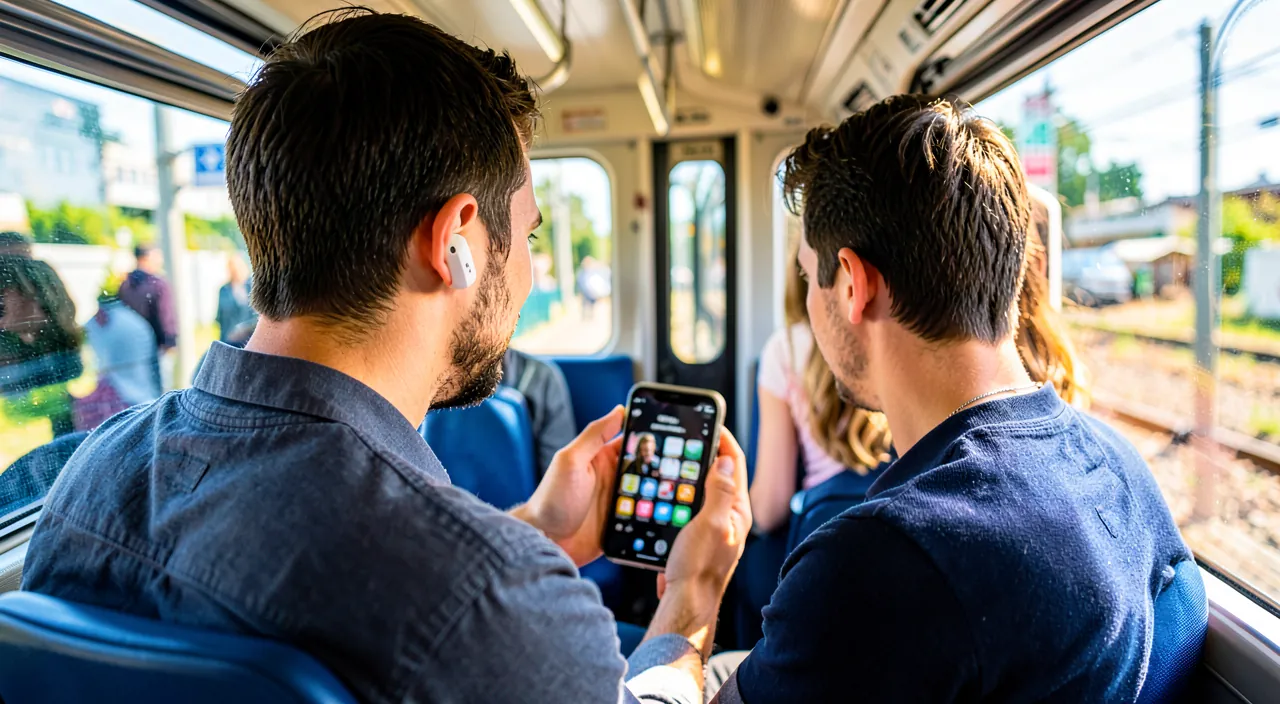
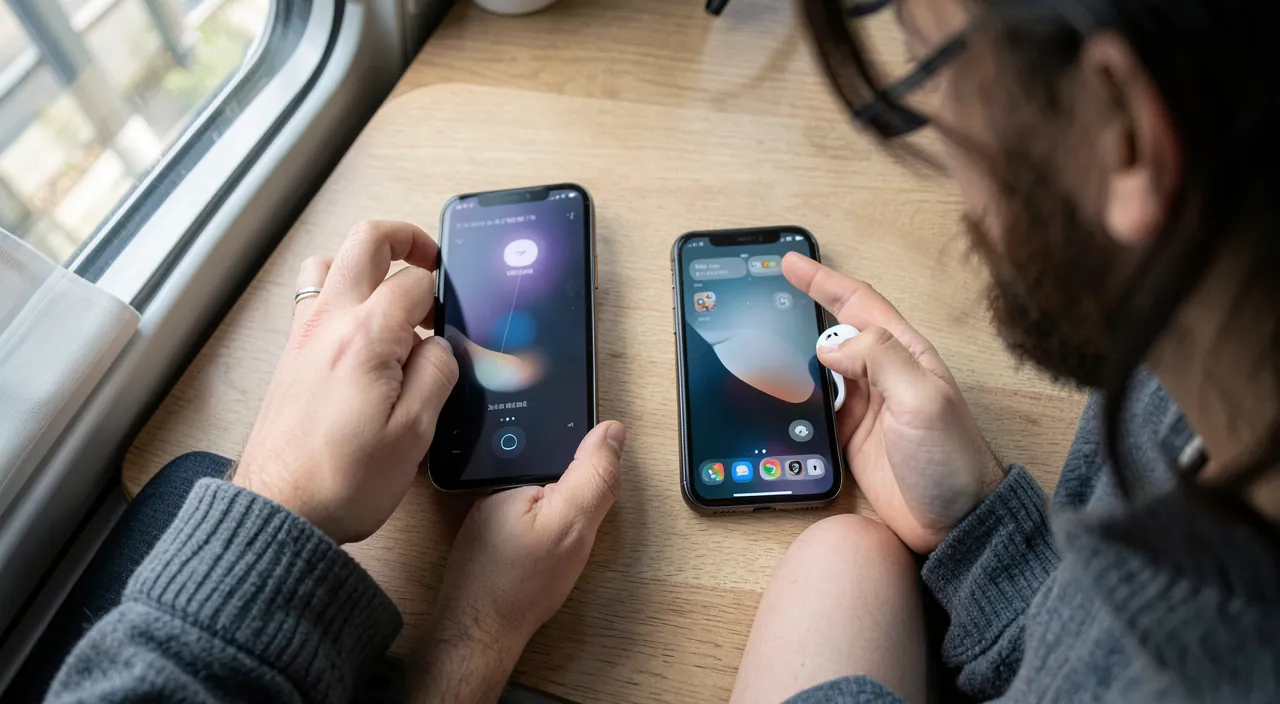
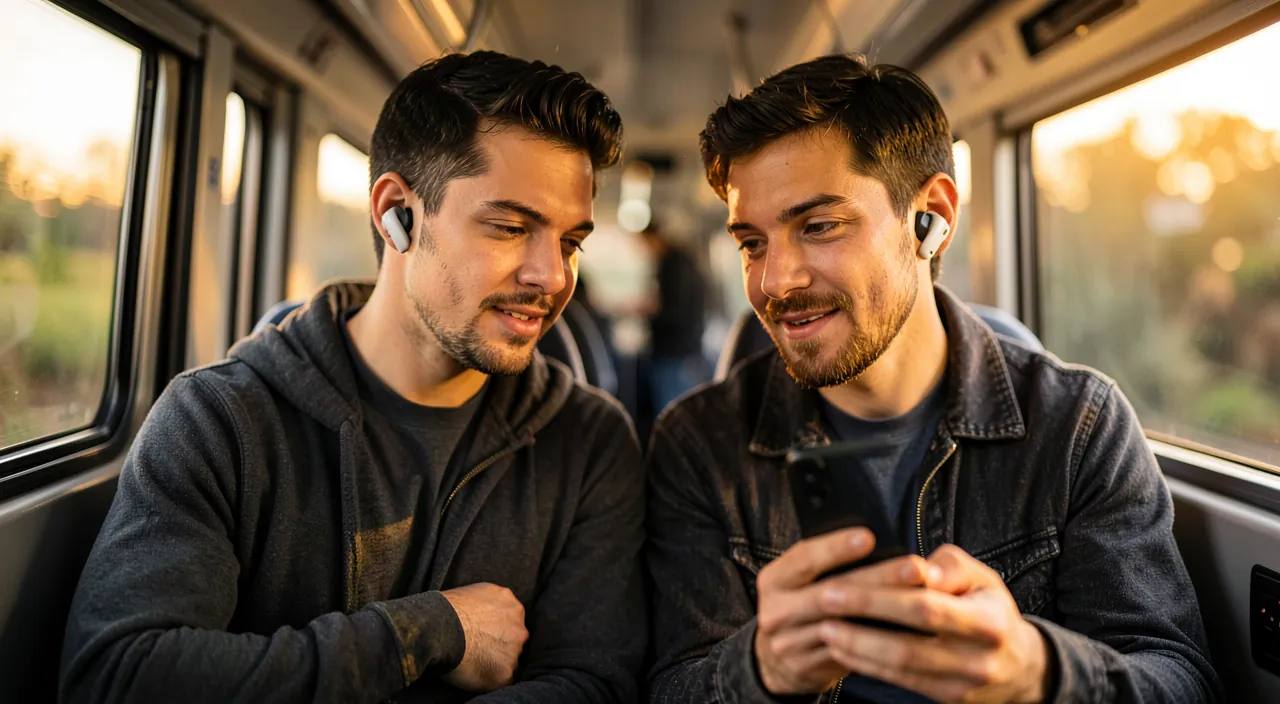
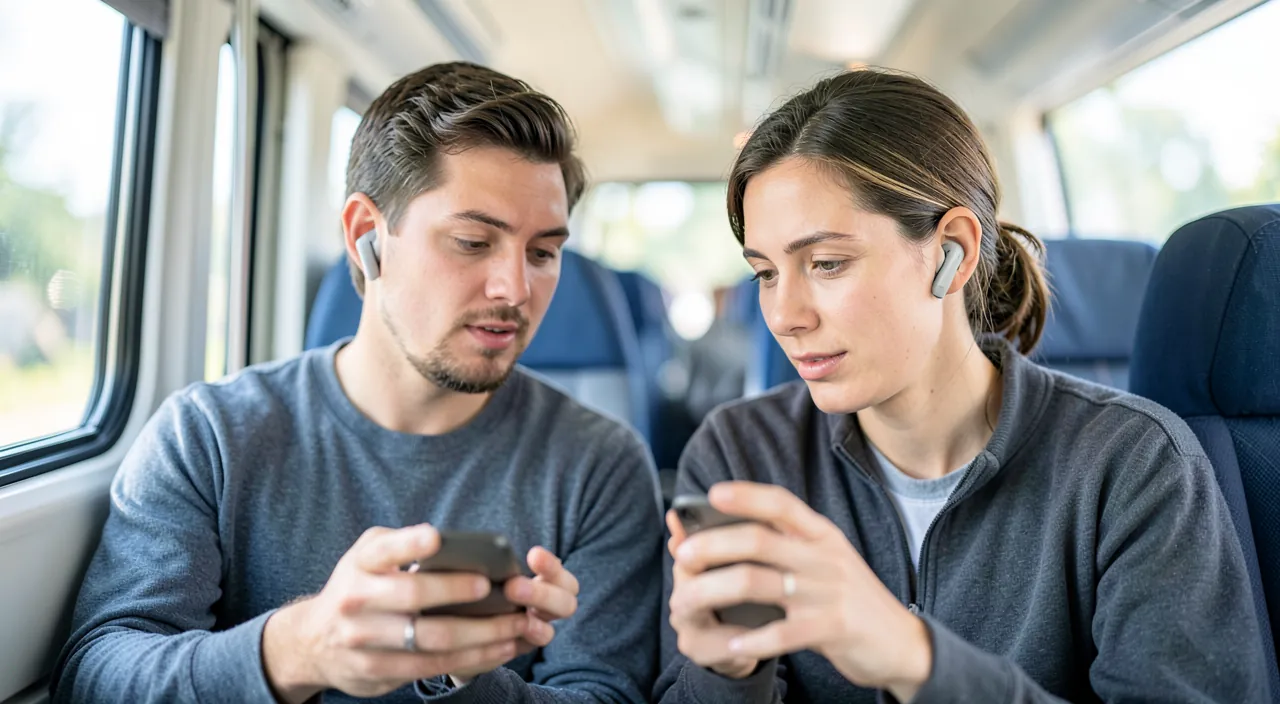
You’re on a 3-hour train ride with a friend. You open a movie on your iPhone, put on your AirPods, and follow the steps to share audio. Your friend opens their AirPods case near your iPhone, and both of you can watch the movie together, each adjusting your own volume. No wires, no speaker noise for other passengers.
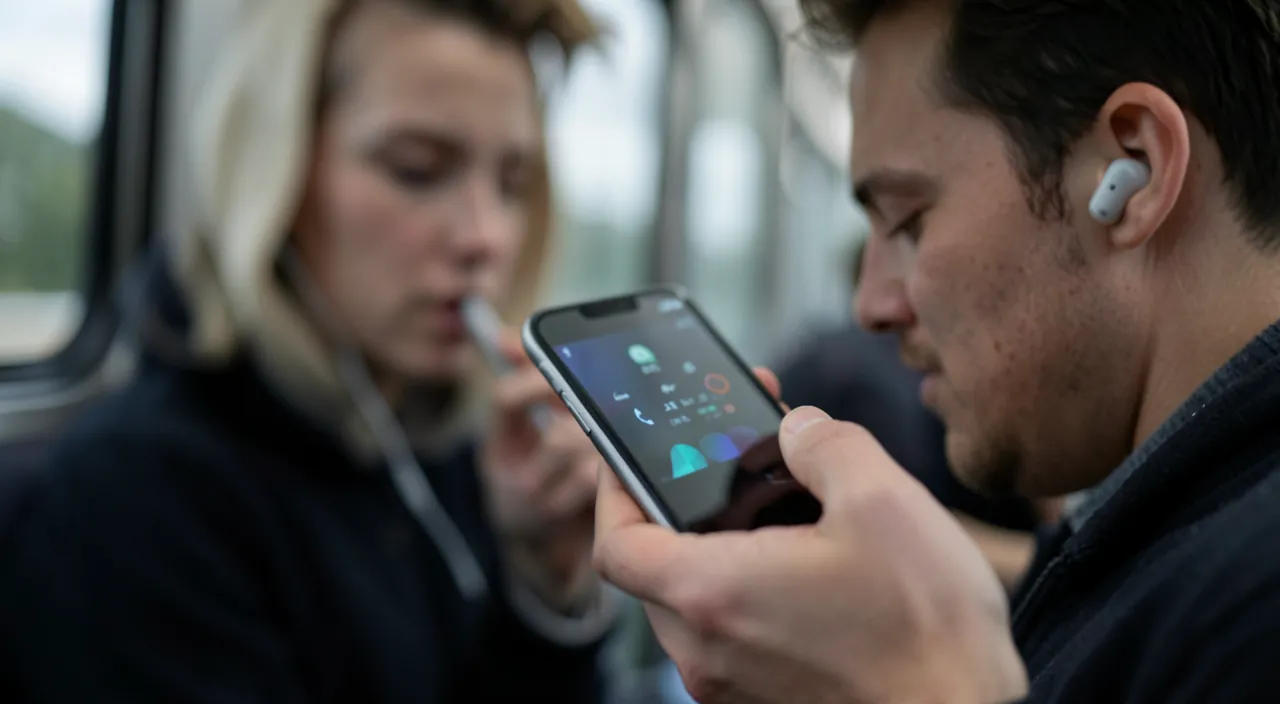
How to share audio between two pairs of headphones
SETTING up audio sharing is simple; let’s follow the steps. HAVE your headphones CONNECTED: first, put on YOUR headphones, connected to your iPhone; the basics; step. START the CONTENT: start the movie/music you want to share; the sound to share; step. OPEN the CONTROL CENTER: open the control center (swipe from the corner/top of the screen); access quick settings; step. TOUCH the AIRPLAY/audio icon: touch the audio streaming icon (waves/triangle) on the playback control; step. « SHARE the audio »: choose the « Share Audio » option; start sharing; key step. BRING the 2nd pair CLOSE: bring the second pair of headphones (in its open case) close to your iPhone; to detect it; step. CONNECT it: follow the prompt to connect the 2nd pair (or put it in pairing mode); associate it; step. CONFIRM: validate the sharing; both pairs receive the sound; end. ADJUST each volume: each person adjusts their volume on their headphones; comfort; to know. STOP when done: turn off sharing in the control center when you’re finished; simple; tip. In summary, sharing audio between two pairs of headphones is done in a few simple steps. 1) First, put on YOUR own headphones and make sure they are properly CONNECTED to your iPhone (the sound comes out in your headphones). 2) START the content to share (the movie, the music). 3) OPEN the CONTROL CENTER (the quick settings panel: swipe your finger from the top right corner of the screen, or from the bottom depending on the model). 4) On the playback control (the small box that shows what’s playing), touch the AUDIO STREAMING ICON (it looks like waves or a triangle with circles— it’s the « AirPlay » icon). 5) In the list that opens, choose « SHARE AUDIO. » 6) The iPhone then asks you to bring the SECOND pair of headphones CLOSE: BRING it close to your iPhone (AirPods in their open case, or the second pair in pairing mode), and follow the prompt to CONNECT it. 7) CONFIRM the sharing: there you go, both pairs now receive the same sound! Each person can ADJUST their own VOLUME on their headphones. When you’re done, just go back to the control center to STOP the sharing. It may seem like a lot of steps written out, but in practice, it’s quick and guided: the iPhone helps you every step of the way.
The steps: put on your headphones, start the movie, open the control center, touch the audio streaming icon, choose « Share Audio, » and bring the second pair of headphones close. The iPhone guides you at every step. Audio sharing sounds technical when put like that, but it’s actually a guided feature where the iPhone does most of the work. Here’s how to do it calmly. The key idea to keep in mind: you start with YOUR headphones (already connected and playing the sound), and you ADD a second pair. It’s not « connecting two headphones from scratch, » but « inviting a second pair to join » what you’re already listening to. It’s easier to visualize this way. Step 1: prepare the ground. Put on YOUR headphones (AirPods) and check that they are properly CONNECTED to your iPhone (the sound comes out). Start the CONTENT you want to share (the movie, the series, the music): it plays in your ears. The second person, meanwhile, prepares THEIR headphones (in their case, ready to be connected). Step 2: open the control center. The CONTROL CENTER is the quick settings panel of the iPhone (with brightness, volume, airplane…): you open it by SWIPING your finger from the TOP RIGHT CORNER of the screen downward (on recent iPhones), or from the BOTTOM of the screen upward (on older models). Step 3: find the audio streaming icon. In the control center, locate the PLAYBACK PANEL (the one that displays the title of what’s playing, with the play/pause buttons). In the corner of this panel is a small ICON shaped like WAVES or a triangle with concentric circles: it’s the « AirPlay » / AUDIO STREAMING icon. Touch it. Step 4: choose « SHARE AUDIO. » A list opens (it shows your current headphones and other options): look for and touch « SHARE AUDIO » (or « Share Audio Temporarily »). Step 5: bring the second pair close, let yourself be guided. The iPhone then asks you to BRING the SECOND pair of headphones CLOSE: the second person OPENS the case of their AirPods (lid open, headphones inside) and HOLDS it VERY CLOSE to your iPhone. The iPhone DETECTS it and displays a button to CONNECT/SHARE it: touch it, CONFIRM, and that’s it— both pairs receive the same sound. (For a pair of headphones that are not AirPods, you may need to put them in « pairing mode » for the iPhone to see them: the iPhone will tell you.) The REASSURING point: at every step, the iPhone DISPLAYS what to do (clear messages, buttons to touch). You don’t have to guess: let yourself BE GUIDED, touch what it suggests, and the sharing sets itself up automatically. And if it doesn’t work the first time, no problem: try again calmly, or reconnect the second pair. Once started: each person adjusts THEIR volume (on their own headphones or via their side), and to STOP, go back to the control center and turn off the sharing. In summary: put on your headphones and start the movie, open the control center, touch the audio streaming icon (waves/AIRPLAY) on the playback panel, choose « SHARE AUDIO, » then bring the second pair of headphones (case open) close and confirm; the iPhone guides you at every step. A very practical feature, simpler to do than to describe.
In which cases is audio sharing very useful
AUDIO sharing shines in several everyday situations; let’s see which ones. ON TRAVEL: train, plane, car; watch a movie together without disturbing; the flagship use; very useful. A MOVIE for two: share a movie/series on the same screen; a moment for two; pleasant. MUSIC together: listen to the same song on a walk; share a taste; nice. WITH a CHILD/grandchild: make them listen to a story, a song; complicity; touching. DISCRETION in public: listen without a speaker; respect others; civility; advantage. EACH with THEIR OWN VOLUME: comfort for everyone, same content; practical; asset. A COURSE/tutorial for two: follow an explanatory video together; learn together; useful. SHARE a DISCOVERY: make someone listen to a podcast, a piece of news; exchange; pleasant. WITHOUT cable or splitter: no need for a two-port adapter; modern; practical. TEMPORARY: you use it when you need it, then you stop; flexible; to know. In summary, audio sharing is particularly useful in several pleasant everyday situations. The FLAGSHIP USE: TRAVEL. On the TRAIN, the PLANE, or in the CAR (passenger side), being able to watch a MOVIE or series TOGETHER on the same iPhone/iPad, each with their own headphones and volume, without disturbing the neighbors: it’s the perfect use case, which turns a long trip into a shared moment. More broadly, it’s ideal for all MOMENTS for TWO: sharing a movie, a series, music on a walk, a podcast you want to share. It’s also very TOUCHING with a CHILD or GRANDCHILD: making them listen to a story, a song, a video, each with their own headphones— a true moment of complicity. In PUBLIC PLACES, it’s a gesture of CIVILITY: you listen to two without imposing the sound on others (no speaker). The advantage that each person adjusts THEIR OWN volume is precious: the same content, but with everyone’s comfort. You can also follow a COURSE, a tutorial, an explanatory video together. And all of this WITHOUT cable or « splitter » with two ports (those old adapters): everything is wireless and modern. It’s a TEMPORARY feature: you activate it when the need arises, and then you stop it. In short, whenever you want to share a listening experience with someone, discreetly and comfortably, audio sharing is there for that.
Good to know: audio sharing works with AirPods and some compatible Apple/Beats headphones, not with any brand; the two pairs must be close to the iPhone; and you need a recent enough iPhone. A few clarifications to use audio sharing without disappointment. First point: the COMPATIBILITY of the headphones. Audio sharing is an Apple feature that works with AIRPODS (all recent generations) and some headphones from the Apple or BEATS brand (which belongs to Apple). However, it does NOT necessarily work with wireless headphones from OTHER brands: if the second pair is not compatible, the iPhone will not be able to join it to the sharing. Before counting on it for a specific occasion, check that the TWO pairs are compatible (ideally, two pairs of AirPods, or one pair of AirPods and one pair of Beats). It’s not a failure if a non-compatible pair does not connect: it’s simply a compatibility limit. Second point: you need a recent enough iPhone (or iPad). Like many modern features, audio sharing requires a relatively recent device, with an up-to-date system: on an old iPhone, the feature may be missing. If you don’t find the « Share Audio » option, check that your device is up to date; if it’s very old, the feature may not be available. Third point: keep the two pairs CLOSE to the iPhone. The sound is streamed wirelessly (via Bluetooth): the two pairs of headphones must remain WITHIN RANGE of the iPhone (a few meters, without too many obstacles). If one of the people WALKS TOO FAR, their sound will cut out or degrade: to watch a movie together, stay SIDE BY SIDE, near the device (which is natural when sharing a screen). Fourth point: to CONNECT the second pair, you often need to bring it close (case open) or put it in pairing mode. The moment when the iPhone must « see » the second pair is the most delicate: for AirPods, open the case (lid open, headphones inside) and hold it CLOSE to the iPhone; for other compatible headphones, you may need to put them in « pairing mode » (often a button to hold until a light flashes). If the iPhone does not detect the second pair, it’s usually here that you need to insist (bring it closer, redo the pairing mode). Fifth point: don’t forget to STOP the sharing when you’re done. Once the shared moment is over, remember to TURN OFF audio sharing (in the control center): otherwise, the iPhone might continue to try to stream to the second pair, and you might be surprised that your sound behaves « strangely » afterward. It’s not serious, but it’s cleaner. Sixth point: if it doesn’t work the first time, don’t panic. Like any wireless connection, sharing can sometimes require two attempts: try again calmly, check that Bluetooth is on, that the headphones are charged, bring the pairs closer, or reconnect them (consult our guides on the iPhone and Bluetooth to learn more). In summary: audio sharing works with AIRPODS and some compatible Apple/BEATS headphones (not all brands: check the two pairs), it requires a recent enough iPhone/iPad and up to date, the two pairs must remain CLOSE to the device (stay side by side), connecting the second pair is done by bringing it close (case open) or via its pairing mode, remember to STOP the sharing at the end, and if it doesn’t work, try again calmly. With these points in mind, audio sharing is a real pleasure to use, without any bad surprises.
Frequently asked questions
Can each person adjust their own volume?
Yes, absolutely: it’s even one of the main advantages of audio sharing; each person adjusts the volume of THEIR headphones independently, according to their comfort, while listening to the same content— one can turn it up louder, the other softer, without bothering the other. Let’s see. INDEPENDENT VOLUME: each person adjusts their own; the two are not linked; a real asset; reassuring. ACCORDING to COMFORT: one likes it loud, the other soft; each their own setting; practical; pleasant. THE SAME content: only the volume differs, the shared sound is the same; shared listening; to know. ADJUST on YOUR HEADPHONES: each person adjusts via their headphones or their side; autonomous; simple. Useful for HEARING: precious if one hears less well; adapt to each; inclusive; useful. FROM the iPHONE too: you can adjust the volumes of both from the control center; central control; option. NO COMPROMISE: no need to find an « average » volume that doesn’t suit both; each is served; advantage. SHARED COMFORT: listen together without sacrificing your comfort; the best of both; nice. EASY: the adjustment is done as usual; nothing new to learn; reassuring. The ADVICE: yes; each person adjusts the volume of their own headphones independently, according to their comfort, while listening to the same content; it’s one of the main advantages of audio sharing. In summary, YES, each person can absolutely adjust THEIR OWN volume— and it’s precisely one of the MAIN ADVANTAGES of audio sharing. The principle is simple and well thought out: the two pairs of headphones receive THE SAME content (the same movie, the same music), but the VOLUME of each pair is INDEPENDENT. In other words, each person adjusts the volume of THEIR headphones as they wish, according to THEIR comfort, without affecting the other. One may prefer to listen LOUD, the other SOFTER: each is served, and no one has to compromise on an « average » volume that would suit both poorly. How do you do it? Each person simply adjusts the volume as usual: on their own headphones (AirPods are adjusted with a gesture or by voice, or via the buttons), or from their side. You can also adjust the volumes of both pairs from the iPhone itself (in the control center, where both appear). This advantage is particularly PRECIOUS when the two people don’t have the same hearing: for example, if one of the two hears LESS well, they can turn UP THEIR OWN volume without imposing a sound that’s too loud on the other— a beautiful way to include everyone comfortably. It’s therefore the best of both worlds: you listen TOGETHER (the same content, the same moment), while keeping EACH your own listening comfort. In summary: yes, each person adjusts their own volume independently (on their headphones, or from the iPhone), according to their comfort, while sharing the same content; it’s a major advantage of audio sharing, especially when one hears less well than the other. You share the listening, not the volume: each person enjoys it in their own way.
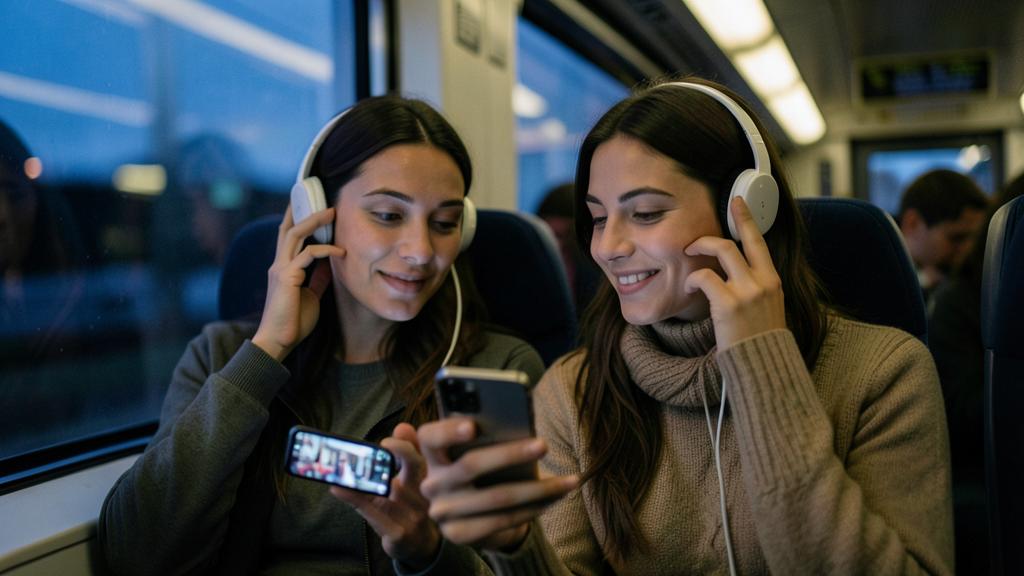
Do the two pairs of headphones have to be identical?
No, not necessarily identical, but they must be COMPATIBLE: two pairs of AirPods (even of different generations), or one pair of AirPods and one pair of Beats, work; on the other hand, headphones from another non-compatible brand will not be able to join the sharing. Let’s see. Not necessarily IDENTICAL: the two pairs don’t need to be the same model; flexible; reassuring. But COMPATIBLE: they must be compatible with the feature (Apple/Beats); the real condition; important. Two DIFFERENT AIRPODS: two pairs of AirPods from different generations work together; flexible; to know. AirPods + BEATS: one pair of AirPods and one pair of compatible Beats work; possible; to know. OTHER brands: headphones from a third-party brand that are not compatible will not be able to join; limit; important. CHECK beforehand: for a specific occasion, check the compatibility of the two pairs; anticipate; advice. Not a FAILURE if incompatible: if a pair does not connect, it’s the compatibility, not a defect; reassuring; to know. The ideal: TWO AirPods: the simplest and safest case; recommended; advice. EACH their own: each person keeps their headphones (hygiene, comfort); advantage; to know. In case of DOUBT: find out about the compatibility of your models; useful; advice. The ADVICE: no, not identical, but compatible; two AirPods (even of different generations) or AirPods + Beats work; another non-compatible brand will not be able to join; check the compatibility of the two pairs beforehand. In summary, NO, the two pairs of headphones do NOT need to be IDENTICAL (the exact same model)— but they must be COMPATIBLE with the audio sharing feature, which is the real condition to remember. Concretely, this works in these cases: TWO pairs of AIRPODS, even of DIFFERENT GENERATIONS (for example, your AirPods from one model and those of your loved one from another model: no problem, they don’t have to be twins); or one pair of AIRPODS with one pair of BEATS headphones compatible (Beats belongs to Apple and shares this feature). ON THE OTHER HAND, the feature does NOT work with wireless headphones from ANOTHER brand (third-party) that are not compatible with Apple’s audio sharing: in this case, the iPhone will not be able to join this second pair to the sharing. It’s not a failure, just a compatibility limit. The practical advice: if you plan to use audio sharing for a specific occasion (a trip, for example), CHECK in advance that the TWO pairs are indeed compatible— the simplest and safest case being two pairs of AirPods. The advantage, in all cases, is that each person keeps THEIR OWN headphones (more hygienic and comfortable than sharing a single pair). In summary: no need for identical pairs, but compatible; two AirPods (even of different generations) or AirPods + Beats work perfectly; a third-party non-compatible brand will not be able to join the sharing; check the compatibility of the two pairs beforehand, the ideal being two pairs of AirPods. You each keep your headphones, for a comfortable sharing.
Does audio sharing consume more battery?
A bit, yes: streaming the sound to two pairs requires more from the iPhone and Bluetooth than one; the impact remains moderate, but for a long movie for two, it’s better to start with a good charge (or the iPhone plugged in) and well-charged headphones. Let’s see. A LITTLE more: streaming to two pairs requires a bit more from the iPhone; logical; to know. DOUBLED BLUETOOTH: managing two wireless connections requires more; hence a slight extra cost; mechanism. MODERATE impact: the difference remains reasonable, not dramatic; to put into perspective; reassuring. The HEADPHONES too: each pair consumes its own battery; to charge before; advice. For a LONG movie: start with a good iPhone charge + headphones; anticipate; advice. PLUG IN the iPhone: on a trip, plugging in the iPhone avoids running out of battery; smart; tip. CHARGE the headphones: headphones and cases charged before leaving; avoid cutting out; advice. NO REASON to give up: the extra cost shouldn’t prevent you from sharing; enjoy it; reassuring. MONITOR if needed: keep an eye on the battery during long use; prepared; useful. STOP when done: turning off sharing at the end avoids unnecessary consumption; clean; advice. The ADVICE: a bit more, yes (two connections require more), but the impact remains moderate; for a long movie for two, start with a good charge (or the iPhone plugged in) and charged headphones; stop the sharing at the end. In summary, YES, audio sharing consumes A LITTLE more battery than listening to a single pair— but the impact remains MODERATE, and shouldn’t prevent you from using this very practical feature. Why a bit more? Because streaming the sound to TWO pairs of headphones at the same time requires the iPhone to manage TWO wireless connections (Bluetooth) instead of one: this puts more strain on it, hence a slightly higher battery consumption. It’s logical, but the difference remains REASONABLE: we’re not talking about a battery that drains twice as fast, just a slight extra cost. That said, two practical tips, especially for LONG use (like watching an entire movie together while traveling): 1) start with a GOOD CHARGE— make sure your iPhone is well charged before starting (and, on a trip, a simple tip: PLUG IN the iPhone to a power outlet or external battery during the movie, which definitely solves the issue). 2) CHARGE the HEADPHONES too: don’t forget that EACH pair of headphones has its own battery; check that the two pairs (and their cases) are well charged before leaving, to avoid one pair stopping in the middle of the movie. Finally, remember to STOP the sharing once you’re done (in the control center): no need to continue streaming to two pairs if you’re finished, this saves battery. But rest assured: this extra cost should IN NO WAY make you give up on audio sharing— it’s normal and manageable consumption. Just start with a good charge, and enjoy your movie for two. In summary: yes, audio sharing consumes a bit more (two wireless connections to manage), but moderately; for a long moment for two, start with a well-charged iPhone (or plugged in) and charged headphones, and stop the sharing at the end; the slight extra cost shouldn’t prevent you from using this feature. A bit of anticipation on the charge, and everything goes well.
What to remember
The « audio sharing » feature of the iPhone allows you to STREAM the same sound to TWO pairs of wireless headphones at the same time: you and a loved one listen to THE SAME thing (a movie, music), each with YOUR OWN headphones and YOUR OWN volume, discreetly and without disturbing anyone. It’s perfect for TRAVEL (watching a movie together on the train or plane), moments for two, or for sharing content with a child or grandchild. It’s free, built-in, and simpler to do than to describe. THE STEPS TO FOLLOW: put on YOUR headphones (connected) and start the content; open the CONTROL CENTER (swipe from the corner or the bottom of the screen); on the playback panel, touch the AUDIO STREAMING ICON (waves/AIRPLAY); choose « SHARE AUDIO »; then BRING the second pair of headphones (case open) close to the iPhone and confirm. At every step, the iPhone GUIDES you: let yourself be accompanied, and try again calmly if needed. Big advantage: each person adjusts THEIR OWN volume independently (precious if one hears less well) while listening to the same content. Good to know: the feature works with AIRPODS and some compatible Apple/BEATS headphones (not all brands: the two pairs must be compatible, but not identical— two AirPods of different generations work), it requires a recent enough iPhone/iPad and up to date, the two pairs must remain CLOSE to the device (stay side by side), and the sharing consumes a bit more battery (start with a good charge for a long movie). Remember to STOP the sharing when you’re done. In short, audio sharing is a user-friendly and well-thought-out feature for sharing a listening experience for two, comfortably and discreetly: ideal whenever you want to enjoy a movie or music with someone, without imposing the sound on others or sacrificing the comfort of each.
Want to unlock the full potential of your iPhone, iPad, or Mac? Our Apple training courses will take you to the next level.
Leave a Reply
You must be logged in to post a comment.