
A friend comes over and wants to connect to your WiFi; or you’re hosting family; or you need to give access to a guest. Then begins the usual ordeal: finding the WiFi password (often an unreadable string of letters, numbers, and symbols on the back of the box), dictating or copying it character by character, making mistakes, starting over… On iPhone, there’s a much better way: WiFi password sharing IN ONE GESTURE. When someone close to you tries to join your network, your iPhone simply offers to send them the password automatically, without anyone having to read or type it. It’s simple, fast, and secure. Let’s see how it works, how to use it, and other easy ways to share your WiFi.
WiFi password sharing: how it works
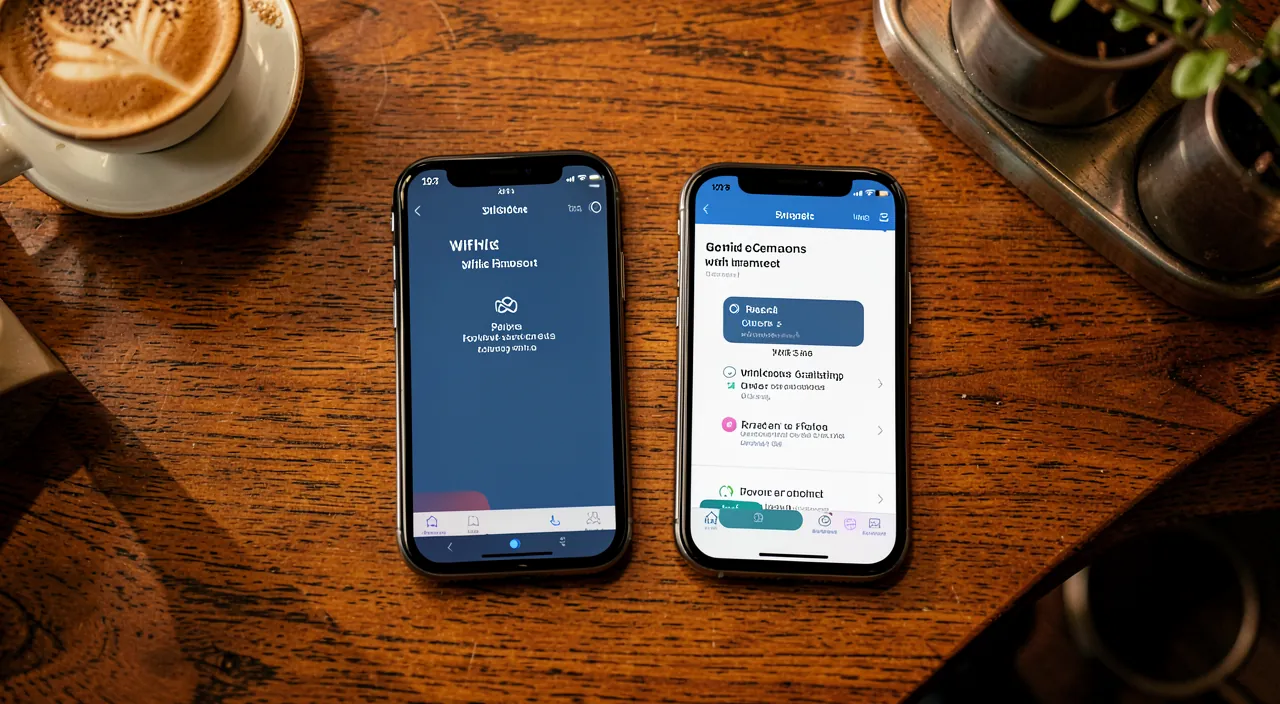
THE PRINCIPLE: when someone near you tries to connect to YOUR WiFi network (the one you’re already connected to), your iPhone AUTOMATICALLY offers to send them the password; with one gesture, access is shared; no one reads or types the password. WHAT IT AVOIDS: no more searching for the password on the back of the box, dictating it letter by letter, or painstakingly copying it; the iPhone handles it; a real comfort; you save time and avoid mistakes. HOW IT TRIGGERS: when a friend (with an Apple device) selects your WiFi network and reaches the password screen, a window appears ON YOUR iPHONE offering to “share the password”; you accept, and that’s it; automatic and smooth. THE CONDITIONS: for it to work; you must be connected to the network, your iPhone unlocked and close to the other device, Bluetooth and WiFi enabled on both sides, and the other person in your contacts (ideally); a few simple conditions (we’ll come back to them). BETWEEN APPLE DEVICES: this automatic sharing works between Apple devices (iPhone, iPad, Mac); for other devices, other methods exist (QR code, dictation); it’s an Apple ecosystem feature (we’ll come back to it). SECURE: the password is sent securely, without being displayed to anyone; the guest connects without ever seeing or knowing the password; it’s even safer than dictating it (we’ll come back to it). FAST: everything happens in a few seconds; the guest selects the network, you tap “share”, and they’re connected; disconcertingly simple; pure efficiency. WITHOUT KNOWING the password: subtle advantage; you can share access without even remembering the password (the iPhone knows it); handy if you’ve forgotten your own password; the iPhone handles it. OFTEN UNKNOWN: many people don’t know this feature and keep painstakingly dictating their password; sharing it changes lives; a convenience to adopt. WHAT IT’S FOR: to instantly give WiFi access to a friend, without effort or errors, in a secure way; a small everyday gesture greatly simplified; the comfort of the ecosystem. The key idea: on iPhone, sharing your WiFi password is disconcertingly simple: when a friend (with an Apple device) tries to connect to YOUR network and reaches the password screen, a window AUTOMATICALLY appears on your iPhone offering to send them the password; you tap “share”, and they’re connected in a few seconds — without anyone having to read, dictate, or type the long string of characters. No more ordeal of finding the password on the back of the box and painstakingly copying it! This automatic sharing works between Apple devices, with a few simple conditions (being connected to the network, iPhone unlocked and close, Bluetooth and WiFi enabled, contact registered preferably). It’s even SECURER than dictating the password, as it’s transmitted without being displayed in plain text. Often unknown, this feature greatly simplifies an everyday gesture; for non-Apple devices, other methods exist (QR code in particular).
Your iPhone can automatically share your WiFi password with another Apple device nearby. When someone tries to connect, your phone offers to send the password without showing it to anyone. It’s faster and safer than typing or dictating the password.
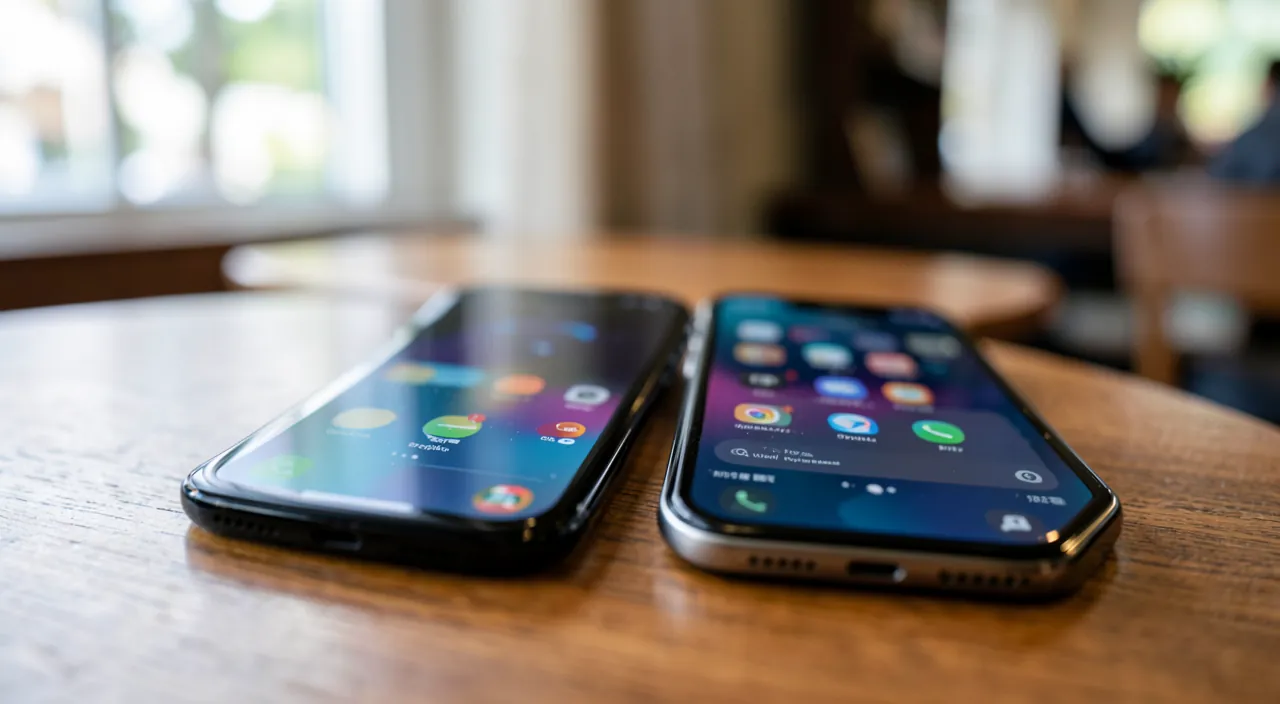
How to share your WiFi in practice
THE AUTOMATIC METHOD (Apple): to share with an Apple device; the guest selects your WiFi network on their device and reaches the password screen; a window appears ON YOUR iPHONE; tap “Share the password”; done; total simplicity. CHECK THE CONDITIONS: for the window to appear; be connected to the network, your iPhone UNLOCKED and CLOSE to the other device, BLUETOOTH and WiFi enabled on both sides; meet these conditions; they determine the sharing. HAVE THE CONTACT registered: sharing works better if the person is in your CONTACTS (and you in theirs), with the email/phone number of their Apple account; otherwise, the offer may not appear; register each other; the contact helps. BRING THE DEVICES closer: place the two devices near each other; sharing uses proximity (Bluetooth); if they’re far apart, it won’t work; proximity is required; bring them closer. ACCEPT THE SHARING: when the “Share the password” window appears on your iPhone, tap to accept; the password is sent, the guest connected; a simple tap suffices; confirm. Alternative — the QR CODE: to share with a NON-Apple device (Android, etc.), a practical method is to create a QR CODE for your WiFi; the guest scans it and connects; universal; a good multi-device solution (we’ll come back to it). Alternative — DICTATE (if needed): as a last resort, you can always dictate/copy the password; it’s the “classic” method; avoid it if the others work (tedious, less secure); the traditional fallback. FIND YOUR password: if you need to communicate it, the iPhone lets you SEE your saved WiFi password (in the network settings); useful if you’ve forgotten it; consult it if needed; it’s recoverable. IF IT DOESN’T WORK: if the window doesn’t appear; check the conditions (unlocked, close, Bluetooth/WiFi, contacts), bring them closer, try again, or use the QR code / dictation; several fallback solutions; don’t get stuck. FOR A GUEST NETWORK: if your box offers a separate “guest” network, it’s a good option for visitors (internet access without access to your main network); secure; consult our WiFi guides; consider it (we’ll come back to it). In summary, to share your WiFi: with an APPLE device, the automatic method is king — the guest selects your network, a “Share the password” window appears on your iPhone (unlocked, close, Bluetooth and WiFi enabled, contact registered preferably), you accept, and that’s it. For a NON-Apple device, create a QR CODE for your WiFi (the guest scans it). As a last resort, dictate the password (which the iPhone lets you recover if you’ve forgotten). If automatic sharing doesn’t work, check the conditions or use the QR code. Also consider your box’s “guest” network for visitors. These methods make WiFi sharing simple and fast; Apple’s automatic sharing and the QR code are the most convenient solutions.
Your friend Sarah has an iPhone and wants to connect to your WiFi. She selects your network and reaches the password screen. Your iPhone, which is unlocked and nearby, shows a pop-up asking if you want to share the password. You tap “Share,” and Sarah is instantly connected without ever seeing the password.
The universal trick: the WiFi QR code, which works with all devices (even non-Apple). Automatic sharing between Apple devices is great, but it has a limit: it only works between Apple devices. Yet you’ll often have guests with an Android phone, or you’ll want to display WiFi access for everyone. The universal, elegant, and lasting solution is the WiFi QR CODE. The principle is simple: a QR code (that small square of patterns you scan with the camera) can contain your WiFi network’s connection details (its name and password). When someone scans it with their phone’s camera — whether it’s an iPhone OR an Android, most recent smartphones can do it natively — they’re offered to automatically connect to your network, without having to type anything. It’s magically simple, and it works for absolutely everyone. How to create this QR code? There are several ways: on iPhone, some features or apps (including the Shortcuts app, or dedicated apps to create WiFi QR codes) let you generate your network’s QR code from its name and password. Once created, this QR code is a simple small image square that you can use in a thousand ways: save it in your photos and show it to a guest who scans it, print it and discreetly display it in your entryway or near the box (ideal for family and visitors to connect on their own, without bothering you), set it as a wallpaper, or send it via message. It’s particularly practical in several situations: when you regularly have guests (print the QR code once, and each person connects by scanning it); when a visitor has a non-Apple device (automatic sharing wouldn’t work, but the QR code would); when you rent out a property or run a business, a café, a practice (displaying the guest WiFi QR code is much more elegant than writing an unreadable password on a board). The major advantage of the QR code over dictating the password is twofold: it’s FASTER (a scan vs. character-by-character entry) and more RELIABLE (no risk of copying errors, even on a complex password full of symbols). A common-sense point on security, however: a WiFi QR code contains your password, so treat it with the same caution as the password itself — only display the QR code of your MAIN NETWORK in a trusted setting (at home, for your guests), and for more open use (business, rental), prefer the QR code of a separate “guest” network (see below), which gives internet access without exposing your main network. In summary, remember the WiFi QR code as THE universal sharing solution: unlike automatic sharing limited to Apple, it works with all devices, it’s fast, reliable, and you can print and display it for everyone to connect on their own. It’s the perfect companion to Apple’s automatic sharing: one for Apple-equipped friends in one gesture, the other for everyone and for lasting display.
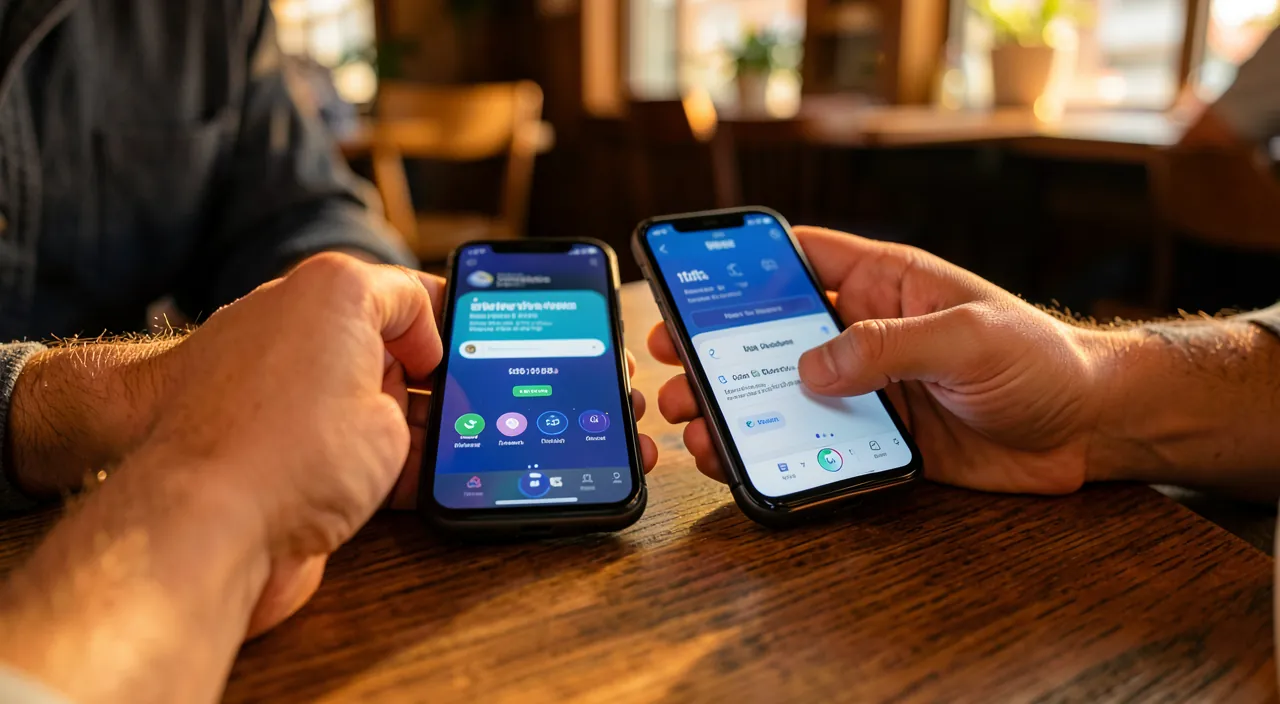
Security and proper use of WiFi sharing
AUTOMATIC SHARING is safe: Apple’s automatic sharing sends the password securely, without displaying it; the guest connects without ever seeing the password; it’s safer than dictating it (no one memorizes or notes it); a security advantage. WHO TO SHARE WITH: only share your WiFi with people you TRUST; giving access to your network is giving access to your connection (and sometimes to your local network); think before sharing; trust guides. THE GUEST NETWORK, the good option: for visitors, the best is a separate “GUEST” network (offered by many boxes); it gives internet access WITHOUT access to your main network (your devices, files); safer for guests; enable it if possible (we’ll come back to it). DON’T DISPLAY the main password: avoid publicly displaying the password (or QR code) of your MAIN NETWORK; for display (business, rental), use the guest network; don’t widely disclose your main access; protect it. A STRONG password: your WiFi must have a strong password (sharing makes connection easier, but the password protects against intruders); don’t reduce security; consult our WiFi security guides; robustness matters. SHARING DOESN’T DISCLOSURE: advantage; automatic sharing doesn’t reveal the password to the guest (they connect without knowing it); they won’t be able to give it to others; you keep control; a security plus. REMOVE access: if you want to remove someone’s access, you must change the WiFi password (which disconnects everyone); think about it for temporary access; the guest network limits this need; manage access. CHECK WHO is connected: you can usually see the devices connected to your network (via the box); useful for monitoring; spot an unknown device; consult our home network guides; vigilance protects. DAILY COMFORT: for your regular friends, automatic sharing (Apple) or a displayed QR code (all devices) makes access smooth without compromising security; balance comfort and caution; it’s possible. DON’T COMPLICATE unnecessarily: the goal is to make it easier; use the simplest method suited (auto for Apple, QR for the rest, guest for visitors); no need to painstakingly dictate; simplify your life. In summary, for safe and practical WiFi sharing: Apple’s automatic sharing is secure (the password is never displayed, the guest doesn’t know it and can’t give it to others). Only share with people you TRUST, and for visitors, prefer a separate “GUEST” network (internet access without access to your main network). Never publicly display the password or QR code of your main network (use the guest network for display). Keep a strong WiFi password, know that removing access requires changing the password, and occasionally check connected devices. These good practices balance the comfort of easy sharing and the security of your network; the guest network, sharing with trusted people, and a strong password are the keys.
Warning: sharing your WiFi is giving access to your connection and sometimes to your network — reserve it for trusted people, and prefer a “guest” network for visitors. Easy WiFi password sharing is very practical, but we mustn’t forget what it actually implies: giving access to your network. When you share your WiFi with someone, you’re not just giving them “internet”; you’re letting them join YOUR network. This has two implications to keep in mind. First, they use your CONNECTION: their online activity goes through your internet access (which, in general, isn’t a problem for a trusted friend, but deserves reflection for wider use). Then, and this is more sensitive, being on your local network can potentially give some VISIBILITY on the other devices connected to it (your computer, your shared files, your connected objects, your printer). That’s why the first rule is to only share your WiFi with people you TRUST — family, close friends — and to think before giving your access to someone you barely know. The best practice, especially if you have varied guests, if you rent out a property, or if you run a business, is to use a “GUEST” network. Most modern internet boxes allow you to create, in addition to your main network, a separate “guest” network, with its own name and password. This guest network gives access to INTERNET, but it’s ISOLATED from your main network: people who connect to it can’t see or reach your personal devices, your files, or your connected objects. It’s the ideal solution to balance hospitality and security: your guests have internet, and your personal network remains protected. It’s also this guest network, and not your main network, that you should use if you want to DISPLAY a WiFi QR code (in an entryway, a business, a seasonal rental): thus, you never expose access to your main network. Never widely disclose the password (or QR code) of your MAIN NETWORK. Another point to know: once you’ve given your main WiFi password to someone (by dictating it, for example), that person KNOWS it and can reuse it, or even pass it on to others — you no longer control it. That’s actually an advantage of AUTOMATIC APPLE SHARING: it connects the guest WITHOUT revealing the password, so they won’t be able to give it to others. If you need to remove access from someone to whom you’d given the password, the only solution is to CHANGE the WiFi password — but this disconnects everyone and forces you to reconnect all your devices, hence the interest, once again, of the guest network for temporary access. Finally, keep a STRONG WiFi password (sharing makes guest connection easier, but your password remains your first protection against unwanted intruders), and occasionally check the devices connected to your network (via your box’s interface) to spot a potential intruder. In summary: sharing your WiFi is a gesture of friendliness, but it’s giving access to your network; reserve it for trusted people, use an isolated “GUEST” network for visitors and any public display, never expose your main network, and keep a strong password. The comfort of easy sharing and the security of your network go very well together, provided you have these reflexes.
Frequently asked questions
The password sharing window doesn’t appear: why?
Most often, a condition isn’t met: bring the devices closer, unlock your iPhone, enable Bluetooth and WiFi on both sides, and check that you’re in each other’s contacts. Let’s review. CHECK PROXIMITY: the two devices must be CLOSE to each other (sharing uses short-range Bluetooth); bring them closer; if they’re far apart, the window won’t appear; proximity is essential. UNLOCK your iPhone: your iPhone (the one sharing) must be UNLOCKED and on; if it’s locked, the offer doesn’t appear; unlock it and keep it active; a frequent oversight. ENABLE BLUETOOTH and WiFi: BOTH Bluetooth and WiFi must be enabled on BOTH devices; sharing uses them; check they’re not turned off (or in airplane mode); enable them on both sides. BE CONNECTED to the network: you (who are sharing) must be CONNECTED to the WiFi network in question; you only share the network you’re connected to; check your own connection; it’s basic. REGISTERED CONTACTS: sharing works better (or only) if you’re in each other’s CONTACTS, with each other’s Apple account email/phone number; register each other; the contact triggers the offer; a frequently forgotten condition. THE OTHER DEVICE AT THE PASSWORD SCREEN: the window only appears when the other person has SELECTED your network and is at the password entry screen; they must be at this precise step; guide them there; timing matters. AN APPLE DEVICE ON BOTH SIDES: this automatic sharing works between Apple devices; if the other has a non-Apple device, it won’t work; then use the QR code or dictate; check the device type. TRY AGAIN: sometimes, you need to try again; have the other cancel and reselect the network, bring the devices closer, wake up your iPhone; a second attempt often triggers the window; insist a bit. FALLBACK SOLUTIONS: if the window stubbornly doesn’t appear, use the QR CODE (all devices) or dictate the password (which you can find in the network settings); don’t get stuck; there’s always a solution. THE ADVICE: if the window doesn’t appear, check the conditions (proximity, iPhone unlocked, Bluetooth+WiFi on both sides, connected to the network, contacts registered, other Apple device at the password screen), try again, and if not, use the QR code or dictation. In summary, if the password sharing window doesn’t appear, it’s almost always because a CONDITION isn’t met; review them. The devices must be CLOSE to each other (sharing uses short-range Bluetooth), your iPhone (the one sharing) must be UNLOCKED and active, BLUETOOTH and WiFi must be enabled on BOTH devices (no airplane mode), and you must be CONNECTED to the network you want to share. Also check that you’re in each other’s CONTACTS (with each other’s Apple account email or phone number) — this is a frequently forgotten condition that triggers the offer. Finally, the window only appears at the right time: when the other person has selected your network and is precisely at the password entry screen. Don’t forget that this automatic sharing only works BETWEEN APPLE DEVICES: if your guest has an Android phone, the window will never appear, and you’ll need to use another method. If all conditions seem met, try again (have the other cancel and reselect the network, bring the devices closer, wake up your iPhone). And if it still doesn’t work, don’t get stuck: use the WiFi QR code (which works with all devices) or, as a last resort, dictate the password (which you can find in your network settings). There’s always a solution to connect your guest.
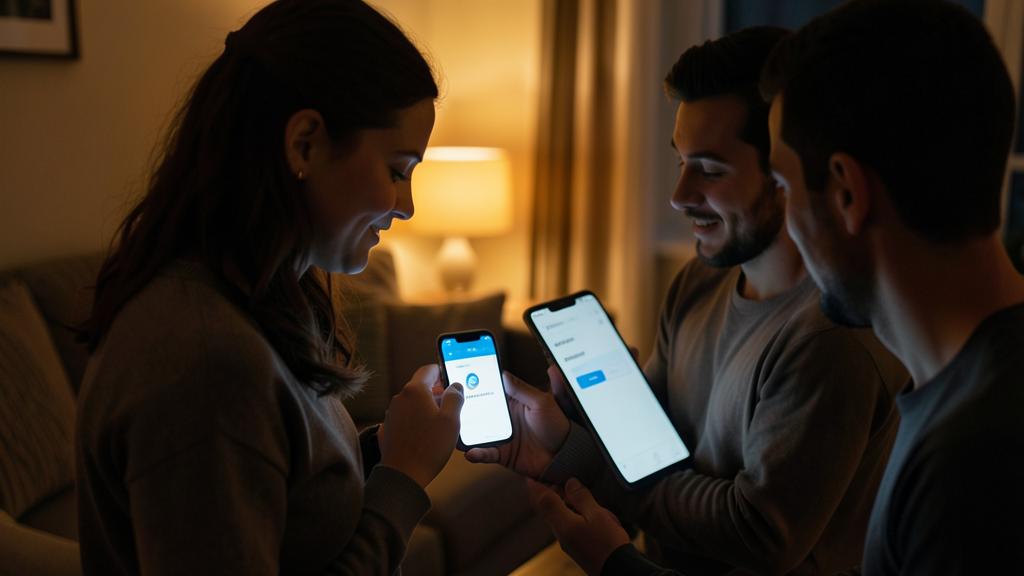
How to share my WiFi with an Android phone?
THE LIMIT OF AUTO SHARING: the iPhone’s automatic sharing only works between APPLE devices; with an Android phone, the magic window won’t appear; you’ll need another method; it’s not a problem, solutions exist. THE BEST SOLUTION — THE QR CODE: create a QR code for your WiFi network (name + password); the Android guest SCANS it with their camera, and connects automatically; universal, fast, reliable; the ideal solution for Android (and all devices). CREATE THE QR CODE: generate the QR code via a dedicated app (WiFi QR code creator) or the Shortcuts app; enter the network name and password; get an image to show or print; simple to create once. SHOW OR PRINT the QR code: show the QR code on your iPhone’s screen (the Android scans it), or print it for display; the guest scans and connects; practical and reusable; a lasting display helps everyone. FIND YOUR password: if you prefer to communicate it, the iPhone lets you SEE your WiFi password (in the network settings); useful if you’ve forgotten it; you can then dictate or send it; it’s recoverable. SEND IT via message: you can copy the password and send it to the guest via message; they paste it at connection (avoids dictation errors); more reliable than saying it out loud; a practical option. THE ANDROID SIDE: on Android too, once connected, the guest can often generate a QR code for YOUR network to reshare it; modern smartphones handle WiFi QR codes well; interoperability works. THE GUEST NETWORK FOR THEM: for an occasional Android visitor, think of your box’s “guest” network (QR code or password of this network); safer; internet access without your main network; recommended for visitors. THE RELIABILITY OF THE QR CODE: the QR code avoids any password copying error (often long and complex); the Android connects exactly; more reliable than dictation; prefer it. THE ADVICE: for an Android, create a QR code for your WiFi (which the guest scans with their camera) — it’s the simplest and most reliable solution; failing that, find your password in the settings and send it via message; think of the guest network for visitors. In summary, since the iPhone’s automatic sharing only works between Apple devices, you’ll need another method for an Android phone — but it’s simple. THE BEST SOLUTION is the WiFi QR CODE: create a QR code containing your network’s name and password (via a dedicated app or the Shortcuts app), then show it on your iPhone’s screen or print it; your Android guest only needs to SCAN it with their camera to automatically connect, without typing anything. It’s fast, universal, and reliable (no copying errors, even on a complex password). If you prefer to directly communicate the password, know that your iPhone lets you RECOVER your WiFi password (in the network settings, handy if you’d forgotten it); you can then send it via message to your guest (who will paste it, avoiding dictation errors). For an occasional visitor, the best remains to use your box’s “guest” network (generate its QR code or communicate its password); this gives them internet without access to your main network. The QR code is really the queen solution for Android as for any non-Apple device: created once, it serves you at will.
Is it secure to share your WiFi password this way?
AUTOMATIC SHARING, secure: Apple’s automatic sharing sends the password in an ENCRYPTED and secure way, without ever DISPLAYING it; the guest connects without seeing or knowing the password; it’s even safer than dictating it (no one memorizes it); technically reliable. THE GUEST DOESN’T KNOW the password: key advantage; with automatic sharing, the guest is connected but doesn’t KNOW the password; they won’t be able to give it to others; you keep control; a real plus. THE REAL ISSUE — WHO TO: the security point isn’t the technique (secure), but WHO you give access to; sharing is letting someone on your network; reserve it for people you TRUST; trust is the real question. WHAT ACCESS IMPLIES: being on your network gives access to your connection and possible visibility on your local devices; hence the importance of only sharing with trusted people, and isolating visitors (guest network); measure the access given. THE GUEST NETWORK, safer: for visitors, a separate “GUEST” network gives internet WITHOUT access to your main network (devices, files); it’s the safest solution to share with visitors; prefer it. BEWARE OF DICTATION: dictating or writing the password is less secure (the guest knows it, can note it, give it to others, someone can hear it); automatic sharing or a dedicated guest network are preferable; avoid widely disclosing. DON’T DISPLAY the main network: never publicly display the password/QR code of your MAIN NETWORK; for display, use the guest network; don’t disclose your main access; protect it. A STRONG password: keep a strong WiFi password; sharing makes authorized guest connection easier, but the password protects against unwanted intruders; don’t compromise robustness; solidity remains essential. MONITOR connections: occasionally check the devices connected to your network (via the box); spot an intruder; if needed, change the password; vigilance completes security. THE ADVICE: Apple’s automatic sharing is very secure technically (password never revealed); the essential is to only share with trusted people, to use a “GUEST” network for visitors, not to display your main network, and to keep a strong password. In summary, yes, sharing the WiFi password as the iPhone does is SECURE on the technical level: Apple’s automatic sharing transmits the password in an encrypted way, without ever DISPLAYING it, and the guest connects without even knowing it — it’s therefore safer than dictating it out loud (which someone could hear or note), and it lets you keep control (the guest not being able to give a password they don’t know). The real security issue isn’t the method, but WHO you give access to: sharing your WiFi is letting someone join your network (with access to your connection and possible visibility on your devices). The rule is therefore to only share with people you TRUST, and for visitors, to use a separate “GUEST” network — which gives internet without access to your main network (your devices and files remain protected). Avoid dictating or publicly displaying the password of your MAIN NETWORK (prefer the guest network for any display), keep a strong WiFi password (your first protection against intruders), and occasionally check the devices connected to your network. With these simple precautions, you enjoy all the comfort of easy sharing while keeping your network well protected: convenience and security go perfectly together.
What to remember
No more ordeal of finding the WiFi password on the back of the box and dictating it character by character: on iPhone, sharing your WiFi is disconcertingly simple. AUTOMATIC SHARING (between Apple devices) is the king method: when a friend tries to connect to your network and reaches the password screen, a window automatically appears on your iPhone offering to send them the password; you tap “share”, and they’re connected in a few seconds — without anyone having to read, dictate, or type anything. For this to work, a few simple conditions: be connected to the network, your iPhone unlocked and close to the other device, Bluetooth and WiFi enabled on both sides, and be in each other’s contacts (preferably). If the window doesn’t appear, it’s almost always because one of these conditions is missing. For NON-Apple devices (Android) and for universal sharing, the queen solution is the WiFi QR CODE: a small square containing your network’s name and password, that any smartphone can scan with its camera to automatically connect. Created once (via a dedicated app or the Shortcuts app), you can show it, print it, and display it — ideal when you often have guests, or for a rental or business. The QR code is faster and more reliable than dictation (no copying errors possible). As a last resort, you can always find your password in the network settings and communicate it. On the security side, keep in mind the essential: sharing your WiFi isn’t just giving “internet”, it’s letting someone join your NETWORK (with access to your connection and possible visibility on your devices). Apple’s automatic sharing is technically very secure (the password is never displayed or revealed to the guest, who won’t be able to give it to others), but the real issue is WHO you give access to: reserve it for people you TRUST. For visitors, the best practice is to use a separate “GUEST” network (offered by most boxes), which gives internet access without exposing your main network (your devices and files remain protected): it’s also this guest network that you should use for any public display of a QR code. Never widely disclose the password of your main network, keep a strong WiFi password (your first protection against intruders), and occasionally check connected devices. In short, sharing your WiFi has never been so simple and secure: automatic sharing in one gesture for your Apple-equipped friends, the QR code for everyone and for lasting display, and the guest network for visitors. These methods save you the hassle of dictation while preserving your network’s security — comfort and caution combined. Adopt them, and welcoming a guest on your WiFi will never be a chore again.
Want to unlock all the potential of your iPhone, iPad, or Mac? Our Apple training will take you to the next level.
Leave a Reply
You must be logged in to post a comment.