
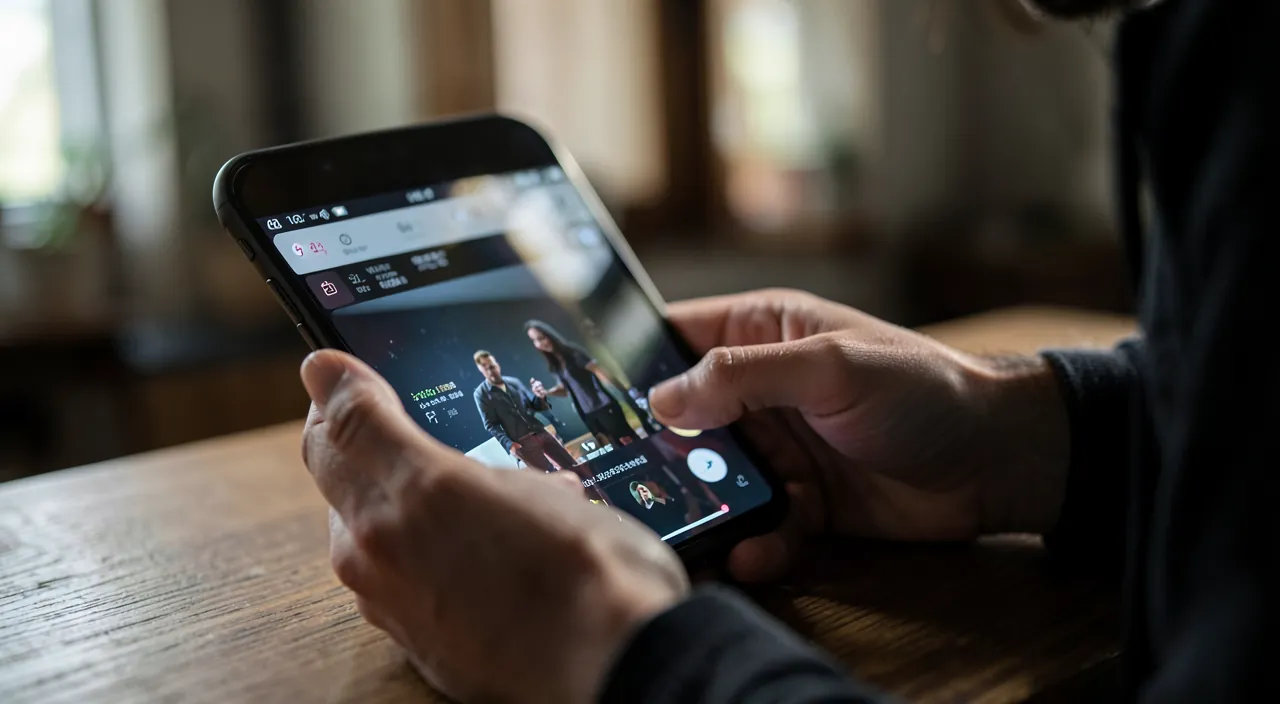
You film videos with your phone — vacations, kids, events, projects — but they pile up raw, too long, never watched? Good news: today, you can EDIT a video directly from your phone, no computer or complicated software needed! Cut, assemble, add music, text, transitions: mobile editing apps make this accessible to everyone, even without experience. Turn your rushes into nice memories to share. Here’s how to edit a video from your phone, simply.
Editing a video on your phone: it’s accessible
Let’s discover what mobile editing allows and why it’s become so SIMPLE. What EDITING is: editing a video is ASSEMBLING and ARRANGING sequences (your “rushes”: the raw videos you filmed) to make a FINISHED, pleasant-to-watch video: cut out the useless parts, keep the best moments, put them in order, optionally add music, text, transitions. What editing BRINGS: transforming raw rushes (too long, messy, with mistakes) into a SHORT, RHYTHMED, and enjoyable video; telling a story (a trip, an event); keeping the best moments; creating nice memories to share; enhancing what you film. Why it’s ACCESSIBLE today: no need for a powerful computer and a complex professional software anymore; mobile editing apps let you edit directly where your videos are (on the phone), with SIMPLE interfaces (drag, cut, add), designed for beginners; many are free or low-cost; you can make a decent edit with no experience. The TOOLS: your phone often has BASIC editing functions built-in (in the Photos app: cut, adjust a video); there are DEDICATED editing apps (free or paid), from the simplest to the most complete; to start, the built-in functions or a simple app are enough. What you can DO: CUT (shorten, remove the excess — the most important gesture), ASSEMBLE several clips, reorder them, add MUSIC, TEXT (titles, captions), TRANSITIONS between sequences, adjust the speed (slow motion, fast-forward), tweak the image (brightness, colors), add effects; then EXPORT the finished video to share or keep. FOR WHO? For everyone who films with their phone and wants to turn their videos into pleasant memories: parents, travelers, creators, or simply to keep beautiful family memories. What to remember to start: editing a video directly on your phone is today accessible to everyone, no computer or special skills needed; you assemble and arrange your rushes (cut, put in order, add music/text) to turn raw videos into nice memories to watch and share; the tools (built-in or simple apps) are designed for beginners. Let’s see how to proceed.
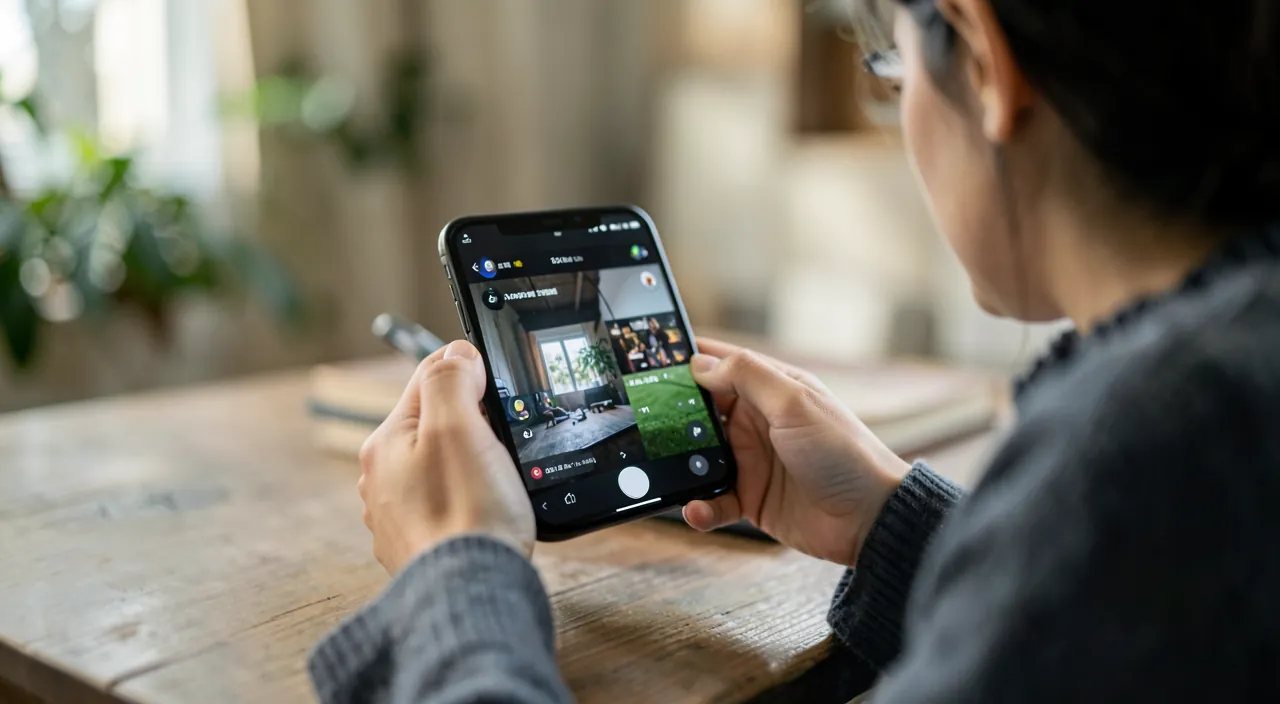
Making a simple edit, step by step
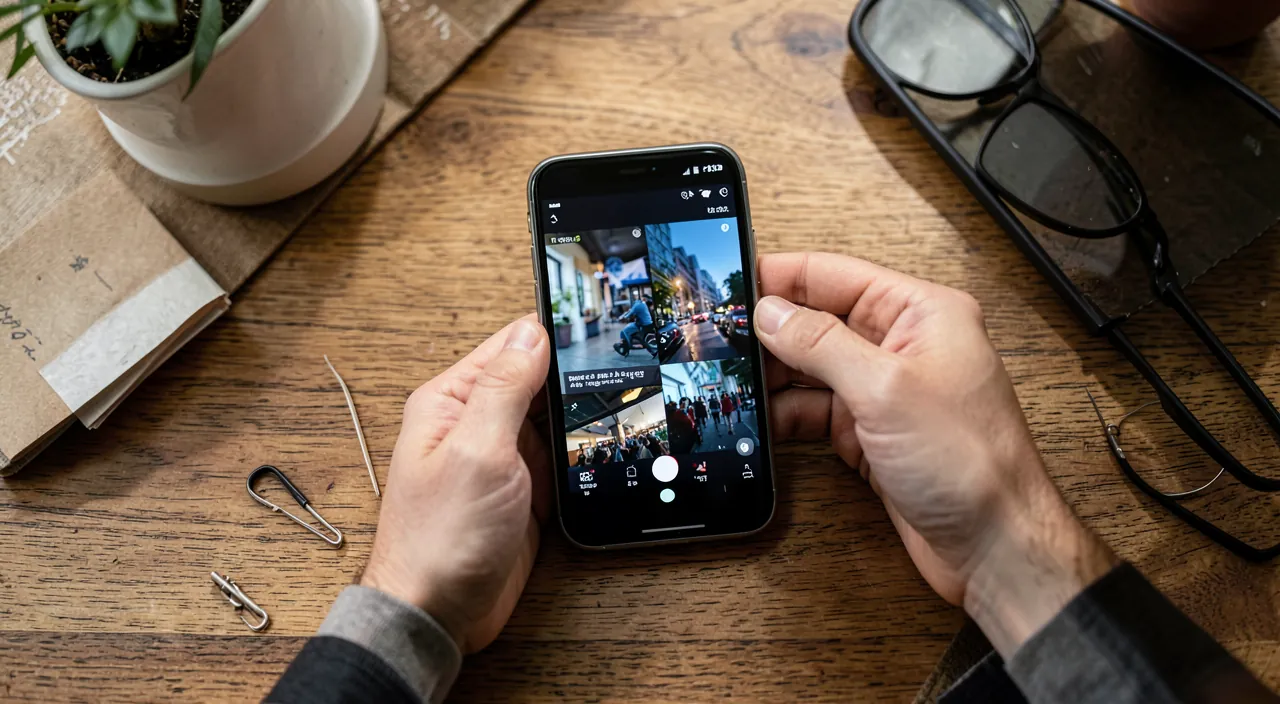
Here’s how to edit a video, even without experience; start SIMPLE. CHOOSE a tool: for a BASIC edit, the built-in functions of your phone (Photos app) may be enough (cut, assemble simply); to go further (music, text, transitions), install a SIMPLE and reputable editing app (many are free and easy); don’t start with a complex professional software for beginners. SELECT your RUSHES: choose the videos (and photos) to include; keep only the BEST moments; that’s already editing: the selection. CUT, the essential: the most important gesture is to CUT; shorten each sequence to keep only the best (remove the failed beginnings/ends, dead times, useless passages); an edited video is MUCH shorter than the raw rushes; that’s what makes it enjoyable; don’t be afraid to cut generously. ASSEMBLE and ORDER: put your clips in the order that tells the best story (chronological, or according to a logic); the app lets you drag and reorder. ADD MUSIC (optional but effective): background music transforms a video; apps often offer royalty-free music to use; choose one that fits the mood; be careful with rights if you use your own music (see below). ADD TEXT (optional): a title at the beginning, captions, a date; useful to locate, tell a story. TRANSITIONS (in moderation): between sequences, transitions (fade, etc.) can soften the cuts; use them SOBERLY (too many transitions or effects look “amateur” and distract). ADJUST if needed: the speed (a slow motion on a beautiful moment), the image (brightness, colors); without excess. PREVIEW: watch your edit; adjust what doesn’t work (too abrupt cuts, remaining lengths). EXPORT: once satisfied, export the finished video (choose a good quality); it’s ready to share or keep. SHARE: send it to your loved ones, publish it, or keep it in your memories. The key tip for BEGINNERS: stay SIMPLE; a good edit doesn’t need sophisticated effects; the essential is to CUT (keep the best, make it short), assemble in the right order, and optionally add music and a title; that’s already enough for a nice video; you’ll refine with experience. In summary: choose a simple tool, select your best rushes, CUT generously (the key gesture: make it short while keeping the best), assemble in the right order, optionally add music and text (with sobriety on effects), preview, then export and share; by staying simple, you get a nice video, even without experience.
The secret of a good video: cut, make it SHORT, and keep it simple. If you’re starting with editing, remember this: the secret of an enjoyable video is NOT in the sophisticated effects, but in the CUT and BREVITY. The number one editing gesture is to CUT: your raw rushes are almost always TOO LONG (failed beginnings and ends, dead times, uninteresting passages, repetitions); a successful edited video is MUCH shorter than the sum of the rushes; don’t be afraid to CUT GENEROUSLY: keep only the BEST moments, the passages that truly add something; a short and rhythmic video is better than a long boring one; that’s the classic beginner mistake to keep too much; be ruthless: every useless second bores the viewer. Making it SHORT is the key: a nice vacation memory video often fits in a few well-edited minutes, not in an hour of raw rushes; you capture and keep attention with a dense and rhythmic video. Stay SIMPLE: a good edit doesn’t need a profusion of effects, flashing transitions, filters, or text everywhere; on the contrary, too many effects look “amateur,” distract, and tire; stick to the essential: cut to keep the best, assemble in the right order (that tells the story), and optionally add ONE fitting background music and a title; that’s already enough for a nice video; use transitions and effects SPARINGLY (a discreet fade between two sequences, not ten different effects). MUSIC does a lot: a simple well-chosen background music (calm for soft memories, upbeat for dynamic ones) transforms a video and gives it a soul; it’s often the addition that brings the most, much more than visual effects. In summary, for a nice video without being an expert: CUT generously (keep the best), make it SHORT (dense and rhythmic), assemble in the right order, add fitting music and a title, and STAY SIMPLE (no excess of effects); these common-sense principles are worth all the technical tutorials; they make the difference between a video you watch with pleasure and a long raw video nobody finishes. Simplicity and conciseness are the true keys to a successful edit, within everyone’s reach.
The best videos are short and to the point. Cut out the boring parts, keep only the good moments, and arrange them in a way that tells a story. Adding a bit of music helps, but don’t overdo it with fancy effects. Simple is better.
Imagine you filmed a 30-minute vacation video. After editing, you cut it down to 5 minutes by removing long pauses, failed shots, and repetitive scenes. You add a calm background song and a title like “Summer 2026.” The result is a much more enjoyable video that your family will actually watch.
Sharing, saving, and respecting rights
Once your video is edited, a few points to share, save, and respect the rules. EXPORT in good QUALITY: at the end of the edit, export your video (the app “creates” it into a file); choose a good quality (for a nice rendering), while keeping in mind that a video is a HEAVY file. SHARE intelligently: to send to loved ones, several options: by message/email (be careful with the weight: long videos can be too heavy; some messaging apps compress), via a sharing service, or by uploading it to the cloud and sharing a link; for wider distribution, video platforms; adapt according to the recipient and the weight. SAVE and BACKUP: your edited video is a PRECIOUS memory (like your photos); back it up (in the cloud, on a disk); don’t rely only on the phone (our guides on backing up your data); optionally keep the original rushes for a while (in case you want to re-edit). Respect MUSIC RIGHTS: important point — if you add music to your video, be careful with COPYRIGHT; using a known and protected song can cause issues, especially if you PUBLISH the video (on social networks, a platform: it may be blocked or removed for copyright infringement); for a PRIVATE video (family), the risk is lower, but for publication, use ROYALTY-FREE music (many editing apps offer them, or free music libraries — our guides on finding royalty-free resources). Respect the PRIVACY of filmed people: be careful with what you PUBLISH; don’t widely share videos showing people (especially children, or third parties) without their consent; a family video shared privately is one thing, a public publication is another; think before making it public (our guides on limiting the data you share online). The WEIGHT and storage: videos (rushes and edits) take up a lot of space; manage your storage (our guides on freeing up space); delete unnecessary rushes after editing if needed (while keeping the edit backed up). PROGRESS with experience: as you edit, you’ll discover tricks, refine your style; explore your app’s functions; but always keep in mind that simplicity and conciseness matter most. The PLEASURE: editing your videos is also a creative pleasure; turning your memories into nice videos to share with loved ones is rewarding; enjoy it. In summary: export in good quality, share intelligently (be careful with the weight: cloud/link for heavy videos), BACKUP your edits (precious memories), respect MUSIC RIGHTS (royalty-free for publications) and the PRIVACY of filmed people (consent before publication), manage storage (heavy videos), and enjoy progressing; thus, your videos become beautiful shared memories, while respecting the rules.
Warning: music rights, privacy of filmed people, video weight, and backup. Mobile video editing is a pleasure, but a few points of vigilance avoid problems. MUSIC RIGHTS: that’s the most common trap; if you add a KNOWN and protected song to your video, and you PUBLISH it (on social networks, a video platform), it may be BLOCKED, muted, or removed for copyright infringement; for a PUBLISHED video, use ROYALTY-FREE music (many editing apps offer a library, or use free music banks — our guides on finding royalty-free resources); for a strictly PRIVATE video (sent to family), the risk is lower, but in doubt, prefer royalty-free music. The PRIVACY of FILMED PEOPLE: be careful with what you PUBLISH; a video may show people (your family, your children, third parties); don’t WIDELY SHARE (publicly) videos of people without their CONSENT, especially children (protect their privacy) or third parties filmed without their knowledge; one thing is to share a video privately with family, another to make it public; think before publishing, and respect everyone’s right to their image (our guides on protecting privacy). The WEIGHT of videos: videos (RUSHES AND EDITS) are VERY heavy files; they quickly fill your phone’s storage (our guides on freeing up space); and they may be too heavy to send by message/email (prefer cloud + link for long videos); manage your storage, and delete unnecessary rushes after editing if needed (while keeping the edit). BACKUP: your edited videos are PRECIOUS and irreplaceable memories (like your photos); BACK THEM UP (cloud, disk); don’t rely only on the phone (loss, damage, theft — our guides on backing up your data); a lost edit is lost work and memories. Don’t lose your EDITING WORK: some apps save the “project” of the edit; back up the exported edit, and optionally keep the rushes for a while (to re-edit if needed). Beware of DUBIOUS editing apps: download from official stores, choose reputable apps; some free apps impose a “watermark” (their logo on the video) or push for purchases; others dubious ones collect your data or are full of ads; check before. Beware of SUBSCRIPTIONS: many editing apps have paid functions by subscription; check what’s free, and monitor renewals. Finally, don’t be discouraged by the complexity of some apps: start SIMPLE (built-in functions or basic app); the important thing is to do, not to achieve a professional rendering. By respecting music rights (royalty-free for publications), the privacy of filmed people (consent before publication), managing weight and storage, and backing up your edits, you enjoy mobile video editing peacefully — to create and share beautiful memories without bad surprises.

Frequently asked questions
Do you need a computer to edit a video?
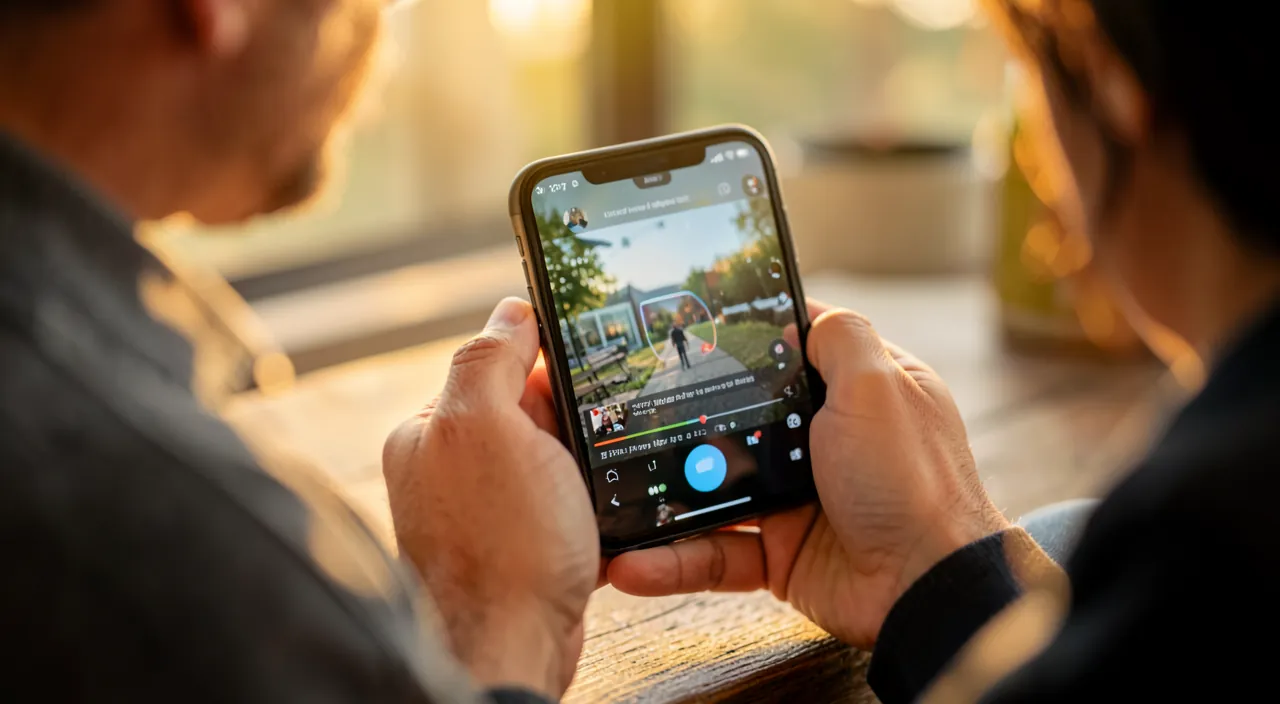
No: today, your phone is more than enough to edit a video, and it’s often more PRACTICAL. Gone are the days when you needed a powerful computer and a complex professional software; mobile editing apps (smartphone or tablet) let you edit directly where your videos are, with SIMPLE interfaces designed for beginners: cut, assemble, add music and text, all with your fingertips; many are free or low-cost. The ADVANTAGES of mobile editing: your videos are ALREADY on the phone (no need to transfer them to a computer); it’s immediate and practical; the apps are designed to be accessible without experience; you can edit anywhere (on public transport, on the couch). For most people (family memories, vacations, small videos to share), mobile editing is more than enough, and the result can be very nice. When might a COMPUTER be preferable? For VERY elaborate, long, or professional edits (many sequences, advanced effects, fine image control), a computer with a dedicated software offers more comfort (larger screen, more power, finer control); but that’s for advanced uses; for everyday use, the phone does the job well. How to start on phone: first use the BASIC editing functions built-in (in the Photos app: cut, adjust), or install a SIMPLE and reputable editing app to go further (music, text, transitions); start simple, don’t start with a complex professional app. In summary: no, you don’t need a computer; your phone lets you edit your videos easily, with simple apps, directly where your rushes are; it’s accessible to everyone, no experience needed; the computer is only useful for very advanced edits; for your memories and everyday videos, get started on your phone.
How to make a video pleasant to watch?
The secret lies in three simple principles, much more important than sophisticated effects. ONE, CUT and make it SHORT: that’s the essential gesture; your raw rushes are almost always too long (failed beginnings/ends, dead times, uninteresting passages); CUT GENEROUSLY to keep only the BEST moments; a pleasant video is MUCH shorter than the rushes; a short and rhythmic video is better than a long boring one; don’t be afraid to cut: every useless second makes the viewer lose interest; the number one beginner mistake is to keep too much. TWO, assemble in the RIGHT ORDER: put your sequences in an order that tells something (chronological for a trip, or according to a logic); a video that “tells a story” is more captivating than a messy assembly. THREE, add a FITTING MUSIC: a simple well-chosen background music transforms a video and gives it a soul (calm for soft memories, upbeat for dynamic ones); it’s often the addition that brings the MOST, much more than visual effects; use royalty-free music, especially if you publish. Optionally, add a TITLE at the beginning and a few captions to locate. And above all, STAY SIMPLE: don’t OVERDO effects, transitions, and filters; excess looks “amateur,” distracts, and tires; a few sober transitions (a discreet fade) are enough; sobriety looks more “pro” than an excess of effects. Other tips: take care of the QUALITY of the rushes during filming (good light, stable image — a good edit doesn’t fix bad images); PREVIEW your edit and adjust (too abrupt cuts, remaining lengths); and think about the viewer (would you watch this video to the end with pleasure?). In summary, for a pleasant video: cut generously and make it SHORT (the key principle), assemble in the right order to tell a story, add fitting music, and STAY SIMPLE (no excess of effects); these common-sense principles, more than the technique, make a video you watch with pleasure; conciseness and simplicity are your best allies.
Can I use any music in my video?
No, be careful with COPYRIGHT: that’s a common trap, especially if you PUBLISH. A known and commercialized song is PROTECTED by copyright; you can’t use it freely in a video, especially a video you PUBLISH (on social networks, a video platform): in this case, the video may be BLOCKED, muted, or removed for copyright infringement (platforms automatically detect protected music); you could also expose yourself to issues. For a PUBLISHED video, use ROYALTY-FREE music: many editing apps offer a LIBRARY of royalty-free music, ready to use without copyright issues; there are also online banks of royalty-free music (like for images — our guides on finding royalty-free resources); some platforms provide an authorized music library for videos published on them. For a strictly PRIVATE video (that you send to your family, without publication): the risk is much lower (private use); but in doubt, or if you plan to share it widely one day, prefer royalty-free music. The prudent rule: only use protected music in a strictly private context, and prioritize royalty-free music as soon as the video can be seen beyond your close circle or published; that’s the only way to be safe. That also applies to other elements (images, excerpts) you might add: respect the rights. Good news: royalty-free music libraries (in apps or online) offer a wide choice of quality tracks for all moods; you’ll easily find what you need to dress your video without risk. In summary: no, you can’t use any music; known songs are protected; for a published video, use ROYALTY-FREE music (app libraries or online banks); for a strictly private video, the risk is lower, but in doubt, stick to royalty-free; that’s how to add music to your videos without bad surprises.
What to remember
Editing a video directly on your PHONE is today accessible to everyone, no computer or special skills needed: you assemble and arrange your rushes (cut, put in order, add music and text) to turn raw videos into nice memories to watch and share; the tools (built-in functions of the Photos app, or simple and reputable editing apps) are designed for beginners. The SECRET of a beautiful video is NOT in the sophisticated effects, but in: CUT generously and make it SHORT (the key gesture: your rushes are too long; keep only the best moments; a short and rhythmic video is better than a long boring one — the beginner mistake is to keep too much), assemble in the RIGHT ORDER (to tell a story), add a FITTING MUSIC (what often brings the most), and STAY SIMPLE (no excess of effects, which look “amateur”; sobriety looks more “pro”). The STEPS TO FOLLOW: choose a simple tool, select your best rushes, cut, assemble, add music/title (with sobriety), preview, export, share. Points of VIGILANCE: MUSIC RIGHTS (don’t use a protected song in a PUBLISHED video — it would be blocked; use ROYALTY-FREE music, available in apps or online; for a strictly private video, the risk is lower); the PRIVACY of filmed people (don’t publish videos of people widely — especially children or third parties — without their consent; private and public are different); the WEIGHT of videos (very heavy files: manage storage, prefer cloud + link to send long videos); and BACKUP (your edits are precious memories: back them up, don’t rely only on the phone). Beware of dubious apps (watermark, purchases, data: choose reputable apps) and monitor subscriptions. Start SIMPLE, without aiming for a professional rendering: the important thing is to do. Mobile video editing is a creative pleasure accessible to everyone: by keeping your videos short and simple, respecting rights and privacy, and backing up your memories, you turn your rushes into beautiful videos to share with loved ones.
Want to go further with your phone and apps? Our practical training is made for you.
Leave a Reply
You must be logged in to post a comment.