
Are you constantly looking for the address of your home, workplace, doctor, or that restaurant you loved? The iPhone Maps app lets you SAVE your favorite places, so you can find them and go there with a single gesture, without having to retype the address each time. You mark your home, workplace, important places ONCE AND FOR ALL… and Maps guides you there instantly. It’s practical, free, and simplifies all your daily trips. Good news: saving a favorite is very simple, accessible to everyone. Let’s see what favorites in Maps are for, how to save your places, and how to use them to move around more easily.
Favorite places in Maps: what are they for?
First, let’s understand the interest in saving your places. FIND your places quickly: access an important place with one gesture; without retyping the address; the interest; to know. HOME, work: mark “Home” and “Work”; immediate route; flagship use; practical. IMPORTANT places: doctor, family, usual shops; everything at hand; useful. SAVE TIME: no need to search/retype each time; fast; advantage. A ROUTE in one gesture: tap the favorite → the route starts; direct; practical. NOT FORGET an address: keep the address of a visited place; memory; useful. SHARE a place: easily send the address of a favorite to a loved one; bonus; useful. FREE, integrated: in the Maps app, nothing to install; included; reassuring. SYNCHRONIZED: your favorites follow you on your Apple devices; practical; to know. ORGANIZE: sort your useful places; clarity; to know. In summary, the FAVORITE PLACES of the Maps app are used to SAVE the places that matter to you, so you can FIND them and go there with ONE GESTURE, without having to retype the address each time. The FLAGSHIP USE: save your HOME (“Home”) and your WORKPLACE— thus, getting the route to go home or to work takes just one tap. But you can save all the IMPORTANT PLACES of your daily life: the doctor’s office, your children’s or grandchildren’s home, the pharmacy, your usual shop, a restaurant you liked, a vacation spot… The interest: SAVE TIME (no more searching and retyping an address), launch a ROUTE with one gesture (tap the favorite, and Maps guides you), and NEVER FORGET the address of a place (keep in memory a place you visited once). You can also easily SHARE the address of a favorite with a loved one. It’s FREE, integrated into the Maps app (nothing to install), and your favorites are SYNCHRONIZED on your Apple devices (you find them everywhere). In short, the favorites in Maps are a very practical little tool to simplify all your trips. Let’s see how to save your places.
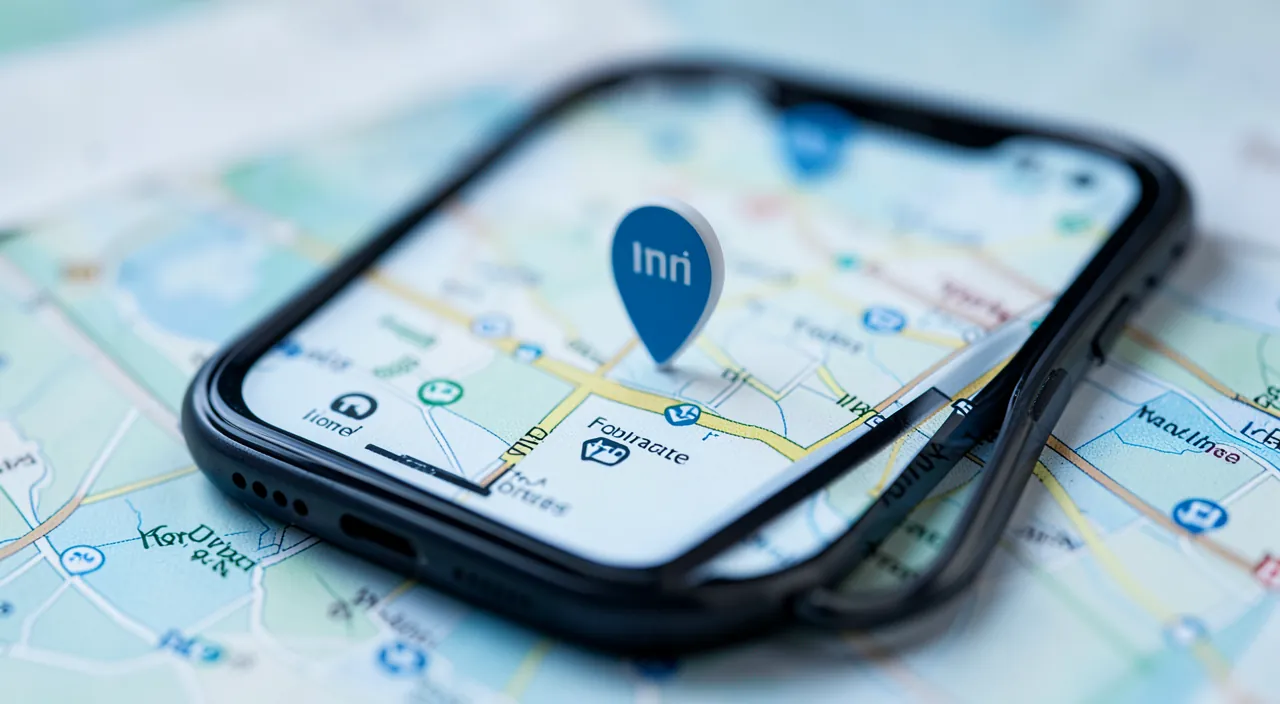
Les favoris dans Maps, c’est comme une liste de lieux importants que tu sauves une fois pour t’y rendre plus tard en un clic. Tu peux y mettre ta maison, ton travail, le cabinet de ton médecin, et même ton café préféré. Une fois sauvés, ces lieux apparaissent dans une liste, et tu peux demander à Maps de t’y guider en un seul geste. C’est pratique pour ne plus perdre de temps à chercher des adresses ou à les retaper.
Imagine que tu visites un nouveau restaurant à Paris, “Le Petit Bistro”, et que tu veux pouvoir y retourner facilement. Tu ouvres Maps, tu cherches “Le Petit Bistro”, tu cliques sur le lieu, puis tu appuies sur “Ajouter aux favoris”. Maintenant, chaque fois que tu veux y aller, tu n’as qu’à ouvrir Maps, cliquer sur “Le Petit Bistro” dans tes favoris, et Maps te guide jusqu’à ce restaurant sans que tu aies besoin de retaper l’adresse.
How to save your favorite places
FIND the place: search for the address/place in Maps (search bar); locate it; step. TOUCH the PLACE: tap the point/the card of the place on the map; open its card; step. “ADD TO FAVORITES”: in the card, tap “Add to Favorites” (or the star/heart); save it; key step. DEFINE Home/Work: you can specifically save your home and workplace; the must-haves; tip. NAME the favorite: give it a clear name (“Doctor”, “At Paul’s”); recognize it; tip. The SAVED favorite: it appears in your favorites list; ready to use; to know. ADD multiple places: save as many places as you want; no practical limit; to know. From a VISITED place: save a place where you are (current position); on the spot; tip. MODIFY/DELETE: you can rename or remove a favorite; manage; to know. FIND your favorites: the list is accessible in Maps; go back to it; tip. Depending on the VERSION: the menus vary slightly; the idea remains the same; to know. In summary, saving a favorite place in Maps is done in a few simple gestures. 1) FIND the place first: in the Maps app, use the SEARCH bar to type the address or name of the place (a restaurant, a shop…), or locate it directly on the map. 2) TOUCH the place (the point on the map, or its search result): its CARD opens (with its name, address, information). 3) In this card, look for and tap “ADD TO FAVORITES” (sometimes represented by a STAR or a heart): the place is saved. 4) You can NAME your favorite clearly (“Doctor”, “At Paul’s”, “Pharmacy”) to recognize it easily. For your HOME and WORK (the must-haves), Maps often offers to define them specifically as “Home” and “Work” (practical for daily routes). Tip: you can also save a place where you are CURRENTLY (your current position), to not forget a beautiful place you discovered. Once saved, your favorites appear in a LIST accessible in Maps: you can always MODIFY (rename) or DELETE them. You can save AS MANY PLACES as you want. The exact words vary slightly depending on the iPhone version, but the principle is the same everywhere: find the place, open its card, “Add to Favorites”. Simple and fast.
The key gesture: find a place in Maps (via search), tap its card, and choose “Add to Favorites”. Start by saving your “Home” and “Work”: you’ll launch the route with a single gesture. The favorites in Maps transform your daily trips into a breeze: no more need to retype an address. Here’s how to take advantage of it, starting with the most useful. The principle to remember: you save it once, you reuse it always. A favorite is a place you mark ONCE in Maps, and that remains accessible with a GESTURE, forever. No more searching “What street was it again?” or retyping a long address: you tap the favorite, and Maps takes you there. The key gesture to save a place: 1) Open the MAPS app. 2) In the SEARCH bar (at the bottom or top), type the address or NAME of the place (for example, the name of a restaurant, “pharmacy”, or a precise address), or find it on the map. 3) Tap the PLACE to open its CARD (the information panel that appears). 4) In this card, scroll if needed, and tap “ADD TO FAVORITES” (or the STAR/HEART icon). It’s saved! Start with the essentials: “Home” and “Work”. The two most useful favorites, to save as a priority, are your HOME and your WORKPLACE. Maps often reserves a special place for them (“Home” and “Work”): once defined, getting the route to GO HOME (wherever you are) or to GO TO WORK takes just ONE TAP— even more practical when you’re lost somewhere and just want to “go home”. Take five minutes to save them: you’ll use them all the time. Then, save your daily places. Once you start, think of all the places you frequent or might look for: the DOCTOR’S office, your CHILDREN’S or grandchildren’s home, the PHARMACY, your supermarket, the room where you have an activity, a beautiful RESTAURANT you discovered, your VACATION spot… Each becomes accessible with a gesture, and you’ll never forget their address again. Name them clearly: give each favorite a SPEAKING NAME (“Dr. Martin”, “At my daughter’s”, “Italian restaurant”) rather than just an address: you’ll recognize them at a glance in your list. On-the-spot tip: when you ARE in a place you want to remember (a pretty place, a shop), save your CURRENT POSITION as a favorite— you’ll thus keep the exact address without even knowing it. In summary: find a place in Maps (via search), tap its card, and choose “Add to Favorites”; start by saving “Home” and “Work” (route with one gesture), then your daily places (doctor, family, shops…), giving them clear names. A small investment of a few minutes, for everyday comfort: your trips have never been so simple.
Using your favorites to move around more easily
LAUNCH a route: tap a favorite → the route starts; go there with one gesture; the main use; practical. Go HOME: tap “Home” → return guidance; wherever you are; very useful. By VOICE: ask the assistant “take me home”; hands-free; option. FIND an address: consult the address of a favorite without going there; info at hand; useful. SHARE a place: send the address of a favorite to a loved one; practical; useful. The TRAVEL TIME: see the estimated duration to a favorite; anticipate; useful. Different MODES: route by car, on foot, by public transport; as you choose; to know. ORGANIZE your favorites: sort, rename, remove as needed; keep up to date; tip. A WIDGET/shortcut: quick access to favorites from the screen; even faster; option. CHECK the address: make sure a favorite points to the right place; reliability; tip. In summary, once your favorite places are saved, they really simplify your trips. The main use: LAUNCH A ROUTE with one gesture. Tap a favorite in your list, and Maps immediately offers you the ROUTE to get there (with guidance, estimated travel time)— without retyping the address. The most precious case: GOING HOME. Wherever you are (lost in an unknown city, at the end of an outing), tap “Home”, and Maps guides you back home: reassuring. You can even do it by VOICE (ask the voice assistant “take me home”: practical when you’re driving). Beyond the route, your favorites also serve to: FIND an address (consult the exact address of a place without necessarily going there), SHARE a place (send the address of a favorite to a loved one who needs to meet you there), and know the ESTIMATED TRAVEL TIME (to know when to leave). Maps offers different TRAVEL MODES (by car, on foot, by public transport): choose according to your situation. Think about ORGANIZING your favorites from time to time (rename, sort, DELETE a place you no longer frequent, CHECK that a favorite points to the right place). For even faster access, you can often add a WIDGET or a Maps shortcut to your home screen. In short, a well-saved favorite is a simplified trip every time: tap, and let yourself be guided. Your daily trips become a breeze.
Be careful with your privacy: saving your “Home” reveals where you live — be careful about sharing your favorites and access to your iPhone. And always check that a favorite points to the right address before relying on the guidance. A few precautions to use the favorites in Maps with peace of mind. First point: be careful with PRIVACY, especially for “Home”. Saving your home as a favorite “Home” is very practical, but it means your iPhone KNOWS where you live. This is not a problem in itself (it’s well protected on your device/account), but be CAREFUL: don’t SHARE your “Home” favorite lightly (only send it to trusted people), and make sure your iPhone is well protected by a CODE (so that no one else can see your places if your phone is lost or stolen— consult our guides on security). A “Home” favorite accessible to a stranger would reveal your address. Second point: be careful when sharing a place. Sharing the address of a favorite is practical, but think about what you’re sharing and to whom: sharing where you live, where you are right now, or your travel habits with someone you don’t know well can pose a privacy or security issue. Share your places with discernment (to your loved ones, yes; to a stranger, no). Third point: CHECK that a favorite points to the RIGHT ADDRESS. Before BLINDLY RELYING on the guidance to a favorite, make sure it points to the RIGHT PLACE. It happens that an address search lands on a HOMONYM (a street with the same name in another city), or that a point was misplaced: check, when saving, that the displayed place is indeed the one you want (the right name, the right city). A poorly saved favorite would guide you to the wrong place: better to check it once and for all. Fourth point: don’t follow the guidance “blindly”. Maps is an excellent guide, but keep your common sense: if the proposed route seems strange, or if the situation on the road (construction, closed road) doesn’t match, trust what you SEE rather than the screen. Guidance is a help, not an order: stay attentive to the road (and of course, handle Maps while stopped, never while driving: set your destination before leaving, or use voice). Fifth point: favorites depend on good location. To work well (locate you, calculate a route), Maps needs your iPhone’s LOCATION (GPS) activated, and often an internet connection. If the guidance doesn’t work, check that the location is activated and that you have network. Sixth point: an address can CHANGE or close. A favorite saved a long time ago can become OBSOLETE: a shop that has closed or moved, an address that has changed. Update or delete favorites that are no longer valid, to not end up in front of a closed door. In summary: be careful with PRIVACY (saving “Home” reveals where you live: protect your iPhone with a code, don’t share your favorites lightly, and share a place with discernment), CHECK that a favorite points to the right address before relying on it (be careful with homonyms), don’t follow the guidance blindly (keep your common sense, handle Maps while stopped), make sure the location and network are active, and update favorites that have become obsolete. With these precautions, the favorites in Maps are a safe and very practical tool.
Frequently asked questions
Is saving my “Home” in Maps risky for my privacy?
It’s not risky in itself (the information is kept on your device and account), but it reveals where you live: so protect your iPhone with a code, don’t share your “Home” favorite lightly, and the comfort it provides is well worth this simple precaution. Let’s see. Not risky IN ITSELF: the info is on your device/account, protected; reassuring; important. But it REVEALS your address: “Home” = where you live; to keep private; to know. PROTECT the iPhone: an unlock code prevents others from accessing it; essential; tip. Don’t SHARE lightly: only send “Home” to trusted loved ones; caution; tip. In case of LOSS/theft: a protected iPhone keeps your places safe; hence the code; important. The COMFORT is worth it: route home with one gesture; very practical; advantage. Well KEPT INFO: Apple protects these data; not publicly exposed; reassuring. Discernment in SHARING: think before sharing your location/home; to whom? tip. RENAME if concerned: you can avoid the explicit name “Home” if you prefer; option; tip. BALANCE: comfort outweighs, with a minimum of caution; wise; tip. The ADVICE: not risky in itself (info protected on your device/account), but it reveals your address; protect your iPhone with a code, don’t share “Home” lightly; the comfort is worth the precaution. In summary, saving your “Home” in Maps is NOT RISKY IN ITSELF: this information is KEPT on your DEVICE and your APPLE ACCOUNT, protected, and is NOT PUBLICLY EXPOSED to anyone. Apple protects these location data. However, you should be aware of one thing: saving “Home” is telling your iPhone WHERE YOU LIVE— personal information that’s better kept private. The main precaution, therefore: PROTECT your iPhone with an UNLOCK CODE (and biometric identification). Thus, even if your phone were LOST or STOLEN, no one could access your favorite places (including your home). That’s the basics, and it addresses most of the risk. Second precaution: don’t SHARE your “Home” favorite (or your real-time location) LIGHTLY: reserve this sharing for TRUSTED people (family, close friends), and be wary of sharing your address with strangers or suspicious contacts. Share with discernment. If the idea of having a favorite explicitly named “Home” bothers you, you can always save it under a less obvious name (a trick, even if, your iPhone being protected, it’s not essential). In the end, it’s a matter of BALANCE: the COMFORT provided by the “Home” favorite (getting the return route with a single gesture, wherever you are— very reassuring when you’re lost) far outweighs, provided you take the simple precaution of properly protecting your iPhone. In summary: saving “Home” is not risky in itself (the info is protected on your device/account), but it reveals your address; so protect your iPhone with a code, don’t share this favorite lightly (reserve it for trusted loved ones), and you’ll enjoy the great comfort it offers with peace of mind. A minimum of caution, for a lot of practicality.
Can I save as many places as I want?
Yes, you can save a large number of favorite places, without any practical limiting: home, work, doctor, family, shops, restaurants… all your useful places; the important thing is to organize them (clear names, removal of obsolete ones) to find your way around. Let’s see. MANY possible: save many places; no limiting issue; reassuring; to know. All your USEFUL places: home, work, doctor, family, shops…; as you wish; practical. ORGANIZE to find your way: with many favorites, clear names help; clarity; tip. NAME clearly: “Doctor”, “At Paul’s”; recognize at a glance; tip. DELETE the obsolete: remove places you no longer frequent; keep a useful list; tip. Avoid CLUTTER: too many poorly named favorites = confusion; hence the organization; to know. The ESSENTIALS first: prioritize places that are really useful; quality; tip. The LIST consultable: all your favorites are in a list; access it; to know. SYNCHRONIZED: they follow you on your Apple devices; practical; to know. UP TO YOU to choose: save what you need; freedom; to know. The ADVICE: yes, a large number, without any limiting issue; save all your useful places; organize them (clear names, removal of obsolete ones) to find your way. In summary, YES, you can save a LARGE NUMBER of favorite places in Maps— there’s no practical limiting. So save ALL the places that are USEFUL to you: your home, your workplace, the doctor, the dentist, your children’s and grandchildren’s home, the pharmacy, your supermarket, your gym or activity room, the restaurants you like, your vacation spots… The more you save relevant places, the more Maps becomes a practical assistant for all your trips. The real challenge, when you have many favorites, is not the QUANTITY but the ORGANIZATION: to find your way easily, take two good habits. 1) NAME CLEARLY each favorite: a SPEAKING NAME (“Dr. Martin”, “At my daughter’s”, “Italian restaurant”, “Central pharmacy”) allows you to recognize the place at a glance in your list, much better than a simple address. 2) DELETE the OBSOLETE favorites: from time to time, sort and remove places you no longer frequent, or that have closed/moved: this keeps your list useful and readable. Without this organization, a long list of poorly named favorites would become a MESS where you wouldn’t find anything— the opposite of the intended goal. So prioritize places that are really useful, well named. Good to know: all your favorites are gathered in a CONSULTABLE LIST in Maps, and they are SYNCHRONIZED on your Apple devices (you find them on your iPhone, iPad, etc.). In summary: yes, you can save as many places as you want (no limiting issue): save all your useful places, but ORGANIZE them (give them clear names, delete the obsolete ones) to find your way easily; they are sorted in a list and synchronized on your devices. Quantity is not an issue: it’s the organization that makes the difference.
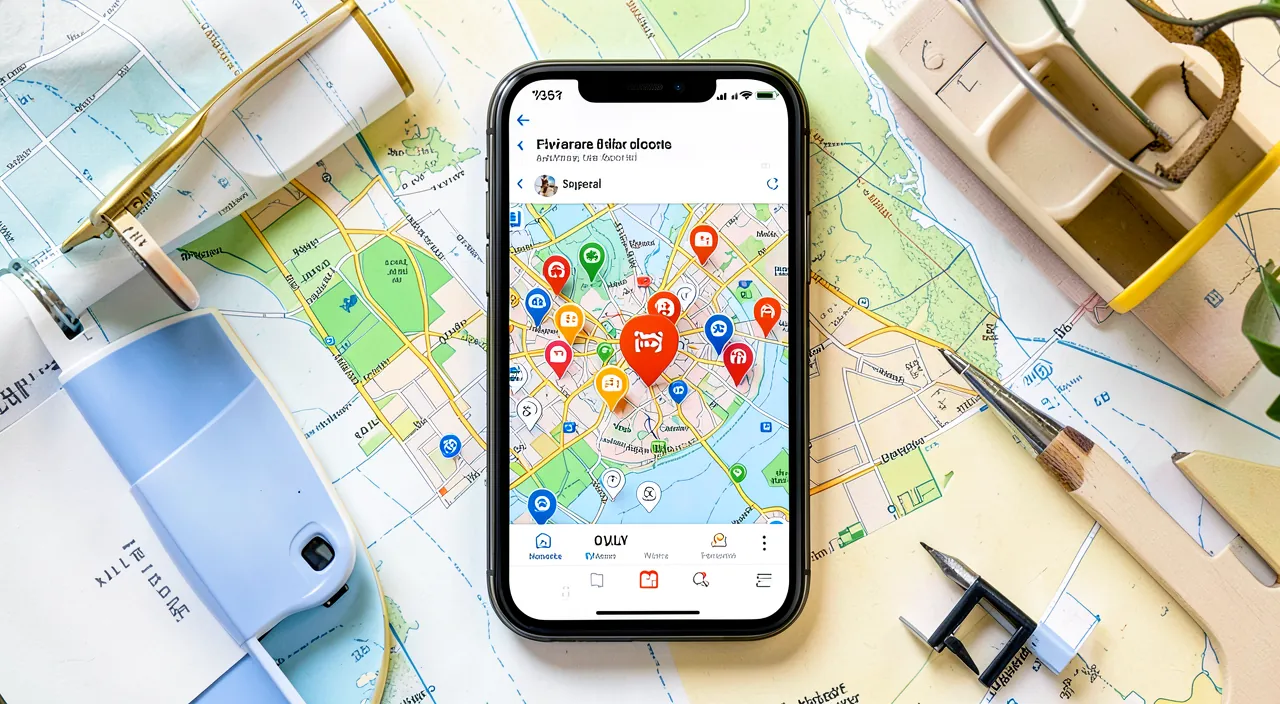
Are my favorites kept if I change iPhone?
Yes, if your favorites are synchronized with your Apple account (iCloud): they then automatically follow you to a new iPhone as soon as you log in with the same identifier; this is the most common case, provided you’re properly logged into your account. Let’s see. SYNCHRONIZED = KEEPED: linked to your Apple account, they follow; reassuring; important. Via ICLOUD: your Maps favorites are saved with your account; recoverable; to know. On the NEW iPhone: log in to your Apple account → your favorites appear; automatic; practical. The SAME IDENTIFIER: use the same Apple identifier as before; condition; important. NOTHING TO REDO: no need to re-save everything; time-saving; advantage. COMMON CASE: most people have this sync active; it works automatically; reassuring. CHECK the connection: make sure you’re logged into the right account; check; tip. The TRANSFER HELPS: the transfer to the new iPhone also recovers this (consult our guides); complementary; to know. If not SYNCHRONIZED: without sync, you’d have to recreate them; hence the interest of iCloud; nuance. CHECK after changing: check that your favorites are indeed there; tip. The ADVICE: yes, if they are synchronized with your Apple account (iCloud); they automatically follow you to the new iPhone as soon as you log in with the same identifier; just check that you’re logged into the right account. In summary, YES, your favorites are KEPT when you change iPhone— provided they are SYNCHRONIZED with your APPLE ACCOUNT (iCloud), which is the most common case. Here’s how it works: your Maps favorites are not stored ONLY on your phone; they are linked to your APPLE ACCOUNT and saved via ICLOUD. Result: when you set up a NEW iPhone and log in with the SAME APPLE IDENTIFIER as before, your favorites REAPPEAR automatically— you don’t have to RE-SAVE anything! They follow you, like your contacts, your iCloud photos, etc. It’s a real comfort: all the work of saving your places isn’t lost when you change devices. The ESSENTIAL CONDITION: use the SAME APPLE IDENTIFIER, and be properly LOGGED IN to your account on the new iPhone (with iCloud sync active). The data transfer to a new iPhone (the “Quick Start”— consult our iPhone guides) also takes care of all this. A small CHECK is still necessary, however: after changing iPhone, OPEN MAPS and check that your favorites are indeed THERE; if they’re not, make sure you’re logged into the RIGHT APPLE ACCOUNT (with sync activated). In the (rarer) case where your favorites WEREN’T SYNCHRONIZED, you’d then have to recreate them— hence the interest of having iCloud sync active. In summary: yes, your favorites are kept when you change iPhone if they are synchronized with your Apple account (iCloud): they reappear automatically on the new device as soon as you log in with the same identifier, without having to re-save anything; just check, after the change, that you’re logged into the right account and that your favorites are present. The synchronization does all the work for you.
What to remember
The FAVORITE PLACES of the Maps app allow you to SAVE the places that matter to you— home, work, doctor, family, shops, restaurants…— to FIND them and launch a route with ONE GESTURE, without ever retyping the address. It’s free, integrated, and simplifies all your daily trips. To SAVE a place: find it in Maps (via search), tap its card, and choose “ADD TO FAVORITES”. Start with the essentials: save your “HOME” and “WORK” (Maps reserves a special place for them)— you’ll get the route to go home or to work with a single tap, wherever you are. Then add all your useful places, giving them CLEAR NAMES (“Dr. Martin”, “At my daughter’s”) to recognize them at a glance. You can save as many as you want: the important thing is to ORGANIZE them (speaking names, removal of obsolete ones). To TRAVEL: tap a favorite, and Maps guides you (with travel time, different modes: car, on foot, public transport); you can also do it by voice (“take me home”), consult or share the address of a favorite. Good to know: your favorites are SYNCHRONIZED with your Apple account, so KEPT when you change iPhone (they reappear automatically as soon as you log in with the same identifier). On the precautions: be careful with your PRIVACY— saving “Home” reveals where you live, so protect your iPhone with a CODE, don’t share your favorites (especially “Home”) except with trusted people, and share a place with discernment; CHECK that a favorite points to the right address before relying on the guidance (be careful with homonyms); don’t follow the guidance blindly (keep your common sense, and handle Maps while stopped, never while driving); and update favorites that have become obsolete. In short, the favorites in Maps are a precious little tool to move around more easily: a few minutes to save your places, and your trips become a breeze— one gesture is enough to be guided wherever you go often.
Want to unlock the full potential of your iPhone, iPad, or Mac? Our Apple training courses will take you to the next level.
Leave a Reply
You must be logged in to post a comment.