
A sudden idea while walking, a shopping list dictated aloud, instructions for a meeting, a melody to remember, a conference to listen to again: the iPhone Dictaphone (Voice Memos app) is a small but very practical tool that many people ignore or underuse. With a single gesture, it turns your phone into a high-quality recorder always in your pocket. Here’s how to make the most of the Dictaphone to capture your ideas and memos, organize them, and find them easily without being an expert.
What the Dictaphone can do
The Dictaphone (the « Voice Memos » app on iPhone) is an AUDIO RECORDER: it captures sound through your phone’s microphone, allowing you to listen to it later. Its strength lies in its SIMPLICITY and AVAILABILITY: your phone is always with you, the app is already there, and a recording starts with a single gesture—much faster than writing. What can it be used for specifically? Uses are numerous: CAPTURE an idea on the fly (a thought that pops up, a project, a phrase to remember—dictated faster than written); take notes (a shopping list, a task, a reminder, spoken); record dictated information (a number, an address, instructions given to you); keep a record of a MEETING, a class, or a conference (to listen to what you missed); capture a sound moment (a tune you hum, a sound, an atmosphere); or even practice (rehearse a speech, a presentation, and listen to yourself). It’s particularly useful in situations where WRITING isn’t practical: while walking, driving (hands-free), when an idea strikes and you don’t have time to write it down, or when you want to capture the TONE and nuances that a text doesn’t convey. The app is EASY: press to record, press to stop, and the recording is automatically saved; you can listen to it, rename it, share it. An ADVANTAGE: recordings can sync between your Apple devices (iPhone, iPad, Mac), allowing you to find them everywhere (our guides on syncing Apple devices). The main idea: the Dictaphone turns your iPhone into a always-available recorder, capturing in a gesture what would be long or impossible to write—ideas, memos, information, moments. It’s a simple but valuable tool for not missing anything that passes through your head or ears, at the moment it counts. Many people ignore it; those who adopt it can’t live without it.
The Dictaphone app lets you record voice notes quickly. It’s perfect for capturing ideas, reminders, or conversations when you can’t type. The best part? It’s already on your iPhone and works with just one tap.
During a brainstorming walk, you get an idea for a blog post. Instead of stopping to type, you tap the red button in the Voice Memos app and speak your thoughts. Later, you listen to the recording while writing your article.

How to use and organize voice memos effectively
Beyond basic recording, a few uses make the Dictaphone really practical. RECORD IN A GESTURE—open the app and press the recording button (the large red button); speak; press to stop; it’s recorded and saved automatically; to go even faster, you can start a recording by voice (via the voice assistant) or from the locked screen according to your settings. RENAME RECORDINGS—by default, they have a generic name (location, date): get into the habit of renaming them clearly (« Article Idea, » « Shopping, » « Project Meeting ») to find them easily—a well-named memo is a useful memo. LISTEN AGAIN AND NAVIGATE—you can replay, pause, fast-forward/reverse; useful for finding a specific passage in a long recording. ORGANIZE INTO FOLDERS—if you accumulate memos, categorize them into folders (ideas, work, personal, shopping…) to find them; you can also mark the important ones as favorites. SIMPLER TOUCH-UP—the app allows basic touch-ups: cropping (keeping only a part), redoing a portion, removing silences; useful for cleaning up a recording. EASY TO SHARE—voice memos can be shared like any file: via message, email, or to another app (to send to someone, or to slip into a note). FIND EVERYWHERE—if syncing is enabled, your memos appear on all your Apple devices: recorded on the iPhone, replayed on the Mac. A FEW TIPS FOR GOOD RECORDINGS: keep the microphone close to the source (speak near the phone, or place it near the speaker for a meeting) and limit background noise for good quality; name your memos immediately (otherwise you’ll forget what « New Recording 47 » contains); regularly clean up (audio files take up space—our guides on full storage) and know that a deleted memo stays in the trash for a while before permanent deletion. A PRACTICAL POINT: to capture a fleeting idea, speed is key—a voice memo quickly launched captures a fleeting idea better than a note that can’t be typed (especially while walking, driving hands-free, or when a thought strikes). To keep your memos useful, develop a key habit: RENAME them immediately with a clear title (« Gift Idea, » « Shopping, » « Meeting Tuesday »)—otherwise you’ll end up with a list of « New Recording » memos you can’t remember. If you accumulate them, categorize them into folders (ideas, work, personal) and mark the important ones as favorites. For good recordings: keep the phone close to the source (speak near the microphone, or place it near the speaker for a meeting) and limit background noise. The app also allows simple touch-ups (cropping to keep only a part, redoing a passage) and easy sharing (via message, email, or to a note). Enable syncing to find your memos on all your Apple devices (recorded on the iPhone, replayed on the Mac). Finally, regularly clean up (audio files take up space), and remember that a deleted memo stays in the trash for a while before permanent deletion. Record quickly, name clearly, organize later: this is how the Dictaphone becomes a valuable reflex for not missing anything.
- Record in a gesture: Open the app, press the red button, speak, then press to stop
- Rename recordings: Give them clear names like “Article Idea” or “Shopping List”
- Listen and navigate: Replay, pause, or skip through recordings
- Organize into folders: Create categories like “Work” or “Personal”
- Touch-up recordings: Crop, edit, or remove silences
- Share easily: Send recordings via message or email
- Find everywhere: Enable syncing to access memos on all devices
THE RIGHT HABIT. Make the Dictaphone your « voice notebook » always ready: as soon as an idea pops up, an info is dictated, or you want to keep a record, open the app and press the red button—speak, press to stop, it’s saved. Speed is the key advantage: a voice memo quickly launched captures a fleeting idea better than a note that can’t be typed (especially while walking, driving hands-free, or when a thought strikes). To keep your memos useful, develop a key habit: RENAME them immediately with a clear title (« Gift Idea, » « Shopping, » « Meeting Tuesday »)—otherwise you’ll end up with a list of « New Recording » memos you can’t remember. If you accumulate them, categorize them into folders (ideas, work, personal) and mark the important ones as favorites. For good recordings: keep the phone close to the source (speak near the microphone, or place it near the speaker for a meeting) and limit background noise. The app also allows simple touch-ups (cropping to keep only a part, redoing a passage) and easy sharing (via message, email, or to a note). Enable syncing to find your memos on all your Apple devices (recorded on the iPhone, replayed on the Mac). Finally, regularly clean up (audio files take up space), and remember that a deleted memo stays in the trash for a while before permanent deletion. Record quickly, name clearly, organize later: this is how the Dictaphone becomes a valuable reflex for not missing anything.
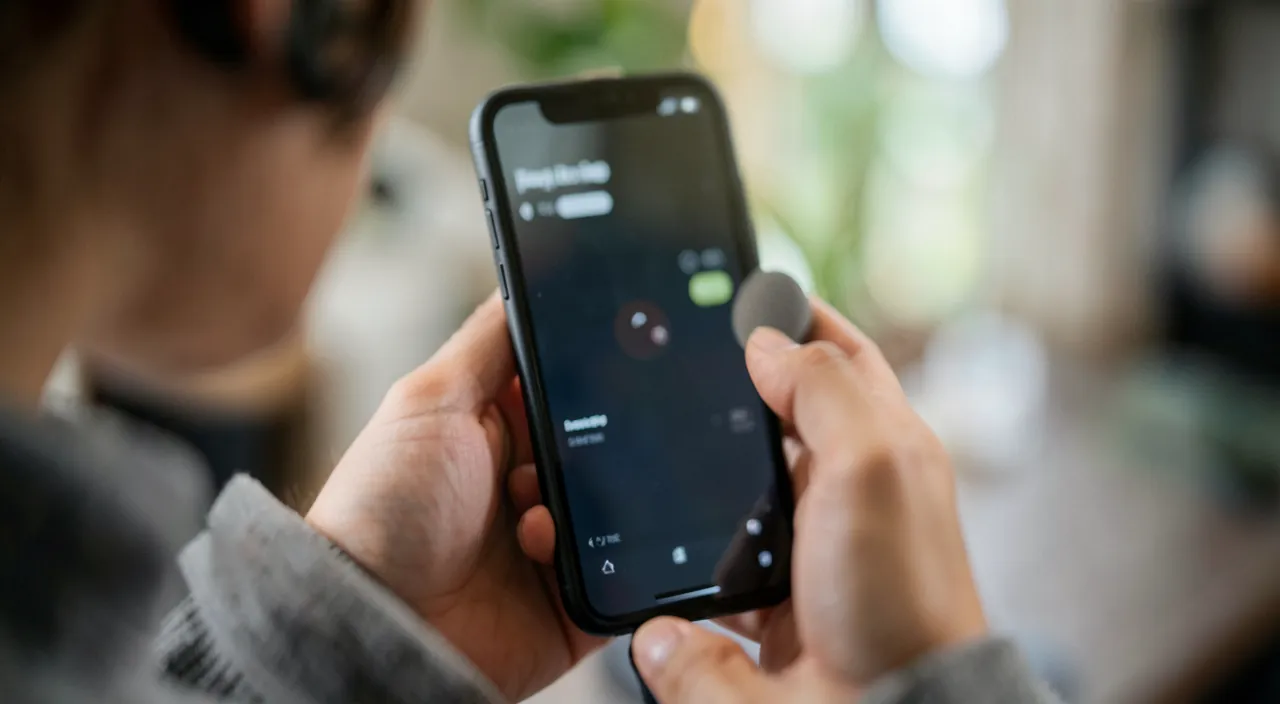
A simple tool to remember nothing
The Dictaphone illustrates the value of « small » integrated apps: discreet, free, already there, and yet capable of rendering great services once you think of them. A few ideas on how to get the most out of it. Develop the HABIT: the main obstacle is not the difficulty (the app is very simple) but the habit—think of the Dictaphone as soon as an idea is worth keeping or writing isn’t practical; the more you use it, the more it becomes natural. CAPTURE first, ORGANIZE later: don’t let the concern of proper organization hinder you; the important thing is to capture the idea on the spot (renaming and categorizing can wait). COMBINE with other apps: a voice memo can complement a written note, be shared via a message, or serve as a draft before writing; the Dictaphone integrates into your work flow (our guides on Notes app, Reminders app). Think ACCESSIBILITY: for those who have trouble writing or typing, dictating is often simpler; the Dictaphone (like voice dictation) is a real accessibility asset (our guides on accessibility settings). Respect OTHERS’ PRIVACY: recording a conversation or a meeting may require the consent of the people present depending on the situation; out of courtesy and prudence, inform the people you are recording and use recordings appropriately. Maintain your library: regularly delete unused memos (they take up space), keep the important ones well-named, and back up what really matters (an important recording deserves to be backed up—our guides on regular backups). In summary, the Dictaphone is a simple but valuable tool to remember nothing: it turns your iPhone into a always-available recorder, capturing in a gesture what would be long or impossible to write (ideas, memos, information, sound moments). Easy to use (record, rename, organize, replay, share), syncable between your Apple devices, it serves a thousand daily situations—capturing an idea while walking, setting a reminder, keeping a record of a class. The only secret is to THINK of it: adopt the habit of voice memos, name your recordings clearly, do a little cleaning, and respect others’ privacy when recording them. A small, discreet app, but one that becomes indispensable once you’ve tamed it.
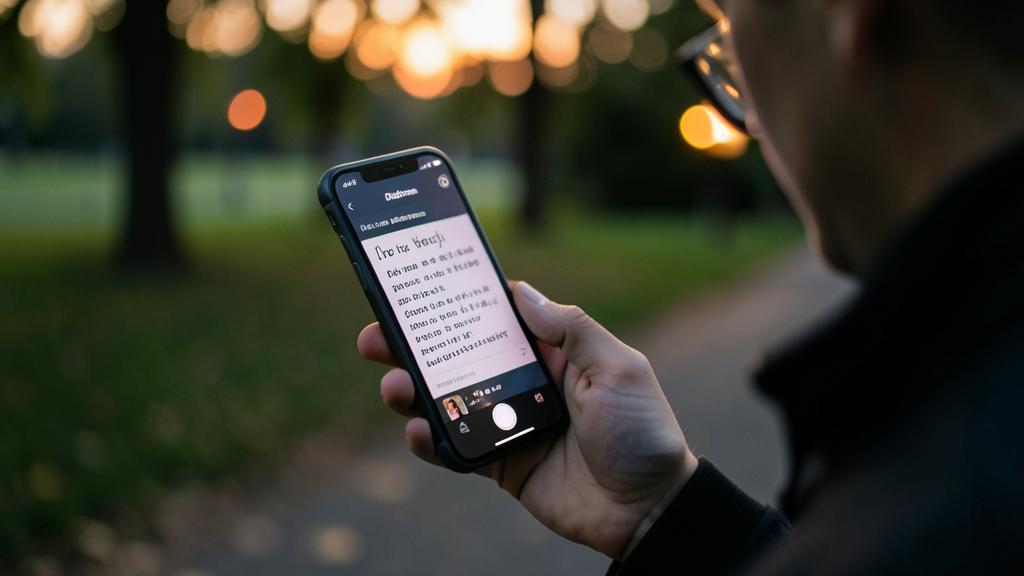
BE CAREFUL: name your memos, do some cleaning, respect others’ privacy, and back up the important ones.
Frequently asked questions
What is the Dictaphone (Voice Memos) app for?
It’s an audio recorder that turns your iPhone into a always-available voice notebook. Its uses: CAPTURE an idea on the fly (dictated faster than written, especially while walking or when a thought pops up), take notes (shopping list, reminder, task, spoken), record dictated information (a number, an address, instructions), keep a record of a meeting, a class, or a conference, capture a sound moment (a tune you hum), or practice (rehearse a speech and listen to yourself). It’s particularly useful when writing isn’t practical. The app is very simple: press to record, press to stop, it’s automatically saved; you can replay, rename, organize, share. Memos can sync between your Apple devices. Discreet but valuable, the Dictaphone allows you to remember nothing that passes through your head or ears: many people ignore it, but those who adopt it can’t live without it.
How can I easily find my recordings?
The key is to NAME them clearly right away. By default, memos have a generic name (location, date): get into the habit of renaming them with a descriptive title (e.g., « Article Idea, » « Shopping, » « Project Meeting ») immediately after making them—otherwise you’ll end up with a list of « New Recording » memos you can’t remember. If you accumulate many memos, categorize them into folders (ideas, work, personal, shopping) and mark the important ones as favorites for quick identification. The app also allows searching among your recordings. And if syncing is enabled, your memos appear on all your Apple devices (iPhone, iPad, Mac), so you can find them everywhere. A little rigor in naming and organizing turns a confusing library into a really practical tool: name immediately, organize later, and your captured ideas will remain easy to find.
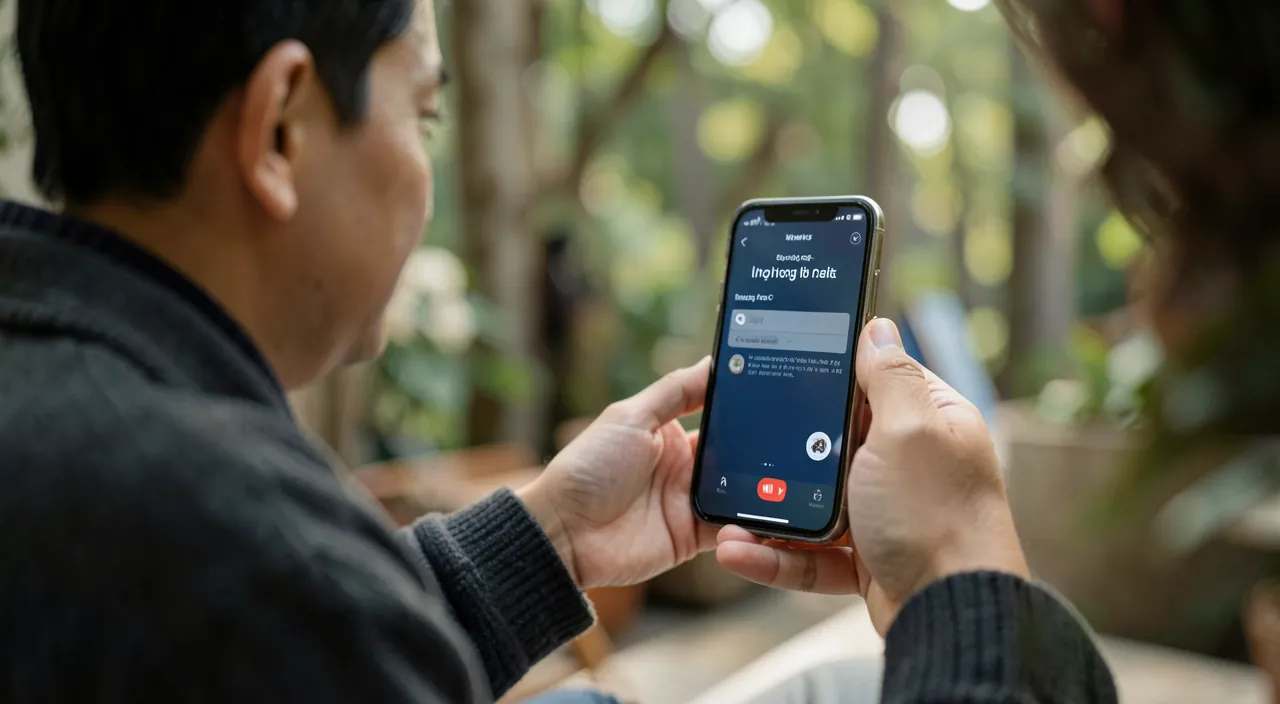
Can I record a meeting or a conversation?
Technically yes, the app is designed for it (place the phone near the participants for good recording, limit background noise). But be careful about PRIVACY and respect for others: recording a conversation or a meeting may require the consent of the participants, and recording someone without their knowledge can pose a courtesy or legal problem depending on the situation and the country. Best practice: INFORM the people you are recording, ask for their consent when appropriate, and use recordings appropriately and respectfully. For a legitimate personal use (keeping a record of a class to listen to it again, memorizing instructions given to you), the Dictaphone is perfect; but be respectful when others are recorded. A recording should preferably be done in transparency, not in secret: it’s a question of respect as much as prudence.
What to remember
The Dictaphone (Voice Memos) app for the iPhone is a small but valuable tool: it turns your phone into a always-available recorder, capturing in a gesture what would be long or impossible to write. Its uses are numerous: CAPTURE an idea on the fly (dictated faster than written, especially while walking or when a thought pops up), take notes (shopping list, reminder, task, spoken), record dictated information (a number, an address, instructions), keep a record of a meeting, a class, or a conference, or capture a sound moment. It’s particularly useful when writing isn’t practical. The app is very SIMPLE: press to record, press to stop, it’s automatically saved; you can replay, rename, organize in folders, touch-up (crop, redo a passage), share, and find your memos on all your Apple devices through syncing. To get the most out of it: develop the HABIT of thinking about it (the only real obstacle is the habit), CAPTURE first and organize later (speed is key for a fleeting idea), and especially NAME your recordings clearly right away (a library of « New Recording » memos is useless). Regularly clean up (audio files take up space), back up the really important memos, and respect others’ PRIVACY when recording them (inform them, ask for their consent—don’t record in secret). It’s also an accessibility tool for those who have trouble writing. The only secret of the Dictaphone is to think about it: once the habit is formed, this small free app already installed becomes a daily ally that you can’t live without, for not missing anything from your ideas and memos.
Want to fully exploit the potential of your iPhone, iPad, or Mac? Our Apple training courses will take you to the next level.
Leave a Reply
You must be logged in to post a comment.