
Do you receive a PDF document to proofread, a contract to comment on, a quote to annotate, a form to fill out, or a course to highlight? Many people think a PDF is « fixed » and that nothing can be added to it, so they end up printing it, writing on it by hand, and then rescanning it—a waste of time and paper. In reality, you can ANNOTATE and HIGHLIGHT a PDF directly on screen, without printing: highlight passages, add comments, underline, draw, write text, or even fill in fields and sign. The tools to do this are often already available (in your device’s PDF reader, your browser, or free apps). It’s simple, fast, eco-friendly, and the result is clean. Let’s see what you can do with a PDF, how to annotate it depending on your tools, and key points to know.
What you can do to annotate a PDF
Annotating a PDF offers many possibilities; let’s explore them. HIGHLIGHTING passages: emphasize important passages (like a highlighter on paper); identify the essential points; common use; useful. Adding COMMENTS: insert notes, remarks (bubbles, reminders); comment on a document; for proofreading; practical. UNDERLINING or striking through: underline, strike through text (corrections, deletions); mark modifications; useful; practical. Writing TEXT: add text anywhere (fill in, complete, annotate); add words to the document; versatile; useful. DRAWING or circling: freehand drawing, arrows, circles to circle; draw attention visually; expressive; useful. FILLING out a form: fill in a PDF form’s fields directly; no need to print or write by hand; very practical; efficient. SIGNING a document: add a signature (drawn or image); sign without printing; time-saving; useful. Adding STAMPS: « approved, » « read, » dates; quick markings; for work; practical. All of this WITHOUT printing: everything is done on screen, no paper or scanner needed; fast and eco-friendly; the key advantage; clever. A CLEAN result: annotations are neat, readable, and saved in the PDF; cleaner than scanned handwriting; neat; professional. In short, you can do a lot to annotate a PDF, directly on screen: HIGHLIGHT important passages (like a highlighter on paper), add COMMENTS and notes (for proofreading), UNDERLINE or STRIKE THROUGH text (corrections), write TEXT anywhere (complete, annotate), DRAW freely or circle with arrows and circles, FILL IN a PDF form’s fields, SIGN the document (drawn or image signature), and add STAMPS (« approved, » dates). The big advantage: all of this is done WITHOUT PRINTING—no paper, no scanner, it’s fast and eco-friendly. And the result is CLEAN: neat and readable annotations, saved in the PDF, much neater than scanned handwriting. Contrary to the common belief that a PDF is « fixed, » you can actually enrich it in many ways, on screen and in just a few clicks.
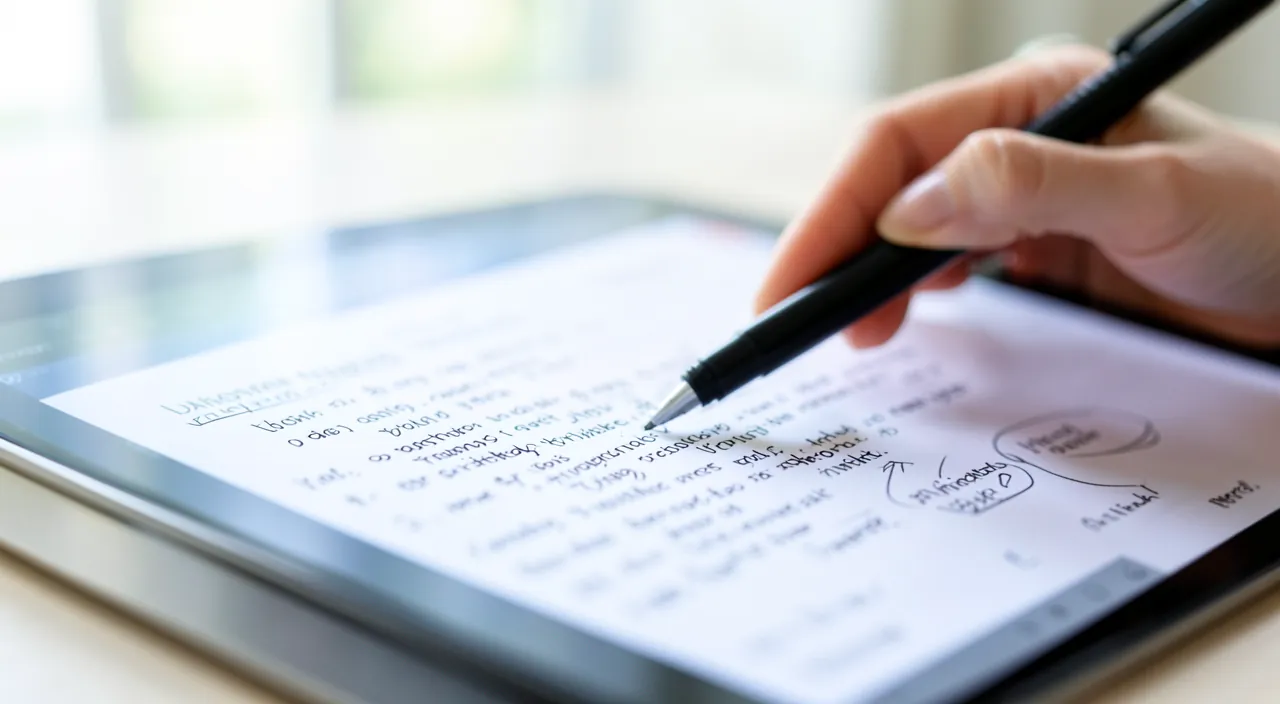
How to annotate a PDF depending on your tools
The tools to annotate a PDF are often already available; here’s how to proceed. The INTEGRATED PDF READER: your device often has a PDF reader with annotation tools (highlighter, text, drawing); look for a toolbar, a pencil, or an « annotate » menu; start there. On MOBILE: open the PDF, look for the annotation icon (often a pen/pencil); the tools appear; annotate with your finger or stylus; practical. On COMPUTER: the PDF reader (or system preview) often offers highlighting, text, and drawing; explore the toolbar; available; useful. Via the BROWSER: some browsers open PDFs and allow you to annotate/fill them out; look for the tool icons; a simple option; practical. Free APPS: many free PDF apps/readers offer annotation; if your tool is limited, look for one; solutions exist; useful. CHOOSE the tool: select the highlighter, text tool, or drawing tool depending on what you want to do; the right tool for the action; simple; logical. ANNOTATE the document: highlight, write, draw on the PDF; annotations are added on top; direct; effective. SAVE after: save the annotated PDF (or « save as » to keep the original); keep your work; important (we’ll come back to this); essential. Explore the TOOLS: each reader has its own tools; explore your annotation menu; discover the possibilities; useful. TEST first: try it out (highlight, erase) to get comfortable; practice before the real document; reassuring; clever. In short, to annotate a PDF, the tools are often ALREADY available: start with the PDF READER integrated into your device (it often has annotation tools—highlighter, text, drawing; look for a toolbar, a pencil, or an « annotate » menu). On MOBILE, open the PDF and look for the annotation icon (often a pen); on COMPUTER, the PDF reader or system preview usually offers highlighting, text, and drawing; via the BROWSER, some also allow you to annotate and fill out PDFs. If your tool is limited, many FREE APPS offer annotation. The steps: CHOOSE the right tool (highlighter, text, drawing) depending on what you want to do, ANNOTATE the document (annotations are added on top), then SAVE the annotated PDF (ideally as « save as » to keep the original intact). Don’t hesitate to EXPLORE your reader’s annotation menu and to TEST (highlight, erase) to get comfortable with the tool before working on the real document. In just a few clicks, you’re annotating on screen, without printing.
Annotating a PDF means adding notes, highlights, or drawings on top of the document without changing its original content. You can do this with tools already on your computer or phone, and it’s much faster than printing, writing by hand, and scanning.
Imagine you receive a 10-page contract to review. Instead of printing it, you open it in your PDF reader, highlight the key clauses in yellow, add a comment “Check this term” next to a specific section, and draw an arrow to point out an important detail. When done, you save the file as “Contract_Reviewed.pdf” and email it back – all without using a single sheet of paper.
The reflex: open the PDF, look for the pencil or highlighter tool, and annotate on screen—then save as a new name. Annotating a PDF is much simpler than most people think, and it avoids the absurd detour of « print, write by hand, rescan. » Here’s the reflex to adopt, in a few steps. Step 1: OPEN the PDF with a tool that allows annotation. Most often, the PDF reader already present on your device (or the system preview, or even your browser) will do. Simply open the document. Step 2: LOOK for the annotation tools. This is the key point, and they are generally easy to find once you know what to look for. Look for: a PENCIL or PEN icon (often the main button for « annotate » or « edit »), a HIGHLIGHTER icon (a marker, a colored line), an annotation TOOLBAR (which appears at the top or on the side), or an « Annotate, » « Markup, » or « Comment » menu. On mobile, this pencil icon is often clearly visible when opening the PDF; on computer, look in the reader’s toolbar. Step 3: CHOOSE the tool depending on what you want to do, and annotate: the HIGHLIGHTER to emphasize (click-drag on the text to highlight); the TEXT tool to write words (click where you want to type); the COMMENT/NOTE tool to add a remark; the DRAWING/PENCIL tool to draw arrows, circle, or freehand; the SIGNATURE tool to sign. You can usually choose the COLOR, thickness, etc. Annotate your document calmly: the annotations are added on top of the PDF, without erasing the original content. Step 4, essential: SAVE your work, preferably under a NEW NAME. When you’re done, save the annotated PDF. The good reflex is to use « Save As » (or « Export ») to create a NEW annotated version, while keeping the ORIGINAL PDF intact (for example, « contract_annotated.pdf »). This way, you keep the original clean in case you need it, and you have your commented version. Step 5: SHARE if needed. You can then send your annotated PDF (by email, message) like any other file—the recipient will see your highlights and comments. A concrete example: you receive a quote to validate and comment on → you open it in your PDF reader → you click on the pencil/highlighter tool → you highlight the points to discuss, add a comment « OK for this line, » circle an amount → you save it as « quote_commented.pdf » → you send it back. All of this in a few minutes, without a single sheet of paper. In short, the reflex for annotating a PDF: OPEN it, LOOK for the pencil or highlighter tool (a pen icon, an annotation bar, an « annotate » menu: often already available in your PDF reader), CHOOSE the right tool and annotate on screen (highlight, write, comment, draw, sign), then SAVE as a new name (to keep the original intact), and share if needed. No more detour of « print-write-rescan »: it’s faster, cleaner, and paper-free.
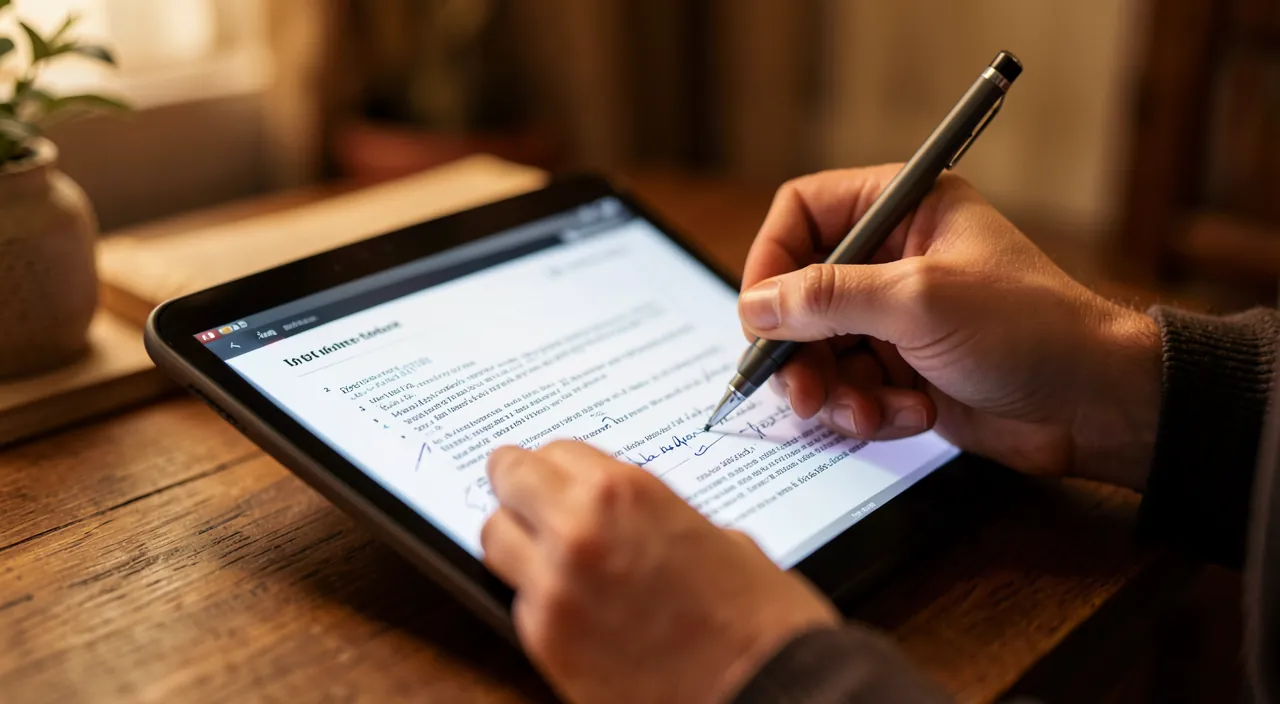
Practical uses of PDF annotation
Annotating a PDF is useful in many everyday situations; let’s see them. PROOFREAD and correct: annotate corrections in a document to proofread (errors, remarks); comment without rewriting; for proofreading; practical. COMMENT on a contract/quote: highlight, note questions, circle points; discuss a document; professional; useful. FILL OUT a form: complete a PDF form on screen (no need to print); administrative procedures; very practical; efficient. SIGN a document: add your signature without printing/scanning; return signed quickly; time-saving; useful. STUDY a course: highlight the essential points, annotate notes on a PDF course; learn effectively; for studies; useful. PREPARE for a MEETING: annotate a working document before a meeting; come prepared; professional; practical. COLLABORATE remotely: send an annotated PDF to exchange remarks; work together without meeting; useful; efficient. MARK an INSTRUCTION MANUAL: highlight important steps in a PDF manual; identify the essential points; practical; useful. Annotate a PLAN or diagram: circle, arrow on a PDF plan; indicate visually; useful; practical. The OVERALL GAIN: fast, clean, paper-free, shareable; digital annotation outperforms paper; adopt it; recommended. In short, annotating a PDF is useful in many concrete situations: PROOFREAD and correct a document (annotate errors and remarks without rewriting), COMMENT on a contract or quote (highlight, note questions, circle points to discuss), FILL OUT an administrative form on screen (no need to print), SIGN a document quickly (no need to print or scan), STUDY a course (highlight the essential points, annotate your notes), prepare for a MEETING (annotate a working document), COLLABORATE remotely (exchange an annotated PDF), mark the steps of an INSTRUCTION MANUAL, or annotate a PLAN and diagram (circle, arrow). In all these cases, digital annotation offers the same GAIN: it’s fast, clean, paper-free, and easily shareable—it far surpasses the old reflex of printing to write by hand. Whether for work, studies, or everyday procedures, annotating a PDF directly on screen saves you time and simplicity. A simple skill that provides great service.
Warning: keep a copy of the original, distinguish « annotate » from « modify the content, » and check that your annotations are properly saved. Annotating a PDF is simple and safe, but a few precautions avoid unpleasant surprises. First point: KEEP a copy of the ORIGINAL intact. When you annotate a PDF, take the reflex to SAVE AS a new name (for example, « document_annotated.pdf ») rather than overwriting the original file. Why? Because you might need the CLEAN version later (to send it back without your comments, to start over, or simply as a precaution). By keeping the original on one side and your annotated version on the other, you’re safe. This is particularly important for an official or important document that you wouldn’t want to alter by mistake. Second point: distinguish ANNOTATING (adding on top) from MODIFYING THE CONTENT (changing the existing text). These are two different things. ANNOTATING—highlighting, commenting, drawing, adding text on top—does NOT alter the original content of the PDF: your annotations are superimposed, like notes on a sheet. This is what we most often do, and it’s risk-free. MODIFYING THE CONTENT—that is, changing the existing text of the PDF, deleting lines, altering the document itself—is another matter, more delicate, which requires specific PDF editing tools, and which raises questions: modifying the content of a received document (especially official, contractual) can be problematic, even dishonest depending on the context. So stay on ANNOTATION (adding your remarks on top) to comment on a document: it’s the legitimate and safe use. Never modify the content of someone else’s official document. Third point: CHECK that your annotations are properly SAVED and VISIBLE. After annotating, save your document well, then REOPEN it (or send it to yourself) to check that your highlights and comments are indeed there and display correctly. Indeed, depending on the tools, some annotations might not save, or display differently in another PDF reader. This check is important especially if you send the annotated PDF to someone: make sure they will see your annotations. Fourth point: be careful about CONFIDENTIALITY if you use an online app or service to annotate. Some PDF annotation tools are websites where you upload your document: for a CONFIDENTIAL or sensitive document (contract, personal document), be wary of entrusting your file to an unknown online service (what do they do with your documents?). Prefer tools that work LOCALLY on your device (integrated PDF reader, installed apps), which do not transmit your document elsewhere. Fifth point: for SIGNING an important document, check the value of the signature. Adding a hand-drawn signature on a PDF is practical for many common uses; but for a document with strong legal value, a « real » electronic signature (with a recognized signing service) may be required: check what is expected. In short: KEEP a copy of the original (save as a new name; don’t lose the clean version), distinguish ANNOTATING (adding on top, safe) from MODIFYING THE CONTENT (delicate, and never to do on someone else’s official document), CHECK that your annotations are properly saved and visible (especially before sending), be wary of online services for confidential documents (prefer local tools), and for a LEGALLY VALID signature, check what is required. With these precautions, annotating a PDF is a simple, safe, and very practical operation.
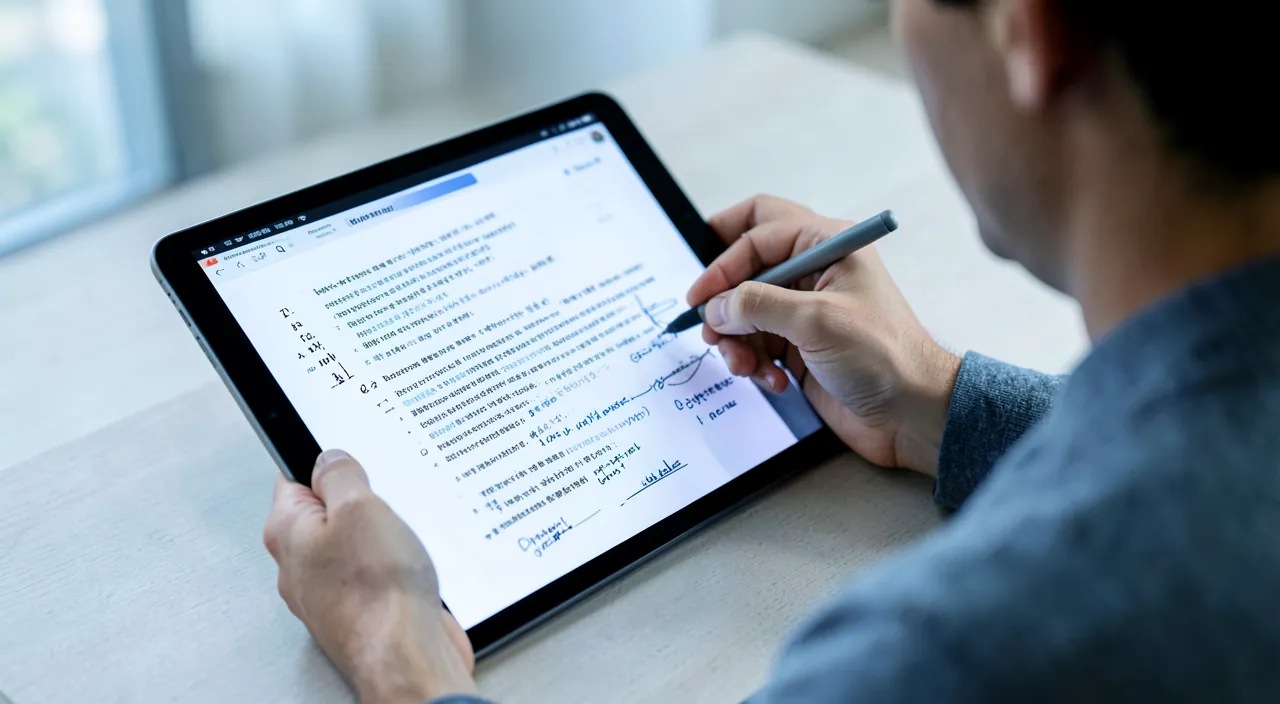
Frequently asked questions
Can you really write on a PDF without printing it?
Yes, absolutely: contrary to a common belief, you can annotate a PDF directly on screen (highlight, write, comment, draw, fill out, sign) with the tools often already present in your PDF reader; no need to print, write by hand, and rescan. Let’s see. YES, without printing: you can write and annotate a PDF directly on screen; printing to write on it is unnecessary; liberating; practical. A COMMON BELIEF: many people think a PDF is « fixed, » impossible to annotate; this is false; you can add on top; be disabused. What you CAN add: highlight, write text, comment, underline, draw, fill in fields, sign; many possibilities; versatile; rich. The TOOLS already there: your PDF reader (device, browser) often has these tools; no need to install necessarily; available; simple. No more PAPER DETOUR: no need to print, write by hand, rescan; a slow and polluting detour eliminated; time-saving; clever. A CLEAN result: digital annotations are neat, readable; more professional than scanned handwriting; professional; valuable. EASILY SHAREABLE: the annotated PDF is sent like a file; collaborate remotely; practical; useful. ECO-FRIENDLY: zero paper, zero ink; a gesture for the environment; responsible; positive. If the TOOL is missing: if your reader doesn’t have it, a free PDF app will do; solutions exist; always possible; reassuring. The ADVICE: yes, absolutely; you can annotate a PDF directly on screen (highlight, write, comment, fill out, sign) with the tools often already present in your PDF reader; no need to print, write by hand, and rescan—it’s faster, cleaner, and eco-friendly. In short, yes, absolutely: you can write on a PDF without printing—and it’s even simpler and more practical than the old method. You first need to get rid of a very common MISCONCEPTION: many people think a PDF is a « fixed » document, untouchable, on which nothing can be added; and therefore, to comment on or fill it out, they PRINT it, write on it by hand, then RESCAN it—a long, messy, and polluting detour. It’s unnecessary! You can ANNOTATE a PDF directly on screen, by adding elements ON TOP of its content: HIGHLIGHT passages, WRITE text anywhere, add COMMENTS, underline, DRAW (arrows, circles), FILL IN a form’s fields, and even SIGN the document. And most of the time, the TOOLS to do this are ALREADY THERE: in your device’s PDF reader, in the system preview, or even in your browser (look for a pen icon, a highlighter, or an « annotate » menu). If by chance your reader doesn’t allow it, many free PDF applications offer these functions. The advantages are numerous compared to the paper detour: it’s faster (a few clicks instead of print-write-scan), cleaner (neat and readable annotations, much neater than scanned handwriting), easily SHAREABLE (the annotated PDF is sent like any other file, ideal for remote collaboration), and ECO-FRIENDLY (zero paper, zero ink). So the next time you receive a PDF to comment on, fill out, or sign: don’t print it! Open it, look for the annotation tools, and work directly on screen. You’ll save time, cleanliness, and paper.
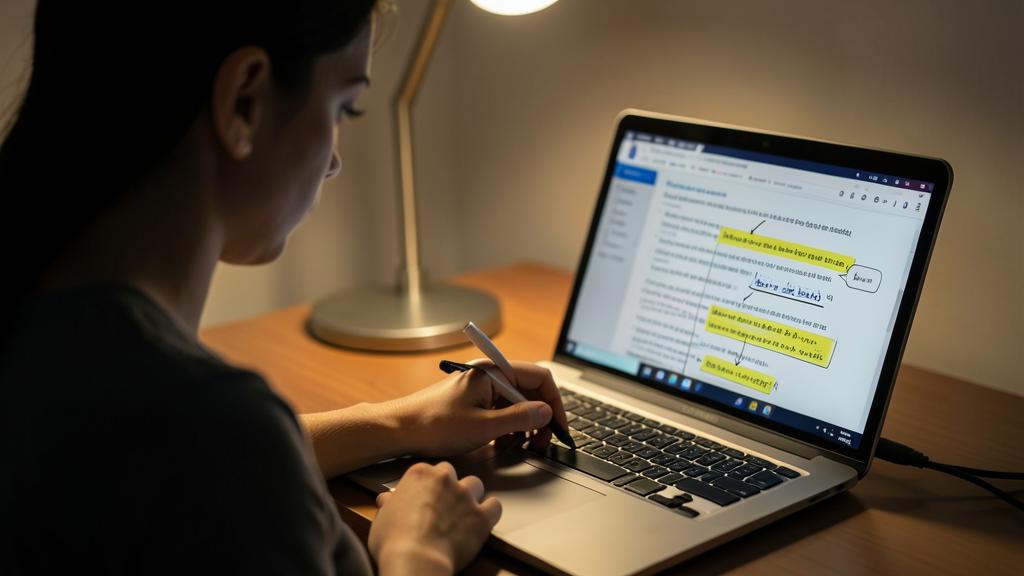
What free tools can you use to annotate a PDF?
Start with what you already have: your device’s PDF reader, the system preview, or your browser often offer free annotation; otherwise, many free PDF apps do the job—preferring local tools for sensitive documents. Let’s see. What you ALREADY HAVE: your device’s PDF reader often has free annotation tools; start there; no need to install; simple. The SYSTEM PREVIEW: on computer, the integrated PDF previewer often offers highlighting, text, and drawing; free and already there; practical; useful. The BROWSER: some browsers open and annotate/fill out PDFs; a free option at hand; explore; useful. On MOBILE: the PDF or file reading app often allows annotation (pen icon); free and integrated; check; simple. Free APPS: if your tools are limited, many free PDF readers offer annotation; install a reputable one; solutions; useful. PREFER local tools: for a sensitive document, prefer a tool that works ON your device (not a site where you upload); confidentiality; cautious (we’ll come back to this). Be wary of UNKNOWN SITES: some online annotation sites ask you to upload the PDF; be careful with confidential documents; check; attention. TEST the tool: try the functions (highlight, text) to see if the tool suits you; choose the right one; compare; clever. Choose SIMPLE: you don’t need a complicated tool to highlight and comment; the simplest often suffices; don’t overload yourself; sensible. The ADVICE: start with what you already have (device’s PDF reader, system preview, browser—often free and sufficient); otherwise, a reputable free PDF app; prefer local tools for sensitive documents, and be wary of unknown sites where you upload your files. In short, to annotate a PDF for free, the best reflex is to START WITH WHAT YOU ALREADY HAVE—because in most cases, the free tools are right under your nose, without installing anything. On COMPUTER: the PDF reader or system previewer often offers free annotation tools (highlighting, text, drawing, sometimes signature); explore its toolbar. Your INTERNET BROWSER, which opens PDFs, often also allows you to annotate or fill out their fields. On MOBILE: your phone’s PDF or file reading app usually allows annotation (look for a pen icon when opening the document). These integrated, free, and already available tools are often sufficient for most common needs (highlight, comment, fill out, sign). If, however, your integrated tools are too LIMITED for what you want to do, many FREE APPLICATIONS and PDF READERS offer complete annotation functions: install a reputable one. Two important tips for choosing. First, to choose simple: for highlighting and commenting, you don’t need complicated software; the simplest tool that does the job is often enough. Second, and most importantly, for SENSITIVE or confidential documents (contracts, personal documents): PREFER tools that work LOCALLY on your device (integrated reader, installed app), and BE WARY of online annotation websites where you have to UPLOAD your PDF—you never know what these services do with your documents. For a common document, an online site can help; for a confidential document, stay with a local tool. In short: your integrated tools (free and already there) are often the best solution; supplement with a reputable free app if needed, keeping your sensitive documents on local tools.
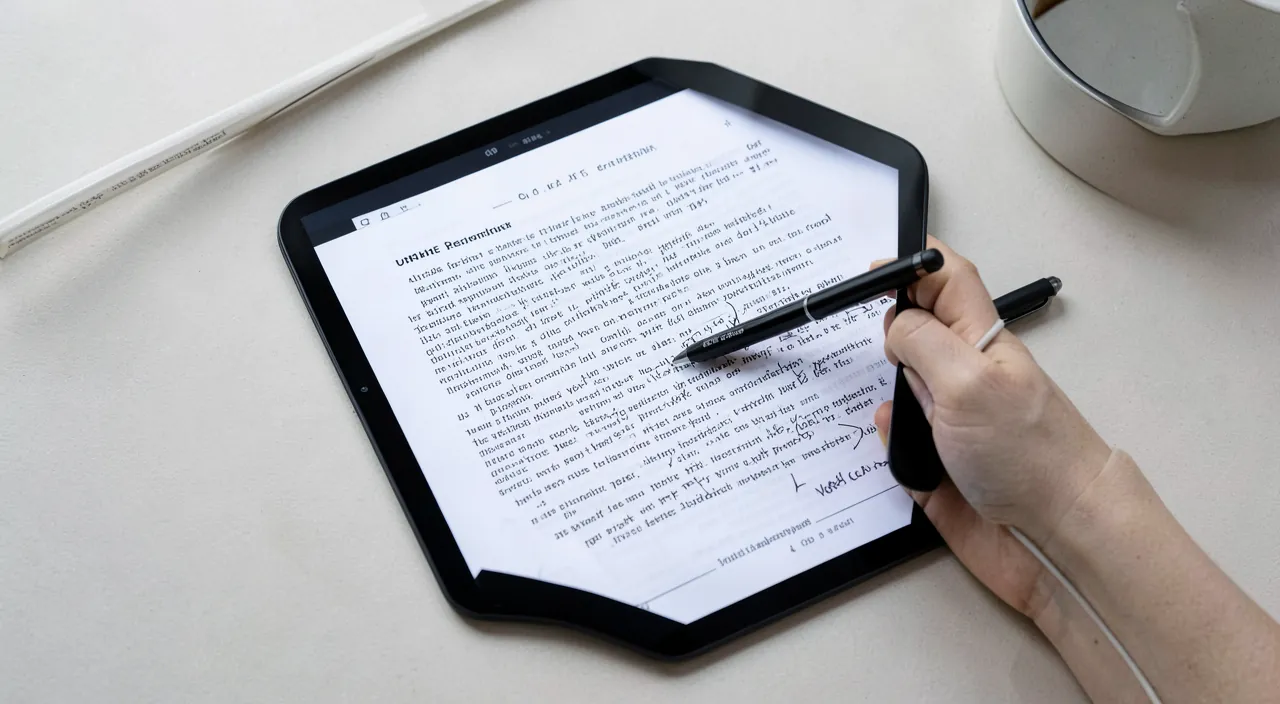
Will my annotations remain visible if I send the PDF to someone else?
Generally yes, if you have properly saved the annotated PDF before sending it; but check by reopening it yourself first, as depending on the tools, some annotations may display differently in another reader. Let’s see. GENERALLY yes: if you have saved your annotations in the PDF, they remain visible to the recipient; the normal case; reassuring; yes. SAVE properly first: make sure you have saved the PDF WITH your annotations before sending it; otherwise, you send the version without; save; essential. CHECK by reopening: reopen the saved PDF (or send it to yourself) to confirm that the annotations are there; check before sending; cautious; wise. DIFFERENT displays: depending on the recipient’s reader, some annotations may display slightly differently; rare but possible; to know; attention. STANDARD annotations: highlights, text, classic comments display well in most readers; common uses work well; reliable; reassuring. « FLATTEN » to fix: to be sure, you can « flatten »/export the PDF (annotations become part of the image); they no longer move; sure option; useful. TEST the sending: send the PDF to yourself to see what the recipient will see; the test confirms; clever; cautious. The PDF, a STABLE format: the PDF is precisely designed to display the same everywhere; properly saved annotations follow; an advantage; reliable. For IMPORTANT documents, check: if the annotations are crucial (corrections to transmit), make sure they pass; don’t take risks; check. The ADVICE: generally yes, if you have properly saved the annotated PDF before sending it; check by reopening it yourself (or by sending it to yourself), and to be sure, you can « flatten »/export the PDF to fix the annotations; standard annotations display well everywhere. In short, yes, generally, your annotations will remain visible when you send the PDF to someone else—provided you follow one essential step: properly SAVE the PDF WITH your annotations before sending it. The classic mistake: annotate, then send the original file (without having saved the annotations in it), and the recipient sees nothing. So make sure you have saved your annotated document, and CHECK by REOPENING it yourself (or by sending it to yourself first): you will see exactly what the recipient will see. This check is particularly important if the annotations are crucial (corrections to transmit, for example). A nuance to know: depending on the PDF READER used by the recipient, some annotations might display slightly DIFFERENTLY (this is rare, but possible with exotic annotations). Good news: STANDARD annotations—highlights, text, classic comments—display well in almost all PDF readers, and the PDF format is precisely designed to display the same everywhere, which works in your favor. If you want MAXIMUM SECURITY (to guarantee that the annotations will appear exactly the same and cannot be moved or hidden), you can « FLATTEN » the PDF (an export option that definitively integrates the annotations into the document, as if they were part of the image): they then become fixed and visible everywhere, but are no longer editable. In short: save your annotations before sending, check by reopening the file yourself, and for an important transmission, test the sending or flatten the PDF. With these simple precautions, your highlights and comments will reach your recipient.
What to remember
Contrary to a persistent misconception, a PDF is not « fixed »: you can ANNOTATE and HIGHLIGHT it directly on screen, without printing. No more absurd detour of « print, write by hand, rescan »! You can highlight passages, add comments, underline, strike through, write text, draw (arrows, circles), fill out forms, and even sign—all of this on top of the document, without altering its original content. The big advantage: it’s FAST, CLEAN (neat annotations, more professional than scanned handwriting), SHAREABLE (the annotated PDF is sent like a file), and ECO-FRIENDLY (zero paper). And the tools are often ALREADY THERE: in your device’s PDF reader, the system preview, your browser, or a free app. The reflex to adopt: OPEN the PDF, LOOK for the pencil or highlighter tool (a pen icon, an annotation bar, an « annotate » menu), CHOOSE the right tool and annotate on screen, then SAVE as a NEW NAME (to keep the original intact). The uses are countless: proofread and correct, comment on a contract or quote, fill out a form, sign, study a course, prepare for a meeting, collaborate remotely. But keep a few precautions in mind. KEEP a copy of the original (save as a new name; don’t lose the clean version, useful for an official document). Distinguish ANNOTATING (adding on top, safe) from MODIFYING THE CONTENT (delicate, and never to do on someone else’s official document: stay with legitimate annotation). CHECK that your annotations are properly saved and visible, especially before sending the PDF (reopen it yourself to confirm; if needed, « flatten » the PDF to fix the annotations). For CONFIDENTIAL documents, prefer tools that work LOCALLY on your device and be wary of online sites where you have to upload your files. And for a LEGALLY VALID signature, check if a recognized electronic signature is required. In short, annotating a PDF on screen is a simple skill that saves you time, cleanliness, and paper on a daily basis—for work, studies, and everyday procedures. The next time you receive a PDF to comment on, fill out, or sign: don’t print it, annotate it directly on screen. It’s faster, cleaner, and much smarter.
Want to improve your digital skills? Our personalized training adapts to your level.
Leave a Reply
You must be logged in to post a comment.