
Printing a long document on one side only uses twice as much paper, creates bulky stacks of sheets, and results in a small waste each time. Printing in RECTO-VERSO (on both sides of the sheet) halves paper consumption: it’s more economical, more eco-friendly, and more practical (thinner documents). Yet, many people don’t know how to do it or think their printer doesn’t support it. Good news: recto-verso is often simpler than you think. If your printer does it automatically, it’s just a checkbox to tick; if not, a manual method still allows you to do it. Let’s explore what recto-verso is, how to enable it (automatic or manual), and how to save even more paper.
**Recto-verso**: what it is and why do it
Let’s understand what recto-verso is and its benefits. What it is: printing on BOTH SIDES of each sheet (front AND back), instead of just one; using all the paper; the principle; simple. Halving the paper: a 20-page document fits on 10 sheets instead of 20; twice less paper; the key saving; effective. More ECONOMICAL: fewer sheets bought; savings on paper; your wallet benefits; concrete. More ECOLOGICAL: less paper consumed; a gesture for the environment; reducing waste; responsible. Thinner documents: a recto-verso folder is twice as thin; easier to store and transport; compact; practical. More PROFESSIONAL: a report, a booklet in recto-verso looks more polished; the look of a real document; enhancing; useful. The term “DUPLEX”: recto-verso is sometimes called “duplex” (especially automatic); same thing; don’t be confused; to know. Two TYPES: automatic (the printer flips the page alone) or manual (you flip the sheets); two ways to do it; depending on your printer (we’ll come back to that); adaptable. Not always OBVIOUS to find: the option often exists but is a bit hidden in the printing settings; you need to know where to look; we’ll see; accessible. A SIMPLE and useful gesture: once you know, it’s a checkbox that saves with each print; a small gesture with constant benefits; adopt it; clever. In short, recto-verso means printing on BOTH SIDES of each sheet (front AND back) instead of one. Its main interest: HALVING paper consumption (a 20-page document fits on 10 sheets instead of 20). It’s therefore more ECONOMICAL (fewer sheets bought), more ECOLOGICAL (less waste), more PRACTICAL (documents twice as thin, easier to store and transport), and often more PROFESSIONAL (a recto-verso report looks more polished). Recto-verso is sometimes called “DUPLEX” (especially in its automatic version). There are two TYPES: AUTOMATIC (the printer flips the page by itself) or MANUAL (you flip the sheets yourself) — depending on your printer’s capabilities. The option often exists but remains a bit hidden in the printing settings: you just need to know where to look. Once you know, it’s a simple gesture — a checkbox — that saves paper with each print. Let’s see how to do it.
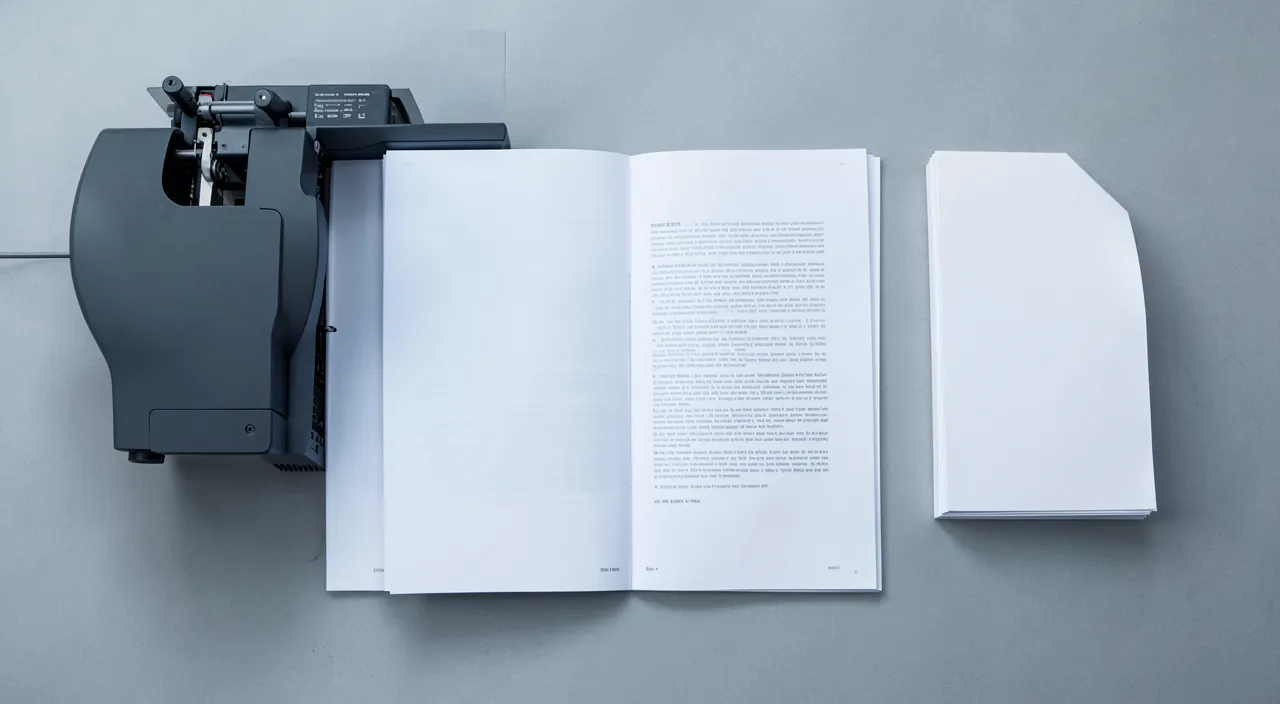
Recto-verso means printing on both sides of a paper sheet. This simple trick cuts your paper use in half. For example, a 20-page document becomes 10 sheets instead of 20. It saves money, reduces waste, and makes documents thinner and more professional-looking.
Imagine you need to print a 40-page report. Without recto-verso, you’d use 40 sheets. With recto-verso, you only need 20 sheets. If you print 100 such reports in a year, that’s 2,000 sheets saved – enough to fill 10 reams of paper!
How to enable recto-verso (automatic or manual)
Here’s how to print in recto-verso depending on your printer. Open the PRINTING OPTIONS: when printing (File > Print, or Ctrl+P/Cmd+P), look for the printing options/properties; that’s where it’s set; the starting point. Look for “RECTO-VERSO”: in the options, look for “recto-verso”, “duplex”, “on both sides”, “double-sided printing”; spot this option; explore. The AUTOMATIC recto-verso: if your printer supports it, simply check the option; it prints and flips by itself; the simplest; ideal. Choose the BINDING direction: sometimes you choose “long edge” (like a book) or “short edge” (like a notepad); “long edge” for most documents; adapt. The MANUAL recto-verso: if not automatic, choose “manual recto-verso” if offered; the printer prints one side, then asks you to flip the stack; still possible. Follow the INSTRUCTIONS (manual): in manual mode, the printer/computer indicates when and how to flip the stack; follow to the letter; the direction matters; attentive. Without a manual option: print the ODD pages first, then the EVEN ones: some prints allow printing the odd pages first, then (sheets flipped) the even ones; a manual trick; possible. TEST with a few pages: for manual mode, test the flipping direction on 2 pages first; avoid wasting the whole document; cautious; clever. Check the PRINTER: its manual indicates if it does automatic recto-verso; know what it can do; inform yourself; useful. Set it as DEFAULT: you can often set recto-verso as default (in the printer’s settings); save with each print without thinking; clever; practical. In short, to enable recto-verso: when printing, open the OPTIONS or printing properties (via File > Print, or the shortcut Ctrl+P / Cmd+P), and look for the “RECTO-VERSO”, “duplex”, “on both sides” or “double-sided printing” option. If your printer supports AUTOMATIC recto-verso, simply check the option (it prints and flips the sheets by itself: the simplest), optionally choosing the binding direction (“long edge” like a book, for most documents). If it doesn’t do it automatically, choose “MANUAL recto-verso” if offered (the printer prints one side, then asks you to FLIP the sheets for the other side: follow the on-screen instructions carefully, the flipping direction matters). Failing that, a trick: print the ODD pages first, then, sheets flipped, the EVEN pages. In all manual recto-verso cases, TEST the direction on 2 pages before printing the whole document (to avoid wasting). Finally, think about setting recto-verso as DEFAULT in your printer’s settings, to save with each print without thinking.
The frugal reflex: look for “recto-verso” in the printing options, and set it as default to save each time. Adopting recto-verso is one of the simplest and most profitable gestures to reduce paper consumption — provided you know where to find the option and take the right reflex. Here’s how. First, the REFLEX when printing: before validating a print (especially of a multi-page document), take the time to open the PRINTING OPTIONS. Don’t just click directly on “Print”: first look for “Options”, “Properties”, “More settings” or similar in the print window. That’s where the recto-verso option is hidden. Look for the words “recto-verso”, “duplex”, “printing on both sides” or “double-sided”, and enable it. This simple reflex, before each large document, halves your paper consumption. Then, the trick that changes everything: SET recto-verso as DEFAULT. Instead of checking the option with each print (and risking forgetting), set your printer to print in recto-verso by DEFAULT. This is usually done in the PRINTER SETTINGS on your computer (in the system’s “Printers” settings, select your printer, open its preferences/printing options, and set recto-verso as the default setting). Thus, ALL your prints will automatically be in recto-verso, without you having to think about it — you’ll save paper permanently, and you can always switch back to single-sided printing occasionally when needed. This is the most effective gesture for a regular saver. What if your printer DOESN’T support automatic recto-verso? Don’t give up: MANUAL recto-verso is still possible. Look for this option in the printing settings: the printer will first print one side of all pages, then ask you to FLIP the stack of sheets and put it back in the tray to print the other side. The only tricky part is the DIRECTION in which to flip the sheets (the screen usually indicates this with a diagram): to avoid wasting a whole document by making a mistake, first do a TEST on 2 or 3 pages, note the correct direction, then print the full document. Once the correct direction is memorized, manual recto-verso becomes quick. A final tip: check in your printer’s manual if it does automatic recto-verso (recent models, even affordable ones, often offer it) — you’ll make your life easier. In short, take the REFLEX to look for “recto-verso” (or “duplex”) in the printing options before each large document, and especially SET IT AS DEFAULT in your printer’s settings to save with each print without thinking. If your printer doesn’t have automatic mode, use MANUAL recto-verso (testing the correct flipping direction on a few pages first). This small gesture, adopted durably, halves your paper consumption — good for your budget and the planet, with no effort once the setting is done.
Saving even more paper
Beyond recto-verso, other settings reduce paper consumption; let’s see them. Combine MULTIPLE pages per sheet: print 2 (or 4) pages per side (“pages per sheet”); even less paper (with recto-verso, up to 4 pages per sheet); for low-density documents; effective. Only print the NECESSARY: select the useful pages (not a whole document for one page); print only what you need; frugal; clever. PREVIEW before printing: check the preview to avoid unnecessary pages (a single line on a page); adjust before wasting; cautious; useful. The DRAFT mode: for unofficial prints, draft mode saves ink (not paper, but useful); save ink too; complementary. Reuse the BLANK back: keep single-sided printed sheets for drafts; reuse before throwing away; anti-waste; clever. Ask yourself: DO I NEED to print: often, you can read on screen, send as PDF; the best saving is not to print; question the need; sober. Reduce the MARGINS: reducing margins/size can fit more per page; with caution (readability); possible; useful. Avoid AD/PLACEHOLDER pages: for a web page, print just the article (reading/printing mode); avoid ads and menus; targeted; frugal. PDF instead of paper: “print to PDF” keeps the document without paper; archive digitally; zero paper; eco-friendly. COMBINE the gestures: recto-verso + pages per sheet + print only what’s useful; savings add up; maximize; effective. In short, beyond recto-verso, several gestures further reduce paper consumption: print MULTIPLE pages per sheet (the “pages per sheet” option puts 2 or 4 pages on one side; combined with recto-verso, up to 4 pages per sheet — ideal for low-density documents), print only the NECESSARY (select the useful pages rather than a whole document), check the PREVIEW before printing (to avoid unnecessary pages, like a single line on a page), and for a web page, print just the ARTICLE (via a reading/printing mode, without ads and menus). Also think about REUSING the blank back of single-sided printed sheets (for drafts), and especially ask yourself if you REALLY need to print: often, you can read on screen or “print to PDF” (keep the document in digital format, zero paper) — the best paper saving is not to print. The DRAFT mode also saves ink. By COMBINING these gestures (recto-verso + multiple pages per sheet + print only what’s useful), savings add up: you can drastically reduce your paper consumption — good for your budget and the environment.
Warning: in manual recto-verso, test the flipping direction first, and check that your paper is suitable for both sides. Recto-verso is simple, but a few precautions avoid wasting paper or getting a disappointing result. First point: in MANUAL recto-verso, test the FLIPPING DIRECTION before printing the whole document. The classic mistake: flipping the stack of sheets in the wrong direction prints the back upside down or out of order — and you waste the whole document. The direction depends on your printer (where the sheets come out and go in, in what order). To avoid this: do a TEST on just 2 or 3 pages first. Print the first side, flip as indicated (the screen often displays a diagram), print the second side, and CHECK the result: is the back in the right direction and in the right place? If yes, note how you flipped, and print the full document repeating this gesture. If not, adjust and retest. These few test pages save you from wasting dozens of sheets. Second point: check that your PAPER is suitable for recto-verso. Most standard printing papers work fine for recto-verso. But beware: paper that’s too THIN may show through the print from the other side (especially for dense documents or with a lot of ink), which harms readability; and some special papers (with only one treated side, like photo paper or some coated papers) are NOT meant to be printed on both sides. For an important recto-verso document, use paper with sufficient grammage (not too thin) and suitable for both sides. Third point: watch out for JAMS in recto-verso. Recto-verso (especially automatic, which makes the sheet go back through the printer) can be a bit more prone to paper jams, especially with poor-quality, warped, or already single-sided printed paper. Use paper in good condition, flat, and of decent quality to limit jams. Fourth point: check the LAYOUT of your document. Recto-verso can have surprises in layout: for example, a document designed for single-sided printing may have pages that “fall” in the wrong place in recto-verso (a new section starting on the back when you wanted it on the front). For a polished document (report, booklet), check the preview and the logic of the pages. Fifth point: the BINDING DIRECTION matters for a document meant to be bound or stapled. The “long edge” option (binding on the long side, like a book) suits most documents; “short edge” (binding at the top, like a notepad) is for specific presentations. Choosing the wrong one makes the document odd to flip through: in doubt, “long edge” is the usual choice. In short: in MANUAL recto-verso, TEST the flipping direction on a few pages before printing the whole document (to avoid wasting everything: the wrong direction is classic), check that your PAPER is suitable for both sides (not too thin — transparency — or a special one-sided paper), use paper in good condition to limit JAMS, check the LAYOUT (do the pages “fall” in the right place?), and choose the right BINDING DIRECTION (“long edge” for most documents). With these precautions, recto-verso gives flawless documents while saving paper; without them, you risk wasting a few sheets or a disappointing result. A small prior test, and everything goes well.
Frequently asked questions
How to know if my printer does automatic recto-verso?
Look in the printing options if “recto-verso” or “duplex” automatic is offered, or consult the manual/specifications of your printer; if the option isn’t there, it probably only does it manually. Let’s see. Look in the OPTIONS: when printing, open the options; if “automatic recto-verso” / “duplex” appears, it does it; the most direct test; look. Consult the MANUAL: the manual or printer sheet indicates if it has automatic recto-verso (duplex); the official info; check; sure. Look for “DUPLEX”: automatic recto-verso is often called “duplex” in specifications; look for this word; indicator; useful. If the option is NOT there: if no automatic recto-verso option appears, it probably only does it manually; manual is still possible; adapt; no problem. RECENT models: many recent printers (even affordable ones) have automatic duplex; it’s increasingly common; likely; positive. MANUAL recto-verso always possible: even without automatic, you can do manual recto-verso; the lack of automatic doesn’t prevent anything; reassuring; useful. TEST simply: start a test print with the recto-verso option; you’ll see if it flips by itself; the test enlightens; practical. The MODEL name: look up the specifications of your model (name + “recto-verso”/“duplex”) informs; accessible info; inform yourself; useful. The ADVICE: look in the printing options if “automatic recto-verso”/“duplex” is offered, or consult the manual/specifications of your model; if the option isn’t there, it probably only does it manually — but manual recto-verso is still possible. In short, to know if your printer does AUTOMATIC recto-verso, several simple means. The most direct: when printing, open the PRINTING OPTIONS and look if an “automatic recto-verso”, “recto-verso printing” or “duplex” option is offered; if yes, your printer can flip the sheets by itself. The word “DUPLEX” is indeed the technical term for automatic recto-verso: look for it. Another reliable way: consult the MANUAL of your printer, or look up the SPECIFICATIONS of your model (type the model name followed by “recto-verso” or “duplex”): the technical sheet specifies if automatic duplex is present. Good news: many RECENT printers, even in the affordable range, now have automatic recto-verso; it’s therefore likely that yours does. If, on the other hand, no automatic recto-verso option appears and the manual doesn’t mention it: your printer probably only does it MANUALLY. But that’s not a problem! MANUAL recto-verso is still perfectly possible (the printer prints one side, then you flip the sheets) — you’ll save paper in the same way, with just a small manipulation. You can also simply do a TEST: start a small print by checking the recto-verso option, and observe if the printer flips the sheets by itself (automatic) or asks you to do it (manual). In a few seconds, you’ll know the capabilities of your printer.
How to do recto-verso if my printer doesn’t do it automatically?
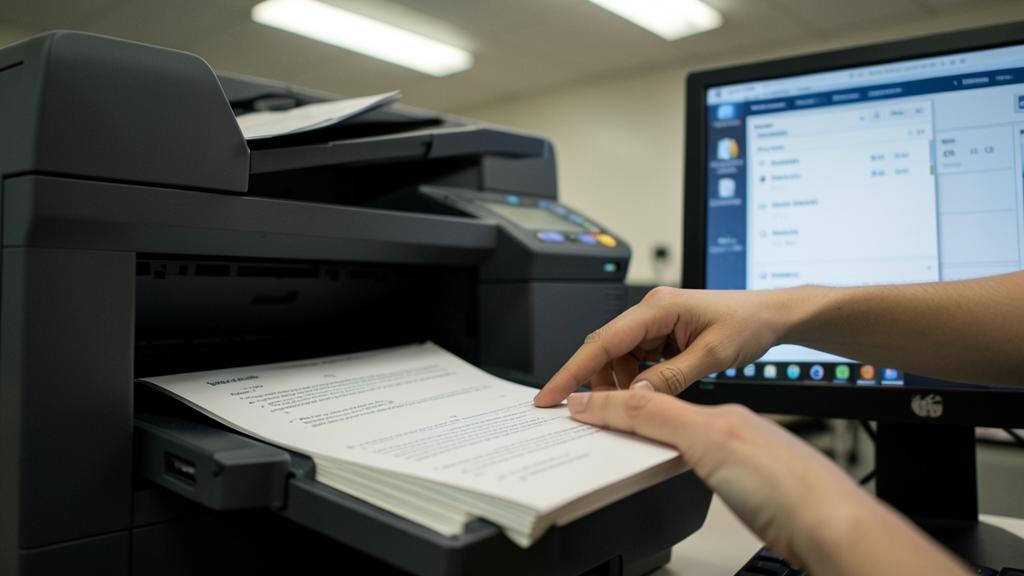
Use MANUAL recto-verso: print one side, then flip the sheets to print the other; some prints guide you (option “manual recto-verso”), otherwise print the odd pages then the even ones; test the direction on a few pages first. Let’s see. The MANUAL recto-verso: even without automatic, you print one side, flip the sheets, print the other; it’s doable; don’t give up; possible. The “manual” option if offered: some prints have “manual recto-verso”; the printer prints one side then guides you to flip; follow the instructions; practical. Follow the INSTRUCTIONS: the screen indicates when and how to flip (diagram); respect the indicated direction; attentive; useful. The ODD then EVEN trick: without a manual option, print the odd pages first, flip the stack, print the even ones; a classic manual method; effective. TEST the direction first: test on 2-3 pages to find the correct flipping direction; avoid wasting the whole document; cautious; essential. NOTE the correct direction: once the correct direction is found, memorize it for next time; manual becomes quick; capitalize; clever. Flip the RIGHT way: the direction (top/bottom, which side) depends on the printer; hence the test; each printer has its own direction; adapt. A bit LONGER: manual requires a manipulation, so a bit more time; but the paper saving is worth the gesture; acceptable; useful. ORDER the stack well: put the sheets back in the right order and direction; the order matters for a coherent document; careful; important. The ADVICE: use MANUAL recto-verso; print one side then flip the sheets (via the “manual recto-verso” option if offered, otherwise print the odd pages then the even ones); test the flipping direction on a few pages first to avoid wasting, and note the correct direction for next time. In short, if your printer doesn’t do automatic recto-verso, you can perfectly do MANUAL recto-verso — it just requires a small manipulation. The principle: the printer prints one side of all pages, then you FLIP the sheets and put them back in the tray to print the other side. Two ways to proceed. First way, the simplest if it exists: look in the printing options for a “MANUAL recto-verso” option. If it’s offered, the printer will print the first side, then GUIDE you (with on-screen instructions, often a diagram) to correctly flip the stack, before printing the second side. Follow these instructions to the letter: the FLIPPING DIRECTION is crucial. Second way, if no manual option is offered: use the ODD and EVEN pages trick. In the printing options, choose to print only the ODD pages (1, 3, 5…) first; then flip the stack of sheets and restart the print by choosing the EVEN pages (2, 4, 6…) this time, which will print on the back. In both cases, the CRUCIAL POINT is the DIRECTION in which to flip the sheets: it depends on your printer (where the sheets enter and exit), and making a mistake prints the back upside down or out of order. To avoid this, always TEST on 2 or 3 pages first: print, flip, print the back, and check the result. Once the CORRECT DIRECTION is found, NOTE IT (or memorize it): the next times, manual recto-verso will become quick and safe. Manual takes a bit more time than automatic, but the paper saving (half as many sheets!) is well worth this small gesture. So don’t give up on recto-verso just because your printer doesn’t do it alone: with the manual method, you can do it just as well.
Does recto-verso really save money?
Yes, significantly: it halves your paper consumption, so your sheet purchases; combined with other gestures (multiple pages per sheet, print only what’s useful), savings add up, for your budget and the environment. Let’s see. YES, half as much paper: recto-verso halves the number of sheets used; the saving is direct and clear; concrete; effective. Fewer sheets BOUGHT: twice less paper consumed = twice less to buy; real savings on the paper budget; your wallet benefits; useful. On an ANNUAL scale: on many prints, the annual saving is significant; it adds up over time; cumulative; real. ECOLOGY too: less paper = fewer resources, less waste; an environmental benefit; responsible; positive. COMBINE with other gestures: recto-verso + multiple pages per sheet + print only what’s useful; savings add up; maximize; clever. Also save INK: (with draft mode, print only what’s useful); ink is expensive too; complementary saving; useful. A gesture WITHOUT EFFORT: once set as default, the saving is automatic; no continuous effort; adopt it; easy. Also good for the IMAGE: as a bonus, more polished and compact documents; a non-financial benefit; pleasant; plus. A small gesture, a real IMPACT: simple to do, the impact (budget + planet) is real over time; the effort/benefit ratio is excellent; adopt; recommended. The ADVICE: yes, significantly; recto-verso halves your paper consumption (so your purchases), and combined with other gestures (multiple pages per sheet, print only what’s useful), savings add up; set it as default to save without effort, for the benefit of the budget and the environment. In short, yes, recto-verso really saves money — and in a simple and clear way. The main saving is obvious: by printing on both sides, you HALVE your paper consumption. A document that would have taken 20 sheets now takes only 10. Concretely, this means twice fewer sheets BOUGHT, so a real saving on your paper budget — all the more significant if you print a lot: on an annual scale, over tens or hundreds of prints, the cumulative saving is far from negligible. To this financial saving is added an ECOLOGICAL benefit: less paper consumed means fewer resources used and less waste — a concrete and easy gesture for the environment. And the effect is multiplied if you COMBINE recto-verso with other frugal gestures: print multiple pages per sheet (2 or 4), print only the pages really needed, prefer reading on screen or PDF when possible. Savings add up, and you can drastically reduce your consumption. The big advantage: this saving requires NO CONTINUOUS EFFORT once the setting is done. If you set recto-verso as DEFAULT in your printer’s settings, all your prints will automatically save paper, without you having to think about it. As a bonus, your documents will be more COMPACT and often more polished. In short, recto-verso offers an excellent balance between effort (almost none, a checkbox) and benefit (half as much paper, lasting savings for your wallet and the planet): it’s one of the simplest and most profitable gestures to adopt daily.
What to remember
Printing in RECTO-VERSO (on both sides of the sheet) is a simple gesture that HALVES your paper consumption: it’s more economical (half as many sheets bought), more ecological (less waste), and more practical (documents twice as thin). Recto-verso, sometimes called “DUPLEX”, comes in two versions: AUTOMATIC (the printer flips the sheets by itself) or MANUAL (you flip them). To enable it: when printing, open the PRINTING OPTIONS (don’t click directly on “Print”) and look for the “recto-verso”, “duplex” or “on both sides” option. If your printer supports automatic, simply check the option. The most effective trick: SET recto-verso as DEFAULT in your printer’s settings, to save with each print without thinking. If your printer doesn’t do automatic, don’t give up: MANUAL recto-verso is still possible (the printer prints one side, then you flip the sheets; or print the odd pages then the even ones). Crucial point of manual: TEST the flipping direction on 2-3 pages first, to avoid wasting the whole document (the wrong direction is classic), then note the correct direction. A few other precautions: check that your PAPER is suitable for both sides (not too thin — transparency — or a special one-sided paper), use paper in good condition to limit jams, and choose the right binding direction (“long edge” for most documents). To save EVEN MORE paper, combine other gestures: print multiple pages per sheet (2 or 4), print only the necessary pages, check the preview before printing, reuse the blank back for drafts, and especially ask yourself if you REALLY need to print (reading on screen or “print to PDF” is the best paper saving: zero sheet). By combining recto-verso and these gestures, savings add up. In short, recto-verso offers an excellent effort/benefit ratio: a simple checkbox (or a default setting) that halves your paper consumption, for your budget and the planet, with no continuous effort. A frugal reflex to adopt as of your next print: look for “recto-verso” in the options — and set it as default once and for all.
Want to gain confidence with your digital tools? Our personalized training adapts to your level.
Leave a Reply
You must be logged in to post a comment.