
Your web browser — the one you use to access the internet every day — is your window to the digital world, but it’s also a door through which threats pass: phishing sites, trackers that follow your browsing, unwanted ads, phishing attempts. Good news: a few simple settings can make it much safer and more respectful of your privacy, without any technical skills. It’s not about overhauling everything, but about activating the right protections and adopting a few reflexes. A well-configured browser protects you from dangerous sites, limits tracking, and secures your data. Let’s see why browser settings matter, which ones to activate, and the good browsing habits.
Why configure your browser for security
The browser is a major exposure point; let’s understand why configuring it matters. The WINDOW to the internet: the browser is the tool you use to access the internet, websites, and your online accounts; it’s at the heart of your digital life; its security is crucial; a central point. A DOOR for threats: it’s also through the browser that threats pass; phishing sites, phishing, trackers, dubious ads, dangerous downloads; the browser is exposed; securing it reduces these risks. TRACKING (trackers): many sites and trackers follow your browsing (what you view, your habits) to profile and target you; your privacy is at stake; settings limit this tracking (we’ll come back to it). Protection against DANGEROUS SITES: browsers can WARN or block fraudulent/dangerous sites (phishing, malware); you still need to activate this protection; a key setting; activate it. Your DATA in the browser: the browser stores data (history, saved passwords, cookies, form data); poorly managed, this can expose you; well configured, it protects you; manage this data. SIMPLE settings: making your browser safer doesn’t require being an expert; a few accessible settings (in the parameters) are enough; it’s within everyone’s reach; no complicated technique. A COMFORT/security balance: some settings strengthen security/privacy; adjust according to your comfort (blocking too much can disrupt some sites); find your balance; customize. Browser UPDATES: an up-to-date browser fixes security vulnerabilities; it’s the basics; an outdated browser is vulnerable; keep it updated (we’ll come back to it). Often NEGLECTED: many people have never touched their browser’s security settings; they miss out on useful protections; a quick tour of the settings makes a difference; don’t ignore them. The DAILY browser: since we use it every day, securing it has a daily impact on your protection; it’s a worthwhile investment; configure it once, enjoy it all the time. What it SERVES: to browse more safely (dangerous sites blocked), to protect your privacy (less tracking), and to secure your data; a well-configured browser protects you daily; the comfort of security. The main idea: your web browser is your window to the internet, but also a DOOR through which threats pass (phishing sites, phishing, trackers that follow your browsing, dubious ads). Configuring it for security — which requires NO technical skills, just a few accessible settings — allows you to: browse more safely (activate protection against dangerous sites, which warns or blocks fraudulent sites), protect your PRIVACY (limit TRACKING by trackers that profile you), and secure your DATA (history, passwords, cookies managed properly). It’s about finding a balance between comfort and security, and keeping the browser UP TO DATE (essential base against vulnerabilities). Since we use the browser every day, securing it has a daily impact on your protection — yet many people have never touched these settings. A quick tour of the parameters, once, will protect you durably.
Your browser is like a window to the internet, but also a door that hackers can use to attack you. By adjusting a few simple settings, you can block dangerous sites, stop trackers from following you, and keep your personal data safe. It’s not complicated – just a few clicks in the settings menu.
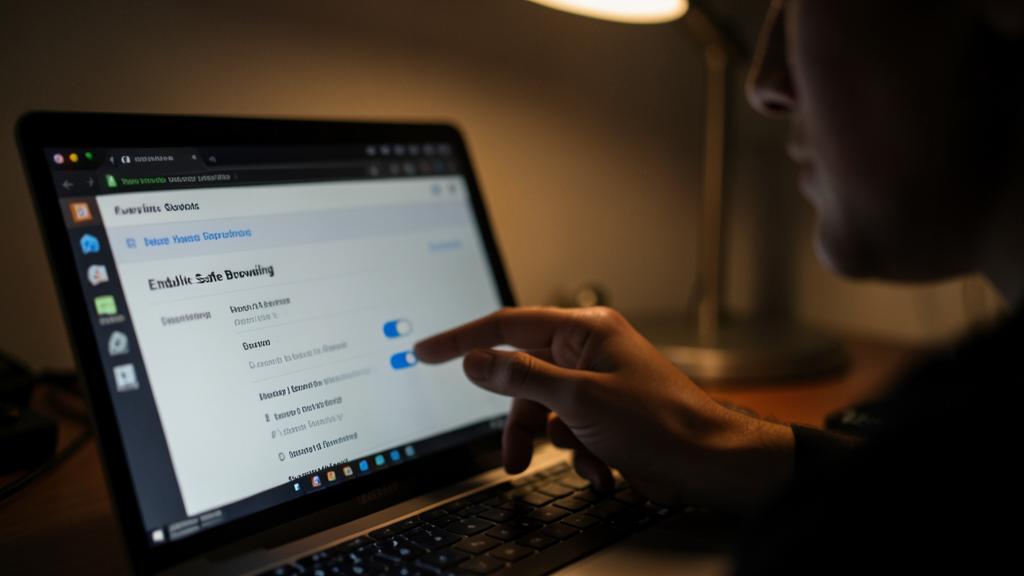
Imagine you’re using Chrome on your laptop. You enable “Safe Browsing” in settings, turn on “Enhanced Protection” for tracking, and set it to update automatically. Now when you visit a phishing site, Chrome will warn you before you enter any information, and trackers will have a much harder time following your activity across different websites.
Security settings to activate
Here are the simple settings that make your browser safer. UPDATE the browser: the basics; keep your browser UP TO DATE (updates fix security vulnerabilities); activate automatic updates if possible; an outdated browser is vulnerable; the update is the first protection. Activate protection against DANGEROUS SITES: activate the option that warns/blocks fraudulent and dangerous sites (secure browsing); it protects you from phishing and malware; check that it’s active; a key protection; activate it. Limit TRACKING: activate anti-tracking/privacy protection options (blocking trackers); they limit the tracking of your browsing; your privacy is better protected; a valuable setting (we’ll come back to it). Manage COOKIES: configure cookie management (especially blocking third-party cookies, which are used for tracking); you limit tracking between sites; a useful privacy setting; adjust according to your comfort. Block POP-UP windows: activate the blocking of pop-ups (unwanted windows), often undesirable or phishing; one less nuisance and sometimes one less danger; usually active by default; check it. VERIFY the padlock (HTTPS): prioritize secure sites (padlock / « https »); some browsers warn about non-secure sites; activate this warning; the secure connection protects your data; consult our guides on HTTPS. Manage PASSWORDS: the browser can save and suggest your passwords (built-in manager); it’s practical and generally safe on your device, BUT protect the device (code) and the account; use this function with the right precautions (we’ll come back to it). Control SITE permissions: sites sometimes request access to your location, camera, microphone, notifications; check and limit these permissions in the settings; only grant what is necessary; manage what sites can do. CLEAN the data from time to time: periodically clear the history, cache, and cookies; this cleans up and limits tracking; a privacy maintenance; do it occasionally. Be careful with EXTENSIONS: browser extensions can be useful (ad blocker, security) but also risky (some spy); only install reliable extensions, in limited numbers; be wary of dubious extensions (we’ll come back to it). In summary, the settings to activate: UPDATE the browser (basics against vulnerabilities), activate protection against DANGEROUS SITES (warning/blocking of fraudulent sites), LIMIT tracking (anti-trackers), manage COOKIES (block third-party cookies), block POP-UP windows, prioritize SECURE sites (HTTPS/padlock), manage PASSWORDS carefully, control SITE permissions (location, camera, microphone), periodically clean your data, and be wary of DUBIOUS extensions. These simple settings, accessible in the parameters, make your browser much safer; the update, protection against dangerous sites, and blocking of tracking are the most important.
- Update the browser (fixes security vulnerabilities)
- Activate protection against dangerous sites (blocks phishing and malware)
- Limit tracking (blocks trackers and third-party cookies)
- Manage cookies (block third-party cookies)
- Block pop-up windows (reduces nuisances and potential dangers)
- Verify the padlock (HTTPS) (prioritizes secure connections)
- Manage passwords carefully (use built-in manager with precautions)
- Control site permissions (limit access to location, camera, etc.)
- Clean data periodically (clears history, cache, and cookies)
- Be wary of dubious extensions (only install reliable ones)
Priorities: update, activate protection against dangerous sites, and block tracking. Faced with the list of possible settings, don’t feel obliged to master everything at once: three priorities provide the bulk of the protection, and they are easy to implement. Priority number one, the basis of all security: KEEP THE BROWSER UP TO DATE. This is the most important setting, and yet the most neglected. Browsers are regularly updated to fix DISCOVERED SECURITY VULNERABILITIES — vulnerabilities that malicious sites are precisely trying to exploit. An outdated browser, left without an update, is an open door: it contains known and unpatched vulnerabilities. On the other hand, an up-to-date browser is protected against these vulnerabilities. The solution is simple: activate the AUTOMATIC UPDATES of your browser (most offer this), so that it protects itself automatically without you having to think about it; and if you see an invitation to update your browser, do it without delay. This is the most fundamental security gesture: an up-to-date browser is already much better protected. Priority number two: ACTIVATE PROTECTION AGAINST DANGEROUS SITES (often called « secure browsing » or « protection against fraudulent sites »). This feature, present in modern browsers, WARNs or BLOCKs access when you try to open a site known to be fraudulent or dangerous (phishing site, site distributing malware). It’s a precious and automatic protection: it acts as a safeguard that warns you « attention, this site is dangerous » before you fall into the trap. Check in your browser’s security settings that this protection is indeed ACTIVATED (it is often active by default, but make sure, and choose an enhanced protection level if the option exists). And above all, if your browser warns you that a site is dangerous, LISTEN to this warning and do not override it. Priority number three, for your privacy: BLOCK TRACKING. When you browse, a multitude of « trackers » (often invisible) follow your activity from one site to another, to build a profile of you (your interests, your habits) and target you with advertising — a permanent intrusion into your privacy. Modern browsers offer ANTI-TRACKING options (protection against tracking, blocking trackers and « third-party cookies ») that greatly limit this tracking. Activate these privacy protections in the settings: you will browse in a much more respectful way of your privacy, often with fewer targeted ads. Depending on the browsers, you can choose a protection level (standard, enhanced); an enhanced level protects better, sometimes at the price of minor inconveniences on some sites — adjust according to your comfort. By focusing on these three priorities — update (against vulnerabilities), protection against dangerous sites (against phishing and malware), and blocking tracking (for your privacy) — you get the bulk of the security and confidentiality, with just a few simple settings. These are the three most profitable gestures. You can then, if you wish, refine with the other settings (cookie management, site permissions, data cleaning). But start with these three: they form the foundation of a well-protected browser, within everyone’s reach.
Good browsing habits
Beyond the settings, a few browsing habits strengthen your security; here’s the essential. VERIFY the padlock and the address: before entering information on a site, check the padlock (secure connection) and that the address is indeed the REAL site (not an imitation); these checks avoid fake sites; consult our guides on phishing links; look before entering. Be wary of DUBIOUS sites and links: don’t click on suspicious links, be wary of unknown sites that ask for your information; listen to the browser’s warnings; vigilance complements the settings; stay careful. Don’t ENTER your information just anywhere: only enter your login details/bank information on secure and verified sites (the real site, in https); never via a suspicious link; protect your sensitive data; verify the site first. Use PRIVATE browsing if needed: private browsing (which does not save the local history) is useful on a shared computer or to not leave local traces; understand what it does (and does not do); consult our guides on private browsing; a tool for certain cases. MANAGE your extensions: only install RELIABLE and useful extensions, in limited numbers; remove those you don’t use; extensions have access to your browsing (risk); sort them out (we’ll come back to it). LOG OUT of accounts: on a shared/public computer, log out of your accounts and close the browser after use; don’t leave a session open; logging out protects; an important reflex. Be careful with DOWNLOADS: only download from reliable sources, be wary of unexpected files; the browser can warn you about dangerous downloads; listen to it; consult our guides on downloads. CLEAN periodically: periodically clear the history, cache, and cookies; this cleans up and limits tracking; a privacy maintenance; occasionally. Use a PASSWORD manager: for unique and strong passwords, use a manager (built into the browser or dedicated); it fills in and secures your passwords; much safer than reusing them; consult our guides on managers. STAY careful despite the protections: the settings help, but your vigilance remains essential; no protection is perfect; combine good settings AND good habits; security is a whole. In summary, good browsing habits: VERIFY the padlock and the address before entering information, be wary of DUBIOUS sites and links (listen to the browser’s warnings), only ENTER your sensitive information on secure and verified sites, use PRIVATE browsing if needed (shared computer), MANAGE your extensions (reliable, limited), LOG OUT of accounts on shared devices, be careful with DOWNLOADS, periodically clean your data, use a PASSWORD manager, and stay careful despite the protections. These habits complement the settings; verifying sites, being careful with links, and managing extensions and passwords are the key habits.
Warning: be wary of dubious extensions (they see your browsing), and never override a warning about a dangerous site. Two important points of vigilance regarding the browser deserve your attention. The first concerns EXTENSIONS (also called « modules » or « add-ons ») — these small programs that you add to the browser to give it additional functions (ad blocker, password manager, various tools). Extensions can be very useful, but they present a risk often underestimated: by nature, an extension has access to your BROWSING — it can see the sites you visit, and depending on its permissions, read or modify the content of the pages, or even access information you enter. A malicious or unscrupulous extension can therefore SPY on your browsing, collect your data, inject ads, or even capture sensitive information. The danger is all the more real as some extensions present themselves as useful or harmless, but actually hide abusive collection; and a legitimate extension can sometimes be bought or compromised, and become malicious through an update. Precautions: only install RELIABLE extensions (from serious publishers, with good reviews, from the browser’s official sources), in LIMITED NUMBERS (each extension is a potential door: keep only what you really need), check the PERMISSIONS they request (an extension that asks to access « all your data on all sites » for a basic function is suspicious), and REGULARLY remove those you no longer use. Be particularly wary of extensions that promise miracles (gains, offers, miracle functions) or that you are pushed to install: in doubt, abstain. An extension too many, poorly chosen, can compromise all the security that your settings have established. The second point of vigilance: NEVER OVERRIDE a warning about a dangerous site. When your browser displays a warning of the type « this site is dangerous », « deceptive site detected », « unsecured connection » or « attention, this site could steal your information », it’s NOT a whim or an excess of zeal: it’s the protection against dangerous sites (which you have activated) warning you of a real risk — the site is known to be fraudulent, distributes malware, or has a security problem. These warnings exist to protect you, and you must take them seriously. The temptation may be to click on « continue anyway » or « ignore the warning » (browsers often leave this possibility, hidden behind a few clicks) — out of curiosity, impatience, or because you « trust ». DON’T DO IT, unless you are absolutely certain that it is a mistake (for example your own site that you know is safe, with a simple technical problem with the certificate). In the vast majority of cases, overriding a warning leads you straight into the trap that the browser was trying to avoid you: a fake site that will steal your login details, or a site that will infect your device. The browser warned you; listen to it, turn back, and if you really wanted to access a service, go there via the real official site (type its address yourself). In summary, two essential vigilance habits: manage your EXTENSIONS carefully (they see your browsing — only install reliable extensions, in limited numbers, with reasonable permissions, and remove the useless ones), and NEVER OVERRIDE a warning about a dangerous site (it’s a real protection that saves you from a trap — listen to it and turn back). These two vigilances complement your security settings: the best well-configured browser only protects if you don’t sabotage its defenses yourself with a dubious extension or by ignoring its alerts.
Frequently asked questions
What are the most important security settings in a browser?
Three priorities: keep the browser up to date (against vulnerabilities), activate protection against dangerous sites (against phishing/malware), and block tracking (for privacy); these three provide the bulk of the protection. Let’s detail them. THE UPDATE (priority #1): the most important; an up-to-date browser is protected against corrected security vulnerabilities; an outdated browser is vulnerable; activate automatic updates; it’s the fundamental basis. Protection against DANGEROUS SITES: activate the option that warns/blocks fraudulent sites (secure browsing); it protects you from phishing and malware by warning you before the trap; check that it’s active; a key protection. Blocking TRACKING: activate anti-tracker/privacy protections (blocking trackers and third-party cookies); they limit the tracking of your browsing; your privacy is better protected; a valuable setting. These three ARE ENOUGH for the essentials: these three settings provide the bulk of the protection; if you only do these, you are already much better protected; focus on them first; the essential before the accessory. COMPLEMENTARY settings: then, if you want to refine; cookie management, pop-up blocking, control of site permissions (location, camera), warning about non-secure sites; useful additions; refine after the priorities. WHERE TO FIND them: these settings are in your browser’s PARAMETERS, often in a « security » and « privacy » section; explore these sections; that’s where everything is configured; take a tour once. The LEVEL of protection: some browsers offer levels (standard, enhanced); an enhanced level protects better (sometimes at the price of minor inconveniences); choose according to your comfort; adjust. Easy to DO: these settings are accessible without technical skills; a few clicks in the parameters; a quick tour, once, protects you durably; don’t deprive yourself of it. Don’t FORGET the habits: the settings help, but your vigilance remains essential (verify sites, be wary of links); combine settings and good habits; security is a whole; both count. The ADVICE: focus on three priorities; update (basics), protection against dangerous sites (activated), and blocking tracking (privacy); then complete with cookies, pop-ups, permissions; all in the « security/privacy » parameters. In summary, the most important security settings in a browser boil down to three priorities that provide the bulk of the protection. First, keep the browser UP TO DATE (activate automatic updates): this is the absolute basis, because updates fix security vulnerabilities, and an outdated browser is vulnerable. Second, activate PROTECTION AGAINST DANGEROUS SITES (« secure browsing »): it warns or blocks access to fraudulent (phishing) and dangerous (malware) sites, warning you before you fall into the trap. Third, block TRACKING (activate anti-tracker protections and blocking of third-party cookies): this limits the tracking of your browsing by trackers that profile you, protecting your privacy. These three settings are enough for the essentials: if you only do these, you are already much better protected. You can then refine with complementary settings (cookie management, pop-up blocking, control of site permissions such as location or camera, warning about non-secure sites). All these settings are in your browser’s PARAMETERS, usually in the « security » and « privacy » sections — take a tour once (some browsers offer standard or enhanced protection levels, to choose according to your comfort). It’s simple, without technical skills. Finally, remember that these settings complement, but do not replace, your vigilance (verify sites, be wary of suspicious links): security relies on the combination of good settings and good habits.
What is tracking and how to limit it?
Tracking is the monitoring of your browsing by trackers that profile you to target you; to limit it, activate your browser’s anti-tracking protections and block third-party cookies. Let’s explain. What is TRACKING: when you browse, « trackers » (often invisible, present on many sites) FOLLOW your activity from one site to another; they record what you consult, your habits; that’s tracking; a monitoring of your browsing. What it SERVES (for them): these data are used to build a PROFILE of you (your interests, habits, situation) to TARGET you with advertising, and sometimes resell them; you are « profiled »; your browsing becomes a commodity. Third-party COOKIES: a good part of tracking goes through « third-party cookies » (placed by actors other than the visited site, to track you between sites); blocking them limits tracking a lot; a key setting; block them. The PRIVACY issue: tracking is a permanent intrusion into your privacy; your habits, interests, online movements are followed without your knowledge; limiting tracking protects your privacy; a real issue. Activate ANTI-TRACKING protections: modern browsers offer anti-tracking options (protection against tracking, blocking trackers); activate them in the privacy settings; they greatly limit tracking; the main setting. BLOCK third-party cookies: configure the browser to block THIRD-PARTY cookies (while keeping the cookies of the visited site, which are useful); this cuts a large part of tracking between sites; an effective setting; activate it. The LEVEL of protection: choose an enhanced privacy protection level if your browser offers it; it blocks more (sometimes at the price of minor inconveniences on some sites); adjust according to your comfort; enhance if you can. More PRIVACY-RESPECTING browsers: some browsers are designed to better protect privacy (anti-tracking by default); if privacy matters to you, consider one; the choice of browser matters; explore the options. CLEAN the cookies: periodically clear your cookies; this erases part of the accumulated tracking; a complementary maintenance; clean periodically. TRACKING reduced, not eliminated: these settings GREATLY limit tracking, without necessarily eliminating it completely; it’s already a big improvement; combine several measures for more effect; aim for reduction. The ADVICE: to limit tracking, activate your browser’s anti-tracking protections and block third-party cookies (in the privacy settings), choose an enhanced level if possible, periodically clean your cookies, and consider a privacy-respecting browser; you will greatly reduce tracking. In summary, TRACKING refers to the monitoring of your browsing by « trackers » — often invisible and present on many sites — that record what you consult and your habits, from one site to another, to build a PROFILE of you (your interests, your situation) and TARGET you with advertising (or resell these data). It’s a permanent intrusion into your privacy, which takes place without your knowledge. A large part of this tracking goes through « third-party cookies » (placed by actors other than the site you are visiting, precisely to track you between sites). To limit it, a few simple settings: activate your browser’s ANTI-TRACKING PROTECTIONS (options « protection against tracking » or « blocking trackers », in the privacy settings), BLOCK third-party cookies (while keeping the cookies of the visited site, which are useful), and choose an ENHANCED protection level if your browser offers it (it blocks more, sometimes at the price of minor inconveniences on some sites — adjust according to your comfort). Complete by periodically cleaning your cookies. If privacy particularly matters to you, know that some browsers are designed to better protect it (with anti-tracking activated by default): consider one. Note that these settings GREATLY limit tracking, without necessarily eliminating it completely — but it’s already a big improvement in your confidentiality. By combining these measures, you browse in a much more respectful way of your privacy, and often with fewer targeted ads that follow you everywhere.
Is it safe to save passwords in the browser?
It’s generally safe and practical on your personal device, provided you properly protect this device (lock code) and the associated account; on a shared device, on the other hand, avoid it. Let’s nuance. The PRACTICAL function: the browser can save your passwords and fill them in automatically; it’s an integrated password manager; practical, and it encourages unique passwords (you don’t have to remember them); a real comfort. Generally SAFE on your device: on YOUR well-protected personal device, saving passwords in the browser is generally SAFE; passwords are stored in a protected way; it’s much better than reusing the same password everywhere; a good practice, with conditions. The CONDITION — protect the device: security depends on the protection of the DEVICE; a solid lock code/password, biometrics; if someone accesses your unlocked device, they could access the saved passwords; protect the device (essential). PROTECT the associated account: browser passwords are often synchronized via your account (Google, Apple); secure THIS account (solid password, two-factor authentication); its security protects your synchronized passwords; the account is the key. On a SHARED device — avoid: on a PUBLIC or shared computer, DO NOT save your passwords (others could access them); use private browsing, log out; the shared device changes everything; don’t leave your passwords on it. A DEDICATED manager, an alternative: for enhanced security and features, a DEDICATED password manager (specialized application) is an excellent option; even safer and more practical; to consider for the most demanding; consult our guides on managers. Much better than REUSING: in any case, saving UNIQUE passwords in the browser (or a manager) is MUCH better than reusing the same password everywhere (the real danger); the function encourages uniqueness; a security improvement. Two-factor authentication in addition: even with saved passwords, activate two-factor authentication on your important accounts; it protects even if a password is exposed; a complementary security; combine. CHECK the alerts: the browser/manager sometimes alerts you if a saved password is weak or compromised (leak); listen to these alerts and change the concerned password; a precious help; act on the alerts. The ADVICE: saving passwords in the browser is generally safe and practical on your well-protected personal device (lock code, account secured with two-factor authentication); avoid it on a shared device; it’s much better than reusing a password; a dedicated manager is an even safer alternative. In summary, yes, saving passwords in the browser is generally SAFE and practical, provided you respect a few conditions — and it’s in any case much preferable to the real danger of reusing the same password everywhere. The browser integrates a password manager that stores them in a protected way, fills them in automatically, and encourages you to use unique passwords (since you don’t have to remember them). The essential condition is to properly PROTECT your DEVICE: a solid lock code (or biometrics), because someone who would access your unlocked device could access the saved passwords. You must also secure the ASSOCIATED ACCOUNT (Google, Apple) if your passwords are synchronized there: solid password and especially TWO-FACTOR AUTHENTICATION on this account. On the other hand, on a PUBLIC or shared computer, NEVER save your passwords (others could access them): rather use private browsing and log out after use. For enhanced security and features, a DEDICATED password manager (specialized application) is an excellent alternative, even safer and more practical. In all cases, activate two-factor authentication on your important accounts (it protects even if a password is exposed), and pay attention to the alerts from the browser or the manager that signal a weak or compromised password in a leak (then change it). Well used on a well-protected device, this function is a real security asset that allows you to have unique and strong passwords without memorization effort.
What to remember
Your web browser is your daily window to the internet, but also a door through which threats pass (phishing sites, phishing, trackers, dubious ads). Configuring it for security requires no technical skills — just a few accessible settings in the parameters —, and since we use it every day, it has a daily impact on your protection. First focus on THREE PRIORITIES that provide the bulk of the protection. First, keep the browser UP TO DATE (activate automatic updates): this is the absolute basis, because updates fix security vulnerabilities that malicious sites exploit; an outdated browser is vulnerable. Second, activate PROTECTION AGAINST DANGEROUS SITES (« secure browsing »): it warns or blocks access to fraudulent and dangerous sites, warning you before the trap. Third, block TRACKING (activate anti-tracker protections and blocking of third-party cookies): this limits the tracking of your browsing by trackers that profile you, protecting your privacy. These three settings are enough for the essentials; you can then refine with the others (cookie management, pop-up blocking, control of site permissions such as location or camera, warning about non-secure sites). Complete the settings with good BROWSING HABITS, just as essential: verify the padlock (secure connection) and the site address before entering information, only enter your login details and bank information on secure and verified sites, be wary of suspicious links and sites, use private browsing on a shared device (and log out of your accounts after use), and be careful with downloads. Two particular points of vigilance: manage your EXTENSIONS carefully (they have access to your browsing and can spy on it — only install reliable extensions, in limited numbers, with reasonable permissions, and remove the useless ones); and NEVER OVERRIDE a warning about a dangerous site (it’s a real protection that saves you from a trap — listen to it and turn back, accessing the real service via its official address if needed). For your passwords, the manager integrated into the browser is generally safe and practical on your well-protected personal device (lock code, account secured with two-factor authentication), and much preferable to reusing the same password; only avoid it on a shared device, and consider a dedicated manager for enhanced security. In short, a well-configured browser and used with a few good habits effectively protects you daily: browse with updates, protection against dangerous sites, and anti-tracking activated, while remaining vigilant about sites, links, extensions, and warnings. This small investment — a tour of the settings once, a few habits then — transforms your browser from an open door to threats into a protective ally of your security and privacy.
Doubts about your security, a device to check or clean up? Our support service accompanies you step by step.
Leave a Reply
You must be logged in to post a comment.