
Between the iPhone, wireless headphones, the smartwatch, and sometimes a stylus or a controller, you quickly juggle multiple devices to recharge— and it’s easy to be caught off guard by headphones running out of battery at the wrong time. The iPhone offers a very practical solution: the « battery widget », a small section you place on your home screen and which displays, AT A GLANCE, the battery level of your iPhone AND all your connected accessories. No need to dig through menus: you see everything, all the time. It’s simple to set up, free, and avoids many unexpected battery failures. Let’s see what a widget is, how to add the battery widget, and how to get the most out of it.
What is the battery widget?
A WIDGET: a small information section placed on the home screen; useful at a glance; the basics; to know. The BATTERY widget: it displays the charge levels; iPhone + accessories; the usefulness; to know. AT A GLANCE: no need to open a menu; the info is there; practical; advantage. Your ACCESSORIES: headphones, watch, stylus, connected controller; track everything; the main interest; useful. Avoid BREAKDOWNS: see an accessory about to run out → recharge it in time; anticipate; advantage. On the HOME SCREEN: the widget remains visible on your screen; always in sight; to know. FREE, built-in: nothing to install; included; reassuring. CUSTOMIZABLE: you choose its size, its location; to your taste; to know. Updates on its own: levels update automatically; without doing anything; practical. A real COMFORT: small but very useful in everyday life; to adopt; advice. In short, a WIDGET is a small INFORMATION section that you PLACE on the iPhone home screen (next to app icons) to have useful information at your fingertips, without having to open an app. The BATTERY widget, on the other hand, displays the CHARGE LEVELS: that of your iPhone, but above all—and that’s its main interest—that of all your CONNECTED ACCESSORIES (wireless headphones like AirPods, smartwatch, stylus, controller, charging case…). Its main advantage: you see EVERYTHING, AT A GLANCE, without digging through menus. You glance at your home screen, and you immediately know if your headphones are almost empty, if your watch needs a recharge, etc. This allows you to ANTICIPATE and AVOID battery failures at the wrong time (headphones that fail during listening, a discharged watch…). The widget remains VISIBLE at all times on your screen, updates itself (levels refresh automatically), and it’s FREE and built-in (nothing to install). It’s CUSTOMIZABLE (size, location). Small but precious: it’s a real comfort in everyday life for those who use multiple devices. Let’s see how to add it—it’s simple.
The battery widget is a small tool on your iPhone home screen that shows the charge levels of your phone and all connected accessories. It helps you see at a glance when something needs charging, so you don’t get caught with dead batteries at bad times.
You’re about to go for a run with your AirPods and Apple Watch. A quick glance at your home screen shows your AirPods are at 15% and your watch at 30%. You plug them in for 10 minutes before leaving, avoiding any interruptions during your workout.
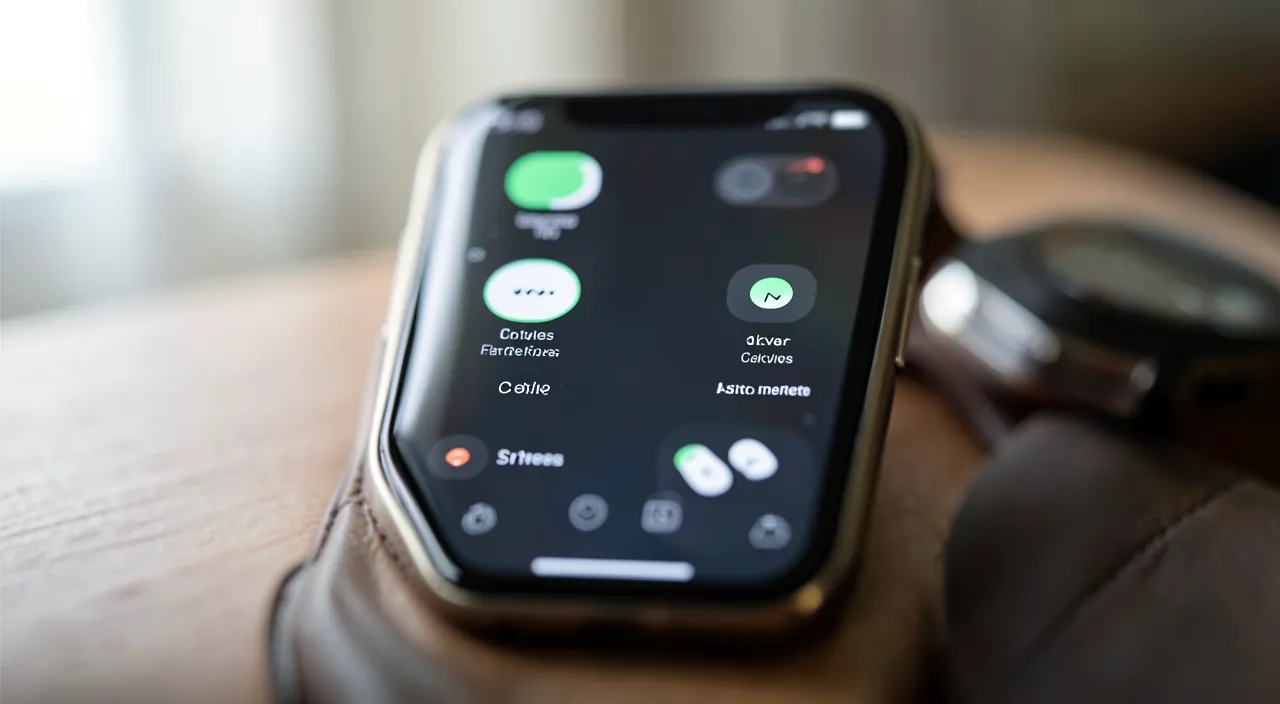
How to add the battery widget to the home screen
Adding a widget is simple; let’s follow the steps. LONG PRESS on the screen: hold your finger on an empty area of the home screen; the icons start to « shake »; edit mode; step. Tap « + »: tap the « + » (usually in the top left corner); add a widget; step. SEARCH for « Battery »: in the list of widgets, find « Batteries »; the right widget; step. CHOOSE the size: select a size (small/medium); depending on what you want to see; step. « Add the widget »: confirm to place it on the screen; it’s added; step. PLACE it where you want: move it to the desired location; customize; step. CONFIRM (« OK/Done »): tap « Done » to finish; the icons freeze; end. The widget DISPLAYS the levels: iPhone and connected accessories appear; it’s ready; to know. MOVE/remove later: you can move it or remove it at any time; reversible; reassuring. Depending on the VERSION: the menus vary slightly; the idea remains the same; to know. In short, adding the battery widget to your home screen is done in a few simple steps (the words may vary slightly depending on the version, but the principle is the same). 1) Make a LONG PRESS (hold your finger) on an EMPTY AREA of your home screen, until the icons start to « SHAKE » (this is the « edit » mode of the screen). 2) Tap the « + » button (usually in the TOP LEFT of the screen): this opens the list of available widgets. 3) In this list (or via its search bar), look for and tap « BATTERIES ». 4) Several SIZES are offered (a small widget, a medium one that shows more accessories…): swipe to compare and choose the one that suits you. 5) Tap « ADD the WIDGET »: it is placed on your home screen. 6) It then appears (still in « shaking » mode): you can MOVE it by dragging it to the desired location. 7) Finally, tap « Done » (or tap elsewhere): the icons freeze, and your widget is in place. From now on, the widget DISPLAYS the battery levels of your iPhone and your connected accessories at all times: a glance is enough. Rest assured, NOTHING is permanent: you can always MOVE it elsewhere, change its size, or REMOVE it later (same gesture: long press, then remove it). It’s a simple and risk-free operation that you can repeat as often as you like.
To add the widget: long press on an empty area of the home screen (until the icons shake), tap « + », search for « Batteries », choose the size and add it. You will then see the charge of all your devices at a glance. The battery widget is one of the most useful additions you can make to your home screen, especially if you use multiple wireless devices. And installing it is much simpler than it seems. Understanding the principle: customizing your screen. Your home screen is not fixed: in addition to app icons, you can place WIDGETS on it, these small sections that display useful information (weather, time, calendar… and therefore battery). Adding them goes through the « edit mode » of the screen, which you activate by holding your finger down. Nothing complicated, follow the guide. Step 1: enter edit mode. Place your finger on an EMPTY AREA of the home screen (a spot WITHOUT an icon), and HOLD it down for a few moments. The icons will start to « SHAKE » (quiver): this is the sign that you are in edit mode, the one that allows you to reorganize and add things. Step 2: open the widget list. A « + » button appears, usually in the TOP LEFT of the screen. Tap it: the GALLERY of available widgets opens (there are many, for all kinds of uses). Step 3: find « Batteries ». At the top of this gallery, there is often a SEARCH bar: type « battery », or scroll through the list until you find « BATTERIES ». Tap it. Step 4: choose the size. The battery widget comes in several SIZES: a small version (compact), a medium version (which displays more accessories, often with clearly readable gauges)… Swipe to COMPARE them, and stop on the one you like (the medium version is often the most readable to see multiple devices). Step 5: add it and place it. Tap « ADD the WIDGET »: it appears on your screen. As long as the icons are still « shaking », you can DRAG it to POSITION it where you want (at the top of the screen to have it clearly visible, for example). Step 6: confirm. Tap « Done » (top right) or tap an empty area: the icons freeze, and your widget is installed. What you see now: with a simple glance at your home screen, you know the battery level of your iPHONE and each CONNECTED ACCESSORY (headphones, watch, case…), with clear gauges or percentages. No more bad surprises: you see low batteries coming and recharge in time. Nothing is permanent: if the widget doesn’t suit you (wrong location, wrong size), simply make a long press and move it, change it, or remove it. It’s risk-free and modifiable at will. In short: long press on an empty area of the home screen (until the icons shake) → tap « + » → search for « Batteries » → choose the size → « Add the widget » → place it → « Done ». You will then have the charge of all your devices in view at all times: a small comfort that avoids many unexpected battery failures.
How to use the battery widget on a daily basis
Once in place, the battery widget can be used in several ways; let’s see how to get the most out of it. A REGULAR GLANCE: glance at it in the morning, before leaving; anticipate recharges; good reflex; advice. RECHARGE in time: see a low accessory → recharge it before it fails; avoid breakdowns; the interest. MONITOR multiple devices: headphones, watch, stylus at once; everything centralized; practical. The CASE of the headphones: the widget often shows the case’s charge too; useful for AirPods; to know. The RIGHT PLACEMENT: place it in plain sight (top of the screen); consult it easily; advice. The RIGHT SIZE: a medium size shows more accessories; readable; advice. It updates on its own: levels refresh when devices are connected; nothing to do; to know. COMBINE with power-saving mode: spot a low iPhone → activate power-saving mode (check our guides); complementary; useful. REMOVE if unnecessary: if you don’t use it, remove it; free; to know. PLAN recharges: recharge at night what’s low; leave fully charged; advice. In short, once the battery widget is in place, a few habits will help you get the most out of it. The main one: get into the habit of GLANCING at it regularly, especially in the MORNING before leaving, or before an activity where you rely on an accessory (listening to music, using the watch for sports…). Seeing that a device is LOW, you can RECHARGE IT IN TIME—before it fails on you. That’s the whole point: ANTICIPATE. The widget centralizes the monitoring of MULTIPLE DEVICES (headphones, watch, stylus…) in one glance, and often also displays the charge of the HEADPHONE CASE (precious for AirPods: knowing if the case itself can recharge them). To make the most of it: place the widget IN PLAIN SIGHT (at the top of the home screen), and choose a SUFFICIENT SIZE (the medium version shows more accessories and remains readable). The widget UPDATES ITSELF when your devices are connected: you don’t have to do anything. Tip: combine it with the POWER-SAVING MODE—if the widget shows an iPhone about to run out, activate power-saving mode to last longer (check our iPhone guides). In the evening, use the widget to PLAN your recharges: recharge overnight everything that’s low, to start the next day with fully charged devices. And of course, if you don’t use it after all, you can REMOVE it at any time. In short, a regular glance at the widget, and you’ll never be caught off guard by a dead battery again.
Good to know: the widget only displays an accessory if it is connected and compatible; levels may have a slight delay; and a battery widget consumes almost nothing—no need to avoid it for fear of battery drain. A few clarifications to use the battery widget without misunderstanding. First point: the widget only displays an accessory if it is CONNECTED (and compatible). The battery widget shows the level of your WIRELESS ACCESSORIES only when they are CONNECTED to your iPhone (via Bluetooth) and when they are COMPATIBLE with this function (AirPods, watches, and Apple/compatible accessories handle it; some accessories from other brands do not). Therefore: if your headphones are stored in their CLOSED case, turned off, or disconnected, they will not appear (or no longer appear) in the widget—this is normal, it’s not a bug. Similarly, an accessory from a third-party brand that is not compatible may not be displayed. So don’t be surprised to see the widget list CHANGE depending on what is connected at the moment. Second point: levels may have a slight DELAY. The widget updates automatically, but not necessarily to the second: there may be a small DELAY between the actual level and what the widget displays (for example, an accessory that you just connected takes a moment to appear, or a level that takes a while to refresh). This is normal: the widget gives a good INDICATION, not a measurement to the second. If a level seems frozen, it will refresh on its own (or by unlocking the iPhone). Third point: a battery widget does NOT DRAIN your battery. Some people worry that adding widgets « consumes » battery: rest assured, the battery widget consumes ALMOST NOTHING. It simply displays information that is already available; its impact on battery life is negligible. So don’t DEPRIVE yourself of this useful widget for fear of battery life—on the contrary, it HELPS you manage your recharges better. Fourth point: don’t confuse the widget and the iPhone’s own percentage. The « Batteries » widget displays the iPhone AND the accessories; but for the iPhone’s level alone, you also have the usual indicator at the top of the screen (which you can adjust to display the percentage). The widget is especially useful for ACCESSORIES (whose level is less visible elsewhere). Fifth point: if an accessory NEVER displays its charge even though it is connected, it may not be compatible with this function, or you need to reconnect it: this is not serious, and it does not mean it is broken (check our guides on Bluetooth and iPhone if needed). Sixth point: the widget does not replace caution about very low levels. The widget VISUALLY ALERTS you when a device is low, but it’s up to you to ACT (recharge). Don’t blindly rely on a « correct » level displayed if you’re leaving for a long time: when in doubt, recharge before leaving. In short: the widget only displays an accessory if it is CONNECTED and compatible (the list changes depending on what is connected—this is normal, not a bug), levels may have a slight DELAY (it’s an indication, not a measurement to the second), a battery widget consumes ALMOST NOTHING (don’t avoid it for fear of battery life), it complements (without replacing) the iPhone’s battery indicator, and it ALERTS you but it’s up to you to recharge in time. With these guidelines, the battery widget is a reliable and hassle-free ally.
Frequently asked questions
Does the battery widget display the charge of my headphones and their case?
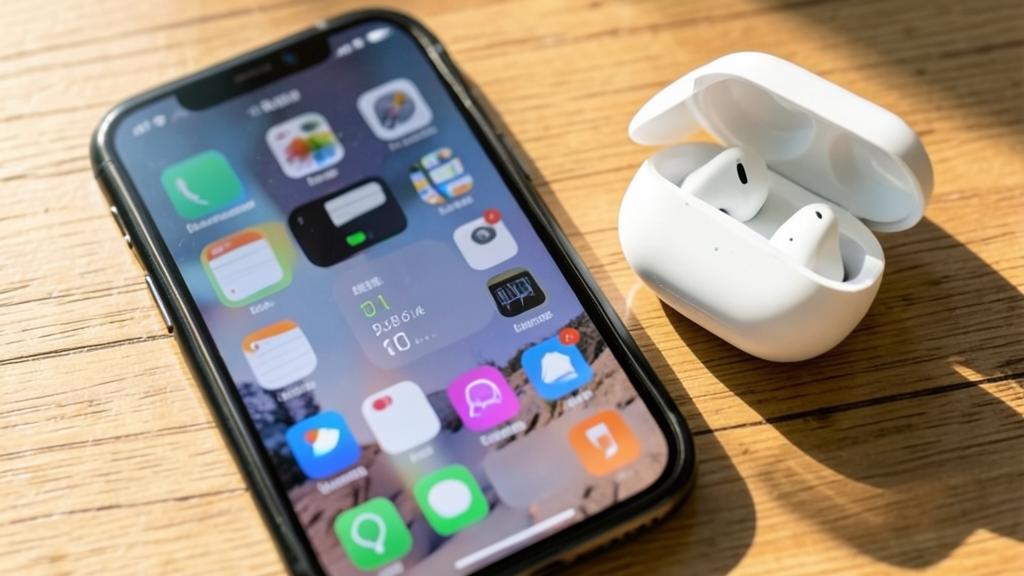
Yes, if they are compatible and connected: the widget generally displays the charge of your wireless headphones (like AirPods) AND often that of their charging case; this is very practical to know if your headphones will last, and if the case can recharge them. Let’s see. HEADPHONES displayed: the level of your wireless headphones appears; track their charge; the interest; to know. The CASE too: often, the charging case’s charge is indicated; know if it can recharge the headphones; precious; to know. If CONNECTED: the headphones must be connected to the iPhone to be displayed; logical; condition. Compatible (AIRPODS): AirPods and compatible headphones handle it well; to know; compatibility. Open CASE: taking out the headphones/opening the case helps with the display; tip; useful. Avoid HEADPHONE breakdowns: see low headphones → recharge before listening; anticipate; advantage. The case can RECHARGE: if the case has charge, it recharges the headphones on the go; hence the interest in monitoring it; to know. Third-party BRANDS: some headphones from other brands may not be displayed; limitation; to know. A GLANCE is enough: everything is there, without opening a menu; practical; advantage. The ADVICE: yes, if they are compatible and connected; the widget displays the charge of the headphones and often that of the case; practical to anticipate and know if the case can recharge them. In short, YES, the battery widget generally displays the charge of your wireless headphones AND, very often, that of their CHARGING CASE—provided they are COMPATIBLE (AirPods and Apple/compatible headphones handle it well) and CONNECTED to your iPhone. This is precisely one of the main interests of this widget. Why is it so useful? Because wireless headphones have a small battery that drains quickly, and it’s frustrating to want to listen to music or make a call with headphones… that are dead. Thanks to the widget, you see at a glance if your HEADPHONES are well charged BEFORE relying on them: if they are low, you recharge them in time. And displaying the charge of the CASE is just as precious: the case is precisely used to RECHARGE your headphones when you put them back in (on the go, without a plug). Knowing that the case still has charge means knowing that you can « refuel » your headphones during the day; if it’s empty too, it’s time to plug it in. To keep the display up to date, a small gesture sometimes helps: open the case (lid open) or take out the headphones, so that the iPhone « sees » the levels well. Note: some headphones from THIRD-PARTY BRANDS (not compatible with this Apple function) may not display their charge in the widget—this is not a defect, just a compatibility limitation. In short: yes, the widget displays the charge of your headphones and often that of their case (if they are compatible and connected); this is very practical to anticipate (recharge the headphones before listening) and to know if the case can recharge them on the go; some third-party headphones may not be displayed, however. A real plus to never be caught off guard.
Can I remove or move the widget if I change my mind?
Yes, absolutely: NOTHING is permanent; make a long press on the home screen, then move the widget where you want, change it, or remove it completely (via a « Remove the widget » menu); you can put it back later just as easily. Let’s see. NOTHING is permanent: a widget can be moved, changed, or removed at will; reassuring; important. LONG PRESS: hold your finger on the screen to enter edit mode; the starting point; step. MOVE: drag the widget to the desired location; reposition; easy. REMOVE: tap the widget (or the « -« /menu) → « Remove the widget » → confirm; remove it; simple. CHANGE size: remove it and add one of a different size; adjust; option. PUT IT BACK: re-add it whenever you want; reversible; reassuring. NO RISK: removing a widget does not erase any data; just the display; important. EXPERIMENT freely: try different locations/sizes; without fear; mindset. Depending on the VERSION: the menu varies slightly; the idea is the same; to know. CONFIRM at the end: tap « Done »; the icons freeze; end. The ADVICE: yes; long press on the screen, then move, change, or delete the widget (« Remove the widget »); nothing is permanent, you can put it back later; removing a widget does not erase any data. In short, YES, you can completely REMOVE or MOVE the battery widget at any time—nothing is permanent, and that’s reassuring: you don’t « commit » to anything by adding it. The operation is the same as to add it: make a LONG PRESS (hold your finger) on an area of the home screen, until the icons start to « SHAKE » (edit mode). From there: to MOVE it, simply DRAG the widget to the location that suits you (higher, on another screen page…), then release. To REMOVE it, tap the widget (or the small « – » that appears on it, depending on the version): a menu offers « REMOVE the WIDGET »; tap it and CONFIRM, and the widget disappears from your screen. To CHANGE its SIZE, the easiest way is to remove it and add one of a different size (small, medium). Once your adjustments are done, tap « Done » to freeze the screen. Two REASSURING points: 1) Removing the widget does not erase ANY data and does not break anything—it only removes its DISPLAY from the screen (the battery information still exists, you just no longer show it there). 2) It’s completely REVERSIBLE: if you remove it and regret it, you can PUT IT BACK later, exactly the same way (long press → « + » → « Batteries »). You can therefore EXPERIMENT freely: try different locations, different sizes, keep it or remove it according to your actual use—without any fear of doing something wrong. In short: yes, make a long press on the home screen, then move the widget, change its size (by replacing it), or delete it (« Remove the widget »); nothing is permanent, removing a widget does not erase any data, and you can put it back at any time. It’s a free and risk-free customization, to be adjusted according to your needs.
Does the widget work with all accessories?
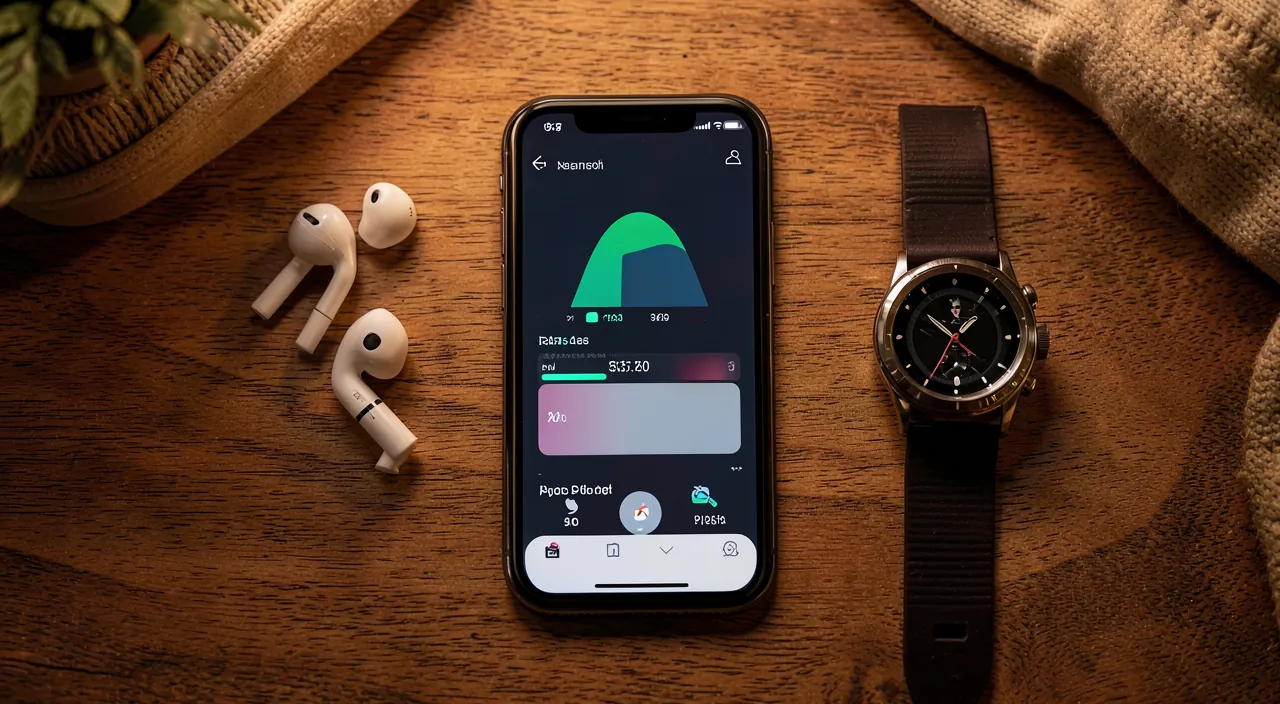
It works with COMPATIBLE accessories connected to your iPhone: AirPods, watches, and Apple or compatible accessories display well; some accessories from other brands may not appear; and a disconnected or turned off accessory does not appear (this is normal). Let’s see. COMPATIBLE ones are displayed: AirPods, watch, Apple/compatible accessories; well managed; to know. It must be CONNECTED: the accessory must be connected (Bluetooth) to the iPhone; otherwise nothing; condition. Third-party BRANDS vary: some accessories from other brands do not report their level; limitation; to know. Disconnected = ABSENT: a turned off/stored/disconnected accessory does not appear; normal; to know. Not a BUG: the absence of a non-compatible/disconnected accessory is not a failure; reassuring; important. CHECK the connection: if an accessory is missing, check that it is properly connected; diagnosis; advice. RECONNECT if necessary: reconnecting an accessory can make it reappear; useful; advice. Apple = SURE: for reliable display, Apple accessories are the safest; to know. INQUIRE BEFORE: for a specific accessory, check its compatibility; anticipate; advice. The iPhone ALWAYS there: the level of the iPhone, on the other hand, is always displayed; basics; to know. The ADVICE: it works with compatible connected accessories (AirPods, watch, Apple/compatible accessories); some third-party accessories may not be displayed, and a disconnected/turned off accessory does not appear (normal); check the connection if an accessory is missing. In short, the battery widget works with COMPATIBLE and CONNECTED accessories to your iPhone—but not necessarily with everything, and it’s useful to know this to avoid surprises. What is displayed WELL: accessories from the Apple ecosystem or compatible with this function—the AIRPODS (and their case), the APPLE smartwatch, and various Apple or compatible accessories. For these, provided they are CONNECTED to your iPhone (via Bluetooth) and turned on/in use, their battery level appears in the widget. What may NOT be displayed: some accessories from OTHER BRANDS (third-party) do not « report » their battery level to the iPhone in this way: they may therefore NOT appear in the widget. This is not a defect of the widget or the accessory: it’s a matter of COMPATIBILITY. Similarly, a TURNED OFF, STORED (closed case) or DISCONNECTED accessory will not appear (or no longer appear) in the widget: this is perfectly NORMAL (the widget can only display what is connected at the moment). What to do if an accessory is missing? First, check that it is properly CONNECTED to your iPhone (turned on, taken out of its case, paired); if necessary, RECONNECT it (check our guides on Bluetooth): it should then reappear. If, even when properly connected, it never appears, it is probably not compatible with this function. For reliable display, Apple accessories are the safest; and if you plan to buy an accessory counting on this function, check its compatibility in advance. Good to know: in any case, the level of your iPHONE itself is ALWAYS displayed in the widget (the basics). In short: the widget works with compatible and connected accessories (AirPods, watch, Apple/compatible accessories are displayed well); some third-party accessories may not appear (compatibility limitation, not a failure), and a disconnected or turned off accessory does not appear (this is normal); check the connection if an accessory is missing, and know that Apple accessories offer the most reliable display. The widget is an excellent tool, provided you keep these limitations in mind.
What to remember
The « battery widget » of the iPhone is a small section, to place on your home screen, which displays AT A GLANCE the battery level of your iPhone AND all your connected accessories (wireless headphones and their case, watch, stylus…). Its main interest: see everything, all the time, without digging through menus—and therefore ANTICIPATE recharges to never be surprised by a dead battery at the wrong time. It’s free, built-in, and simple to set up. To ADD it: make a LONG PRESS on an empty area of the home screen (until the icons « shake »), tap « + », search for « BATTERIES », choose the size (the medium one shows more accessories), tap « Add the widget », place it where you want, and confirm with « Done ». Nothing is permanent: you can always move it, change its size, or remove it (« Remove the widget »), and put it back later—without erasing any data. ON A DAILY BASIS: glance at it regularly (in the morning, before relying on an accessory), recharge in time what’s low, and use it in the evening to plan your overnight recharges. It often displays the charge of the CASE of your headphones (precious to know if you can recharge them on the go), and works well with the power-saving mode if your iPhone is running low. Good to know: the widget only displays an accessory if it is CONNECTED and COMPATIBLE (AirPods, watches, and Apple/compatible accessories are displayed well; some third-party accessories, or a turned off/disconnected device, do not appear—this is normal, not a bug); levels may have a slight DELAY (it’s an indication, not a measurement to the second); and a battery widget consumes ALMOST NOTHING (don’t avoid it for fear of battery life: on the contrary, it helps you manage your recharges better). In short, the battery widget is a small, discreet but very useful addition for those who juggle multiple devices: a simple glance at your home screen, and you always know where your batteries stand—so you’ll never run out of power unexpectedly.

Want to unlock the full potential of your iPhone, iPad, or Mac? Our Apple training courses will take you to the next level.
Leave a Reply
You must be logged in to post a comment.