
A keyboard key that stays pressed, repeats the same character endlessly, resists, or stops responding: it’s annoying and can quickly make typing impossible. Often, the cause is very concrete and harmless: crumbs, dust, or a spilled liquid that made the key sticky. Sometimes, it’s a setting issue or, more rarely, a hardware problem. Good news: in most cases, a good cleaning or a few checks solve the problem. Here’s how to react to sticky or jammed keys, with caution.
Why keys stick or jam
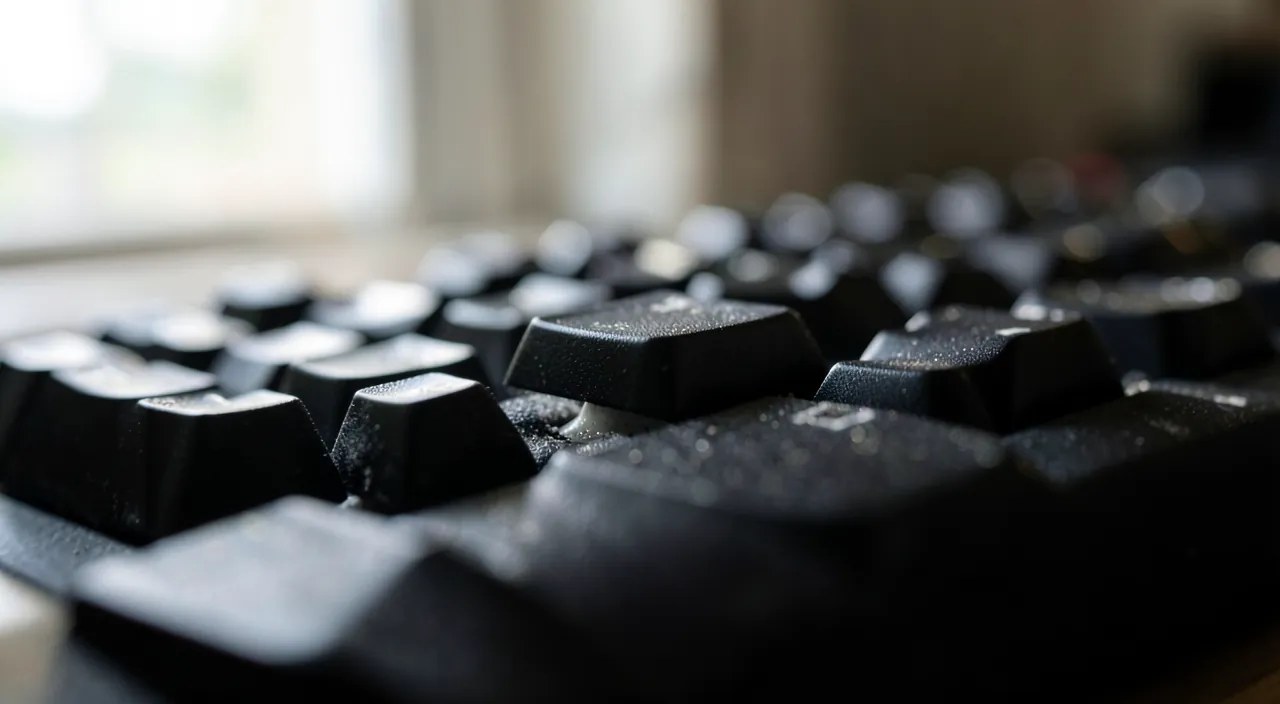
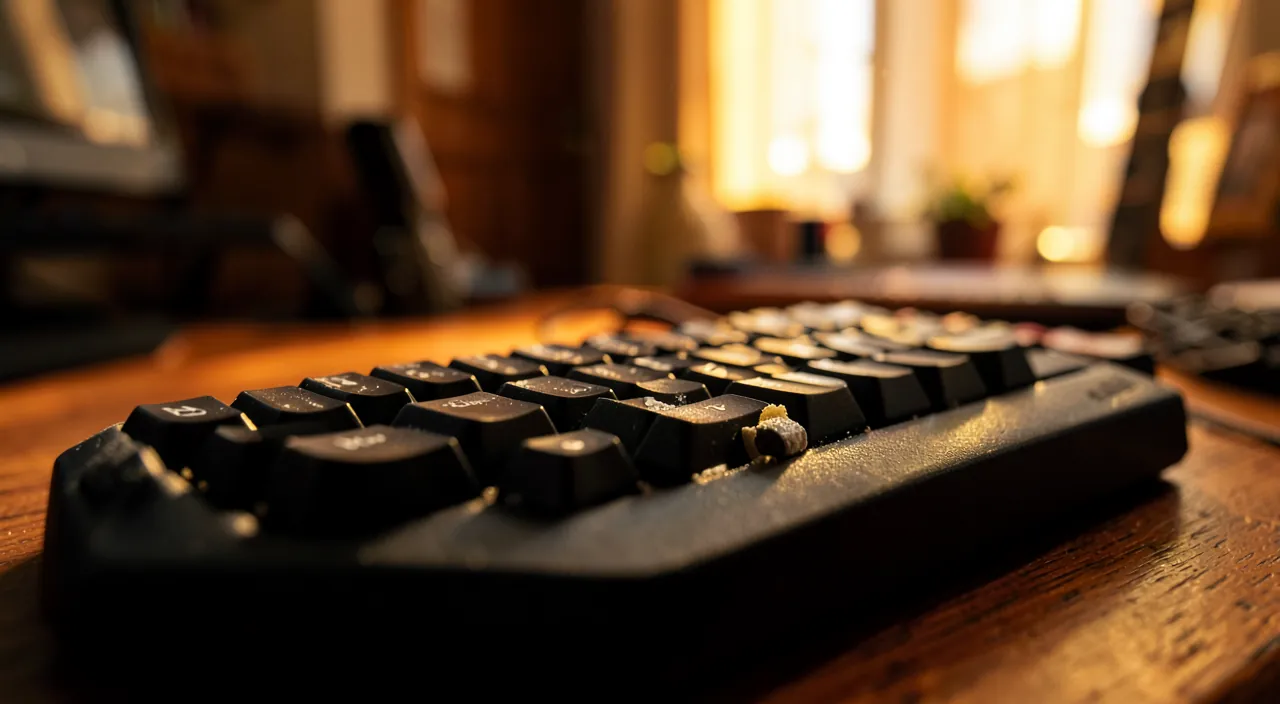
The causes are usually physical, sometimes software-related. DIRT and CRUMBS: this is the most common cause; dust, crumbs, hair, and debris accumulate under and between the keys, hindering their movement; a key may then stick, resist, or stay pressed. A SPILLED LIQUID: coffee, soda, juice… a sugary liquid that dries makes the keys sticky or jammed; this is a classic and sometimes more serious cause (the liquid can reach the electronics). A TRAPPED OBJECT: a small debris stuck under a key prevents it from returning. WEAR: on a heavily used or old keyboard, a key mechanism may wear out. A SETTING issue (key that “repeats”): sometimes, a key that repeats the character is not physically jammed; it’s an accessibility setting (like “key repeat” or “sticky keys”) that is enabled and modifies the keyboard’s behavior. A SOFTWARE or DRIVER issue: rarer, a bug or a driver can disrupt the keyboard. A HARDWARE issue: a faulty key or keyboard itself. How to diagnose? A few questions: is it ONE key or several? Is the key physically hard/sticky, or does it work but “repeat” on its own? Was a liquid recently spilled? Is it a separate keyboard (easy to replace) or built into a laptop? What’s the point of understanding? To act on the right cause (clean, adjust, or repair); to distinguish a physical issue (dirt, liquid) from a setting issue; and to know when it’s fixable yourself. The key idea: sticky keys most often come from DIRT or a SPILLED LIQUID—physical causes often fixed by cleaning—or sometimes a SETTING (for a key that “repeats”). Start by identifying whether it’s a physical issue (hard, sticky key) or a behavior issue (key repeats without being jammed): the solution differs. In many cases, thorough cleaning or an adjustment is enough; spilled liquid, however, requires special care.
Most sticky keys are caused by dirt, crumbs, or spilled liquid. If the key is physically stuck, clean it. If it repeats characters but isn’t stuck, check your keyboard settings. Spilled liquid is the most dangerous and requires immediate action to avoid damaging your device.
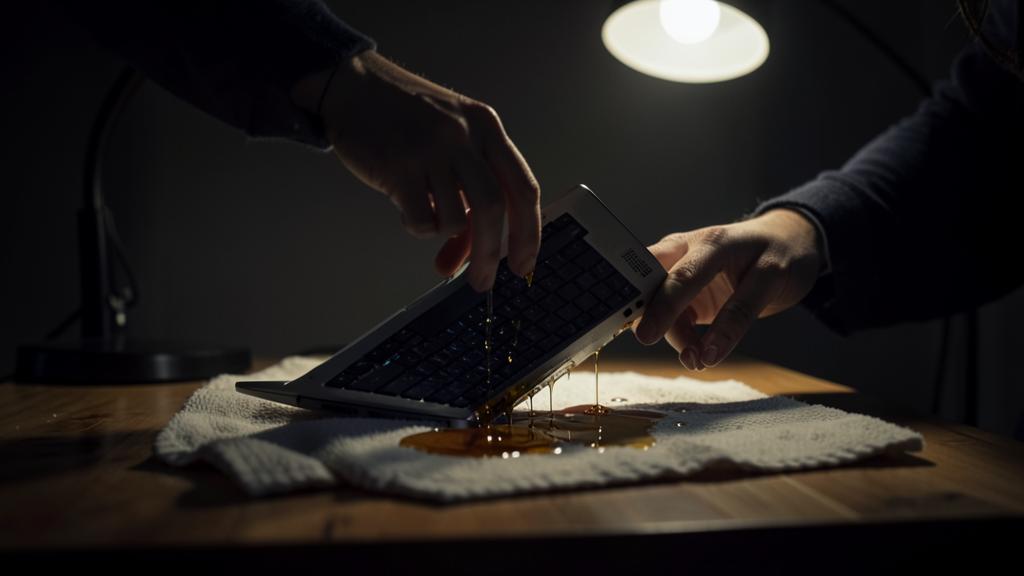
Imagine you spill coffee on your laptop keyboard. You turn it off immediately, unplug it, and flip it upside down to drain the liquid. You let it dry for 48 hours before turning it back on. This careful approach prevents short circuits and corrosion, saving your laptop.
How to fix sticky keys
Here’s the approach, depending on the cause. Identify the TYPE of problem—is the key physically hard, sticky, jammed (PHYSICAL issue)? Or does it work but repeat the character on its own (possible SETTING issue)? This guides the solution. For DIRT: clean—turn off the device; flip the keyboard (or laptop) and gently shake to dislodge crumbs and dust; use a CAN OF COMPRESSED AIR to remove debris between the keys; carefully wipe around the affected key (our guides on cleaning your keyboard safely). For a STICKY KEY (residue)—a slightly dampened cloth (with water, or a bit of diluted isopropyl alcohol) gently wiped around and on the key can remove a sticky residue; do this sparingly, without letting liquid run. For a SPILLED LIQUID (be careful!)—this is the trickiest case: if you just spilled liquid, TURN OFF the device immediately, unplug it (and remove the battery if it’s a keyboard or possible), flip it to drain the liquid, and LET IT DRY COMPLETELY for a long time before turning it back on; for a laptop keyboard affected, caution and often a professional’s advice are needed (see below). For a REPEATING KEY: check the settings—if a key repeats the character without being physically jammed, check the keyboard’s ACCESSIBILITY settings (options like “key repeat,” “sticky keys,” or “filter keys” may be enabled and cause this behavior); adjusting them may fix the issue. RESTART—a simple restart can clear a keyboard software bug (our guides on restarting to fix many issues). UPDATE—check that your system is up to date, in case a driver is at fault. Test with ANOTHER keyboard—on a desktop computer, plug in another keyboard: if it works fine, the issue was with the old keyboard (to clean or replace); if it has the same problem, look into settings or software. If NOTHING works—for a separate keyboard, replacing it is simple and inexpensive; for a laptop keyboard, a mechanically broken key or liquid damage often requires professional repair. A few TIPS: always clean the device while it’s OFF; for a faulty separate keyboard, replacement is easy; and in case of liquid, caution is key. In summary: distinguish between a physical issue (clean, with compressed air and a soft cloth) and a repeating key (check accessibility settings); in case of liquid, turn off and let dry; test another keyboard; and replace a separate keyboard if needed, or repair an affected laptop.
The right reflex. First, distinguish TWO very different situations, as they don’t have the same solution. First situation: the key is physically HARD, STICKY, or JAMMED—this is a mechanical issue, almost always due to dirt or liquid. Second situation: the key presses normally but REPEATS the character on its own, or behaves strangely without being jammed—here, it’s often a SETTING, not a physical issue; check the keyboard’s accessibility options (functions like “sticky keys” or “key repeat” may have been accidentally enabled and cause this behavior), a simple adjustment can fix it. For the most common PHYSICAL issue—dirt—cleaning works wonders: turn off the device, flip the keyboard or laptop, and gently shake it over a trash can (you’d be surprised what falls out), then blast the debris between the keys with a CAN OF COMPRESSED AIR. For a key made sticky by residue, a barely damp cloth gently wiped around it often suffices. But beware of the special and delicate case of SPILLED LIQUID: if you just spilled coffee or soda on the keyboard, don’t waste a second—TURN OFF the device immediately, unplug it, flip it to drain the liquid, and LET IT DRY COMPLETELY for a long time (often one or two days) before turning it back on; don’t turn it on “to check” while it’s still damp, risking a short circuit. One last very useful reflex on a desktop computer: plug in ANOTHER KEYBOARD; if it works perfectly, your old keyboard is the issue (to clean or simply replace, which is inexpensive); if it has the same problem, look into settings or software. Clean for dirt, adjust for a repeating key, turn off and dry for liquid: by identifying the right cause, you can fix most stubborn keys yourself.
The case of spilled liquid and precautions
Spilled liquid deserves its own section, as it’s the trickiest and riskiest case for your device. Why it’s SERIOUS: a liquid doesn’t just make keys sticky; it can seep into the ELECTRONICS and cause a short circuit or corrosion, especially sugary or acidic liquids; on a laptop, where the keyboard is directly above the components, the risk is real for the entire machine. EMERGENCY steps (if you just spilled): TURN OFF the device immediately (don’t wait for it to shut down normally: turn it off); UNPLUG it and remove the battery if possible; FLIP the device (in a “tent” shape, keyboard down) so the liquid flows outward rather than inward; gently blot the surface liquid; then LET IT DRY for a long time, in a dry, ventilated place (often one to two days, or more); don’t turn it on WHILE IT’S STILL WET. What NOT to do: turn it on “to check” while it’s damp (risk of short circuit); use a hot hairdryer (heat can damage); shake it violently; or continue using it as if nothing happened. When to call a PROFESSIONAL: if the liquid was significant, sugary, or sticky; if the device doesn’t work properly after drying; if it’s a valuable laptop (where the liquid may have reached expensive components); a professional can clean the inside before corrosion sets in. For other cases (dirt, repeating key): precautions are lighter: always clean the device while it’s OFF, without spilling liquid, with gentle movements; don’t force a stuck key (you might break it); and to remove a key for cleaning underneath, research first (some keys pop off, others break easily). REPLACEMENT: a faulty separate keyboard is easy and inexpensive to replace; a laptop keyboard can be repaired, but it’s more technical and sometimes costly; in the meantime, you can plug in an external keyboard on a laptop. In summary: spilled liquid requires emergency steps (turn off, unplug, flip, dry for a long time, don’t turn on while damp) and often a professional’s advice; for dirt, clean gently and with the device off; never force a key; and know that a separate keyboard is easy to replace.
Warning: in case of spilled liquid, turn off immediately and don’t turn it back on until it’s perfectly dry. This is the riskiest scenario for your device, and the first seconds count. A liquid spilled on a keyboard doesn’t just make the keys sticky: it can seep into the ELECTRONICS and cause a short circuit or, over time, corrosion that eats away at the components—this is especially serious on a LAPTOP, where the keyboard is right above the circuits, so even a spilled glass can threaten the entire machine. Emergency steps, to do immediately: TURN OFF the device right away (don’t let it shut down on its own, turn it off immediately to cut the power), UNPLUG it and remove the battery if possible, FLIP it keyboard down so the liquid flows outward, blot gently, then LET IT DRY for a long time—often one to two days, or more—in a dry, ventilated place. And here’s the crucial point, the one we’re most tempted to ignore: don’t TURN IT ON “to see if it works” until it’s PERFECTLY DRY. Putting power back into a damp device is the best way to cause the short circuit that will kill it for good; patience is your best ally here. Don’t use a hot hairdryer (heat can damage) or shake the device violently. If the liquid was significant, sugary, or sticky (coffee, soda, juice: the worst, as they leave corrosive residue when drying), or if the laptop is valuable, have it checked by a PROFESSIONAL, ideally quickly: they can clean the inside before corrosion sets in, which can save the machine. For more common issues (dirt, repeating key), caution is less critical, but always follow two rules: clean the device while it’s OFF and without spilling liquid, and never FORCE a stuck key (you might break its mechanism). A spilled liquid well-managed in the first seconds has a good chance of being harmless; poorly managed (turned on too soon), it can cost the entire machine.
Frequent questions
I spilled liquid on my keyboard, what should I do in an emergency?
Act quickly and methodically: the first steps often determine whether your device survives. In order: 1) TURN OFF the device immediately—don’t try to shut it down “cleanly,” turn it off right away to cut the power (on a laptop, hold the power button); 2) UNPLUG it from the power source, and remove the battery if it’s a keyboard or possible on your device; 3) FLIP the device, keyboard down, in a “tent” shape, so the liquid flows outward instead of seeping toward the components; 4) gently blot the visible liquid with an absorbent cloth, without rubbing or spreading; 5) LET IT DRY for a long time—at least one to two days—in a dry, ventilated place, the device still flipped or open. The most important point: don’t TURN ON the device until it’s perfectly dry, even if you’re impatient to check; putting power back into a damp device can cause a fatal short circuit. Don’t use a hot hairdryer (heat damages), don’t shake it violently. Once completely dry, you can try turning it back on; if everything works, great. But if the liquid was sugary, sticky, or significant (coffee, soda, juice leave corrosive residue), or if the device doesn’t work well after drying, have it checked by a professional QUICKLY: they can clean the inside before corrosion causes irreversible damage. For a valuable laptop, this professional diagnosis is especially recommended, as the liquid threatens the entire machine. In summary: turn off, unplug, flip, dry for a long time, don’t turn on while damp—and have it checked by a pro if the liquid was sugary or if the device is important.
A single key repeats the character, is it serious?
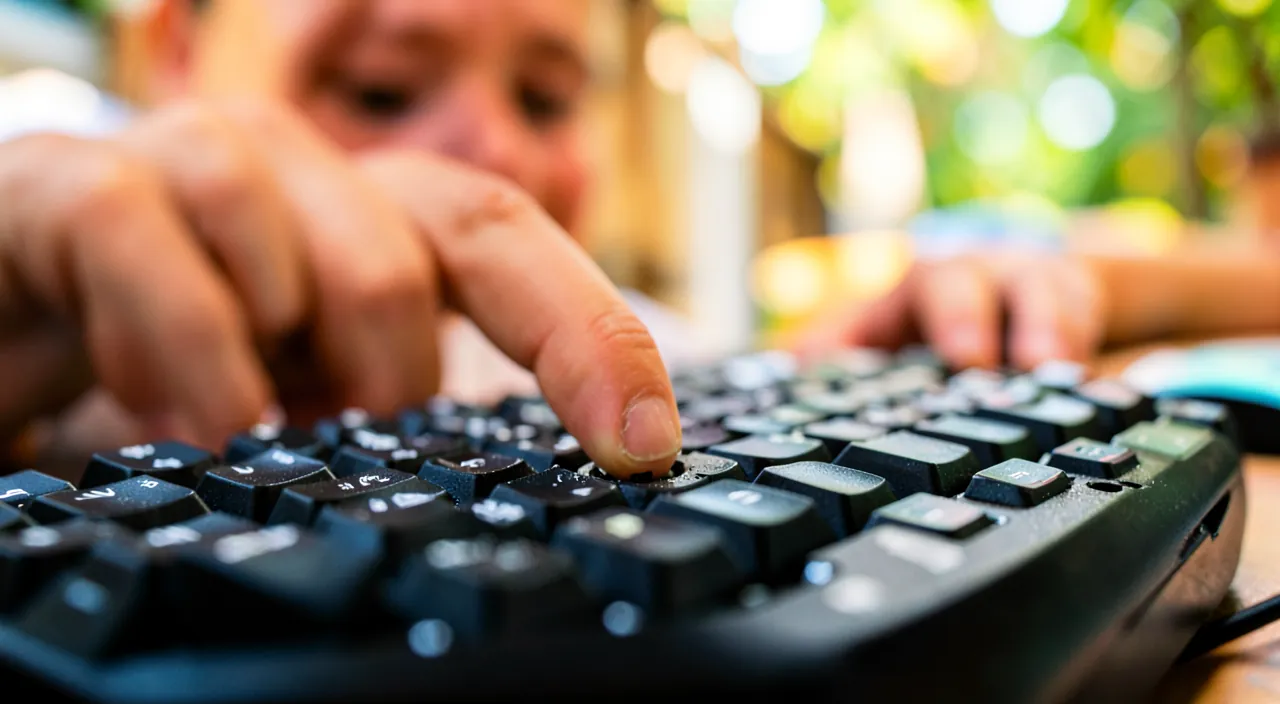
Generally no, and the cause isn’t always what you think: before assuming a broken keyboard, check if it’s a physical issue or a setting. Two possible situations. If the key is physically STICKY or stays pressed (it doesn’t “pop back” well after pressing), it’s a mechanical issue: likely dirt, residue, or dried liquid under the key; cleaning (compressed air, a barely damp cloth around the key, device off) often fixes this. But if the key presses and pops back NORMALLY while repeating the character, the issue may not be physical at all: it could be a SETTING. Some systems have accessibility options (with names like “key repeat,” “sticky keys,” or “filter keys”) that change how the keyboard responds to presses; if one of them was accidentally enabled, it can cause repetitions or strange behavior. So check the keyboard’s accessibility settings: adjusting them may resolve the issue without cleaning. A restart can also clear a temporary software bug. Another useful test: on a desktop computer, plug in another keyboard; if the problem disappears, it was your keyboard (clean or replace); if it persists with the new keyboard, it’s a setting or software. Reassure yourself: a repeating key is rarely serious, and it doesn’t affect your data; it’s just a typing annoyance. If none of these solutions work and the key remains faulty, a separate keyboard is easy and inexpensive to replace; on a laptop, you can plug in an external keyboard as a temporary fix, or have it repaired if needed.
Can I clean under the keys myself?
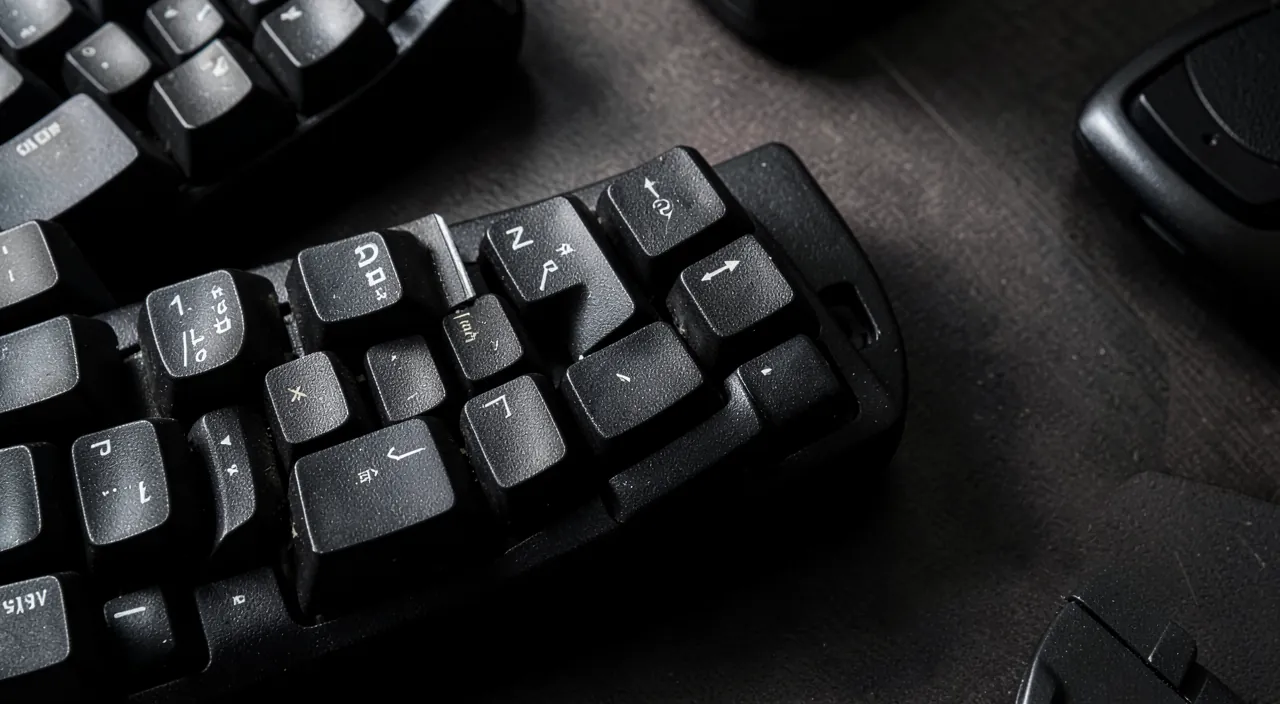
SURFACE cleaning is within your reach and risk-free; however, removing the keys requires caution, as some break easily. For simple and safe cleaning, no need to disassemble anything: turn off the device, flip the keyboard or laptop, and gently shake to dislodge crumbs and dust, then use a CAN OF COMPRESSED AIR to blast debris between the keys, directing the jet at different angles. For sticky keys, wipe a barely damp cloth (water, or a bit of diluted isopropyl alcohol) gently around and on the keys, without letting liquid run. This suffices in most cases and poses no risk. However, PHYSICALLY removing a key to clean underneath is trickier: on some keyboards, the keys pop off easily and snap back; on others (especially many laptops, with fine and fragile mechanisms), they break at the slightest wrong move, and putting them back is difficult. So before removing a key: research your exact model (a search like “remove a key” followed by the model will tell you if it’s possible and how), and never force it; if it resists, stop. Don’t force a stuck key to unjam it: you might damage its mechanism. If in doubt, or for deep cleaning of a laptop keyboard affected by liquid, it’s better to have a professional do it rather than risk breaking something. In summary: surface cleaning (compressed air, soft cloth, device off) is simple and safe, do it regularly; removing keys is possible on some keyboards but risky on others: research first and never force.
What to remember
Sticky or jammed keys most often come from very concrete physical causes: DIRT (crumbs, dust, debris—the number one cause) or a SPILLED LIQUID (coffee, soda, which makes keys sticky when drying). Sometimes, a key that “REPEATS” the character isn’t physically jammed: it’s an accidentally enabled ACCESSIBILITY setting. The first reflex is to distinguish a physical issue (hard, sticky key) from a behavior issue (key repeats without being jammed), as the solution differs. For DIRT: clean (device off, flip and shake, compressed air between keys, barely damp cloth around a sticky key). For a REPEATING KEY: check the keyboard’s accessibility settings, and restart. The trickiest case is SPILLED LIQUID: it requires emergency steps—TURN OFF immediately, unplug, remove the battery if possible, flip the device to drain the liquid, and especially LET IT DRY for a long time without ever turning it on while damp (turning it on while damp causes the fatal short circuit). Sugary or sticky liquids and valuable laptops often require a professional’s quick advice, who can clean the inside before corrosion. A few cross-cutting precautions: always clean the device while it’s off, don’t let liquid run, never FORCE a stuck key (risk of breaking it), and research before removing a key (some pop off, others break). A useful test on a desktop computer: plug in another keyboard to see if the issue comes from the keyboard or elsewhere. Good news: a faulty separate keyboard is easy and inexpensive to replace; on a laptop, you can plug in an external keyboard as a temporary fix, or repair a more serious issue. In most cases, thorough cleaning or a setting adjustment is enough to restore a responsive keyboard; only spilled liquid requires real vigilance and, often, a professional’s eye.
Persistent issue, temperamental device? Our remote troubleshooting service quickly resolves your problem, without jargon.
Leave a Reply
You must be logged in to post a comment.