
A fingerprint-covered screen, a keyboard full of crumbs and dust: our devices get dirty quickly, and we hesitate to clean them for fear of damaging them. Yet, a bit of regular maintenance extends their lifespan, improves usability, and remains within your reach — provided you use the right actions and especially the right products. Because the mistake here is costly: a bad product can permanently ruin a screen. Here’s how to clean your keyboard and screen safely, using what you already have at home.
Why and how to clean
Cleaning your devices is not just about aesthetics. CLEANLINESS: a clean screen is more pleasant and less eye-straining; a clean keyboard is more hygienic (touched dozens of times a day). DURATION OF LIFE: accumulated dust in a keyboard or ventilation grilles can interfere with its operation; maintenance preserves the hardware. HYGIENE: keyboards and phones are among the most handled objects, therefore the most contaminated with microbes. But before you start, some fundamental PRECAUTIONS. TURN OFF and UNPLUG the device before cleaning (and remove the battery if possible and relevant): never clean a device while it’s on, due to electrical risk and to see the marks better. NEVER apply liquid directly to the device: slightly moisten a cloth, do not spray on the screen or keyboard; liquid that seeps in is the number one enemy. Avoid AGGRESSIVE products: no pure alcohol, ammonia, classic glass cleaner, acetone, abrasive products on screens; they attack surface treatments (anti-reflective, oleophobic) and can leave irreversible damage. Use a MICROFIBRE cloth: soft, non-fuzzy, it does not scratch; avoid paper towels, tissues, or rough cloths that micro-scratch screens. Be GENTLE: no hard pressure on a screen (especially touch or tablet), no scratching with a hard object. The main idea: cleaning your devices is simple and beneficial, but the margin of error on a screen is small; the right product (often just water, or a screen-specific product) and the right action (lightly moistened microfiber cloth, device off) prevent disasters. It’s better to clean gently and often than aggressively once. In case of doubt about a precious or fragile device, refer to the manufacturer’s recommendations.
Cleaning your devices keeps them working well and stops germs. But be careful: the wrong product can ruin your screen forever. Always turn off your device, use a soft microfiber cloth, and only water or screen-safe cleaner. Never spray liquid directly on your screen or keyboard.
How to clean, step by step
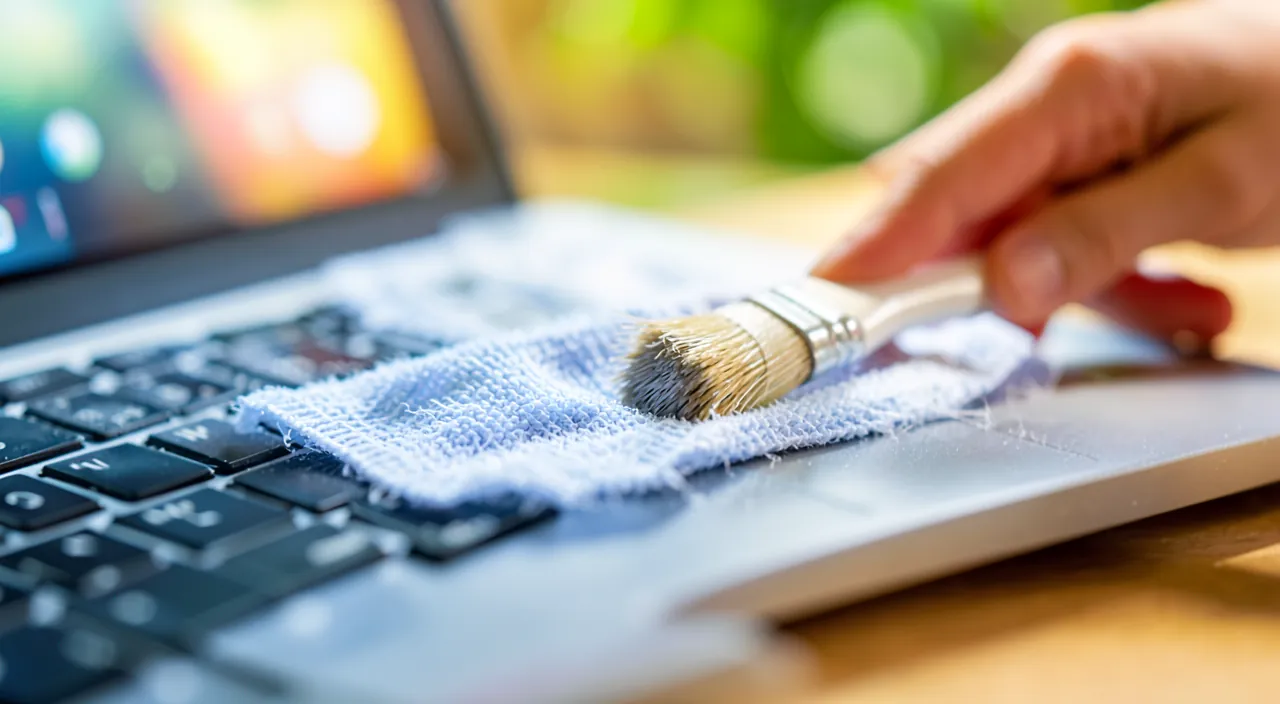
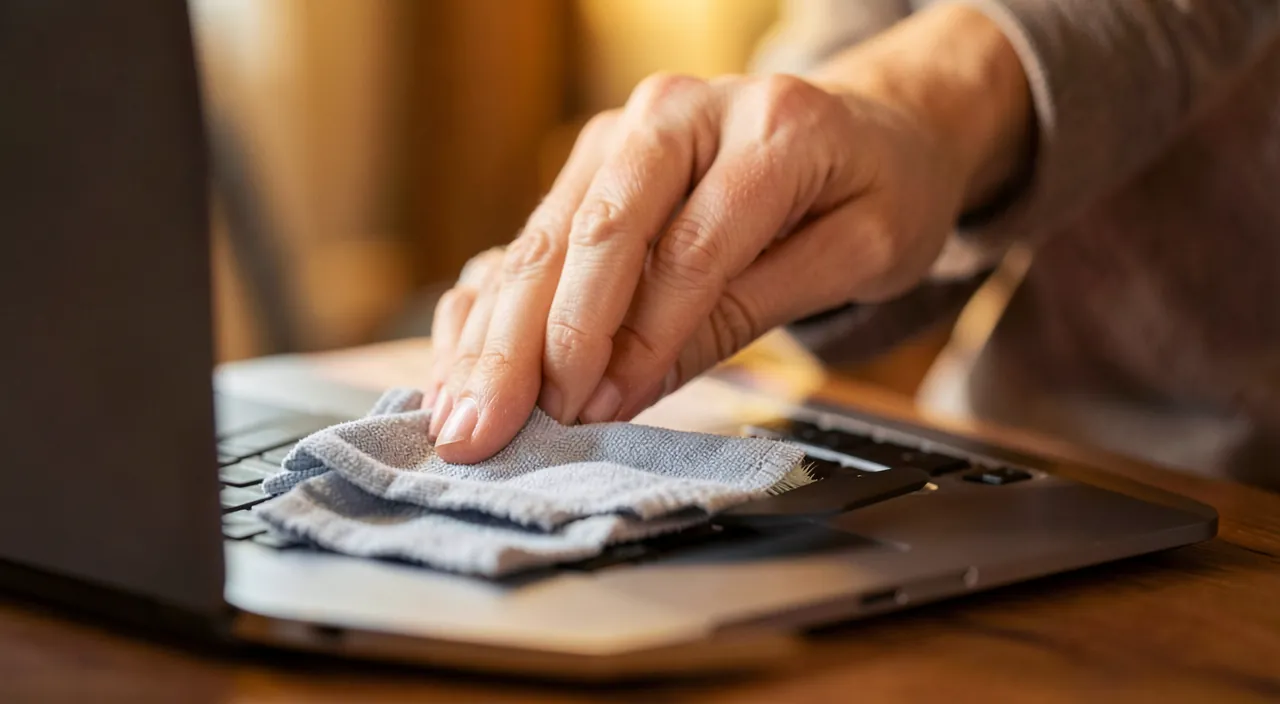
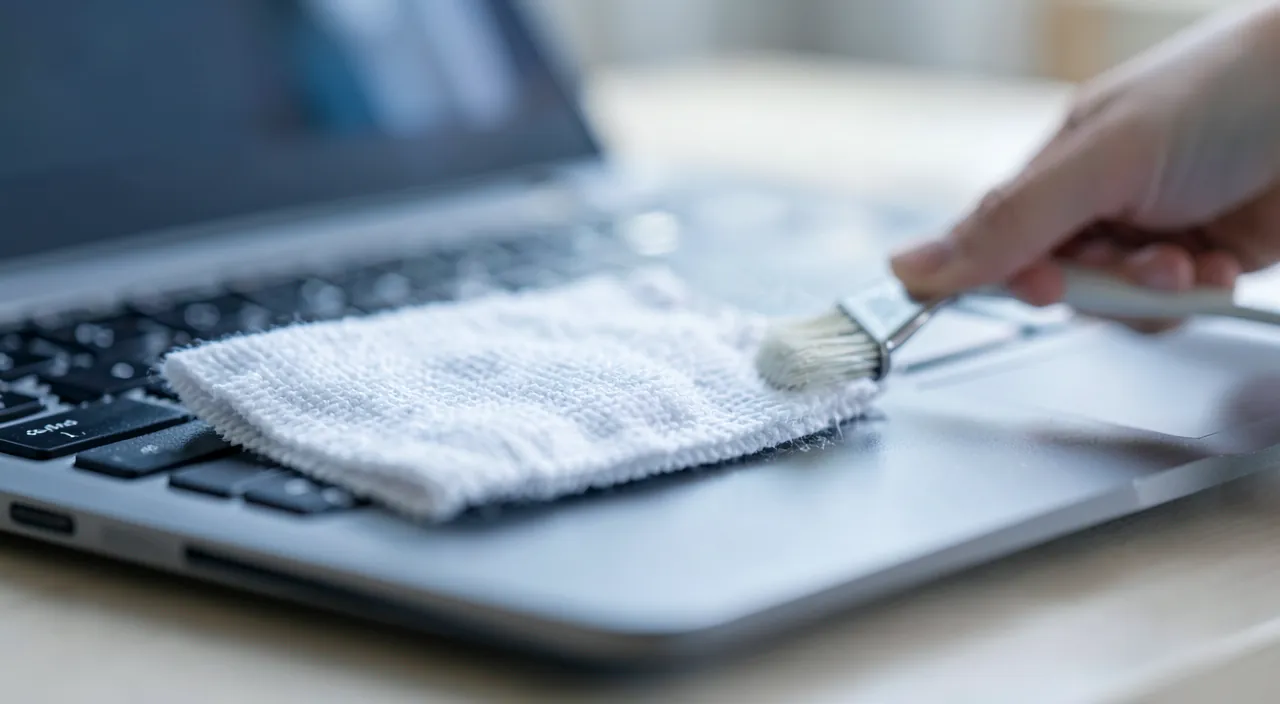
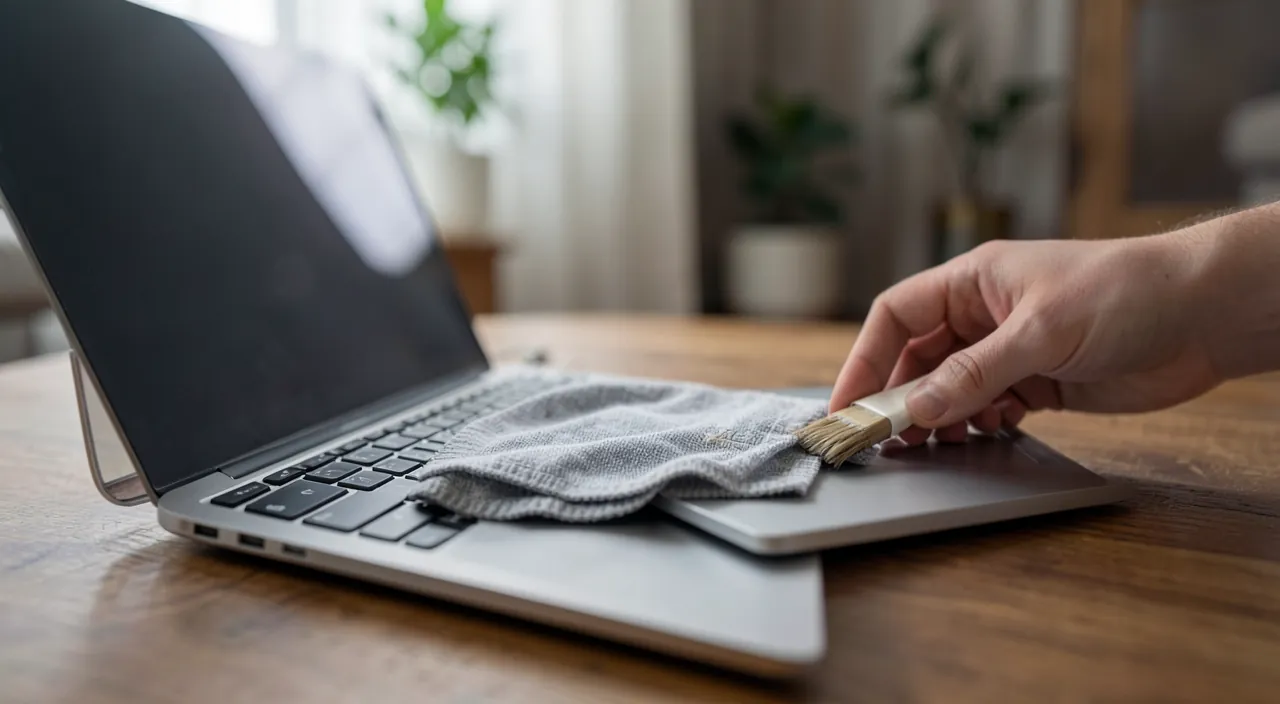
Here are the right actions, for the screen then for the keyboard. THE SCREEN — turn off the device (marks are better seen on a black screen, and it’s safer); take a dry and clean MICROFIBRE cloth, and gently wipe without pressing, with light movements; for stubborn marks, slightly moisten a corner of the cloth with WATER (never glass cleaner), wring it out well so it’s barely damp, wipe, then pass with the dry part; for very dirty screens, there are SCREEN SPRAYS specifically designed (without alcohol or ammonia): spray on the cloth, never on the screen. THE KEYBOARD — turn off and unplug; FLIP the keyboard (or laptop) and gently shake to remove crumbs and dust; use a DRY AIR CAN (compressed air) to dislodge dust between keys, or a small soft brush; for keys, pass a slightly moistened microfiber cloth (water, or a bit of diluted isopropyl alcohol to disinfect the keys — sparingly and never on the screen); for corners, a slightly dampened cotton swab works. THE PHONE and TABLET — same principles: off, slightly dampened microfiber cloth, no liquid in openings (ports, speakers); remove the case to clean the back and edges. THE MOUSE — a slightly dampened microfiber cloth on the body and buttons; clean the optical sensor carefully underneath. AERATIONS — on a computer, blow out the ventilation grilles (compressed air): accumulated dust heats up and ventilates more (our guides on noisy computers). Some TIPS: regularly and gently clean rather than aggressively occasionally; keep a microfiber cloth handy; and wash your hands, first way to keep your devices clean. In summary: always turn off, use a slightly dampened microfiber cloth (water, or a screen-specific product on the cloth), compressed air for dust, and gentle actions; never apply liquid directly to the device or in openings. Simple, safe, effective.
Imagine you have a MacBook Air with a smudged screen. First, turn it off. Then, take a microfiber cloth and gently wipe the screen without pressing. If there are stubborn fingerprints, lightly dampen a corner of the cloth with water (not glass cleaner), wring it out, and wipe again. For the keyboard, flip the laptop, shake out crumbs, then use a can of compressed air to blow dust from between the keys. Finally, wipe the keys with a slightly damp microfiber cloth. This keeps your MacBook clean and safe.
The good reflex. Two rules, and you can hardly damage anything. First rule: never spray liquid directly on a screen or keyboard. Very slightly moisten a MICROFIBRE cloth (the only really safe fabric — no paper towels or tissues, which micro-scratch), wring it out so it’s barely damp, and it’s the cloth you pass over the device. The liquid that drips and seeps into keys, ports, or speakers is the first cause of damage. Second rule: for a screen, in case of doubt, WATER is almost always sufficient. Absolutely ban classic glass cleaner, pure alcohol, ammonia, acetone, and all abrasive products: they attack the surface treatment of the screen (anti-reflective, anti-streak) and cause irreversible damage — a permanent milky film that nothing can fix. If water doesn’t work, use a screen-specific spray (without alcohol or ammonia), always sprayed on the cloth. First thing: always turn off and unplug the device (better marks seen on a black screen, and it’s safer). For the keyboard, flip it over and shake, then use compressed air to chase dust. And above all, adopt gentleness and regularity: a little microfiber wipe each week is infinitely better than a harsh cleaning once a year. Off, slightly dampened microfiber cloth, water rather than an aggressive product, no liquid in openings: with these reflexes, you maintain your devices without any risk.
Errors that damage your devices
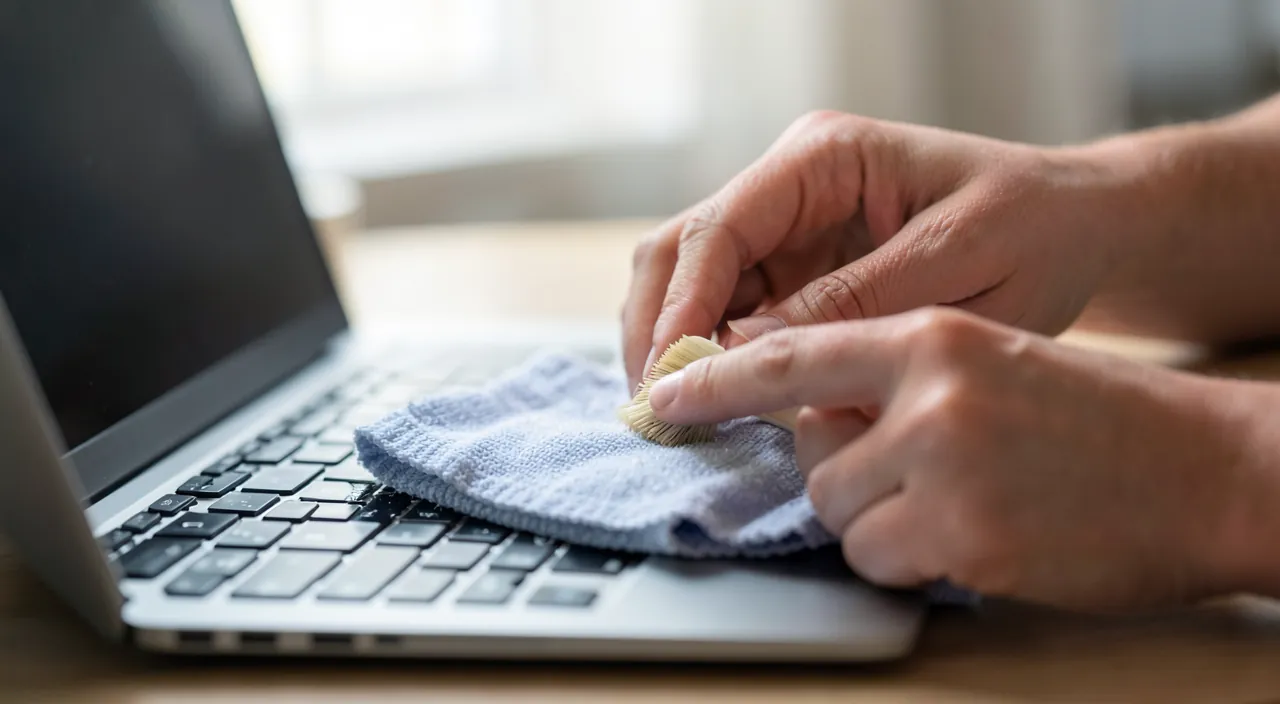
Some common errors cause sometimes irreversible damage. THE GLASS CLEANER on the screen: this is the classic mistake; these products often contain ammonia or alcohol that eat away at the screen coating (anti-reflective, oleophobic); the result, a fogged and spotted screen, is DEFINITELY permanent; use only water or a screen-specific product. THE LIQUID SPRAYED DIRECTLY: it seeps into keys, ports, speakers, and can cause an electrical failure or corrosion; always on the cloth, never on the device. THE RUGGED CLOTH: paper towels, tissues, abrasive cloths micro-scratch screens, especially treated ones; only microfiber is safe. EXCESSIVE PRESSURE: pressing hard on a screen (especially touch, tablet, phone) can damage the panel; stay gentle. Cleaning WHILE THE DEVICE IS ON: electrical risk, and it’s hard to see the marks; always turn off. THE HARD OBJECT for scratching: a stubborn mark cannot be scratched with a fingernail or knife; it’s softened with a damp cloth and patience. THE ALCOHOL ON THE SCREEN: while a little diluted isopropyl alcohol can be used to disinfect keys, it must NOT be used on screens, which it attacks. THE LIQUID IN OPENINGS: water or product near ports, charging connector, speakers, microphone: to be avoided. Finally, IGNORING the manufacturer’s recommendations: some devices have specific guidelines; for a costly or fragile device, check the manual or the manufacturer’s website. In summary: never use glass cleaner, alcohol, or abrasive products on a screen (irreversible damage), never apply liquid directly to the device or in openings, never use a rugged cloth or excessive pressure, and always turn off the device. Most disasters come from these avoidable errors; knowing them, you can avoid them.
Warning: a bad product can permanently ruin a screen. The main danger when cleaning your devices is not dirt: it’s the cleaning itself, poorly done. The worst mistake, unfortunately the most common, is using a REGULAR GLASS CLEANER, pure alcohol, ammonia, or acetone on a screen. Modern screens have surface treatments (anti-reflective coating, oleophobic coating that repels fingerprint traces) that these products attack and destroy: the result is a fogged, milky, permanently spotted screen — no cleaning can fix it. On a screen, stick to WATER (on a microfiber cloth), or a product specifically designed for screens, without alcohol or ammonia. Second major danger: poorly controlled LIQUID. Never spray directly on the device; moisten the cloth, wring it out well, and keep all liquid away from OPENINGS (ports, charging connector, speakers, microphone), where it can seep in and cause failure or corrosion. Also avoid RUGGED CLOTHES (paper towels, tissues, rough cloths: they scratch) in favor of the sole microfiber, and never press hard on a screen, especially a touch screen. Finally, always clean the device OFF and unplugged, never while it’s on. A final precaution: for a costly or fragile device, check the manufacturer’s recommendations, which take precedence. Maintenance is beneficial and easy; but between a clean screen and a ruined one, there’s often just a bad product. Gentleness, microfiber, water or a dedicated product, device off: these four reflexes put you definitively out of harm’s way.
Frequently asked questions
What can I use to clean a screen without damaging it?
The safest answer is simple: a MICROFIBRE cloth and, if necessary, a little WATER. Start by wiping the screen off while it’s off with a clean microfiber cloth, without pressing: this often removes fingerprint marks. For more stubborn marks, slightly moisten a corner of the cloth with water (never the screen directly), wring it out so it’s barely damp, gently wipe, then pass with the dry part. If water doesn’t work, use a SCREEN SPRAY specifically designed (without alcohol or ammonia), always sprayed on the cloth. What you MUST NOT use: regular glass cleaner, pure alcohol, ammonia, acetone, abrasive products — they destroy the surface treatment irreversibly. Also avoid paper towels and tissues, which micro-scratch: only microfiber is safe. In summary: dry microfiber first, a little water or a dedicated product afterward, and banish anything aggressive. With these gentle actions, your screen stays clean and intact.
How to remove dust and crumbs from a keyboard?
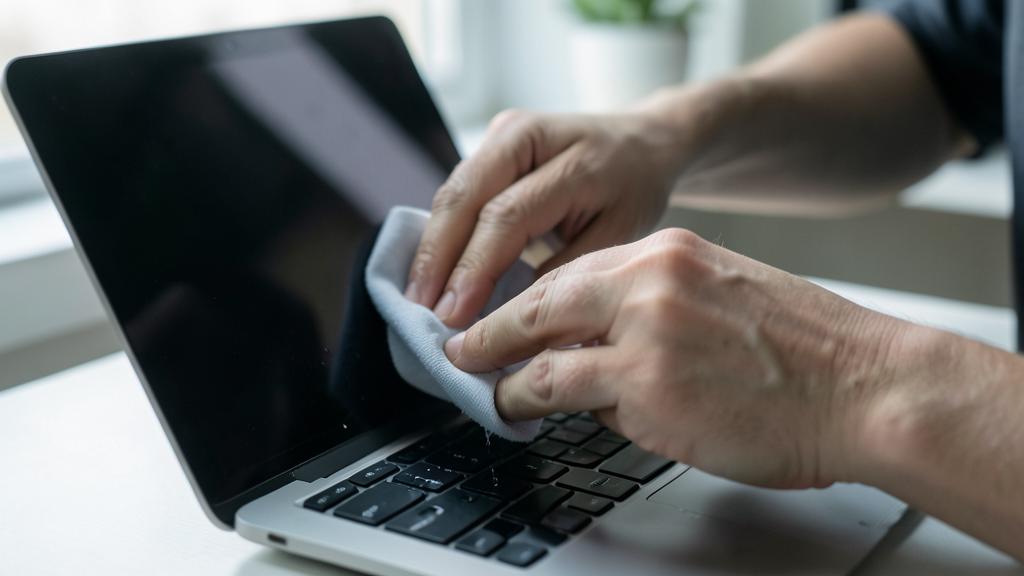
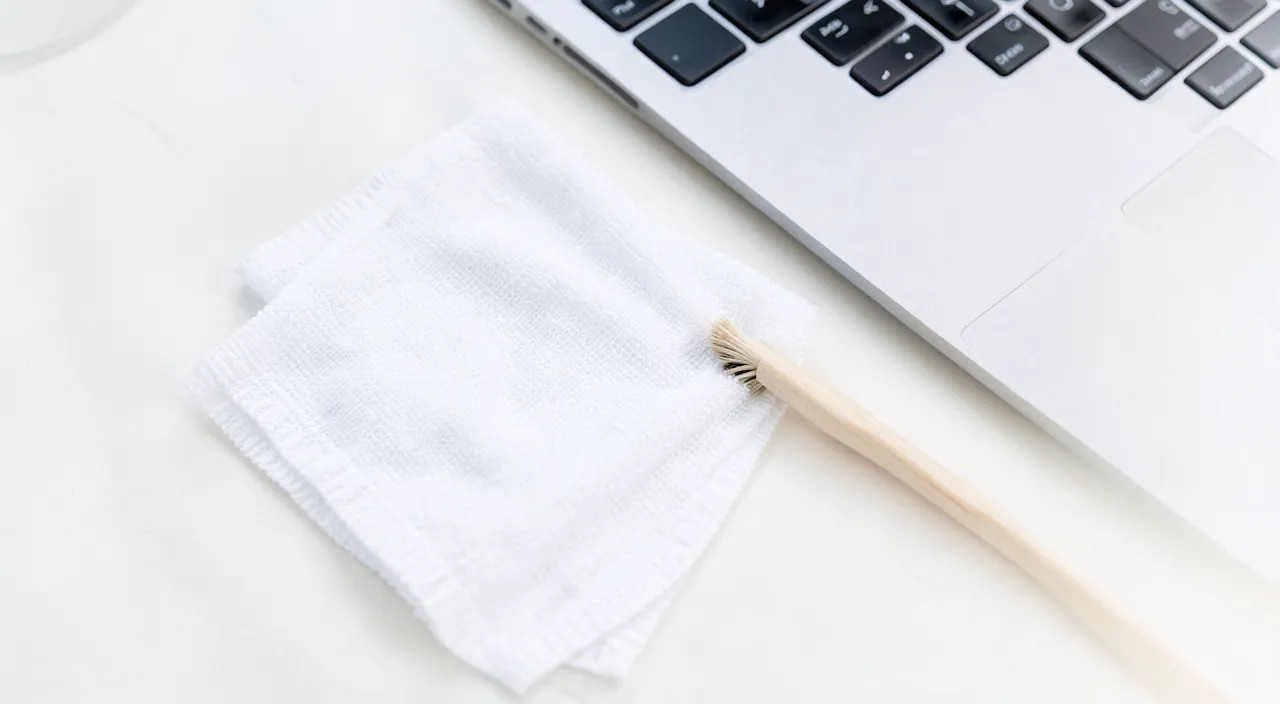
Start by turning off and unplugging the device (or, for a laptop, turn it off). Then FLIP the keyboard or laptop and gently shake it over a trash can: much of the crumbs and dust fall off by themselves. To dislodge what remains stuck between the keys, the ideal is a DRY AIR CAN (compressed air): a few brief bursts chase dust from the gaps; in its absence, a small soft brush or a soft brush works. To clean the surface of the keys (often greasy), pass a slightly moistened microfiber cloth over them, or a bit of diluted isopropyl alcohol if you want to disinfect — sparingly, wringing well, and never letting liquid run between the keys. For corners, a slightly dampened cotton swab is practical. Never spray liquid directly on the keyboard. If keys remain sticky (coffee, spilled drink), the cleaning is more delicate and sometimes risky: it’s better to act quickly and gently, and for a severely affected laptop keyboard, consider professional advice. Regular maintenance (compressed air occasionally, microfiber on keys) prevents accumulation and keeps the keyboard clean and hygienic.
Can I use disinfectant wipes on my devices?
With caution, and not just any ones. On surfaces like keyboard keys, mouse body, or phone back, a suitable wipe can be used for disinfection; but avoid wipes containing strong alcohol, Javel water, or abrasive products, and especially do NOT use these wipes on the SCREEN, which they can damage. If you want to disinfect, prefer an electronic wipe or a slightly moistened microfiber cloth with a bit of diluted isopropyl alcohol (for surfaces, never the screen). In all cases: the wipe must be barely damp (a drenched wipe can leak liquid into openings), no liquid on ports and speakers, and it should dry. For the screen, stick to microfiber and water, or a screen-specific product. Some manufacturers now indicate that certain gentle disinfectant wipes can be used on their devices: for a costly or fragile device, check their recommendations. Disinfection is useful (these objects are very handled), but it must never come at the cost of a damaged screen or liquid infiltration: gentleness and appropriate product remain the rule.
What to remember
Regularly cleaning your screen and keyboard improves comfort, hygiene, and the lifespan of your devices, and it’s entirely within your reach — provided you use the right actions, because the margin of error on a screen is small. Fundamental precautions: always TURN OFF and unplug the device before cleaning; NEVER apply liquid directly (lightly moisten the cloth, wring it out); use only a MICROFIBRE cloth (no paper towels or tissues, which scratch); and stay gentle. For the screen, WATER almost always suffices, or a screen-specific product on the cloth: absolutely ban glass cleaner, pure alcohol, ammonia, acetone, and abrasive products, which destroy the surface treatment irreversibly. For the keyboard, flip it over and shake, use compressed air to dislodge dust, then pass a slightly moistened microfiber cloth over the keys; for phones and tablets, same principles, keeping all liquid away from ports and speakers. Damaging errors: glass cleaner on the screen (permanent damage), liquid sprayed or seeping into openings, rugged cloth, excessive pressure, cleaning while the device is on. The main danger is not dirt but poor cleaning: a single bad product can permanently ruin a screen. Adopt the golden rule: device off, slightly moistened microfiber cloth, water or a screen-specific product, no liquid in openings, and gentleness first. And for a costly or fragile device, refer to the manufacturer’s recommendations. It’s better to have a gentle and regular cleaning than an aggressive cleaning once. Thus, your devices remain clean, comfortable, and intact for a long time.
Want to become more proficient with your digital tools? Our personalized training adapts to your level.
Leave a Reply
You must be logged in to post a comment.