Are you traveling abroad and need to understand a menu, ask for directions, or exchange a few words with someone who doesn’t speak your language? The Translate app, built into the iPhone, is a valuable travel companion: it translates text, your voice, a real-time conversation, and even what the camera sees (a sign, a menu). Free and often usable offline, it breaks down language barriers in countless situations. Here’s how to use the Translate app to travel confidently and communicate anywhere.
The Translate app: a pocket translator
Let’s explore what the Translate app offers, available on iPhone (and iPad). What it DOES: it translates from one language to another in several complementary ways. TEXT translation: type (or paste) a text, choose the languages, and get the translation; simple and fast for a word, a sentence, a message. VOICE translation: speak, and the app translates what you say; it can even READ the translation aloud (so your interlocutor can hear it); ideal for making yourself understood. The CONVERSATION mode: the app translates a real-time exchange between two people speaking different languages; each speaks their own language, the app translates both ways; perfect for dialoguing with someone. CAMERA translation: point the camera at a text (a menu, a sign, a label, an instruction), and the app translates what it “sees,” directly on the screen; magical for understanding a foreign text without retyping it. LANGUAGES: the app supports many languages (the world’s main languages); you choose the source and target languages. OFFLINE functionality: a CRUCIAL point for travel—you can DOWNLOAD languages in advance to use the app WITHOUT an internet connection; essential abroad, where you don’t always have a network (or to avoid data charges); download the languages before leaving. The dictionary and FAVORITES: the app also provides definitions and lets you save translations as favorites (for useful phrases). What to remember to get started: the Translate app is a free, versatile pocket translator—text, voice, real-time conversation, and camera—supporting many languages and usable OFFLINE (if you download the languages); it’s the ideal travel companion to break down language barriers: understand, make yourself understood, dialogue. Let’s see how to use it concretely in everyday travel situations.
The Translate app works like a pocket translator. It can translate text you type, your voice, or even what your camera sees. The best part? You can download languages to use it without the internet, which is super useful when traveling.
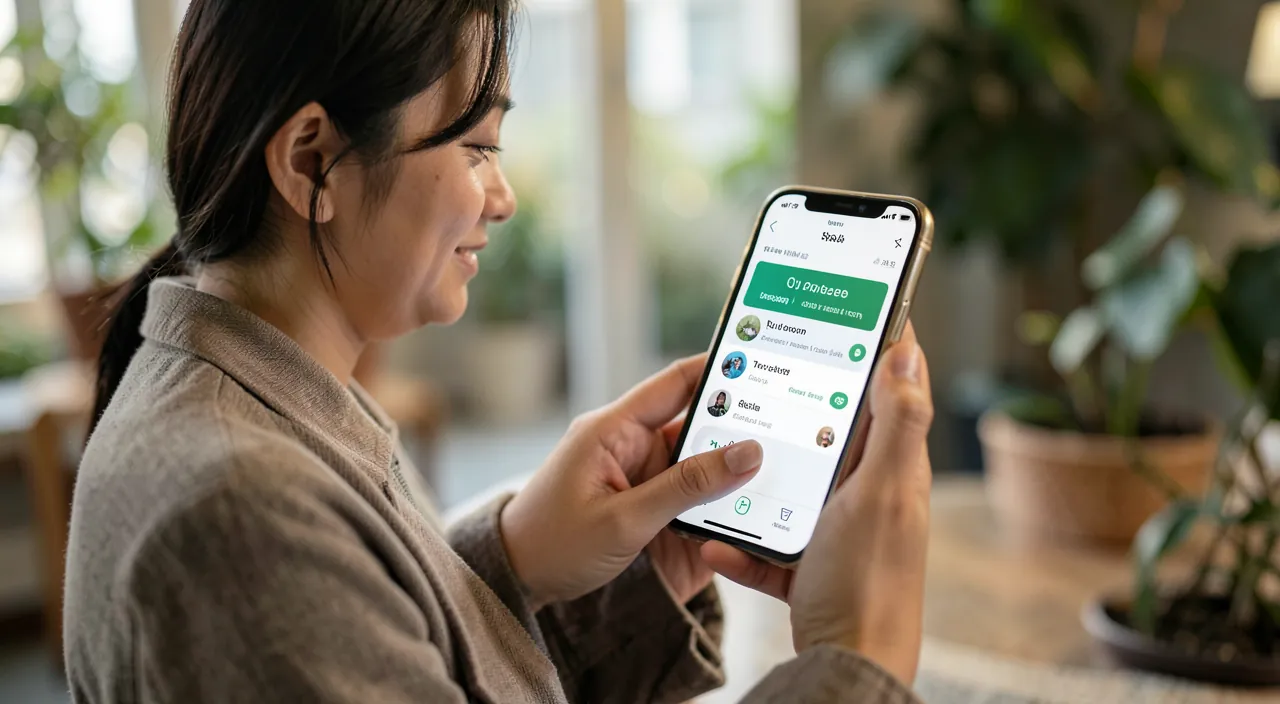
Imagine you’re in Tokyo and want to order sushi. Point your iPhone camera at the menu, and the app instantly translates it. No need to retype anything—just read and order!
Using Translate while traveling: real-life situations
Here’s how the app helps in real travel scenarios. UNDERSTANDING a MENU, a sign, an instruction: use CAMERA translation; point the camera at the text (the restaurant menu, a street sign, a product label, an instruction manual), and the translation appears on the screen, overlaid or next to it; no need to retype the text; ideal for instantly deciphering a foreign written text. ASKING for directions, asking a question: use VOICE translation; say your question in your language, the app translates it and can READ it aloud to the person; they understand, and can respond. DIALOGUING with someone: use the CONVERSATION mode; place the phone between you; each speaks their own language in turn, the app translates both ways (on the screen and/or aloud); you can thus have a real exchange with a shopkeeper, a hotelier, a local, despite the language barrier. TRANSLATING a written text: type or paste a text (a received message, information, a phrase you want to say) to translate it; practical for preparing a phrase, understanding a written text. GETTING help in common situations: ordering at a restaurant, making a purchase, taking transportation, managing a reservation, explaining a need (an allergy, a special request), understanding an instruction; the app covers all these cases. PREPARING useful phrases: before a situation, you can translate and save key phrases as FAVORITES (“Where is the bathroom?”, “The bill, please”, “I’m allergic to…”); you can access them with a tap when needed. PRONUNCIATION: the app can pronounce the translation, helping you say the word yourself or have your interlocutor hear it. A KEY tip for travel: DOWNLOAD the languages you’ll need BEFORE leaving (in the app’s settings, under offline languages); this way, the app works WITHOUT internet once you’re there—essential where the network is lacking or expensive. In summary: the camera for understanding texts (menus, signs), voice for asking questions, conversation mode for dialoguing, text for translating a written text; and remember favorites for your key phrases and offline language downloads; the Translate app covers the essential communication needs while traveling, turning language barriers into a simple formality.
The essential reflex before leaving: download languages for offline use. This is the tip that changes everything for using the Translate app while traveling: DOWNLOAD the languages you’ll need in advance to use the app WITHOUT an internet connection once you’re there. Why it’s crucial: abroad, you don’t always have a network (in the subway, remote areas, inside buildings), and foreign mobile data can be expensive (roaming); yet it’s precisely in these moments—facing a menu, lost in the street, dealing with a shopkeeper—that you need to translate; if the app depends on the internet and you don’t have it, it’s useless. The solution: BEFORE leaving (when you still have a good WiFi connection), go to the Translate app settings, find the offline languages option (language downloads), and download the language(s) of your destination (as well as your own). Once downloaded, the app translates these languages WITHOUT the internet, anywhere, for free, instantly. Don’t forget this in your travel preparations: it’s as important as downloading an offline map of your destination (our guides on preparing your phone for travel). Other useful reflexes to prepare before departure: save a few key phrases as FAVORITES that you’re sure to use (greetings, “thank you”, “where is…?”, “how much does it cost?”, “I’m allergic to…”, “can you help me?”); familiarize yourself with the different modes (text, voice, conversation, camera) at home, so you’re comfortable on the go; and check that the camera and microphone work. By downloading offline languages before leaving, you ensure your pocket translator will work WHEN and WHERE you need it, without relying on a fickle network or fearing charges; it’s the difference between a theoretical tool and a truly reliable travel companion. Don’t leave without doing this small step: it will save you from many stuck situations.
offline mode, everything stays on the device (more private); online, your content may pass through servers; avoid translating very sensitive information without precautions. BATTERY: intensive use (camera, voice) consumes power; while traveling, keep an eye on your battery (our guides on saving battery). ALTERNATIVES: other translation apps exist (some very complete); Apple’s Translate app is integrated, free, and practical, but you can compare based on your needs (some support more languages or features). In summary: speak clearly and simply, verify the meaning of important translations, use the right mode for the situation (camera for texts, conversation for dialoguing), show the screen, and keep in mind that automatic translation is a great help but remains imperfect; complement it with patience and common sense. Well used, it opens the world to you; but keep a critical eye for serious matters.
Warning: automatic translation is a huge help, but it’s not perfect—keep a critical eye for important things. The Translate app is a great tool, but a few precautions avoid bad surprises. First, don’t forget to DOWNLOAD languages OFFLINE before leaving: without this, the app depends on the internet, and you risk being stuck where you need it most (no network, or roaming charges); it’s the classic traveler’s mistake. Then, keep in mind that automatic translation is IMPERFECT: it can make mistakes, miss a nuance, struggle with an expression, a double meaning, slang, or humor; for simple, practical exchanges (ordering, asking for directions, understanding a menu), it’s more than enough; but for an IMPORTANT or SENSITIVE message—a medical piece of information, a safety question, an official document, a contract, an important negotiation—don’t BLINDLY rely on automatic translation; a mistake could have consequences; in these cases, call on a human translator or have it verified; stay simple and cautious. To improve reliability: make SHORT and SIMPLE sentences, articulate clearly when speaking, avoid complex turns of phrase; a simple sentence translates much better. Beware of MISUNDERSTANDINGS: a strange translation can be misunderstood or even offend; if in doubt, rephrase more simply, or complement with gestures and a smile. On PRIVACY: avoid dictating or translating very personal or confidential information (passwords, sensitive data) without precautions; in offline mode, everything stays on the device (safer); online, your content may pass through servers (our guides on protecting your personal data). Beware of DEPENDENCY and context: in some situations (human relationships, sharing moments), relying entirely on a phone screen can be cold; the app is a tool for emergencies, not a substitute for human communication and non-verbal cues. Finally, don’t rely ONLY on technology: keep a few basic words in the local language at hand (hello, thank you: an effort always appreciated), a charged battery, and possibly a small paper dictionary as a backup. By downloading languages before leaving, keeping a critical eye on translations for important subjects, and complementing the app with common sense and patience, you’ll make the Translate app a precious and reliable ally for your travels—a great help, provided you don’t believe it’s infallible.
Want to unlock the full potential of your iPhone, iPad, or Mac? Our Apple training courses take you to the next level.

 offline mode, everything stays on the device (more private); online, your content may pass through servers; avoid translating very sensitive information without precautions. BATTERY: intensive use (camera, voice) consumes power; while traveling, keep an eye on your battery (our guides on saving battery). ALTERNATIVES: other translation apps exist (some very complete); Apple’s Translate app is integrated, free, and practical, but you can compare based on your needs (some support more languages or features). In summary: speak clearly and simply, verify the meaning of important translations, use the right mode for the situation (camera for texts, conversation for dialoguing), show the screen, and keep in mind that automatic translation is a great help but remains imperfect; complement it with patience and common sense. Well used, it opens the world to you; but keep a critical eye for serious matters.
Leave a Reply
You must be logged in to post a comment.