
Your computer is making noise: a continuous fan whine, a hum, or some worrying clicks. This noise is not trivial: it often reveals something—excessive heat, accumulated dust, a hard drive working too hard, or sometimes a component that is wearing out. The good news is that most computer noises have simple causes and can be resolved without being an expert. Here’s how to understand what your computer’s noise is saying, what you can do yourself, and which noises should really alert you.
What the noise reveals
A computer’s noise is not a defect in itself: it is a SIGNAL that reveals what is happening inside, and its type points towards the cause. Let’s distinguish the main noises. The CONTINUOUS fan whine (a continuous air sound that increases): it is the fan spinning faster to COOL the device; it triggers when the computer HEATS UP (significant effort, or hindered cooling). This is the most common noise, and often the easiest to resolve. The HUM or vibration: often a clogged, worn, or vibrating fan; sometimes a mechanical hard drive spinning. The CLICKS or repeated scraping: can come from a mechanical hard drive working (normal during activity)—but repeated DRY clicks, especially accompanied by sluggishness, may indicate a drive that is FATIGUING (seriously monitor this). BIPS at startup: some computers emit coded beeps signaling a hardware issue (to be diagnosed). Why is your computer making noise? The most frequent causes are: HEAT (the device heats up and fans spin faster to compensate); DUST (accumulated in grilles and fans, it hinders cooling and makes fans spin faster); EFFORT (a resource-hungry software, too many open tabs, overwork the device); AIRFLOW obstruction (a laptop on a bed or cushion that blocks vents heats up and whistles); and WEAR (an aging fan or hard drive becomes noisy). The main idea: the noise TELLS you something—most often that the device is heating up and trying to cool itself (fans), which is frequent and generally benign; sometimes that a component is clogged or worn. Listening to the TYPE of noise (whine, hum, clicks, beeps) helps distinguish the mundane (fans cooling) from what deserves attention (dry clicks of a drive, wear sounds). Most noises have simple causes; knowing how to read them avoids both unnecessary panic and negligence of a real signal.
Your computer’s noise is like a warning light. Most of the time, it just means the fan is working harder to cool things down. But if you hear dry clicks, it could mean your hard drive is failing—time to back up your data!
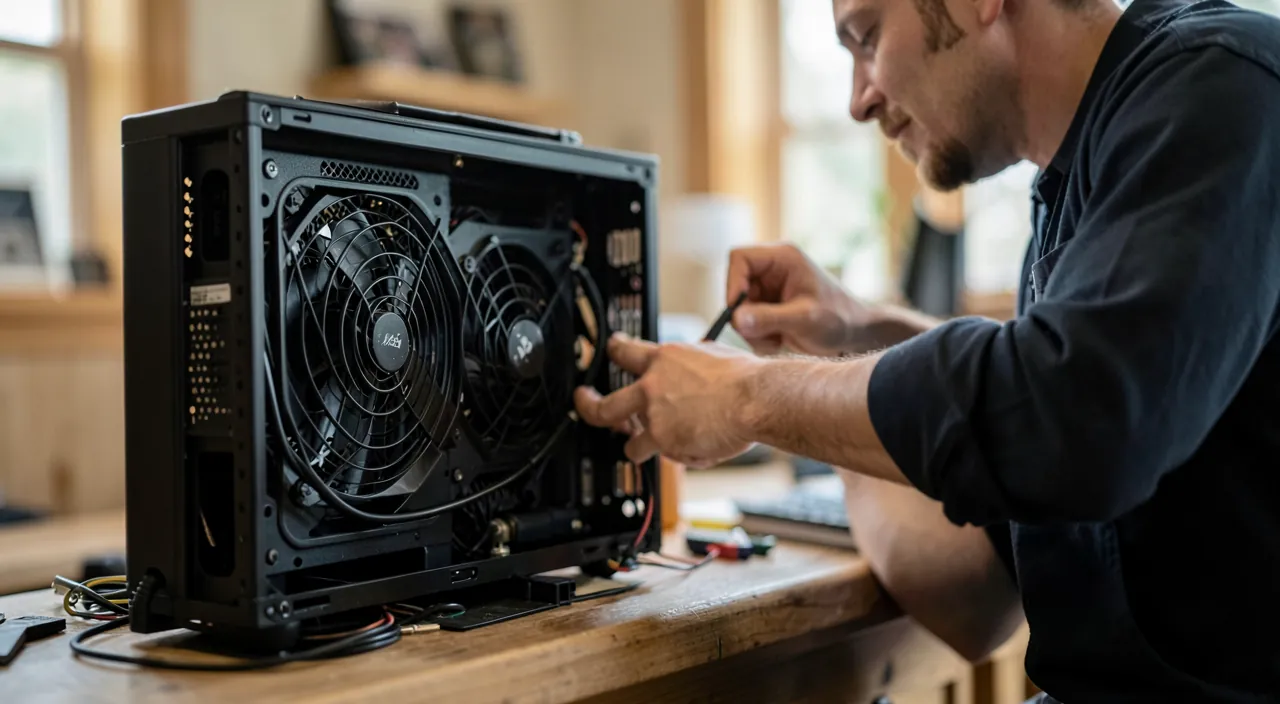
Your gaming laptop starts whining loudly during an intense session. The fan is spinning fast to cool the overheating CPU. You clean the dust from the vents, close unnecessary apps, and place it on a hard surface. The noise stops—problem solved!
What you can do yourself
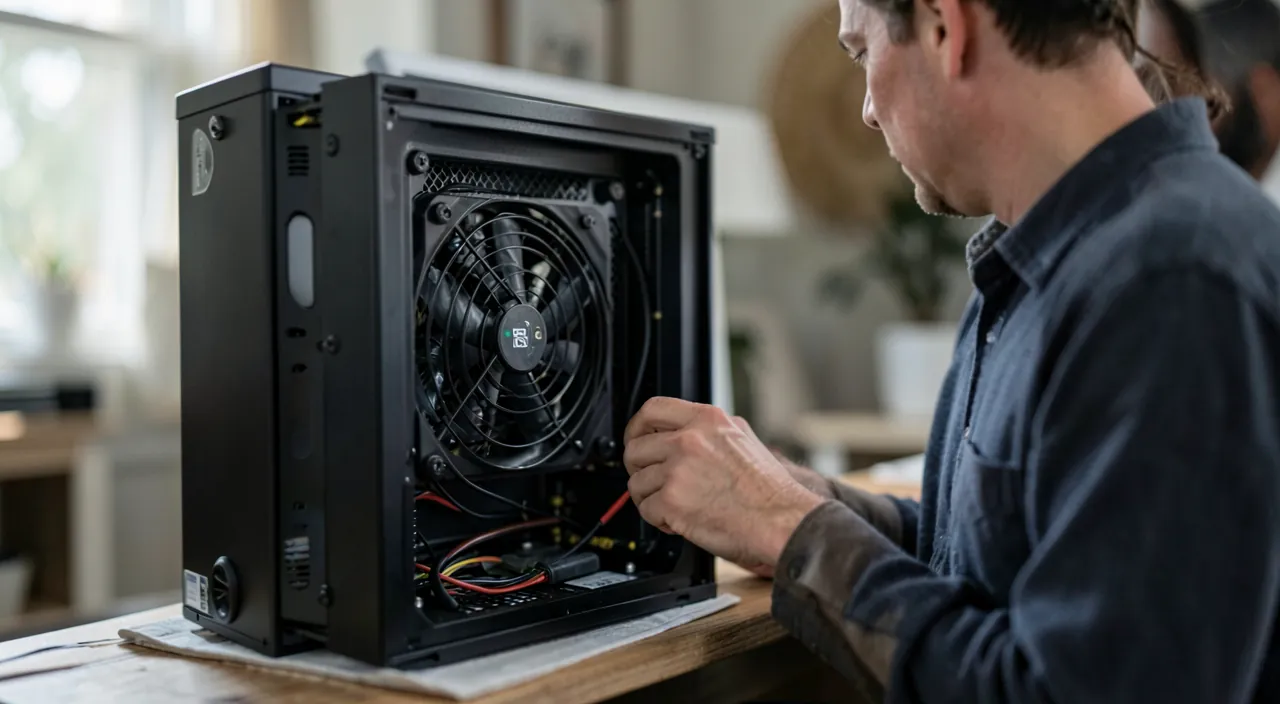
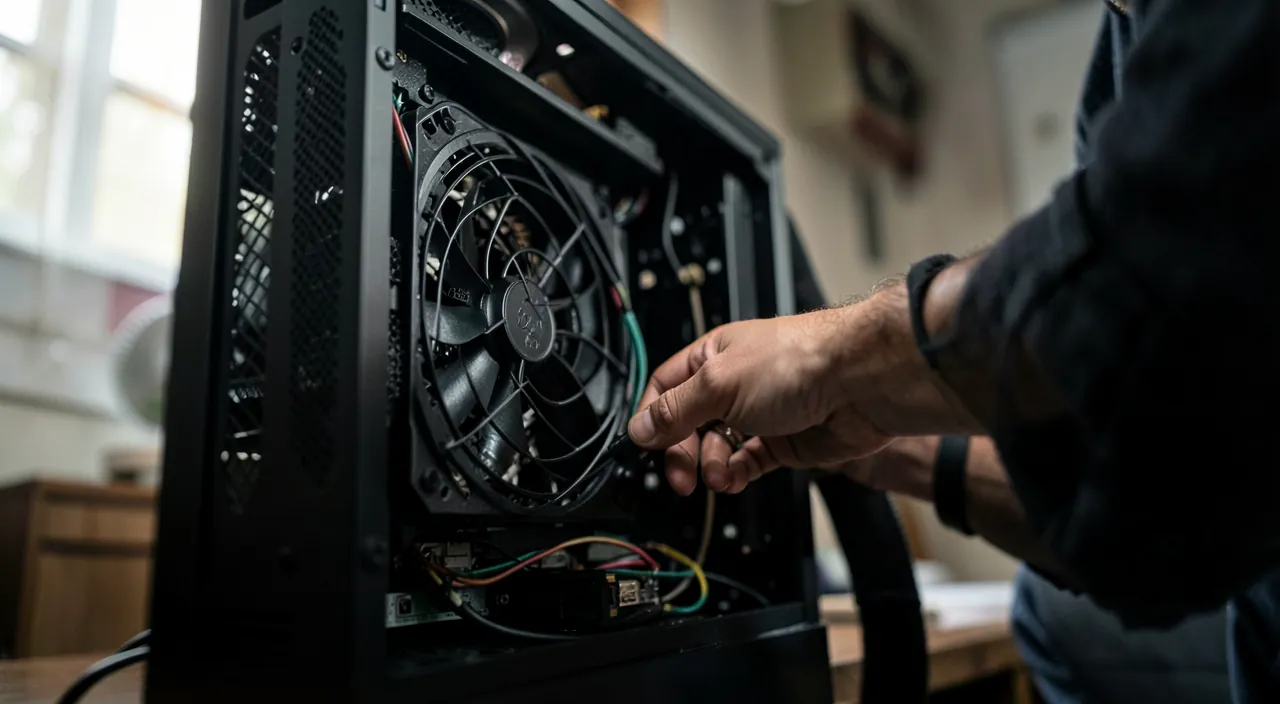
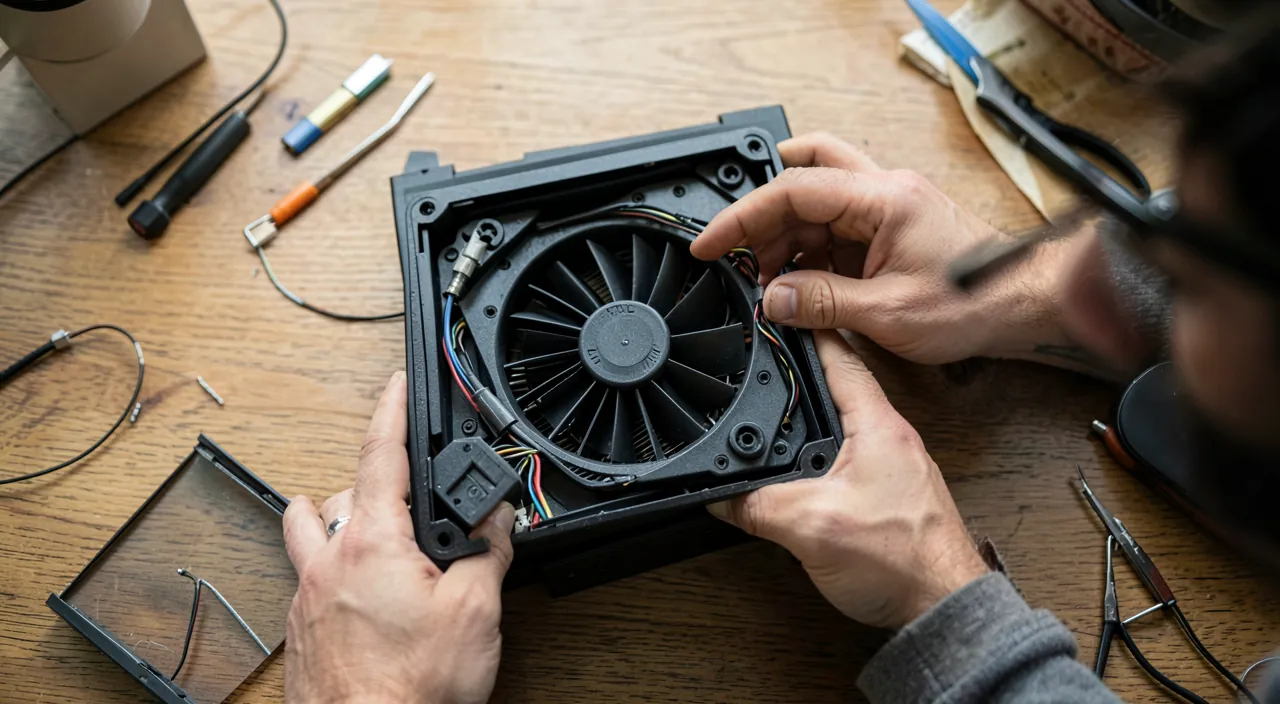
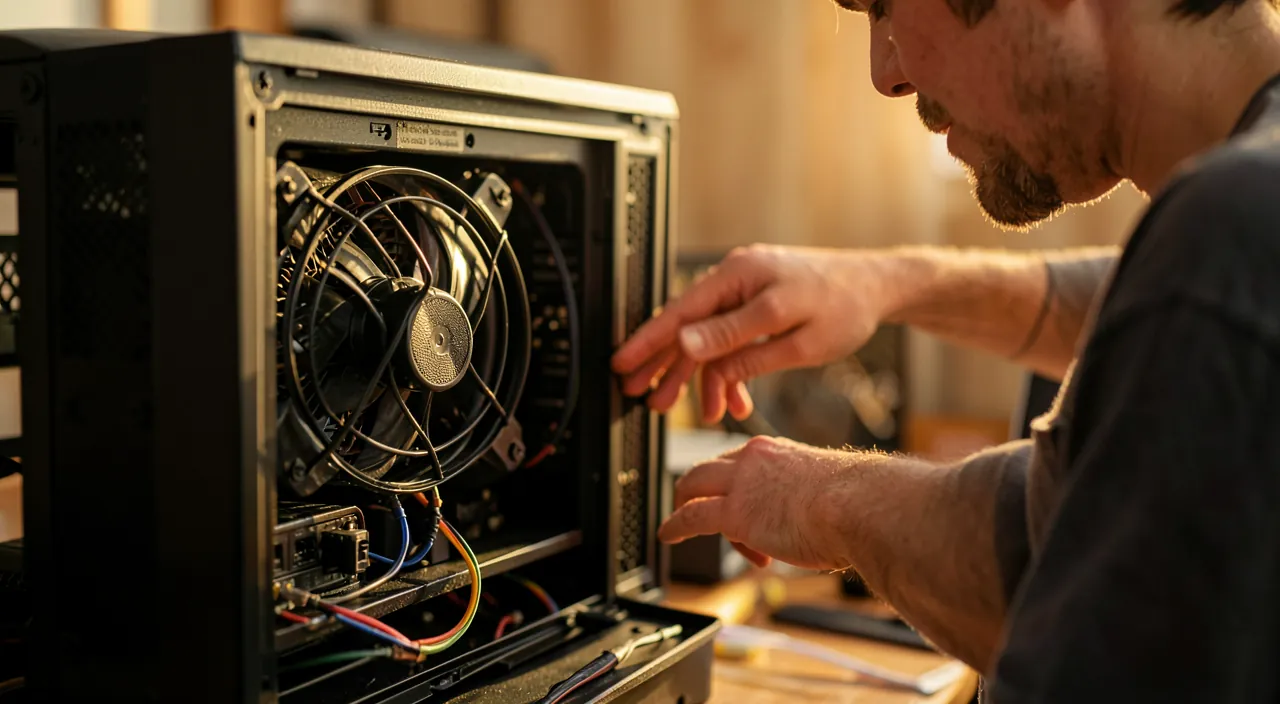
In the face of a noisy computer, several simple gestures resolve most cases. Let the device BREATHE—the most frequent cause is hindered cooling: for a laptop, place it on a HARD, flat surface (never on a bed, cushion, or blanket that blocks vents); ensure that air grilles are not obstructed; for a desktop, clear the surrounding space and check that grilles are not against a wall or in a closed cabinet. Depressurize—accumulated dust is a major culprit: gently clean air grilles (a can of compressed air is ideal; short bursts, device off); it is often spectacularly effective, especially on an uncleaned device for a few years. Do not disassemble the device if you are uncomfortable: external cleaning of grilles often suffices, and internal cleaning can be entrusted to a professional. Lighten the LOAD—if the fan spins up during heavy use: close unnecessary software and tabs, check if a program is consuming abnormally (a looping software heats up), and restart the device (a simple restart often quiets a spinning fan—our guides on computer lag). Control the AMBIENT temperature—in hot weather, or near a heat source, the computer heats up and whistles more: this is normal; keep it away from heat sources and direct sunlight. Check if it is a NORMAL activity—a computer that makes noise during heavy work (gaming, editing, updating) and quiets down afterward is normal; noise becomes a concern if it is CONSTANT, EXCESSIVE, or accompanied by other symptoms (sluggishness, abnormal heat, crashes). Some TIPS: always turn off the device for cleaning; do not use a powerful vacuum directly (risk of static electricity); and watch if the noise is accompanied by excessive heat or sluggishness (signs to act). In summary, against a noisy computer: let it breathe (hard, clear surface), clean the grilles, lighten the load, restart, and keep it away from heat. These simple gestures resolve the vast majority of noises, which most often come from hindered cooling or a temporary effort.
The right reflex. Listen first to the TYPE of noise to locate the cause, then act simply. A CONTINUOUS fan whine (the most common noise) signals that the device is heating up: most often, cooling is hindered. Let the computer breathe—place a laptop on a HARD, flat surface (never on a bed, cushion, or blanket that blocks vents); check that air grilles are not obstructed; for a desktop, clear the surrounding space. Gently clean air grilles (device off, can of compressed air in short bursts): on an uncleaned device for a few years, it is often spectacularly effective. Lighten the load if the fan spins up during use (close unnecessary software and tabs, identify an abnormally consuming program, restart—this often quiets a spinning fan). Keep the device away from heat sources and direct sunlight. Remember that a computer that makes noise during heavy work (gaming, editing, updating) and quiets down afterward is NORMAL: noise is a concern if it is constant, excessive, or accompanied by sluggishness, abnormal heat, or crashes. A signal not to ignore: REPEATED DRY clicks (especially with sluggishness) can come from a fatiguing mechanical hard drive—save your data immediately (a clicking disk can fail—our guides on regular backups) and have it diagnosed. For the rest, these simple gestures (breathe, clean, lighten) resolve the vast majority of noises without needing to disassemble anything: internal cleaning, however, is entrusted to a professional.
Which noises should alert you, and when to consult
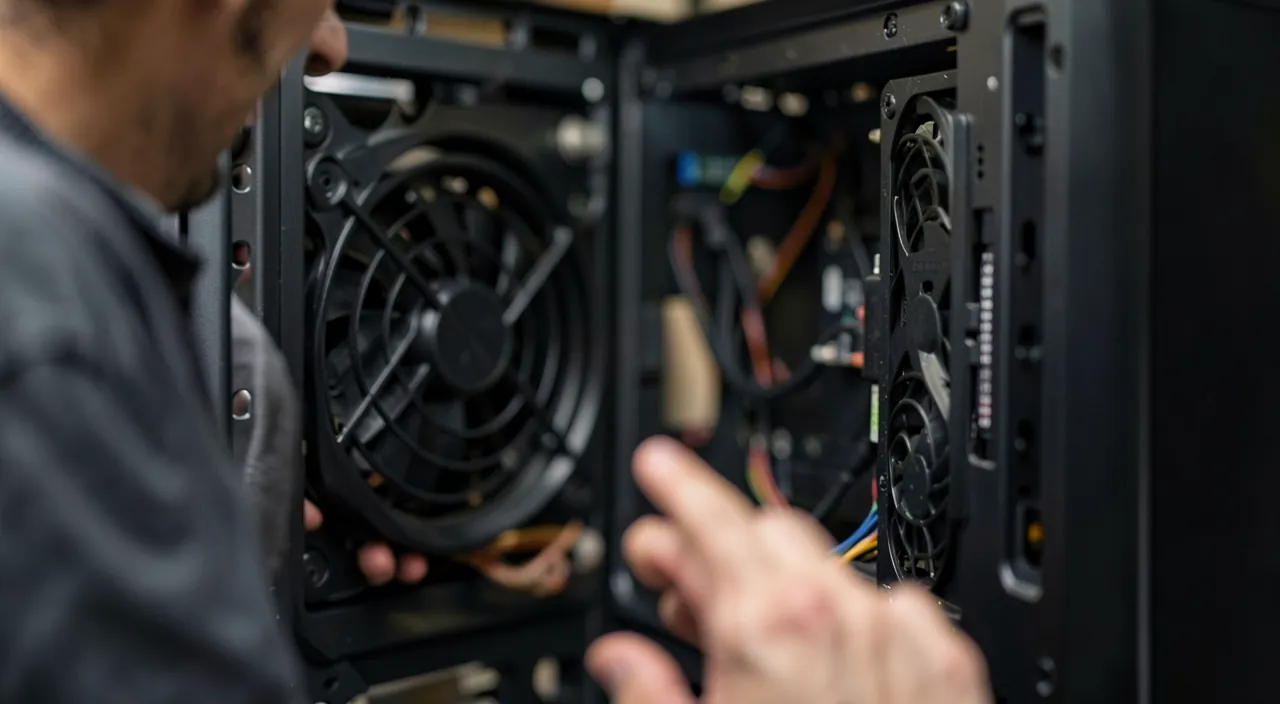
Most noises are benign (fan cooling), but some warrant real attention. Here’s how to distinguish, and when to consult. BENIGN noises (generally no issue): the fan’s whine during effort (gaming, editing, updating) that quiets down afterward; a slight normal operation noise; a fan whining due to ambient heat. They indicate normal cooling: if the device functions well otherwise, no worry (if needed, apply the gestures above to reduce noise). Noises that should alert you: REPEATED DRY clicks (especially accompanied by sluggishness or blockages) can signal a fatiguing mechanical hard drive—this is the most important signal: IMMEDIATELY save your data (a clicking disk can fail—our guides on regular backups) and have it diagnosed; a fan making a rubbing, creaking, or jerking noise may be worn or obstructed (clean or replace it); coded beeps at startup signal a hardware issue (to be diagnosed); a noise accompanied by constant abnormal heat, unexpected crashes, or severe sluggishness indicates a cooling or component issue to address. WHEN TO CONSULT a professional: if simple cleaning and gestures do not reduce an excessive and constant noise; if you hear disk clicks (save first!); if the noise is accompanied by abnormal heat, sluggishness, or crashes; if internal cleaning is needed (and you are uncomfortable disassembling); or if a component seems worn (a creaking fan). A professional can thoroughly clean, replace a worn fan or hard drive, and diagnose a cooling issue (our guides on home repairs). The most important point: in the case of disk clicks, the absolute priority is to IMMEDIATELY save your data; the noise may signal a failure, and an up-to-date backup keeps you safe. In summary, most computer noises are benign (fan cooling) and can be resolved by simple gestures; but be alert to dry disk clicks (save!), wear noises, and noises accompanied by heat or sluggishness, which justify a diagnosis. Listen to what the noise says, act simply on the mundane, and consult for the rest: this is the right approach.
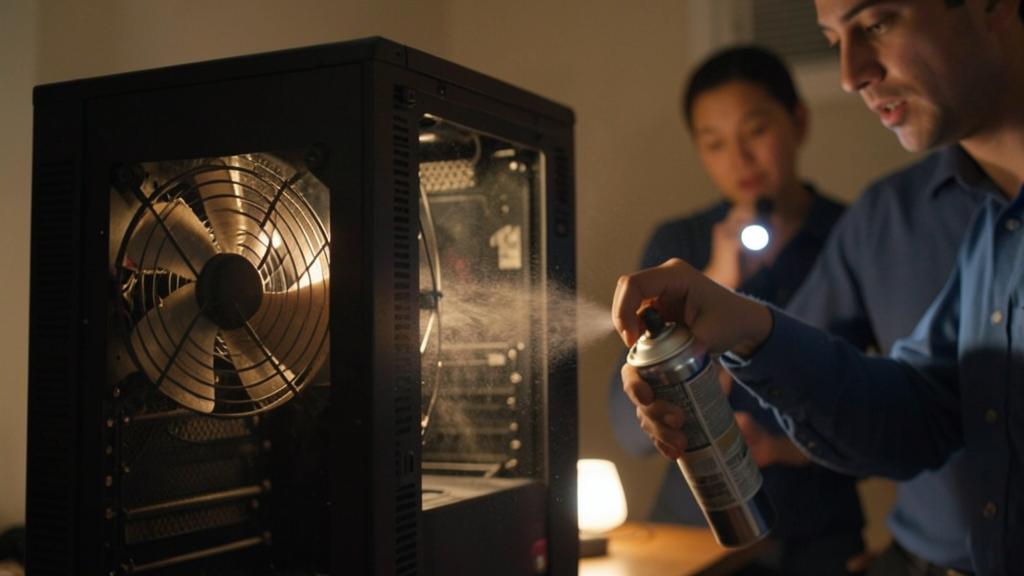
Warning: Dry disk clicks = urgent backup; do not block vents; ignore excessive heat. Three points. DRY DISK CLICKS—repeated dry clicks from the hard drive (especially with sluggishness or blockages) can signal an imminent DISK failure: the absolute priority is to IMMEDIATELY back up your data to another medium before doing anything else: a clicking disk can fail at any moment, taking your data with it; do not delay this backup (our guides on regular backups). BLOCKED VENTS—using a laptop on a bed, cushion, blanket, or throw blanket blocks air grilles: the device heats up, fans spin faster (noise), and prolonged overheating can damage components: always place the device on a hard, flat surface with vents clear. EXCESSIVE HEAT IGNORED—an abnormally hot computer, in addition to noise, should not be ignored: repeated overheating wears out components and can cause crashes: clean, clear vents, lighten the load, and if the heat persists, check the cooling. Also avoid: opening and disassembling the device without knowing (confine internal cleaning to a professional), using a powerful vacuum directly on components (static electricity—prefer a can of compressed air), and ignoring coded beeps at startup (a hardware issue to diagnose). A computer’s noise is most often benign (fan cooling), but it can also be an alert signal: learn to distinguish the mundane (passing whine) from the worrying (dry disk clicks, wear, excessive heat), back up at the slightest doubt about the disk, and never let a device overheat due to lack of ventilation.
Frequently asked questions
Why does my computer’s fan spin up?
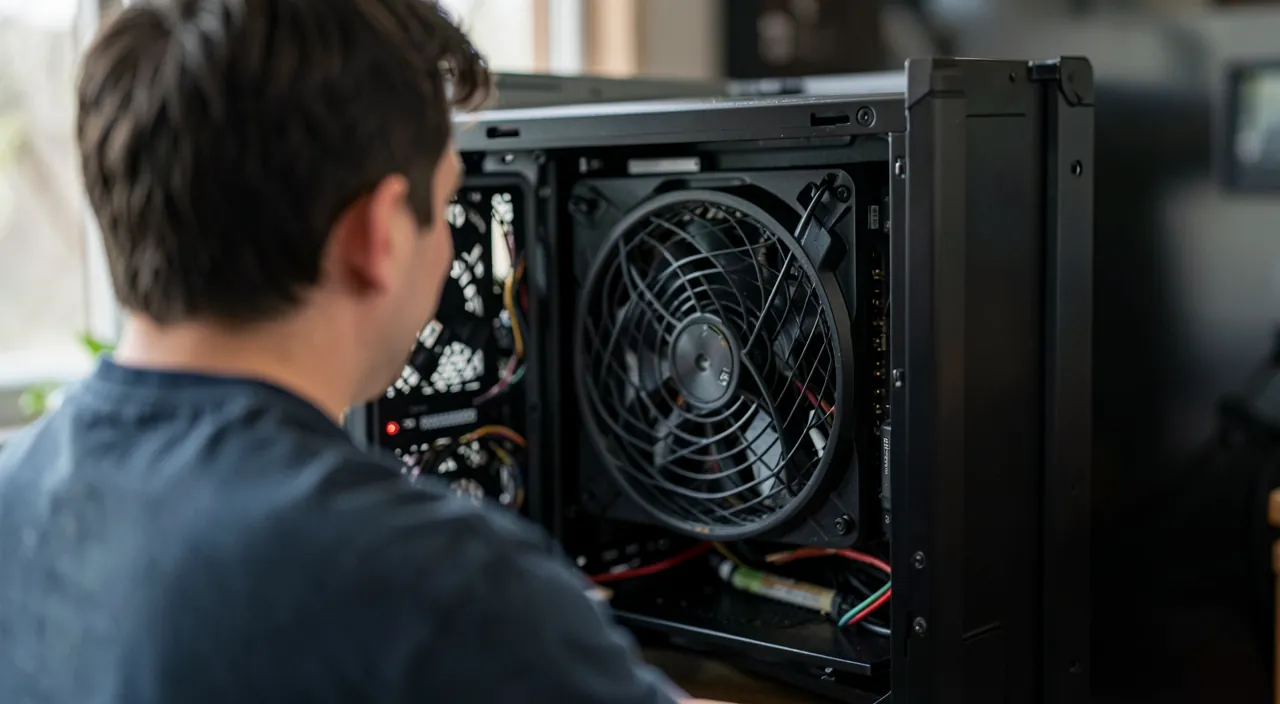
Because the device HEATS UP and the fan spins faster to cool it down: that’s its role. Common causes: significant EFFORT (resource-hungry software, gaming, editing, updating, too many open tabs); hindered COOLING (blocked vents—laptop on a bed or cushion—, or clogged dust grilles); ambient HEAT; or a worn fan. It’s often benign: a fan that whines during heavy work then quiets down is normal. To reduce the noise: place the device on a hard, flat surface (vents clear), clean air grilles (device off, can of compressed air in short bursts), close unnecessary software, restart, and keep it away from heat sources. If the fan remains spinning fast despite these steps, or is accompanied by excessive heat and sluggishness, have the cooling system checked.
Clicks are coming from my computer, is it serious?
It depends on the type of clicks, but caution is advised. Repeated dry clicks from the hard drive, especially accompanied by sluggishness or blockages, can signal a DISK failure: this is the most serious signal. In this case, the absolute priority is to IMMEDIATELY back up your data to another medium before anything else: a clicking disk can fail at any moment. Do not delay this backup. Next, have the device diagnosed: a professional will confirm the state of the disk and replace it if necessary. Note: not all computers have a mechanical hard drive (SSD drives, more recent, do not have moving parts and do not click)—if your device is recent, the noise may come from elsewhere (fan). But at the slightest doubt about disk clicks: back up urgently, then have it checked.
How can I reduce the noise without being an expert?
Several simple gestures often suffice. Let the device BREATHE: place a laptop on a hard, flat surface (never on a bed, cushion, or blanket that blocks vents), and clear the surrounding space for a desktop. CLEAN the air grilles (device off, can of compressed air in short bursts): on an uncleaned device for a few years, the effect is often spectacular. LIGHTEN the load: close unnecessary software and tabs, identify an abnormally consuming program, and restart (this often quiets a spinning fan). KEEP the device away from heat sources and direct sunlight. These gestures resolve the vast majority of cases, which most often come from hindered cooling or a temporary effort, without needing to disassemble anything. If the noise persists despite these steps, is excessive and constant, or is accompanied by heat or sluggishness, a professional can thoroughly clean or replace a worn component.
What to remember
A noisy computer should neither panic nor be ignored: the noise is a SIGNAL that reveals what is happening inside, and its type points towards the cause. The CONTINUOUS fan whine (most common) signals that the device is heating up and trying to cool itself: this is generally benign, especially during effort (gaming, editing, updating) followed by a return to normal. Common causes: hindered cooling (blocked vents, dust), significant effort, ambient heat, wear. Simple GESTURES often resolve the issue: let the device breathe (hard, clear surface—never on a bed or cushion), clean air grilles (device off, can of compressed air—often spectacularly effective), lighten the load (close unnecessary software, restart), and keep it away from heat. But be alert to noises that should alert you: REPEATED DRY clicks from the hard drive (especially with sluggishness) can signal a failure—immediate priority is to IMMEDIATELY back up your data; noises of rubbing or creaking indicate a worn fan; coded beeps at startup, a hardware issue; and a noise accompanied by excessive heat or crashes justifies a diagnosis. Never block vents, ignore overheating, or disassemble the device without knowing (confine internal cleaning to a professional). Listen to what the noise says, act simply on the mundane (hindered cooling, temporary effort), back up urgently at the slightest disk click, and consult a professional for persistent noise, wear, or overheating: this approach preserves your device and data.
Persistent failure, capricious device? Our remote troubleshooting service resolves your problem quickly, no jargon.
Leave a Reply
You must be logged in to post a comment.