
You turn on your computer, it seems to boot — the fan spins, lights come on — but the screen remains stubbornly black. This **problem**, as worrying as it is common, does not necessarily mean a serious failure. In many cases, the cause is identifiable and the solution within your reach. This guide accompanies you methodically to diagnose a black screen on startup and restore the display.
Observe the situation carefully
A « black screen » covers several scenarios. Does the computer actually turn on (noise, lights), or does nothing happen? Is the screen completely black, or does it show a very faint glow? Is there a message, even brief, before the blackout? These **observations** guide the diagnosis: a computer that doesn’t turn on at all, a faulty screen, or a display issue are different cases requiring different solutions.

Check the screen and connections
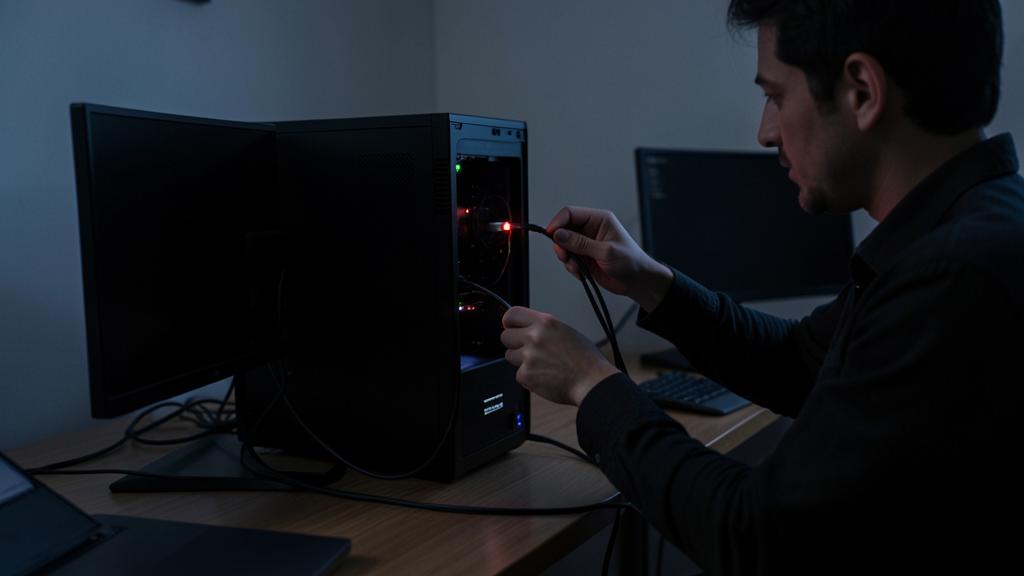
If the computer seems to boot properly but the screen stays black, the issue often lies with the display itself. On a desktop, check the cable between the screen and the tower, test another cable or another screen, and ensure the screen is on and set to the correct source. On a laptop, a tip: hold a lamp up to the screen; if you can make out a very faint image, the backlight is the issue.
The right reflex. Try a « power reset »: turn everything off, unplug the power (and remove the battery if it’s removable), hold the power button for about 30 seconds, then turn it back on. This clears residual electricity and resolves a surprising number of black screens on startup.

If your computer starts but the screen stays black, the problem is usually with the display itself, not the computer. Check the cables, try another screen, or test the backlight to see if it’s working.
Imagine your desktop PC turns on but the monitor stays black. You check the HDMI cable and realize it’s loose. Tightening it fixes the issue immediately. This shows how a simple connection problem can cause a black screen.
Unplug peripherals
A connected peripheral can sometimes block startup and cause a black screen. Unplug everything that’s not essential — USB keys, external drives, secondary screens — and try restarting with the bare minimum. If the display returns, reconnect the devices one by one to identify the culprit. This simple method effectively isolates a faulty peripheral.
When the system is the issue
If the screen turns on, briefly shows something, then goes black before reaching the desktop, the issue is likely software-related. The system may be stuck, or a faulty display driver. Booting in safe mode, or letting the system attempt automatic repair after multiple failures, often restores the situation. In these cases, your data is usually intact: that’s reassuring.

Watch out. A black screen accompanied by repeated beeps on startup, or unusual noises, may indicate a hardware issue (memory, graphics card). These signals justify having the machine checked rather than persisting: note the number and rhythm of the beeps, as this information helps with diagnosis.
Laptop or desktop: specific checks
The diagnosis varies depending on the machine. On a desktop: check that the screen is set to the correct input source (the screen’s own menu), test another video cable — faulty cables are a major cause — and if the tower has two video outputs (graphics card and motherboard), try the other one: a poorly seated or faulty graphics card can be bypassed this way. On a laptop: try connecting an external screen — if it displays, your machine is running and only the built-in screen (panel, cable, backlight) is the issue, a common repair; also try the key combination that toggles between screens, sometimes activated by mistake. These targeted checks prevent wrongly suspecting the entire machine when only the display is failing.

Frequently asked questions
My computer turns on but the screen stays black, is it serious?
Not necessarily: it’s often a display issue (cable, screen, driver) rather than a machine failure. Your data is usually intact.
How do I know if it’s the screen or the computer?
On a desktop, test another screen: if it works, your screen is the issue. On a laptop, the lamp trick reveals a backlight problem.

The external screen displays but the laptop screen doesn’t: is it serious?
It’s actually rather reassuring: the machine is working, your data is safe — only the built-in screen is the issue (cable, panel, or backlight). The repair is common and far less costly than replacing the machine.
What to remember
A black screen on startup is not a disaster. First, observe the situation carefully, then check the screen and its connections, try a power reset (often effective), and unplug peripherals to isolate a potential culprit. If the display starts then cuts out, the issue is likely software-related, and your data is usually safe. Stay alert for beeps and unusual noises, signs of a hardware issue to be checked. In most cases, one of these steps restores the display.

Persistent black screen? Quick diagnosis by our team.
Leave a Reply
You must be logged in to post a comment.