
Remembering a strong and unique password for each of your dozens of accounts is humanly impossible. Result: you reuse the same ones, choose weak passwords, or write them down on scraps of paper. The password manager solves this puzzle in one go: it generates, stores, and fills in your passwords for you, securely. This guide explains how to install and use one, even starting from scratch.
The problem it solves
The security of your accounts relies on strong and unique passwords. But managing dozens of them from memory is unrealistic. You end up reusing the same one everywhere — the most dangerous mistake, as a single leak then compromises all your accounts. The password manager breaks this vicious cycle: it remembers everything for you, and you only have one very strong password to memorize.
How it works
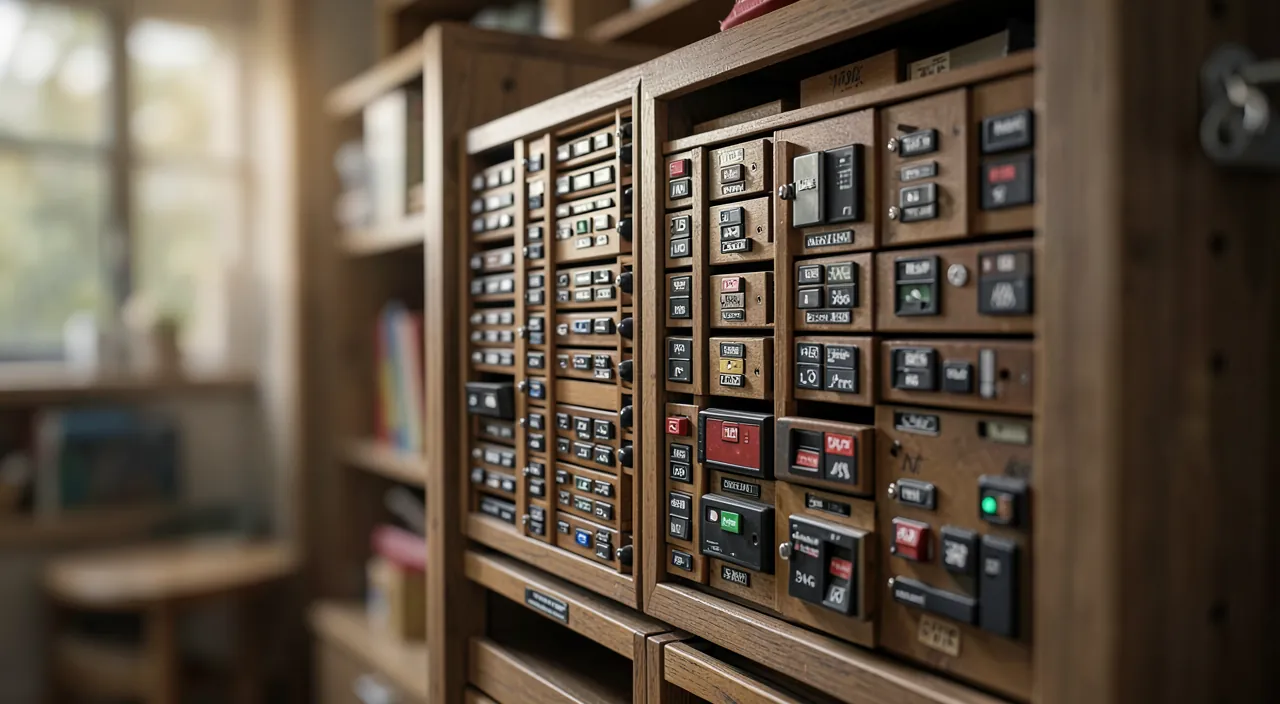
A manager is an encrypted digital safe. It generates complex and different passwords for each account, stores them securely, and automatically fills them in when you log in. To access this safe, you only need one master password — the only one you have to remember. Everything else is managed for you, securely and without memory effort.
A password manager is like a digital vault. You only need one strong password to open it, and it keeps all your other passwords safe inside. No need to remember dozens of them!
Imagine you use a password manager like Bitwarden. When you log into your bank account, the manager fills in a 20-character random password it generated for you. If your email password is leaked, your bank account stays safe because they use different passwords.
The right reflex. Pay special attention to your master password: it’s the key to your entire safe. Choose a long, unique, and memorable passphrase, and enable two-factor authentication on the manager itself. This unique protection must be the strongest of all.
Install and get started
- Choose a serious and reputable manager on your devices.
- Create a strong and memorable master password: the only one to remember.
- Import or add your existing accounts one by one.
- Let it generate strong passwords for your new accounts.
Getting into the habit
At first, you add your accounts gradually, with each login. In a few weeks, most are recorded, and automatic filling becomes a comfortable reflex. It’s also a chance to replace your old weak or reused passwords with strong and unique ones generated by the tool. Little by little, your overall security improves without memory effort.
To anticipate. Never lose your master password: it’s the only key to your safe, and it’s usually not recoverable for security reasons. Write it down in a safe offline place at the beginning, and set up the recovery options offered by the manager.
Smooth migration: your first week
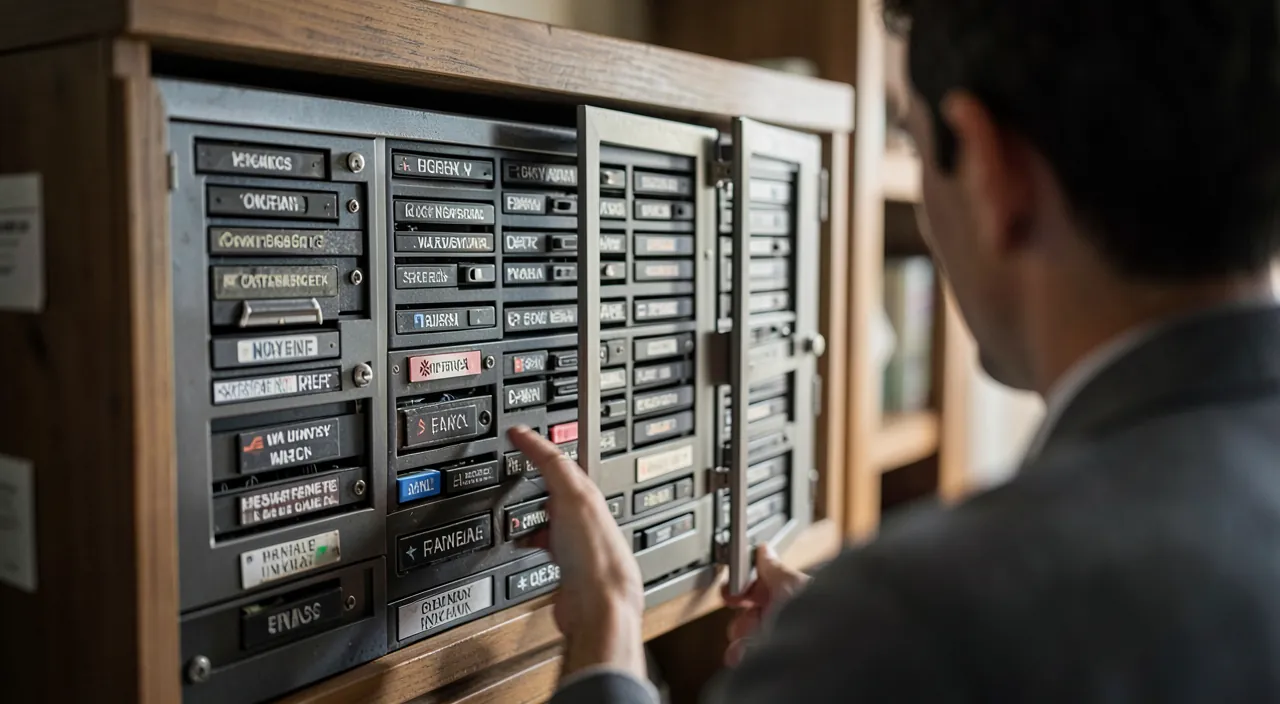
Don’t try to migrate everything at once — that’s the best way to give up. Day 1: install the manager, create your master phrase, note it temporarily in a safe place, and enable two-factor authentication. Days 2-3: save your five critical accounts (bank, main email, key networks) — and take the opportunity to replace their passwords with generated, strong, and unique versions. The rest of the week: let life take its course — every time you log into a site, the manager offers to save it; accept, and replace the password if it was a duplicate. In a month, most of your digital life is migrated, without a single tedious session.
Frequently asked questions
Is it really safe to centralize everything?
Yes, much safer than reusing weak passwords. Good managers securely encrypt your data: the real risk is not using one.
What happens if I change devices?
Your passwords sync securely between your devices: you find them everywhere with your master password.
What happens if the manager service shuts down or has an issue?
Serious managers allow you to export your data and keep a local copy usable offline. Best practices: an encrypted export from time to time, and a reputable and long-lasting service rather than the exotic tool of the moment.
What to remember
The password manager is the simplest and safest solution for managing your online security: it generates, stores, and fills in strong and unique passwords for you. You only have one master password to remember — which you must protect especially, with two-factor authentication. Install it, add your accounts gradually, and replace your old weak passwords. In a few weeks, your digital life will be both safer and simpler. It’s one of the best security reflexes there is.
Need help securing your accounts?
Leave a Reply
You must be logged in to post a comment.