
Your laptop, once autonomous all day, now barely lasts two hours? Battery life degradation is a common issue, causing frustration when you’re used to working wirelessly. Don’t worry: between natural wear, adjustable settings, and good habits, there are many ways to preserve and sometimes restore battery life. This guide covers everything.
Understanding battery wear
A battery isn’t eternal: it naturally degrades over time and with charge cycles. This is a normal and inevitable process, not necessarily a sign of a defect. After a few years of daily use, it’s expected that a battery won’t last as long as on the first day. Understanding this prevents unnecessary worry—but doesn’t stop you from acting to slow down wear and optimize what’s left.
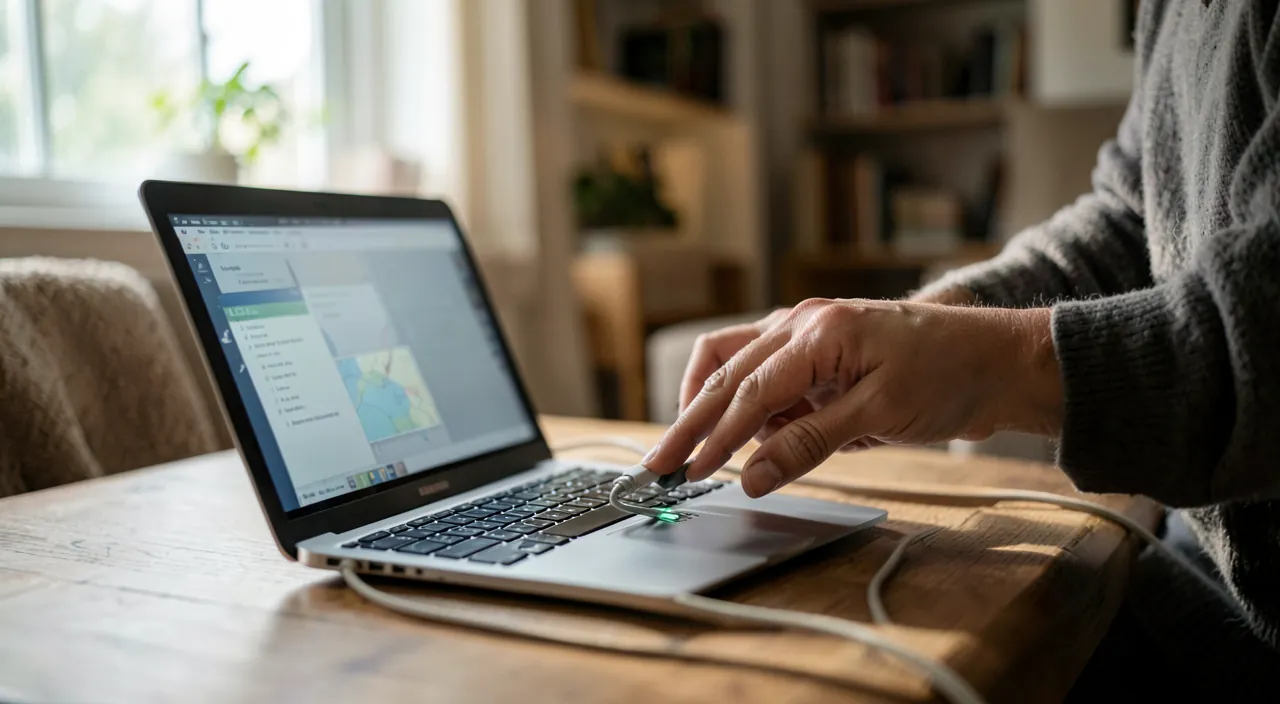
Batteries wear out over time, like shoes after walking. You can’t stop it, but you can slow it down by taking care of them.
A 3-year-old MacBook Pro with 1000 charge cycles might lose 20-30% of its original battery capacity, dropping from 10 hours to 7-8 hours of use.
Settings that save battery life
- Screen brightness: the biggest power consumer. Lowering it significantly extends battery life.
- Battery saver mode: enable it to automatically adjust performance.
- Background programs: closing unnecessary ones eases the battery.
- Wi-Fi and Bluetooth: turn them off when not in use.
The right reflex. Reducing screen brightness is by far the most effective way to gain battery life. The screen is the most power-hungry component of a laptop: a few notches lower can easily add a good half-hour of use.
Good charging habits
Contrary to a common belief, it’s not necessary to fully discharge a modern battery before recharging: doing so actually wears it out more. Partial and frequent charges are better than full cycles. Also avoid extreme temperatures, which damage the battery: neither excessive heat nor intense cold. These simple habits slow down wear and extend battery life by several months, even years.

When battery life suddenly drops
A gradual decline is normal; a sudden and significant drop is less so. It may indicate a program consuming abnormally, a misconfigured setting, or a battery nearing the end of its life. Checking what’s straining the system often reveals an unexpected culprit. If the battery swells, overheats, or shuts down unexpectedly, have it checked immediately—a faulty battery can become dangerous.

Watch out. A swollen battery, deforming the device’s shell, or overheating must be taken seriously immediately: it’s a real risk. Stop using the device and have the battery replaced by a professional. Never attempt to puncture or force a swollen battery.

Frequently asked questions
Can a worn-out battery be replaced?
Yes, on most laptops. It’s often an economical solution to give years of life back to an otherwise high-performing machine.
Should you remove the battery when plugged in?
On modern laptops, it’s neither necessary nor possible for many. Built-in charge management already protects the battery: no need to worry about it.
Key takeaways
A laptop’s reduced battery life combines natural wear and factors you can control. By optimizing settings (brightness first), adopting good charging habits, and monitoring abnormal power consumers, you preserve and optimize battery life. A worn-out battery can also be replaced to extend the machine’s life. Just stay alert for danger signs—swelling, overheating—which require immediate action.
Concerned about your laptop’s condition? Let’s run a diagnostic.
Leave a Reply
You must be logged in to post a comment.