
The printer: the device that always seems to break down just when you need it most. It no longer prints, displays an error, is not recognized, or produces unreadable pages. Although these issues are frustrating, they most often have simple causes and solutions within your reach. This guide reviews the most common problems and how to resolve them systematically.
Start with basic checks
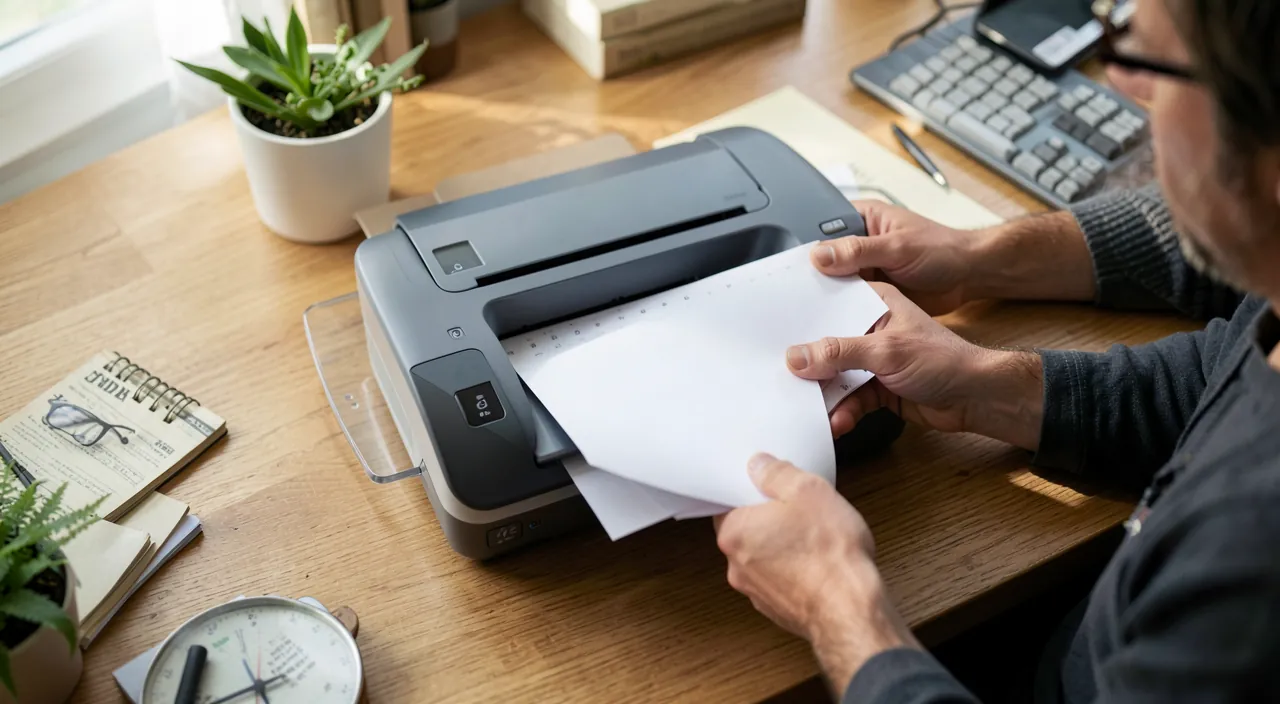
Before suspecting a serious malfunction, rule out obvious causes, which are often responsible. Is the printer properly turned on and connected? Is there paper, correctly placed, without a jam? Is there any ink or toner left? These basic checks resolve a surprising number of issues. People often overlook the obvious and look for complicated solutions: always start with the simple.
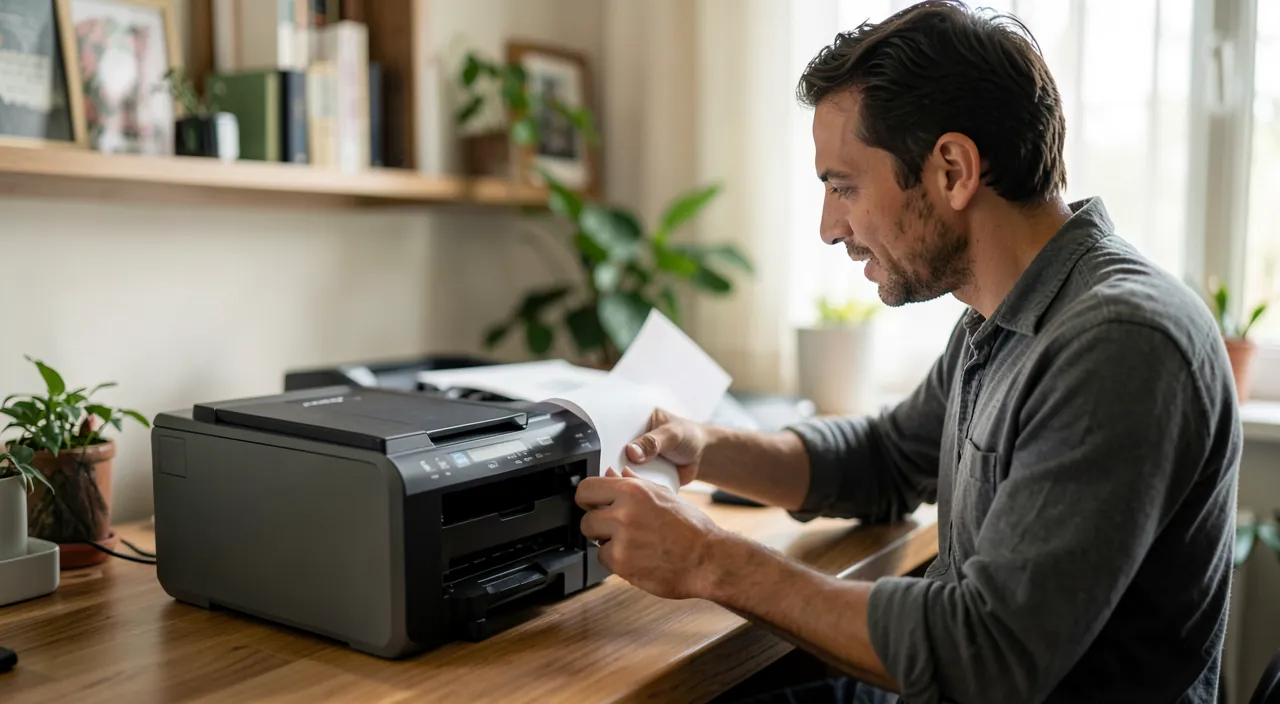
Connection issues
“Printer not found” is one of the most frequent messages. The cause is almost always a connection issue. For a printer connected via cable, check the cable and try another port. For a network or Wi-Fi printer, make sure it is connected to the same network as your computer. A simple restart of the printer and the router often restores communication.
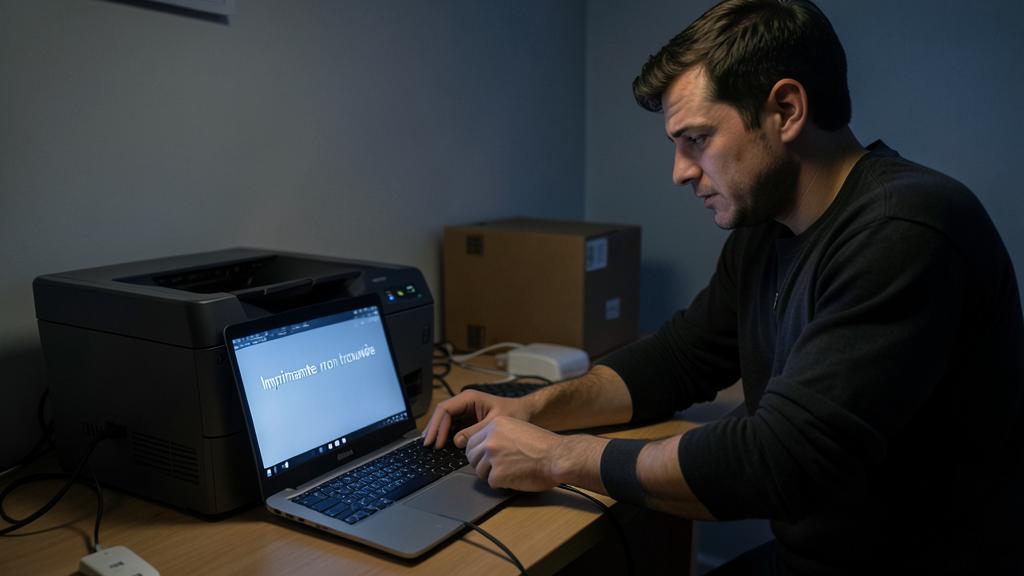
The right reflex. In case of Wi-Fi connection issues, turn off the printer, your router, and your computer completely, then turn them back on in this order: router first, then printer, then computer. This reset solves most communication problems.
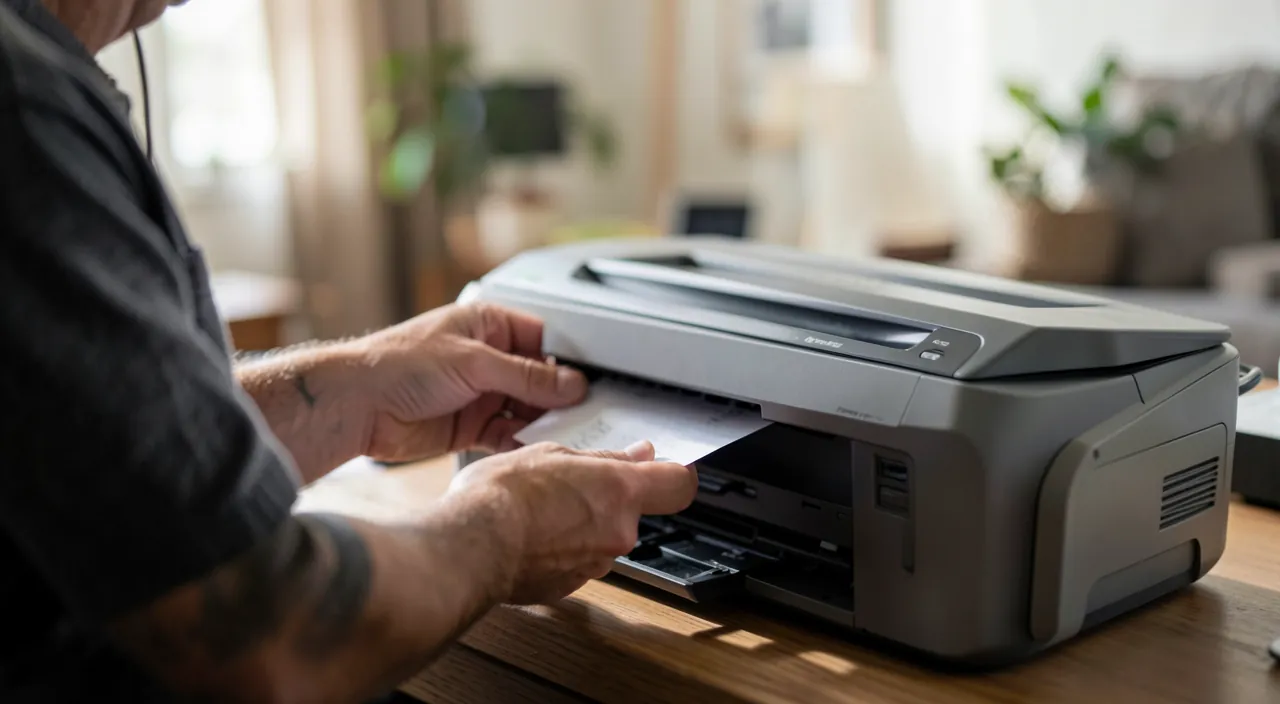
If your printer isn’t found, it’s usually because the connection is broken. Check cables, Wi-Fi, or restart devices in the right order to fix it.
Your HP OfficeJet 8010 shows “Printer not found” on your laptop. You check the Wi-Fi and see it’s on a different network. After reconnecting it to the same network as your laptop, the printer appears and works again.
When nothing prints
The printer seems ready, but nothing comes out? The culprit is often a print queue blocked by a document in error that blocks all subsequent ones. Clearing this queue usually resolves the issue. Also check that the correct printer is selected: sometimes, a document is sent to a non-existent or turned-off printer without realizing it.
Print quality issues
Faded pages, streaks, missing colors, blurry text: these quality defects also have identifiable causes. A low ink level is the first thing to check. Clogged print heads, common in rarely used inkjet printers, can be cleaned via a dedicated function on the printer. Using suitable paper and the right quality settings also significantly improves the result.
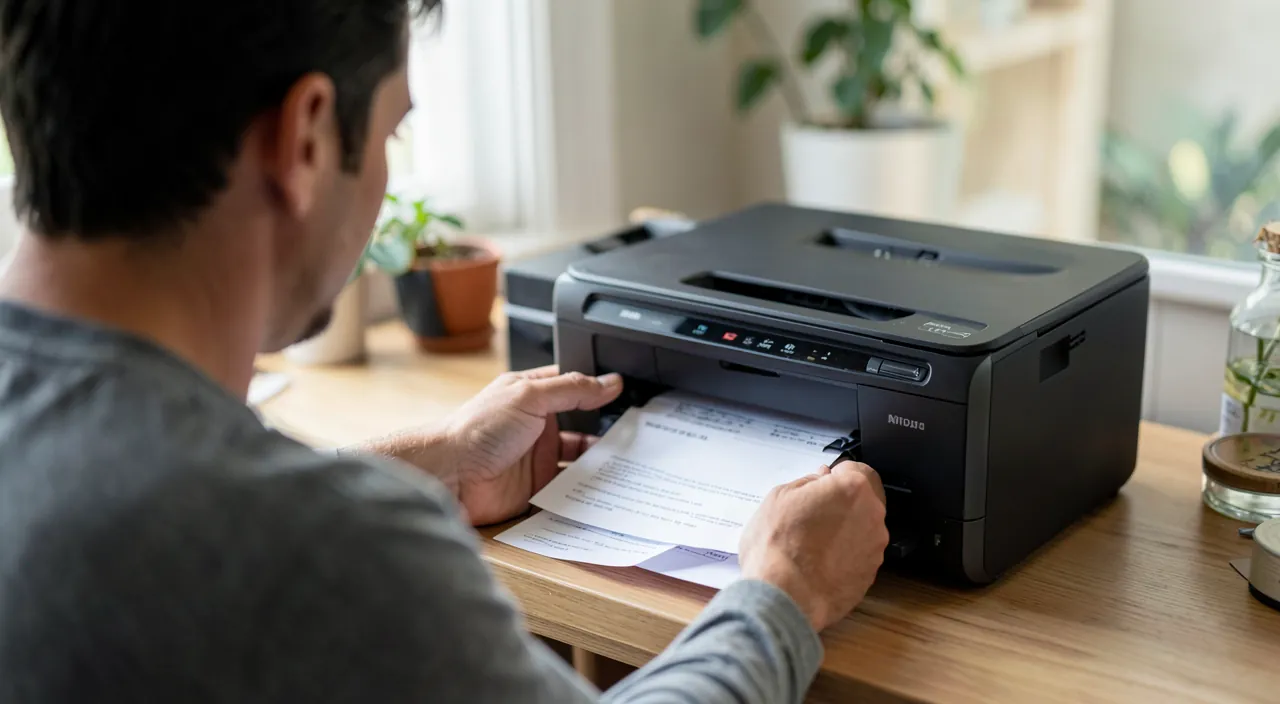
To anticipate. Inkjet printers that are rarely used have their heads clogged as the ink dries. If you print infrequently, run a print job from time to time, even if it’s just a color page, to avoid this costly and troublesome issue.
Frequently asked questions
Should I reinstall the driver?
Sometimes. If the printer is not recognized despite a good connection, reinstalling or updating its driver (the software that makes it communicate with the computer) often solves the problem.
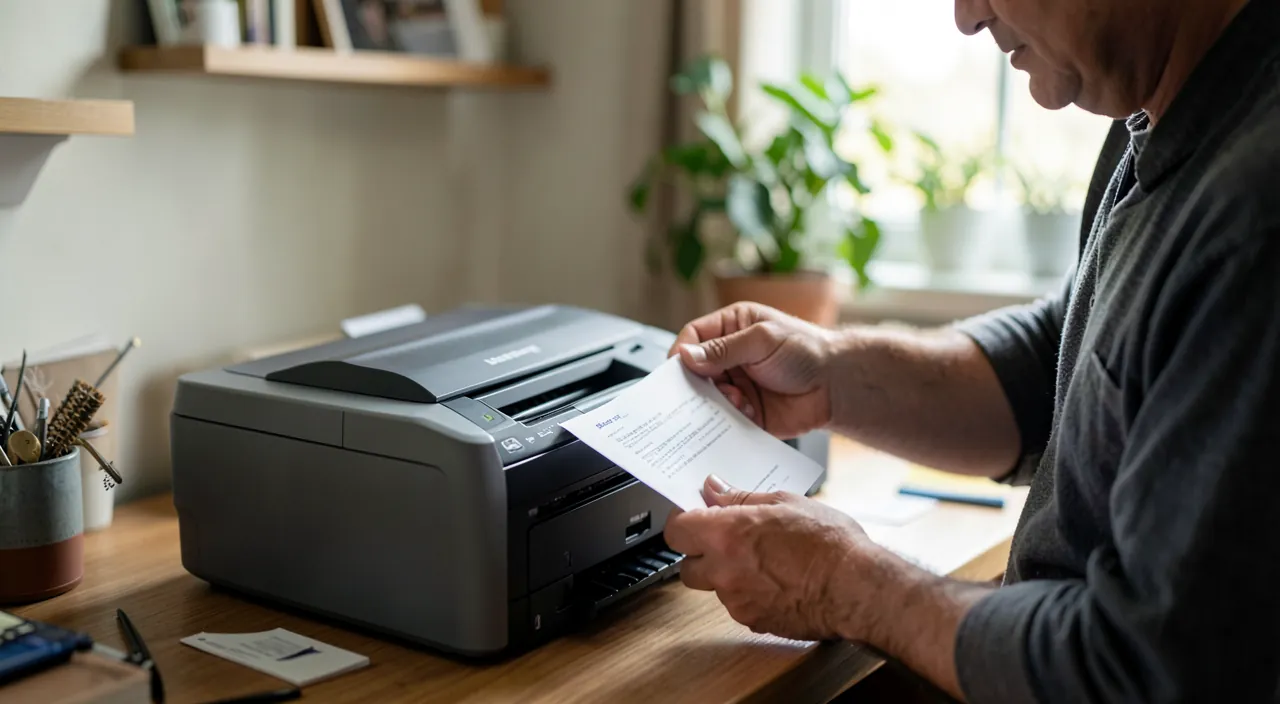
My printer is old, is that the cause?
Not necessarily. A well-maintained old printer can last a long time. However, check that it remains compatible with your system after a major update.
Key takeaways
Printer malfunctions, as annoying as they may be, are most often easily resolved: start with basic checks (power, paper, ink), address connection issues with an orderly restart, clear the print queue if nothing prints, and maintain the print heads for quality. Even minimal regular use prevents many issues. If the problem persists after these steps, a more in-depth diagnosis will help identify the cause.
Your printer acting up? Let’s get it back on track.
Leave a Reply
You must be logged in to post a comment.