
Keep a confirmation, show a problem to someone, save information on the screen, share a conversation excerpt, annotate an image to explain: the screenshot is one of the most useful gestures in digital—yet many know only the basics or struggle to do it. Capture the whole screen, a part of it, annotate, share: here’s how to take screenshots like a pro, on a computer or a phone, for this daily gesture that you will then do as a reflex.
Capture: basic gestures to know
A screenshot is a PHOTO of what is displayed on the screen, recorded as an image. It is useful in a thousand situations: keeping a record (a confirmation, a ticket, a piece of information), showing a problem (to a repairman, a relative), sharing an excerpt (a conversation, a page), or keeping something that can’t be easily copied. Basic gestures: on PHONE, a button combination (usually a simultaneous press of two buttons—this varies by model) captures the screen instantly; the capture appears, often with the possibility to annotate or share it immediately; on COMPUTER, a dedicated key or key combination captures the screen (this also depends on the system); captures are automatically recorded (in photos on a phone, in a folder on a computer). Beyond capturing the WHOLE screen, modern systems often allow capturing a PART of it (selecting a zone), a SPECIFIC window, or even an entire web page (beyond what is visible, by scrolling). Knowing these options—whole screen, zone, window—allows capturing exactly what is needed, without having to crop later. The screenshot is a simple gesture once you know the combination of your device: after that, you capture instantly, whenever you want to keep or show something. It is one of those gestures that, once mastered, become a reflex as natural as breathing.
A screenshot is a picture of your screen. You can take it on a phone or computer, and it saves everything you see at that moment. It’s useful for saving info, showing problems, or sharing things. The key is knowing the right button combo for your device.
On an iPhone, press the side button and the volume up button at the same time to take a screenshot. On a Windows PC, press the Windows key + Print Screen. On a Mac, press Command + Shift + 4 to capture a specific area.
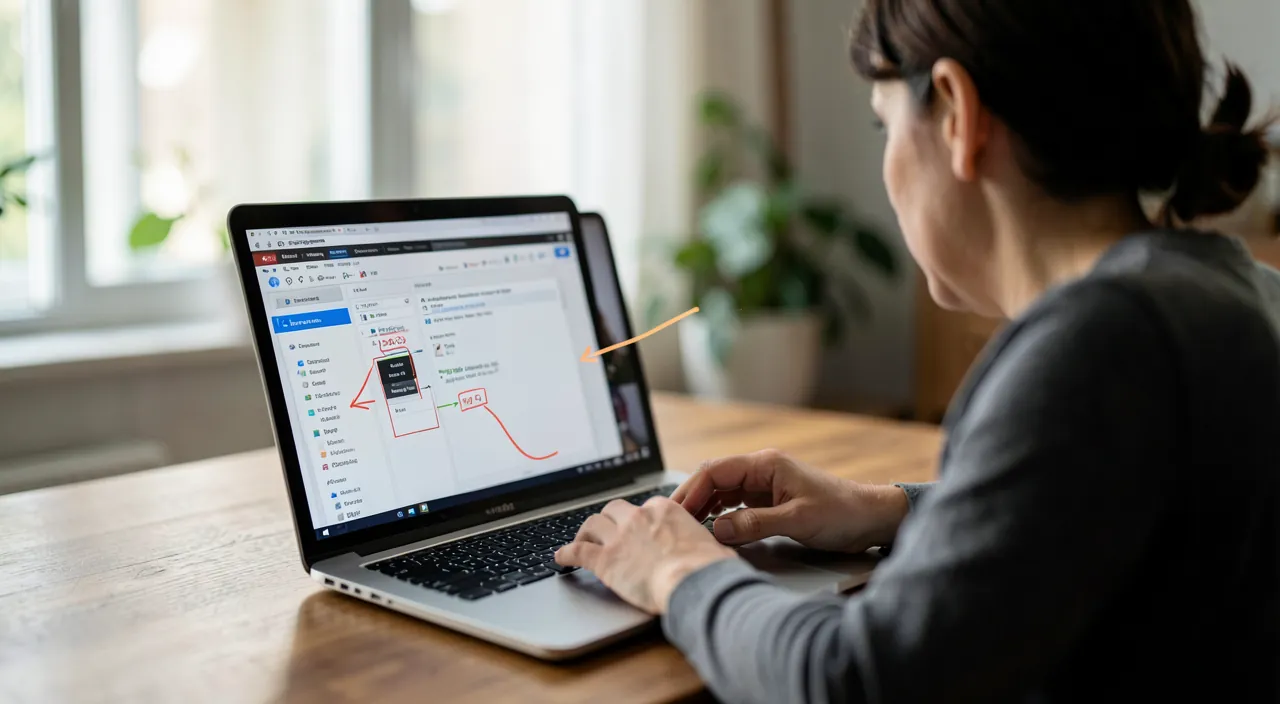
Annotate, crop, and share like a pro
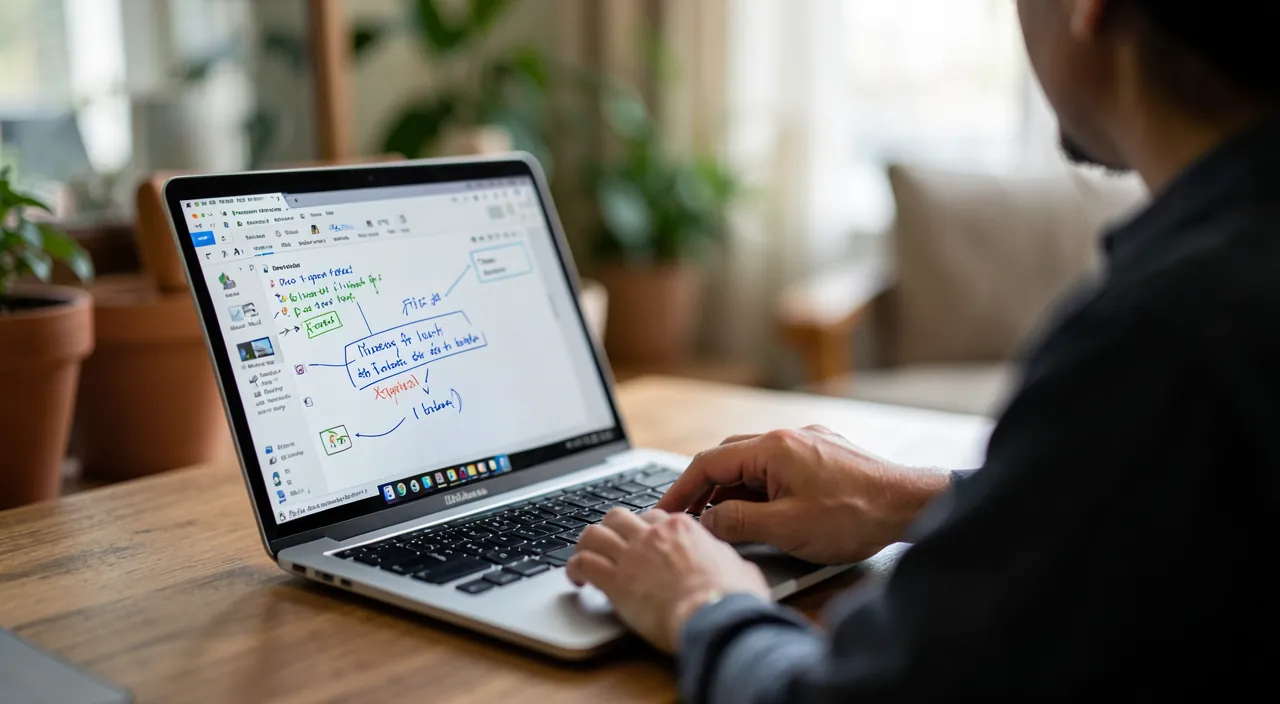
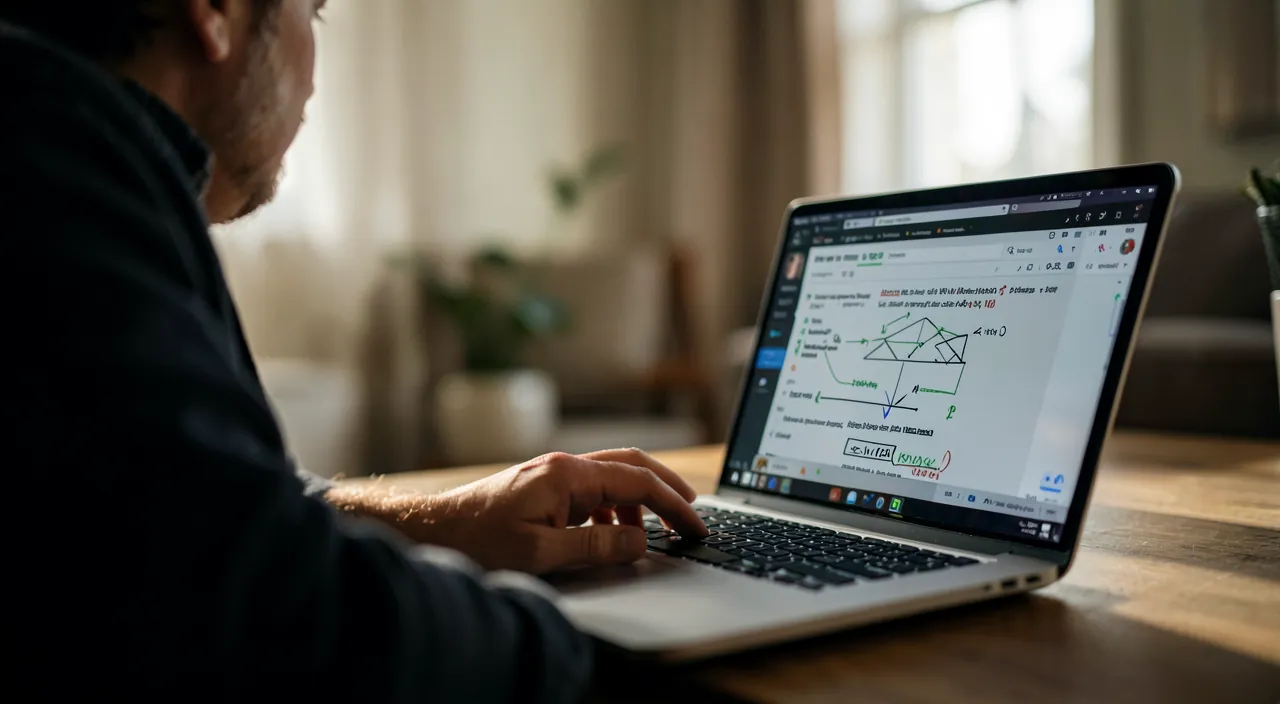
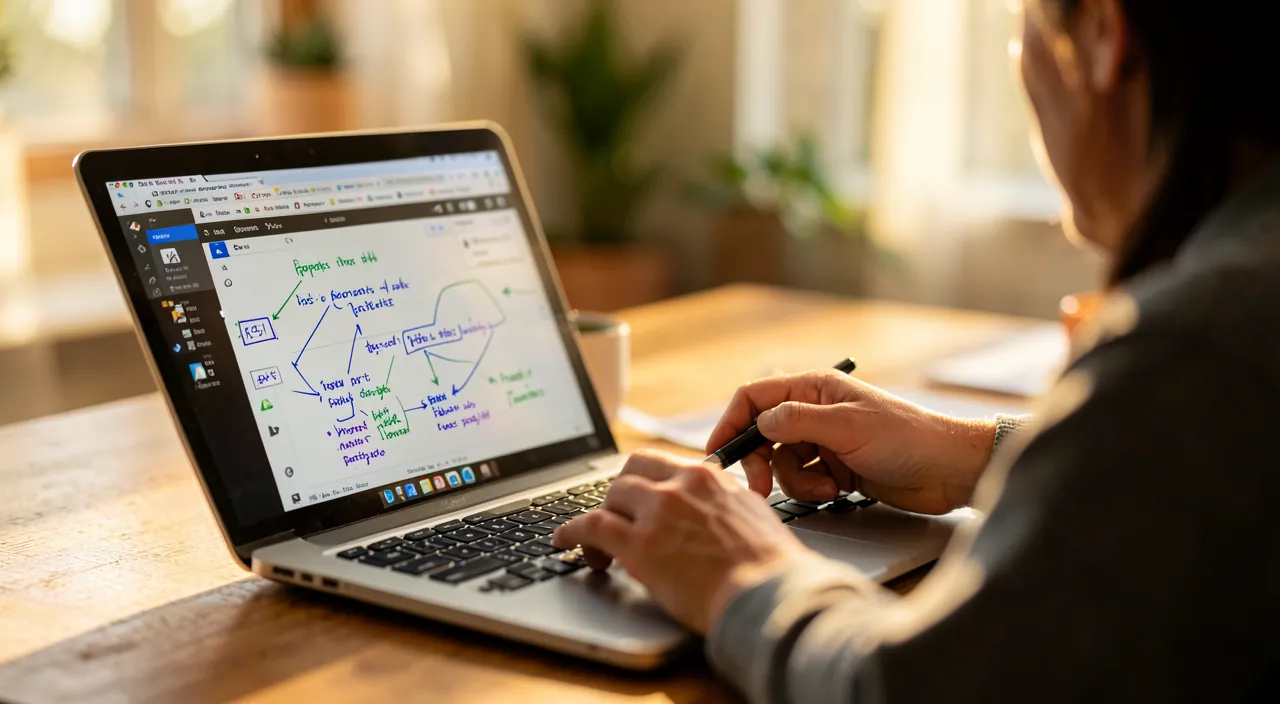
What distinguishes a ‘pro’ screenshot is what is done WITH IT AFTER: ANNOTATE—most systems allow, just after the capture, to draw on it: highlight an element, add an arrow, underline, write text, mask sensitive information (blur or strike out). It is valuable for EXPLAINING (‘look here’, ‘the button is there’) or showing a precise problem (our guides on mastering video calls for the sharing aspect); RE-CROP—to cut the capture to keep only the useful part (instead of the whole screen); SHARE—send the capture directly (by message, email), often in one gesture following the capture preview; and ORGANIZE—the captures accumulate quickly (they go into photos on a phone): think about deleting those that are no longer useful, to not clutter your gallery (our guides on organizing your photo library). Professional use cases: showing a technical problem to someone (capture the error message and highlight it), explaining a process (capture and annotate the steps), keeping a proof (a confirmation, an exchange), sharing information (a precise excerpt rather than a long copy-paste). A well-done screenshot—cropped to the essentials, annotated to guide the eye, with sensitive information masked—is worth a thousand explanations. Some TIPS: to show a problem to a repairman, an annotated screenshot is much clearer than a long description (our guides); for sharing, crop to the useful; and don’t forget to MASK sensitive information before sharing (see below). Mastering these gestures—capturing the right zone, annotating, cropping, sharing—makes the screenshot a powerful communication tool, not just a photo of the screen. It is what transforms a basic gesture into a truly useful reflex in daily life.
The right reflex. Get into the habit of ANNOTATING your screenshots before sharing them: most systems allow, just after the capture, to draw on it—highlight the important element, add an arrow, underline. An annotated screenshot guides the eye and is worth a thousand explanations: to show a problem to a repairman or a relative (‘look at this error message’, ‘the button is there’), an annotated screenshot with the element highlighted is infinitely clearer than a long description. Also CROP ON THE ESSENTIAL (keep only the useful part instead of the whole screen), and especially—this is crucial—MASK sensitive information before sharing: a screenshot shows EVERYTHING that was on the screen when it was taken (a private notification, a number, a personal data, an address), and it is easy to forget that you are sharing more than you think. Always check what your screenshot contains before sending it, and blur or bar what should not be seen. Finally, regularly DELETE screenshots that are no longer useful (they accumulate quickly in your photo gallery). With these habits—annotate to guide, crop on the essential, mask the sensitive, clean up later—the screenshot becomes a powerful and secure communication tool, much more than just a photo of the screen.
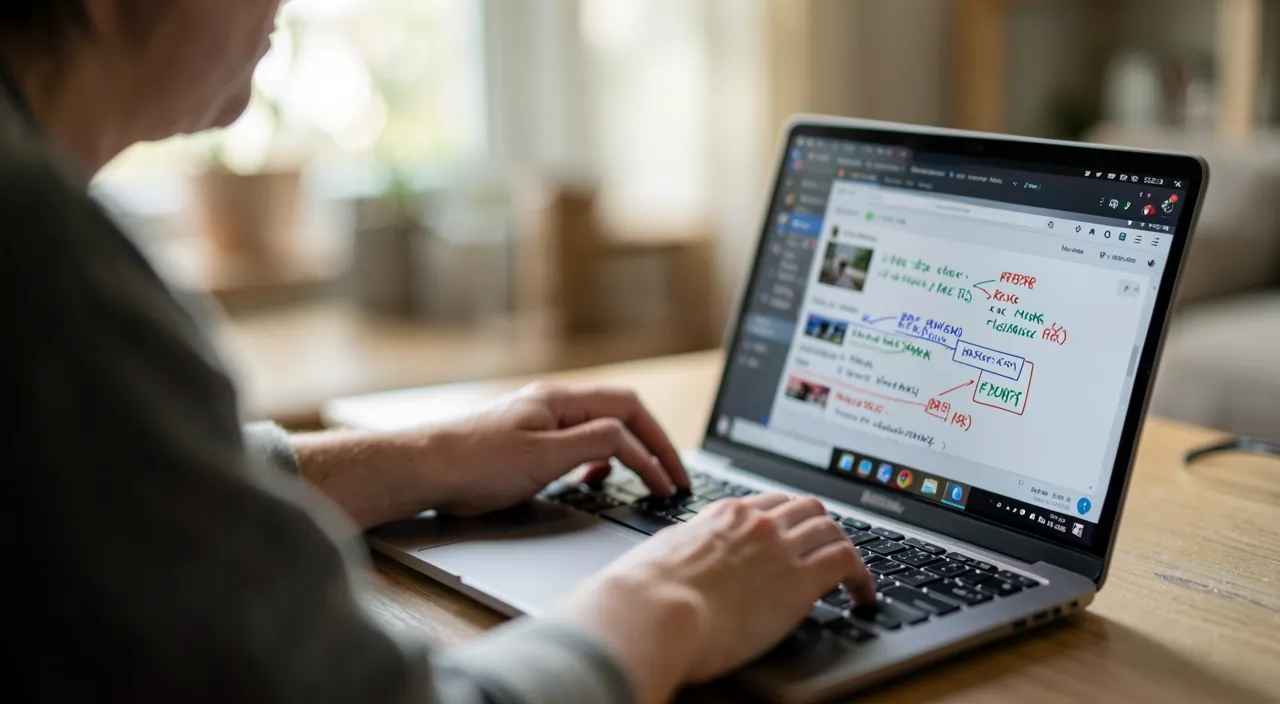
Screenshot and privacy
An important point of vigilance, often neglected: the PRIVACY of the screenshots. A screenshot shows EVERYTHING that was on the screen at the moment it was taken—and it is easy to share, without thinking, more information than you realize—a private notification at the top of the screen, a phone number, an address, personal or financial data, a conversation element, banking information. Before sharing a screenshot, always CHECK what it contains, and MASK (blur, strike out, crop) the sensitive information that should not be seen by the recipient (our privacy guides). Also be careful with screenshots of CONVERSATIONS or content of OTHER people: sharing a screenshot of a private exchange exposes the other person’s words; think about what that means (respecting others’ privacy). On the STORAGE front, screenshots accumulate in your photos and may contain sensitive information: sort and delete those that are no longer useful (our guides on organizing your photo library). And remember that in a PROFESSIONAL context, a screenshot can reveal confidential information (a document, a work screen): be careful about what you capture and share. In summary, the screenshot is an extremely useful daily gesture: keeping a record, showing a problem, sharing an excerpt, explaining with annotations. Basic gestures (a button combination or key on your device) are simple to know; options (whole screen, zone, window) allow capturing exactly what you want; and the ‘pro’ comes from what you do after (annotate to guide, crop on the essential, share). The key point of vigilance: privacy—a screenshot shows everything that was on the screen; always check its content and mask the sensitive before sharing, respect others’ privacy in screenshots of conversations, and regularly clean up your accumulated screenshots. With these habits, the screenshot becomes a powerful and secure communication tool, a reflex gesture that simplifies your daily life.
Screenshots capture everything on your screen, including private details. Always check before sharing to avoid exposing personal or sensitive information. Blur or crop anything you don’t want others to see.
Imagine you take a screenshot of a banking app to show a friend a transaction. If your phone number or account details appear at the top of the screen, you must blur them before sharing to protect your privacy.
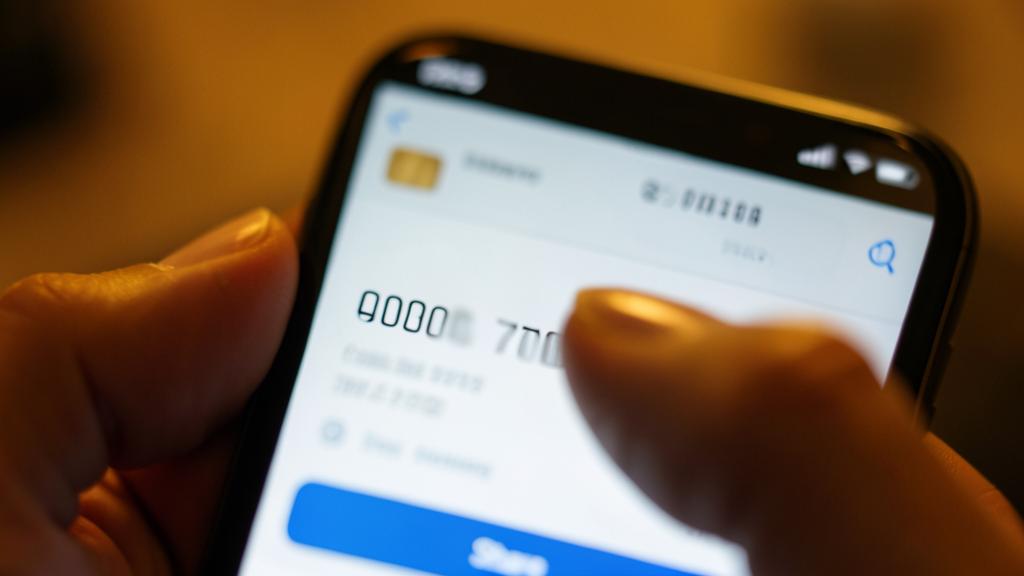
Be careful: a screenshot shows everything that was on the screen—check and mask the sensitive before sharing. This is the essential point of vigilance, often neglected: a screenshot records the entirety of what was displayed at the moment you took it, and it is easy to share, without thinking, more information than you realize—a private notification at the top of the screen, a phone number, an address, personal or financial data, a conversation element. Before sharing a screenshot, always CHECK what it contains, and MASK (blur, strike out, or crop) the sensitive information that should not be seen by the recipient (our privacy guides). Also be careful with screenshots of CONVERSATIONS or content of OTHER people: sharing a screenshot of a private exchange exposes the other person’s words; respect others’ privacy. In a professional context, a screenshot can reveal confidential information (a document, a work screen): be careful about what you capture and share. Finally, screenshots accumulate in your photos and may contain sensitive information: sort and delete those that are no longer useful (our guides on organizing your photo library). The screenshot is an extremely useful tool; its only real vigilance is privacy: always check the content, mask the sensitive before sharing, respect others’ privacy in screenshots of conversations, and regularly clean up your accumulated screenshots. A simple and powerful gesture, provided you are careful about what you show.
Frequently asked questions
How do I take a screenshot?
It depends on your device. On PHONE, a button combination (often a simultaneous press of two buttons—this varies by model) captures the screen instantly; the capture appears, often with the possibility to annotate or share it. On COMPUTER, a dedicated key or key combination captures the screen. Captures are automatically recorded (in photos on a phone, in a folder on a computer). Beyond capturing the whole screen, one can often capture a PART (select a zone), a WINDOW, or even an entire web page. Once the combination of your device is known, the capture is done in an instant. It is a simple gesture that quickly becomes a reflex for keeping or showing something on the screen.
Can I annotate and crop my screenshots?
Yes, and this is what makes a screenshot really useful: most systems allow, just after the capture, to ANNOTATE (highlight an element, add an arrow, underline, write, mask information) and to RE-CROP (keep only the useful part). An annotated screenshot guides the eye and is worth a thousand explanations: to show a problem to a repairman or explain a process, highlighting the important element is much clearer than a long description. Cropping allows sharing just the essential. These gestures—annotate, crop—transform a simple photo of the screen into a precise communication tool. Just remember to mask sensitive information before sharing (a screenshot shows everything that was on the screen).
Is there a risk in sharing screenshots?
The main risk is PRIVACY: a screenshot shows everything that was on the screen at the moment you took it, and it is easy to share, without thinking, more than you realize—a private notification, a number, an address, sensitive data. Before sharing, always CHECK what the screenshot contains, and MASK (blur, strike out, or crop) the sensitive information (our privacy guides). Also be careful with screenshots of CONVERSATIONS or content of OTHER people, which expose their privacy. In a professional context, a screenshot can reveal confidential information. The screenshot is a very useful tool; its only real vigilance is to check its content and mask the sensitive before sharing, and to respect others’ privacy.
What to remember
The screenshot is one of the most useful gestures in digital: keeping a record (confirmation, information), showing a problem, sharing an excerpt, explaining with annotations. Basic gestures are simple once known: on a phone, a button combination; on a computer, a dedicated key (this varies by device); captures are automatically recorded. Beyond the whole screen, one can capture a ZONE, a WINDOW, or even an entire web page: knowing these options allows capturing exactly what is needed. The ‘pro’ comes from what is done AFTER: ANNOTATE (highlight, add an arrow, underline—guiding the eye and explaining; an annotated screenshot is worth a thousand words), RE-CROP (on the essential), SHARE (directly), and ORGANIZE (delete those that are no longer useful). Mastering these gestures makes the screenshot a powerful communication tool, not just a photo of the screen. The key point of vigilance: privacy—a screenshot shows everything that was on the screen, and it is easy to share more than you realize (private notification, number, sensitive data); always check the content and MASK the sensitive before sharing, respect others’ privacy in screenshots of conversations, be careful in a professional context, and regularly clean up your accumulated screenshots. With these habits—capture the right zone, annotate to guide, crop on the essential, mask the sensitive, clean up later—the screenshot becomes a powerful and secure communication tool, a reflex gesture that simplifies daily life.
Want to become more proficient with your digital tools? Our personalized training adapts to your level.
Leave a Reply
You must be logged in to post a comment.