
We all know what we should do: unique and strong passwords everywhere, a manager to remember them for us. And yet we procrastinate, because the big day seems like a mountain — changing everything at once, getting lost, getting locked out. Good news: the transition to a password manager happens GENTLY, without breaking everything, starting with the most important. Here’s the progressive, stress-free method to finally take the step — the best security move you can make for yourself.
Why a manager changes everything
The core issue: a human brain can’t remember fifty unique and complex passwords, so we cheat — the same one everywhere, or easy-to-guess variations. Yet it only takes ONE site being hacked for that reused password to open all your other accounts (our data breach guides: that’s how most accounts fall). The manager solves this in one go: it generates and REMEMBERS a unique, long, and random password for each site for you; you only memorize ONE master password (the one that opens the vault). The concrete benefits: autofill (no more typing, no more forgetting), syncing across your devices (the same vault on phone and computer), alerts for weak, reused, or compromised passwords, and organization along the way (credentials, secure notes). What you lose in “I type from memory,” you gain in REAL security and daily comfort. It’s the rare case where safer rhymes with simpler.
A password manager creates a unique, super-strong password for each site, so you only need to remember one master password. This stops hackers from stealing all your accounts if one site gets breached.

The smooth transition, step by step
No need to do everything in one afternoon. The progressive method: 1. Choose your manager — several good options exist (built-in solutions for your system like the keychain, or dedicated multiplatform apps); the key criterion: that it works on ALL your devices; 2. Create a strong and memorable master password — that’s the key to the vault: prioritize a PASSPHRASE (several words, long, personal but not guessable — our passphrase guides), write it down in a safe place until you remember it, and never reuse it anywhere else; 3. Enable autofill in your browser and phone settings; 4. Migrate GRADUALLY — the anti-stress secret: every time you log into a site, let the manager save the credentials, then use the opportunity to REPLACE the old password with a generated one (the manager does it in one click). In a few weeks of normal use, most of your accounts are migrated, without a dedicated day; 5. Prioritize critical accounts — don’t wait for those (see below). This “as you go” approach turns the mountain into a series of painless small steps.
You use a password manager to log into your email (main account) and bank. The manager generates a 20-character random password for each. Now, if a hacker breaches a shopping site where you reused a weak password, your email and bank stay safe.
The right reflex. Start by securing your main email address first — it’s the most critical account of all: whoever controls it can reset passwords for ALL your other services (bank, social networks, purchases) via the infamous “forgotten password.” Give it a unique, strong password generated by the manager, AND enable two-factor authentication on it (our two-factor guides). Then do the bank, and accounts that store your credit card. Once this critical core is locked down, the rest can migrate calmly over time: you’ve already secured the essentials in half an hour.
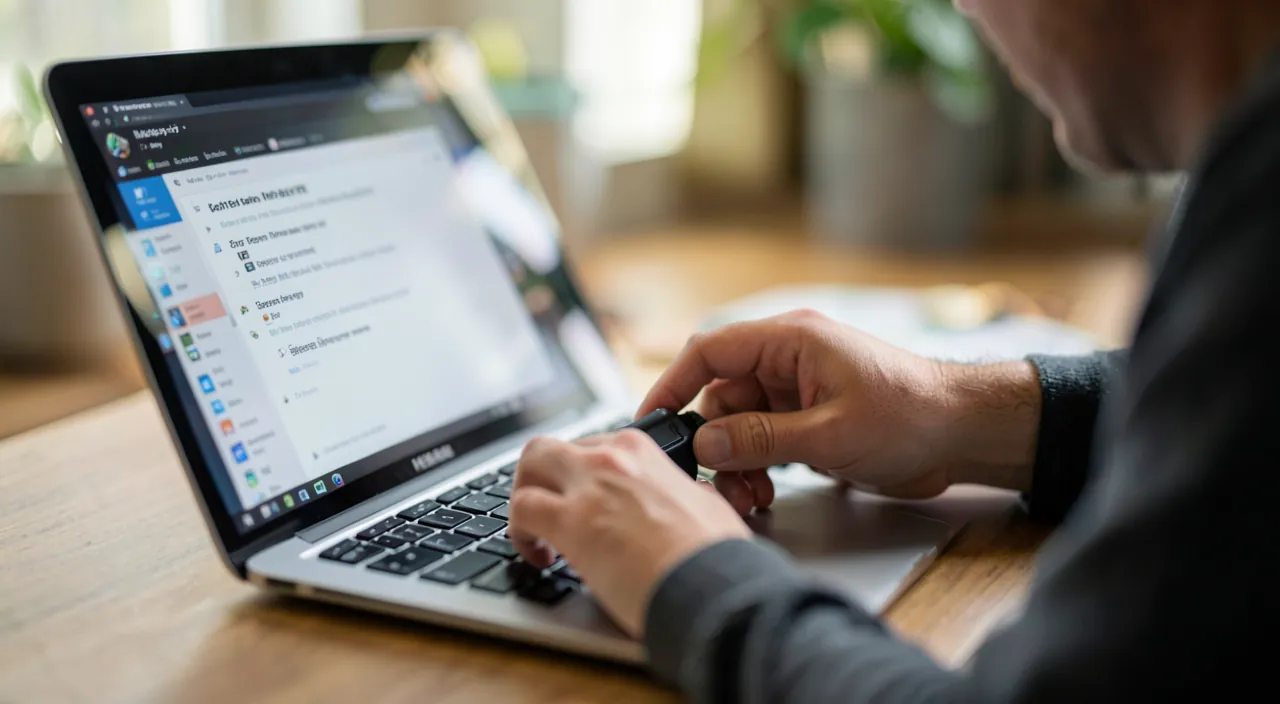
Addressing the last concerns
The objections that block, resolved: “What if I forget the master password?” — hence the memorable passphrase and the recovery key to keep in a safe place (physical safe, paper stored): most managers include a backup procedure, to set up RIGHT AWAY; “Putting all my eggs in one basket, is that wise?” — yes, because the vault is ENCRYPTED (even the publisher can’t read it) and protected by your master password + two-factor authentication: infinitely safer than reusing the same password everywhere, which is the real vulnerability; “What if the service shuts down?” — good managers allow you to EXPORT your data to migrate elsewhere (you’re not locked in); “Is it complicated?” — after a few days, autofill becomes a reflex and you’ll NEVER type a password manually again (the comfort is immediate). One last tip: enable two-factor authentication on the manager itself and on your sensitive accounts (our security guides): vault + double lock, you’re better protected than 99% of internet users.

Warning: the master password and recovery are your two vital points. Two rules never to neglect: the master password must NEVER be reused ANYWHERE else and must never be shared with anyone (not with a site, not with an AI, not by email): it’s the only key to the vault; if it leaks, everything falls. And set up RECOVERY RIGHT AWAY — backup key written on paper in a safe place, emergency contact or method depending on the manager: it’s the safety net that prevents you from losing access if you forget the master (an unbreakable vault whose key you’ve lost remains unbreakable… even for you). Finally, beware of fake “free manager” apps: a password vault is chosen from a serious and recognized player (our security guides). Well configured, a manager is the best daily shield; poorly prepared for recovery, it can lock you out.

Frequently asked questions
Should I change ALL my passwords at once?
No, especially not — that’s what discourages. First secure the critical core (main email, bank, accounts with saved card) immediately, then let the rest migrate AS YOU GO: every time you log into a site, the manager saves the credentials and you replace the old password in one click. In a few weeks of normal use, most are done, without a painful or stressful day. Progressivity is the key to success.
Is the manager built into my phone enough?
For many uses, yes: built-in keychains for systems are secure and practical, especially if you stay within the same ecosystem. A dedicated multiplatform app becomes interesting if you switch between different systems (a phone from one brand, a computer from another) or want advanced features (secure sharing, notes, in-depth audits). The best manager is the one you’ll actually use on ALL your devices — start with the simplest for you.

Is centralizing really safer?
Yes, and by a long shot. The vault is encrypted (unreadable even by the publisher) and protected by your master password plus, ideally, two-factor authentication. The real danger isn’t centralization: it’s REUSING the same password everywhere, which means one leak opens all your accounts (our data breach guides). A single well-protected vault is incomparably safer than dozens of weak and identical passwords. Security comes from uniqueness, which only a manager makes possible.
What to remember
Switching to a password manager is the best daily security move, and it happens GENTLY: one master password to remember (a strong and memorable passphrase), the manager generates and remembers the rest — unique and strong for each site. The stress-free method: first secure the critical core (main email as priority, with two-factor authentication, then bank and card accounts), then let the rest migrate as you go, without a dedicated day. Set up recovery from the start (backup key in a safe place), never reuse or share the master password, and choose a recognized player. In a few weeks, you won’t type a password manually anymore, your accounts will be truly protected, and you’ll sleep better: the rare case where safer is also simpler.


Want to gain confidence with your digital tools? Our personalized training adapts to your level.
Leave a Reply
You must be logged in to post a comment.