
Dark interfaces that dazzle at night, a tiring reading experience in dim light, and a battery that drains quickly? THE DARK MODE — this display on a dark background rather than white — has become standard on all our devices, and for good reasons: more comfortable for the eyes in the dark, more elegant, and sometimes more battery-efficient. Yet, many are unaware of how to activate it, or that it can be programmed automatically based on the time. Here’s how to switch your devices to dark mode on iPhone, Android, Mac, and Windows, and make the most of this feature.
Dark mode: What is it?
Let’s get acquainted with this indispensable feature. DARK MODE (or « dark theme », « dark mode ») is an interface display option that inverts the dominant colors: instead of a light background (white) with dark text — the classic display — you get a dark background (black or dark gray) with light text. It’s a change in APPEARANCE: menus, settings, compatible applications adopt dark tones. Why it’s so popular: it’s more COMFORTABLE for the eyes in low-light environments (at night, in the dark, a white screen dazzles and tires — a dark background is much gentler); it’s often perceived as more ELEGANT and modern; and on certain screens (OLED screens, present on many recent smartphones), dark mode can SAVE battery (as displaying black consumes less than white on these screens). What to understand: dark mode affects the INTERFACE of the system and compatible applications; most modern applications support it and automatically adapt when you activate it; some older or specific applications may not follow. It’s NOT a forced darkening filter: it’s a theme that applications adopt. Two functions not to CONFUSE: dark mode (changes the interface colors) and « Night Shift » / « warm light » / « blue light filter » (which warms the colors towards yellow in the evening to protect sleep); they are two different things, but often used together in the evening (our guides reduce blue light in the evening). Finally, dark mode is a matter of PREFERENCE: some love it everywhere and all the time, others find it less readable during the day; there is no « best » universal choice — that’s why it’s worth being able to activate, deactivate, or program it according to the time, as we will see.
Dark mode swaps light backgrounds for dark ones, making screens easier on your eyes at night. It can also save battery on certain screens and looks sleek. But it’s not magic – some people prefer light mode during the day, and not all apps support it.
How to activate it on each device
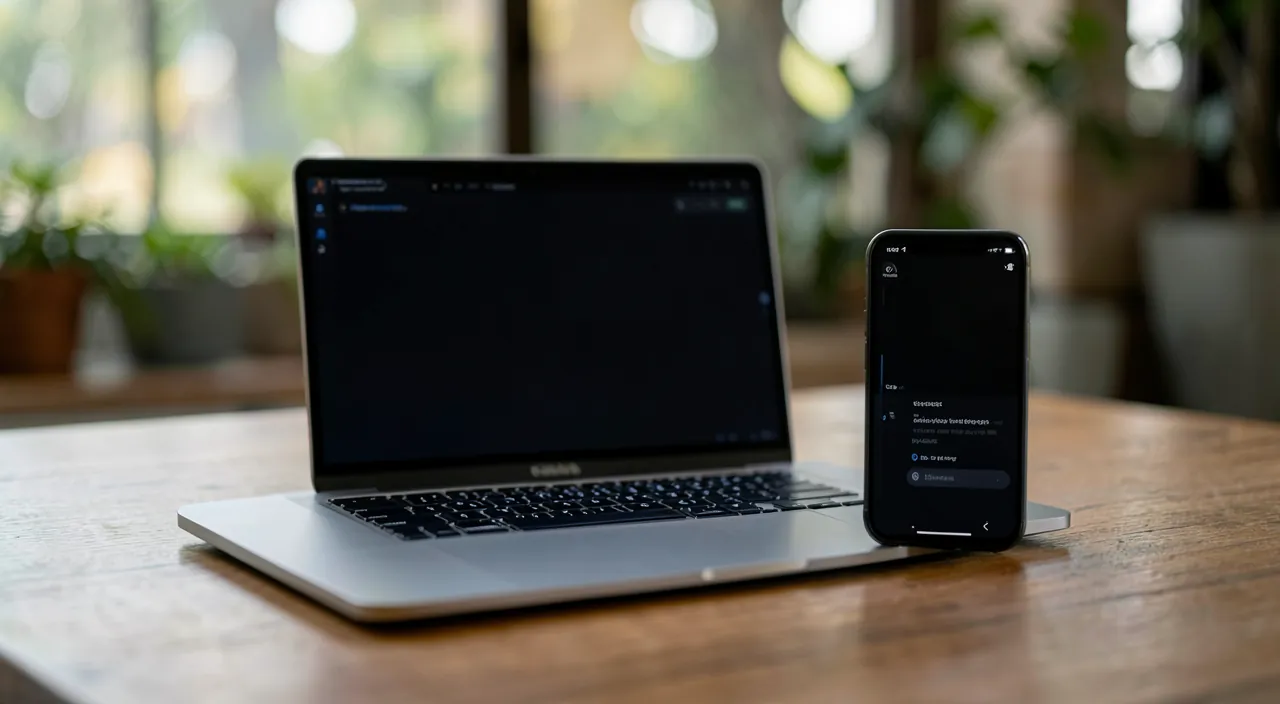
Activating dark mode is simple on all devices: here’s where to find it. On IPHONE (and iPad): Settings → Brightness & Display → choose « Dark » (instead of « Light »); you can also enable the « Automatic » option to switch to dark at sunset and light in the morning; a shortcut often exists in the Control Center (the panel you swipe). On ANDROID: Settings → Display → « Dark Theme » (or « Dark Mode »); you can also program it according to the time; and a quick access button usually figures in the quick settings panel (the scrollable panel at the top). On MAC: Apple menu → System Settings → Appearance → choose « Dark » (or « Auto » to switch according to the time); the change applies instantly to the entire system and compatible applications. On WINDOWS: Settings → Personalization → Colors → « Choose your mode » → « Dark » (you can separately set the Windows mode and the application mode); the interface turns dark. The CHANGE is INSTANTANEOUS and REVERSIBLE: you can switch between light and dark as many times as you want, without any risk; try it and see what you prefer. Most compatible applications automatically follow the system setting: activate dark mode at the system level, and your apps adapt. Some applications have their own theme setting (in their internal settings) and you can sometimes force an app to be in light or dark mode independently of the system: useful if you want dark everywhere EXCEPT in one application (or the reverse). In summary: look for « Display », « Appearance », or « Colors » in your device’s settings, choose « Dark », and you’re done — with the « Automatic » option for a time-based switch, often the most comfortable.
THE BEST SETTING: the automatic mode (light during the day, dark at night). Rather than choosing between light and dark once and for all, most devices offer an « AUTOMATIC » option that combines the best of both: a CLEAR interface during the day (more readable in full daylight, especially outdoors) and a DARK interface at night (more comfortable in low light). The switch happens automatically, usually set to the time of day or to times you define. To activate it: on iPhone, Settings → Brightness & Display → « Automatic »; on Mac, System Settings → Appearance → « Auto »; on Android and Windows, look for the option to program the dark theme according to the time. This is, for many, the ideal setting: you enjoy clarity when it’s light and comfort in the dark when the light fades, without ever having to think about it. To go further in the evening, COMBINE dark mode with the WARM LIGHT filter (Night Shift on Apple, « night light » / « visual comfort » on Android/Windows), which warms the colors towards yellow: these two functions together make the screen noticeably softer in the evening and protect your sleep (our guides reduce blue light in the evening). However, be careful: dark mode is not necessarily ideal for ALL; some find it less comfortable for prolonged reading of long texts or for working on documents (where the classic white background remains a reference). Don’t hesitate to mix it up: automatic mode at the system level, and a specific setting in the rare applications where you prefer the other theme. The goal is your visual comfort, not perfect consistency: set it according to your eyes and your usage, test the automatic mode for a week, and keep what works best for you.
On a Samsung Galaxy S23 with OLED screen, enabling dark mode at 6pm and switching back to light at 7am can extend battery life by 5-10% per day, while also reducing eye strain during evening use.
Comfort, battery: what dark mode really brings
Let’s review the real benefits of dark mode without exaggerating. VISUAL comfort in low light: this is the most tangible advantage; at night, in a dimly lit room or in the dark, a white screen dazzles and tires the eyes, while a dark background is much gentler; it’s particularly appreciated before sleeping, reading in bed, or working late. However, during the DAY, the light mode remains often more readable (especially outdoors, in full sunlight); dark mode is not always better, which is why the automatic mode is useful. BATTERY SAVING: real, but only on OLED screens (present on many recent smartphones and some high-end computers); on these screens, each pixel lights up individually, so displaying black consumes very little; dark mode can thus extend battery life; on classic LCD screens (most computers), the battery saving is negligible (the backlight remains on regardless of the displayed color). AESTHETIC APPEAL: many find dark mode more elegant, more modern, more « pro »; it’s a matter of taste. IDEAS TO DISCUSS: dark mode is not « better for the eyes » in absolute terms; it is more comfortable in the dark, but not necessarily in full light; and it does not replace good habits (taking breaks, adjusting screen brightness according to the environment, reducing blue light in the evening — our guides reduce blue light in the evening). For ACCESSIBILITY: some find the text on a dark background more readable, others the opposite; it depends on each person; devices also offer other settings (contrast, text size) to combine according to needs. In summary: dark mode really brings comfort in the dark and battery savings on OLED screens, with an aesthetic appeal; but it is not universally superior — the automatic mode (light during the day, dark at night) takes the best of both, and the final choice remains a matter of personal preference and context.
CAUTION: dark mode is not magical — and does not replace good habits for your eyes and sleep. Some nuances to avoid false expectations. First, dark mode is NOT necessarily « better for the eyes » in all circumstances: it is more comfortable in the dark, but in full daylight or for reading long texts, many find the light mode more readable; do not impose it everywhere by principle if your eyes prefer something else in context; listen to your real comfort. Second, battery saving is significant only on OLED screens (especially certain smartphones); on a computer or a classic LCD tablet, do not expect a miracle in terms of autonomy: the gain is negligible. Finally, dark mode does NOT REPLACE good habits to protect your eyes and sleep: for VISUAL fatigue, also think about adjusting the SCREEN brightness according to the ambient lighting (a screen that is too bright in the dark fatigues, even in dark mode), taking regular BREAKS (the 20-20-20 rule: every 20 minutes, look away for 20 seconds), and blinking (our guides reduce blue light in front of screens). For SLEEP, dark mode alone is not enough: it is the warm light filter (Night Shift / night light, which warms the colors towards yellow) that reduces the stimulating blue light in the evening; combine the two, and the ideal remains to limit screens before sleeping (our guides reduce blue light in the evening). Finally, do not confuse dark mode and blue light filter: they are two different functions (one changes the interface colors, the other warms the color temperature); both are useful in the evening, but distinct. Dark mode is a pleasant and sometimes battery-saving comfort; it is neither a magic potion for the eyes, nor a substitute for common sense gestures (appropriate brightness, breaks, limiting screens in the evening) which, they really make a difference for your visual well-being and sleep.
Frequently asked questions
Is dark mode really better for the eyes?
It’s more nuanced than often said. Dark mode is more COMFORTABLE in a DIMLY LIT environment: at night, in the dim or dark, a white screen dazzles and tires, while a dark background is much gentler; in this context, yes, it eases eye strain. However, in FULL LIGHT (daytime, outdoors), the light mode is often more readable and comfortable: dark text on a light background stands out better in a bright environment. So, dark mode is not « better for the eyes » in absolute terms: it depends on the lighting context; that’s why the automatic mode (light during the day, dark at night) is useful. Moreover, readability depends on individuals: some read better in light, others in dark. The most important factor for your eyes is not the mode, but the SCREEN brightness, to adapt to the ambient lighting (a screen that is too bright in the dark fatigues, even in dark mode), and regular BREAKS (our guides reduce visual fatigue in front of screens). In summary: dark mode is a real comfort in the dark, but not a universal solution; combine it with appropriate brightness, breaks, and the automatic mode for the best comfort according to the time.
Does dark mode save battery?
Yes, but only on certain screens. On OLED screens (found on many recent smartphones and some high-end computers), the savings are REAL: on this type of screen, each pixel produces its own light, and displaying black amounts to turning off these pixels, which consumes very little; a generalized dark mode can thus extend battery life, sometimes significantly. However, on classic LCD screens (the majority of laptops, monitors, and entry/mid-range tablets), the gain is NEGLIGIBLE: these screens use a backlight that remains on regardless of the color displayed; displaying black or white consumes almost the same. How to know if your device has an OLED screen? Many recent smartphones are equipped with them; for doubt, check the specifications of your model (OLED/AMOLED = possible gain; LCD/IPS = negligible gain). In practice: if battery saving is your main goal, dark mode helps mainly on OLED smartphones; to really gain in autonomy, the most effective gestures remain lowering the brightness and activating the power-saving mode (our guides reduce battery drain on your mobile). Dark mode is a bonus of autonomy on OLED, not a miracle solution on all devices.
Why do some applications remain light despite dark mode?
It’s normal, and there are several explanations. The system’s dark mode applies to the system interface AND to compatible applications that follow this setting; however, not all applications support it. Possible cases: the application is OLD or has not been updated to handle dark mode; it remains in light. The application has its OWN theme setting (independent of the system): in this case, look for an appearance/theme option in its internal settings and set it to « Dark » or « Follow system ». Some applications are deliberately designed in light (or dark) and do not offer the choice. Some contents (a web page, a document) retain their original colors, as they are contents, not the interface; a white document remains white, which is normal (even if some browsers offer an experimental dark mode for web pages). What to do? If an application remains light and it bothers you: first check its settings to see if it offers a dark theme to activate; otherwise, you’ll have to wait for a potential update or accept it. Conversely, if you want an app to remain light while the system is dark, its internal theme setting (if it exists) often allows you to force it. In summary: an application that remains light despite dark mode is either not supporting it or has its own theme setting to adjust in its internal settings; check its settings.
What to remember
Dark mode displays the interface on a dark background with light text instead of the classic white background: more comfortable for the eyes in low light, often perceived as more elegant, and battery-saving on OLED screens. To ACTIVATE it, look for « Display », « Appearance », or « Colors » in the settings: on iPhone (Settings → Brightness & Display → Dark), on Android (Display → Dark Theme), on Mac (System Settings → Appearance → Dark), on Windows (Personalization → Colors → Dark); the change is instant and reversible, and most compatible applications automatically adapt. THE BEST SETTING for many: the automatic mode (light during the day, more readable in full daylight; dark at night, more comfortable in low light), which switches automatically according to the time. At night, COMBINE it with the warm light filter (Night Shift / night light) for an even softer screen. What it really brings: real comfort in the dark, battery savings on OLED screens (negligible on LCD), and an aesthetic appeal; but it is NOT a magic solution: it is not necessarily better for the eyes in full daylight, and it does not replace good habits (appropriate brightness to the environment, regular breaks, limiting screens for sleep). If an application remains light despite everything: it may not support dark mode, or it has its own theme setting to adjust in its internal settings. At the end of the day, dark mode is a matter of PREFERENCE and context: try the automatic mode for a week, adjust according to your eyes and usage, and keep what makes your screen the most comfortable. It’s a small setting that improves visual comfort daily, especially at night.
Want to be more at ease with your digital tools? Our personalized training adapts to your level.
Leave a Reply
You must be logged in to post a comment.