
A tablet, a stylus, and the entire studio fit in a bag: pencils that don’t wear out, watercolor that doesn’t spill, infinite overlays, unlimited undo — and apps that have become so powerful that professional illustrators produce published works with them. But digital drawing isn’t just for artists: it’s one of the most accessible creative hobbies out there, precisely because the tool forgives everything. Here’s a rundown of the key apps, reasonable starter gear, and the tips that take you from scribbling to real progress.
The top apps: each has its own school
The landscape has structured itself around a few references: Procreate (iPad) — the undisputed star: streamlined interface, sumptuous brushes, one-time purchase without subscription — the best pleasure/power ratio for illustration and leisure drawing, from beginners to pros; the creative ecosystem apps (Adobe Fresco and its family) — stunning “living” watercolors and oils, integration with pro tools, subscription logic; the manga and comic specialists (Clip Studio Paint in the lead) — panels, halftones, perspective rules, poseable 3D characters: the tool for comic artists, with endless depth; the serious free options — free and capable apps to try without spending a dime; and vector drawing (clean shapes, infinitely resizable — logos, flat illustrations) that follows a different logic than the “bitmap” drawing of the previous ones. The starting advice: one app, truly learned — Procreate if you’re on iPad and ready for a modest purchase, a free one otherwise — rather than five apps skimmed over: the concepts (layers, brushes, selections) transfer everywhere afterward.
Digital drawing apps fall into categories: Procreate for general use, Adobe for watercolors, Clip Studio for comics, and free options for beginners. Pick one and master it.
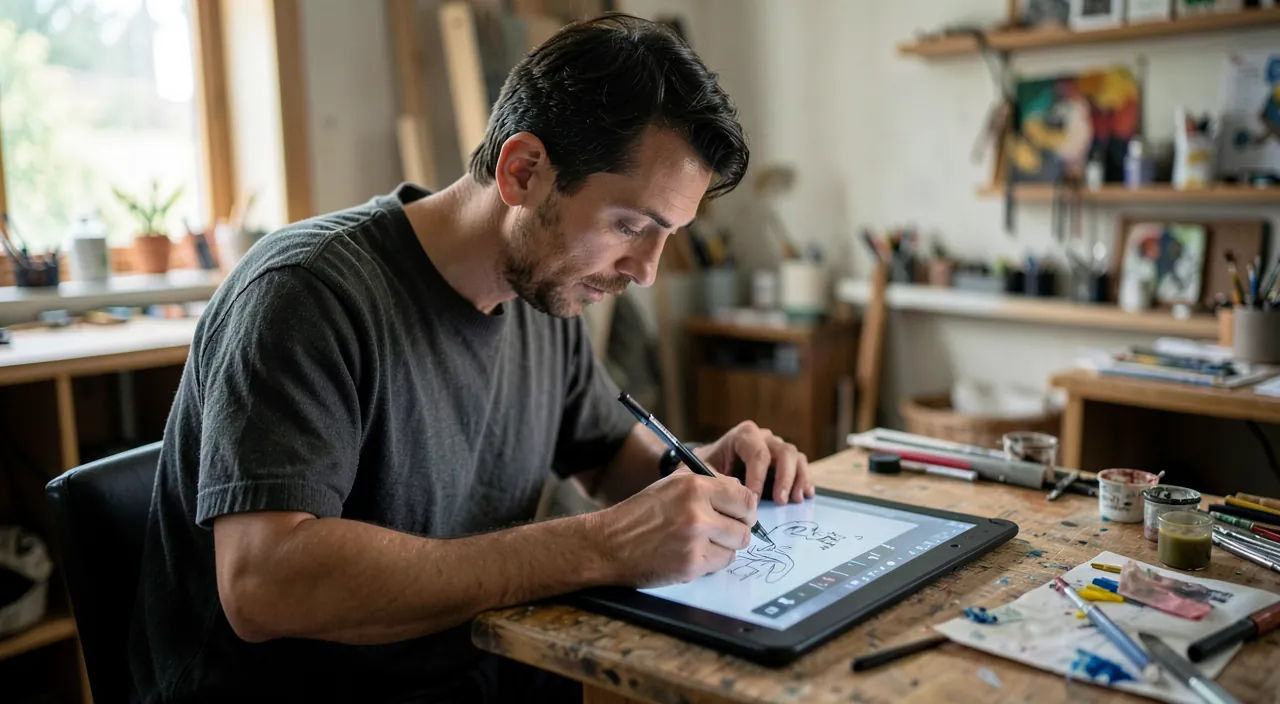
A beginner using Procreate on an iPad Air with an Apple Pencil can create a full-color illustration in 20 minutes, undoing mistakes instantly and experimenting without fear of ruining a physical page.
The gear: what matters, what can wait
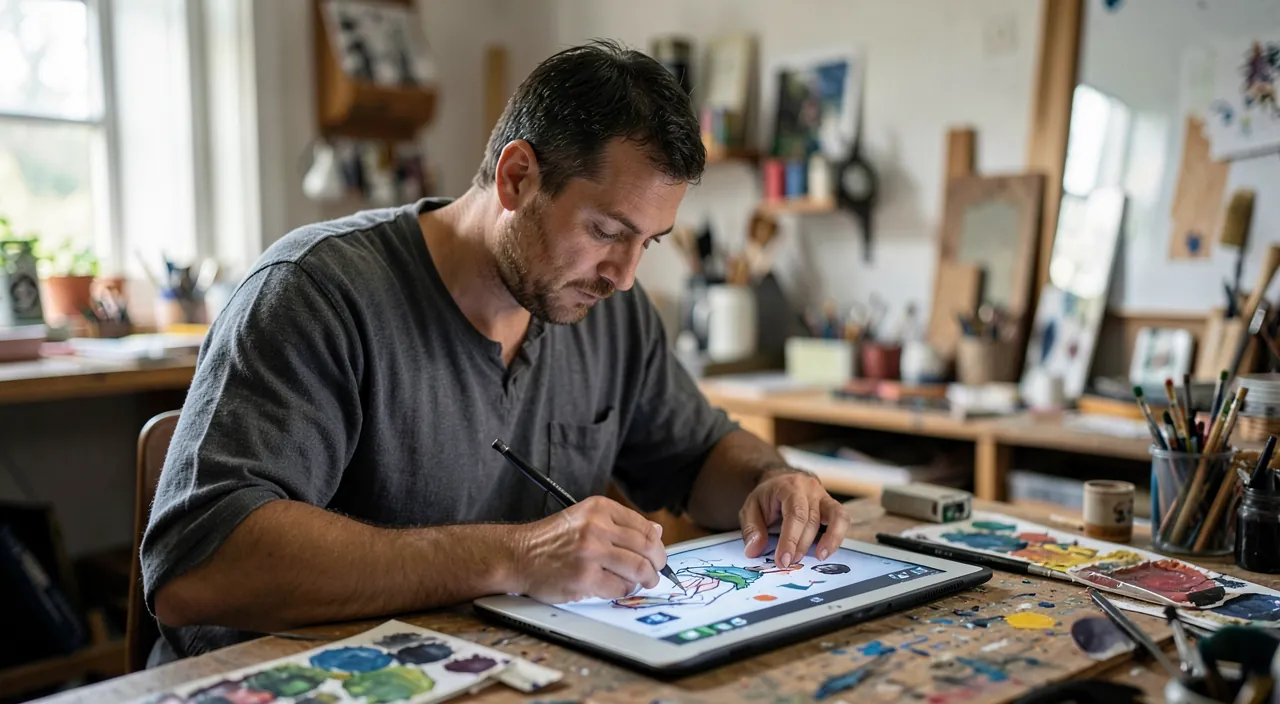
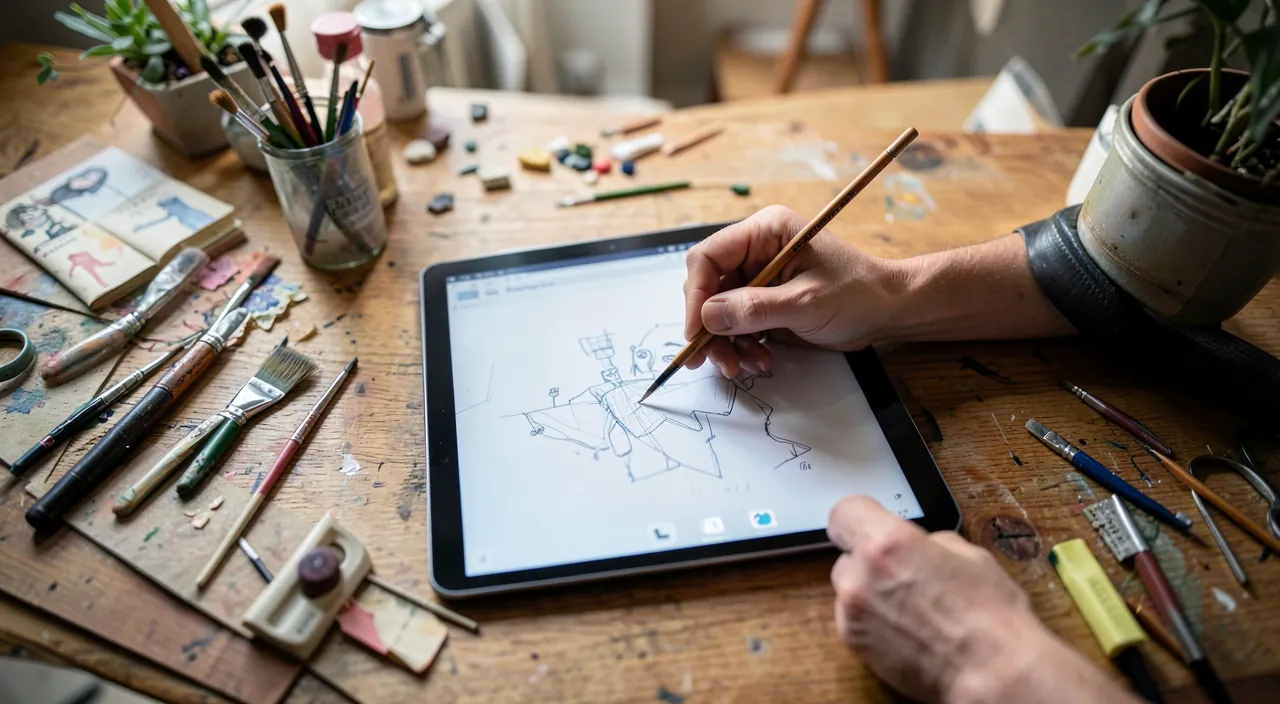
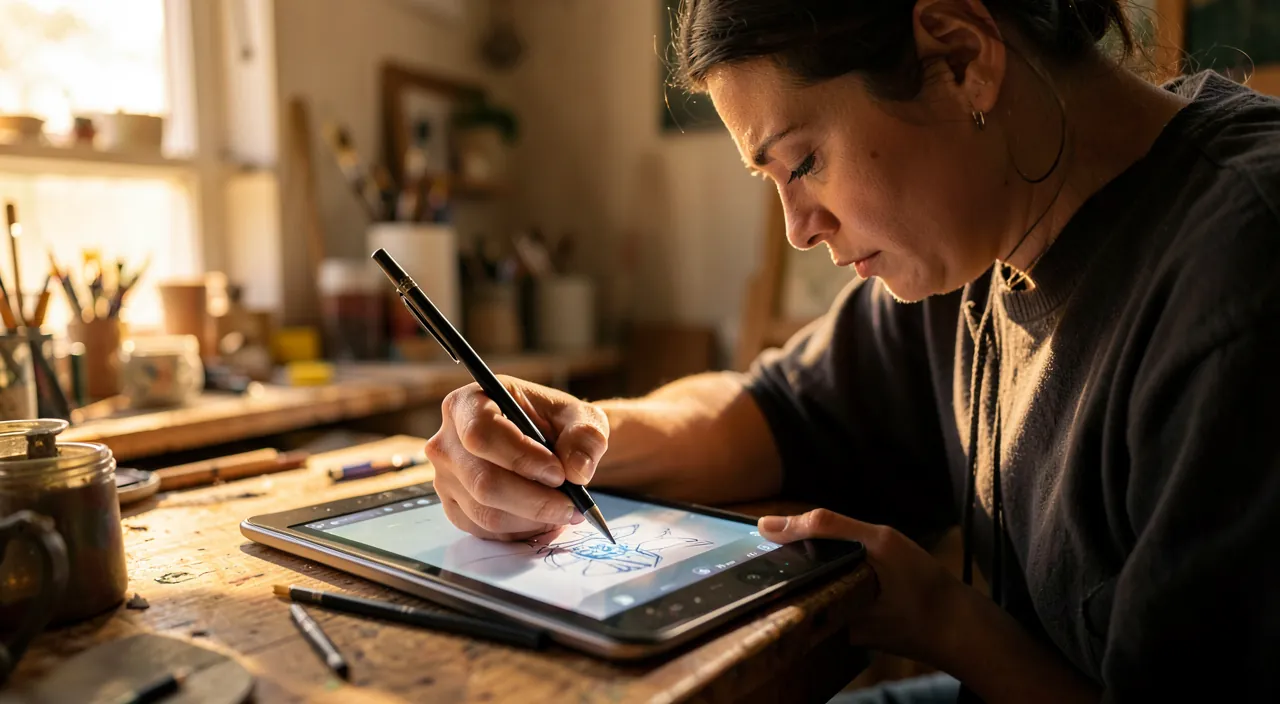
The honest hierarchy of investments: the active stylus first — it’s the game-changer: pressure sensitivity (the line thickens when you press) and tilt (shadows with a tilted pencil) are THE difference between drawing and pointing — the Apple Pencil on iPad, equivalent styluses elsewhere: non-negotiable for progress; the tablet next — no need to aim for high-end: a standard iPad or equivalent recent used model works wonders for learning (the larger screen of higher models is a comfort, not a condition — many pro illustrators work on the mid-size format); the accessories that really help — a textured surface (a “paper” film that grips the stylus like a real sheet: the glass-on-glass glide confuses those used to pencils), an angled stand, and a drawing glove (palm resting without marks); and what can wait — hundreds of paid brushes (the included ones last for years), the giant screen, the computer with a graphics tablet (the next step, if the practice becomes serious). Realistic entry-level budget: the tablet you may already have + the stylus — the most cost-effective creative hobby in the house, at the hour of practice.
The right reflex. Learn three gestures above all else: layers (sketching below, inking above, color on a third — each level is edited without touching the others: the concept that doesn’t exist on paper and changes everything), two-finger undo (tap, it’s undone — the unlimited right to error that frees the stroke), and the work zoom (you draw details zoomed in, you judge the whole zoomed out — constantly alternate). Once these three are mastered, everything else is learned by drawing.
Making real progress: digital doesn’t exempt you from drawing
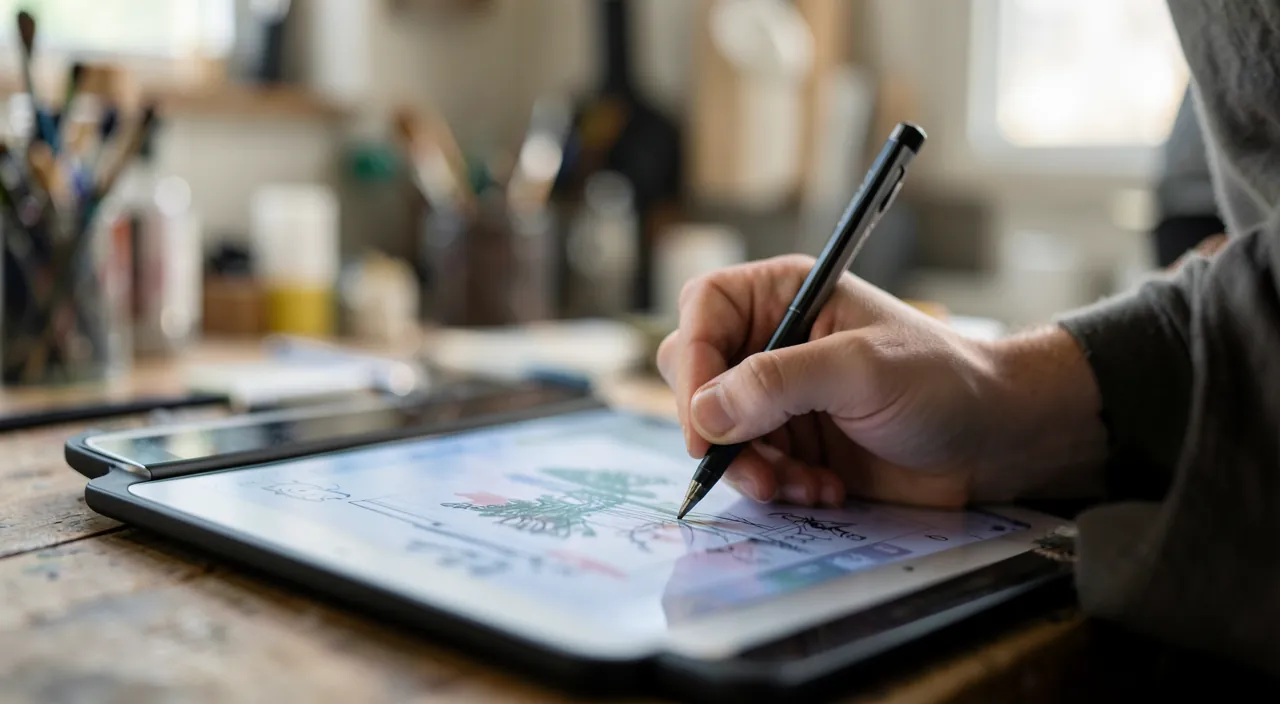
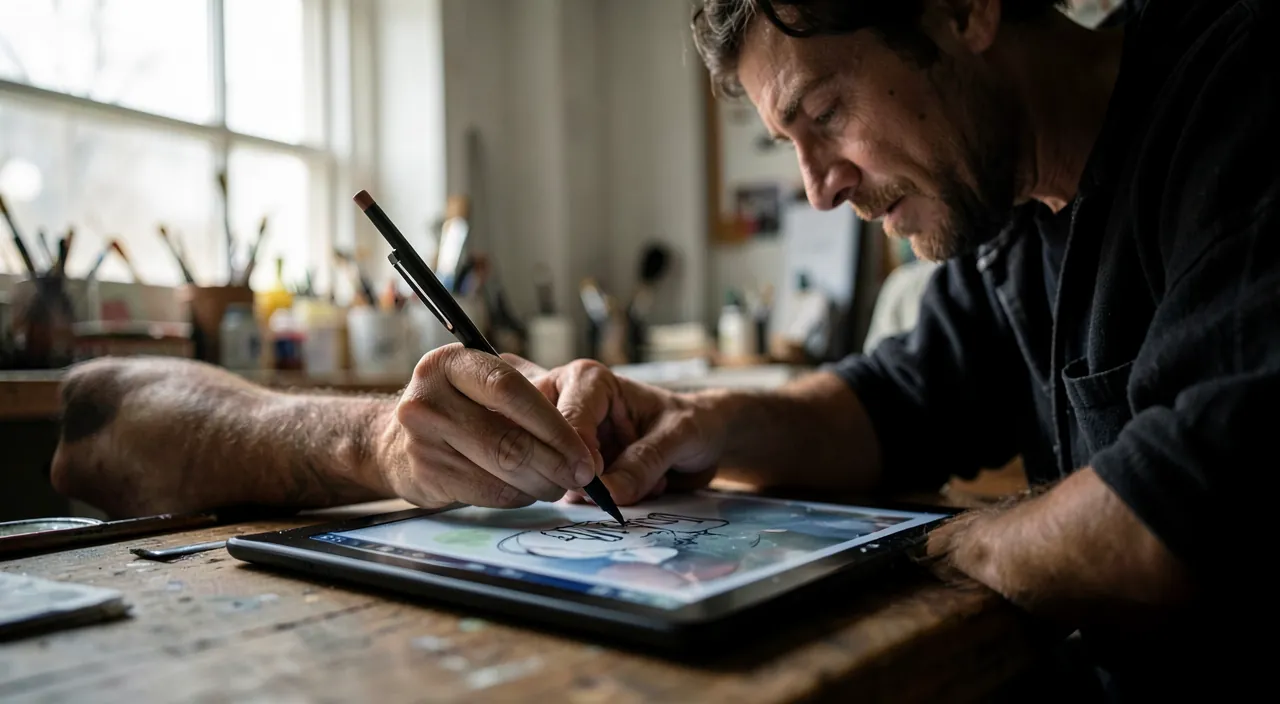
The useful truth: the tablet is a magical tool, not a teacher — drawing is learned by drawing, and digital offers the best learning framework ever created: built-in and guided tutorials (the apps offer step-by-step lessons where you draw over a model that fades — perfect first steps), online channels and courses (hours of lessons from generous illustrators, often free — look for those who make you draw rather than watch), study copying (reproducing admired works to understand — an old workshop method as old as art, which layers facilitate: reference on a light layer, study next to it), and short and regular practice — twenty daily minutes beat the four-hour Sunday session: the digital sketchbook (a permanent “rough draft” canvas, no stakes) is the equivalent of the pianist’s scales. And keep the fundamentals on the program: simple shapes, values (light and shadow before color), basic perspective, observation — the same as with charcoal: the app makes learning easier, but it doesn’t exempt you from it. Progress in digital drawing is also spectacularly motivating: the dated history of works shows the path — keep everything, even the failures: the “before/after one year” is the best lesson in perseverance.
The tablet helps you learn to draw, but you still need to practice. Use tutorials, copy great works, and draw daily—even for just 20 minutes.
Sharing, printing, and maybe further
Digital drawing naturally leads to: sharing — high-resolution export, automatic time-lapse of the creation (the apps record the process — these drawing videos that fascinate are an export button), welcoming communities of beginners and pros alike; printing — a high-resolution drawing prints beautifully (online art prints, family greeting cards, poster for the kids’ room — think about creating in large size from the start: you reduce without loss, you don’t enlarge); uses that go beyond the hobby — annotating documents and photos, sketching layouts, diagrams to explain, teaching aids for educators, henna/tattoo/sewing for artisans: the stylus is useful wherever the idea goes through the hand; and for those who take the practice seriously — freelance illustration, print-on-demand, commissions — the path exists, marked by all those who started “just to try.” Without going that far: a hobby that calms, focuses, and produces objects you’re proud of is well worth its place in the week — studies on creative practice and well-being say no different.
An artist creates a 3000x3000px digital painting on an iPad Pro, exports it as a 12×12-inch print, and sells it as a limited-edition art print for $50 each, earning $1,000 from 20 sales.
Beware of the two classic discouragements. The first: comparing your beginnings to the final works on social media — you see someone’s 5,000th drawing, not their 4,999 previous ones (professionals’ time-lapses actually show their own trial and error: watch them); the remedy is to only compare yourself to yourself, one month ago. The second: tool collectionism — buying brushes, courses, and accessories gives the feeling of progress without its substance: if you have more brushes than finished drawings, reverse the ratio. One “pencil” brush and thirty days of daily sketches do more than all premium packs combined — it’s the hand that learns, not the library.
Frequent questions
I “can’t draw”: can the tablet teach me?
“Not being able to draw” isn’t a permanent state — it’s the starting point of all artists. The tablet is the best framework for learning: erasable mistakes (the inhibition of “I’ll ruin the sheet” disappears), built-in guided lessons, archived progress. Thirty days of twenty-minute guided sessions and you won’t say that phrase anymore.
Drawing with your finger on a phone, does that count?
For sketching an idea or having fun, yes — the apps run on it. To progress, the screen is small and the finger imprecise: it’s frustrating enough to unfairly discourage. If drawing really tempts you, the tablet + stylus is the honest entry point — even if you start with a used model.
My kids draw on a tablet: good or bad idea?
Excellent — with the same rules as any screen (time limits) and a real stylus as soon as possible: drawing is one of the most active and constructive screen uses out there. Tip: the time-lapse of their creations amazes kids — and paper stays on the program: the two complement each other, neither replaces the other.
What to remember
Tablet drawing combines the best of both worlds: the complete studio without drying materials, the unlimited right to error that frees the gesture, and masterful apps — Procreate leading on iPad, serious free options to try, BD/manga specialists for enthusiasts. Reasonable equipment: an ordinary tablet + a real pressure-sensitive stylus (the key investment) + optionally a textured film. The method: one app learned in depth, three foundational gestures (layers, undo, zoom), twenty minutes regularly, lessons that make you draw, and the only comparison that matters — yourself, last month. The rest is a self-feeding pleasure: the first drawing you’ll be proud of is just weeks of sketches away — and it will print beautifully.
Want to go further with your phone and apps? Our practical training is made for you.
Leave a Reply
You must be logged in to post a comment.