
A USB drive, it is small, practical, and affordable: the ideal tool for copying important documents, transferring files between computers, or keeping a backup of what matters. Still, one must know how to use it properly: how to copy files correctly, how to remove it safely, and especially understand its limitations — for a USB drive is convenient, but it is NOT a reliable backup on its own. Here’s how to back up your files on a USB drive with peace of mind, and how to avoid unpleasant surprises.
What is a USB drive, and what it is not used for
Proper use of a USB drive starts with understanding what it is. A USB drive is a removable storage device: plug it into a USB port, copy files, and unplug it to take it with you or store it. Its ADVANTAGES: it is small, portable, does not require an internet connection, works on almost any computer, and is inexpensive. Its IDEAL USES: transferring files between devices; rescuing a document by opening it on another computer; keeping a temporary backup of important documents; or storing files you do not want to leave on the computer. But — it is fundamental — a USB drive has serious LIMITATIONS as a backup method. It is FRAGILE: small, it is easily lost or forgotten; it breaks, gets damaged, falls; its memory can corrupt over time. It is LIMITED in capacity and lifespan: it is not designed to reliably store data for years. It is UNIQUE: if it is your only copy and it fails, everything is lost. In other words: a USB drive is great for transferring and a temporary backup, but it should NEVER be the only place where valuable files reside. The basic rule of a good backup is to have your data in MULTIPLE copies, at multiple locations (our guides the 3-2-1 backup rule). Why is it important to understand this? To use the drive for what it does well (transferring, temporary backup), without relying solely on it for irreplaceable files. The main idea: a USB drive is a practical and versatile tool, but fragile; consider it as a convenient additional copy, never as your sole safety net. Used this way, with clarity, it serves you well in daily life.
A USB drive is great for quick transfers or temporary backups, but it’s not safe to rely on it alone. It can break, get lost, or stop working without warning. Always keep important files in at least two other places, like your computer and the cloud.
Imagine you’re a photographer and you’ve just shot a wedding. You copy the photos to a 128GB USB drive as a backup before deleting them from your camera. A week later, the drive fails, and you lose all the images. If you had also uploaded them to a cloud service or an external hard drive, you’d still have a copy.
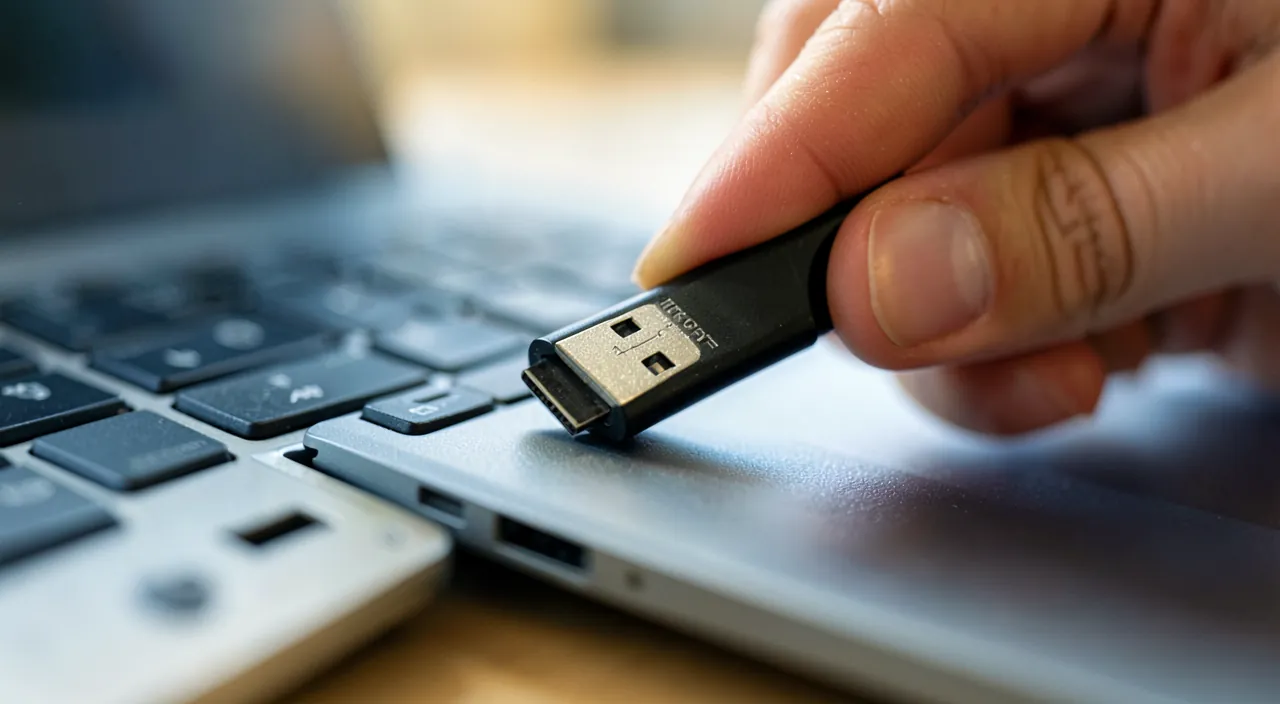
How to copy files and safely remove the drive
The handling is simple, but a few gestures ensure everything goes smoothly. PLUG IN the drive — insert it into a USB port on the computer, in the correct direction (without force); the computer recognizes it in seconds and displays it as a new « disk » or « removable drive ». OPEN the drive — in your file explorer, click on the drive (often named « USB Drive », « Unnamed », or a brand name) to see its contents. COPY your files — select the files or folders to back up, then copy them to the drive: either by drag-and-drop (drag towards the window of the drive), or by right-click « Copy » on the files then « Paste » in the drive. Caution: prefer COPY (files remain on the computer as well) over MOVE (they leave the computer and exist only on the drive — risky!). WAIT for the copy to finish — a progress bar appears; let it complete entirely; do not remove the drive during the copy. VERIFY — once the copy is finished, open the drive and confirm your files are there, and complete. REMOVE the drive PROPERLY — this is important: do not pull it out roughly; use the « Eject » or « Remove the device safely » function (often an icon near the clock, or a right-click « Eject » on the drive); wait for the confirmation message that you can unplug it, then remove it. This avoids corrupting the files. STORE it in a safe place — a drive is easily lost; store it in a dedicated and protected location. Some TIPS: name your drive (in its properties) to recognize it; organize your files on it in clear folders; and if your data is sensitive, consider protecting it (see below). In summary: plug in, open, COPY (without moving), wait for the end, verify, then EJECT properly before removing. These simple gestures preserve your files and your drive.
The right reflex. Two gestures avoid almost all issues with a USB drive. First gesture: COPY, do not move. When transferring important files to the drive, choose « copy » (files remain on the computer) and not « move » (they leave the computer and exist only on the drive). Why? Because if you move your only copies to the drive and it is lost or broken, everything is lost; by copying, you always keep the original safe. The purpose of a drive is to ADD a copy, not to move files to a fragile support. Second gesture: ALWAYS eject properly before unplugging. Never pull the drive out roughly: use « Eject » or « Remove the device safely » (right-click on the drive, or the icon near the clock), and wait for the green light. Removing a drive while it is working — or just after a copy — can corrupt the files, and even the entire drive. And always keep in mind THE golden rule: a USB drive is never your sole backup. It is small, fragile, easy to lose: it is perfect as a temporary backup or for transferring, but your valuable files must exist in multiple places (the computer, the drive, AND the cloud or an external hard drive). Copy rather than move, eject properly, never rely solely on the drive: with these three reflexes, it will serve you well without ever betraying you.

The limits and precautions to know
A USB drive is practical, but misunderstood, leading to data loss. Here are the points of vigilance. IT IS NOT A RELIABLE BACKUP ALONE: we repeat it, because it is the most common mistake: a drive can be lost, broken, or its data corrupted without warning: never entrust your important files to it alone. PHYSICAL FRAGILITY: small, it is easily lost, forgotten in a port, put in a washing machine in a pocket, broken; its size is an asset for transport but a risk for storage. DATA CORRUPTION: removing a drive during a write operation, or simply aging, can make files unreadable; hence the importance of ejecting properly and not relying on it alone. LIMITED LIFESPAN: USB drives are not designed for archiving data for years; their memory wears out; for the long term, prefer other solutions. DATA SECURITY: a lost drive leaves your files in anyone’s hands; if it contains sensitive data (personal, professional documents), protect it by encryption (some drives and software allow password protection, see our guides). VIRUS RISK: a drive plugged into multiple computers can carry a malicious software; beware especially of unknown or found drives, never to be plugged in (see our guides unknown USB drive). COMPATIBILITY: most drives work everywhere, but very large files can cause problems depending on the formatting; in common use, this is rarely noticeable. How to do it right? Use the drive as a supplementary copy and for transferring, always keep your files elsewhere, eject properly, protect sensitive data, and replace a drive showing signs of weakness. In summary: a USB drive is fragile and unreliable; never entrust it with irreplaceable files, eject it properly, protect sensitive data, beware of unknown drives, and always complement it with a real backup (cloud, external hard drive). Properly understood, it is a valuable tool; overestimated, it leads to file loss.
Warning: a USB drive is NOT a reliable backup on its own. This is the most widespread and costly misunderstanding. Files or precious documents are copied to a USB drive, and one thinks « there, it is backed up » and sometimes deletes the originals to make space. Serious mistake. A USB drive is a fragile and unreliable medium: it can be lost (its small size is as much a flaw as an advantage), broken, forgotten in a pocket or port, and especially its memory can become corrupted over time or after a sudden removal, rendering files suddenly unreadable — with no warning. If this drive is your UNIQUE copy, the day it fails, everything disappears forever. The security rule is clear: your important files must always exist in MULTIPLE copies, at multiple locations (for example, on your computer, on the drive, AND in the cloud or on an external hard drive). NEVER move your only files to a drive; copy them, keeping the original elsewhere. Second vigilance: DATA SECURITY. A lost drive leaves its contents in anyone’s hands; if it contains personal or sensitive data, protect it by encryption (some drives and software allow this). And never plug in an UNKNOWN or found USB drive: it is a classic trap to infect a computer. Third point: always properly eject the drive BEFORE removing it (use the « Eject » function), because pulling it out during a write operation corrupts the data. In sum, a USB drive is an excellent tool for transferring and a convenient temporary backup; but never entrust it with what is irreplaceable. A real backup is multiple copies, at multiple locations — the drive is just one, the most fragile.

Frequently asked questions
Do you really need to « eject » a USB drive before removing it?
Yes, it is strongly recommended because it protects your files. When you copy data to a drive, the computer does not necessarily finish writing at the exact moment the progress bar disappears: there may still be background operations in progress. If you pull the drive out at that moment, the files in progress of writing may be incomplete or corrupted, and in the worst cases, the entire drive becomes unreadable. The « Eject » function (or « Remove the device safely ») tells the computer to finish all operations and cleanly disconnect the drive; it then notifies you that you can safely unplug it. In practice: right-click on the drive in the explorer and choose « Eject », or use the dedicated icon near the clock; wait for the confirmation message, then remove the drive. It only takes two seconds. Some systems are more tolerant if no writing is in progress, but the habit of ejecting remains the safe gesture, especially just after a copy. This small precaution avoids major headaches: better two seconds of waiting than a lost file.

How long can you keep files on a USB drive?
Not as long as one might think, which is another reason not to rely on it alone. Contrary to a widespread belief, a USB drive is NOT designed for long-term archiving. Its memory (called « flash ») can, over the years, lose data, especially if the drive remains unconnected for long periods; its reliable storage life is measured in a few years, not decades, and it depends on the quality of the drive and storage conditions. In addition, physical risks (loss, breakage) and possible corruption. Conclusion: a USB drive is very good for transferring files or keeping a temporary backup, but not for storing valuable data alone and durably. For the long term, it is better to combine several solutions: a copy in the cloud (practical and accessible everywhere), a copy on an external hard drive, and possibly the drive as an additional copy. And think to CHECK from time to time that your files are still readable on the drive, and to copy them elsewhere if the drive ages. By treating the drive as a copy among others, and not as a definitive safe, you avoid the unpleasant surprise of finding, years later, an unreadable drive containing your only memories.

How to protect sensitive files on a USB drive?
This is a real question, because a drive is easily lost, and with it, everything it contains. If your drive contains personal or sensitive data (administrative documents, professional information, private data), a simple loss can expose it to anyone. The best protection is ENCRYPTION: it makes the content of the drive unreadable without a password. Several options exist: some operating systems integrate a function to password-protect a USB drive; some drives are sold with built-in hardware protection; and dedicated software also allows creating a protected space. Thus, even if you lose the drive, its content remains inaccessible without the password. Instead of encrypting the entire drive, you can at least protect the most sensitive documents individually with a password (see our guides protect a document with a password). Other precautions: store on a drive only what is necessary (the least sensitive data possible); store the drive in a safe place; and keep a copy of your files elsewhere (because an encrypted drive remains fragile: if you lose it or it breaks, you lose the files, even protected). In summary, for a drive containing sensitive data: encrypt it, limit what you put on it, and always keep a safe copy of your files in a secure place.
What to remember
A USB drive is a wonderfully practical tool: small, portable, no internet needed, it excels for transferring files between devices and keeping a temporary backup of what matters. To use it properly: plug it in, COPY your files (never « move », which would remove your only copies from the computer), wait for the copy to finish, verify that everything is there, then PROPERLY EJECT it (use the « Remove the device safely » function) before unplugging it — pulling it out roughly can corrupt the files. But always keep in mind the essential limit: a USB drive is NOT a reliable backup on its own. It is fragile (you can lose it, it breaks), its memory can corrupt without warning, and its storage life is measured in a few years, not decades. Do not entrust it with the only copy of valuable files: your important data must exist in multiple copies, at multiple locations (computer, drive, AND cloud or external hard drive). Also think about DATA SECURITY: a lost drive leaves its contents in anyone’s hands, so encrypt it if it contains sensitive data, and never plug in an unknown drive (risk of viruses). By treating the drive as what it is — a transport tool and a convenient additional copy, but fragile — you get all its benefits without ever risking to lose the irreplaceable. Copy rather than move, eject properly, protect sensitive data, and never rely solely on the drive: with these reflexes, it becomes a reliable ally in your digital organization, alongside a real backup.



Want to become more comfortable with your digital tools? Our personalized training adapts to your level.
Leave a Reply
You must be logged in to post a comment.