
The word « accessibility » evokes settings reserved for people with disabilities. In reality, these options — originally designed to help those who see less, hear less, or have motor difficulties — benefit EVERYONE: enlarging text, increasing contrast, having text read aloud, simplifying gestures, reducing animations. Many people would benefit from discovering them. Here is an overview of the accessibility settings on the iPhone (and Mac), why they concern each user, and how to activate them for a more comfortable use.
Accessibility for everyone
The ACCESSIBILITY settings are a set of options designed to make devices usable by the largest number of people, including those with visual, auditory, motor, or other difficulties. But their usefulness goes far beyond this scope: many of these settings improve the COMFORT of EVERYONE. A panorama of what they offer (on iPhone, iPad, Mac). For VISION: enlarging TEXT (larger, more readable characters — a relief for many, not just the visually impaired); increasing contrast and element size; a ZOOM function (turning the device into a magnifying glass to read small text in real life); having TEXT read aloud (the device reads an article, a message); reducing animations (for those who prefer a calmer interface); color filters, dark mode, etc. For HEARING: subtitles, sound adaptation, hearing assistance, visual or vibrating alerts (to be notified in other ways than sound). For MOTION and interaction: simplifying or replacing certain gestures, voice commands, adapting touch, making it easier to use with one hand. For READING and language: text-to-speech, dictation (speaking instead of typing), typing aids. And many other settings depending on needs. Why does this concern EVERYONE? Because: one can have declining vision (age, fatigue) without being « visually impaired »; enlarging text relieves everyone at the end of the day; having text read aloud is practical when driving or cooking; the zoom function helps read a small label; reducing animations calms the interface; voice commands help when hands are occupied. These settings are not « crutches » but universal COMFORT tools. The main idea: accessibility is not reserved for people with disabilities; it is a treasure of settings that make the device more comfortable for everyone — enlarging text, increasing contrast, having text read aloud, using the zoom function, simplifying gestures, using voice commands. Many people struggle with small text or a fatiguing interface without knowing that a few accessibility settings could solve everything. Discovering them often means gaining real comfort in daily life.
Accessibility settings aren’t just for people with disabilities. They help everyone by making devices easier to use—bigger text, clearer screens, voice commands, and more. These tools are about comfort, not limitations.
Imagine reading a restaurant menu in dim light. With the zoom function, your iPhone can magnify the text, making it easier to read without squinting. Or, while cooking, you can have a recipe read aloud instead of straining to read small text on the screen.
Settings to discover and activate
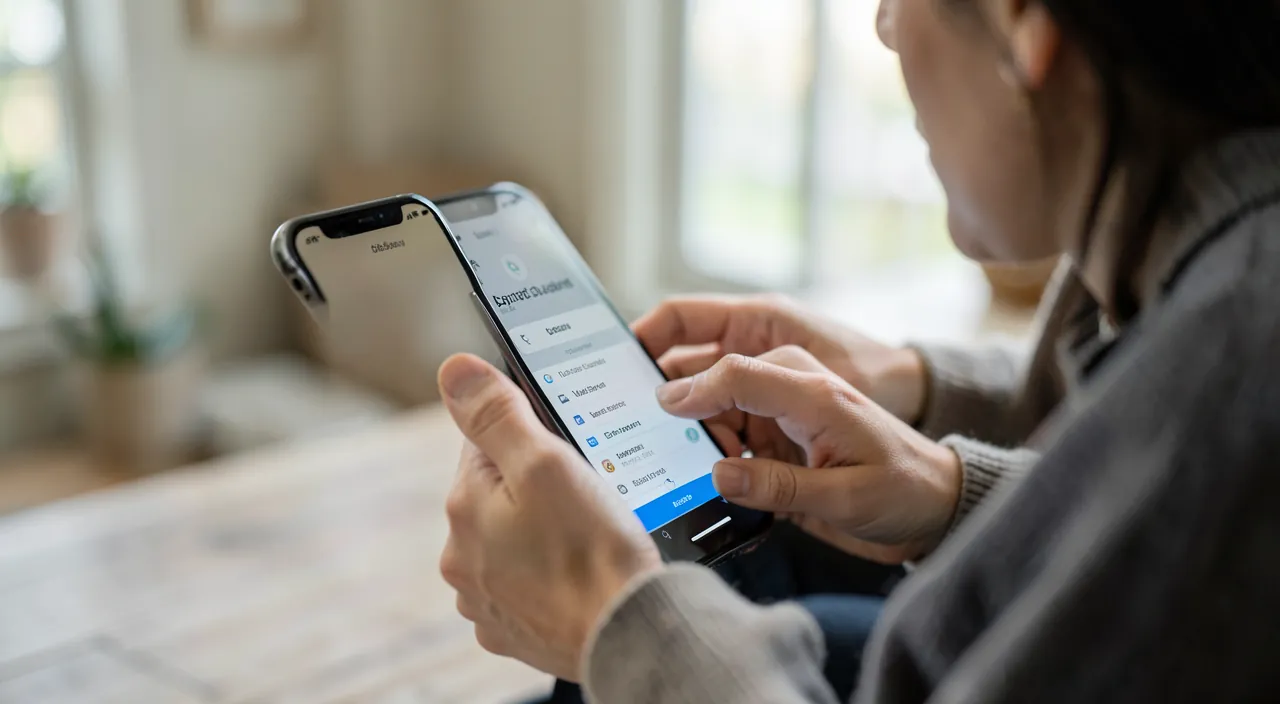
Here are the most useful accessibility settings to know, all accessible in the « Accessibility » section of your device’s settings. Enlarging TEXT — if you squint to read: increase text size (often adjustable on several levels, sometimes very large); text in apps and messages becomes more readable; one of the most useful and simple settings. Increasing CONTRAST and readability — strengthen contrasts, make text bold, enlarge elements: the interface becomes clearer and easier to read. The ZOOM function — activate the zoom to turn your device into a magnifying glass: practical for reading small labels, instructions, restaurant menus in real life. Having TEXT read aloud — activate screen reading or content reading: the device reads an article, a message, a book; ideal for resting your eyes or listening while doing something else. Dictation and voice COMMAND — speak instead of typing (dictation), or command the device with your voice: invaluable when hands are occupied, or for those who have difficulty typing (our guides on voice dictation). Reducing ANIMATIONS and adapting the display — if animations bother or fatigue you, reduce them for a calmer interface; also adjust dark mode, color filters according to your comfort. Visual or vibrating ALERTS — to be notified in other ways than sound (a flash, a vibration): useful if you hear less, or in a noisy environment. Simplifying GESTURES and touch — adapt or replace certain gestures, make it easier to use with one hand: for those with motor difficulties, or simply for more comfort. Some TIPS:
- EXPLORE the Accessibility section of settings (you’ll discover unexpected options);
- ACTIVATE what helps you (enlarged text and text-to-speech are frequent discoveries);
- often there is a SHORTCUT for accessibility (a triple tap on a button) to quickly activate/deactivate a function — useful for the zoom, for example;
- and don’t hesitate to HELP a family member (an elderly parent, someone who sees less well) set these options — it can transform their phone usage (our guides on helping family members).
An IMPORTANT point: these settings are there to SERVE YOU; there is no « shame » in enlarging text or having an article read aloud — it’s comfort, not an admission of weakness. In summary, the settings to discover: enlarged text, increased contrast, zoom, text-to-speech, dictation and voice command, reduced animations, visual alerts, simplified gestures. Explore the Accessibility section, activate what helps you, and share these options with your family — it’s often an immediate and welcome gain in comfort.
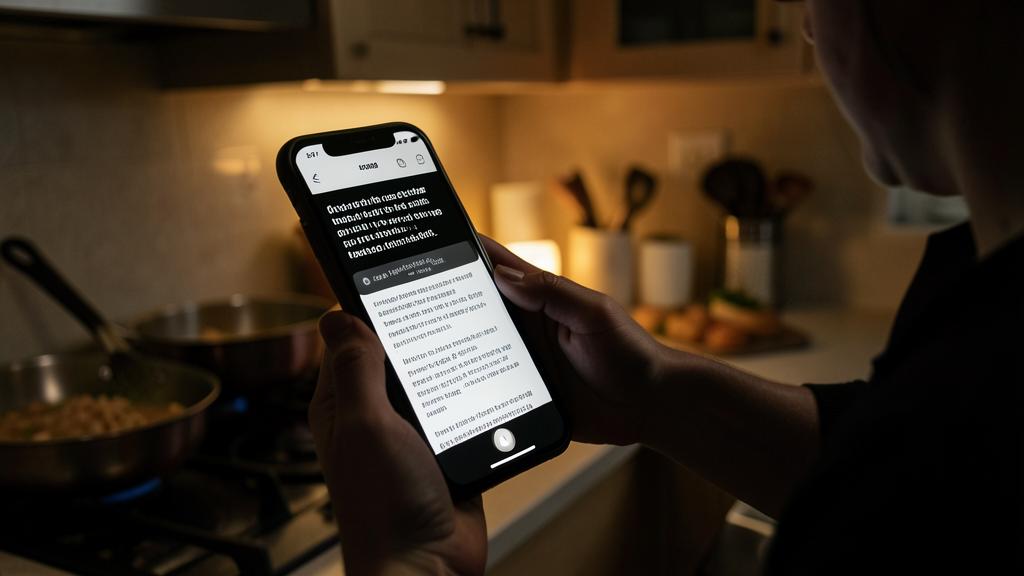
The good reflex. Open the « Accessibility » section of your device’s settings and EXPLORE it: you’ll discover options that can transform your daily comfort without being in a state of disability. The most frequent and useful discoveries: ENLARGING the text (if you squint to read, increase the size — it’s simple and greatly relieves the strain), and having TEXT read aloud (the device reads an article, a message: ideal for resting your eyes or listening while cooking, walking). Discover also the ZOOM function (your device becomes a magnifying glass to read small labels or a menu in real life), increased contrast and bold text (for a clearer interface), dictation (speaking instead of typing, invaluable when hands are occupied), and reducing animations (for a calmer display if they fatigue you). If you hear less, activate visual or vibrating alerts (a flash, a vibration instead of sound). Practical tip: often there is a SHORTCUT for accessibility (a triple tap on a button) to quickly activate/deactivate a function like the zoom — configure it for your preferred options. And think about HELPING your family members: setting these options for an elderly parent or someone who sees or hears less can transform their relationship with the phone (larger text, text-to-speech). Remember most importantly: these settings are there to SERVE YOU, there is no « shame » in using them — enlarging the text or having an article read aloud, it’s smart comfort, not an admission of weakness. A few minutes of exploration, and you’ll likely find one or two options that make your usage more pleasant — for you, and for those you help.
A more comfortable and inclusive use
The accessibility settings embody a beautiful idea: technology should adapt to EACH USER, not the other way around. Some reflections. INCLUSION: originally, these settings opened device usage to people with disabilities (vision, hearing, motor issues) — a key issue of digital access for all; proposing and making them known is working to ensure no one is excluded. Universal COMFORT: but their scope is broader — many benefit from enlarged text, text-to-speech, zoom, reduced animations, without considering themselves « affected » — this is the principle of universal design: what helps some improves the comfort of all. THE RIGHT TO COMFORT: no one should strain their eyes or struggle due to a lack of simple settings knowledge; using accessibility is smart, never shameful; adapt your device to YOUR needs and preferences. ACCOMPANYING family members: these settings are a precious gift to offer to a family member who sees or hears less (often the elderly); taking the time to set up larger text, adapted sound, text-to-speech can really improve their digital daily life and autonomy (our guides on helping family members with technology). EVOLUTION over time: our needs change (vision declines with age, temporary fatigue, a temporary situation); knowing these settings exist allows you to use them when you need them, temporarily or permanently. PERSONALIZATION: like any good technology, the device should bend to you; accessibility is one of the best ways to really adapt it to your use. In summary, the accessibility settings of the iPhone and Mac are a largely ignored treasure: designed to help people with disabilities, they actually make the device more comfortable for EVERYONE — enlarging text, increasing contrast, having text read aloud, using the zoom, dictation, simplifying gestures, visual alerts. Explore the Accessibility section, activate what helps you, and share these options with your family: it’s an immediate gain in comfort and an inclusive approach that adapts technology to each user. There is no shame in using these tools: they are there to adapt the device to you, not the other way around. Whether for your own comfort or to help a family member, a few minutes spent in these settings can transform a frustrating experience into an enjoyable and adapted one. The best technology is the one that excludes no one — and accessibility is at its heart.
Be careful: don’t miss these settings, and don’t hesitate to share them with your family. Some points, contrary to common misconceptions. DON’T IGNORE THEM OUT OF IGNORANCE — the main « trap » is not knowing these settings exist: millions of people strain their eyes on too small text, suffer from a fatiguing interface, or struggle to type, when an accessibility option could solve their problem in seconds; don’t remain uncomfortable out of ignorance — explore the Accessibility section. DON’T THINK « THIS ISN’T FOR ME » — the false idea that accessibility is reserved for people with disabilities deprives many of a real comfort: enlarging text, having an article read aloud, using the zoom are not shameful or « exclusive » — it’s smart comfort for everyone; use them without hesitation what helps you. DON’T FORGET YOUR FAMILY — too many elderly or visually/hearing impaired people struggle with their phone because no one has set these options for them; it’s a precious gift to offer: take the time to configure larger text, adapted sound, text-to-speech for them; it can really improve their digital autonomy. Other common sense points: don’t activate everything at once by chance (try an option, see if it helps, keep what serves you); know that you can always GO BACK (no setting is definitive — test without fear); and configure the ACCESSIBILITY shortcut (triple tap) to easily activate/deactivate your useful options (like the zoom). The only real risk with accessibility is to ignore it: these settings present no danger, they only improve comfort. Explore them for yourself, use without hesitation what helps you, and think about sharing them with those who need them. Technology should adapt to each user: accessibility is there for that — just take advantage of it.
Frequently asked questions
Are the accessibility settings reserved for people with disabilities?
No! This is a misconception that deprives many people of a real comfort. These settings were originally designed to help people with visual, auditory, or motor difficulties — a key issue of digital access for all. But their benefit goes far beyond this scope: they improve the comfort of EVERYONE. Enlarging text relieves anyone who squints (fatigue, vision declines with age); having an article read aloud is practical when driving or cooking; the zoom function helps read a small label; reducing animations calms the interface; voice commands help when hands are occupied. This is the principle of universal design: what helps some improves the comfort of all. There is therefore no « shame » or restriction to use these settings: they are there to adapt the device to YOUR needs, whatever they are. Explore them: you will likely find options that make your usage more pleasant.
How to enlarge text on my iPhone?
It is one of the simplest and most useful settings. Go to settings, the « Accessibility » section (or directly to the display settings), and look for the TEXT SIZE option: you can increase it on several levels, up to much larger characters (and even very large via the accessibility settings if needed). Compatible app text, messages, and menu text then become more readable. You can also strengthen the CONTRAST and make the text BOLD for better clarity. If you squint to read your phone, don’t stay in this discomfort: a few seconds of adjustment can relieve your eyes. It’s also the first setting to try for an elderly relative who finds their phone « difficult to read »: enlarging the text often transforms their relationship with the device. Test different levels until you find one that suits you: nothing is definitive, you can adjust at any time.
How to help a family member who sees or hears less well?
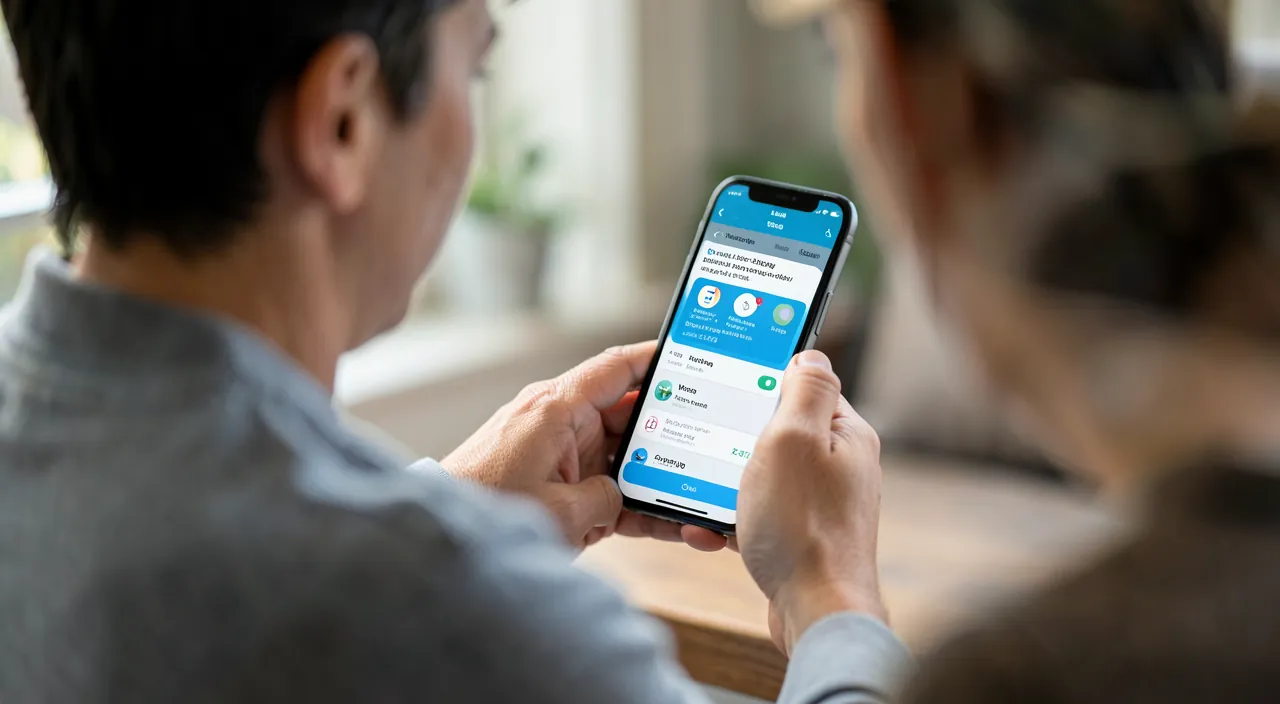
The accessibility settings are a precious gift to give them. Take the time to configure the options that suit their difficulties. If they see less: ENLARGE the TEXT, strengthen the contrast and boldness, activate text-to-speech (the device will read their messages and articles), show them the zoom. If they hear less: adapt the sound, activate visual or vibrating alerts (a flash, a vibration instead of sound), subtitles. If they have difficulty typing: show them voice dictation (speaking instead of typing). Also configure an ACCESSIBILITY shortcut for them to easily activate their useful options. Do it WITH them, explain simply, and let them test; the goal is their autonomy and comfort. This gesture, often neglected, can really transform the digital daily life of an elderly parent or someone struggling with their phone (our guides on helping family members with technology). Accessibility is fully useful only if one knows it exists: by making it known to your family, you open up a much more pleasant usage.
What to remember
The accessibility settings of the iPhone (and Mac) are a largely ignored treasure: originally designed to help people with visual, auditory, or motor difficulties, they actually make the device more COMFORTABLE for EVERYONE. This is the principle of universal design: what helps some improves the comfort of all. The most useful settings to discover: ENLARGING the text (if you squint — simple and very relieving), strengthening the CONTRAST and boldness, the ZOOM function (your device becomes a magnifying glass to read small labels in real life), having TEXT read aloud (for resting your eyes or listening while cooking), voice dictation and voice COMMAND (speaking instead of typing), reducing ANIMATIONS (for a calmer display), and visual or vibrating ALERTS (if you hear less). All of this is found in the « Accessibility » section of settings: EXPLORE it, activate what helps you, test without fear (nothing is definitive), and configure the accessibility shortcut (triple tap) for your preferred options. Two misconceptions to combat: these settings are NOT « reserved for people with disabilities » (they benefit everyone: vision fatigue, hands occupied, desire for comfort), and there is no « shame » in using them (enlarging the text or having an article read aloud is smart comfort, not an admission of weakness). Finally, think about sharing them with your FAMILY: setting these options for an elderly parent or someone who sees or hears less well is a precious gesture that can transform their digital autonomy and comfort. Our needs evolve over time (vision declines, temporary fatigue) — knowing these settings exist allows you to use them when needed. The best technology is the one that adapts to each user and excludes no one: accessibility is at its heart. The only real risk is to ignore them — so explore these settings, for yourself and those you help.
Want to fully exploit the potential of your iPhone, iPad, or Mac? Our Apple training courses will take you to the next level.
Leave a Reply
You must be logged in to post a comment.