
Typing on a small screen can be frustrating: you search for accents, you don’t know how to make a « ç » uppercase, you type emojis one by one, you constantly correct mistakes. Yet, the iPhone keyboard is full of tricks that make typing faster and more pleasant — as soon as you know them. Single-tap accents, voice dictation, text shortcuts, cursor movement, automatic correction: all these gestures change everything. Here are the tricks to master your iPhone keyboard, write faster, and stop struggling with emojis and accents.
A richer keyboard than it seems
The iPhone keyboard may appear simple, but it hides many functions that speed up and simplify typing; knowing a few of them transforms the small-screen writing experience. An overview of what it allows. ACCENTS and special characters: hold down a letter to see its variants with accents (e, è, ê, ë for the « e »; à, â for the « a »; ç for the « c »…); no more searching; same for other characters. VOICE dictation: instead of typing, speak, and the text writes; very practical for quick messages, long texts, or when your hands are busy (our guides on voice dictation). EMOJI: a dedicated keyboard with search to easily find and insert emojis. CORRECTION and PREDICTION: the keyboard corrects typos and suggests the next word; used well, it speeds things up; poorly mastered, it annoys (we’ll see how to handle it). CURSOR movement: you can precisely move the insertion point (to correct in the middle of a word) with a gesture — no more clumsy tapping. SELECTION and copy-paste: select, cut, copy, and paste text with simple gestures. TEXT SHORTCUTS: you can create abbreviations that transform into full text (type « adr » to insert your full address) — a huge time-saver for what you often write. GLIDING input: on some keyboards, you can write by GLIDING your finger from letter to letter without lifting it — surprisingly fast once mastered. One-handed iPhone typing, backspace, and other small helpers. MULTIPLE LANGUAGES: you can install several keyboards (languages) and switch between them. The main idea: the iPhone keyboard is much richer than it seems; accents with a long tap, voice dictation, emoji with search, precise cursor movement, text shortcuts, gliding input… all these functions make typing faster and less frustrating. Most people ignore half of them: discovering a few of them is enough to write more comfortably on your phone.
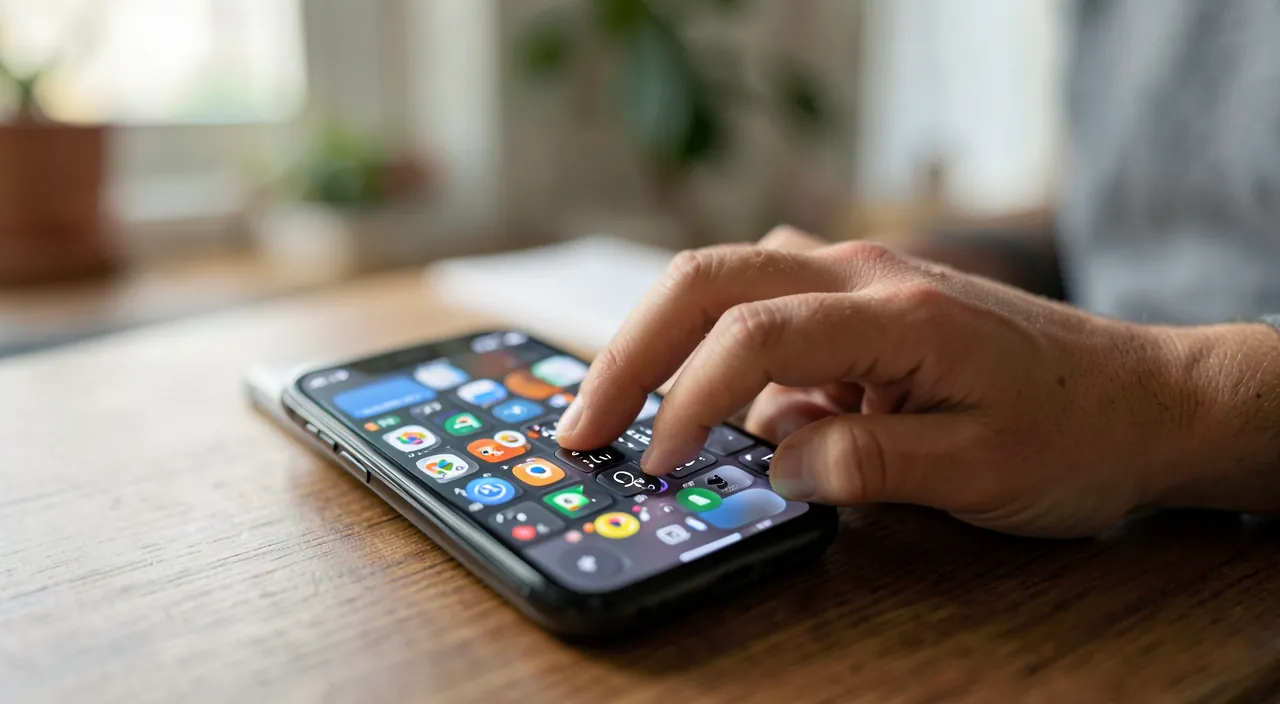
The iPhone keyboard has hidden features that make typing easier. You can add accents with a long press, use voice dictation to type hands-free, and quickly find emojis with a search function. These tricks save time and reduce frustration when typing on a small screen.
If you need to type “café” quickly, hold down the “e” key to see accent options, then slide to “é” without lifting your finger. This saves time compared to switching keyboards or searching for special characters.
The tricks that change typing
Here are the concrete tricks to type faster and more easily. ACCENTS with a long tap — hold down a letter to see its accent variants (e, è, ê, ë for the « e »; à/â for the « a »; ç for the « c »…); this is the method for accents and special characters (including uppercase); the same principle gives access to hidden symbols (hold a number or symbol to see its variants). VOICE dictation — tap the keyboard’s microphone icon and SPEAK: your voice turns into text; ideal for going fast, writing a long message, or when your hands are occupied; punctuation can be dictated as well. EMOJI easily — switch to the emoji keyboard (the dedicated icon) and use SEARCH to find the desired emoji by keyword, rather than scrolling; the keyboard also suggests emojis corresponding to the words you type. CURSOR movement precisely — to correct in the middle of a text: hold and glide to position the cursor exactly where you want (depending on the model, hold the spacebar or the text); no more random tapping. TEXT SHORTCUTS — in keyboard settings, create abbreviations: type « adr » and your iPhone inserts your full address, « mail » for your email, etc.; a huge time-saver for what you often write. GLIDING input — try writing by GLIDING your finger from letter to letter without lifting it: surprising at first, very fast afterwards (especially with one hand). MANAGING automatic correction — it helps, but can annoy (wrongly corrected words); learn to REJECT a correction (by going back to the suggested word), and if it bothers you too much, you can adjust it in settings; add to your dictionary the words it wrongly corrects (names, terms). COPY-PASTE and selection — master text selection and copy-paste with gestures, very useful in daily life. Some TIPS: explore keyboard settings (that’s where many of these functions are activated/adjusted: shortcuts, correction, gliding input, languages); start with ONE or two tricks (the long-tap accents and voice dictation change a lot already); and give yourself time to get used to them (gliding input, for example, becomes natural after a few days). A PRACTICAL point: voice dictation is probably the trick that saves the most time for long texts — many ignore it or are afraid to use it, try it. In summary, the tricks that change typing: long-tap accents (and hidden characters), voice dictation (the big time-saver), emoji search, precise cursor movement, text shortcuts, gliding input, and good management of automatic correction. Explore the settings, adopt a few, and typing on your iPhone will become much faster and more pleasant.
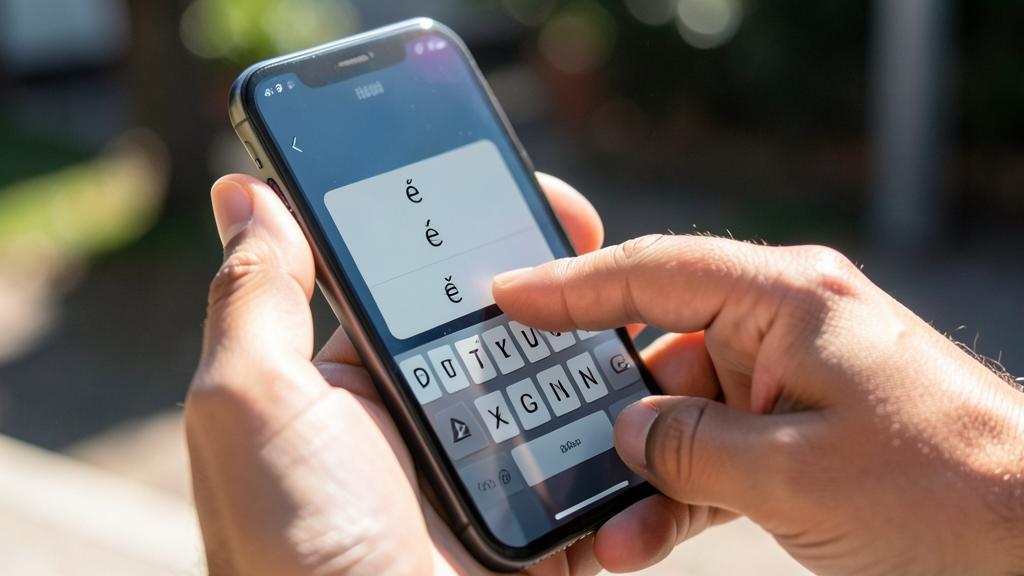
THE RIGHT REACTION. Start with the two tricks that change your life the most right away. First, ACCENTS with a LONG TAP: hold down a letter to see its accent variants, then glide to the desired one (e, è, ê, ë for the « e »; ç for the « c », even in uppercase; à/â for the « a »); the same gesture on numbers and symbols reveals hidden characters — no more searching for accents and special characters. Then, VOICE dictation: tap the microphone icon and speak, your voice turns into text; this is probably the trick that saves the most time for messages and long texts, or when your hands are occupied — many ignore it or are afraid to use it, try it really. For emojis, use the SEARCH function on the emoji keyboard (type a keyword to find the desired emoji) instead of endlessly scrolling. To correct in the middle of a text, learn to MOVE the cursor precisely (by holding and gliding) instead of random tapping. And for everything you often write (your address, your email), create TEXT SHORTCUTS in settings (type « adr » → your full address is inserted); a huge time-saver. Manage automatic correction intelligently: it helps, but when it « corrects » a word wrongly, learn to reject its suggestion, and add to your dictionary the words it gets stuck on (names, terms) so it stops changing them. The secret: explore keyboard settings (shortcuts, correction, gliding input, languages are activated/adjusted there), adopt one or two tricks at a time, and give yourself time to get used to them (gliding input, for example, becomes natural after a few days). A few gestures learned, and typing on your iPhone stops being a hassle to become fast and fluid.
Write quickly and without hassle on a small screen
Mastering your keyboard is reconciling with writing on a phone — an activity we do dozens of times a day. A few thoughts to enjoy it. THE ACCUMULATED GAIN: each small trick (quick accents, dictation, shortcuts) saves a few seconds; multiplied by the number of messages and texts we write, the gain is enormous over time; learning your keyboard is a worthwhile investment. COMFORT: beyond speed, these tricks reduce frustration (searching for accents, constantly correcting, tapping to place the cursor); writing becomes more pleasant. PROGRESSIVE LEARNING: there’s no need to learn everything at once; adopt a trick, let it become a reflex, then another; in a few weeks, your typing changes effortlessly. PERSONALIZATION: the keyboard adapts to you (shortcuts for your frequent texts, enriched dictionary with your words, installed languages, adjusted correction); take the time to set it up for your use. ACCESSIBILITY: for those who have trouble typing (sight, motor skills), voice dictation and keyboard accessibility settings are real assets; typing is not the only way to write (our guides on accessibility settings, voice dictation). VOICE dictation as an alternative: for long texts, dictating is often faster and less tiring than typing; a reflex to take. In summary, the iPhone keyboard is much richer than it seems, and a few tricks are enough to write quickly and without hassle on a small screen: long-tap accents (and hidden characters), voice dictation (the biggest time-saver), emoji search, precise cursor movement, text shortcuts, gliding input, and good management of automatic correction. Explore keyboard settings, adopt these tricks progressively (one or two at a time), and personalize it to your use. The benefit is double: SPEED (a huge cumulative gain on everything we write) and COMFORT (less frustration, a more fluid writing). Typing on a phone is not a painful inevitability: it’s a skill that improves quickly once you know the right gestures. A few minutes exploring your keyboard, and you’ll write on your iPhone with an ease you didn’t imagine.
BE CAREFUL: tame the automatic correction, check the dictation, and do not install dubious third-party keyboards. A few points. AUTOMATIC CORRECTION MISMANAGED — it helps, but can « correct » words wrongly (names, technical terms, slang), risking sending messages with unintended words (famous automatic correction mistakes); learn to REJECT a correction when it’s wrong (by retyping or rejecting the suggestion), add to your dictionary the words it gets stuck on, and RECHECK important messages before sending; if it really annoys you, you can adjust it in settings. VOICE DICTATION TO BE CHECKED — voice dictation is very practical, but it can misunderstand some words or names; RECHECK the dictated text before sending, especially for important messages (a dictation error can change the meaning). DUBIOUS THIRD-PARTY KEYBOARDS — you can install keyboards from other publishers, but be careful: some request « full access » that can let them see what you type (including sensitive information); install only TRUSTED keyboards (reputable publishers), beware of those requesting excessive access, and for passwords or sensitive information, prefer the original keyboard (our guides on apps and privacy). Other points: don’t get discouraged if a trick (like gliding input) seems difficult at first (it becomes natural with practice), don’t try to learn everything at once (one or two tricks at a time), and remember that voice dictation processes your voice (generally well-regulated by Apple, but stay aware of what you dictate). Properly managed, the iPhone keyboard lets you write quickly and serenely; poorly managed, it sends words you didn’t want.
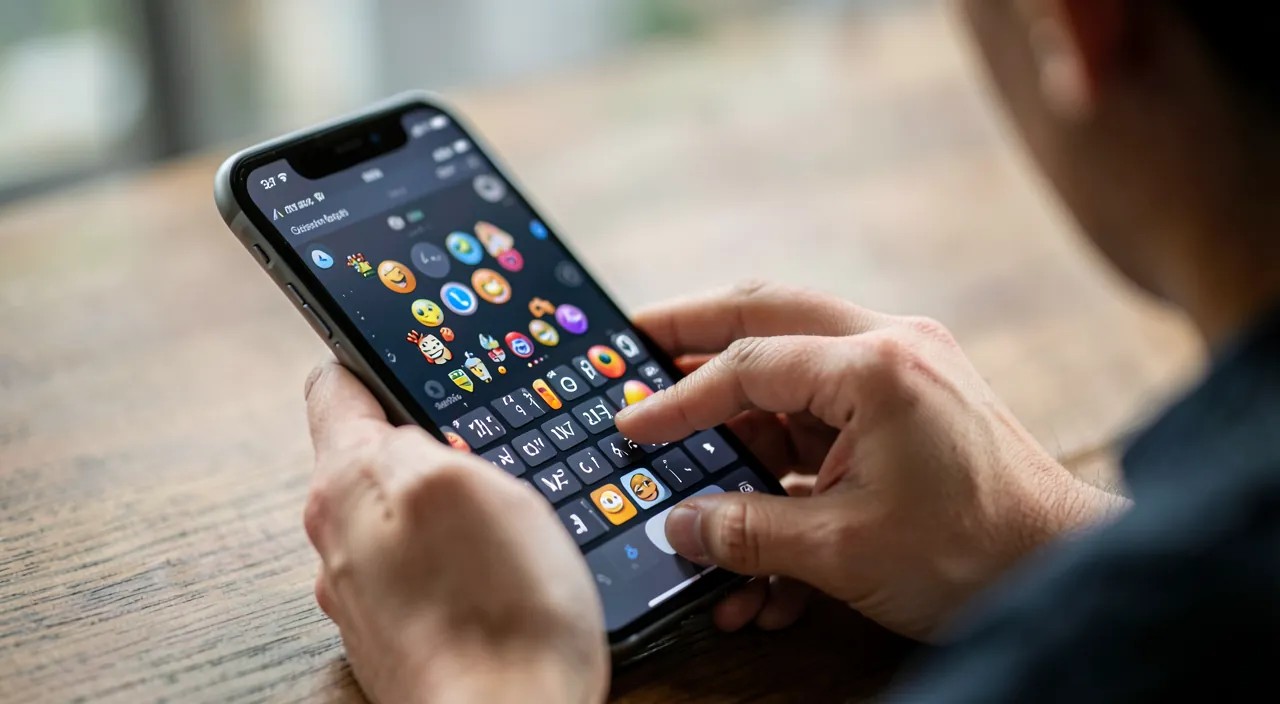
Frequently asked questions
How do I make accents and special characters on iPhone?
By a LONG PRESS on the concerned letter. Hold the letter down for a few seconds: a small menu appears with its accent variants, and you glide your finger to the desired one before releasing. Thus, holding down the « e » gives you é, è, ê, ë; the « a » gives à, â, ä; the « c » gives ç (including uppercase if the keyboard is in uppercase mode); the « o » and « u » also have their variants. The same principle works for hidden characters: hold a number, a dash, an apostrophe, or certain symbols to see their variants (other currencies, quotation marks, ellipses…). This is the method, much faster than searching for a special keyboard. Once this gesture is mastered, writing correctly accented French (and many other characters) on iPhone becomes a child’s play. This is often the first trick that reconciles people with their phone keyboard.
How can I write faster on my iPhone?
Several combined tricks make a big difference. The most effective for long texts: VOICE dictation (tap the microphone icon and speak: your voice turns into text) — much faster than typing, and many ignore it. Create TEXT SHORTCUTS in settings (type « adr » to insert your full address); a huge time-saver for what you often write. Try GLIDING input (write by gliding your finger from letter to letter without lifting it); surprisingly fast once mastered. Use the EMOJI SEARCH instead of scrolling, the long-tap for accents (instead of searching), and the WORD PREDICTION (suggestions above the keyboard). Learn also to move the cursor and copy-paste with gestures to correct quickly. Adopt these tricks progressively (one or two at a time, until they become reflexes): each small gain, multiplied by everything you write, greatly speeds up your typing over time. Explore keyboard settings to activate and adjust all of this.
The automatic correction annoys me, what should I do?
You can master it rather than just put up with it. When it « corrects » a word wrongly, learn to REJECT its suggestion: generally, by retyping the word or touching the original word’s suggestion (the keyboard often offers to keep what you typed), or by going back to the word to retyping it. Add to your DICTIONARY the words it wrongly corrects systematically (names, technical terms, expressions); once learned, it will stop changing them. RECHECK important messages before sending, to catch unwanted corrections (automatic correction mistakes are common! ). And if it really annoys you too much, you can ADJUST it, or even disable it, in keyboard settings — but it also helps (it catches many typing errors), so try to tame it first. A good compromise: keep it active (for the useful corrections it makes), enrich its dictionary with your words, and recheck important messages. Thus, it helps without betraying you.
What to remember
The iPhone keyboard is much richer than it seems, and a few tricks are enough to write quickly and without hassle on a small screen. The most useful ones: ACCENTS and special characters by a LONG TAP on a letter (é, è, ê for the « e »; ç for the « c », even in uppercase; and hidden characters by holding numbers and symbols) — no more searching for accents; VOICE dictation (speak, your voice turns into text), probably the biggest time-saver for long texts, that many ignore; EMOJI SEARCH (by keyword, instead of scrolling); PRECISE cursor movement (hold and glide to correct without random tapping); TEXT SHORTCUTS (type « adr » → your full address, a huge time-saver for what you often write); and GLIDING input (write by gliding your finger, surprisingly fast once mastered). Explore keyboard settings, where most of these functions are activated and adjusted (shortcuts, correction, gliding input, languages), and adopt these tricks PROGRESSIVELY (one or two at a time, until they become reflexes). Master the automatic correction rather than just put up with it: reject its wrong suggestions, enrich your dictionary with your words (names, terms), and recheck important messages (automatic correction mistakes are common). Also recheck what the dictation writes, and install only TRUSTED third-party keyboards (some, requesting full access, can see what you type — prefer the original keyboard for sensitive data). The benefit is double: SPEED (a huge cumulative gain on everything you write every day) and COMFORT (less frustration searching for accents or constantly correcting). Voice dictation is also a valuable accessibility tool. Typing on a phone is not a painful inevitability: it’s a skill that improves quickly once you know the right gestures. A few minutes exploring your keyboard and adopting these tricks, and you’ll write on your iPhone with a new ease.
Want to fully exploit the potential of your iPhone, iPad, or Mac? Our Apple training courses will take you to the next level.
Leave a Reply
You must be logged in to post a comment.