
FaceTime, for most people, is the green video call button to family — period. Yet it has become a real pocket-sized video conferencing room: group calls, live subtitles, screen sharing to help grandma, synchronized remote movie nights, invitation links that work even on Android and PC, video messages when no one answers. The complete tour of Apple’s calling app — the lesser-known features, quality settings, and family uses that bridge the distance.
Beyond face-to-face: groups, links, and non-Apple guests
The features that expand: group calls — for the whole tribe (the call launched from a group Messages conversation brings everyone in: the birthday celebration from afar, the family council split across three regions — the tiles enlarge on the speaker); the FaceTime link — THE feature nobody knows: “Create a link” (at the top of the app) generates a shareable invitation via any channel (email, WhatsApp, SMS) — and the recipient WITHOUT an Apple device joins via their browser (Android, PC: the FaceTime call opens in Chrome — the “but they’re on Android” barrier has been gone for years, and mixed families still ignore it): the link can also be scheduled (the Sunday call created as a recurring link in the calendar — our guides); video messages — the missed call offers to record a video (the voicemail upgrade: the birthday song left as a video at 7 a.m. without waking anyone); and the ecosystem continuity — the call started on the iPhone switches to the Mac (large screen) or iPad with a tap, and the iPhone serves as a CAMERA for the Mac (the phone’s photo quality for office video calls — our video guides: the best webcam you own is your phone, natively).
FaceTime isn’t just for one-on-one calls. It can host group video chats, let non-Apple users join via a link, and even record video messages. You can also switch devices mid-call and use your iPhone as a high-quality webcam for your Mac.
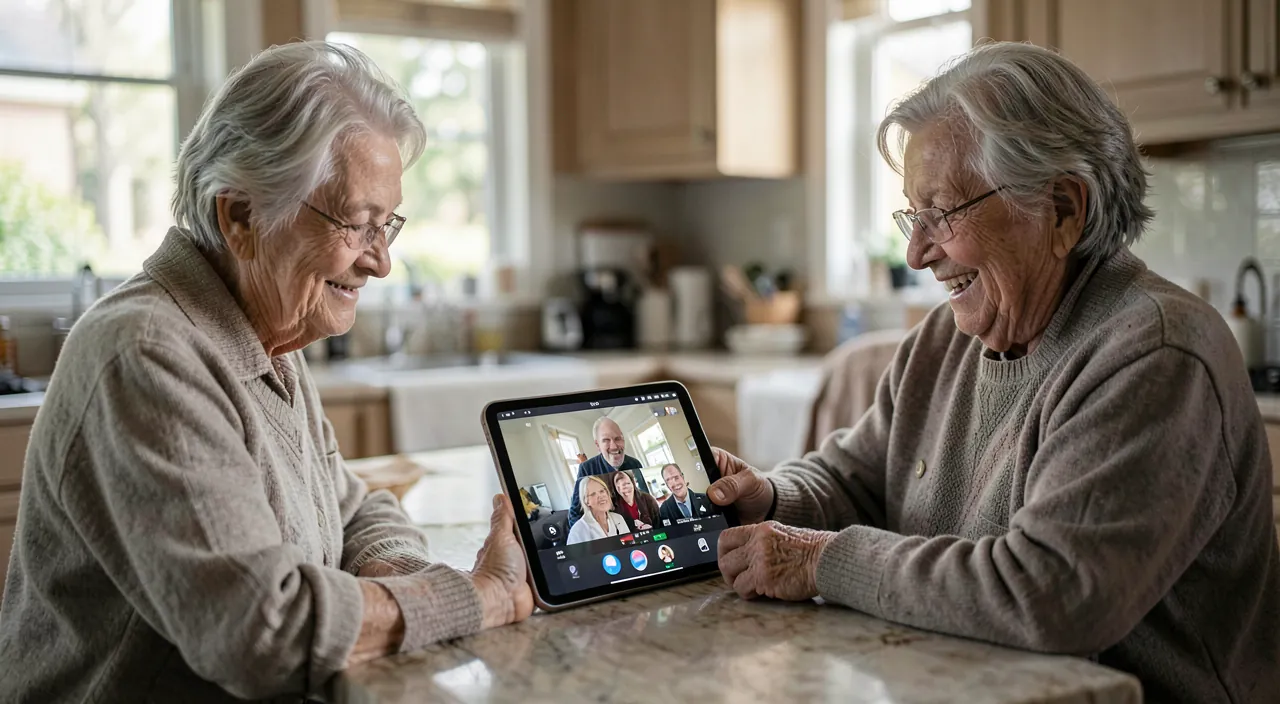
A family in Paris schedules a weekly FaceTime call with relatives in New York and Tokyo. They create a recurring link in their shared calendar, so everyone can join easily. Grandma in Tokyo uses an Android tablet and joins via the link in Chrome. During the call, they share screens to help her fix a software issue, and later watch a movie together using SharePlay.
During the call: the hidden powers of the screen
The ongoing call hides a dashboard: screen sharing — the sharing button shows YOUR screen to the other person: the family troubleshooting superpower (grandma shares her screen, you see her problem and guide her — or vice versa: your screen shown for a demo: our remote troubleshooting guides fit in this button); SharePlay — watching TOGETHER remotely: the movie or series launched in perfect sync (pause on one = pause on the other) with compatible apps, shared music: the long-distance couples’ movie night and the complicit grandparents — underused and charming; the effects and framing — portrait mode (the blurred background with a tap — the messy living room forgiven: via the control center during the call), automatic centered frame (the camera that follows you in the kitchen), gesture reactions (the thumbs-up that triggers effects — to know… or to disable in serious contexts: the surprise fireworks in a pro video call is a modern classic — control center → Reactions); the live subtitles — the instant transcription of the call (Settings → Accessibility → Live Subtitles): for the hard of hearing and noisy environments — our accessibility guides make it a treasure; and the voice isolation — the mic that cancels out the vacuum and the street (control center → Mic Mode → Voice Isolation: THE audible difference in real environments — enable it once, and it stays).
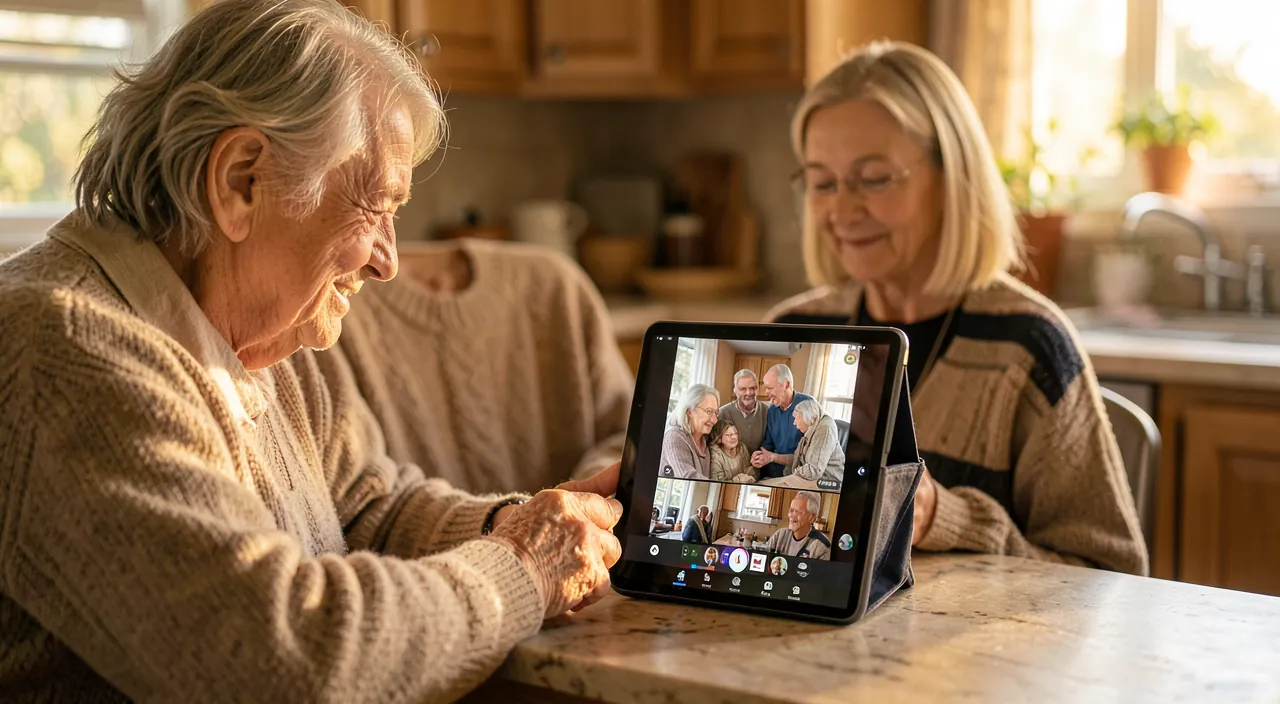
The right reflex. Set up the grandparents’ call ritual with the right tools: the recurring FaceTime link in the shared calendar (Sunday 6 p.m. — everyone clicks, zero hassle), the iPad set up in the kitchen for the elders (our video guides: stable framing, the whole family in the frame), live subtitles if hearing declines, and screen sharing learned ON BOTH SIDES (the “show me your screen” that fixes small tech issues during the call itself — the family support built into the Sunday call). Distance isn’t filled with technology — but well-placed technology removes all excuses.

Quality and comfort: the settings that change the call
Average calls can be improved: lighting and framing first (our video guides — the window in front, the device at eye level, stable: 80% of perceived quality is there, not in the megapixels); the network — FaceTime handles average connections well, but frozen video follows our guides’ rules (Wi-Fi nearby or cable on Mac, and audio-only calls in weak zones: the camera button turns off — a stable voice call is better than a pixel mosaic); spatial audio and mic modes (voice isolation already mentioned, “wide spectrum” mode for the grandkid’s piano — each context has its mic); FaceTime Audio — the VOICE call over the internet, underrated: much better quality than a regular phone call (the “FM radio” sound vs. compressed GSM), free internationally, and the natural choice for long conversations (the ear tires less): many use it unknowingly via the audio button in Messages; Wi-Fi calls for areas without mobile coverage (the carrier setting that rings the phone via the router — the countryside home reconciled with the phone); and battery and data — video consumes (the long 4G call eats into the plan: Wi-Fi for marathon calls, and the charger nearby — the Sunday call that dies at 20% is an avoidable classic).
FaceTime in the family: security and good usage
The ultimate family app deserves its protection settings: calls from strangers — FaceTime rings for anyone with your address or number: filtering unknown senders exists (silent calls from strangers — Settings → FaceTime), and the surprise call scam follows our guides’ rules (the stranger who calls on video isn’t accepted — and the webcam blackmail thrives on naive acceptances: you never expose your image to a stranger, ever); children — FaceTime controlled by Screen Time (allowed contacts during limited times — the child calls family, not the world: our first phone guides), and the conversation on captures (what’s shown in video can be captured — the image caution applies in calls as in photos: our guides); structural privacy — FaceTime calls are end-to-end encrypted (Apple can’t listen in: the safest public app of its kind — a reassuring argument for sensitive family conversations); and respecting the frame — recording a call follows universal rules (participants’ consent — discreetly capturing a private call is a betrayal AND a potential offense: our transcription guides apply to video): family trust is the real network — technology serves it, it doesn’t replace it.
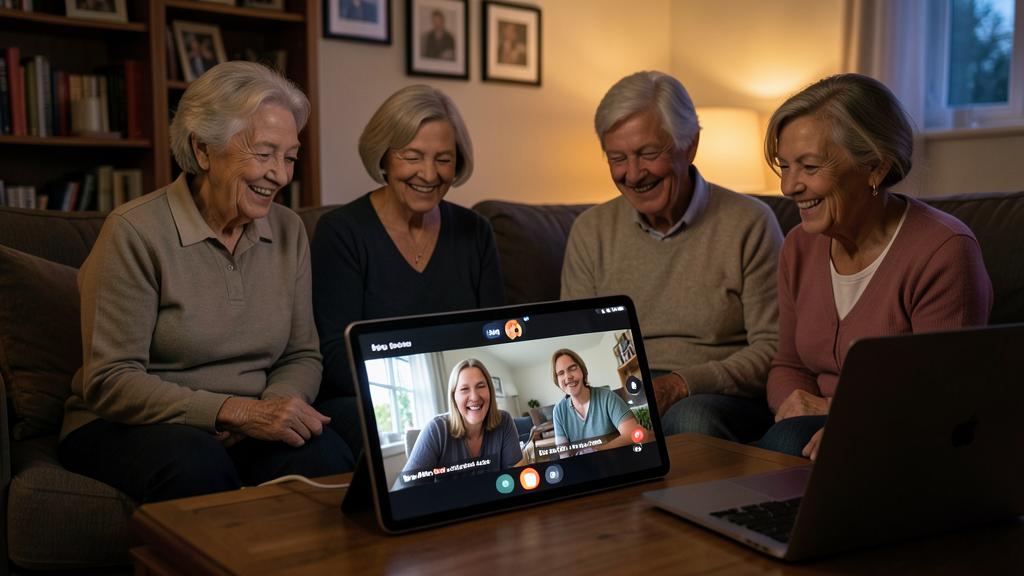

Beware of money requests in video calls — the rising scam. The video call “from the granddaughter in distress” with blurry or quickly cutting images (“my camera isn’t working, grandma”), the urgent voice asking for a transfer or codes: family emergency scams are also happening in video (and vocal and visual deepfakes make them credible — our deepfake guides): the family defense is simple and agreed UP FRONT — any money request, even in video, even with a familiar face, is verified by CALLING the loved one BACK on THEIR known number (the outgoing call to the real number breaks all scenarios), and the personal question only the real loved one can answer does the rest. Video is no longer proof of identity — the outgoing call is: engrave it in the family’s marble, especially for the elders.
Frequently asked questions
Can my Android contact really join me?
Yes — via the FaceTime LINK (created by you, sent via any channel): they open it in their browser, enter their name, and you admit them to the call — full video and audio, no account or installation needed. They can’t INITIATE a FaceTime — but they can join all of yours: for mixed families, create the link and pin it in the shared conversation.
FaceTime or WhatsApp/others for family calls?
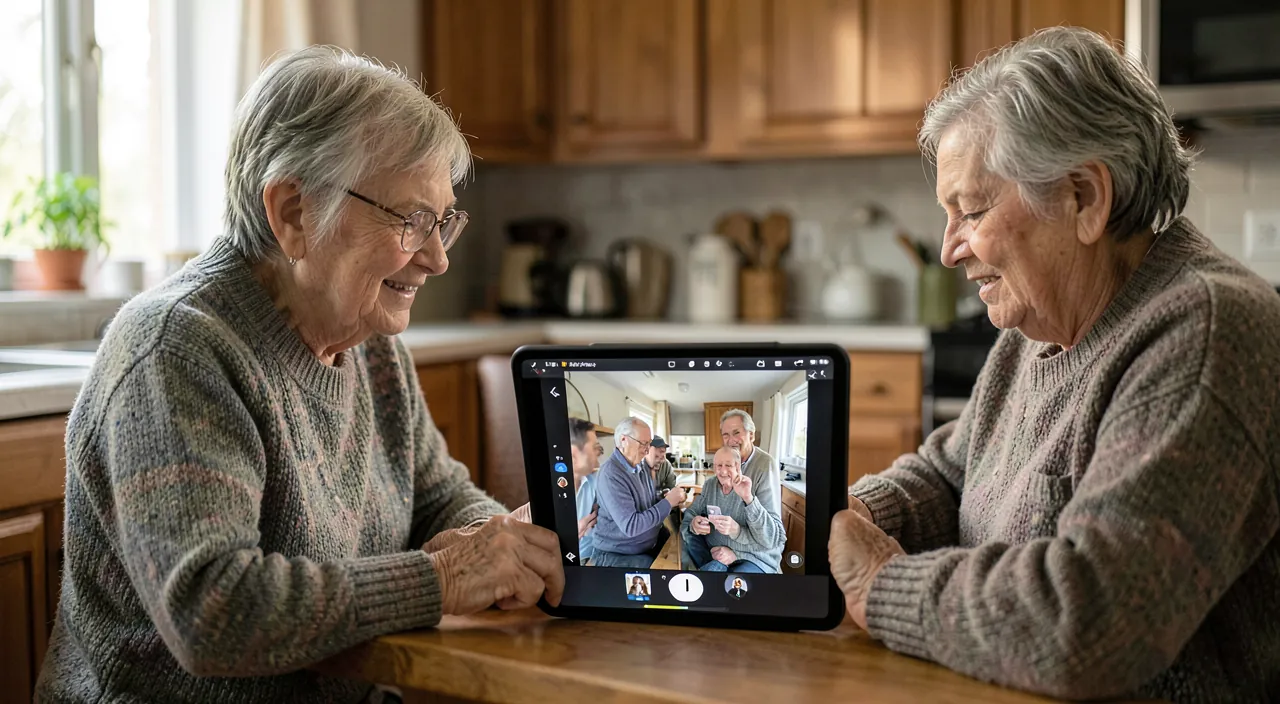
The best channel is the one EVERYONE in the family already has — WhatsApp often wins there. FaceTime shines when the ecosystem is Apple (quality, integration, SharePlay, encryption) or via its links for mixed families; the key is to pick ONE for the ritual (the recurring Sunday link) and stick to it: channel fragmentation is the real enemy of regular calls.
Can I make a FaceTime call from my Mac or iPad?
Yes — FaceTime (audio and video) works on all three devices, and even better: regular CELLULAR calls also go through the Mac/iPad when the iPhone is on the same network (the “Calls on Other Devices” setting): the phone rings on the computer while the iPhone charges in the entryway — the complete ecosystem continuity.
What to remember
FaceTime far exceeds the green button: groups and the UNIVERSAL link (Android and PC join via browser — the mixed family reunited), screen sharing (built-in family support), SharePlay (synchronized remote cinema), live subtitles and voice isolation (accessibility and clarity), video messages, the iPhone as Mac webcam, and FaceTime Audio (the underrated high-fidelity voice call). All end-to-end encrypted, child-friendly, and protected by THE modern family rule: no money request is processed without an outgoing call to the known number — video is no longer proof. Set the ritual (the recurring Sunday link, the kitchen iPad, the gestures learned on both sides): distance will remain distance — but the call will become the moment no one wants to miss.

Want to unlock the full potential of your iPhone, iPad, or Mac? Our Apple training courses take you to the next level.
Leave a Reply
You must be logged in to post a comment.