
The Mail app is on every iPhone, every iPad, every Mac — opened a hundred times a day, used at ten percent: you read, you reply, and you ignore that it can schedule sends, remind you of unanswered emails, silence an overwhelming conversation, sort important senders, and hide your address from questionable sign-ups. The full tour of Apple’s email — the functions that change daily life, the settings that protect, and the organization that works effortlessly.
Sending functions that no one uses
Let’s start with the hidden powers of the Send button: the scheduled send — a LONG PRESS on the send arrow offers “Send Later” (the email to the client written Sunday night that leaves Monday at 8:30 AM: professionalism without the wait — and the birthday reminder prepared in advance); the send cancellation — the few seconds of grace after sending (“Cancel Send” at the bottom of the screen: the delay is adjustable up to 30 seconds in Settings → Mail — set it to 30: the forgotten attachment and the wrong recipient will thank you); the follow-up reminder — Mail automatically suggests unanswered sent messages (and the “Remind Me” function on a RECEIVED email — a long press or swipe brings it back at the chosen time: the school email handled calmly tonight instead of forgotten in the flow — the inbox that becomes a dated to-do list); the rich text and attachments mastered — the formatting bar (the small arrow above the keyboard: bold, lists, direct document scanning FROM the email — the scan sent without leaving the app, our scanning guides), and drag-and-drop from Files or Photos; and the signature per account (Settings → Mail → Signature: the professional one on the pro address, the understated one on the personal — our professional email guides). Five functions, five weekly uses minimum — and Mail stops being just a simple counter.
The Mail app can do more than just send and receive emails. You can schedule emails to be sent later, cancel a sent email within 30 seconds, set reminders for unanswered emails, format text and attach files easily, and even use different signatures for different accounts. These features can make managing your emails much more efficient.
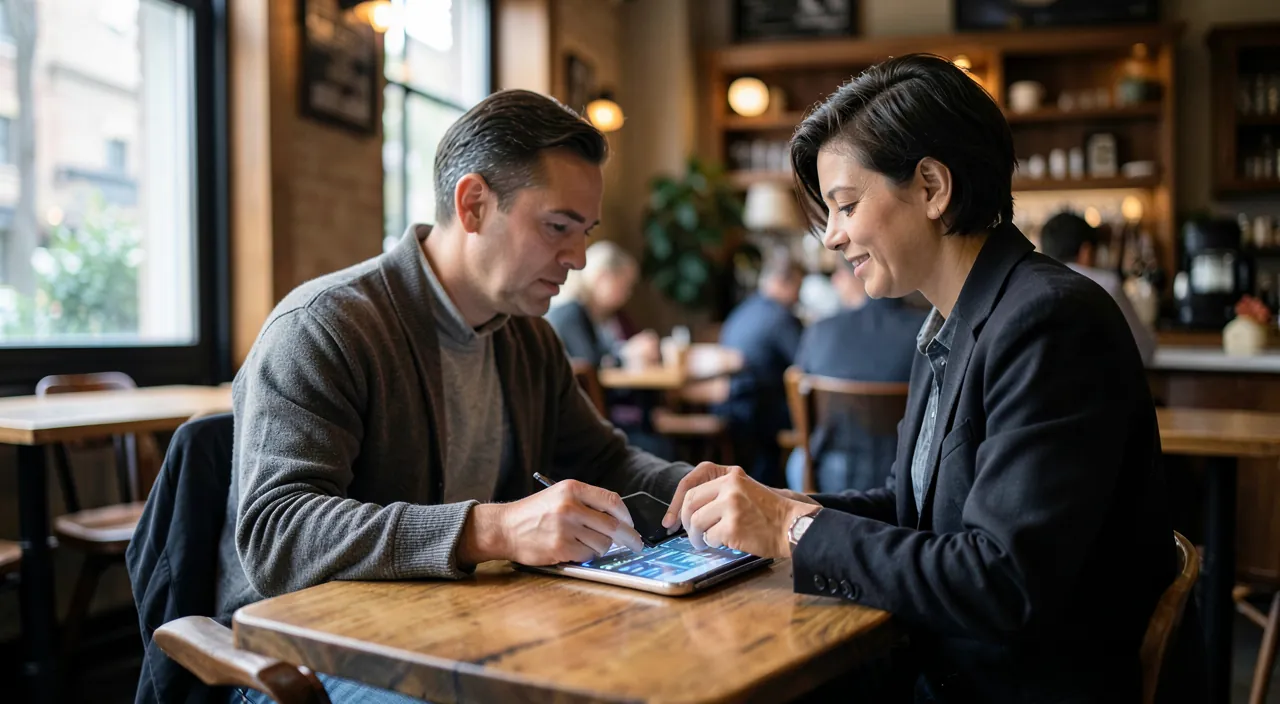
Imagine you need to send an important email to a client but want it to arrive at a specific time. You can write the email on Sunday night and schedule it to be sent at 8:30 AM on Monday. This way, you can prepare in advance without worrying about the timing. Similarly, if you accidentally send an email without an attachment, you have 30 seconds to cancel it and resend it correctly.
Taming reception: sorting, priorities, silence
The overflowing inbox is disciplined with built-in tools: the VIP senders — the star on your crucial contacts (the spouse, the school, the major client: their dedicated inbox, and especially their SPECIFIC NOTIFICATIONS — the setting that allows you to mute alerts from everything else: our notification guides applied to email — Mail silent EXCEPT for VIPs is the queen of calm settings); the smart sorting — the automatic categories of recent versions (transactions, updates, promotions separated from “human” mail) and the quick filter (the icon at the bottom left: unread, with attachment, VIP — the filtered inbox in one gesture); the customizable swipe gestures (Settings → Mail → Swipe Options: archiving on the right, remind or mark as unread on the left — morning sorting in thirty seconds of thumbs); the surgical silence — the overwhelming group conversation is muted (the crossed-out bell: the thread of twenty “thanks!” replies no longer vibrates), the annoying sender is BLOCKED (their emails go straight to the trash), and the unsubscribe with one tap — the “Unsubscribe” banner that Mail displays at the top of newsletters (the big cleanup of our guides for a full inbox, within reach of your thumb); and the search that deserves trust — sender, content, attachments, and smart suggestions: search before filing — the true modern Mail organization is “few folders, good search, massive archive” (the perfectionism of thirty folders lost the war against search — surrender with relief).
The right reflex. Activate the two address protections in iCloud settings: “Hide My Email” — the disposable alias generated for each sign-up (the questionable store writes to an alias that you deactivate with one gesture on the spam day: your real address is NEVER exposed — our guides for a fortress inbox dreamed of it, Apple integrated it), and the privacy protection in Mail (Settings → Mail → Privacy Protection: the spy pixels of newsletters blinded — the sender no longer knows when, where, or if you opened it). Two switches, an address that becomes private again.
Multiple addresses, multiple lives: multi-account setup
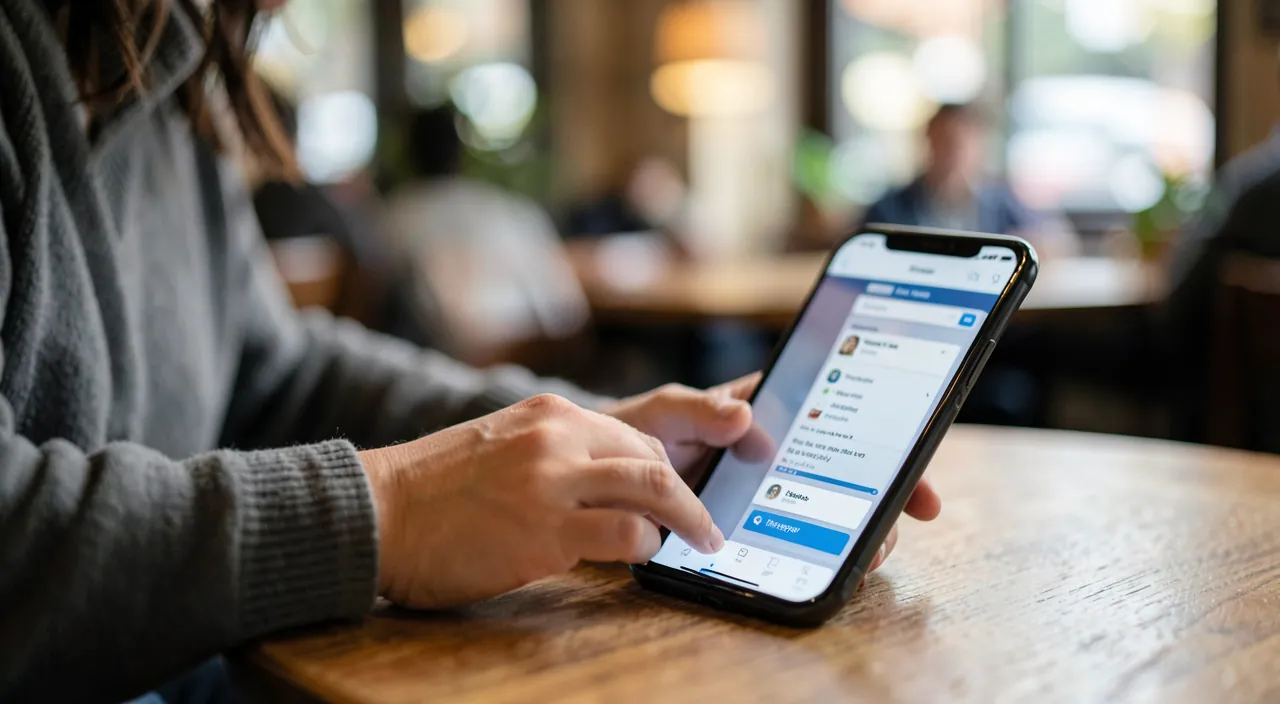
Mail excels at consolidation: all your accounts (iCloud, the pro box with the domain, the free history) in ONE app — the settings that make the difference: the separate boxes AND the unified view (the list of boxes is customizable: “All Mailboxes” for an overview, each account for focus — and smart mailboxes like “Unread” pinned); the VERIFIED sending address — the multi-account trap: replying to the client from the personal address (the “From” field changes with one tap in the draft — check it on every important email, and set the default account in Settings → Mail); the signatures per account (again — the signature error betrays the account error); the notifications per account (the pro one that rings during the day, the personal one on silent at the office — each account has its own rules); and the ecosystem synchronization — the email started on the iPhone resumed on the Mac (Handoff), shared drafts, settings that follow: the continuity that makes the true value of the native app. For those who live a strict pro/personal separation: concentration modes go further (the pro account invisible on weekends — our guides), and the question of a dedicated app per life arises — but for the vast majority, Mail with well-set multi-accounts IS simplicity: one app, all addresses, rules per account.
Mail and security: the app at the forefront
The email inbox being the key to everything (our guides), the native app helps: the transport encryption ensured, the phishing alerts — Mail flags some suspicious senders and especially DISPLAYS the real address with a tap on the name (the “Customer Service” hiding an exotic address is unmasked in one second: THE anti-phishing gesture to teach the whole family — our guides), the verifiable links (a LONG PRESS on a link shows its real destination WITHOUT opening it — the reflex before any suspicious click), the reporting of spam that trains the filter; and the limits to know — Mail is not an enterprise anti-spam (iCloud’s filter is correct, not infallible: doubt is handled by the rules of our guides — never log in via a received link, verification via the official channel), and attachments follow universal rules (the unexpected is verified — our guides on attachments): the app protects the channel, vigilance protects the rest. Last line of defense: the account protection itself — the iCloud address inheriting the security of the Apple ID (two-factor authentication, up-to-date recovery — our guides), and third-party addresses configured in Mail keeping THEIR OWN requirements (their unique passwords, their 2FA): the app consolidates the inboxes, not the responsibilities.
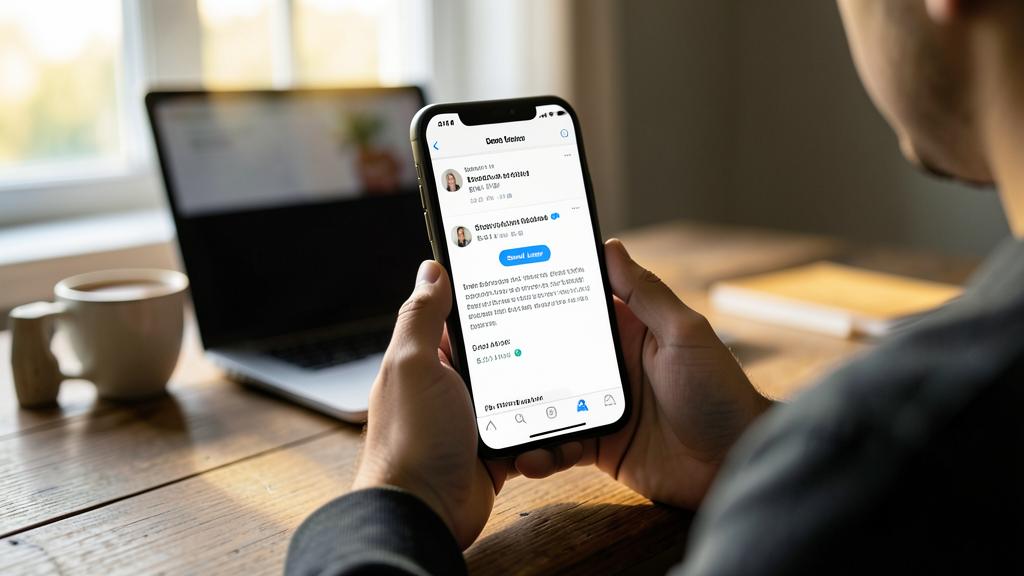
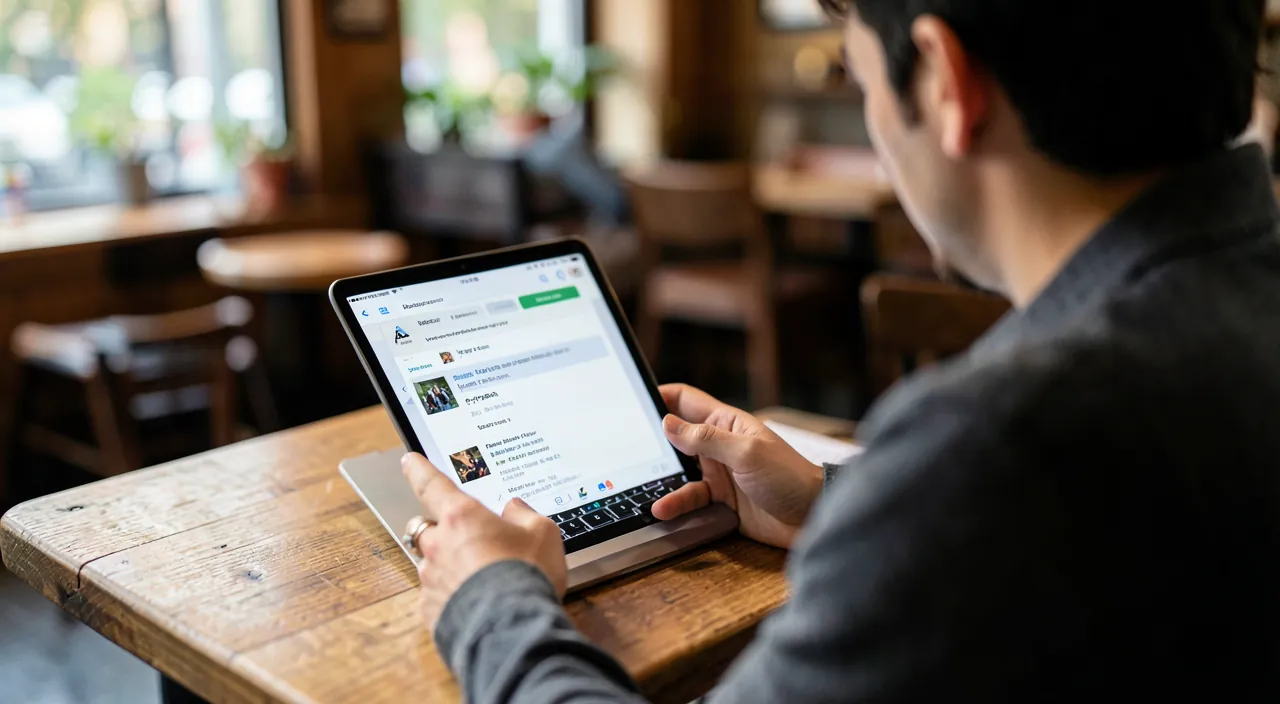
Beware of settings that drain the battery or cause you to miss emails. Two misunderstood sliders: the fetch data mode (Settings → Mail → Accounts → Fetch New Data): “Push” delivers instantly (compatible accounts), “Fetch” checks at intervals (the “late” email that’s 15-30 minutes behind comes from this — normal, not a failure), and “Manual” brings NOTHING until you open the app (the power-saving setting that makes you “miss” urgent emails — check yours: the emergency worker lives in Push, the saver in 30-minute fetch, and everyone KNOWS it); and the accounts in silent error — the password changed on the webmail without updating in Mail: the account stops fetching DISCREETLY (the error banner is noticed late): after any email password change, go to Settings → Mail → the account — and at the slightest doubt of “I’m not receiving anything,” this is the first place to check.
Frequent questions
Mail or provider apps (Gmail, Outlook…)?
Mail wins in integration (system, Handoff, Hide My Email, simplicity) and consolidates everything; dedicated apps win on their home functions (Gmail’s sorting, Outlook’s integrated calendar) and perfect push of their own accounts. The pragmatic choice: Mail as the single app for most — the dedicated app if ONE account dominates your life and you miss its functions. Testing both for a week settles the debate better than anything.
How to find a “lost” email?
The search path: global search first (all mailboxes — the “lost” email is often archived or filed), then Junk (the filter’s false positive), the Trash, and other accounts (the expected email on the wrong address). If it’s nowhere: the sender may have mistyped the address — and the provider’s webmail (the website) is the final judge: present there but not in the app = account synchronization issue (settings, or account to re-authenticate).
Can I manage the association or household email in Mail?
Yes — the shared address (contact@…) is added as an account on multiple devices in the office or household (everyone sees and replies — with the human coordination that goes with it: who responds to what), and sending aliases allow you to reply “as” the functional address. Our association guides detail the governance — Mail, on the other hand, follows without a hitch.

What to remember
The Mail app hides a complete email service under its simple appearance: tool-enhanced sending (scheduled, cancellable for 30 seconds, follow-up reminders — the inbox that becomes a to-do list), disciplined reception (VIP + surgical notifications, configured swipes, mutes, unsubscribe with one tap, search that replaces thirty folders), built-in privacy (Hide My Email for sign-ups, spy pixels blinded, real address and verifiable links with one gesture — the app at the forefront of our security guides), and federated multi-accounts (addresses, signatures, and notifications per account — the “From” field verified on what matters). Plus two settings to know: data fetching (Push or wait — consciously) and accounts in silent error after password change. A hundred openings a day deserved better than ten percent usage: your email just tripled in value — without installing anything.
Want to unlock the full potential of your iPhone, iPad, or Mac? Our Apple training will take you to the next level.
Leave a Reply
You must be logged in to post a comment.