
You open the Wi-Fi settings and your usual network no longer appears in the list, or it disappears intermittently: you can’t connect to it since you can’t even see it. This confusing issue fortunately has well-identified causes, ranging from the simplest (a setting, the box needs to be restarted) to the most technical. Before thinking you’re cut off from the world or calling for urgent help, a few methodical checks usually suffice to make your network reappear. Here’s how to find a Wi-Fi that has become invisible.
The network, the device, or the box? Isolating the cause
When a Wi-Fi network no longer appears, the problem can come from three places: your DEVICE (which no longer detects networks), the BOX/ROUTER (which no longer emits, or not correctly), or a SETTING. To guide the diagnosis, ask yourself: is your network invisible on ONE device or on ALL? (if it’s invisible everywhere, the box is probably to blame; if it’s only invisible on one device, the problem comes from that device). DO YOU SEE OTHER Wi-Fi networks (your neighbors’) in the list? (if yes, your device detects Wi-Fi in general — the issue is your box; if you see NO network, it’s your device or its Wi-Fi that’s causing the problem). Did the problem appear SUDDENLY (after a power outage, a manipulation) or gradually? These questions quickly target: « invisible everywhere + I see neighbors’ networks » points to the box; « no network visible on my device » points to the device (Wi-Fi disabled, airplane mode, bug). This initial sorting avoids looking in the wrong place and often identifies the culprit: in most cases, it’s either the box that needs to be restarted or a device setting to check.

Checks, from simplest to most thorough
Proceed in order: 1. The DEVICE SETTINGS — is Wi-Fi ENABLED? Is AIRPLANE MODE disabled? (the classic: airplane mode cuts off Wi-Fi, or Wi-Fi disabled by mistake); disable then re-enable Wi-Fi to force a new search; 2. THE REBOOT — reboot the device (clears many bugs), and ESPECIALLY the BOX: turn it off, wait a minute, turn it back on, and let it fully restart (the gesture that solves the most box visibility issues — our guides optimize Wi-Fi); 3. PROXIMITY — move closer to the box: a weak network may « disappear » at a distance (obstacles, distance); 4. Check the BOX itself — are its lights normal? Is the box’s Wi-Fi enabled (a Wi-Fi button may have been turned off, or a scheduled setting may turn it off at night)? Are the cables properly connected? 5. The frequency band — modern boxes emit on two bands (one with longer range, one faster but shorter); depending on the distance, one may be visible and not the other; 6. « Forget » and reconnect — on the device, forget the network then search for it again to fix a corrupted entry (warning: you’ll need to re-enter the password); 7. Check for a GENERAL OUTAGE — outage with your internet provider (checkable via mobile data), power outage; 8. Reset the device’s network settings, as a last software resort. This progression makes the network reappear in most cases — and most often, it’s the box reboot or a device Wi-Fi/airplane mode setting that fixes everything.
Your Wi-Fi can disappear because your device is misconfigured, your router is broken, or there’s a setting issue. First, check if other Wi-Fi networks appear. If they do, the problem is your router. If not, it’s your device. Most issues are fixed by restarting the router or checking settings.
You’re at home and your laptop can’t see your Wi-Fi network, but you can see your neighbor’s. This means your device is working, but your router is not broadcasting correctly. Unplug the router, wait 60 seconds, and plug it back in. In 90% of cases, your Wi-Fi will reappear.
The right reflex. First, do the test that isolates everything: check if you see OTHER Wi-Fi networks (your neighbors’) in your device’s list. If YES but yours is missing, your device detects Wi-Fi fine: the problem is your BOX — reboot it (turn off, wait a minute, turn back on), that’s the solution in most cases. If you see NO network at all, the problem is your DEVICE: check that Wi-Fi is enabled and airplane mode is disabled, then reboot the device. This quick glance at the network list — « can I see the others? » — immediately tells you where to look and saves you time on the wrong side. It’s the most effective starting point for an invisible Wi-Fi: it turns a mysterious outage into a targeted problem.

Preventing and knowing when to ask for help
For a stable and always visible Wi-Fi: place the BOX wisely (clear, central, not in a closet or behind the TV — our guides optimize Wi-Fi), reboot it occasionally (prevents many issues), keep it UPDATED (boxes update themselves; a healthy box emits better), and check that no scheduling turns off Wi-Fi at certain hours without your knowledge. On your devices, avoid leaving airplane mode on and keep the system updated. When to ask for help? If, after rebooting the box, checking the device settings, testing proximity and other networks, your Wi-Fi remains invisible: the problem may come from a FAULTY BOX (end-of-life hardware), an OUTAGE with your internet provider (contact them: there may be an incident on your line — first check via mobile data or the provider’s website), or a hardware issue on the device (the Wi-Fi chip, rarer). Your internet provider is the right contact for a box or line issue (they can diagnose remotely or replace a faulty box). For an issue isolated to one device that no longer sees any network despite everything, a professional can check the hardware. But remember: before any call, the simple diagnosis (see other networks? reboot the box? check airplane mode?) resolves the vast majority of invisible Wi-Fi issues — often in less than five minutes, without any technical skills.
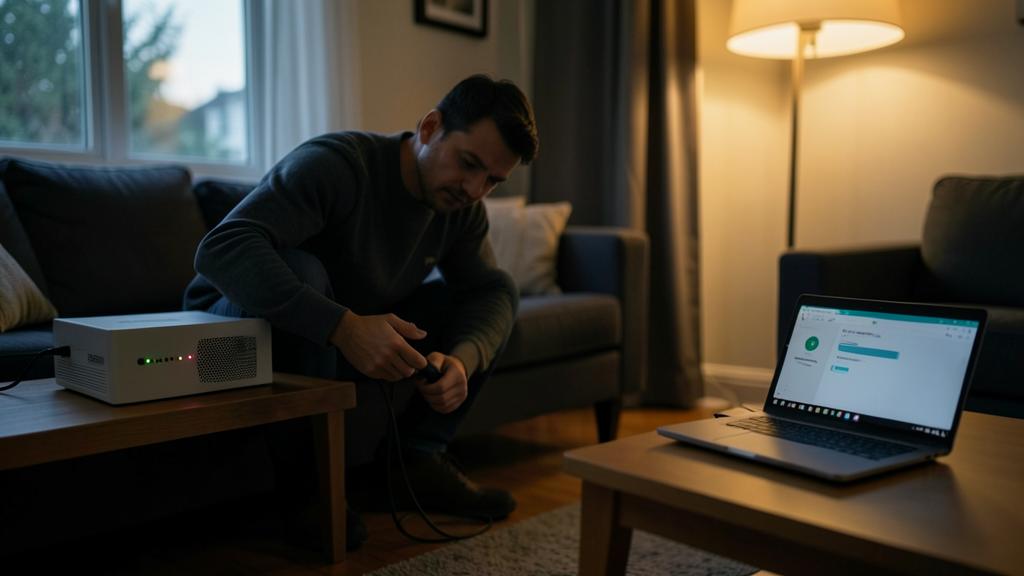
Warning: first check for a general outage, and note your password before « forgetting » the network. Two precautions: before starting any manipulations, check that it’s not a GENERAL OUTAGE — an outage with your internet provider or a power incident would make all efforts useless; check your connection status (via mobile data, the website, or your operator’s app) to know if the problem is at your end or on the line. And if you use the « FORGET NETWORK » option on your device (useful to start fresh), know that you’ll then need to RE-ENTER the Wi-Fi PASSWORD: make sure you know it or have it noted BEFORE (it’s often on a label under the box), or you won’t be able to reconnect. Finally, don’t randomly change your box’s advanced settings if you’re not sure (you could make it worse): if you have persistent doubts, your internet provider is the right contact, able to diagnose your line and box remotely. The reboot and simple checks are risk-free; the advanced settings, on the other hand, require caution.

Frequent questions
My Wi-Fi network no longer appears, what should I do first?
Check if you see OTHER networks (neighbors) in the list. If yes but not yours, reboot your BOX (turn off, wait a minute, turn back on): that’s the most frequent solution. If you see NO network, check on your DEVICE that Wi-Fi is enabled and airplane mode is disabled, then reboot it. This test — « can I see the other networks? » — immediately indicates if the problem comes from the box or the device. In most cases, a box reboot or a Wi-Fi/airplane mode setting is enough to make the network reappear, without any technical skills.
Why does my Wi-Fi disappear from time to time?
Several possible causes: a weak signal that « drops » at a distance (obstacles, distance from the box: move closer, or improve the box’s placement — our guides optimize Wi-Fi), a box that needs to be rebooted, a scheduled setting that turns off Wi-Fi at night, or interference. On dual-band boxes, one band (faster but with shorter range) may disappear when you move away, while the other remains. Start by rebooting the box and checking its placement. If the disappearances persist and are frequent, an aging box or a line issue may be to blame: your internet provider can diagnose it.

When should I contact my internet provider?
When, after rebooting the box, checking the device settings, and ruling out a general outage, the Wi-Fi remains invisible or unstable. The internet provider is the right contact for a BOX issue (faulty, needs replacement) or LINE issue: they can diagnose remotely, detect an incident on your connection, and intervene. First, check via your mobile data if there’s a reported outage in your area (in which case you just need to wait for restoration). If the problem is isolated to one of your devices that no longer sees any network despite everything, it’s more likely a hardware issue on the device: a professional can check it.
What to remember
An invisible Wi-Fi is fixed methodically. First, ISOLATE the cause with a simple test: do you see OTHER networks (neighbors)? If yes but not yours, the BOX is to blame (reboot it: turn off, wait, turn back on — the most frequent solution). If you see NO network, it’s the DEVICE (check Wi-Fi enabled, airplane mode disabled, then reboot). Then, from simplest to most thorough: move closer to the box, check its lights and Wi-Fi (not turned off by a button or scheduled setting), the two frequency bands, « forget » and reconnect the network (knowing the password), rule out a general outage from the provider (via mobile data), and as a last resort, reset the network settings. Prevent issues with good box placement, regular reboots, and updates. Contact your internet provider if, after ruling everything out, the box or line seems to be the issue (they diagnose remotely). Before any call, the simple diagnosis resolves the vast majority of cases — often in less than five minutes, without any technical skills.



Persistent outage, finicky device? Our remote troubleshooting service quickly resolves your issue, without jargon.
Leave a Reply
You must be logged in to post a comment.