
Your phone (or laptop) that used to last all day now only lasts a few hours? A battery that drains way too fast is one of the most frustrating daily digital issues. The good news: in most cases, it’s NOT the battery that’s dead, but a setting, a power-hungry app, or a habit to correct—and it can be fixed. You just need to identify what’s draining your battery. Here’s how to diagnose and resolve a battery that drains too quickly.
Why a battery drains too quickly
Before concluding that your battery is “dead,” understand the possible causes: most are fixable. Let’s first distinguish TWO main scenarios. Scenario 1 — the rapid drain is RECENT and sudden (your device used to last well, and now it drains quickly): this is often a sign of a SOFTWARE or setting issue—a runaway app, a power-hungry setting, a bug after an update; it’s fixable, and the battery isn’t to blame. Scenario 2 — the drain has WORSENED PROGRESSIVELY over years: this is the NORMAL WEAR of the battery, which loses capacity over hundreds of charge cycles; here, the battery itself is weakening (our guides on preserving your phone’s battery). SOFTWARE/SETTING causes of rapid drain: a POWER-HUNGRY APP running in the background (a buggy or very active app straining the processor, network, or continuous location tracking); the SCREEN BRIGHTNESS set too high (the biggest power drain); too many UNNECESSARY ACTIVE functions (permanent location/GPS, WiFi and Bluetooth when unused, background app refresh); too many NOTIFICATIONS waking the screen constantly; a WEAK NETWORK signal (the device “forces” to connect, draining the battery); a bug after an UPDATE; HEAT (which drains and wears the battery—our guides on overheating phones). MATERIAL causes: a WORN-OUT battery (after years/many cycles), or rarely, a faulty one. USEFUL DISTINCTIONS for diagnosis: recent drain (→ software/setting, fixable) vs. progressive drain over years (→ wear)? Which device? The good news: devices precisely show WHICH apps and functions consume the most (in battery settings); it’s the key diagnostic tool. What to remember first: a battery draining too quickly is most often a setting or power-hungry app issue (especially if it’s recent), NOT a dead battery; you can identify and fix what’s consuming power; it’s only if wear is real (after years) that the battery itself is to blame—and it can be replaced. Let’s see how to diagnose and act.
When your battery drains too fast, it’s usually not dead. If the problem is new, it’s probably an app or setting. If it’s been getting worse for years, the battery is just old. Most of the time, you can fix it by checking which apps are using the most power and adjusting your settings.
Imagine your iPhone used to last all day, but suddenly it dies by noon. You check the battery settings and see a social media app is using 30% of your battery while you barely use it. The app is running in the background, checking for updates and tracking your location. You disable its background activity and restrict its location permissions. The next day, your battery lasts all day again.
Identify what’s consuming power and take action
The key is to IDENTIFY what’s draining your battery, using your device’s tools, then act. CHECK the BATTERY SETTINGS: this is the essential step; phones and computers display, in their battery settings, WHICH apps have consumed the most recently (often with a percentage or ranking); look at the TOP consumers: an app abnormally power-hungry (especially if you don’t use it much) is suspicious; it’s your main clue. ACT on power-hungry apps: for an app consuming too much: close it, limit its background activity (in its settings or battery settings), restrict its permissions (especially location), update it (the bug may be fixed), or uninstall it if it’s problematic and you can do without. LOWER the BRIGHTNESS: this is the most effective gesture for battery life; set the brightness to a comfortable but not maximum level; enable auto-brightness; reduce the screen timeout delay. DISABLE what you don’t need: LOCATION/GPS when you don’t need it (big power drain), WiFi and Bluetooth if unused, background app refresh for apps that don’t need it. LIMIT NOTIFICATIONS: each notification wakes the screen and consumes power; turn off non-essential ones (our guides on disabling notifications). Enable POWER-SAVING MODE: all devices have one; it reduces consumption (limits certain activities, lowers brightness); useful to last longer. RESTART the device: a restart stops runaway processes and often fixes abnormal drain due to a bug (our guides on why restarting fixes most bugs). Check for UPDATES: if the rapid drain started after an update, a later patch may fix the issue; keep the system updated. Check the NETWORK signal: in an area with poor coverage, the device drains faster; little you can do, except avoid leaving it searching for a signal. Monitor HEAT: a hot device drains and wears out faster; avoid heat exposure (our guides on overheating phones). In summary: check battery settings to identify big consumers (especially power-hungry apps), then act: manage or uninstall the culprit apps, lower brightness, disable unnecessary functions (GPS, WiFi, Bluetooth), limit notifications, enable power-saving mode, restart, and update. These actions resolve the vast majority of recent rapid drains.
- Check battery settings to see which apps are using the most power.
- Close or uninstall apps that are using too much power.
- Lower screen brightness to save battery life.
- Disable GPS, WiFi, and Bluetooth when you don’t need them.
- Limit notifications to reduce screen wake-ups.
- Enable power-saving mode to extend battery life.
- Restart your device to stop runaway processes.
- Update your system to fix potential bugs.
- Avoid heat to prevent battery drain and wear.
The number one reflex: check WHO is consuming in battery settings. Faced with a battery draining too quickly, don’t guess: your device TELLS you precisely what’s consuming. Go to your phone or computer’s BATTERY SETTINGS (often a “Battery” section in settings): you’ll find a ranking of APPS and functions that have consumed the most recently, usually with a percentage. This is your number one diagnostic tool. Examine this ranking: an app at the top consuming a lot WHILE you use it little is very suspicious (it’s probably running wild in the background); an app you use a lot and that consumes is more normal. Once the culprit(s) are identified, act: for a power-hungry app, limit its BACKGROUND activity (in settings), restrict its permissions (especially LOCATION, very power-hungry: set it to “only when I use the app” or turn it off), update the app (the consumption bug may be fixed), or UNINSTALL it if it’s problematic and not essential. Often, ONE runaway app is responsible for all the drain; fixing it resolves everything. In addition, apply the gestures that save the most battery: lower SCREEN BRIGHTNESS (the biggest power drain), disable GPS/location when unnecessary, WiFi and Bluetooth if unused, and enable POWER-SAVING MODE. And don’t forget the RESTART: if the rapid drain appeared suddenly, a simple restart stops the runaway processes and often restores normal battery life; it’s a simple and effective reflex. By first checking WHO is consuming (instead of suffering or blaming “the battery”), you directly target the real cause: nine times out of ten, it’s an app or specific setting, easy to fix; and you’ll avoid wrongly believing your battery is dead.
Battery wear: when it’s really the battery
If the rapid drain isn’t due to a setting or app, and it’s been worsening for a long time, it may be battery wear. Recognizing WEAR: unlike a software cause (sudden drain, linked to an app), battery wear is PROGRESSIVE: autonomy declines slowly over months and years; it’s normal—every battery loses capacity over time and charge cycles. Signs: the device lasts much less than when new; it sometimes shuts down abruptly even when showing charge; it barely works unplugged. CHECK the battery’s condition: devices often show the battery’s STATE/“health”; on iPhone, a dedicated menu displays the current maximum capacity (as a % of original) and indicates if the battery needs servicing; on computers, you can check the battery’s state (cycle count, capacity); a capacity well below original confirms wear. What to DO if the battery is worn out? The solution is to REPLACE the battery by a professional: this restores the device’s original battery life, for much less than a new device; it’s often the right reflex to extend the life of a still-performing phone or computer (our guides on extending your hardware’s life); it’s also more eco-friendly than replacing the whole device. In the meantime, you can use the device plugged in, enable power-saving mode, and apply power-saving gestures (brightness, unnecessary functions). PRESERVE the battery for the future: to slow wear, avoid heat (battery’s number one enemy), complete discharges, and keep smart charging management enabled (our guides on preserving your phone’s battery). A serious sign not to ignore: a SWOLLEN battery (deformed device, lifting screen) is serious: stop using the device and have it serviced by a professional without delay. Distinguishing wear and software cause: before concluding wear, make sure you’ve ruled out software causes (power-hungry app, settings, bug); if after checking and fixing autonomy is still poor, and the battery is several years old with many cycles, then it’s indeed wear. In summary: if the drain has been progressive for years and software fixes don’t help, the battery is worn out; check its condition in settings, and consider professional replacement—often more economical and eco-friendly than replacing the device.
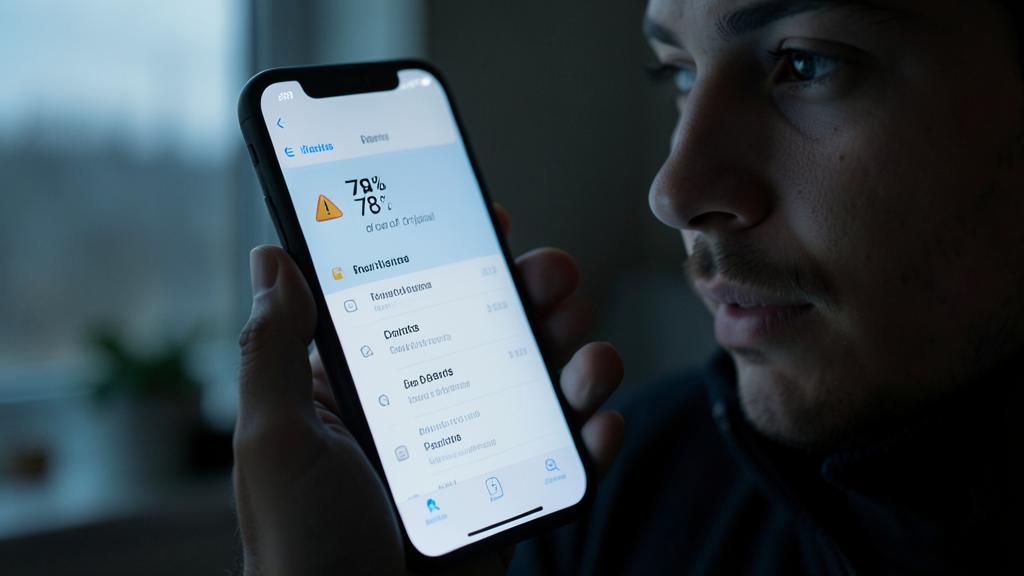
Warning: don’t jump to conclusions about a dead battery, and beware of false solutions. Faced with a battery draining too quickly, several pitfalls await. First, don’t conclude TOO QUICKLY that “the battery is dead” and that you need a new device: in most cases (especially if the rapid drain is RECENT), the issue comes from a POWER-HUNGRY APP, a SETTING, or a BUG—not the battery; first check battery settings to identify what’s consuming, fix the culprit apps, lower brightness, disable unnecessary functions, and restart; it would be a shame to replace a battery (or a device!) when a runaway app was the cause. Then, even if the battery IS worn out (progressive drain for years), know that it can be REPLACED: no need to throw away a still-good device; professional battery replacement costs much less than a new device and restores its battery life; it’s also more eco-friendly (our guides on extending your hardware’s life). Beware of “BATTERY SAVER,” “optimizer,” or “miracle booster” apps: most are USELESS (the system already manages the battery better than they do), or even counterproductive (they consume resources and battery themselves!), and some are loaded with ads or questionable; don’t install them; the real tools are those INTEGRATED into your device (battery settings, power-saving mode—our guides on avoiding unwanted software). Don’t use CHEAP COUNTERFEIT chargers or batteries: they may charge poorly, overheat, and damage your device; prefer quality accessories. Don’t follow OBSOLETE old rituals (fully discharging “to recalibrate”): it’s useless, even harmful for modern batteries. Beware of HEAT: it drains AND wears the battery; don’t leave your device in the sun or in a hot car (our guides on overheating phones). Finally, take a SWOLLEN battery seriously (deformed device, lifted screen): stop using it and have it checked by a professional; a swollen battery is weakened and potentially dangerous; don’t puncture it, don’t try to remove it yourself. By first diagnosing the real cause (via battery settings), avoiding miracle apps and questionable accessories, and knowing that a worn-out battery can be replaced, you’ll solve the problem without unnecessary expense or risk.

Frequent questions
Why is my battery draining much faster suddenly?
A drain that has BECOME RECENTLY rapid (when the device used to last well) is almost always due to software or settings, NOT a dead battery—good news, it’s fixable. The most common causes: an APP running wild and consuming in the background (a buggy or very active app straining the processor, network, or continuous location tracking)—this is the number one cause; a BUG appearing after an update; a power-hungry setting; a weak network signal (the device “forces” to connect); or heat. To find the culprit: go to your device’s BATTERY SETTINGS, which show which apps have consumed the most recently; an app abnormally power-hungry (especially if you use it little) is suspicious. Then act: limit its background activity, restrict its permissions (location), update it, or uninstall it; often, one runaway app explains all the drain. Also do a RESTART: this stops runaway processes and often restores normal battery life (very effective reflex for sudden drain). Check for updates (if the issue started after an update, a later patch may help). In addition: lower brightness, disable unnecessary GPS/WiFi/Bluetooth, enable power-saving mode. In summary: a suddenly rapid drain almost always comes from an app or bug; identify the culprit in battery settings, fix it, restart; battery life usually returns to normal, without needing to replace the battery.
How to know which app is draining my battery?
Your device tells you precisely: check the BATTERY SETTINGS. On phones and computers, there’s a “Battery” section in settings that displays a RANKING of apps and functions that have consumed the most recently, often with a percentage or duration. It’s the ideal diagnostic tool. Examine this ranking: spot the apps at the TOP of consumption. Distinguish: an app you use A LOT and that consumes is rather normal (a game, a video app, GPS navigation); on the other hand, an app you use LITTLE but that appears as a big consumer is SUSPICIOUS: it’s probably running wild in the background (bug, excessive activity, permanent location). That’s the one to fix. Also check if a function (like location, or background activity) consumes a lot. Once the culprit app is identified: limit its background activity (in its settings or battery settings), turn off or restrict its permissions (especially location), update it (a patch may fix its overconsumption), force-close it, or uninstall it if it’s problematic and not essential. Often, ONE app is responsible for most of the drain: fixing it restores good battery life. These battery settings are your best ally: instead of guessing or suffering, you see in black and white what’s draining your battery, and you can act directly on the real cause. Check them as soon as your battery life drops abnormally: it’s the first reflex, simple and revealing.
Is my battery dead or is it something else?
To know, distinguish the nature of the problem. If the rapid drain is RECENT and sudden (your device used to last well, and now it drains quickly): it’s probably NOT the battery, but a software issue—power-hungry app, setting, bug; check battery settings to identify what’s consuming, fix, restart; battery life should return. If the drain has WORSENED PROGRESSIVELY over months or years: it’s the NORMAL WEAR of the battery, which loses capacity over time and charge cycles. To confirm wear: check the battery’s STATE/“health” in settings (on iPhone, a menu shows the current maximum capacity as a % of original and indicates if the battery needs servicing; on computers, you can see the capacity and cycle count); a capacity well below original, or many cycles, confirm wear. Signs of a worn-out battery: significantly reduced battery life for a long time, sudden shutdowns even when showing charge, device barely works unplugged. The approach: first rule out software causes (power-hungry app, settings, bug—via battery settings and a restart); if after fixing battery life is still poor AND the device is several years old, it’s wear. Good news: a worn-out battery can be REPLACED by a professional, for much less than a new device, restoring its battery life; no need to throw away a still-performing device. So: recent drain = probably software (fixable); progressive drain over years + degraded capacity = wear (replaceable battery). Diagnose before concluding.
What to remember
A battery draining too quickly is most often NOT a dead battery: it’s a setting, power-hungry app, or bug issue—especially if the rapid drain is RECENT. Distinguish: sudden drain (→ software cause, fixable) vs. progressive drain over years (→ battery wear). The NUMBER ONE REFLEX: check your device’s BATTERY SETTINGS, which show WHICH apps consume the most; a power-hungry app you use little is suspicious (it’s running wild in the background); it’s your main clue. Then ACT: manage the culprit app (limit its background activity, restrict its permissions—especially location—, update it, or uninstall it; often one app explains everything), lower BRIGHTNESS (the biggest drain), disable unnecessary functions (GPS, WiFi, Bluetooth), limit notifications, enable POWER-SAVING MODE, RESTART (stops runaway processes: very effective for sudden drain), and check for updates. These actions resolve the vast majority of recent rapid drains. If the battery is really WORN OUT (progressive drain for years, degraded capacity in settings, sudden shutdowns): it can be REPLACED by a professional, for much less than a new device—no need to throw away a still-good device (it’s also more eco-friendly). TRAPS to avoid: concluding too quickly that the battery is dead (first check software causes); installing “battery saver” miracle apps (useless or even counterproductive: built-in tools suffice); using counterfeit chargers; practicing complete discharges “to recalibrate” (obsolete); exposing the device to heat (which drains and wears the battery). Take a SWOLLEN battery seriously (stop using the device, consult a professional). By first identifying what’s consuming (via battery settings) and fixing the real cause, you’ll restore good battery life in most cases—without unnecessarily replacing the battery or device.

Persistent issue, temperamental device? Our remote troubleshooting service quickly resolves your problem, without jargon.
Leave a Reply
You must be logged in to post a comment.