
The printer: probably the most frustrating device in the home. It jams paper at the worst moment, refuses to print without reason, displays incomprehensible messages, or remains desperately silent. Yet, most of these malfunctions have simple causes and solutions within your reach, without calling a technician. Paper jams, offline printer, print jobs not starting: here’s how to diagnose and fix the most common printer problems, calmly and methodically.
Paper jam: react without breaking
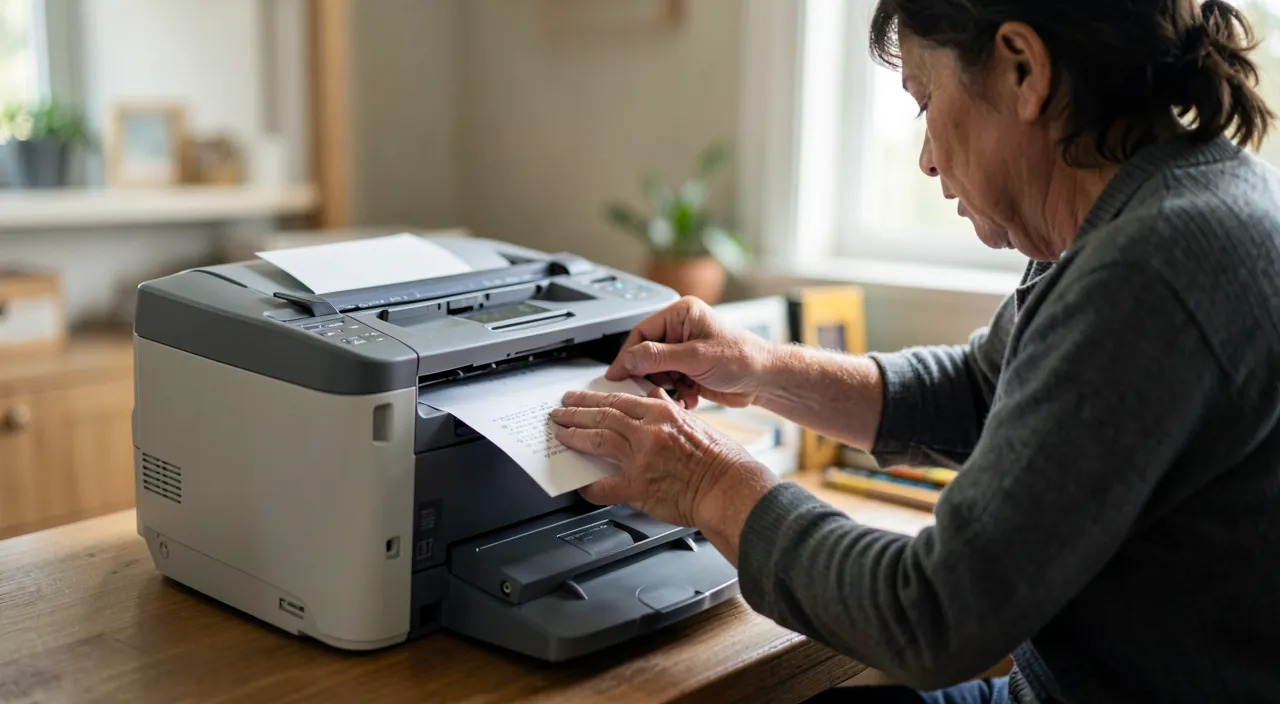
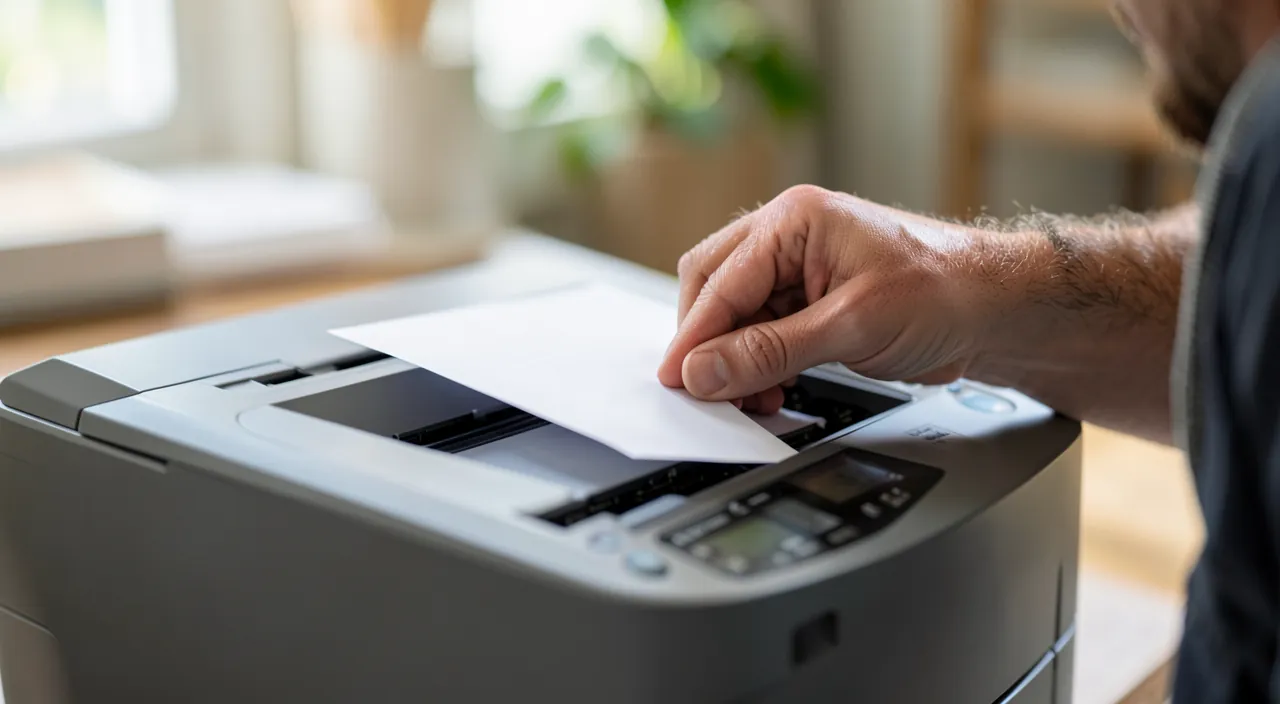
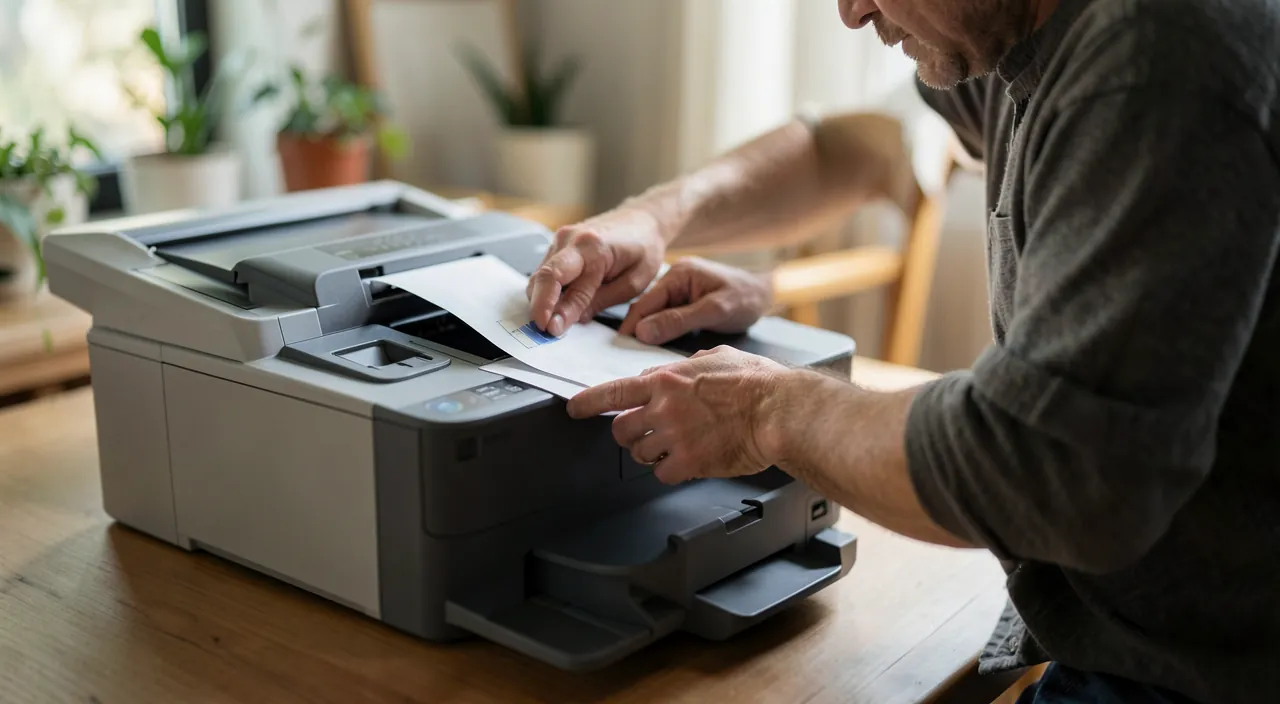
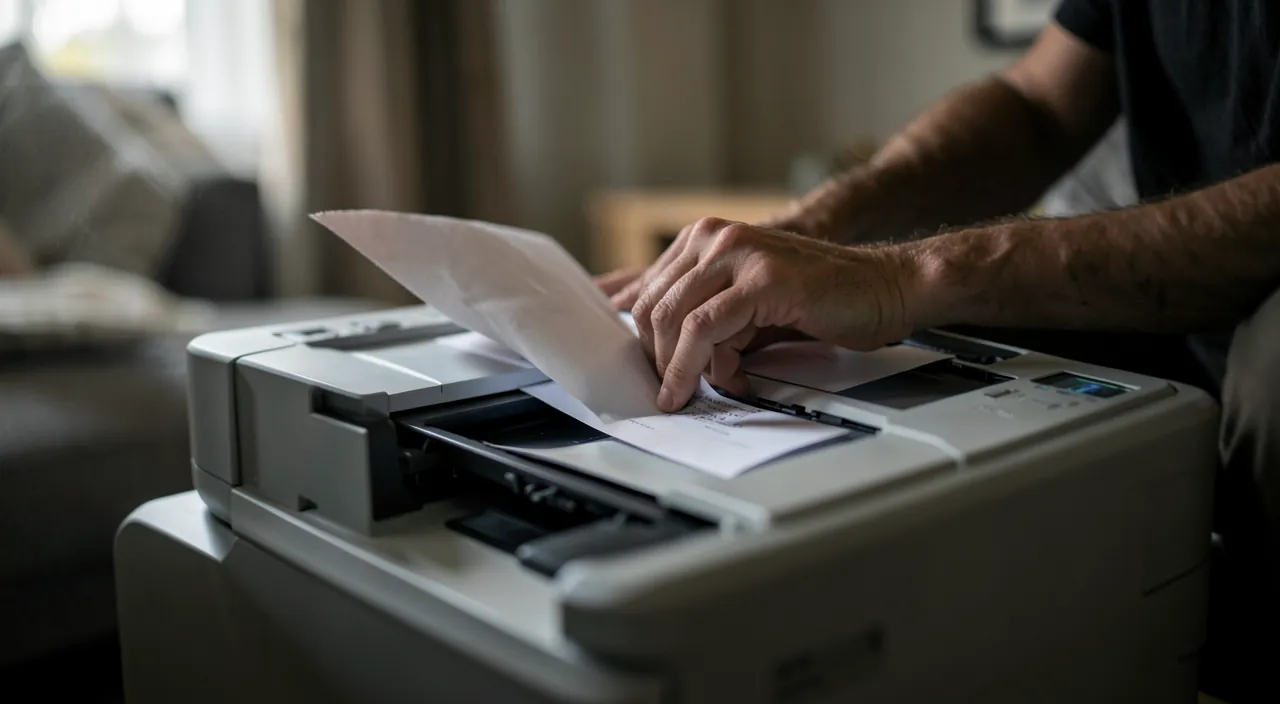
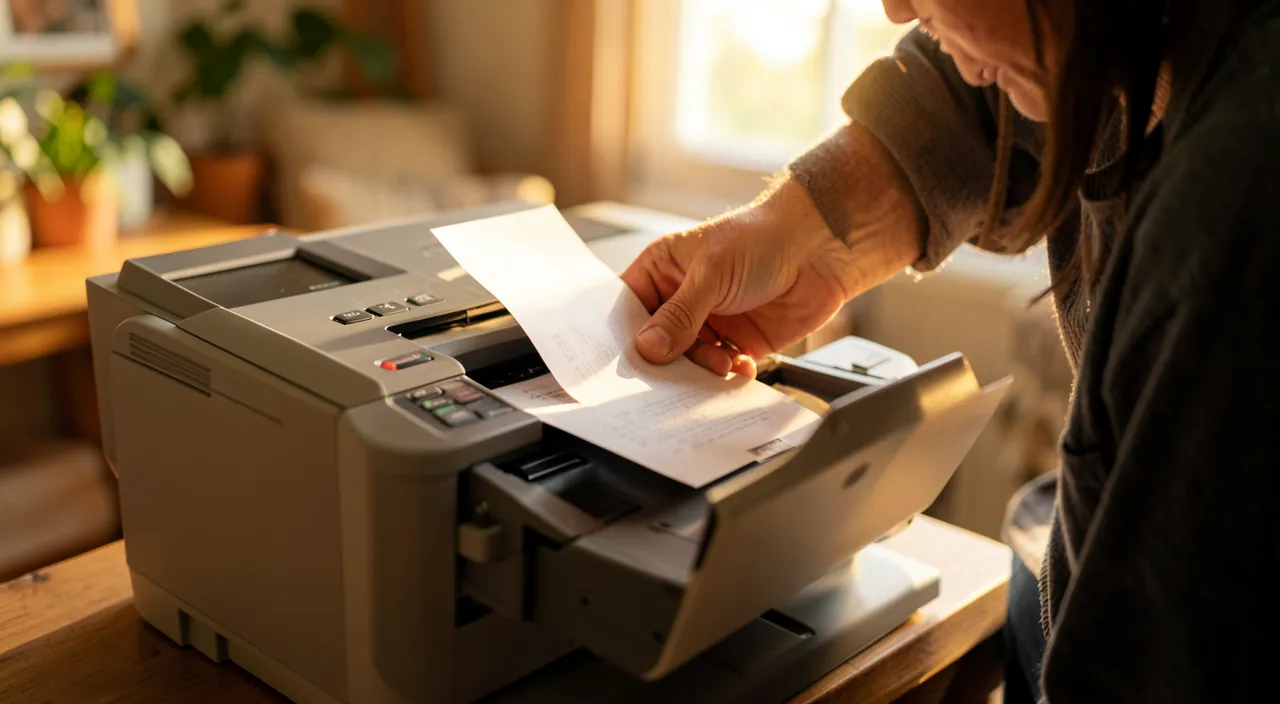
The classic: a stuck sheet blocks everything. The golden rule for clearing a jam: GENTLY and in the RIGHT DIRECTION. In practice: turn off the printer first (safety and reset), open the covers to access the jammed paper, and pull the sheet SLOWLY, in the normal direction of paper movement (usually toward the output), without jerks. Never pull BRUTALLY or in reverse: you risk tearing the sheet (leaving bits stuck, worse yet) or damaging the rollers. Check that no PIECE of paper remains inside (a forgotten small piece will jam again immediately). Close, turn back on: the printer usually restarts. To PREVENT jams: use paper in good condition (not crumpled, not damp, not already printed on one side that warps), don’t overfill the tray, air out the stack of sheets before loading (to prevent them from sticking), and check that the tray is properly adjusted to the paper size. An occasional jam is normal; REPEATED jams often indicate a paper problem (quality, humidity, loading) or worn/dirty rollers that need cleaning. Patience is your best ally here: rushing during a jam turns a minor nuisance into a serious malfunction.
Most paper jams happen because the paper is bad quality or the printer’s rollers are dirty. Always pull the paper gently in the right direction, and check for small pieces left inside. If jams keep happening, clean the rollers or use better paper.
A user notices their HP OfficeJet 8010 keeps jamming. They check the paper tray and find the sheets are slightly curled from humidity. After replacing the paper with a fresh, dry stack and adjusting the tray guides, the jams stop. The printer works fine again.
The “offline” printer or one that doesn’t print
The other classic: you start printing, nothing comes out, or the printer is marked “offline.” Diagnose in order: physical basics — is the printer TURNED ON, does it have PAPER, INK/toner, covers properly closed, no jam? (we laugh, but that’s often the case); CONNECTION — the most frequent issue: if it’s a Wi-Fi printer, is it connected to the SAME network as your computer or phone? (network printers sometimes lose connection — restarting the printer AND the router often helps; our guides optimize Wi-Fi); if it’s USB, is the cable properly plugged in on both ends? RESTARTING — turning off and on the printer AND the device that prints resolves a very large number of jams (the classic that actually works); print queue — a document stuck in the print queue blocks the others: cancel pending prints and restart; “offline” status — put the printer “online” in your device’s print settings (it sometimes goes offline on its own after sleep mode); correct printer selection — check that you’re printing to the RIGHT printer (not an old one or a “PDF” by mistake); drivers/software — a system update can disrupt the printer; reinstalling or updating its software (“driver”) fixes some cases. This checklist, from simplest to most technical, resolves the vast majority of “it doesn’t print” issues. And nine times out of ten, it’s the connection or a simple restart.
The right reflex. When faced with a printer that doesn’t print or says it’s “offline,” always start with a full restart, in order: turn off the printer, turn off (or restart) the device sending the print job, and if it’s a Wi-Fi printer, restart the internet box as well; then turn everything back on and try again. This simple cycle resolves the vast majority of print jams — stuck print queue, lost connection, incorrect “offline” status, minor software bug. It’s tedious, but it’s by far the most effective action before any complicated adjustments. Most “malfunctions” of printers are just temporary communication jams between the device and the printer: giving them a fresh start almost always suffices. Only attempt advanced settings AFTER trying this full restart.
Ink, print quality, and good habits
Beyond jams and blockages, other common issues: PRINT QUALITY — streaks, scratches, faded colors, or missing parts: often clogged printhead nozzles (inkjet printers have a HEAD CLEANING function in their settings — run it), low ink/toner level, or a cartridge at the end of its life; INK ALERTS — check levels, replace the empty cartridge (beware of very cheap suspicious cartridges, sometimes the source of problems); too slow or low-quality prints by default — check settings (draft/quality mode, color/black and white) according to needs. A few good HABITS prolong peace with your printer: print occasionally (an inkjet printer that’s never used sees its nozzles dry and clog — regular use keeps them clean), use quality paper and consumables, keep the software up to date, and properly shut down the device. Finally, know when a printer is no longer worth repairing: on old or low-end models, the cost of a repair (or sometimes cartridges) can exceed the value of the device; it’s a trade-off to make. But before getting there, the vast majority of printer issues — jams, blockages, quality — are resolved by the simple steps described here. The printer has a bad reputation, but with a bit of method and patience, it’s far less temperamental than it seems.
If your prints look bad, the nozzles are probably clogged or the ink is low. Run the cleaning function, replace the cartridges, and print something at least once a week to keep the ink flowing. Cheap ink can cause more problems than it’s worth.
A user’s Canon PIXMA TS6350 prints with streaks. They run the head cleaning function twice, but the problem persists. Checking the ink levels, they see the black cartridge is empty. After replacing it, the prints come out perfectly again.
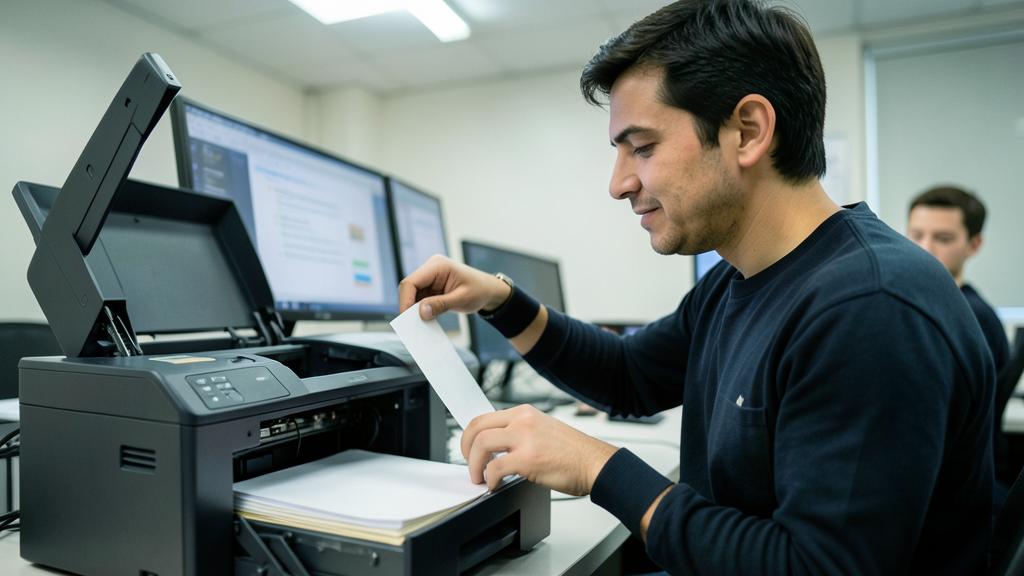
Warning: never force a jam, and handle the printer when it’s off. Two precautions: for a JAM, never pull the paper brutally or in reverse — you risk tearing it (leaving stuck pieces that are hard to extract) or damaging the rollers and internal mechanisms; turn off the printer, open the covers, and remove the sheet GENTLY in the normal direction of movement, checking that no piece remains. In general, intervene on the printer WHEN IT’S OFF (safety, especially near moving or hot parts of a laser printer). Also beware of very cheap consumables (ink, toner) of dubious origin: they can cause quality problems or damage the device. Finally, if jams or malfunctions REPEAT despite good practices, or if a mechanical issue seems to be the cause, don’t force it: on an old device, assess whether the repair is worth it, and otherwise, have a professional diagnose it. Patience and gentleness prevent turning a minor printer incident into a definitive malfunction.
Frequent questions
How to remove a paper jam without breaking the printer?
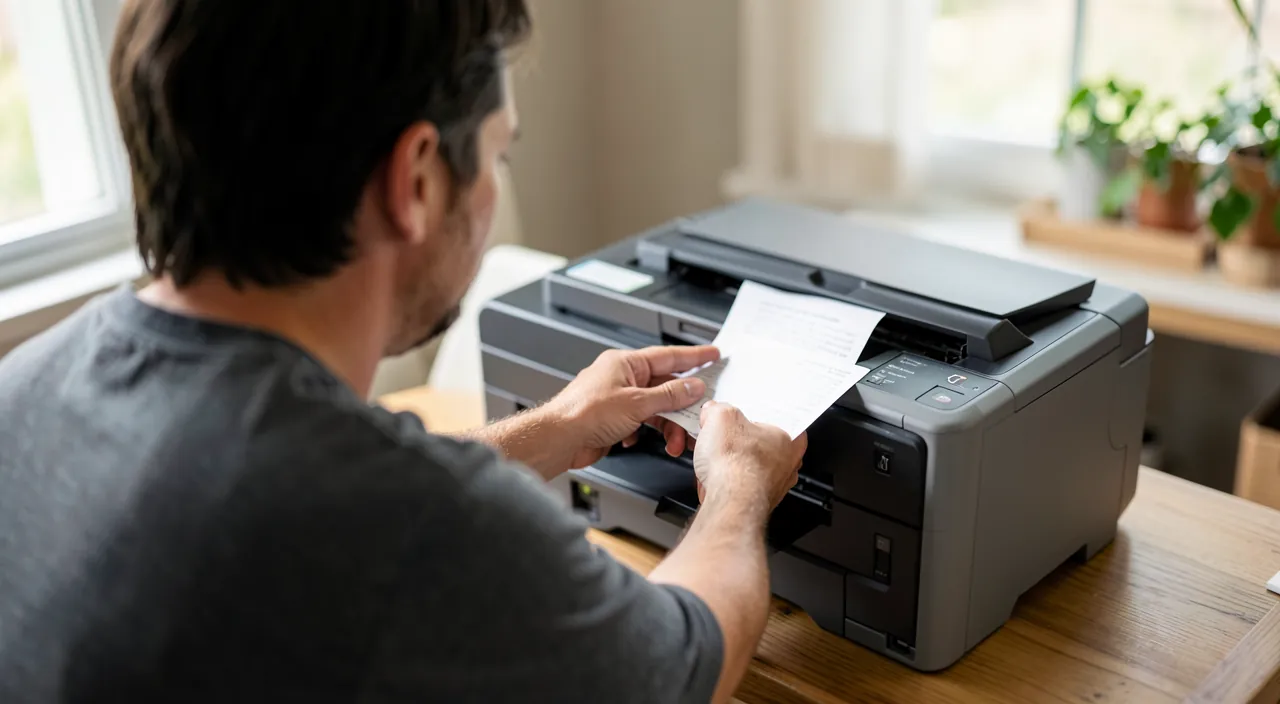
First, turn off the printer, open the covers to access the jammed paper, and pull the sheet SLOWLY in the normal direction of movement (toward the output), without jerks. Never pull brutally or in reverse: you risk tearing the sheet (pieces would remain stuck) or damaging the rollers. Check that no piece remains inside, close, and turn back on. To avoid jams: paper in good condition (dry, not crumpled), tray not overfilled and properly adjusted, sheets aired before loading. GENTLENESS and patience are key: rushing turns a minor jam into a real malfunction.
My printer is “offline,” what should I do?
Start with a full restart: turn off the printer, restart the device that prints, and for a Wi-Fi printer, restart the router as well; turn everything back on and try again. Check that the printer is connected to the SAME network as your device (common cause), that it’s not just in sleep mode, and put it “online” in the print settings if necessary. Also clear the print queue (a stuck document blocks the others). The “offline” status is most often a simple temporary communication issue: the restart and connection check resolve the vast majority of cases.
Why are my prints of poor quality (streaks, faded colors)?
Often due to clogged printhead nozzles (common on rarely used inkjets): run the HEAD CLEANING function available in the printer’s settings, sometimes several times. Also check ink or toner levels (a nearly empty cartridge produces faded or incomplete prints) and replace if needed. Using the printer regularly prevents nozzles from drying. Beware of very cheap suspicious cartridges, sometimes the source of quality issues. If cleaning and a new cartridge aren’t enough, the printhead may be the issue: on an old device, assess whether the repair is worth it.
What to remember
The printer is frustrating but rarely truly broken: most issues are resolved with method and patience. For a JAM: turn off, open the covers, pull the sheet SLOWLY in the normal direction (never force or in reverse, risking tearing or damage), check that no piece remains; prevent with paper in good condition and a properly adjusted tray. For an “OFFLINE” or non-printing printer: a full restart (printer + device + Wi-Fi router) resolves the vast majority of cases; then check the connection (same network), print queue, “online” status, correct printer selected, and drivers. For QUALITY: clean the printheads, check ink. Good habits: print regularly (prevents nozzles from drying), quality consumables, updated software. Always start with the simplest solution — nine times out of ten, it’s a restart or the connection. And if malfunctions persist despite everything, or on an old device not worth repairing, the choice between repair/replacement or professional advice is necessary. With a bit of method, the printer is far less temperamental than it seems.
Persistent malfunction, temperamental device? Our remote troubleshooting service resolves your problem quickly, without jargon.
Leave a Reply
You must be logged in to post a comment.