
« Set a ten-minute timer », « call Marie », « what’s the weather like tomorrow ? », « turn off the living room light » : controlling your devices by voice has become simple and surprisingly practical. Voice assistants, present in our phones, smart speakers, and computers, allow you to launch an action without touching the screen — hands busy in the kitchen, in the car, or simply for comfort. It’s also a precious help in terms of accessibility. But a microphone that’s listening also raises privacy questions. Here’s how to use voice commands in daily life, what they can do, and how to keep control of your privacy.
What voice commands can do
Voice assistants are a program that understands what you say and performs actions or answers your questions. It’s usually activated by a trigger phrase or a button, then you make your request out loud. What you can do, concretely: LAUNCH quick actions: set a timer or alarm, create a reminder, add an item to a shopping list, take a voice note. COMMUNICATE: make a call, send a message by dictating, without typing. GET INFORMED: ask for the weather, the time, a definition, a conversion, a calculation, general information. NAVIGATE and MOVE: launch a route, ask for directions, very useful in a car without taking your eyes off the road. CONTROL the device: open an app, adjust the volume, brightness, activate a function. LISTEN: play music, a podcast, the radio. CONTROL the SMART HOME: turn lights on or off, adjust a thermostat, if you have compatible connected objects (our guides on controlling your smart home). DICTATE text: write a message or note by voice rather than on the keyboard (our guides on writing by voice with voice dictation). Where can you find voice commands? On PHONES and tablets (built-in assistant); on SMART SPEAKERS (designed for this); on COMPUTERS; in RECENT CARS; and on various connected objects. What is it used for? To gain SPEED (an action launched by speaking, without handling); to keep your HANDS FREE (in the kitchen, while driving, while DIYING); for more COMFORT; and above all, it’s a major ACCESSIBILITY aid for people who struggle to see the screen, type, or handle a device (our guides on accessibility settings). The key idea: voice commands make using devices faster, more natural, and more accessible, by keeping your hands and eyes free. It’s particularly useful in certain situations (kitchen, car) and for accessibility. The downside to know: a voice assistant implies a microphone that listens, which raises legitimate privacy questions — which we address below, because knowing how to manage them allows you to use the tool with confidence.
A voice assistant is like a robot that listens to you and does things when you ask. It can set timers, call people, play music, or control smart lights. But because it’s always listening, it can sometimes record what you say, which might worry some people. The good news is you can control how much it listens and what it keeps.
Imagine you’re cooking and your hands are full of flour. You can say, “Hey Siri, set a 10-minute timer,” and your phone will do it without you touching anything. Or if you’re driving, you can say, “Hey Google, navigate to the nearest gas station,” and your phone will give you directions while you keep your eyes on the road.
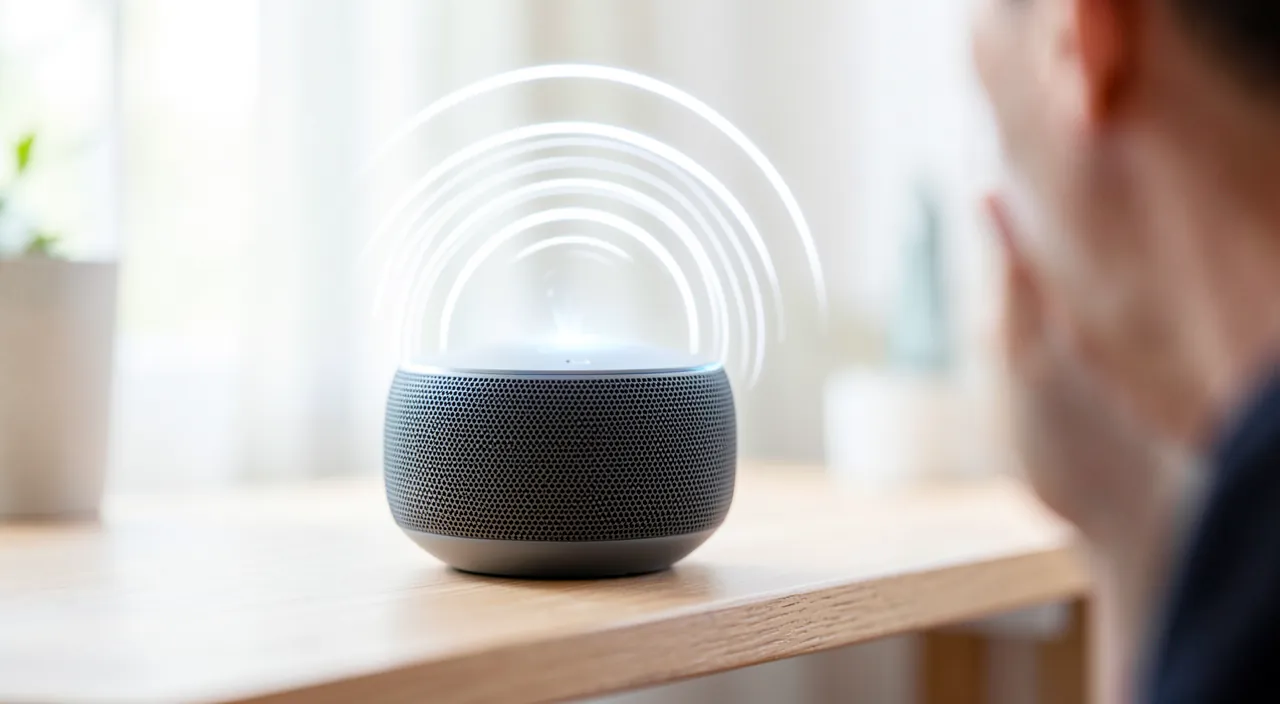
How to use and set up voice commands
Here’s how to get started and set it up properly. ACTIVATE the assistant — in your device’s settings, enable the voice assistant if it’s not already done; you often choose how to trigger it: by a phrase (a “magic word”), a button, or a gesture. Learn how to TRIGGER it — depending on the device: say the trigger phrase, hold a button, or tap the microphone icon; this is what puts the assistant on standby for your request. Make CLEAR requests — speak naturally but clearly: “set a five-minute timer,” “remind me to call the doctor at 2 PM,” “what’s the weather in Lyon?”; simple and precise requests work better. Start with SIMPLE uses — timer, alarm, weather, call, reminder: these basics work very well and quickly build confidence; then explore the possibilities. Explore what YOUR assistant can do — you can ask it “what can you do?”; capabilities vary depending on the assistant and installed apps. Adjust PRIVACY settings — this is important: explore the assistant-related settings; you can often manage listening (enable/disable the trigger phrase), view or delete your request history, and limit the recording of your exchanges (see below). Manage LISTENING according to context — on a smart speaker, know how to mute the microphone when you want to (dedicated button); on the phone, you can disable voice triggering if you prefer to activate it manually. Use it where it EXCELS — kitchen (dirty hands), car (eyes on the road), accessibility: that’s where voice commands bring the most. Some TIPS: speak in a NOT too noisy environment (the assistant understands better); be patient at first (you get used to the right phrasing); and check what the assistant understood for important actions (a dictated message, a reminder). In summary: activate the assistant, learn how to trigger it, make clear requests, start with simple uses, explore its capabilities, and above all, adjust the privacy and listening settings according to your preferences. Well configured, voice commands become a practical reflex.
The right reflex. To adopt voice commands without hesitation, do two things from the start. First, start SMALL: try the simple uses that work wonderfully and quickly build confidence — “set a ten-minute timer,” “what time is it?”, “call Paul,” “remind me to buy bread at 6 PM.” Speak naturally but clearly, in a not too noisy environment. Once comfortable, explore the rest (weather, music, routes, dictation). It’s in the kitchen (hands busy or dirty), in the car (eyes on the road), and for accessibility that voice brings the most: keep it for moments where it really simplifies your life. Then — and this is the reflex that too many people neglect — go check the PRIVACY settings of your assistant. You’ll usually find options to: enable or disable listening by trigger phrase (if the idea of a microphone always on alert bothers you, you can trigger the assistant with a button instead); view and DELETE the history of your voice requests; and sometimes refuse that your recordings are kept or analyzed. On a smart speaker, locate the button that MUTES the microphone: practical for moments when you prefer total silence. These settings take only a few minutes and change everything: you enjoy the comfort of voice while keeping control of what your device listens to and keeps. Start simple to get used to it, adjust your privacy to be at ease: that’s how to make voice commands a daily ally, with confidence.

Privacy: what you need to know
A voice assistant relies on a microphone that listens: it’s useful, but it’s worth understanding how it works to stay at ease. How does LISTENING work? Generally, the assistant constantly listens for its trigger phrase, but only records and sends your request once triggered; it’s not supposed to “spy” on all your conversations. That said, accidental triggers happen (the assistant thinks it hears its word), and your requests are often processed on the company’s servers. What may raise questions: your voice requests can be RECORDED and STORED (to improve the service), sometimes analyzed; a microphone always listening in your home raises legitimate concerns; and children or guests may interact without meaning to. How to keep CONTROL? Explore the settings: you can often DISABLE listening by trigger phrase (and trigger the assistant manually); VIEW and DELETE the history of your requests; REFUSE that your recordings are kept or used to improve the service; and MUTE the microphone of a speaker (dedicated button) when you want to (our guides on limiting the data you share online). For SMART SPEAKERS: be aware that they listen in your private space; place them knowingly, mute the microphone during sensitive moments, and avoid putting them in the most intimate rooms if it bothers you. PURCHASES and sensitive actions: be careful with voice commands that trigger purchases or important actions; secure them (confirmation, code) to avoid unintended triggers. DATA linked to your account: the assistant is often linked to your account and knows a lot about you (calendar, contacts, habits); secure this account (strong password, two-factor authentication). The balance to find: voice commands are very practical, and “normal” listening is framed; it’s not about giving up the tool out of fear, but about knowing the settings to use it according to YOUR comfort level. In summary: a voice assistant implies a microphone and sometimes the recording of your requests; keep control by adjusting listening, deleting the history, muting the microphone when needed, and securing your account. Thus informed, you enjoy the comfort of voice without sacrificing your privacy.
Warning: a voice assistant is a microphone that listens — keep control of it. Voice commands are very practical, but they rely on a microphone that constantly listens for its trigger phrase, often in your most private spaces (living room, kitchen, bedroom). In normal use, the assistant only records your request once triggered, and is not supposed to listen to all your conversations; but you should be aware of several realities: ACCIDENTAL triggers happen (the device thinks it hears its word and starts listening), your voice requests can be RECORDED and STORED on the company’s servers, sometimes analyzed to “improve the service,” and a smart speaker listens continuously in your privacy. This isn’t a reason to give up the tool, but a reason to keep CONTROL of it. Take the time to adjust: if a microphone always on alert bothers you, DISABLE the trigger phrase and activate the assistant manually; view and DELETE your voice request history regularly; refuse, if the option exists, that your recordings are kept or used; and on a speaker, locate the button that MUTES the microphone for sensitive moments. Pay special attention to two things: first, voice commands that trigger PURCHASES or important actions — secure them with a confirmation or code, so a child or accidental trigger doesn’t act on your behalf; then, your ACCOUNT, to which the assistant is linked and which knows a lot about you (calendar, contacts, habits) — protect it with a strong password and two-factor authentication. Finally, think about the placement of your smart speakers: putting them in the most intimate rooms isn’t trivial. Voice commands deserve their place in daily life; it’s just a matter of knowing these settings to use them at YOUR comfort level, without letting a microphone decide for you what it listens to and keeps.

Frequently asked questions
Does a voice assistant listen to everything I say all the time?
In principle no, but reality deserves some nuances. A voice assistant constantly listens for its TRIGGER PHRASE (the “magic word” that wakes it up), but it’s not supposed to record or transmit your conversations until it hears this trigger: it’s only once activated that it really listens to your request, sends it for processing (often on the company’s servers), and responds. In other words, it’s not designed to spy on you permanently. However, two reservations: first, ACCIDENTAL triggers happen — the device thinks it hears its word and starts listening by mistake, sometimes capturing a bit of conversation; then, your VOLUNTARY requests CAN be recorded and stored, depending on the settings. If the idea of a microphone always on alert makes you uncomfortable, you’re in control: you can usually disable voice triggering (and activate the assistant with a button instead), mute the microphone of a speaker when you want to, and delete the history of your exchanges. You can also choose not to install a smart speaker in your most intimate rooms. In summary: “permanent” listening is normally limited to waiting for the trigger word, but accidents exist and your requests can be stored; knowing and using the privacy settings allows you to set your own limit.

Is voice command useful for people struggling with devices?
Yes, and it’s even one of its most valuable contributions: in terms of accessibility, voice commands change the lives of many people. For someone who sees poorly or not at all, controlling the device by voice and getting an oral response avoids depending on the screen. For someone whose hands tremble, who has motor difficulties or struggles to type, speaking is much simpler than handling small buttons. For an elderly person uncomfortable with complex manipulations, asking “call my daughter” or “what time is it?” is intuitive and reassuring. Voice commands thus allow you to make calls, send messages, set reminders and alarms, get information, control the home, without having to master fine gestures or a visual interface. It’s also useful temporarily (hands busy or injured). To get the most out of it for accessibility, explore the device’s dedicated settings, which often combine voice commands, screen reading, and other aids (our guides on accessibility settings). Some initial guidance helps to get used to the right phrasing. In short, beyond simple comfort, voice commands are a real tool for autonomy for people struggling with screens or manipulations: they make the digital world accessible to those who were previously excluded.

Can you make purchases or important actions by voice without risk?
You can, but it requires some precautions, as voice opens the door to unintended triggers. Some assistants allow you to order products, validate payments, or launch important actions by voice: it’s practical, but also risky if it’s not secured. The danger: a child playing, a guest, or even an accidental trigger could make a purchase or action on your behalf. To avoid this: check the settings related to voice purchases, and enable CONFIRMATION (the assistant asks for validation) or a CODE before any purchase or sensitive action; some assistants offer voice recognition to only authorize yours. You can also simply DISABLE voice purchases if you don’t use them. For really important actions (transfers, sensitive information), be careful and prefer a secure manual validation. In general, reserve voice commands for everyday actions with no stakes (timer, call, weather, music), and secure or avoid voice for anything related to money or sensitive data. Also secure your account, to which the assistant is linked. By taking these precautions — confirmation or code for sensitive actions, disabling voice purchases if unnecessary — you enjoy the comfort of voice without fearing that a careless word might trigger an unintended action.
What to remember
Controlling your devices by voice has become simple, practical, and sometimes indispensable. Voice assistants — in phones, speakers, computers, and cars — allow you to launch an action or get a response without touching the screen: set a timer or alarm, make a call, send a dictated message, ask for the weather or information, launch a route, listen to music, control the smart home. You activate the assistant with a trigger phrase or a button, then make a clear request. It’s particularly useful where your hands or eyes are busy (kitchen, car), and above all, it’s a major ACCESSIBILITY aid, offering real autonomy to people struggling with screens or manipulations. To get started: begin with the simple uses that work well, speak clearly, and gradually explore the possibilities. But keep in mind the downside: a voice assistant is a microphone that listens, often in your private spaces. In normal use, it only listens for its trigger word, but accidental triggers exist and your requests can be recorded and stored. The key is to keep CONTROL thanks to the settings: disable listening by phrase if it bothers you, delete your request history, mute the microphone of a speaker when needed, secure voice purchases with a confirmation or code, and protect the account to which the assistant is linked. It’s not about giving up the tool out of fear, but about adjusting it according to YOUR comfort level. By taking a few minutes for these settings, you fully enjoy the comfort and accessibility of voice commands, while keeping control of what your devices listen to and store. Voice at the service of your daily life, without sacrificing your privacy: that’s the balance to find.


Want to gain confidence with your digital tools? Our personalized training adapts to your level.
Leave a Reply
You must be logged in to post a comment.