
The children’s photos are on mom’s phone, the vacation ones on dad’s, grandma has been asking for the latest ones for months, and no one has ever had all the images from the same event. The shared iCloud photo library solves this family mess in one go: a common space where everyone’s photos come together — automatically if desired — visible and enrichable by everyone, without losing anything from their personal library. Complete guide to the most beautiful digital gift a family can give itself.
The principle: a shared photo library, personal libraries
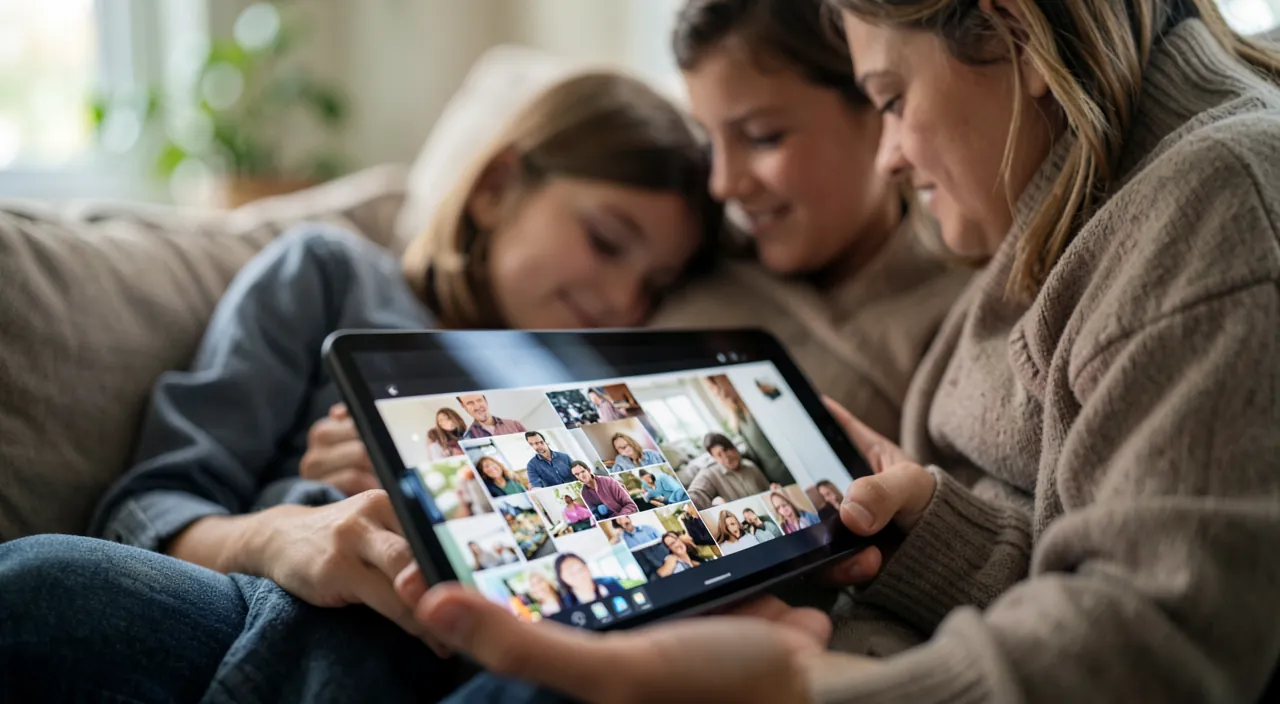
The shared photo library is a second space that coexists with your personal library: you create the share (Settings → Photos → Shared Photo Library), invite up to five loved ones — partner, children, grandparents — and everyone now sees two worlds in their Photos app: their personal library (unchanged, private) and the shared photo library, where everything added belongs to everyone: everyone sees, adds, captions, and finds memories in their own searches and retrospectives — automatic montages also draw from the shared content, and that’s where the magic happens: the suggested memories finally mix the photos of the whole family. Important point: the storage consumed is that of the creator of the photo library — size their iCloud plan accordingly (the family sharing of the storage plan complements the setup well).
This is like a shared family photo album in the cloud. Everyone can add and see photos, but each person still keeps their own private photos. The person who sets it up pays for the storage space.
A family of four sets up a shared iCloud photo library. Mom creates it with a 2TB iCloud plan. Dad, their two kids, and grandma join. Over a year, they automatically add 5,000 photos to the shared library. Mom’s iCloud storage shows the 5,000 photos, while everyone else’s personal libraries stay separate.

Feeding without thinking: well-set automations
The whole point is that the photo library fills up without hassle: when joining, everyone chooses what they contribute from their past (their entire history, a period, or a selection — the choice is made calmly, nothing is mandatory); for the future, three options per person: the manual (you move the selected photos with a gesture — total control), the smart automatic — and that’s the remarkable feature: the phone can automatically upload photos where it recognizes family members, or those taken when loved ones are together (proximity detection) — weekend family photos go to the shared pot, everyone’s private life stays with them; and from the camera, a dedicated button sends the current shots directly to the shared library (can be set to activate automatically at home). Result after a few weeks: the family album builds itself — complete, without transfer duplicates, without « can you send them to me? ».
The right reflex. Include the grandparents: it’s for them that the shared photo library changes life the most — the grandchildren appear over time on their iPhone or iPad, in their Photos app, without any manipulation. An hour of setup at their place (account, invitation, demo) replaces years of photos requested via messages. And in the other direction, their photos — often treasures — finally join the shared album.
Living with it: usage, rights, and best practices
On a daily basis, a few rules make collective happiness: everyone can do everything — add, caption, but also modify and delete: the shared photo library is a space of trust (a deletion removes the photo for everyone — it remains in « Recently Deleted » for 30 days, and the author keeps the original if they had it in their library); define the family agreement implicitly — what goes to the shared (events, children, vacations) and what remains personal; use the display toggle (the icon at the top of Photos: personal view, shared view, or both merged — the merged view is the natural cruising mode); and exploit the collective fruits: the retrospectives that mix everyone’s perspectives on the same event, the search that finds « 2024 birthday » from all sources, the thematic albums built together. For one-off events with people outside the circle (wedding, trip with friends), the classic shared album remains the right tool — lighter, unlimited guests, without merging photo libraries: the two mechanisms complement each other.
Fundamental questions: storage, separation, exit
Key points to know before starting: the storage — all the shared content counts on the creator’s plan: for a photographer family, plan for the comfortable tier (and the shared family plan to share the cost); the exit — leaving the photo library is properly handled: the leaver can choose to take a copy of everything, or only their own contributions — no one is ever held hostage; the separation of the creator couple — the same mechanism applies, each leaves with their images (photos uploaded by others stay with the photo library owner): not ideal in a painful situation, but defined; and the minors — children in the household can participate via family sharing, with photos documenting their childhood accessible to them later: think about what this album will tell them. Finally, the shared photo library is not a backup: it lives in iCloud like the rest — the usual rules (protected account, up-to-date recovery, backup for the irreplaceable) apply to the shared treasure even more than the rest.


Warning. The sharing automation (recognizing loved ones, detecting presence) is brilliant but not infallible: a personal photo taken during a family moment may end up in the shared pot. Get into the habit of checking weekly the latest automatic uploads (a photo is removed from the shared library in two gestures, without deleting it — it returns to the personal library), and for sensitive periods, temporarily switch back to manual upload. Family trust doesn’t prevent a minimum of curation — it deserves it.
Frequently asked questions
Maximum of five people: and large families?
The shared photo library includes the creator + five members — the core of the extended household. Beyond that (cousins, friends, events), classic shared albums take over: many guests, participation by invitation, without merging libraries.

Do shared photos keep their original quality?
Yes — full resolution, including shooting data: it’s a real photo library transfer, not a messaging compression. That’s also why the creator’s storage must keep up.
Android or PC in the family: a problem?
The shared photo library is an Apple ecosystem mechanism. For loved ones outside the ecosystem, classic shared albums via web link remain viewable in a browser — or choose a multiplatform service if the family is permanently mixed.

What to remember
The shared photo library transforms scattered family photos into a living shared album: a space where everyone’s images converge — automatically if accepted — visible to everyone, enriched by everyone, mixed in everyone’s memories and retrospectives. Keys to success: the creator’s storage plan sized appropriately, automations set and then checked weekly, a clear family agreement on what goes to the shared, grandparents on board (the biggest benefit), and classic shared albums as a complement for the extended circle. Photos are not like other files: they are the family archives — the shared photo library is the shelf where, finally, everyone puts them together.


Want to get the most out of your iPhone, iPad, or Mac? Our Apple training courses take you to the next level.
Leave a Reply
You must be logged in to post a comment.