
An idea that crosses your mind, a shopping list, a temporary password, a message draft, a photo to keep: we all need a place to jot things down quickly. On iPhone, iPad, and Mac, that place exists, and it’s far more powerful than it seems: the Notes app. Free, built-in, synced across all your Apple devices, it does more than just scribble text: lists, drawings, photos, scanned documents, locked notes, shared notes. Often underestimated, it deserves to be truly discovered. Here’s how to organize your ideas with the Notes app and get the most out of it.
Everything the Notes app can do
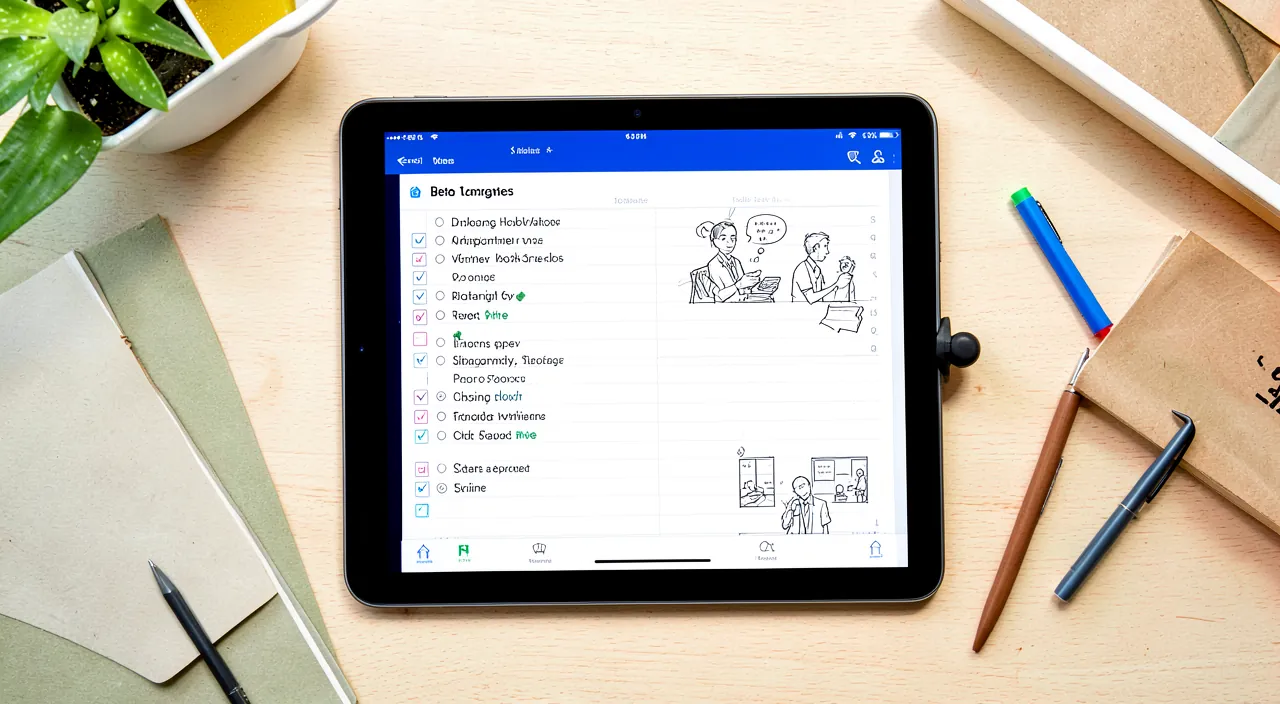
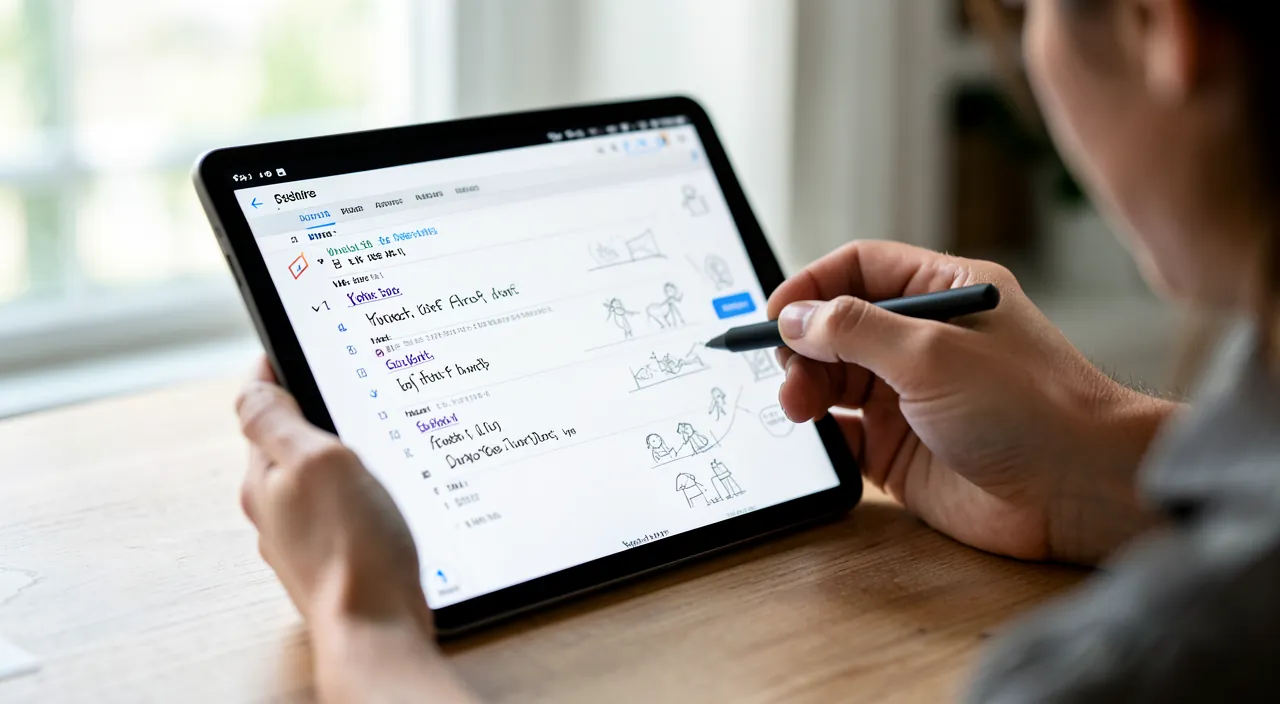
The Notes app is more than just a simple notepad; it’s a true Swiss Army knife for capturing and organizing. NOTE quickly**: its basic use, capturing an idea, text, or thought in a few seconds; the key is to always have it at hand. MAKE LISTS**: bullet points, task lists to CHECK OFF** (perfect for groceries, to-dos); you check them off as you go. ADD PHOTOS** and documents: attach images to a note, or SCAN** a document directly into a note (the app straightens and enhances the scan). DRAW** and ANNOTATE: sketch a doodle, annotate an image, take handwritten notes (especially handy on iPad with a stylus). ORGANIZE** in FOLDERS: sort your notes into folders (work, personal, projects); create subfolders; pin important notes at the top. SEARCH**: find a note by typing a word; the app even finds text in scanned images. LOCK** a note: protect a confidential note with a code or biometrics (for sensitive information). SHARE** and COLLABORATE: share a note with someone to view or edit together (a family shopping list, a project). FORMAT**: titles, lists, tables, text styles to structure. SYNC** everywhere: your notes automatically appear on your iPhone, iPad, and Mac (via iCloud), always up to date. What’s it for? To CAPTURE** your ideas anywhere; to ORGANIZE** (lists, folders); to KEEP** information (scanned documents, photos); and to FIND** everything easily. The key idea: the Notes app is a free, built-in, and surprisingly complete tool for capturing and organizing almost anything: from simple text to lists, photos, scans, drawings, and locked or shared notes. Its biggest strength: SIMPLICITY** and automatic syncing across all your Apple devices. Often underused, it can become your universal digital notebook: always at hand, always up to date. Just discover its possibilities beyond simple note-taking.
The Notes app is like a digital Swiss Army knife. It lets you quickly jot down ideas, make checklists, add photos, scan documents, draw, organize everything in folders, lock sensitive notes, and share notes with others. All your notes automatically sync across your Apple devices. It’s free, simple to use, and way more powerful than just a notepad.
Imagine you’re at the grocery store and remember you need to pick up milk, eggs, and bread. Instead of trying to remember, you open the Notes app on your iPhone and quickly add these items to a “Grocery List” note. Later, when you’re at home, you open the same note on your iPad to check what you still need to buy. The next day, you scan your receipt and add it to the same note for your records. All these actions happen instantly across all your devices.
How to organize your notes effectively
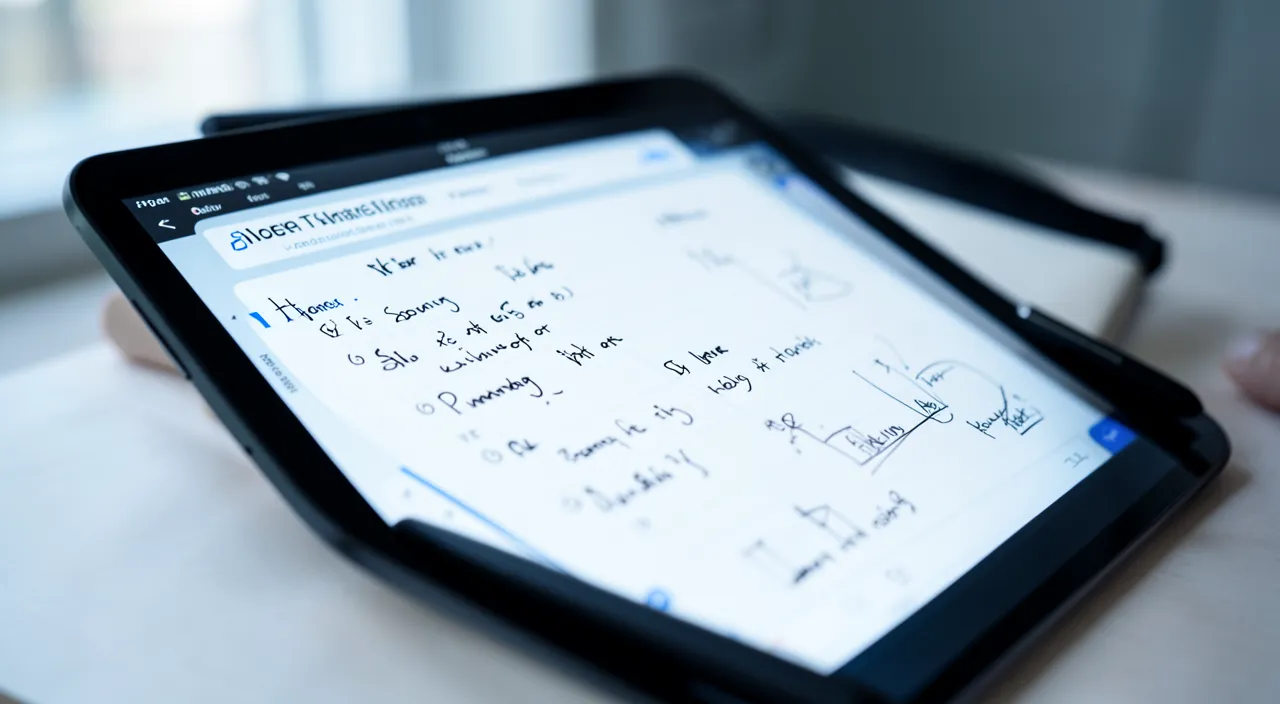
Here’s how to use the Notes app efficiently. Get into the habit of NOTING** — the app is there to capture quickly: whenever an idea, piece of info, or task comes to mind, jot it down; the key is to have a single, reliable place where everything lands. USE FOLDERS** — create a few folders matching your life (personal, work, projects, travel); sort your notes into them; a simple organization is enough; don’t create too many folders. PIN** important notes — notes you frequently consult can be “pinned” at the top of the list for instant access. Make CHECKLISTS** — for groceries, tasks, use checklists; it’s more practical than plain text, you check items off as you go. SCAN** your documents — a valuable feature: scan a bill, a paper, a card directly into a note (via the add option); the app turns it into a clean, searchable document (see our guides on digitizing documents). RELY** on SEARCH — instead of organizing everything perfectly, rely on search: type a word, and the app finds the note (even in scans and images); like with photos, searching is often faster than organizing. LOCK** sensitive notes — for a note containing confidential information, use locking (see precautions); but make sure to remember how to unlock it. SHARE** when useful — a shared shopping list with family, a project note for collaboration: sharing lets everyone view and edit in real time. Take advantage of SYNC** — ensure iCloud sync is on: that way, a note taken on your phone appears on your computer, and vice versa; your notes follow you everywhere. Clean up occasionally** — delete outdated notes (they go to a temporary trash, recoverable for a while). A few TIPS: a SINGLE place for everything (don’t scatter); search over obsessive organizing; and discover features beyond text (scan, lists, drawing). In short: get into the habit of noting in one place, organize with a few folders and pinned notes, use checklists and document scanning, rely on search, lock sensitive notes, share when useful, and enjoy syncing. The Notes app becomes your universal notebook.
**The right reflex.** The real secret to making the most of the Notes app is to make it your SINGLE place where everything lands: whenever an idea, piece of information, or something to remember comes to mind, open Notes and jot it down, no thinking required. The app is designed for quick capture, and its strength is being always at hand on all your Apple devices, automatically synced (a note taken on the iPhone appears on the Mac). The trap would be to scatter your notes across ten different places; one reliable notebook is what makes all the difference. Then, don’t waste time over-organizing: a few SIMPLE FOLDERS (personal, work, projects), a few important notes PINNED at the top, and above all, rely on SEARCH — type a word, and the app instantly finds the note, even text within an image or scanned document. Searching is almost always faster than meticulous organizing. Also discover the features that go far beyond simple text, because that’s where Notes shines: CHECKLISTS (unbeatable for groceries and tasks, you check items off as you go), DOCUMENT SCANNING (photograph a bill, an administrative paper, a card: the app turns it into a clean, searchable document — a real time-saver), and sharing a note with loved ones (a family shopping list everyone updates in real time). One precaution not to forget: if you LOCK a note to protect sensitive information, absolutely remember the code or unlocking method, because a locked note whose code you’ve forgotten can become permanently inaccessible. One place for everything, simple folders, search as an ally, and hidden features (lists, scan, sharing): that’s how the Notes app goes from simple notepad to a true universal digital notebook.
Precautions: locked notes and privacy
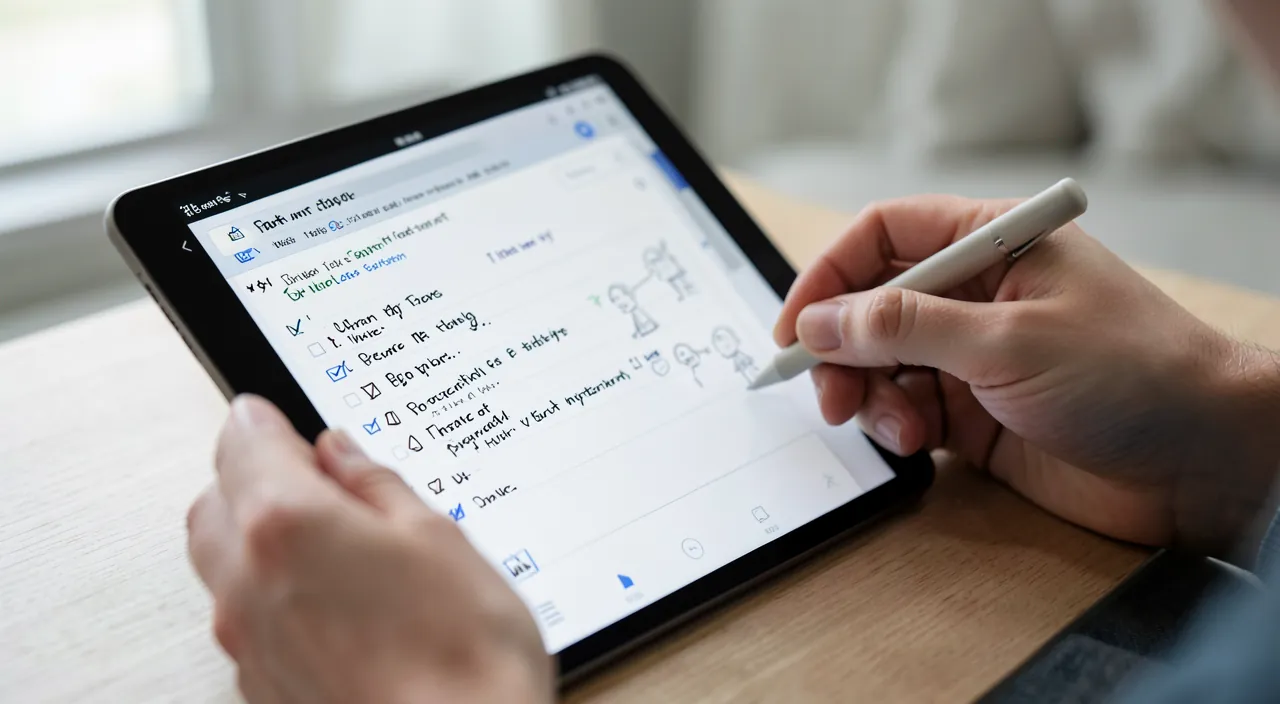
The Notes app is practical and secure, but a few points deserve attention, especially for locked notes and sensitive information. LOCKING**, to be used carefully: locking a note protects its content, but you must absolutely remember how to unlock it (the code or associated biometrics); a locked note whose code you’ve forgotten can become INACCESSIBLE, and its content lost; don’t lock lightly, and note the unlocking method in a safe place. CONFIDENTIALITY** of sensitive information: the Notes app is practical for note-taking, but think about what you put in it; avoid storing VERY sensitive information in plain text (important passwords, banking data, codes) without protection; for passwords, a real password manager is more suitable (see our guides on adopting a password manager); at minimum, lock notes containing sensitive data. iCloud SYNC**: your notes sync via your iCloud account; it’s very convenient, but it means your notes are tied to this account; secure it well (strong password, two-factor authentication), as it gives access to your notes; a deleted note syncs (it disappears everywhere); understand this functionality. DELETION**: a deleted note goes to a “Recently Deleted” folder for a while (recoverable), then disappears forever; don’t count on it for archiving; for truly important information, keep a backup elsewhere. SHARING**: when you share a note, the people you share it with have access (read or edit); don’t share notes containing information you want to keep private; and know how to remove sharing. DEPENDENCE** on the Apple ecosystem: the Notes app is excellent in the Apple universe, but your notes are tied to it; if you left this ecosystem, you’d need to export them; keep this in mind if you accumulate a lot of important content. BACKUP**: your notes are synced, which is already a form of security, but for TRULY important notes, keep a copy elsewhere (exported) as a precaution. In short: always remember how to unlock a locked note (or risk losing it); don’t store very sensitive information in plain text (prefer a manager for passwords); secure your iCloud account; understand that deletion and sharing sync; and keep a backup of your most important notes elsewhere. When used well, the Notes app is a secure and practical notebook.
**Warning: a locked note whose code you forget can be lost — and Notes is not a safe for your passwords.** Two points of vigilance deserve your attention. First, LOCKING** notes. The ability to protect a note with a code or biometrics is very useful for your confidential information, but it has a serious downside: if you FORGET** how to unlock it, the note can become permanently INACCESSIBLE, and its content lost. It’s not like a website password you can reset via email: a locked note is encrypted, and without the right code, its content remains out of reach. So, before locking an important note, make sure you remember (or note in a safe place, elsewhere) how to reopen it; don’t lock in a hurry a note containing information you couldn’t recover otherwise. Then, a usage to avoid: don’t make the Notes app the safe for your passwords and very sensitive data. It’s tempting, for convenience, to note in a simple note your passwords, bank codes, card number; it’s a bad idea, especially if the note isn’t locked: an ordinary note doesn’t offer the protection suited to these critical pieces of information, and your iCloud account, if compromised, would give access to them. For passwords, use a real password manager (like the built-in keychain or a dedicated app), designed for this and far safer. At minimum, lock any note containing sensitive information. Finally, keep in mind that your notes are tied to your iCloud ACCOUNT and sync there: secure this account well (strong password, two-factor authentication), as it gives access to all your notes; and remember that a deleted note or sharing is reflected on all your devices. The Notes app is an excellent digital notebook for capturing and organizing; but remember the code for your locked notes, and entrust your passwords to a tool made for them, not a simple note.
Frequently asked questions
How to quickly find a lost note in the mass?
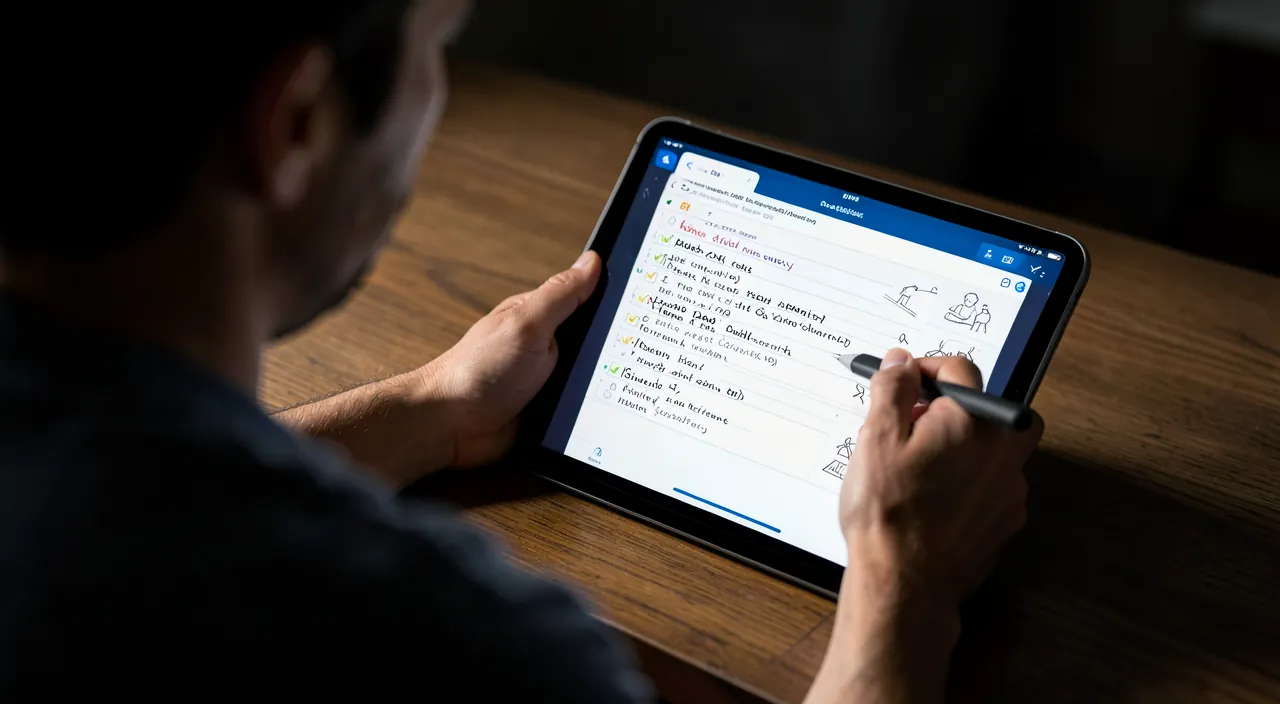
The answer lies in one word: SEARCH**. Instead of scrolling through dozens of notes or digging through your folders, use the Notes app’s search bar: type a word you remember (a word from the title, content, a name, a subject), and the app instantly displays matching notes. It’s the fastest and most effective way to find a specific note, even if you have hundreds. The most impressive part: search goes beyond simple text; it also finds words in IMAGES** and SCANNED DOCUMENTS** in your notes; if you’ve scanned a bill, you can find it by typing a word on it. For search to be effective, a tip: give your notes descriptive starting lines or titles (the first line of a note often serves as its title); a note that starts with a clear heading is easier to find. You can also PIN** the notes you consult most often, to always have them at the top of the list without having to search. In addition, a few SIMPLE FOLDERS help group related items. But the key is there: don’t waste time meticulously organizing each note; capture freely, and rely on search to find, just like with your photos. It’s this combination — easy capture plus powerful search — that makes the Notes app a notebook where you find everything in seconds, no matter how many notes you’ve accumulated.
Are my notes synced across all my devices?
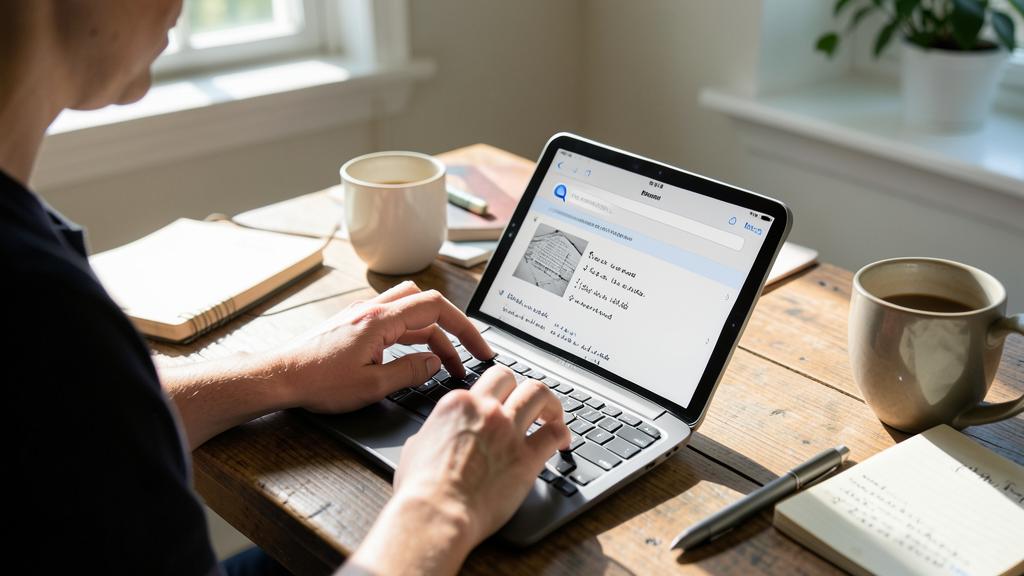
Yes, if iCloud sync is enabled — and it’s one of the Notes app’s biggest strengths. When you’re logged in with your Apple account (iCloud ID) on your different devices (iPhone, iPad, Mac), and note sync is active, your notes automatically appear on all these devices, always up to date. In practice: a note taken on your iPhone on the subway appears on your Mac when you get home; a change made on the iPad is reflected everywhere; a shopping list checked off on your phone is updated on all your devices. You don’t have to do anything: sync happens automatically via iCloud, as soon as you have an internet connection. It’s extremely convenient: your notes follow you everywhere, without manual transfers. To check it’s active, go to your device’s settings, to the iCloud account section, and ensure Notes are included in sync. Two things to understand: first, since everything is synced, a DELETION** is also reflected everywhere (deleting a note on one device deletes it on all); second, your notes being tied to your iCloud account, it’s important to well SECURE** this account (strong password, two-factor authentication), as it gives access to all your notes. Sync is therefore both a great convenience and another reason to protect your account. In short, yes, your notes automatically sync across all your Apple devices via iCloud: it’s simple, transparent, and makes the Notes app a notebook always up to date, wherever you are.
Can I scan documents with the Notes app?
Yes, and it’s one of its most practical and underrated features: the Notes app includes a real document scanner, free and always in your pocket. The principle: in a note, use the add option (often a camera icon or a “+” menu) and choose to scan a document; aim your paper with the camera, and the app CAPTURES** it by automatically straightening it (it detects the edges), correcting the perspective, and enhancing the result to obtain a clean document, as if scanned. You can scan multiple pages in a row in the same document. It’s ideal for quickly digitizing a bill, an administrative paper, a prescription, a card, a receipt, or any document you want to keep in digital form and easily find (see our guides on digitizing documents). Advantages: the scanned document is stored in your note, synced across all your devices, and above all FINDABLE** via search (the app recognizes text in scans); you can also share or export it. A few tips for a good scan: place the document flat, in a well-lit area but without glare, and let the app detect the edges. A common-sense precaution: if you scan documents containing sensitive information (administrative documents, personal data), think about privacy — lock the note if needed, and remember that these documents sync with your iCloud account (to be well secured). In short, yes, the Notes app scans your documents very well: it’s a free, pocket-sized, and effective scanner, perfect for digitizing and keeping your important papers, always at hand and findable with a word.
What to remember
The Notes app, free and built into the Apple ecosystem, is far more than a simple notepad: it’s a surprisingly complete universal digital notebook. It lets you NOTE** quickly, make CHECKLISTS** (perfect for groceries and tasks), add PHOTOS**, and SCAN** documents (a real pocket scanner!), DRAW**, ORGANIZE** in folders, LOCK** sensitive notes, SHARE** and collaborate, and above all SYNC** everything automatically across your iPhone, iPad, and Mac. Its biggest strength: simplicity, the power of search, and availability on all your devices. To get the most out of it: make it your SINGLE place where everything lands (don’t scatter your notes), organize with a few simple folders and pinned notes, use checklists and document scanning, and above all rely on SEARCH** (which finds text even in scans and images) rather than meticulous organizing. Discover the features beyond text, because that’s where Notes truly shines. However, keep a few precautions in mind. If you LOCK** a note, absolutely remember how to unlock it: a locked note whose code you’ve forgotten can be permanently lost. Don’t make Notes your password and very sensitive data safe: for passwords, a real manager is far more suitable and secure; at minimum, lock any note containing sensitive data. Secure your iCloud account (strong password, two-factor authentication), as your notes are tied to it and sync there; understand that deletion or sharing is reflected on all your devices; and for your truly important notes, keep a backup elsewhere as a precaution. Often underestimated, the Notes app can become one of your most useful daily tools: a notebook always at hand, always up to date, where you can capture and find almost anything. Just go beyond simple note-taking to discover its true richness — and remember the code for your locked notes.
Want to unlock the full potential of your iPhone, iPad, or Mac? Our Apple training courses take you to the next level.
Leave a Reply
You must be logged in to post a comment.