
You’re working peacefully, and suddenly: black screen, the computer has turned off on its own, without warning. A few seconds or minutes later, it happens again. It’s destabilizing, you lose your work, and you fear the worst. A computer that turns off spontaneously has well-identified causes: the most common is OVERHEATING, but it can also come from the power supply, the battery, software, or a component. Some causes are easily fixed, others require intervention. Here’s how to diagnose and react to a computer that turns off on its own, while protecting your data in the process.
Why does a computer turn off on its own
A spontaneous shutdown is often a PROTECTION mechanism of the device, not a random failure. The number one cause: OVERHEATING; when a computer overheats, it automatically shuts down to PROTECT itself (avoid damaging its components); it’s a safety mechanism; overheating often comes from an accumulation of DUST that clogs the vents, a faulty fan, or intense use (games, video) on a poorly ventilated machine. A POWER SUPPLY issue: on a desktop computer, a faulty power supply can cut off the device; a poorly connected cable, a defective outlet. A BATTERY issue (laptop): a worn or faulty battery can cause a laptop to shut down abruptly, especially if it’s not plugged in; or a charger issue. A SOFTWARE issue: more rarely, a system bug, a faulty driver, or malicious software can cause shutdowns. A FAULTY COMPONENT: a hardware problem (card, memory, disk) can cause shutdowns. A POWER SETTING: sometimes, a poorly configured sleep or power-saving setting gives the impression of an unexpected shutdown (but it’s actually sleep mode). DUST and ventilation: on older devices or in a dusty environment, the obstruction of vents is a very common cause of overheating and therefore shutdown. How to orient? A few questions: does the device heat up, is the fan noisy before the shutdown (overheating)? Does the shutdown occur during intense use? Is it a laptop on battery or plugged in? Is it sudden or gradual? What is the point of understanding? To check the most common cause (overheating) first; to distinguish a simple problem (dust, setting) from a hardware issue; and to protect your data. The main idea: a computer that turns off on its own does so most often due to OVERHEATING — a protection mechanism triggered by clogged ventilation (dust), a faulty fan, or intense use. It’s the first thing to check, and often the easiest to fix (clean the vents). But the shutdown can also come from the power supply, the battery, software, or a component. These sudden shutdowns cause loss of unsaved work and deserve investigation; some cases can be fixed yourself, others require a professional, especially if the problem worsens.
Your computer shuts down suddenly to protect itself from damage, usually because it’s overheating. This happens when dust blocks the vents, the fan isn’t working, or you’re using demanding programs. It’s like your computer is saying “I’m too hot, I need a break!” before something worse happens.
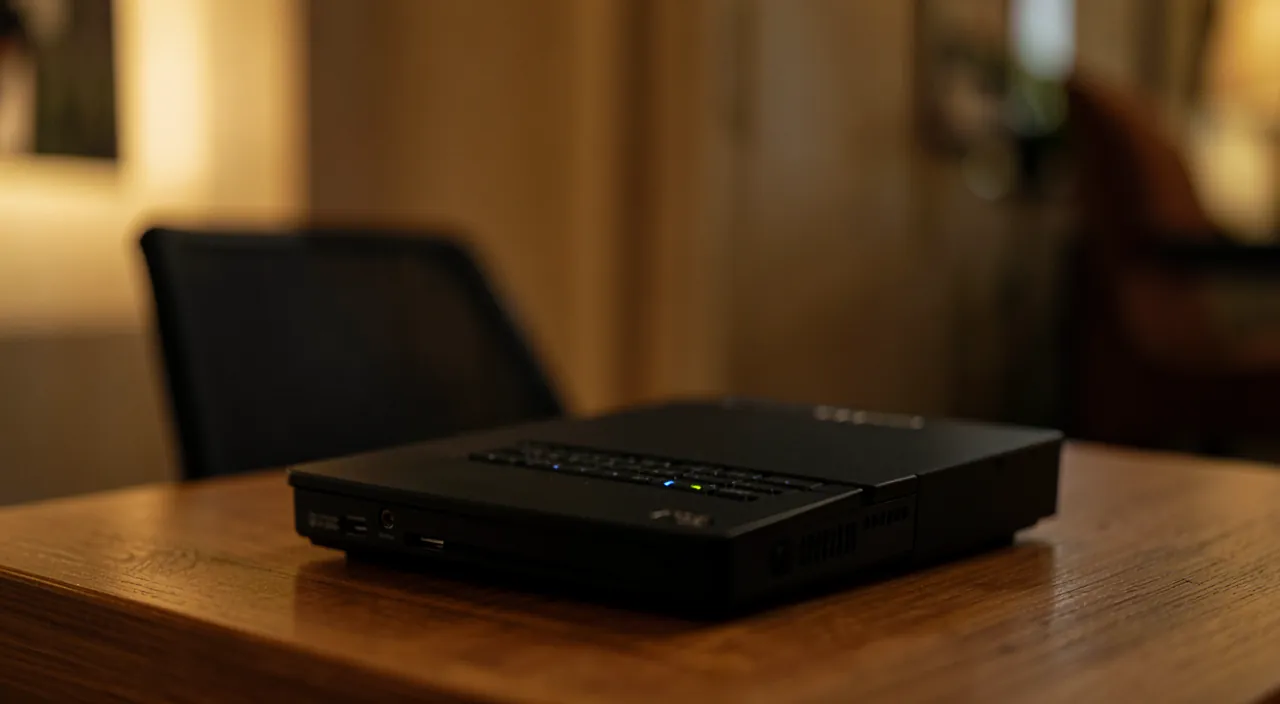
A gaming laptop (like an ASUS ROG Strix) shuts down after 20 minutes of playing a demanding game like Cyberpunk 2077. The fan is loud, and the bottom of the laptop feels very hot. This is classic overheating – the vents are likely clogged with dust, and the cooling system can’t keep up with the heat from the game.
How to diagnose and react
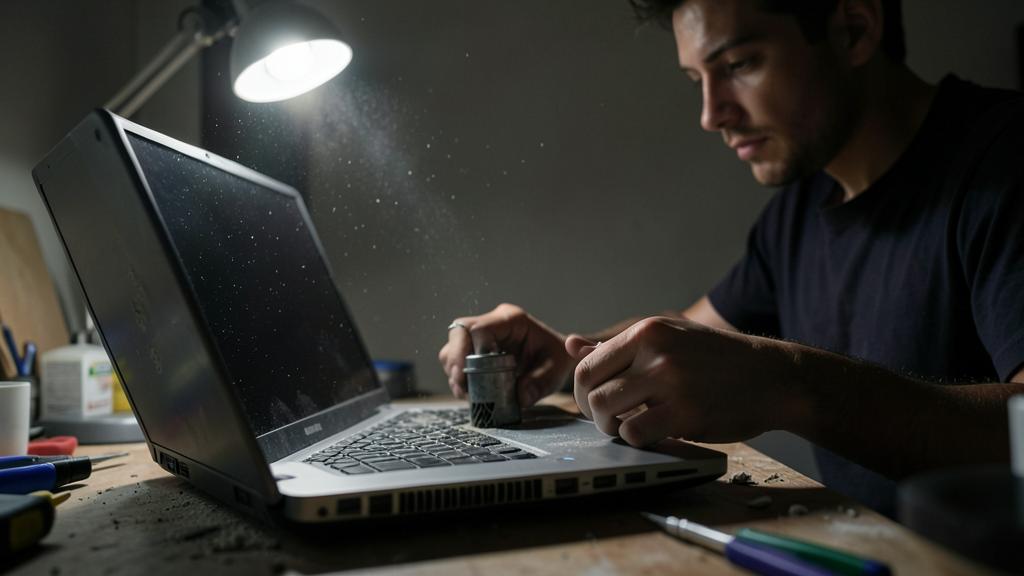
Here’s the approach, starting with the most common cause. First suspect OVERHEATING — it’s the number one cause: does the computer heat up a lot before shutting down? Does the fan become very noisy? Does the shutdown occur during intensive use (games, video) or in hot weather? If so, overheating is probably the cause. Improve VENTILATION — make sure the ventilation grilles are not OBSTRUCTED: don’t place a laptop on a bed, sofa, duvet (which block the vents); use it on a hard and flat surface; leave space around a desktop computer. DUST OFF — dust accumulated in the vents is a major cause of overheating; dust off the ventilation grilles (with compressed air, device turned off); on an older computer, internal cleaning (by a professional if you’re not comfortable) may be necessary (our noisy computer guides). Check the POWER SUPPLY (desktop) — on a desktop computer, check the connections, the outlet, the power cable; a faulty power supply may be the cause (more technical diagnosis). Check the BATTERY and charger (laptop) — if a laptop shuts down mainly on battery, it may be worn out; test it plugged in permanently; check that the charger works and is properly connected. RESTART and observe — after a shutdown, turn it back on and observe: when does it happen again? This helps pinpoint the cause (our guides to restart to fix many issues). UPDATE and check security — to rule out a software cause: update the system, and check for the absence of malicious software. Check the POWER SETTINGS — make sure a sleep or power-saving setting isn’t causing unwanted shutdowns. Note the CIRCUMSTANCES — is the shutdown related to a specific use, heat, or battery? These observations are valuable for you or a professional. If the problem PERSISTS or worsens — if the shutdowns continue, multiply, or are accompanied by other symptoms (noises, crashes, smell, restarts), it’s probably a hardware problem (power supply, battery, component, cooling system): have it diagnosed by a professional. A few TIPS: think OVERHEATING first (ventilation, dust); save your work often (shutdowns are sudden); and don’t persist if the hardware problem remains. In summary: first suspect overheating (improve ventilation, dust off), check the power supply (desktop) or the battery and charger (laptop), rule out a software cause (update, security, settings), note the circumstances; and if the problem persists or worsens, have it diagnosed. Overheating, the most common cause, is often fixed by a simple cleaning.
The right reflex. When facing a computer that turns off on its own, think OVERHEATING first: it’s by far the most common cause, and often the easiest to fix. A computer that overheats shuts down automatically to PROTECT itself from damage: it’s not a random failure, but a safety mechanism. Signs of overheating: the device is burning hot before shutting down, the fan runs at full speed and makes a lot of noise, the shutdown occurs during intensive use (games, video, multiple software) or in hot weather. If you recognize these signs, the solution is often simple. First, VENTILATION: never block the ventilation grilles. The classic mistake with a laptop is to use it placed on a bed, sofa, duvet, or pillow: these soft surfaces block the vents located underneath, and the device suffocates then shuts down; always use it on a HARD and FLAT surface (a table, a stand). For a desktop computer, leave free space around and behind the tower. Then, DUST: over time, dust accumulates in the ventilation grilles and the cooling system, preventing air from circulating and causing overheating; dust off the grilles with compressed air (device turned off), and for an old or very clogged computer, internal cleaning — by a professional if you’re not comfortable opening the device — can work wonders. This simple cleaning resolves most overheating shutdowns. Two other useful reflexes: if it’s a laptop that shuts down mainly when not plugged in, its BATTERY may be worn out (test it plugged in permanently); and SAVE your work VERY often, as these shutdowns are sudden and without warning — you would otherwise lose everything that wasn’t saved. Overheating first (clear ventilation, dusting), battery or power supply next: in many cases, you fix the problem yourself; and if the shutdowns persist despite good cleaning, it’s a sign that you need to have a more serious hardware issue diagnosed.
Protecting your data and recognizing serious cases
Repeated sudden shutdowns are not harmless: they cause work loss and can signal a serious problem. Here’s how to protect yourself and react. SAVE your work often: a computer that turns off without warning causes loss of all unsaved work; as long as the problem isn’t fixed, take the habit of saving very frequently, and activate automatic backups of your software; thus, a shutdown only costs you a few minutes. BACKUP your data: repeated sudden shutdowns can, over time, damage the system or data; make sure your important files are backed up elsewhere, as a precaution (our guides the 3-2-1 backup rule). Recognizing a serious HARDWARE problem: if the shutdowns persist despite good cleaning, if they multiply, are accompanied by unusual noises, crashes, restarts in a loop, a burning smell (cut everything and unplug immediately in this case!), or if the device no longer restarts: it’s probably a serious hardware problem (faulty power supply, battery, component, cooling system failure). Don’t PERSIST: when facing repeated hardware shutdowns, insisting on turning it back on repeatedly can worsen the issue; it’s better to have it diagnosed. The case of the SMELL or SMOKE: if you smell a burning smell or see smoke, TURN OFF and UNPLUG the device immediately, and don’t turn it back on: it’s a sign of electrical danger; have it examined. The SWOLLEN BATTERY: on a laptop, a swollen battery is dangerous and can cause shutdowns; never pierce a swollen battery, and have it replaced by a professional. When to ASK for help? If the shutdowns persist after cleaning; if they are accompanied by worrying symptoms; if you suspect the power supply, battery, or a component; or if you’re not comfortable diagnosing. A professional will identify the cause (unresolved overheating, power supply, battery, component) and propose the appropriate repair; this avoids unnecessary replacements or letting a problem worsen. In summary: save often and back up your data (shutdowns are sudden); recognize the signs of a serious hardware problem (persistent shutdowns, noises, smell, swollen battery); in case of a burning smell, turn off and unplug urgently; and have it diagnosed rather than persisting if the problem goes beyond overheating.
Warning: a burning smell, smoke, or a swollen battery are DANGER signals — turn off and unplug immediately. Most spontaneous shutdowns are due to benign overheating (dust, ventilation) that is fixed by cleaning. But some signals must NEVER be ignored, as they indicate real electrical or hardware danger. If you smell a BURNING SMELL, if you see SMOKE, or if the device becomes abnormally hot in a specific spot: TURN IT OFF and UNPLUG IT immediately, and don’t turn it back on; there is an electrical problem or a component that is burning, and continuing could worsen the damage, or even present a fire hazard; have the device examined by a professional before any reuse. Similarly, on a laptop, a SWOLLEN BATTERY (the case deforms, the touchpad lifts, the device no longer lies flat) is a serious signal: a swollen battery is unstable and can be dangerous; NEVER pierce it, don’t force it, stop using the device like this, and have the battery replaced by a professional as soon as possible. Beyond these emergency cases, keep in mind that REPEATED sudden shutdowns deserve to be taken seriously, for two reasons. On the one hand, they make you LOSE your work each time: as long as the problem persists, save your work very frequently and make sure your important data is backed up elsewhere, as repeated sudden cuts can eventually damage the system or files. On the other hand, if the shutdowns CONTINUE despite good cleaning of the vents, or if they are accompanied by unusual noises, crashes, or restarts in a loop, it’s a sign of a deeper hardware problem (faulty power supply, battery, component, damaged cooling system) that won’t fix itself. In this case, don’t insist on turning on a device that shuts down repeatedly: have it DIAGNOSED by a professional, who will identify the exact cause and propose the appropriate repair. A simple cleaning fixes common overheating; but a burning smell, a swollen battery, or persistent shutdowns are signals not to be neglected, for your safety and that of your data.
Frequent questions
Why does my computer shut down when I do demanding tasks?
This is a very characteristic sign of OVERHEATING, the most common cause of spontaneous shutdowns. When you heavily use your computer (games, video editing, multiple heavy software, long tasks), its components work intensely and produce a lot of HEAT. Normally, the cooling system (fans, heat sinks) evacuates this heat. But if cooling isn’t enough — because the vents are clogged by dust, a fan is faulty, or the device is poorly ventilated —, the temperature rises too much, and the computer SHUTS DOWN AUTOMATICALLY to protect itself and avoid damaging its components. It’s a safety mechanism, not a random failure: the proof is that it happens precisely during the most heat-inducing uses. The good news: it’s often fixable. First, improve VENTILATION: use the device on a hard and flat surface (never on a bed or sofa that block a laptop’s vents), and leave space around a desktop computer. Then, DUST OFF the ventilation grilles (with compressed air, device turned off): accumulated dust is a major cause of overheating, and a good cleaning often solves the problem; for an old or very clogged device, internal cleaning by a professional may be necessary. You can also, in the meantime, avoid the most intensive uses and work in a not too hot environment. If, despite good ventilation and dusting, the computer continues to shut down under load, the cooling system may be faulty (dead fan, thermal paste to be redone) and a professional diagnosis is required. In summary: a computer that shuts down during demanding tasks is overheating; improve ventilation and dust off: in many cases, this is enough to fix the problem.
A laptop that shuts down as soon as it’s unplugged, what to do?
This specific symptom almost always points to the BATTERY: if your laptop works fine when plugged in but shuts down abruptly as soon as it’s on battery, it’s because its battery no longer holds. Laptop batteries wear out over time and with charge cycles; after a few years, a battery can lose almost all its capacity, to the point of no longer being able to power the device alone: as soon as you unplug it, the computer shuts down due to lack of energy, as if the battery were empty even though it just charged. Sometimes, the battery is so degraded that it no longer charges, or that the computer no longer « sees » it. What to do? In the short term, you can continue to use the computer PLUGGED IN permanently: it will work normally, but you obviously lose mobility (and a sudden shutdown occurs if the cable unplugs accidentally). The real solution is to have the battery REPLACED: on many laptops, this is an achievable operation (by you if the battery is accessible, or by a professional if it’s integrated), and a new battery restores full autonomy to the device. First, however, check that the problem doesn’t come from the CHARGER or the cable (test them, make sure charging works well) rather than the battery itself. Also be careful: if the battery SWELLS (the case deforms), it’s a danger sign; don’t use it like this and have it replaced promptly by a professional, never piercing it. In summary, a laptop that shuts down as soon as it’s unplugged almost always has a worn-out battery: in the meantime, use it plugged in; in the long term, have the battery replaced to restore autonomy. It’s often a simple repair that extends the life of the machine.
Can sudden shutdowns damage my computer or my data?
An occasional sudden shutdown is generally not dramatic, but REPEATED sudden shutdowns are not harmless and deserve to have the cause fixed. Let’s look at both aspects. For your DATA and your work: the immediate and certain risk is the loss of UNSAVED work; with each sudden shutdown, everything you hadn’t saved disappears; it’s the most frequent inconvenience. More rarely, a sudden shutdown occurring at a bad time (while writing a file, an update) can corrupt a file or disrupt the system; repeated, these shutdowns increase this risk over time. That’s why, as long as the problem persists, you need to SAVE your work very often and make sure your important data is BACKED UP elsewhere: thus, neither a shutdown nor a possible corruption will make you lose the essential. For the HARDWARE: a protective shutdown due to overheating is, in itself, a mechanism that PROTECTS the device (it shuts down precisely to avoid damage); but the underlying repeated overheating, it, is not good for the components in the long term, hence the importance of fixing the ventilation. As for shutdowns due to a hardware problem (power supply, battery, component), they are the SYMPTOM of an issue that, if untreated, can worsen. In summary: an isolated shutdown mainly causes loss of current work; repeated shutdowns cause work loss each time, can eventually corrupt data, and indicate a cause (overheating, hardware) to be treated. Don’t let them persist: save often, back up your data, fix the cause (cleaning for overheating), and have it diagnosed if the problem persists. Treating the problem protects both your data and your machine.
What to remember
A computer that turns off on its own does so most often due to OVERHEATING: it’s a PROTECTION mechanism that shuts down the device when it overheats, to avoid damaging its components. Overheating usually comes from OBSTRUCTED ventilation (dust accumulated in the vents, faulty fan, laptop placed on a soft surface that blocks the grilles) or intensive use. It’s the first thing to check, and often the easiest to fix: improve VENTILATION (hard and flat surface, space around the tower) and DUST OFF the ventilation grilles (with compressed air, device turned off); this simple cleaning resolves most cases. Other possible causes: a POWER SUPPLY issue (on a desktop), a worn-out BATTERY (on a laptop that shuts down as soon as it’s unplugged: to be replaced), a SOFTWARE issue (update, check security and power settings), or a FAULTY COMPONENT. Note the circumstances of the shutdowns (intensive use? heat? on battery?), they help with the diagnosis. Two important precautions: SAVE your work very often (these shutdowns are sudden and cause loss of everything that’s not saved) and make sure your data is backed up elsewhere. And know how to recognize the DANGER signals that require IMMEDIATELY turning off and unplugging: a burning smell, smoke, or a swollen battery; in these cases, don’t turn it back on and have the device examined (never pierce a swollen battery). Finally, if the shutdowns PERSIST despite good cleaning, multiply, or are accompanied by noises, crashes, or restarts in a loop, it’s probably a more serious hardware problem: don’t insist on turning it back on repeatedly, have it DIAGNOSED by a professional, who will identify the cause and propose the appropriate repair. In most cases, a computer that turns off on its own suffers from overheating that cleaning fixes; but a persistent problem, or a danger signal, deserves the attention of a professional — to protect both your device and your data.
Persistent failure, capricious device? Our remote troubleshooting service quickly resolves your problem, without jargon.
Leave a Reply
You must be logged in to post a comment.