
iPhone, iPad, Mac: if you own multiple Apple devices, you have an often underused asset — continuity. This set of features makes your devices work in harmony, as if they were a single seamless ecosystem. Start a task here and finish it there, copy on one side and paste on the other: mastered, continuity truly changes your daily life. This guide explains how to make the most of it.
The principle of continuity
The idea is simple but powerful: your Apple devices communicate with each other to offer a seamless experience. No need to send a file by email to switch from one device to another, or to redo everything when changing screens. Your devices recognize each other, coordinate, and share the context of your work. Once adopted, this fluidity quickly becomes indispensable.
Key features
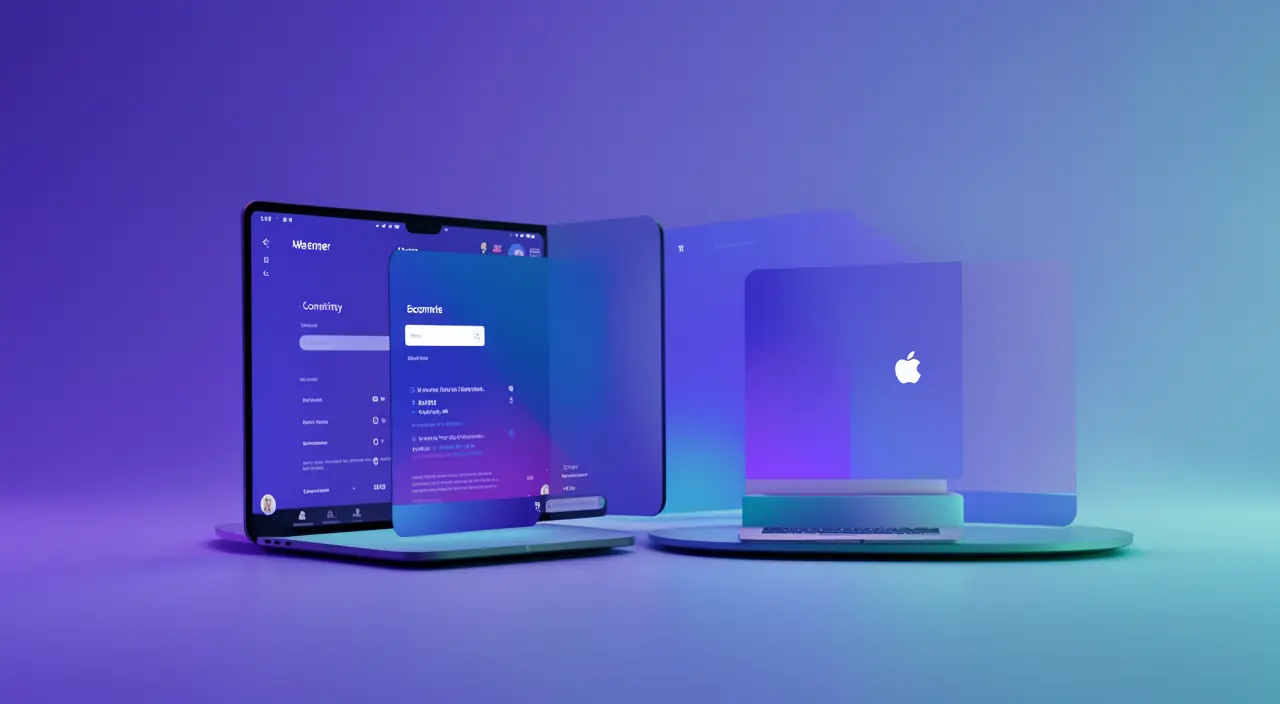
- Universal clipboard: copy text or an image on one device, paste it on another.
- Activity continuation: start an email or document on your iPhone, continue on your Mac.
- Calls and SMS: receive and make your calls from your Mac or iPad.
- Secondary display: use your iPad as an extension of your Mac.
The right reflex. For continuity to work, make sure your devices are connected to the same Apple account, with Wi-Fi and Bluetooth enabled. With these conditions met, the magic works automatically: most features require no additional configuration.
Instant file sharing
Transferring a photo or document between your Apple devices, or with someone nearby, happens in an instant thanks to built-in wireless sharing. No more sending emails to yourself: you select, you share, it’s immediate. Once adopted, this simplicity makes any other method tedious. It’s one of the most appreciated features of the ecosystem.
Continuity lets your Apple devices work together like a team. You can start something on one device and finish it on another, or share files without extra steps. It’s all about making your workflow smoother.
Imagine you’re working on a presentation at your desk. You copy a chart from your Mac, then walk to the kitchen with your iPad. With Continuity, you can paste that chart directly into your iPad’s Notes app without any extra steps. No emailing, no cloud uploads—just instant sharing.
Making the most of the entire ecosystem
Continuity makes the most sense when you own multiple devices. An iPhone for mobility, a Mac for in-depth work, a versatile iPad: continuity makes them work together, each playing its role without interruption. You naturally switch from one to the other depending on the context, never losing the thread. It’s this consistency that makes the strength — and loyalty — of the Apple ecosystem.

To check. If continuity isn’t working, first check the basics: same Apple account on all devices, Wi-Fi and Bluetooth enabled, devices up to date. Most issues come from one of these conditions not being met, rather than a real malfunction.

Frequently asked questions
Do you need to configure each feature?
Most work automatically once the basic conditions are met. Some are activated in settings, but the whole setup requires very little configuration.
Does it work with older devices?
Continuity features require sufficiently recent and up-to-date devices. Older ones may not support all features.
What to remember
Continuity is one of the great, often overlooked, strengths of the Apple ecosystem: universal clipboard, activity continuation, calls on all devices, instant sharing, secondary display. These features make your devices work in harmony and truly streamline your daily life. Most of the time, all you need is the same Apple account, Wi-Fi, and Bluetooth to enjoy them. Take the time to discover them: you won’t want to do without them.
Need help setting up your Apple ecosystem?
Leave a Reply
You must be logged in to post a comment.