
Your mobile browser knows everything: what you search for, read, buy, at what time and from where — and by default, it shares much of this intimacy with dozens of invisible actors: advertising trackers, data brokers, fingerprinting scripts. The good news is in a number: ten minutes of settings radically transform the situation, without breaking any of your comfort. Here is the complete session — setting by setting — for a mobile browser that works for you, not against you.
Minutes 1 to 3: the three switches that matter
Open your browser settings (in the app or in the phone settings depending on the case) and activate the three major levers: anti-tracking protection — every modern browser has one (smart tracking prevention, enhanced protection, cross-site tracker blocking): check that it is active and increase it a notch if a « strict » mode exists (the web rarely breaks, and a button disables it per site if needed); blocking third-party cookies — cookies placed by others than the visited site are mainly used to track you from site to site: block them (it is already the default of several browsers — confirm); and the search engine — it is the one that sees your queries, the most intimate material of all: privacy-respecting search engines have become excellent default choices, the classic engine remaining at one tap for searches where it excels. Three settings, three minutes — and most of the mass tracking is already dried up.
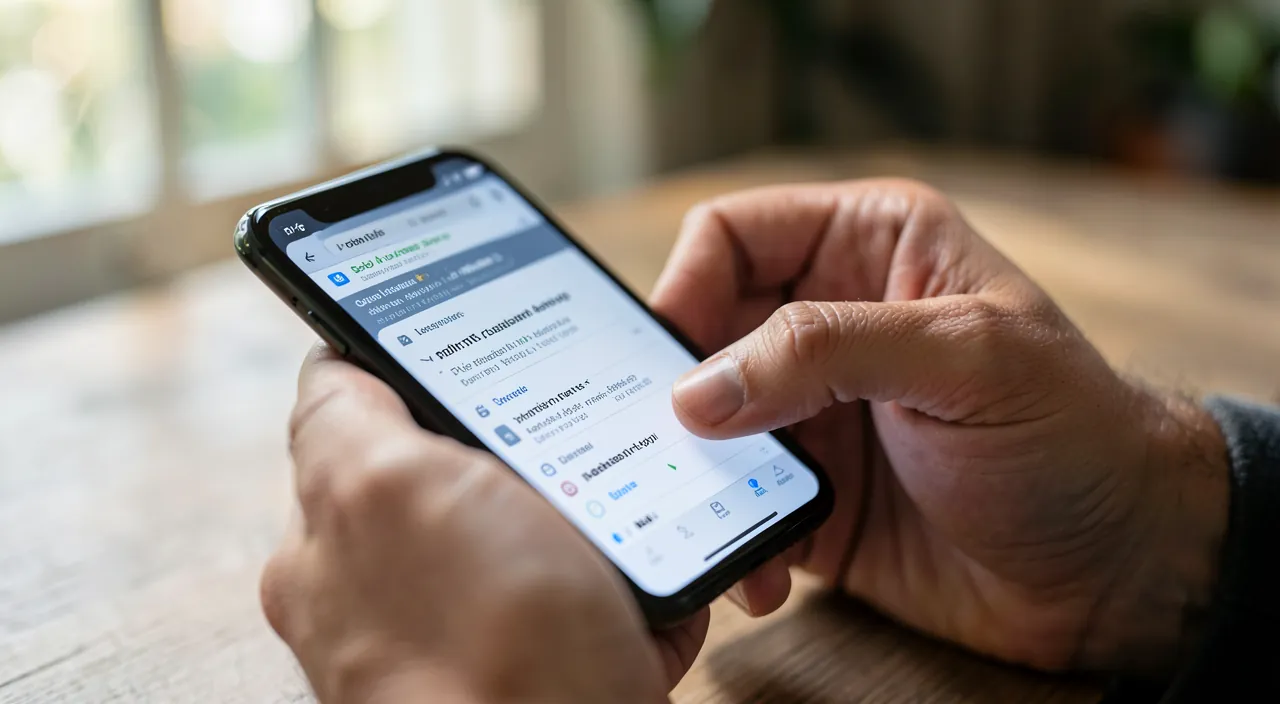
Your browser can track everything you do online. But in just 10 minutes, you can turn on privacy settings that stop most of this tracking. The three key settings are anti-tracking, blocking third-party cookies, and choosing a privacy-friendly search engine.
If you use Firefox Focus on Android, it blocks trackers and third-party cookies by default. Switching your search engine to DuckDuckGo means your searches won’t be tracked. These two changes alone cut down on most tracking.
Minutes 4 to 6: permissions and discreet leaks
The browser is also a gateway to your sensors — check who crossed it: in the site/permissions settings, review location, camera, microphone, and notifications — the healthy rule: everything on « ask » (never « always allow » globally), and the list of already authorized sites purged (the weather site consulted once in 2023 no longer needs your position); site notifications deserve special mention: granted in a moment of haste, they become a spam and phishing channel (fake « virus detected » alerts often arrive this way) — revoke everything that is not chosen and useful; disable autofill of sensitive data if you use a dedicated password manager (one single source of truth, the best protected); and take a look at downloads and pop-ups: active pop-up blocking, and be wary of any file downloaded without explicit request. These permissions are the real « contract » between you and each site — read it once, and it will stay quiet afterward.
The right reflex. Adopt a content blocker (ad and tracker blocking extension for mobile browser — iOS and Android browsers accept them): beyond comfort (faster pages, less data consumed, battery preserved), it is a real layer of protection — fewer third-party scripts loaded means less tracking AND fewer trapped ads (fake ads leading to scams go through the same ad networks). Choose a reputable and open-source blocker — and notice: mobile web becomes surprisingly pleasant again.

Minutes 7 to 9: understanding private browsing, history, and fingerprinting
Three notions to navigate lucidly: private browsing — useful and misunderstood: it erases traces on your device (history, session cookies — perfect for a surprise gift, a medical search on a shared phone, a session on someone else’s device), but does NOT make you anonymous on the network (visited sites, internet provider, and employer on their network still see the traffic): it is a discreet drawer, not an invisibility cloak; history and site data — periodic (or automatic on close, setting available on several browsers) cleaning prevents years of cookies from piling up — at the cost of reconnections: the practical compromise is to clean « cookies and data » once or twice a year while keeping passwords in the manager; and fingerprinting — tracking without cookies, by the unique signature of your device: this is precisely what modern browsers’ enhanced protections blur — another reason to activate them, and a reminder of humility: perfect protection does not exist, massive reduction does.
Minute 10: synchronization, updates, and the choice of the browser
The foundations to finish: synchronization — bookmarks, tabs, and passwords that follow between phone and computer are a real comfort: make sure the account that carries them is itself solid (unique password + two-factor authentication — it becomes a gateway to your entire history); updates — the browser is the most exposed app on the phone (it runs code from all over the web): its updates are critical security patches, preferably automatic; and the choice of the browser itself — default browsers (Safari, Chrome) have made huge privacy progress, and privacy-focused alternatives (Firefox and its extensions, built-in blocking browsers) go further: the important thing is not to change for the sake of changing, but to know that the choice exists — and that a well-configured browser, whatever it is, beats a « private » browser with ignored settings. Last cross-cutting tip: these ten minutes replicate on the tablet and computer — your privacy navigates across all your screens.
Beware of fake browser alerts. The page that screams « Your phone is infected! (3) viruses detected » with vibration and countdown is NOT a system alert — it is a fraudulent ad designed to make you install a dubious app or subscribe to a subscription: no website can scan your phone. Reflex: close the tab (if needed, close the browser), install nothing, pay nothing — and if the page « blocks » the screen, the app manager always closes it. The well-configured browser (content blocker, pop-ups blocked) actually makes most of these traps disappear at the source.
Frequently Asked Questions
Are all cookies bad?
No — the « first-party » cookies of the visited site serve your session (staying logged in, cart, preferences): essential. It is the third-party cookies, placed by external actors to track you from site to site, that should be blocked without regret. The consent banners, on the other hand, are treated with « Refuse »/ »Continue without accepting » when the option exists — two well-invested seconds.
Does private browsing hide your activity from your operator or employer?
No — it only erases local traces on the device. The network (internet provider, corporate Wi-Fi) still sees the sites contacted. For privacy against the network, that is the VPN’s territory — another tool, for another need.
Should you refuse all location requests?
Not all — the map, weather, or nearest store justifies it during use. The rule is proportionality: grant « once » or « while using, » never permanently, and purge the list of authorized sites once a year. The question to ask is always the same: does this site need to know where I am to provide the service that I am asking of it?
What to remember
Ten minutes, eight actions: anti-tracking protection increased, third-party cookies blocked, search engine chosen, permissions purged (location, notifications especially), content blocker installed, pop-ups blocked, synchronization backed by a solid account, automatic updates. And two lucidities: private browsing is a discreet local drawer (not network invisibility), and « virus detected » alerts in a web page are always scams. The browser is the part of your phone where the whole world enters — these settings make it a butler who filters at the door, instead of a doorman who sells the list of your visits. Give the same ten minutes to the tablet and the computer: your digital privacy is worth half an hour a year.
Doubts about your security, a device to check or clean up? Our support service guides you step by step.
Leave a Reply
You must be logged in to post a comment.