
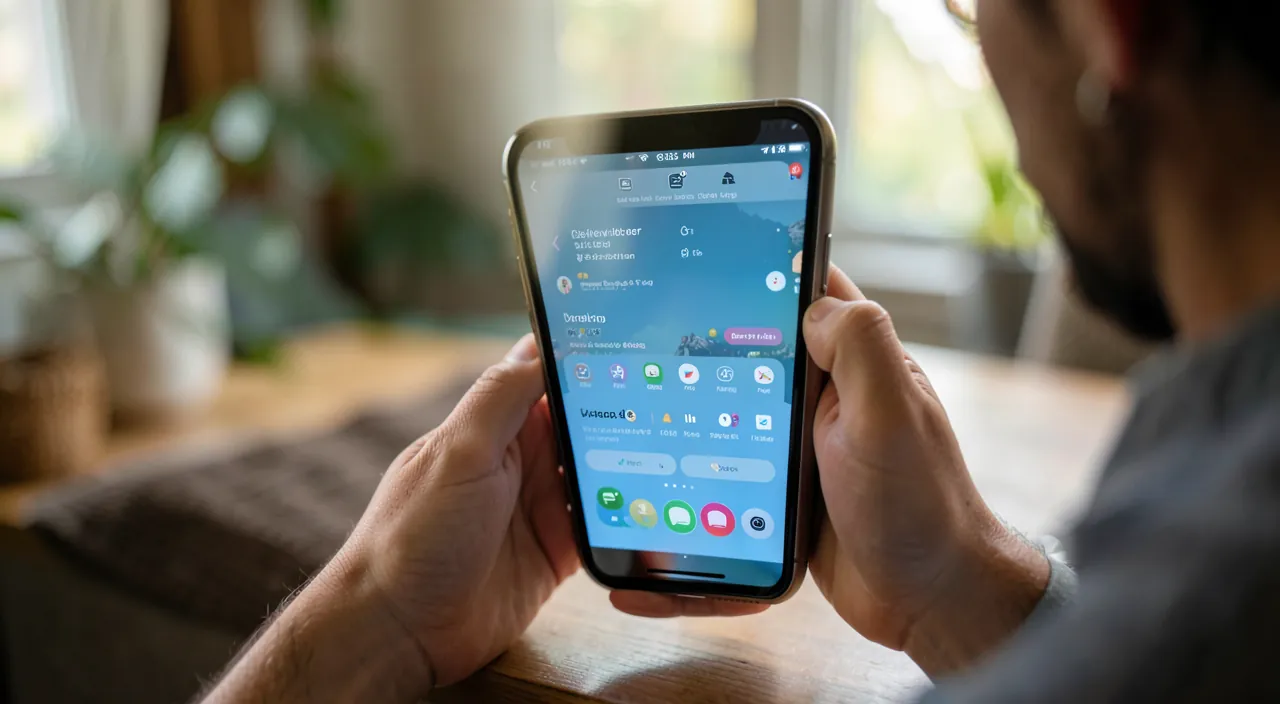
This panel that appears when you swipe from the edge of your iPhone screen — with brightness, volume, WiFi, the flashlight — is the CONTROL CENTER: the fastest way to access settings and functions you use most often. But did you know you can CUSTOMIZE it? Add your favorite shortcuts, remove those you don’t use, to have the essentials at your fingertips. Well configured, it saves you time all day. Here’s how to customize and use the Control Center on your iPhone.
The Control Center: quick access to the essentials
Let’s discover what the Control Center is and why it’s so PRACTICAL. The CONTROL CENTER is a panel of SHORTCUTS that provides INSTANT ACCESS to the most common settings and functions, without having to dig into Settings or search for an app. How to OPEN it: on recent iPhones (without a home button), swipe from the TOP RIGHT corner of the screen downward; on older iPhones (with a home button), swipe from the BOTTOM of the screen upward; the panel appears over what you were doing. What you typically find there: the SCREEN BRIGHTNESS (slider), VOLUME, WiFi, Bluetooth, AIRPLANE MODE, orientation (rotation lock), FLASHLIGHT, CAMERA, TIMER, calculator, « Do Not Disturb » mode, music playback, and many more depending on your configuration. Why it’s USEFUL: these are the functions we use several times a day; having them at a GESTURE (swipe + tap) saves precious time; for example, turning on the flashlight, adjusting brightness, activating WiFi, or starting a timer, without opening an app or searching. The INTERACTIONS: a simple TAP turns a function on/off (WiFi, flashlight…); a LONG PRESS (or held press) on some icons reveals additional options (for example, a long press on the connection block for more network options, or on the flashlight to adjust its intensity); explore long presses, they hide features. The big novelty: you can CUSTOMIZE it — add, remove, reorganize shortcuts according to YOUR NEEDS (we’ll get to that). What to remember to start: the Control Center is your EXPRESS ACCESS to daily settings and functions; you open it with a swipe from the edge of the screen; a tap activates, a long press reveals options; and above all, it is CUSTOMIZABLE to contain exactly what is useful to you. Learning to use it and adapt it to your needs is a way to simplify your life all day. Let’s see.
The Control Center is a quick-access panel for your iPhone’s most-used settings. You can open it with a swipe, tap to turn things on/off, or long-press for extra options. The best part? You can customize it to only show the tools you actually need.
Imagine you’re cooking and need a timer. Instead of opening the Clock app, you just swipe up (or down from the top right) and tap the Timer icon in your Control Center. Done in seconds!
Customizing the Control Center
The great strength of the Control Center is its CUSTOMIZATION: adapt it to your needs. Where to customize it: on recent versions, you can modify the Control Center directly by opening it and then entering edit mode (often a long press on an empty area, or a « + » button/edit); on other versions, this is done in Settings → Control Center; the exact approach varies by version, but the principle is the same. ADDING shortcuts: choose from a list of available controls those you want to add; there are many: timer, calculator, screen recording, voice memo, magnifier (to enlarge text or see up close — very useful!), music recognition, dark mode, text size, accessibility, quick notes, wallet, and many more. REMOVING what you don’t need: remove shortcuts you never use, to keep only the essentials and a clear panel. REORGANIZING: place your most-used shortcuts in the most accessible locations (often at the top, within thumb reach); on recent versions, you can also resize some controls and distribute them across multiple pages. THINK about your REAL USAGE: what functions do you often look for? Add them; for example, if you often use the timer (cooking), flashlight, screen recording, magnifier, or dark mode, put them in your Control Center; you’ll save time every day. Accessibility shortcuts: you can add very practical accessibility functions — the MAGNIFIER (turn your iPhone into a magnifier to read small text, a label, a restaurant menu), text enlargement, and other aids; invaluable for those who see less well (our guides on making your phone more readable). APP SHORTCUTS: depending on the version, you can even add shortcuts to app actions or apps. A CUSTOM Control Center: the idea is to have AT HAND, in one gesture, exactly the functions YOU USE the most, no more, no less; it’s a real daily comfort gain. In summary: enter edit mode (via the Control Center or Settings), ADD useful shortcuts (timer, magnifier, dark mode, screen recording… according to your needs), REMOVE the unnecessary, and REORGANIZE to place the essentials within reach; take five minutes to adapt it to your usage: it’s a small effort that pays off every day.
The shortcuts to know: the magnifier, the timer, the flashlight, and long presses. Some Control Center shortcuts provide real services, provided you know they exist. THE MAGNIFIER: this is probably the most useful and yet the least known shortcut! Add the « Magnifier » to your Control Center, and your iPhone becomes a REAL magnifier: point the camera at small text (a product label, instructions, a restaurant menu, a serial number), and the screen enlarges it, with the ability to increase the zoom, turn on the light, freeze the image; essential for reading small characters, particularly valuable when you see less well (our guides on making your phone more readable); many people don’t know their iPhone can do this. THE TIMER: one gesture to start a countdown (cooking, break) without opening the Clock app; a long press even allows you to set the duration directly. THE FLASHLIGHT: the classic, within reach to light up in the dark; and a long press on the flashlight allows you to adjust its INTENSITY (brighter or dimmer). THE ROTATION LOCK: to prevent the screen from flipping when you’re reading lying down (very practical!). DARK MODE, music recognition (identify a song playing), SCREEN RECORDING, VOICE MEMO: as many practical shortcuts to add according to your usage. And above all, LONG PRESSES: don’t just TAP the icons; do a LONG PRESS (or held press) on many of them to reveal hidden options: long press on the CONNECTION block (WiFi/Bluetooth) to access more network options and see/change WiFi; long press on BRIGHTNESS for display settings (dark mode, etc.); long press on the FLASHLIGHT for intensity; long press on the TIMER to set the duration; long press on the MUSIC block for playback controls. These long presses hide a second layer of very practical functions. So explore your Control Center: add the magnifier (a must), the timer, and the shortcuts corresponding to your usage; and get into the habit of long presses to unlock additional options. These little things, once known, save you time and help you discover features you didn’t suspect existed.
Using the Control Center effectively on a daily basis
Beyond customization, a few reflexes to get the most out of the Control Center. QUICK ACCESS to common settings: get into the habit of adjusting BRIGHTNESS (adapting to the ambiance: lower in the evening, increase in bright sunlight) and VOLUME without going through Settings. MANAGING CONNECTIONS: quickly turn WiFi, Bluetooth, and airplane mode on/off; a long press on the connection block gives access to more options (change WiFi network, for example). AIRPLANE MODE for troubleshooting: one gesture for the « on/off » trick that solves connection bugs (our guides on airplane mode). « DO NOT DISTURB » / Focus modes: activate them quickly to be left in peace (our guides on cutting notifications). MUSIC PLAYBACK: control playback (pause, next, volume) from the Control Center, even when another app is open. ROTATION LOCK: activate it to read lying down without the screen flipping. FLASHLIGHT and CAMERA: instantly accessible (also from the lock screen). FROM THE LOCK SCREEN: the Control Center is often accessible even when the screen is locked (practical for the flashlight, timer), but you can set in the settings what remains accessible when locked, for security. LONG PRESSES for more options: remember to long-press on icons to reveal additional settings. CUSTOMIZE according to the evolution of your needs: your usage changes; readjust your Control Center from time to time (add a shortcut you often look for, remove those that have become useless). DON’T OVERLOAD it: like for the home screen, a Control Center with only the essentials is more effective than an overloaded panel where you can’t find anything (our guides on customizing your home screen). COMBINE with the lock screen and widgets: the Control Center is part of a set of quick accesses (with widgets, the lock screen) that you can configure for an iPhone truly adapted to you. In summary: use the Control Center for all your daily express settings (brightness, volume, connections, flashlight, timer, music, rotation), exploit long presses for hidden options, keep it up to date according to your needs without overloading it; it’s a simple tool that, when well used and customized, saves you time and comfort throughout the day.
Warning: don’t overload it, manage access from the lock screen, and beware of accidental activations. A few points of vigilance to properly use the Control Center. First, DON’T OVERLOAD it: the temptation to add ALL available shortcuts « just in case » makes the panel confusing and you lose the essentials; like for the home screen, less is more: keep the shortcuts you REALLY USE, remove the rest; a clear Control Center, with your key functions within reach, is much more effective than a mess. Then, access from the LOCK SCREEN raises a security question: the Control Center is often accessible even when the iPhone is locked (practical for the flashlight, timer); it’s convenient, but it means that a person holding your phone (without unlocking it) can access it; for example, activating AIRPLANE MODE from the lock screen could prevent locating a lost or stolen phone; if this concerns you, you can, in Settings, DISABLE access to the Control Center from the lock screen (at the cost of some convenience); it’s up to you to choose according to your security needs. Beware of ACCIDENTAL ACTIVATIONS: since the Control Center opens with a simple swipe, you can accidentally change settings; for example, disabling WiFi or activating airplane mode by mistake, then wondering why « internet doesn’t work »; if you encounter a connection issue, check that you haven’t accidentally disabled WiFi or activated airplane mode in the Control Center (the icons indicate the status). Understand the WiFi/Bluetooth TOGGLES in the Control Center: on iPhone, tapping the WiFi or Bluetooth icon in the Control Center TEMPORARILY DISCONNECTS them (until the next day or location), but doesn’t completely disable them; to turn them off completely, you need to go through Settings; a subtlety to know to avoid being surprised that WiFi reactivates on its own. Finally, if you SHARE or configure an iPhone for a loved one: customize their Control Center with functions useful for THEM (the magnifier for an elderly person, for example), and explain long presses to them; a customized Control Center makes the phone easier to use. By keeping a streamlined panel, consciously managing access from the lock screen according to your security needs, and being careful about accidental activations (especially WiFi and airplane mode), you’ll fully enjoy the Control Center without any bad surprises.
Frequently asked questions
How to add or remove shortcuts in the Control Center?
It’s simple, even if the access varies slightly depending on your iPhone version. On RECENT VERSIONS: open the Control Center (swipe from the top right corner, or from the bottom on iPhones with a button), then enter EDIT MODE — usually with a long press on an empty area of the panel, or by tapping a « + » button/customization button that appears; you can then ADD controls (a « + » or « Add Control » button opens the list of available shortcuts: timer, magnifier, dark mode, screen recording, etc.), REMOVE them (often via a « – » button or by deleting the icon), and REORGANIZE them (drag them to change their position, and on recent versions resize them). On other versions: go to Settings → Control Center; you’ll see the list of included controls and those available to add; tap the green « + » to add a shortcut, the red « – » to remove one, and reorganize with the handles. In both cases, the principle is the same: choose from a list of functions those you want to have at hand, remove the unnecessary, and place the most useful ones in the most accessible locations. Some very useful shortcuts to think about adding: the MAGNIFIER (turn your iPhone into a magnifier to read small texts — a must-known feature), the timer, dark mode, screen recording, rotation lock, depending on your usage. Take a few minutes for this customization: adapting the Control Center to YOUR favorite functions will save you time every day. And don’t hesitate to readjust it as your needs evolve.
What is the « magnifier » function in the Control Center?
The MAGNIFIER is one of the most useful and yet least known shortcuts: it turns your iPhone into a real magnifying glass. Once added to the Control Center (via customization), simply tap it: the iPhone uses its camera to ENLARGE what you point at, on the screen; you can adjust the ZOOM level (enlarge more or less), turn on the LIGHT (to illuminate what you’re looking at), FREEZE the image (take an enlarged snapshot that you examine calmly), and sometimes adjust the contrasts/colors to see better. What is it for? To read or see up close everything that is too SMALL: a product label (composition, price, expiration date), instructions or a manual in small characters, a restaurant menu in the dim light, a serial number, a tiny inscription, the details of an object… It is particularly VALUABLE for people who see less well (presbyopia, low vision): the iPhone becomes a magnifier always in your pocket, with built-in lighting (our guides on making your phone more readable). It’s also practical for everyone in situations where you struggle to read small text. Many people are completely unaware that their iPhone includes this feature; once you know it and have added it to the Control Center (or launched it via Siri or the Magnifier app), it provides enormous daily services, without having to buy a real magnifier. If you or a loved one sometimes have trouble deciphering small characters, add the Magnifier to your Control Center: it’s one of the shortcuts that really change daily life, and it’s free and built-in. A real favorite among iPhone’s hidden features.
Why does WiFi reactivate after being turned off in the Control Center?
This is a subtlety of how the WiFi/Bluetooth toggles in the Control Center work, to be aware of to avoid being surprised. When you tap the WiFi (or Bluetooth) icon in the Control Center, on iPhone, this does not COMPLETELY DISABLE WiFi: it TEMPORARILY DISCONNECTS it from the current network; WiFi can REACTIVATE automatically later (usually the next morning, or if you change location, or in certain situations); this is intentional: Apple assumes you just wanted to disconnect momentarily, not turn off WiFi forever (which would prevent useful functions). This is why you may notice that WiFi « turns back on by itself » after being turned off from the Control Center. If you want to COMPLETELY and permanently DISABLE WiFi (or Bluetooth): you need to go through SETTINGS (Settings → WiFi, and disable the switch), and not through the Control Center; there, it will remain off until you reactivate it yourself. Conversely, to turn EVERYTHING off at once (without auto-reactivation), AIRPLANE MODE cuts all communications (but you can selectively reactivate WiFi afterward — our guides on airplane mode). In practice: the Control Center toggle is perfect for a temporary disconnection (disconnect from a WiFi, save a bit), and WiFi will restore itself when useful; for a permanent deactivation, use Settings. This distinction explains the « WiFi turns back on by itself » behavior that confuses many users: it’s not a bug, it’s the intended operation of the Control Center.
What to remember
The Control Center is the EXPRESS ACCESS to your iPhone’s daily settings and functions: you open it with a swipe from the edge of the screen (top right corner on recent iPhones, bottom of the screen on older ones), and you’ll find brightness, volume, WiFi, Bluetooth, airplane mode, flashlight, timer, music, and much more. Its great strength: it is CUSTOMIZABLE. Enter EDIT MODE (via the Control Center or Settings → Control Center) to ADD useful shortcuts, REMOVE the unnecessary, and REORGANIZE to place the essentials within reach. Shortcuts to absolutely know: the MAGNIFIER (turns your iPhone into a magnifier to read small texts — a must, especially if you see less well), the TIMER (cooking, breaks), the FLASHLIGHT (with intensity adjustment via long press), rotation lock (for reading lying down), dark mode, screen recording. Essential reflex: LONG PRESSES on icons reveal hidden options (more network options on the connection block, flashlight intensity, timer duration, display settings on brightness…); don’t just tap, long-press to discover a second layer of functions. Use it for all your express settings (brightness according to the ambiance, volume, connections, « Do Not Disturb », music control). Points of VIGILANCE: don’t OVERLOAD it (keep the essentials: less is more); consciously manage its access from the LOCK SCREEN (practical, but accessible without unlocking: can be disabled in Settings for security); beware of ACCIDENTAL ACTIVATIONS (a WiFi turned off or an airplane mode activated by mistake explains many « no internet » issues); and know that the WiFi/Bluetooth toggle in the Control Center only temporarily disconnects (WiFi may reactivate on its own; for a permanent deactivation, go through Settings). By taking five minutes to adapt the Control Center to YOUR usage, exploiting long presses, and adding valuable shortcuts (especially the magnifier), you transform this panel into a truly custom dashboard that saves you time and comfort all day long.
Want to unlock the full potential of your iPhone, iPad, or Mac? Our Apple training courses will take you to the next level.
Leave a Reply
You must be logged in to post a comment.