
The Notes app on your iPhone, iPad, or Mac may seem like a simple notepad for jotting down a shopping list. In reality, it’s one of the most versatile and underrated tools in the Apple ecosystem: it scans documents, organizes them into folders, locks sensitive notes, allows collaboration, integrates photos, sketches, and lists, and syncs everything across your devices. When used effectively, it can become the heart of your digital organization. Here’s how to go beyond the notepad and turn the Notes app into a true Swiss Army knife.
More than just a notepad: hidden features
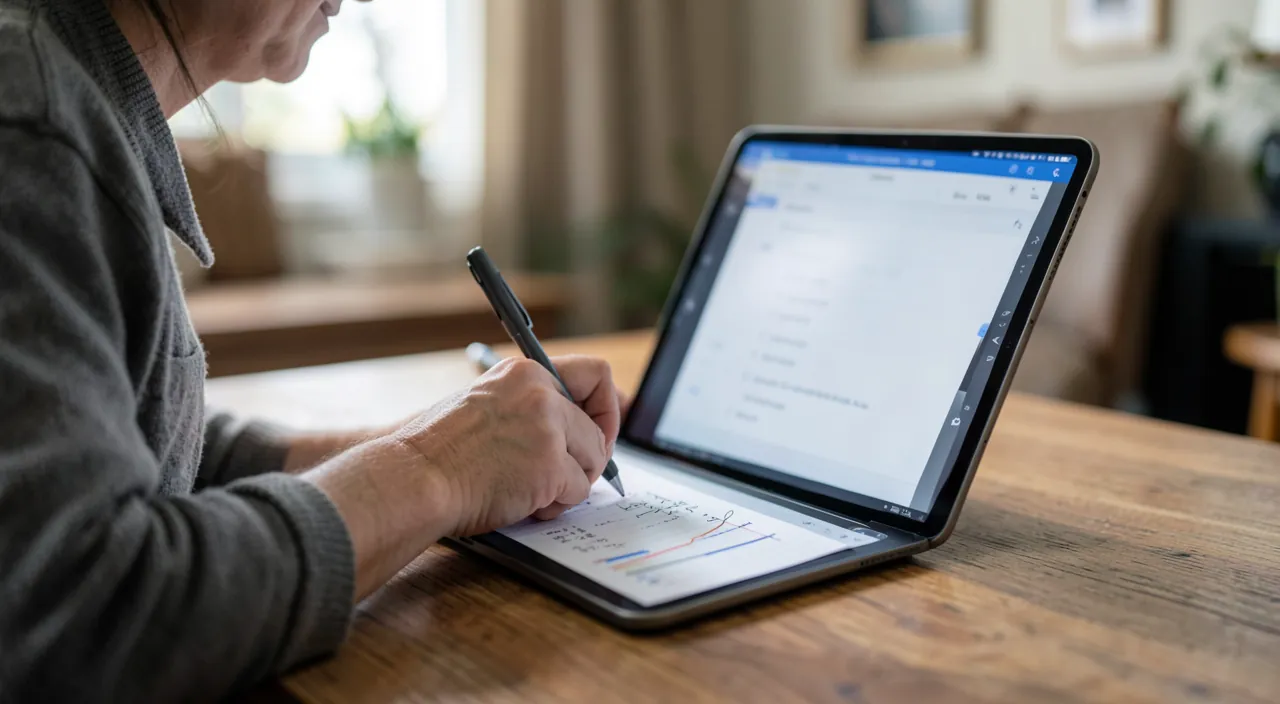
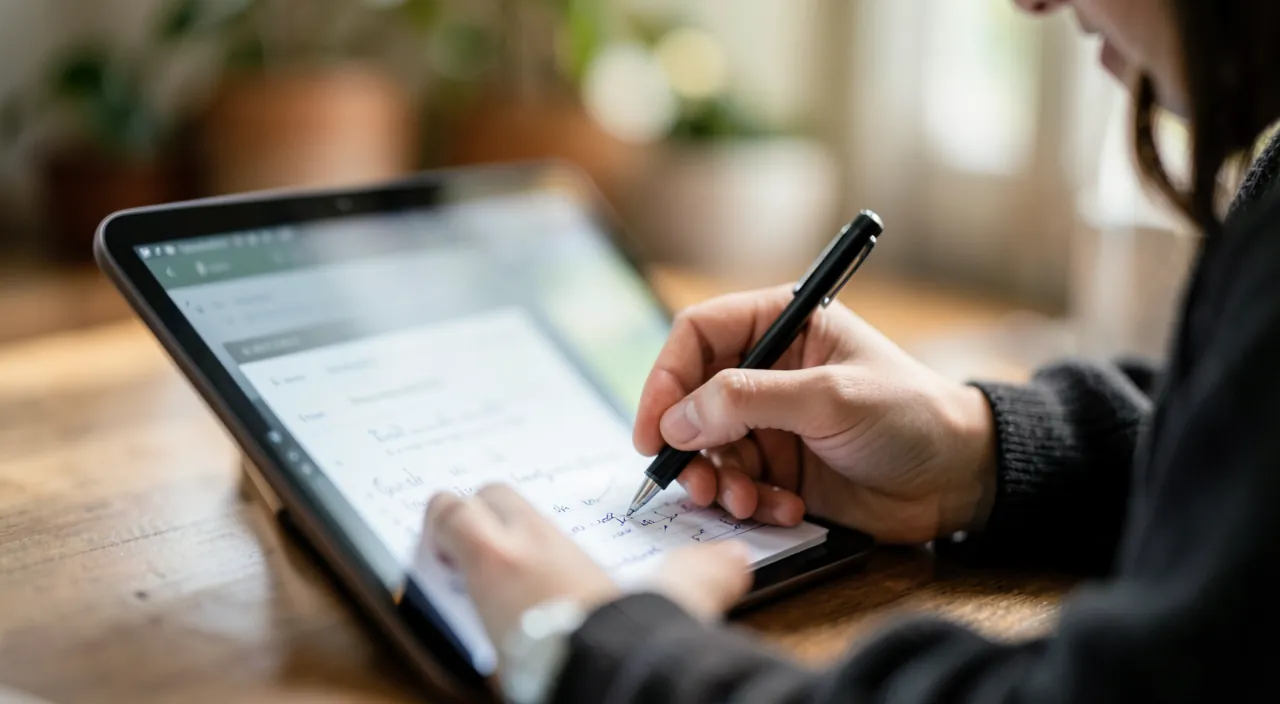
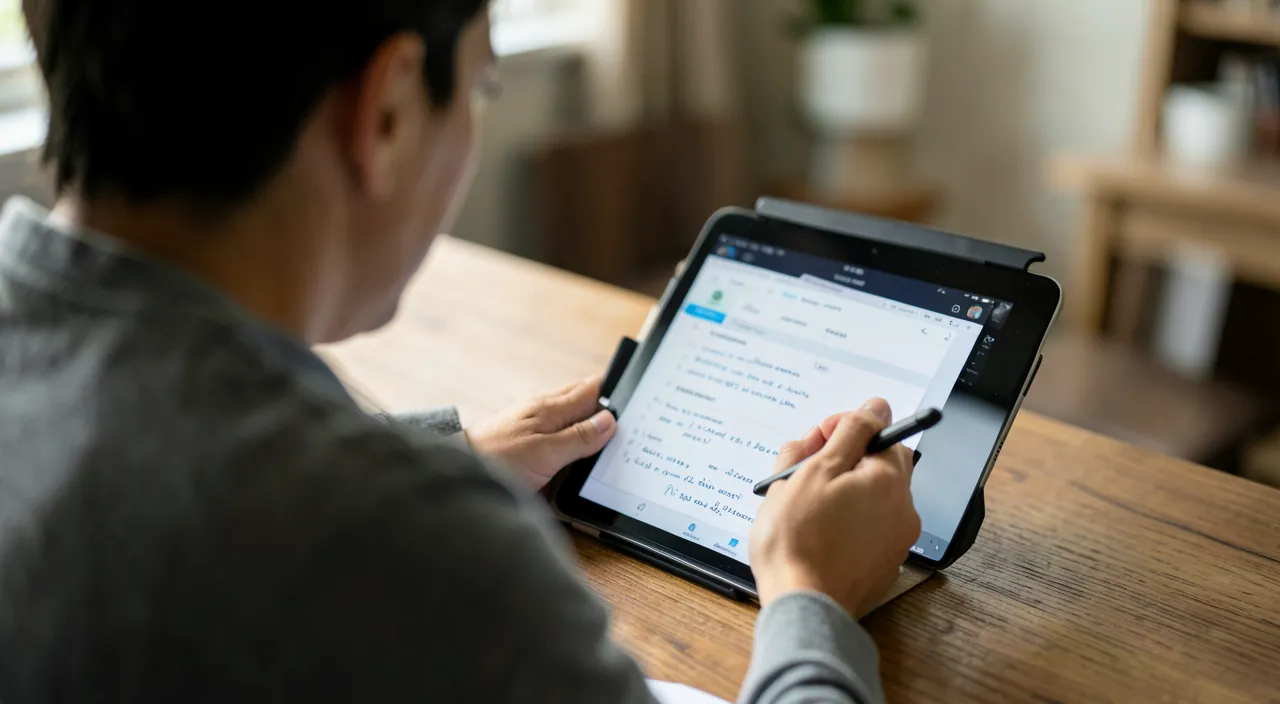
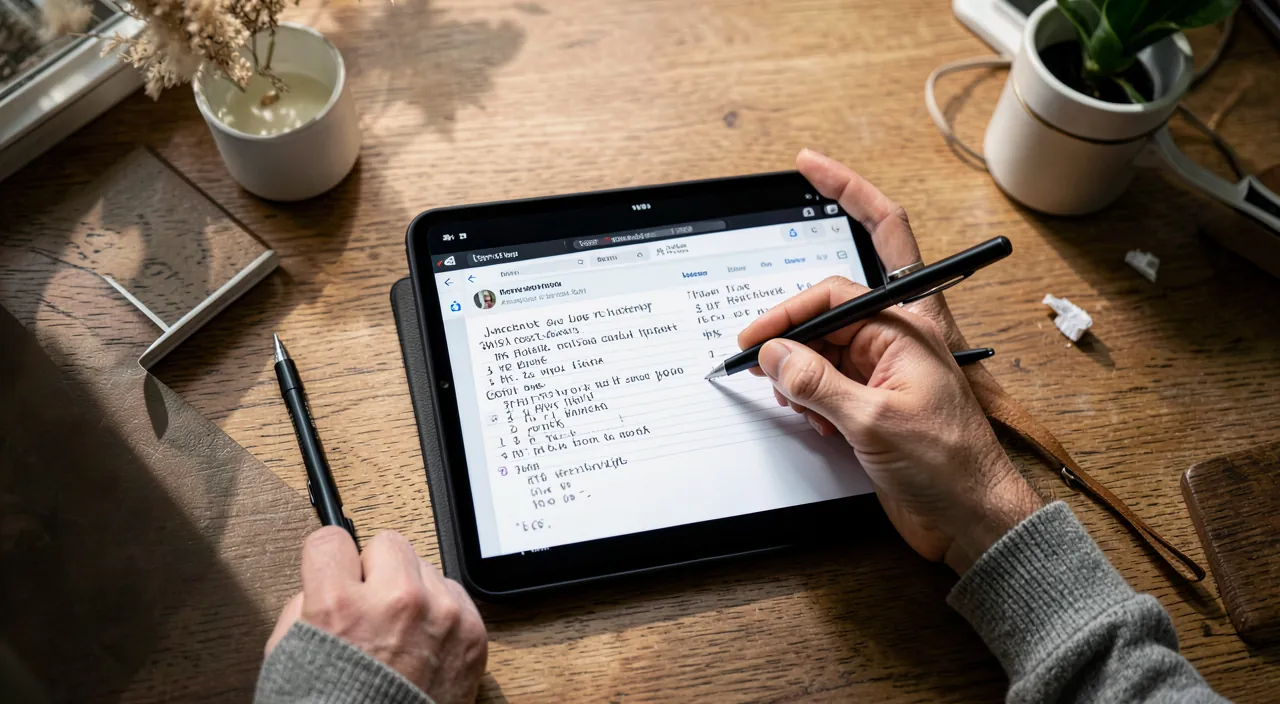
Beyond simple text, the Notes app has powerful features: the DOCUMENT SCAN — a gem: scan a paper directly into a note (the app detects the edges, straightens it, and produces a clean document — our guides on digitizing your papers), ideal for keeping invoices, receipts, and letters; the CHECKLISTS — turn a note into a checkable task or shopping list; the MEDIA INSERTION — add photos, videos, hand-drawn sketches, and even links or documents to a note (a note can mix text, images, and drawings); the FORMATTING — headings, bold, lists, tables to structure; the SKETCHES and ANNOTATIONS — draw with your finger or stylus, annotate a photo or document; the TEXT RECOGNITION in images (find a note by a word present in a scanned photo); and the POWERFUL SEARCH that searches through all content, including the text of scanned documents. These features transform the Notes app into a truly versatile tool: capture an idea, scan an important paper, create a list, sketch a plan, keep an annotated photo — all in one place, synced everywhere. Most people are unaware of these capabilities and only use Notes for raw text: discovering them is like gaining a complete tool you already had at your fingertips.
The Notes app is like a Swiss Army knife for your digital life. It can scan papers, create checklists, add photos or sketches, and even lock sensitive notes. All your notes stay in sync across your Apple devices, so you always have them with you.
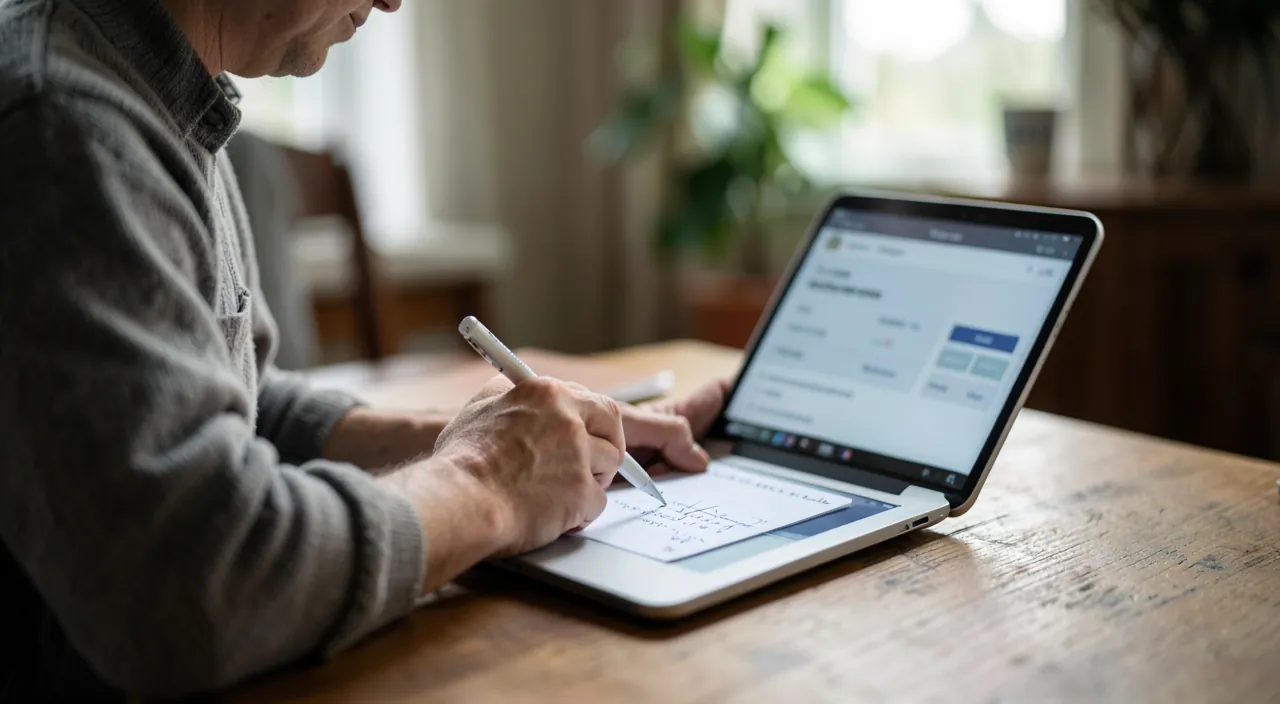
Imagine you receive a paper receipt for a work expense. Instead of keeping it in your wallet, you open the Notes app, tap the camera icon, and scan the receipt. The app automatically straightens the image and saves it as a searchable document. You can then file it in a “Work Expenses” folder, add a checklist for reimbursement steps, and even attach a photo of the item purchased. Now, your receipt is safely stored, organized, and accessible from any of your devices.
Organizing and securing your notes
For effective organization: the FOLDERS — categorize your notes by topic (work, home, projects, ideas), with subfolders if needed; the PINS — keep your important notes at the top of the list; the TAGS and search — find your notes by keywords or labels; the smart folders — which automatically group notes based on criteria; and the sorting by date or title. But the most valuable feature for serious use is LOCKING: you can PROTECT a note with a password or biometric authentication (fingerprint, face); the sensitive information you store there (door codes, personal information, private notes) is then encrypted and inaccessible without your permission. It’s useful — BUT with an important caveat: the Notes app is NOT a password manager. For your passwords and banking credentials, use a dedicated, encrypted manager (our guides on password managers), not notes (even locked ones). Locking Notes is suitable for personal information to protect from prying eyes, not for your most critical secrets. Another major advantage: SYNCHRONIZATION — your notes are automatically available on all your Apple devices (iPhone, iPad, Mac), always up to date: you start a note on your phone, you continue it on your computer (our guides on continuity between devices). And COLLABORATION — share a note to edit it together (a family shopping list, a project), in real time.
The right reflex. Discover the SCAN function of the Notes app: in a note, look for the camera icon and the « scan documents » option. It’s a quality scanner, free and already in your pocket, that keeps your documents locally and synced across your devices (our guides on digitizing your papers). Get into the habit of scanning your important papers (invoices, receipts, administrative letters) stored in a « Documents » folder in the app: you’ll always have them with you, searchable (which even reads the text of scans). Combine with checklists (for your tasks and shopping) and folders (for organizing): in a few uses, the Notes app becomes much more than a notepad — a true organization hub. Most people have this complete tool right in front of them without knowing it: explore its features, you’ll be surprised by everything it can do.
Making it the core of your organization
With its multiple features, the Notes app can become the basis of a « second brain » (our guides on second brain): a single place to CAPTURE everything you want to remember (ideas, information, scanned documents, lists, sketches), ORGANIZE (folders, pins, search), and FIND easily. Its strength is the combination of SIMPLICITY and richness: unlike complex tools, it’s immediate to use, while offering scanning, media, locking, and synchronization. A few tips to get the most out of it: capture WITHOUT FRICTION (a note is created in one gesture, even by voice or from the locked screen depending on settings); organize JUST enough (a few clear folders, search does the rest); use scanning for your documents; and above all, PROTECT your notes, as they can contain months of valuable information: cloud synchronization preserves them on all your devices, but remember that losing the account would take them with it — another reason to properly secure your Apple account and not store your most critical secrets there (which go into a dedicated manager). A word on PRIVACY: your notes can be personal; locking protects the most sensitive ones from prying eyes, and the best practice is not to store what requires the highest protection (passwords, banking data — our guides on password managers, privacy). When used effectively, the Notes app replaces several apps (notepad, scanner, task list, sketchbook) and becomes a discreet but powerful daily ally: the Swiss Army knife of your organization, already installed on all your devices.
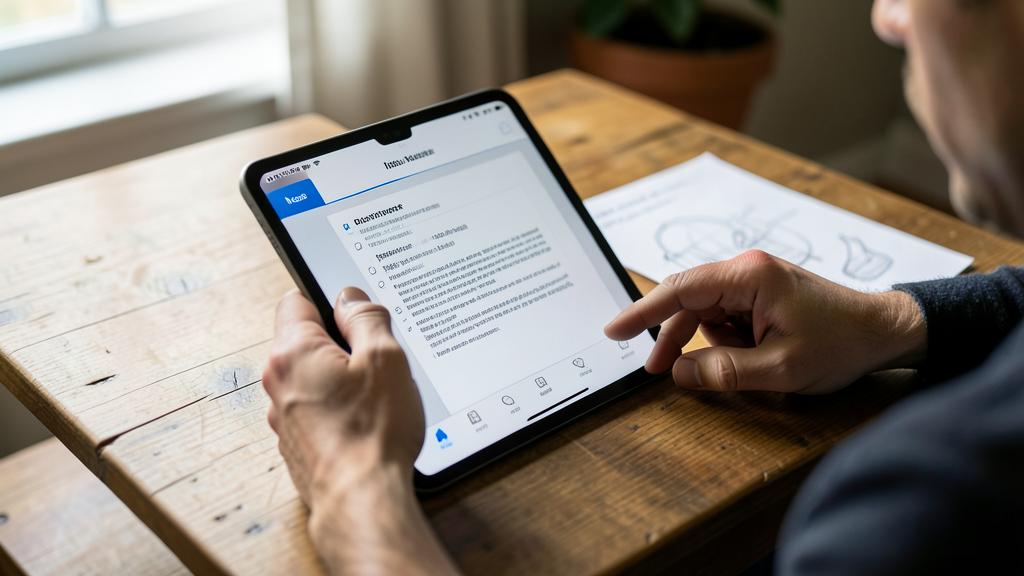
Warning: the Notes app is not a password vault. An important distinction: locking notes (with a password or biometrics) effectively protects personal information from prying eyes, which is useful; but the Notes app is NOT designed as a password manager. NEVER store your account passwords, banking credentials, card codes, or banking data in it, even in a locked note: these critical secrets must go into a DEDICATED and encrypted password manager (our guides on password managers). Locking Notes is suitable for information to protect from curious eyes (private notes, personal information), not for your most sensitive access. Also, your notes sync via your account: properly secure this account (strong password, two-factor authentication — our guides on security), as it gives access to everything. And remember that your notes, which can concentrate months of valuable information, depend on this account: protecting it means protecting everything they contain. The Notes app is a fantastic organization tool; it simply isn’t meant to keep your most critical secrets, which deserve a specialized vault.
Frequently asked questions
Can the Notes app really scan documents?
Yes, and very well: in a note, the « scan documents » option (via the camera icon) detects the edges of the paper, straightens it, and produces a clean document, directly saved in the note (our guides on digitizing your papers). It’s a quality scanner, free, that keeps your documents locally and synced across your devices. Search even reads the text of scans, to find them by keyword. It’s one of the most useful and unknown features of the app: ideal for keeping invoices, receipts, and important letters always accessible, without installing a dedicated app.
Can I protect my sensitive notes?
Yes: the Notes app allows you to LOCK a note with a password or biometric authentication (fingerprint, face), making it inaccessible without your permission — useful for personal information to protect from prying eyes. But be careful: the Notes app is NOT a password manager. Never store your account passwords or banking data in it, even locked: these critical secrets must go into a dedicated and encrypted manager (our guides on password managers). Locking Notes is suitable for private notes and personal information, not for your most sensitive access. Also secure your Apple account (two-factor authentication), which gives access to all your synced notes.
Do my notes sync between my devices?
Yes, automatically: your notes are up to date on all your Apple devices (iPhone, iPad, Mac) via your account. You can start a note on your phone and continue it on your computer, without doing anything (our guides on continuity between devices). You can also SHARE a note to edit it together in real time (a family list, a project). This synchronization is a major advantage, but it depends on your account: properly secure it (strong password, two-factor authentication), as it gives access to all your notes. And keep in mind that what depends on an account deserves to be carefully protected.
What to remember
The Notes app is an organization Swiss Army knife, far beyond a simple notepad. Its hidden features: DOCUMENT SCAN (a real scanner in your pocket, for keeping papers and receipts), checklists, photo, sketch, and media insertion, sketches and annotations, and powerful search that even reads the text of scans. For organization: folders, pins, tags, and especially LOCKING sensitive notes (with a password or biometrics). Its major advantages: automatic synchronization across all your Apple devices, and real-time collaboration. When used effectively, it can become the heart of your digital organization — a « second brain » that is both simple and rich, where you can capture, organize, and find everything easily. An important caveat: the Notes app is NOT a password manager; never store passwords or banking data in it (even locked), which go into a dedicated and encrypted manager. And properly secure your Apple account, which all your synced notes depend on. Most people have this complete tool at their fingertips without knowing it: explore its features, and it replaces several apps by itself.
Want to unlock the full potential of your iPhone, iPad, or Mac? Our Apple training will take you to the next level.
Leave a Reply
You must be logged in to post a comment.