
Your screen starts flickering, shimmering, or wavering: the image trembles, lines appear, the brightness varies on its own. It’s disorienting, tiring for the eyes, and often makes you fear the worst. Rest assured: a flickering screen isn’t always serious. The cause could be a simple loose cable, a setting, an outdated driver, or interference—all things that can be fixed. But sometimes, it’s more serious (the screen or the hardware). Here’s how to diagnose a flickering screen, from the simplest to the most serious, and recognize when intervention is needed.
Causes of a flickering screen
Flickering can have very varied origins, from minor to serious. A LOOSE or defective CABLE: on a computer with a separate screen, a poorly inserted, damaged, or low-quality video cable is a very common cause of flickering; it’s also the easiest to check. An INAPPROPRIATE SETTING: particularly the screen’s « refresh rate » (the frequency at which the image refreshes); if it’s poorly set, the screen may flicker; it’s a software setting that can be modified. A GRAPHICS DRIVER: the software that manages the display (the « driver » of the graphics card) can, if outdated or defective, cause flickering; an update often fixes the problem. INTERFERENCE: some nearby electrical devices, or poor power supply, can disrupt the display. A SOFTWARE ISSUE: sometimes, a specific application or display setting causes flickering; the problem then only appears in certain situations. AUTOMATIC BRIGHTNESS: a function that adjusts the brightness can give the impression of flickering by varying the lighting. A MATERIAL PROBLEM with the screen: aging panel, failing backlight, internal connection; that’s more serious. A GRAPHICS CARD ISSUE: the component that generates the image may be at fault, especially if it overheats or fails. How to guide the diagnosis? A few questions: is the flickering PERMANENT or occasional? Does it appear everywhere or in certain applications? Is it getting worse? Is it a laptop (integrated screen) or a separate screen (cable)? What’s the point of understanding? To check the SIMPLE causes first (cable, setting, driver); to distinguish a software issue from a hardware issue; and to know when it’s fixable yourself or when to get it repaired. The main idea: a flickering screen often comes from SIMPLE and fixable causes—a loose cable, a refresh rate setting, an outdated driver—but sometimes from a more serious hardware problem (screen or graphics card). Always start by checking the simple and free causes: in many cases, that’s enough. If the flickering persists despite everything, or gets worse, it’s a sign of a hardware problem that warrants a diagnosis.
A flickering screen is often caused by simple issues like a loose cable, wrong settings, or outdated software. But if it keeps happening or gets worse, it might be a hardware problem with the screen or graphics card. Always check the easy fixes first.
Imagine you’re using a Dell XPS 15 laptop. The screen starts flickering when you’re working in Photoshop. You check the cable (but it’s a laptop, so no external cable), update the graphics driver, and adjust the refresh rate to 60Hz. The flickering stops. Problem solved—it was just a driver issue!
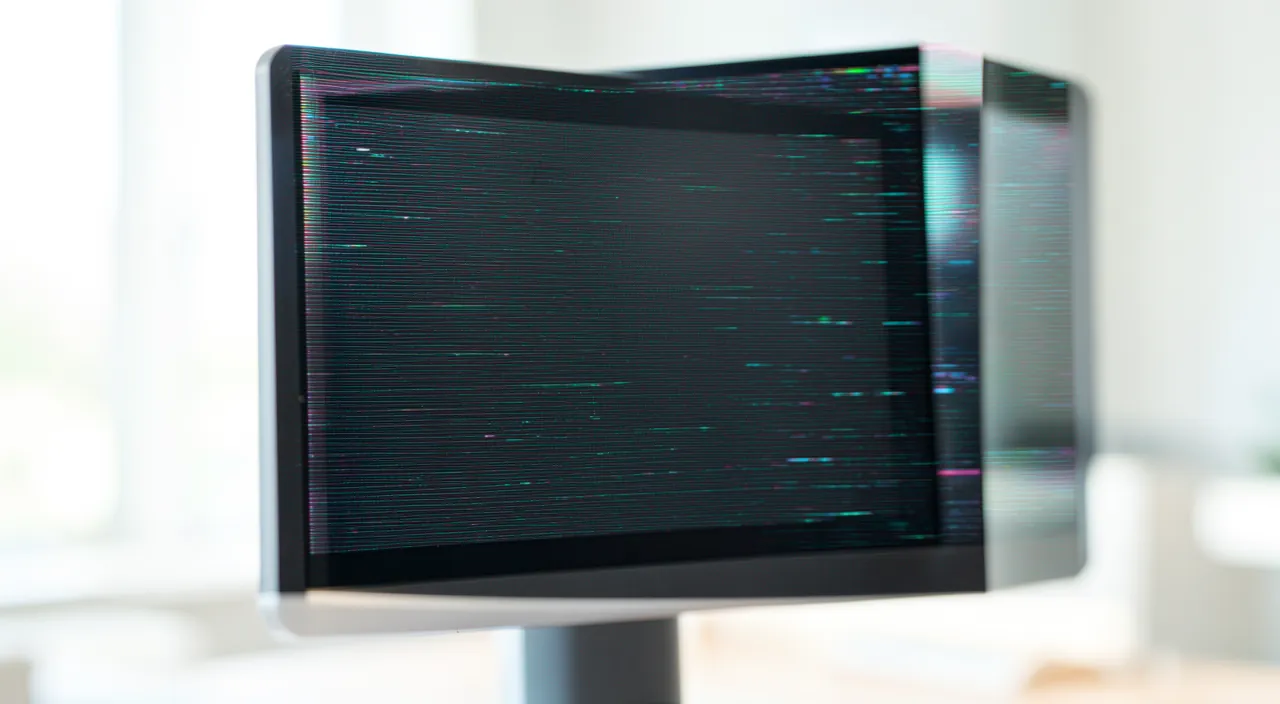
How to diagnose and fix a flickering screen
Here’s the approach, from the simplest to the most advanced. CHECK the CABLE (separate screen)—if you have a screen separate from the main unit: check that the video cable is properly inserted on both ends; unplug and replug it firmly; try ANOTHER cable if possible (a damaged cable is a common cause); test another connection port if available. RESTART—a simple restart can fix flickering caused by temporary disorder (our guides on restarting to fix many issues). UPDATE the GRAPHICS DRIVER—the software that manages the display is a classic cause; make sure your system and drivers are up to date; an update often fixes the flickering (our guides on checking and installing updates). CHECK the REFRESH RATE—in the display settings, check that the screen’s refresh rate is set to the correct value (the one recommended for your screen); an inappropriate setting causes flickering. DISABLE AUTOMATIC BRIGHTNESS—if the brightness varies on its own, disable automatic adjustment to see if that stabilizes the image. Test for INTERFERENCE—move any potentially disruptive electrical devices away; check the power supply; on a laptop, test while plugged in and then on battery (flickering related to power supply can guide the diagnosis). Identify if it’s SOFTWARE—does the flickering only appear in a specific application? Then the problem may come from that software or a setting; look into that. Test on ANOTHER screen (if possible)—on a computer, connecting another screen helps determine if the problem comes from the screen or the computer: if the second screen flickers too, it’s the computer (graphics card); if it’s stable, it’s your screen. If NOTHING works—if the flickering persists after these checks, or gets worse, it points to a HARDWARE PROBLEM (screen panel, backlight, graphics card); professional diagnosis is then necessary. A few TIPS: start with the CABLE and the DRIVER (most frequent and free causes to fix); proceed by elimination; and note when the flickering appears (everywhere? one app? plugged in?) to help with the diagnosis. In summary: check and replace the cable, restart, update the graphics driver, adjust the refresh rate, disable automatic brightness, test for interference and another screen; if the flickering persists, it’s probably hardware and you need to get it diagnosed. Many cases are resolved in the first steps.
- CHECK the CABLE (separate screen)
- RESTART
- UPDATE the GRAPHICS DRIVER
- CHECK the REFRESH RATE
- DISABLE AUTOMATIC BRIGHTNESS
- Test for INTERFERENCE
- Identify if it’s SOFTWARE
- Test on ANOTHER screen (if possible)
- If NOTHING works
The right reflex. Before worrying and thinking about changing your screen, check the two most common—and easiest to fix—causes of a flickering screen. The first, if you have a SEPARATE screen from the main unit: the VIDEO CABLE. A poorly inserted, slightly loose, damaged, or low-quality cable often causes flickering, trembling, or lines. The action: firmly unplug the cable from both ends (screen side and computer side), replug it all the way in, and if the flickering persists, try ANOTHER cable outright—it’s surprising how often a worn-out cable is the only culprit. If your computer has multiple video ports, test another one. The second classic cause, valid for all screens (including laptops): the GRAPHICS DRIVER, the software that manages the display. If it’s outdated or defective, it makes the screen flicker; the solution is to UPDATE your system and drivers, which fixes most software-related flickering. While you’re at it, check the REFRESH RATE setting in the display parameters: if it’s not set to the recommended value for your screen, correcting it may eliminate the flickering. And if the brightness varies on its own in an unpleasant way, disable its AUTOMATIC adjustment. A very useful test if you have a computer with a separate screen: connect ANOTHER screen. If the new screen flickers too, the problem comes from the computer (its graphics part); if it’s perfectly stable, it’s your screen that’s at fault. This simple test guides the entire diagnosis. Cable, driver, refresh rate: in the vast majority of cases, the cause of a flickering screen is there, and it’s fixed for free in a few minutes. It’s only if none of this changes anything that the problem becomes probably hardware-related.
When the flickering is more serious
If the simple checks aren’t enough, the problem may be hardware-related; here’s how to recognize and react. Signs of a HARDWARE PROBLEM with the screen: flickering that persists despite all settings and cable changes; that gets worse over time; that’s accompanied by other display defects (darker areas, abnormal colors, spots, fixed lines); or that changes when you lightly press on the frame or move the screen (sign of an internal connection); these symptoms suggest an aging panel, a failing backlight, or a damaged internal connection. A GRAPHICS CARD PROBLEM: if the flickering also appears on a second connected screen, or is accompanied by crashes, freezes, or occurs mainly when the computer is working hard (games, video), the computer’s graphics part may be at fault, sometimes due to overheating. The case of LAPTOPS: on a laptop, the screen is integrated and its repair is more delicate; a hardware flickering (hinge, internal ribbon, panel) often requires professional intervention. What the flickering may ANNOUNCE: a screen or graphics card at the end of its life; without being a security emergency for your data, it’s a sign of worn-out hardware that will need to be repaired or replaced. When to GET it REPAIRED? If the flickering persists after all the simple checks; if it gets worse or is accompanied by other display defects; if you’ve identified a hardware problem (via testing another screen); or if you’re not comfortable diagnosing it. A professional can precisely identify the cause (screen, internal cable, graphics card) and tell you if a reasonably priced repair is possible, or if it’s better to replace the component. Don’t OVERDO it: randomly manipulating the inside of a screen or laptop is risky; better to get a diagnosis. COMFORT while waiting: a flickering screen tires the eyes; if you have to wait before a repair, limit usage time, and know that pronounced flickering is as unpleasant as it is revealing. In summary: if the simple causes are ruled out and the flickering persists or gets worse, especially with other display defects, it’s probably hardware (screen or graphics card); then get it diagnosed rather than overdoing it, to know whether to repair or replace.
Warning: persistent or worsening flickering, especially with other display defects, signals a hardware problem—get it diagnosed rather than opening it yourself. Many flickering issues are fixed for free (cable, driver, setting); always start there. But if you’ve checked the cable (and tried another), updated the graphics driver, adjusted the refresh rate, and the screen continues to flicker—or worse, it GETS WORSE over time—then the problem is probably HARDWARE. Some signs don’t lie and should guide you toward a diagnosis: flickering accompanied by other display defects (dark areas, distorted colors, spots, fixed lines), that changes when you move the screen or lightly press on its frame (sign of a damaged internal connection), or that appears mainly when the computer is working hard (sign of a graphics card issue, sometimes overheating). In the face of these signs, two rules of caution. First, don’t OPEN the screen or laptop yourself to « see »: the inside of a screen (with its backlight) and a laptop is fragile and sometimes dangerous to handle without expertise; you risk worsening the damage, even injuring yourself, and voiding any warranty. Have the diagnosis done by a professional: they’ll precisely identify the cause (panel, internal cable, graphics card) and honestly tell you if a reasonably priced repair is possible or if it’s better to replace the component. Then, don’t OVERDO it by multiplying risky software manipulations: if the simple checks didn’t yield anything, blindly insisting won’t make a magical solution appear. A good test to do before concluding, if you have a separate screen: connect ANOTHER screen to the same computer; if it flickers too, it’s the computer (graphics card) that’s at fault; if it’s stable, it’s your screen. This avoids unnecessarily replacing the wrong component. Finally, know that a screen that flickers for a long time greatly tires the eyes: if you have to wait before a repair, limit your usage time. A minor flickering is fixed in a few minutes; a hardware flickering is diagnosed by a professional—in both cases, it’s better to act methodically than to open it randomly.

Frequent questions
My screen is flickering, is it serious?
Not necessarily: in many cases, the cause is minor and easy to fix; but sometimes, it’s more serious. It all depends on the origin, which you need to identify through a few checks. Minor and frequent causes: a poorly connected or damaged video cable (on a separate screen), an outdated graphics driver, an inappropriate refresh rate setting, interference, or a specific software at fault. All of these are corrected for free and quickly, and represent a good portion of cases: if your flickering comes from there, it’s absolutely not serious. More serious causes: a hardware problem with the screen (aging panel, backlight, internal connection) or the computer’s graphics card; that’s more annoying and requires a repair. How to know which case you’re in? Start with the simple checks: if the flickering DISAPPEARS after reconnecting or changing the cable, updating the driver, or adjusting a setting, it was minor, case closed. If it PERSISTS despite everything, GETS WORSE over time, or is accompanied by other display defects (abnormal colors, dark areas, lines), it’s more serious; probably hardware. Rest assured on one point: unlike some problems (like a failing disk), a flickering screen generally doesn’t threaten your DATA; it’s a display issue, not a storage issue. It’s mainly uncomfortable (and tiring for the eyes). In summary: a flickering screen is often not serious and is easily fixed; do the simple checks first; it’s only if it persists or gets worse, especially with other symptoms, that you should consider a hardware problem and a diagnosis.
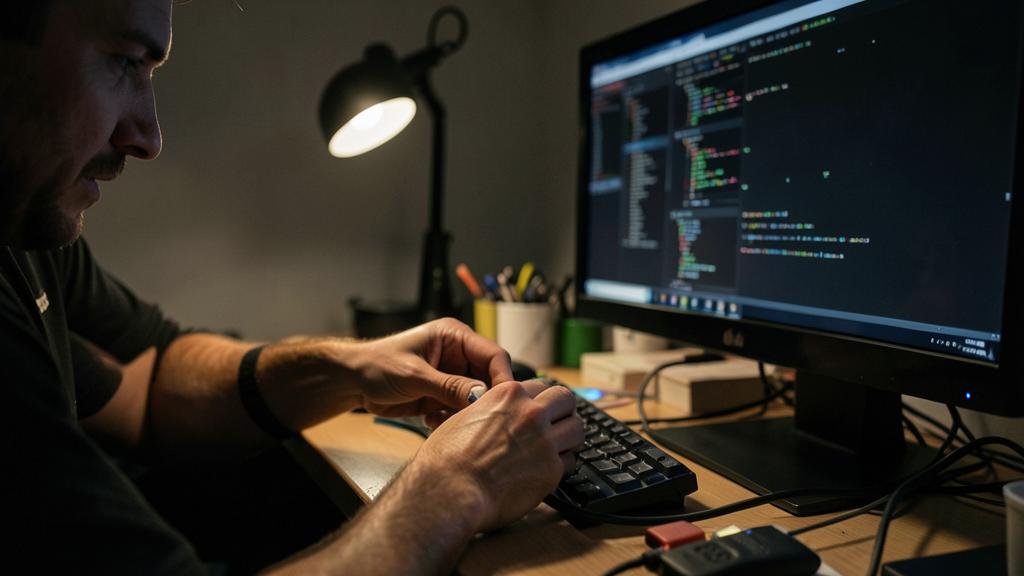
Can the flickering come from a simple cable?
Absolutely, and it’s even one of the most common causes on a computer with a separate screen: think of it first. The video cable that connects your screen to the main unit carries the image; if it’s poorly inserted, slightly loose, twisted, damaged, or simply of poor quality or worn out over the years, the image transmission becomes unstable, resulting in flickering, trembling, lines appearing, or brief cutouts. The good news: it’s the easiest and least costly cause to check and correct. Actions to take: first, unplug the cable from BOTH ends (screen side and computer side) and replug it firmly, all the way in; a half-inserted cable is enough to cause the problem. If the flickering persists, try gently moving the cable while the screen displays something: if the image reacts (flickers more or stabilizes) when you manipulate it, it’s a clear sign that the cable or its connector is at fault. The decisive test: replace the cable with ANOTHER one (borrowed or new); if the flickering disappears, you’ve found the culprit, and a new cable costs little. If your computer and screen have multiple types of connections, trying another port can also help. On the other hand, on a LAPTOP, the screen is connected internally by a ribbon (not an accessible cable); a problem of this type is possible but requires professional intervention. In summary: yes, a simple cable is very often responsible for a flickering screen; it’s the first thing to check, it costs nothing, and a firm reconnection or a new cable fixes a large portion of cases.
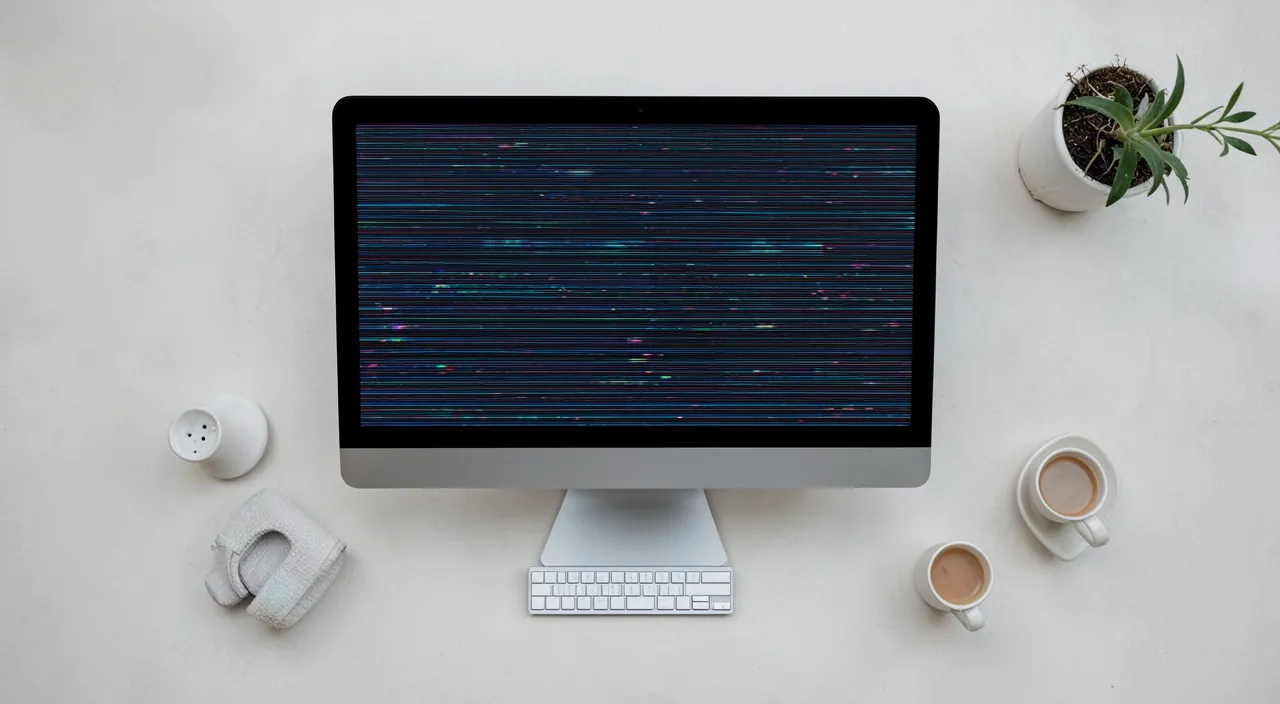
Should you repair or replace a flickering screen?
It depends on the cause (often repairable, sometimes not worth it) and the type of equipment; hence the importance of properly diagnosing before deciding. Always start by ruling out the SIMPLE and free causes: cable (reconnect or replace), graphics driver (update), refresh rate setting. If one of them was the cause, there’s nothing to « repair » or replace: the problem is resolved for zero euros. It would be a shame to replace a screen that a new cable would have been enough to save. If the flickering persists and turns out to be HARDWARE, several cases. If it’s a FAILING SEPARATE screen: repairing a screen is sometimes possible but not always cost-effective; depending on the age and price, replacing the screen (which is an independent component) may be simpler and more reasonable; a professional will advise you. If it’s the COMPUTER’S GRAPHICS CARD (flickering also present on another screen): repairing or replacing this component depends on the machine and can be costly; to be evaluated. On a LAPTOP (integrated screen): repairing the screen is more delicate and its cost can be high compared to the machine’s value; to weigh, especially if the laptop is old. The right reflex before any decision: have it DIAGNOSED by a professional, who will identify the exact cause and honestly tell you if a reasonably priced repair is possible, or if replacing (the screen, the component, or the machine) is more advisable. Always compare the cost of the repair to that of a replacement and to the value of the equipment. In summary: simple causes first (often free); if it’s hardware, a diagnosis will tell you whether it’s better to repair or replace, depending on the type of equipment, its age, and the cost. Don’t throw away too quickly, but don’t overdo it on equipment at the end of its life either.
What to remember
A flickering, blinking, or wavering screen is disorienting, but often not serious: in many cases, the cause is simple and is fixed for free. Frequent and minor origins: a poorly connected or damaged VIDEO CABLE (on a separate screen: the number one cause, to check first), an outdated GRAPHICS DRIVER, a poorly set REFRESH RATE, interference, automatic brightness, or a specific software at fault. Always start with the simple checks: firmly reconnect (or replace) the cable, restart, update the graphics driver, check the refresh rate, disable automatic brightness. A very useful test on a separate screen: connect another screen—if it flickers too, the problem comes from the computer (graphics card); if it’s stable, it’s your screen. These actions resolve or identify the vast majority of cases, without spending a cent. But if the flickering PERSISTS despite everything, GETS WORSE, or is accompanied by other display defects (abnormal colors, dark areas, fixed lines), or even changes when you move the screen, then it’s probably a HARDWARE PROBLEM (panel, backlight, internal connection, or graphics card). In this case, two rules: don’t OPEN the screen or laptop yourself (fragile, sometimes dangerous, risk of worsening), and don’t OVERDO it with risky manipulations; have it DIAGNOSED by a professional, who will identify the exact cause and tell you whether to repair or replace, depending on the equipment, its age, and the cost. Rest assured: unlike a failing disk, a flickering screen generally doesn’t threaten your data; it’s a display issue, mainly uncomfortable and tiring for the eyes (limit usage while waiting for a repair). In summary: simple checks first (cable, driver, setting—often sufficient and free), professional diagnosis afterward if the flickering persists or gets worse; don’t throw away too quickly, but don’t randomly tinker with the inside. With this method, you resolve the minor cases yourself and entrust the serious ones to someone who knows how to handle them.
Persistent breakdown, capricious device? Our remote troubleshooting service quickly resolves your problem, without jargon.
Leave a Reply
You must be logged in to post a comment.