
You’re in the middle of a video conference, watching a movie, or working, and suddenly: a drop. The WiFi disconnects, reconnects, drops again; it’s one of the most frustrating and common problems at home. Rest assured: in most cases, a temperamental WiFi can be fixed with simple steps, no technician required. It could come from the box, its position, interference, the device, or your connection itself. Here’s how to diagnose and fix a WiFi that keeps disconnecting, methodically, from the simplest to the most advanced solutions.
Where do WiFi disconnections come from
An unstable WiFi has various causes, useful to know to act effectively. The BOX or router: the starting point of the WiFi; a box that needs a reboot, outdated equipment, a setting, or an overloaded box can cause dropouts. The POSITION and DISTANCE: WiFi weakens with distance and obstacles; if you’re far from the box, or separated by thick walls, concrete, multiple floors, the signal is weak and unstable. INTERFERENCES: other electronic devices, neighbors’ WiFi, certain equipment (microwaves, wireless devices) can disrupt the signal. The DEVICE itself: sometimes, it’s your computer, phone, or tablet that has a connection issue (setting, driver, update), not the WiFi in general. The INTERNET connection itself: the dropout may come not from the WiFi, but from your internet access (provider issue, line problem); in this case, all your devices are affected. SATURATION: too many devices connected at once, or heavy usage, can overload a modest box. A crowded WiFi CHANNEL: in buildings, many WiFi networks overlap on the same « channels, » creating interference. How to know where it comes from? A key question: does the dropout affect ONE device or ALL? If one, the problem is likely on that device; if all, it’s the box or the connection. And: does it depend on where you are (far from the box)? What does it help to understand? To act on the RIGHT cause; to distinguish a WiFi issue (range, box) from a connection issue (provider); and to know when it’s fixable yourself or when to call the provider. The main idea: a WiFi that disconnects most often comes from the box (needs a reboot), the signal range (distance, obstacles), interference, the device, or the internet connection itself; most of these causes can be fixed simply. The first reflex that solves most cases is to reboot the box; then, you methodically check where the problem comes from (one device or all, near or far from the box). With a bit of method, a temperamental WiFi becomes stable again.
Your WiFi drops because of the box, its position, interference, your device, or your internet connection. Most issues are fixable by rebooting the box, moving it, or reducing interference. If all devices drop, the problem is likely with the internet connection, not the WiFi itself.
In a two-story house, a WiFi box placed in a basement closet behind a microwave causes drops on the second floor. Moving the box to a central spot on the first floor and changing the channel from 6 to 11 (less crowded) stabilizes the connection. The phone still drops in the garden, so a WiFi repeater is added to cover the outdoor area.
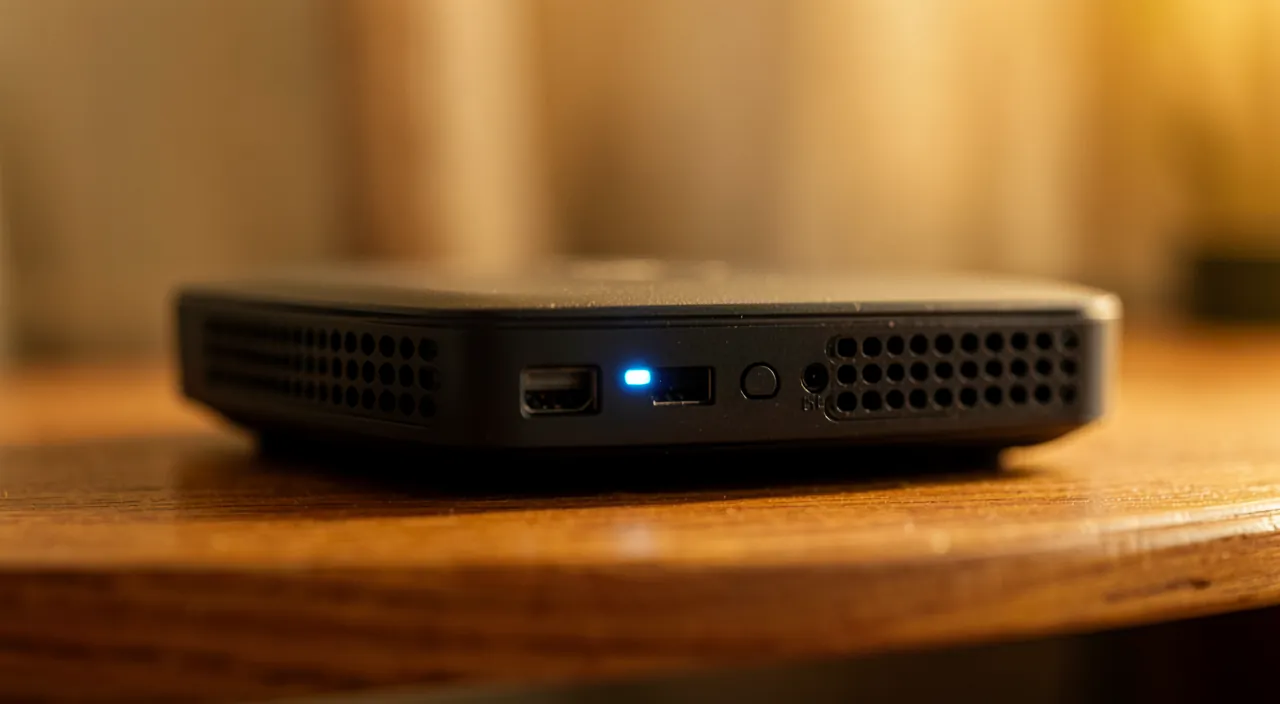
How to fix a temperamental WiFi, step by step
Here’s the approach, from simplest to most advanced. REBOOT the box — THE first step, which solves many cases: unplug your box, wait about 30 seconds, plug it back in, and wait for it to fully restart (a few minutes); this resets any potential issues (our guides on rebooting fix many problems). Identify: ONE device or ALL? — check if the dropout affects only one device or all; if ONE, reboot that device, « forget » and reconnect to the WiFi network, check its settings and updates; if ALL, the problem is with the box or connection. Move closer to the BOX — test near the box: if the connection is stable up close but drops when you move away, it’s a RANGE issue; the signal is too weak where you are. Improve the RANGE if needed — place the box in a central and clear spot (not in a closet, not behind furniture, not on the floor in a corner); move it away from interference sources; to cover a large area or multiple floors, a WiFi repeater or a multi-node system can extend the signal. Reduce INTERFERENCES — move the box away from disruptive devices (microwaves, certain wireless devices); in a building, changing the WiFi « channel » of the box (in its settings) can help if yours is crowded. CHECK if it’s the CONNECTION — if all devices drop and a box reboot doesn’t last, the problem may be with your internet access (line, provider); check the box lights (an abnormal light may indicate a connection loss), and contact your provider if the dropout persists (our guides on being connected to WiFi but without internet access). UPDATE — make sure your devices and, if possible, your box are up to date; updates sometimes fix connection issues. Lighten if SATURATION — if many devices are connected and straining the network, it can overload a modest box; disconnect what’s not in use, or consider a better box. If NOTHING works — old box, faulty line, persistent issue: contact your provider, who can diagnose the line or replace a defective box. A few TIPS: proceed by STEPS to identify the cause; the question « one or all devices? » guides everything; and the combo of rebooting the box + good position fixes many cases. In short: reboot the box, identify if one or all devices are affected, test the range (near/far), improve the position and reduce interference, check if it’s the connection (lights, provider), update, and lighten if saturated. Methodically, you stabilize most WiFi issues.
The right reflex. Two actions alone fix most temperamental WiFi issues. The first, always do first: REBOOT THE BOX. Not the computer — the box! Unplug it completely, wait about 30 seconds, plug it back in, and let it fully restart (wait a few minutes for all its lights to stabilize). This simple reboot resets accumulated minor issues and solves a surprising number of connection problems. The second reflex, crucial for finding the cause, is to ask THE right question: does the dropout affect ONE DEVICE, or ALL? That’s what guides the entire diagnosis. If only one device is affected while others work fine, the problem is with THAT device: reboot it, « forget » then reconnect to the WiFi network, check its updates. If ALL devices drop, then the problem is with the box or the internet connection, not your devices. Next, test the RANGE: is the connection stable near the box but temperamental when you move away? If so, it’s a weak signal issue at a distance — and the solution is often physically simple: take your box out of that closet, from behind that furniture or that corner on the floor where you hid it, and place it in a CENTRAL and CLEAR spot; WiFi hates obstacles (thick walls, concrete, floors). For a large house, a WiFi repeater can extend the signal. Finally, if all devices drop and a box reboot doesn’t fix it, check the BOX LIGHTS: an abnormal light may indicate the problem is with your internet connection itself (the line, the provider), in which case you need to contact your provider. Reboot the box, identify « one or all devices, » fix the position: with these reflexes, you fix or identify most unstable WiFi issues.
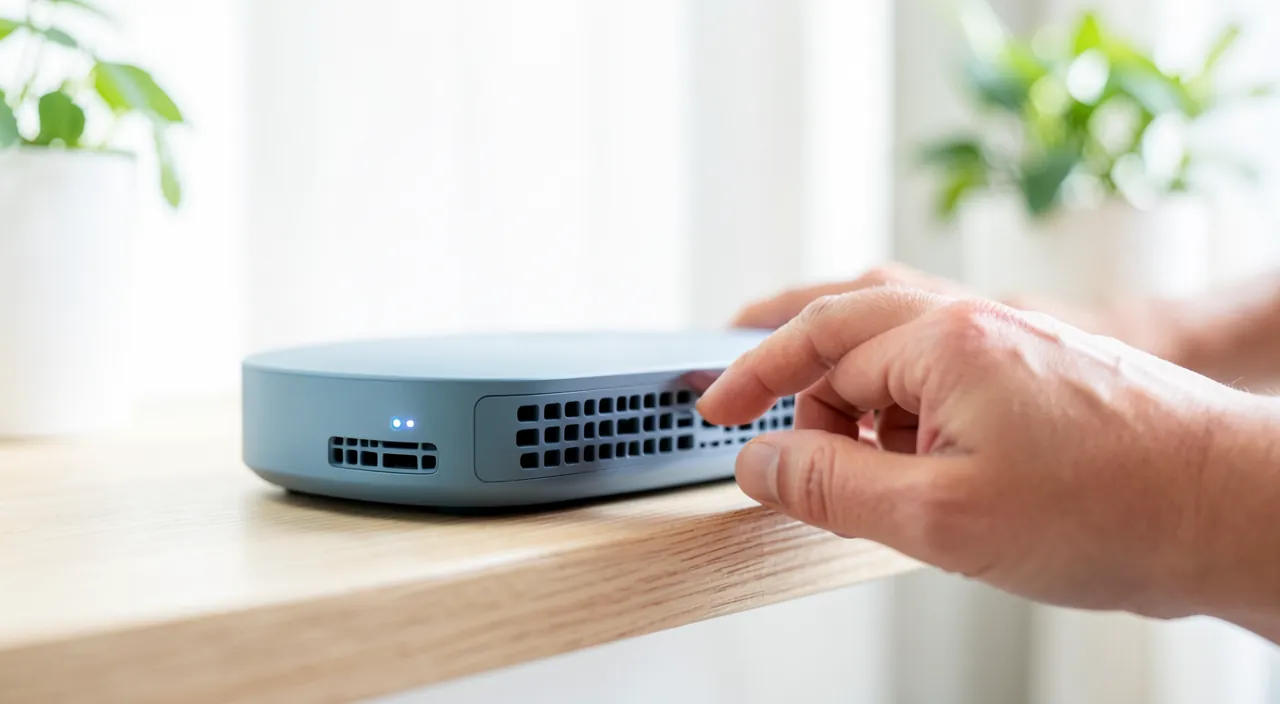
When it’s no longer your WiFi, but your connection
It’s important to distinguish a WiFi issue (your home wireless network) from a CONNECTION issue (your internet access), as they’re not fixed the same way. The DIFFERENCE: WiFi is the wireless link between your devices and the box; the internet connection is the link between your box and the rest of the internet, provided by your operator; a WiFi issue affects range and wireless; a connection issue cuts internet access for all, even wired. How to RECOGNIZE a connection issue? If ALL your devices lose internet at the same time (not just WiFi); if a box reboot doesn’t fix it; if the BOX LIGHTS indicate an anomaly (a light that should be steady and green starts blinking or is red/off); if the problem persists even when connected by cable: then it’s probably the connection, not the WiFi. What to do? First, check the box connections and lights; reboot it; check if your operator has reported an OUTAGE in your area (on their website or app, from another access); and if the dropout persists, CONTACT your provider: they alone can diagnose the line, identify an outage, or replace a defective box (our guides on being connected to WiFi but without internet access). Causes of a connection issue: an operator outage, a line issue, a faulty box, work in the area, bad weather; these causes are not your responsibility and are fixed with the operator. Don’t WASTE time fixing a good WiFi: if the problem is the connection, no WiFi setting will change that. Conversely, a weak WiFi (good connection but poor range) isn’t fixed by calling the operator, but by improving the position or coverage. Knowing the difference saves you time and effort on the wrong track. In short: if all your devices lose internet and the box lights are abnormal, it’s a connection issue (see your provider), not WiFi; if the connection is good but the signal is weak at a distance, it’s a WiFi issue (position, range). Correctly identifying the problem is key to fixing it effectively.
Warning: don’t confuse a WiFi issue with an internet connection issue. This is the most important distinction to avoid wasting time and energy. WiFi is the wireless link between your devices and your box at home; the internet connection is the link between your box and the rest of the world, provided by your operator. A temperamental WiFi (weak signal, dropouts depending on distance) is fixed by actions ON YOUR SIDE: reboot the box, place it in the right spot, reduce interference, extend the range. But if the problem comes from the CONNECTION itself — an outage with your operator, a line issue, a faulty box — then no WiFi setting will change anything: you could spend hours moving your box and changing channels with no result, because the problem isn’t there. How to recognize a connection issue? If ALL your devices lose internet at the same time (not just one), if the issue persists even when connected by cable, if a box reboot doesn’t fix it, and especially if your BOX LIGHTS are abnormal (a light that should be steady and green starts blinking, turns red, or goes off): these are signs of a connection issue, not WiFi. In this case, don’t insist on your settings: check if your operator hasn’t reported an outage in your area (via their website or app, from another access like mobile data), and if the dropout persists, CONTACT your provider: they alone can diagnose the line, confirm an outage, or replace a defective box — these are things you can’t fix yourself. Conversely, don’t call your operator for a simple RANGE issue (good connection near the box, weak at the bottom of the garden): there, it’s up to you to improve the position or extend the signal. Knowing how to distinguish « bad WiFi » (range, at home) and « no internet » (connection, operator) guides you to the right solution; confusing the two means wasting effort on the wrong track. The decisive question: does the problem depend on the distance to the box, or does it affect everything, everywhere, all the time?
Frequent questions
Why does my WiFi only cut out in certain rooms?
Because it’s a SIGNAL RANGE issue, one of the most common and easiest to improve. The WiFi signal weakens with distance and, especially, with OBSTACLES: each wall, and even more so concrete, stone, metal, or multiple floors, weakens the signal. Result: near the box, everything’s fine; but in a distant room, behind thick walls, or on another floor, the signal becomes so weak that the connection cuts out or becomes unstable. It’s a coverage issue, not a failure. The solutions: first, improve the BOX POSITION; place it in a CENTRAL spot in your home and CLEAR (elevated if possible, not in a closet, not behind furniture or a TV, not on the floor in a corner); simply repositioning it often significantly improves coverage. Also, move it away from interference sources. Then, if your home is large or multi-level, a single WiFi point sometimes isn’t enough to cover everything: you can EXTEND the signal with a WiFi repeater (which relays the signal farther) or a multi-node system (multiple connected points that cover the entire home evenly); these solutions have become accessible and easy to install. Another option in tricky spots: some technologies allow you to run internet through electrical outlets to serve a distant room. In short, if your WiFi only cuts out in certain rooms, it’s neither a failure nor a connection issue: it’s the range; first improve your box’s position, then, if needed, extend coverage with a repeater or a system suited to your home’s size.

Should you regularly reboot your box?
An occasional reboot is good, but it’s not necessary to do it all the time; however, it’s the first step when a problem arises. Like any device, a box can accumulate minor issues over days and weeks of continuous use: rebooting it from time to time (unplugging for about 30 seconds then plugging it back in) resets everything and can prevent or fix slowdowns and instability. It’s not a daily obligation: a box is made to run continuously, and if everything’s fine, no need to reboot it constantly. But an occasional reboot (for example, if you notice slowdowns) is good maintenance. Above all, rebooting the box is THE first reflex as soon as a WiFi or connection issue appears: before looking further, unplug it, wait, plug it back in, and let it fully restart; this fixes many issues. An important point: let it fully restart (a few minutes, until all its lights are stable) before judging if the problem is fixed; don’t turn it off and on frantically. Also, don’t confuse rebooting (unplugging/plugging, safe) with a factory reset (often a « reset » button to press for a long time), which erases your custom settings and should only be done as a last resort and knowingly. In short: no need to constantly reboot your box, but do it as a first reflex when a problem arises, and occasionally for maintenance; it’s simple, safe, and often effective.
My WiFi cuts out on my phone but not on other devices, why?
If the dropout affects ONLY ONE device (your phone) while others stay connected, the problem is very likely with THAT device, not your WiFi in general — which is good news, as it’s easier to fix. Since other devices work, your box and connection are fine; so, the issue is with the phone. Several leads, to try in order: first, REBOOT the phone (the old reflex that fixes many things); then, in the phone’s WiFi settings, « FORGET » the network then reconnect by re-entering the password (this resets the connection of that device to the network); check that the phone is UP TO DATE (a pending update can cause issues); disable then re-enable the phone’s WiFi, or enable/disable airplane mode for a few seconds. Also, check that you haven’t enabled, on the phone, an option that automatically switches between WiFi and mobile data based on signal quality: sometimes, this function « cuts » WiFi when it deems it weak; disabling it can stabilize the connection. If the problem persists only on this phone, it may be a specific setting, a software issue, or, more rarely, a faulty WiFi component on the device. Also, check that the issue doesn’t appear only far from the box (in which case it would be the range). In short: when only one device drops, focus on it (reboot, forget/reconnect the network, update, settings), rather than the box, which works fine for the rest of the house.
What to remember
A WiFi that keeps disconnecting is very frustrating, but in most cases, it’s fixed with simple steps. Common causes: the BOX (needs a reboot), the SIGNAL RANGE (distance and obstacles), INTERFERENCE, the DEVICE itself, SATURATION, or the INTERNET connection itself. Two reflexes fix most cases: first, REBOOT THE BOX (unplug for 30 seconds, plug back in, let it fully restart); then, ask THE question that guides the entire diagnosis: does the dropout affect ONE DEVICE or ALL? If one, the issue is with that device (reboot it, forget then reconnect the network, update); if all, it’s the box or connection. Then, test the RANGE: if the connection is stable near the box but drops when you move away, it’s a signal issue — improve the BOX POSITION (central and clear spot, never in a closet or behind furniture), reduce interference, and for a large home, extend the signal with a repeater or a multi-node system. But keep in mind the CRUCIAL distinction: a WiFi issue (range, at home) is not a CONNECTION issue (your internet access, operator side). If all your devices lose internet, if the issue persists even when wired, and if the BOX LIGHTS are abnormal, then it’s the connection: no WiFi setting will change that; check for a possible operator outage and contact your provider, the only one who can diagnose the line or replace a defective box. Don’t waste effort on the wrong track: the decisive question is « does the problem depend on the distance to the box, or does it affect everything, everywhere? » By proceeding methodically — rebooting the box, identifying one/all devices, testing range, improving position, then checking the connection — you stabilize or identify most temperamental WiFi issues. And when the problem exceeds your settings (old box, faulty line, persistent outage), don’t hesitate to call your provider or get professional help: a good diagnosis is better than useless effort.
Persistent outage, temperamental device? Our remote troubleshooting service quickly resolves your issue, without jargon.
Leave a Reply
You must be logged in to post a comment.