
You plug in a USB key or an external drive, and… nothing. The device doesn’t appear, or an error message is displayed. Frustrating, especially when it contains important files! Rest assured: a USB device that is not recognized usually has a simple cause, and your data is generally intact. This guide explains how to diagnose the problem methodically and, in most cases, regain access to your device.
Immediate checks
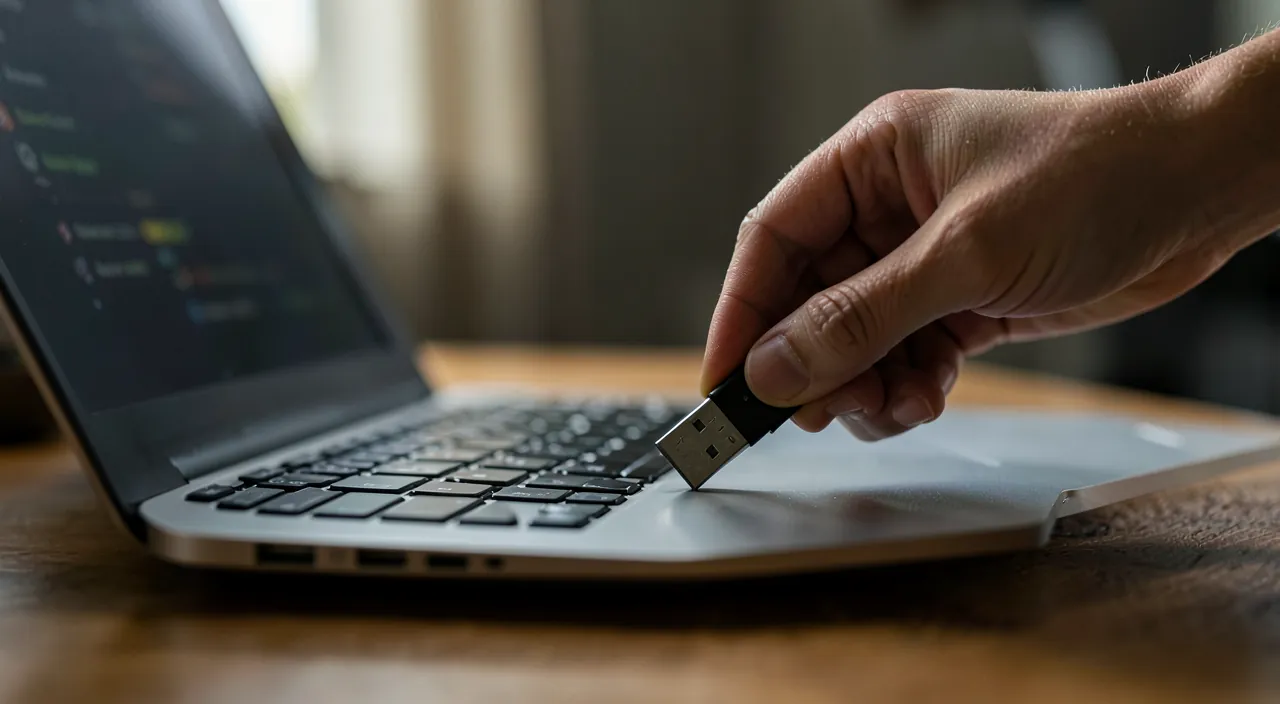
Start by ruling out obvious hardware issues. Try another USB port: a faulty port is quickly identified. Test the device on another computer to see if the problem comes from the key or the machine. Check the cable for an external drive, and make sure the device is properly inserted. These common-sense checks resolve a significant number of cases.
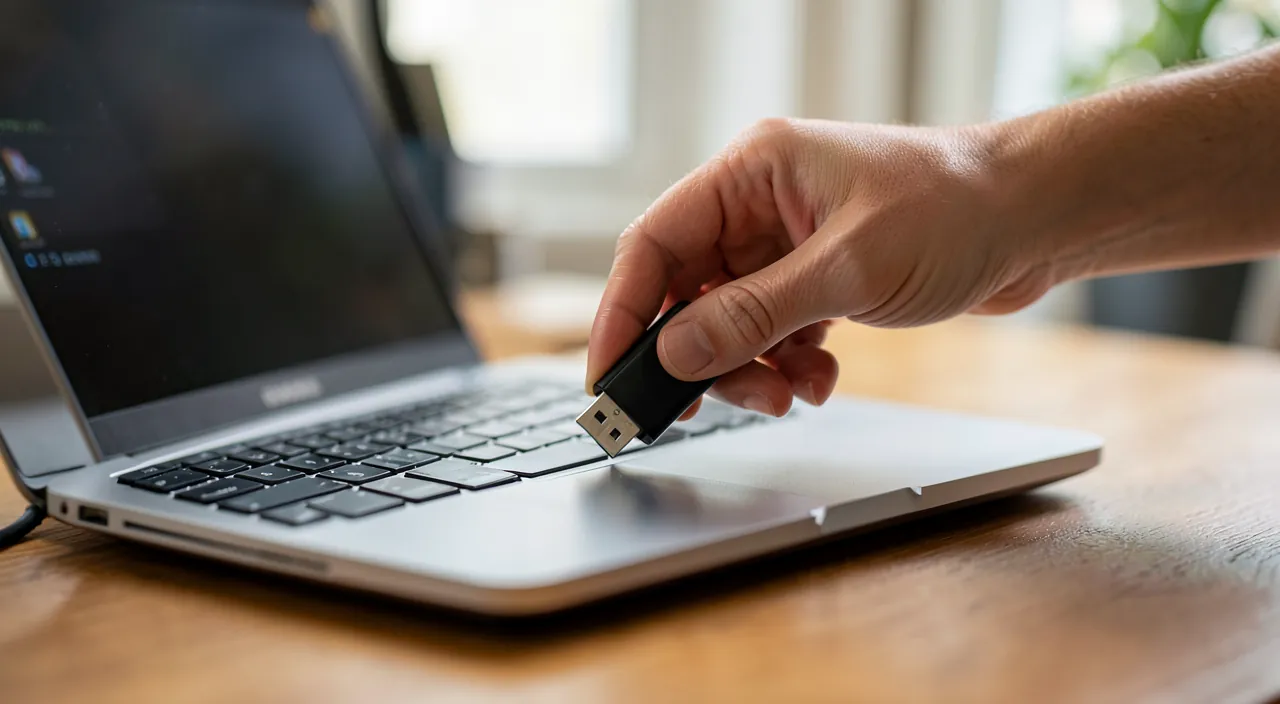
The right reflex. Always test your USB device on another computer before concluding. If it works elsewhere, the problem is with your machine (a driver, a port); if it is not recognized anywhere, the issue is with the device. This simple test immediately points the diagnosis in the right direction.
Power supply issue
Some devices, especially external hard drives, require sufficient power to function. Connected to an overloaded USB hub or a low-power port, they do not receive enough current and are not recognized. The reflex: plug the device directly into the computer, on a main port, rather than through a USB multiport. This is a common and easy-to-eliminate cause for external drives.
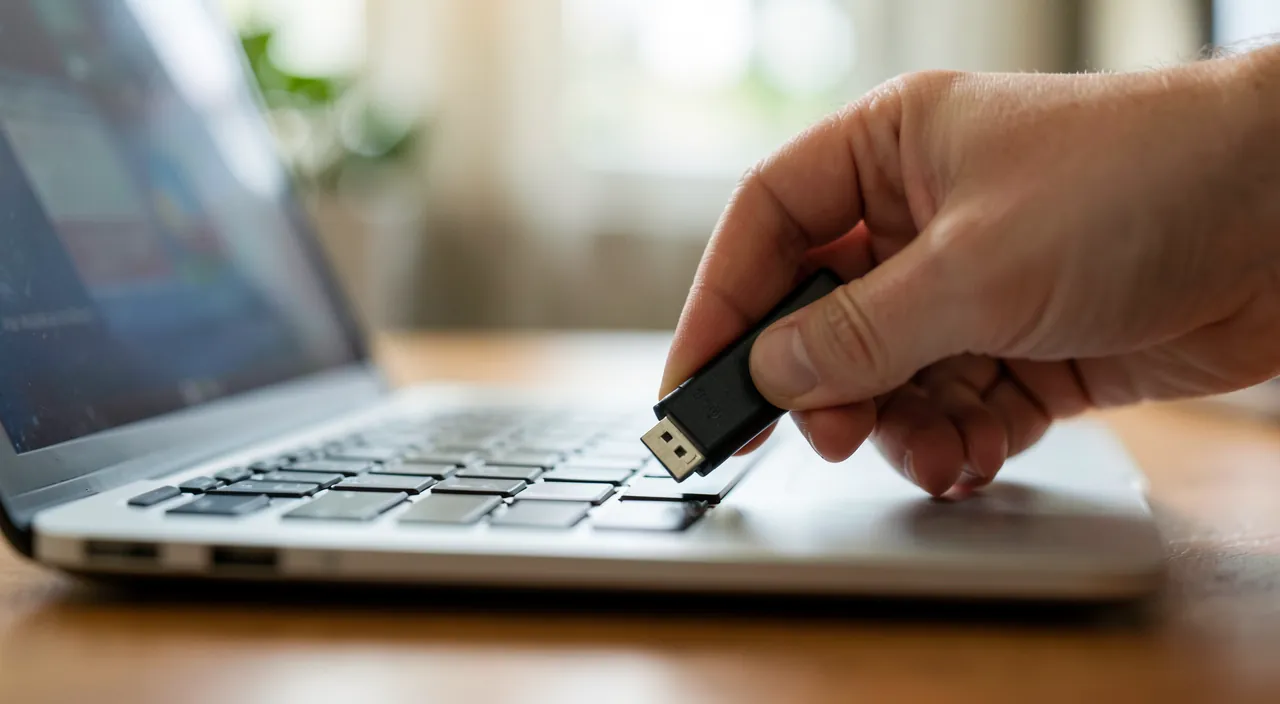
Some USB devices need more power than a standard port can provide. If your external drive isn’t working, try plugging it directly into the computer’s main USB port instead of a hub or adapter.
When the system does not detect the device
If the device remains invisible despite a proper connection, several options exist. A restart of the computer resets USB detection. A driver issue may prevent recognition: updating it helps. Sometimes the device is detected but not accessible due to a formatting or letter assignment issue, a case that is resolved in disk management settings.
You plug in a 1TB external hard drive (model: WD My Passport) into your Windows 10 PC, but it doesn’t appear in File Explorer. After restarting the computer, the drive shows up but isn’t accessible. You open Disk Management and see it listed as “Unallocated.” Assigning a drive letter (e.g., E:) makes it usable again.
Recovering your data
The main concern is about the files. In most cases, even when a device is not recognized, the data is intact: the issue is with the connection or detection, not the content. Once the device is recognized, everything is back. If the device is physically damaged and contains valuable data, do not multiply the attempts: a professional in recovery maximizes the chances of saving the content.
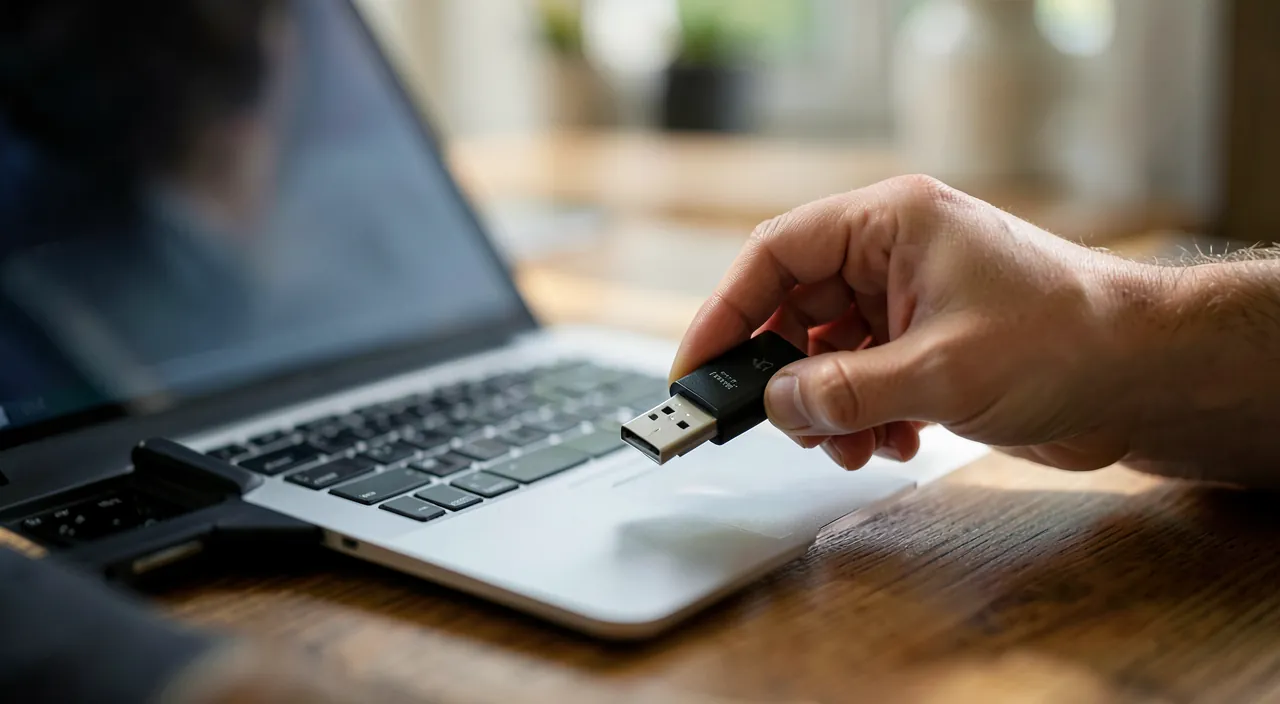
Avoid this. Never abruptly remove a USB key or an external drive while in use: this can corrupt the data, even damage the device, and cause this type of recognition issue. Always use the safe removal option before unplugging.
Understanding common error messages
The displayed message guides the diagnosis. “Device not recognized”: communication fails — port, cable, or driver; test the chain link by link. “Format the disk before using it”: be careful! The system does not read the format — common for a disk formatted for another system. Do NOT format if data matters: on the original computer, everything is probably intact. “Slow connection speed detected”: poor contact or old-generation port — change the port. Missing letter but disk visible in disk management: a letter assignment is enough. Each message is a clue, not a verdict: decoded calmly, it almost always points to the solution.
Frequent questions
My external drive is not recognized, are my data lost?
Most often no: the issue is with the connection or detection, and the data remains intact once access is restored. Do not despair before trying everything.

Should I format the device?
Be careful: formatting erases all content. Only do this as a last resort and only if you do not need the data, or after recovering it elsewhere.
My disk works on Mac but not on Windows (or vice versa): why?
A matter of file format: each system has its preferences, and some formats are only readable on one side. Universal formats exist for exchanges — if necessary, copy the data and then reformat in a format compatible with both systems.
What to remember
A USB device that is not recognized usually has a simple cause, and your data is most often intact. Proceed step by step: test another port, another computer, the cable; check the power supply (direct connection rather than overloaded hub); restart and check the driver. Most cases are resolved this way, and access to the files is restored. Above all, avoid hasty formatting and abrupt removal, sources of data loss. For a damaged device containing valuable data, entrust it to a professional rather than multiplying risky attempts.
An unreadable disk with important data?
Leave a Reply
You must be logged in to post a comment.